How to Fix Wi-Fi Dead Zones in a House, Apartment, or Rental
A dead zone is a part of your home where the Wi-Fi signal is too weak to use, and the right fix depends on what's causing it and how your home is laid out. Wi-Fi dead zones show up as slow speeds, lag, and dropped calls in one or two rooms while the rest of your home works fine. Your video call freezes in the back bedroom, or a show buffers in the basement.
Where your router sits is a common cause of dead zones, so moving it is often a good, free first step. Below, you'll learn what causes dead zones, how to spot them, and which fixes suit your home.
Key Takeaways
- A Wi-Fi dead zone is an area of your home where the signal is too weak to use reliably, while other rooms stay strong.
- Several causes often combine to create Wi-Fi dead zones, including router placement, distance, thick walls and floors, interference, and an outdated or provider-supplied router.
- Run a speed test next to your router for a baseline, then walk room to room with your phone to find where the signal drops.
- Try free fixes first, such as moving the router to a central, elevated spot, updating its firmware, and using Ethernet for devices that stay put.
- Pick hardware by layout: extenders often suit one weak room, mesh usually suits larger or multi-story homes, and powerline adapters can help behind thick walls.
What Are Wi-Fi Dead Zones?
A Wi-Fi dead zone is a specific area of your home where the signal is too weak or unstable to use reliably. The signs show up only in certain rooms:
- Slow-loading pages and apps
- Buffering while you stream
- Lag in games and video calls
- Calls that drop partway through
- Devices that disconnect and reconnect on their own
A dead zone is different from slow Internet in every room. If speeds are slow everywhere, the cause may not be the Wi-Fi signal at all. A problem with your Internet service, too many devices online at once, or an older device can each slow things down, so check those first.
If one older laptop struggles where your newer phone connects fine, the laptop is the likelier problem.
What Causes Wi-Fi Dead Spots?
Wi-Fi dead spots usually come from router placement, distance, building materials, interference, or an older router. Many homes have more than one of these causes at the same time, so the right fix depends on which ones apply to you.
- Router placement: A router in a cabinet, on the floor, or behind a TV sends less signal throughout your home. TVs absorb Wi-Fi, and metal reflects it.
- Home layout and distance: Rooms at the far end of the house or on another floor tend to get the weakest signal.
- Thick walls, floors, and building materials: Dense walls and floors absorb and block signal.
- Interference: Large appliances and metal objects can block or reflect Wi-Fi. In apartment buildings and dense neighborhoods, nearby networks can crowd your router's channels.
- An older router: A router that uses an older Wi-Fi standard can be less efficient when many devices connect at once. A single router may also not reach every room in a larger home. If dead zones persist after you move the router, the router itself may be the limit.
How to Find the Wi-Fi Dead Zones in Your Home
A simple walk-through with your phone is enough to find most Wi-Fi dead zones. You can also use a free analyzer app if you have an Android phone.
Do a Walk-Through Test
A walk-through test can help identify where dead zone Wi-Fi starts and stops, room by room.
- Connect your phone to your Wi-Fi network, stand next to the router, and run a speed test to set a baseline. Use the same phone and the same speed test in every room so the results are comparable.
- Walk through each room while staying connected to the same network.
- In each room, repeat the speed test, check your phone’s signal bars, and play a short video to see if it stays smooth. Note where speeds fall, the signal weakens, or the video stutters.
- Mark those spots on a rough floor plan.
A slow speed test alone doesn’t confirm a dead zone, since speeds also depend on your Internet service and how busy your network is. Also look for a weak signal or an unstable connection in the same spot. Test during normal household use, such as a busy evening, and run all your tests close together so the conditions stay similar.
Use a Wi-Fi Analyzer App
A free Wi-Fi analyzer app shows signal strength at each spot and can reveal crowded channels. This is mainly an Android option, since iPhone restricts third-party apps from scanning nearby networks and channels. If you have an iPhone, use the walk-through test above.
How to Fix Wi-Fi Dead Zones Without Buying Anything
Moving your router, updating it, and changing a few settings can often fix Wi-Fi dead zones for free. Many of these changes work for renters, too. If your whole home feels slow, not just one room, these ways to boost your home Wi-Fi can help.
Move Your Router to a Better Spot
Placing your router in a central, raised, open spot helps its signal spread more evenly across your home. Get it off the floor and out of closets, and keep it clear of the TV, large furniture, metal objects, and appliances. These router placement tips cover more ways to find the right spot.
If you rent and can't move your provider's gateway, the other fixes in this post still apply.
Adjust Antennas, Bands, and Router Settings
Your router’s antennas, firmware, and band settings can all change how well its signal reaches weak rooms. If your router has adjustable antennas, try a different angle and recheck the weak room. The best position varies by router and home layout, so you may need to try a few.
Firmware is the built-in software that runs your router. Check for updates in the router’s settings or app, since new versions can improve performance.
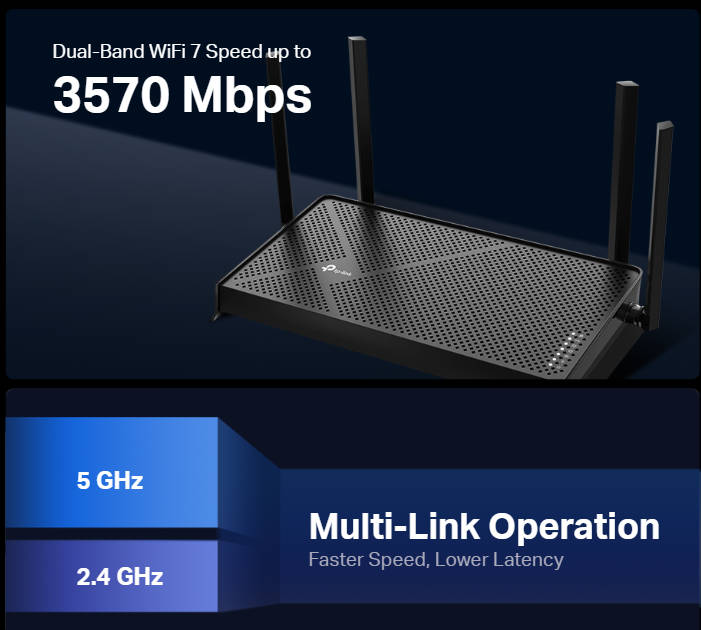
Your router sends Wi-Fi on bands, and each band trades range for speed. The 2.4 GHz band reaches farther through walls, the 5 GHz band is faster at closer range, and the 6 GHz band, available on Wi-Fi 6E and Wi-Fi 7 routers, has the shortest range.
Many routers combine the bands under one network name, so switching bands manually isn’t always an option. When you can, switching bands or channels that nearby networks share can help in crowded areas such as apartment buildings. For example, a phone in a far bedroom may hold a steadier connection on 2.4 GHz, while a laptop near the router can get more speed on 5 GHz or 6 GHz.
Clear Out Interference
Clearing the path between your router and the weak room can help your signal get through. For example, moving microwaves and baby monitors away from your router or the weak room can cut down on interference. Both can disrupt Wi-Fi when they sit near the router or the weak area, so retest that room after you move them.
Plug Fixed Devices Into Ethernet
A desktop, TV, or game console in the weak room can use an Ethernet cable instead of Wi-Fi. You'll need to run a cable to that room, and it won't help phones or tablets.
How to Fix Wi-Fi Dead Spots in a House With New Hardware
When router changes aren't enough, new hardware can extend your coverage, and each type works differently.
Range Extenders
A range extender picks up your router's signal and rebroadcasts it to a weak area. Because it uses part of its capacity to receive that signal, speeds through an extender can be lower than speeds near the router.
An extender suits a single weak room, since it plugs into an outlet. This is a solid option for renters who can't add cabling. Place it about halfway to the dead zone, where the signal is still strong. Select TP-Link range extenders include a physical signal indicator that helps you find the right spot. Placement guidance is also available through the Tether app where supported. Thick walls between the router and extender can limit results.
Mesh Wi-Fi Systems
A mesh Wi-Fi system uses several units that work together as one network. TP-Link’s Deco mesh systems can work as your router. They can also run in Access Point mode, which works alongside your existing router or gateway, so replacing your router isn’t required. Your devices hand off between units automatically as you move.
Mesh works well in larger or multi-story homes, or if you're replacing a router that struggled to reach every room. The trade-off is more units to place and set up, plus a higher initial cost than an extender.
Powerline Adapters
A pair of powerline adapters carries your connection through your home's electrical wiring, with one adapter near the router and one in the weak room. Because the connection travels through wiring, not the air, powerline suits spaces Wi-Fi struggles to reach, like rooms behind thick walls.
Powerline results can vary with your home’s wiring, circuit layout, and electrical interference, even within the same home. Older wiring, separate circuits, or a surge protector can reduce performance. Select TP-Link powerline adapters, like the TL-WPA7617 KIT, also create Wi-Fi in that room, so phones and laptops can connect there too.
Access Points
An access point connects to your router with an Ethernet cable and broadcasts its own Wi-Fi where it sits. If Ethernet already runs to the weak area, TP-Link access points are worth a look. If you'd need to add cabling, an access point is less practical.
Which Wi-Fi Dead Zone Fix Is Right for Your Home?
The right fix depends on your home's size, layout, and building materials.
- Apartments and small spaces: Wi-Fi dead zones in an apartment often respond to better router placement or a channel change. A plug-in range extender can reach a stubborn room without new cabling.
- Multi-story homes: Mesh often suits a home with several floors, helping keep the signal consistent between levels.
- Homes with dense building materials: Powerline adapters can carry a connection past thick walls if the wiring suits, while an extender may struggle.
- A single weak room far from the router: A range extender is often the practical choice. An access point is an option if Ethernet already reaches that room.
- Two or more weak areas in different parts of the home: Scattered weak spots often call for mesh, since one system can cover them under a single network name.
How the Five Fixes for Wi-Fi Dead Zones in a House Compare
The table below compares five ways to fix Wi-Fi dead zones in a house or apartment.
|
Fix |
How It Works |
Works Well When |
Keep in Mind |
|
Router changes |
Placement and setting changes improve your current signal |
You can move the router or adjust its settings |
May not be enough for far rooms in larger homes |
|
Range extender |
Picks up and rebroadcasts the router's signal |
One room or area is weak |
Speeds through it can be lower, and thick walls can limit it |
|
Mesh system |
Several units work together as one network |
The home is large, multi-story, or has several weak spots |
More units to place and a higher cost |
|
Powerline adapter |
Carries the connection through electrical wiring |
Wi-Fi struggles to reach a room, such as behind thick walls |
Results vary with wiring and circuits |
|
Access point |
Connects to the router by Ethernet and broadcasts Wi-Fi |
Ethernet already runs to the weak area |
Less practical if new cabling is needed |
Find Your Wi-Fi Dead Spot, Then Choose Your Fix
Confirm where your weak rooms are, try the free fixes, and then match hardware to your home. Re-run your walk-through test after each change to see what helped. Some homes need more than one fix, such as a better router position plus an extender for the far bedroom.
If one room is the problem, look at TP-Link range extenders. If several rooms or floors are weak, Deco mesh systems may suit your home better.
Frequently Asked Questions
How do I fix a dead zone in my house?
Try the no-cost options first. Raise the router, move it toward the middle of your home, check for new firmware, and retest. If it still lags, pick hardware for your layout, like an extender for one trouble spot or a mesh system for a bigger home.
Why are there Wi-Fi dead zones?
A dead zone appears when too little Wi-Fi signal reaches a room. Distance from the router, thick construction, and crowded channels from nearby networks can each reduce the signal. An older router can make things worse, and the causes often overlap.
How can I detect Wi-Fi dead zones?
Your phone is the easiest tool. Check your speed near the router, then carry the phone from room to room and write down where pages slow or video stutters. If your phone runs an analyzer app, it can give you a more detailed signal reading.
Can dead zones be fixed?
Yes. If the router's position is the problem, moving it or changing the settings may solve it. If the room is too far away or behind thick walls, extra hardware can extend the connection. An extender, a mesh system, a powerline kit, or an access point can each help.
How do I fix Wi-Fi dead zones in a rental?
Focus on fixes that leave the building as it is. You can reposition your own router, adjust its settings, or plug in a range extender or powerline adapter. If your provider's gateway has to stay put, a plug-in option can still reach the far rooms.