How to Set Up Mesh Wi-Fi at Home: A Beginner's Guide
You don't need a networking background to learn how to set up mesh Wi-Fi, since most of the work happens on your phone and setup is straightforward. Setting up mesh Wi-Fi involves connecting the main node to your modem, placing the other nodes, and finishing in the companion app, which guides you through each step.
If you’re still deciding whether to switch to mesh, this guide shows how to set it up before you make the investment. If you’ve already purchased a system, you’ll find helpful setup steps here. The guide walks through the parts of a mesh system, what to consider first, and where to place nodes. It then covers the setup steps, how to adjust coverage, and what to try if setup stalls.
Key Takeaways
- A home mesh network extends one Wi-Fi network throughout your home using a main node connected to your modem and satellite nodes to spread the signal.
- Larger and multi-story homes usually need more nodes, and your layout and building materials can add to that.
- Place the main node near your modem and each satellite node between the main node and the area with weak Wi-Fi when nodes connect over Wi-Fi.
- Most mesh systems are set up through a companion app that walks you through connecting, naming your network, and adding nodes.
- After setup, test your Wi-Fi room by room, then move or add a node wherever the signal is weak.
What Is a Home Mesh Network?
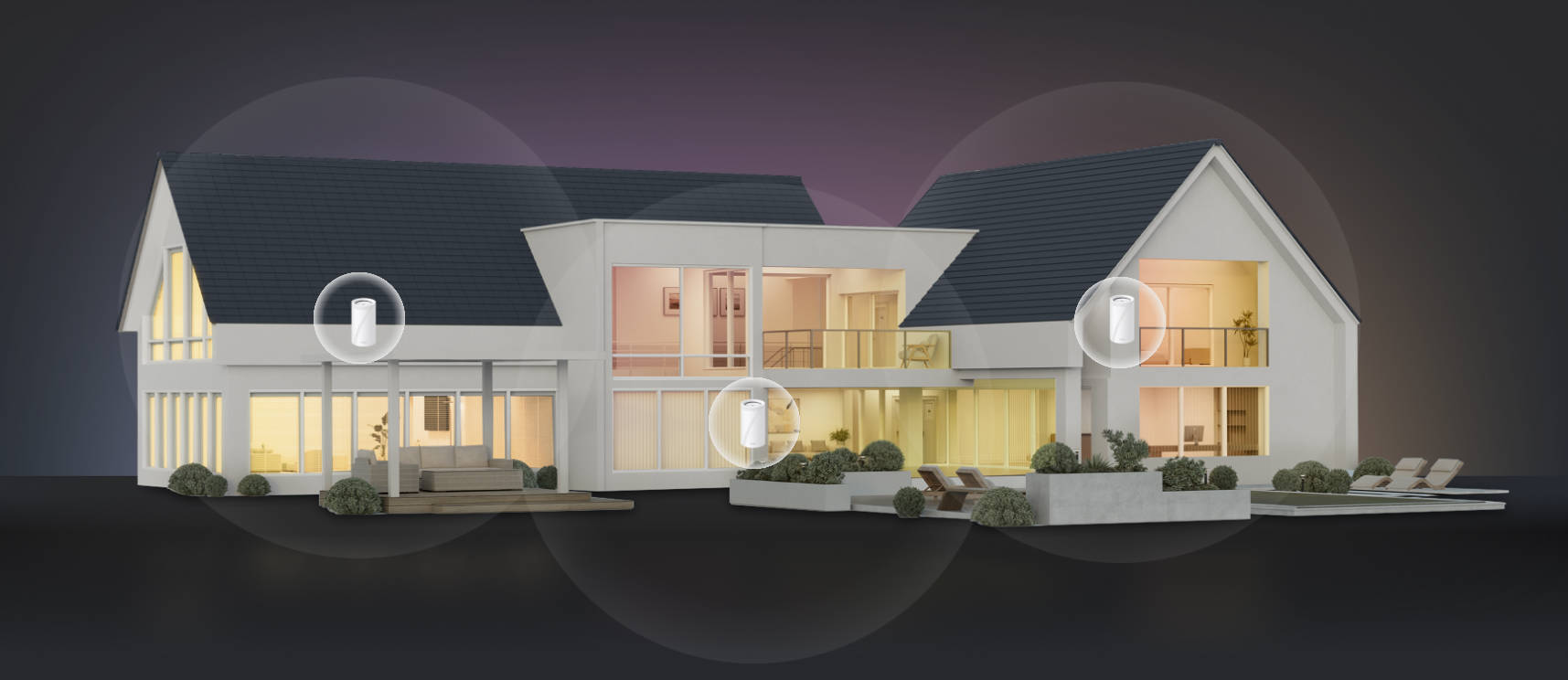
A home mesh network extends Wi-Fi coverage by placing several units around your home, instead of sending Wi-Fi from a single router. A main node connects to your modem, and satellite nodes pass its signal to rooms and floors struggling to get Wi-Fi. To see how it works, refer to the mesh Wi-Fi setup diagram below. It follows your Internet connection as it enters at the modem, reaches the main node, and continues through the satellite nodes to your phones, laptops, and other devices.
Your home mesh network will include:
- A modem or gateway from your Internet provider that brings the Internet into your home. Some providers combine the modem and router in one device, often called a gateway.
- The main node that plugs into your modem with an Ethernet cable and runs your network.
- Satellite nodes that will sit in other parts of your home and pass the signal along.
- A companion app that helps you set up the network, shows how your nodes are connected, and lets you change settings later.
All the nodes share one Wi-Fi name and password. Your phone or laptop can move between nodes as you walk around, without switching networks.
A single router sends Wi-Fi out from one spot, so the signal gets weaker the farther you are from it. Walls, floors, and distance can leave a back bedroom or a basement office with slow or dropped connections. A mesh system adds nodes between the main node and those rooms, so the signal starts closer to where you use it. In a small apartment, one router may cover everything you need, while larger or multi-story homes often benefit more from mesh.
For a closer look at the technology and how it all fits together, see how mesh Wi-Fi works.
What to Consider Before Mesh Wi-Fi Setup
A few upfront decisions make mesh Wi-Fi setup smoother. Think through these before you start:
- How big is your home, and how is it laid out? A long, single-story home spreads Wi-Fi differently than a compact two-story one. Knowing where your weak spots are tells you where nodes need to go.
- Do you have a modem or a gateway? Your provider may have given you a separate modem or a gateway that also acts as a router. A gateway changes how the mesh system connects.
- Will your nodes connect by cable or over Wi-Fi? Nodes talk to each other over a link called backhaul. Wireless backhaul uses Wi-Fi between nodes, so you don't need cables. If your home has Ethernet ports in different rooms, a wired backhaul connects nodes with cables for a faster, more stable link.
- What should you have on hand? Keep your phone, an Ethernet cable, and your provider account details nearby, since some connection types need a login from your provider.
To see how mesh fits different homes, explore TP-Link's whole-home mesh systems.
How Many Mesh Nodes Do You Need?
The number of mesh nodes you need depends on your home's size, layout, and building materials. Use these factors to estimate:
- Home size and number of floors: Larger homes need more nodes, and each extra floor usually requires its own node.
- Layout and building materials: Brick, concrete, plaster, and metal block Wi-Fi more than drywall does. A home with thick walls may need more nodes than its square footage suggests.
- Areas that need coverage: Count the places you want Wi-Fi. Areas beyond your main living space, such as a garage or an outdoor patio, may need a weather-resistant outdoor node.
Mesh systems come in different pack sizes, often with two or three nodes, and manufacturers list the estimated coverage for each pack. That figure is a starting point, since your walls and layout affect real-world range. You can also add nodes later if you find a gap.
How to Install Mesh Wi-Fi Nodes in the Right Spots
Where you place your nodes matters as much as the setup itself. These tips show how to install mesh Wi-Fi nodes where they'll help the most:
- Put the main node near the modem: Your main node connects to the modem with an Ethernet cable, so it goes wherever your modem is.
- Place satellites between the main node and weak areas: Aim for a spot partway to the room with weak Wi-Fi. A satellite placed inside the weak spot receives a weak signal, so it doesn’t have much signal to pass along.
- Keep nodes open and off the floor: Furniture or cabinets can block the signal. TP-Link recommends placing Deco units at the same height as the main unit, ideally 1 to 1.5 feet off the floor.
- Avoid sources of interference: Walls, floors, and metal objects may weaken Wi-Fi signals. Bluetooth devices, microwaves, and USB 3.0 devices can also interfere with the 2.4 GHz band.
Placement may take some trial and error. For model-specific tips, see the Deco placement guide.
How to Set Up Mesh Wi-Fi, Step by Step
Setting up mesh Wi-Fi follows the same order on most systems, starting at the modem, moving to the app, and finishing with the satellite nodes. Here's how to set up a mesh network from start to finish:
- Download the app and create an account. Install your system's app on your phone and sign in or create an account.
- Unplug your modem and connect the main node. Your modem is the box from your Internet provider where your Internet line enters your home. Unplug its power cord from the wall outlet to turn it off, then connect the main node to the modem with an Ethernet cable. In a standard pack of identical units, any unit can be the main node, so choose whichever one is easiest to place next to your modem. If you have an existing router or a provider gateway, see “Using Mesh Wi-Fi With an Existing Router” below before you unplug anything.
- Power everything on. Turn the modem back on, then plug in the main node. Many systems use a status light to show when the node is ready for setup.
- Name your network and set a password. Follow the app's prompts to choose your Internet connection type, then create your Wi-Fi name and password.
- Add the satellite nodes one at a time. Plug in each satellite and let the app add it to your network. If your home has Ethernet between rooms, you can connect a satellite to the main node by cable for a wired backhaul. Otherwise, the nodes connect over Wi-Fi.
- Test your coverage. Walk through your home with your phone and check the signal in each room, including the spots that struggled before.
The exact steps vary by system and model, so keep your system's setup guide handy as you go.
Using Mesh Wi-Fi With an Existing Router
A mesh system can work with a router or provider gateway you already have, in one of two ways. If you're figuring out how to set up mesh Wi-Fi with an existing router, the first option is to let the mesh system replace it. The mesh system then takes over as your router and runs your network. If you have a provider gateway, you may need to turn off its Wi-Fi or switch it to bridge mode. This turns off its router features, so the two devices don't compete.
The second option keeps your existing router in charge, with the mesh system adding Wi-Fi coverage in access point mode. This is how to set up a Wi-Fi mesh access point when you want to keep your current router's settings.
Steps differ by router, gateway, and mesh system, so check your system's setup guide for the exact process.
How to Optimize and Maintain Your Mesh Network
A few adjustments after setup, plus regular upkeep, can help keep your mesh coverage strong:
- Test coverage room by room: Run a speed test on your phone in each room, especially where Wi-Fi drops.
- Move a node if coverage is weak: Shift a satellite a few feet closer to the main node, or out from behind an obstacle. To help with this, the Deco app shows the signal strength between units, and TP-Link recommends at least two bars.
- Add a node for gaps: If one area stays weak after you've adjusted placement, adding a node can extend coverage there.
- Check for firmware updates: Firmware updates can add features and fix issues. Check your system's app from time to time, or turn on automatic updates if your system offers them.
For more on how mesh works, read about mesh Wi-Fi for whole-home coverage.
Troubleshooting Common Mesh Wi-Fi Setup Problems
If setup stalls, start with the node’s light, your phone’s settings, and the connection between nodes. These quick checks cover the common snags specifically on a Deco system:
- The light isn’t pulsing blue: Press the Reset button for one second, then wait about two minutes for the light to pulse blue before you continue in the app.
- The app can’t find the node: Turn off Power-Saving mode on your phone. On an iPhone, open Settings, tap Privacy & Security, tap Local Network, and switch on the Deco app.
- The “Let’s begin” button is missing: Tap the plus icon in the upper-right corner of the app, then choose Create a Network.
- A cabled connection isn’t working: Try a different Ethernet port or cable, or connect the two units directly without a switch to see whether the switch is the cause.
Steps and screens vary by model, so check your system’s support page if yours looks different.
Meet TP-Link Deco Mesh Wi-Fi
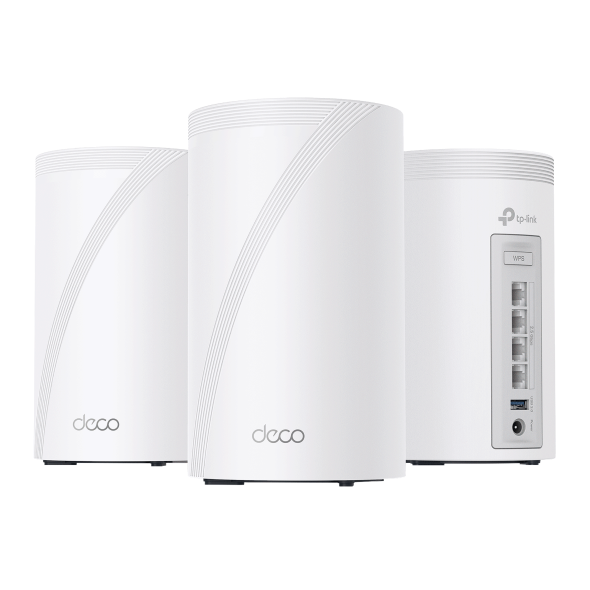
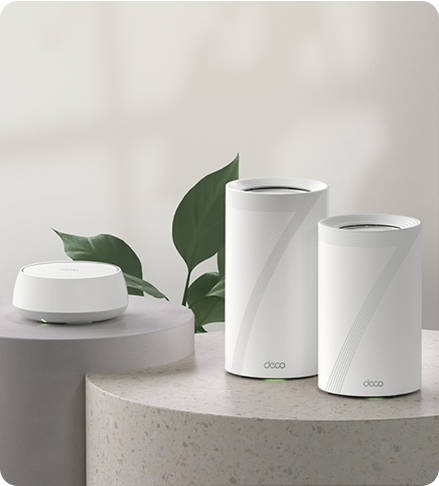
Deco is TP-Link's mesh Wi-Fi line. A Deco system includes a main unit and one or more satellite units, depending on the pack you choose.
You set up Deco mesh Wi-Fi entirely in the Deco app for Android and iOS. The app walks you through connecting the main unit to your modem, choosing your connection type, and creating your Wi-Fi name and password. On Wi-Fi 6 and newer Deco models, extra units from the same pack join the network within about two minutes of powering on. During placement, the app can also guide you based on your home's layout and number of floors.
Features vary by model and software version. For the full walkthrough, see the Deco setup guide.
Plan, Place, and Test Your Mesh Network
A smooth mesh setup starts with planning your coverage, then placing your nodes well and finishing the setup in the app. Once you're connected, test each room and make small adjustments to get the coverage you want.
When you're ready to choose a system, the Deco mesh Wi-Fi lineup is a good place to start.
Frequently Asked Questions
Can I add mesh Wi-Fi to an existing router?
Yes, in most cases. The mesh system can become your new router, or it can run in access point mode alongside your existing router. Your mesh system's setup guide lists which options it supports.
Can you use mesh Wi-Fi as an access point?
Many mesh systems, including TP-Link Deco, offer an access point mode. In that mode, your existing router keeps handling your network settings, and the mesh nodes focus on spreading Wi-Fi through your home.
Will mesh Wi-Fi go through walls?
Yes, Wi-Fi signals pass through walls, though each one they cross reduces strength. Thick materials like brick, concrete, and metal cut the signal the most, so place nodes where fewer of them stand in the way.
How many mesh nodes do I need?
It depends on your space. A small, open home may do well with two nodes, while a large or multi-story home often needs three or more. You can start with one pack and add a node later if a room still has weak Wi-Fi.
Where should I place my mesh nodes?
Start with the main node beside your modem. Each satellite works best about halfway between the main node and a room with weak Wi-Fi, out in the open and clear of microwaves, metal furniture, and other electronics.
What are the downsides of mesh Wi-Fi?
A mesh system usually costs more than a single router, and you'll need outlets for each node. A wireless link between nodes is also less stable and slower than a wired one. If your home has Ethernet, a wired backhaul can help.
_US_1.0_F_normal_20231213092414n.png)