Wi-Fi Connected, But Still No Internet? Complete Fix Guide
You've got full Wi-Fi bars. Everything looks fine. But nothing loads, and you have no idea why.
Seeing "connected, no Internet" on your device is frustrating, and it's one of the most common home network issues. The good news: it's usually fixable in a few minutes, and you'll likely find your solution in the first step or two.
Key Takeaways
- Your device showing "connected" doesn't mean the Internet is working. It just means it's reached your router. The break is somewhere further up the chain.
- A router and modem restart usually clears these issues quickly and should be your first step.
- If only one device has no Internet, the issue is likely with that device's settings, not your router.
- If all your devices are affected, the issue is likely with your router, modem, or Internet service provider (ISP).
- If there's an ISP outage, there's nothing on your end to fix. Check your provider's status page before troubleshooting anything else.
What Does “Wi-Fi Connected Without Internet” Mean?
Your device being "connected to Wi-Fi" just means it's connected to your router. It doesn't mean the Internet is actually working. These are two separate things, and understanding the difference makes troubleshooting a lot easier.
Think of it like a road system. Wi-Fi is the road inside your neighborhood, and your device can move freely on it. The Internet is the highway. If the on-ramp is blocked, you're not going anywhere, even though the local road is perfectly fine.
Here's the chain: your device connects to your router, your router connects to your modem, and your modem connects to your ISP. Your ISP is what actually gets you to the Internet. The "connected without internet" message means the break is somewhere in that second half of the chain, not between your device and your router.
Common Causes
Before you start fixing things, it helps to know what you're likely dealing with. Here's what's usually behind it:
- ISP outage. Your Internet service provider is having issues on their end. Nothing on your end will change that; you'll just need to wait it out.
- The router or modem needs a restart. This is the most common cause by far. Temporary glitches build up over time, and turning the equipment off and back on clears them.
- Loose or damaged cable. A cable that isn't firmly seated can drop the connection without any obvious sign.
- A problem with one device's settings. A misconfigured DNS setting, an IP address conflict, or an outdated network driver on a single device can cause this, especially if only one device is affected.
- Router firmware or hardware issue. Less common, but an outdated or aging router can cause persistent problems that are hard to pin down.
Start with the simplest fix first. Most people find their solution in the first step or two.
Quick Fixes (Start Here)
These take under five minutes and resolve most cases. Try them in order and stop as soon as one works.
Check for an ISP Outage
Before you spend time troubleshooting your own equipment, make sure the problem isn't on your ISP's end. Use your phone's mobile data to check your provider's status page, or visit Downdetector to see if others in your area are reporting the same issue.
If there's an outage, there's likely nothing on your end to fix. You'll just need to wait for your provider to resolve it.
Restart Your Router and Modem
This single step solves the problem most of the time. Here's how to do it:
- Unplug your modem from the power outlet first.
- Wait 30 to 60 seconds.
- Plug the modem back in and wait for its lights to stabilize. This usually takes about a minute.
- Restart your router the same way: unplug, wait 30 seconds, plug back in.
- Wait for the router to fully reconnect before testing your Internet.
Restarting clears temporary glitches that build up in the router's memory, refreshes the connection to your ISP, and resets any corrupted settings, without changing anything permanently.
Check Your Cables
A loose cable is a surprisingly common and easy-to-miss cause. Check that all of these are firmly connected:
- The Ethernet cable between your modem and router
- The coaxial or phone line going into the modem
- Power cords for both the modem and router
Unplug each one fully and plug it back in firmly. If a cable looks damaged or worn, replacing it is worth trying before moving on.
Troubleshooting Steps (If Quick Fixes Don't Work)
If restarting your equipment and checking the cables didn't solve it, the next step is to narrow down where the problem is. The steps below will help you work through it.
Is It One Device or All Devices?
This is the most useful question to answer first. Your answer points you straight to the right fix.
If all your devices show no Internet, the issue is likely with your router, modem, or ISP. Skip the device-specific steps and continue to the router-level fixes.
If only one device has no Internet and your phone, tablet, or other devices are working fine on the same Wi-Fi network, it's likely a settings issue on that specific device. Start with the next few steps.
Restart Your Device
It sounds too simple, but a full restart clears stored network settings and prompts a fresh connection to your router. It works on laptops, phones, and tablets, and resolves a surprising number of single-device issues on its own.
Forget and Rejoin the Wi-Fi Network
Corrupted connection data on your device can cause a persistent "no Internet" status even when the rest of your network seems fine. Forgetting the network and reconnecting from scratch clears it out.
Here's how on common devices:
Windows: Go to Settings → Network and Internet → Wi-Fi → Manage known networks. Select your network and click Forget. Then reconnect from the Wi-Fi list and enter your password.
Mac: Go to System Preferences → Network → Wi-Fi → Advanced. Find your network in the list, click the minus button to remove it, then click OK and reconnect.
iPhone: Go to Settings → Wi-Fi. Tap the information icon next to your network and tap Forget This Network. Reconnect from the Wi-Fi list.
Android: Go to Settings → Network and Internet → Wi-Fi. Long-press your network name and select Forget. Reconnect from the Wi-Fi list.
Check DNS Settings
Domain Name System (DNS) is what translates website names, like google.com, into addresses your device can find. A misconfigured DNS can leave your device stuck, showing as connected but unable to load anything, even when your router and ISP are working fine.
The simplest fix is to set your DNS to automatic, which lets your router handle it. If that doesn't work, switching to Google's public DNS (8.8.8.8) is a reliable alternative.
Windows: Go to Settings → Network and Internet → Change adapter options. Right-click your Wi-Fi connection, select Properties, then Internet Protocol Version 4 (TCP/IPv4), then Properties again. Select "Obtain DNS server address automatically," or enter 8.8.8.8 as the preferred DNS.
Mac: Go to System Preferences → Network → Wi-Fi → Advanced → DNS. Remove any existing entries and add 8.8.8.8.
iPhone/Android: These typically inherit DNS from the router. If you'd like to set it manually, look under Wi-Fi settings → your network → DNS.
Renew Your IP Address
An IP address conflict happens when two devices on your network get assigned the same address by mistake. This can prevent either device from connecting properly. Renewing your IP address tells your router to assign your device a fresh, unique one.
Windows:
- Press the Windows key, type "cmd," and open Command Prompt.
- Type ipconfig /release and press Enter.
- Type ipconfig /renew and press Enter.
- Wait for the process to finish, then test your connection.
Mac:
- Go to System Preferences → Network.
- Select Wi-Fi on the left, then click Advanced.
- Go to the TCP/IP tab and click Renew DHCP Lease.
Advanced Fixes (Last Resort)
If you've worked through everything above and still have no Internet, these deeper fixes are worth trying.
Update Network Drivers (Windows)
A driver is a small piece of software that helps your operating system communicate with a hardware component, in this case, your network adapter. Outdated drivers can cause random connectivity failures, including "connected but no Internet."
- Press the Windows key, right-click the Start button, and select Device Manager.
- Expand the Network Adapters section.
- Right-click your Wi-Fi adapter and select Update driver.
- Choose "Search automatically for drivers" and follow the prompts.
- Restart your computer once the update is complete.
Reset Network Settings
A network settings reset returns your network configuration to the default. It clears stubborn settings problems that are hard to track down manually. You'll need to re-enter your Wi-Fi password after doing this.
Windows: Go to Settings → Network and Internet → scroll to the bottom → Network reset → Reset now.
Mac: Go to System Preferences → Network. Select the Wi-Fi interface on the left, click the minus button to remove it, then click the plus button to add it back. Apply the changes and reconnect to your network.
Factory Reset Your Router
This is the last resort for persistent router-level issues. A factory reset erases your custom settings (your Wi-Fi name, password, and any configurations you've set up) and restores the router to its original out-of-box state.
On most routers, there's a small pinhole reset button on the back or bottom of the device. Use a pin or paperclip to hold the button down for 30 seconds, then release it and wait for the router to reboot fully. After the reset, you'll set everything up again from scratch using the router's app or admin panel.
Simple Wi-Fi Troubleshooting Habits That Prevent Most Wi-Fi Issues
A few easy routines go a long way toward keeping your connection stable.
- Restart your router once a month. Set a phone reminder if it helps. It takes two minutes and prevents many issues from building up.
- Keep your router's firmware up to date. Check for updates every few months in your router's app or admin panel. Updates fix bugs and improve reliability.
- Place your router centrally. Keep it away from walls, microwaves, and other electronic devices that can cause interference. A central spot in your home gives you more even coverage.
- Consider upgrading if your router is more than 4 or 5 years old. Older routers weren't built for the number of devices most households have today, and they don't support the newer Wi-Fi standards that make a real difference in performance.
For more on getting the most out of your home network, see 10 ways to boost your home Wi-Fi for faster Internet.
Is It Your Router?
If you've made it through all the fixes and preventative measures above, but the problem keeps coming back, the router itself is likely the root cause, not a one-time glitch.
Here are the signs that point to the hardware:
- The issue comes back regularly, not just once
- Multiple devices have slow or unreliable connections, not just one
- Your router is more than 4 to 5 years old
- Restarting the router fixes things temporarily, but the problem returns
- Wi-Fi signal doesn't reach all areas of your home
If several of those apply, it's time to think past troubleshooting.
Could It Be Time for a New Router?
A new router won't just fix the current issue. It's a longer-term upgrade built for the way people use the Internet now, with more devices online at once and more demand for consistent coverage throughout the home.
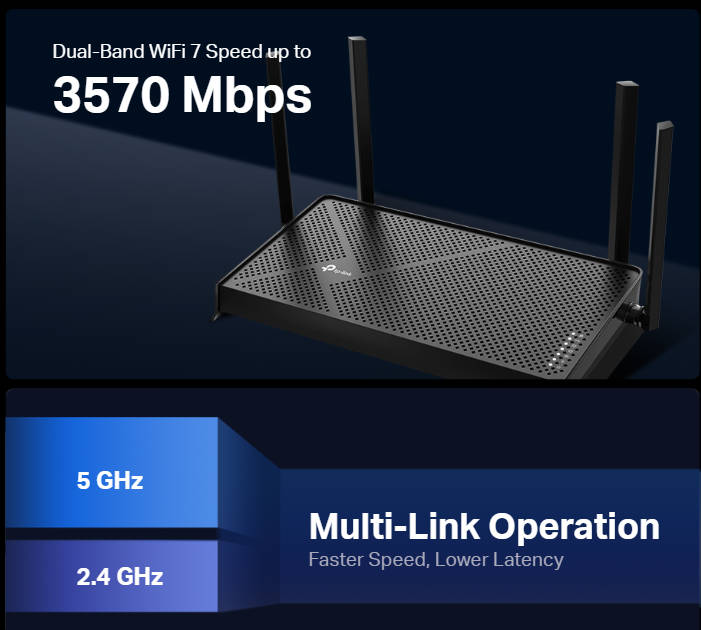
Newer Wi-Fi standards like Wi-Fi 6 and Wi-Fi 7 can deliver better range, greater capacity for connected devices, and more consistent performance throughout your home. They're designed to handle households running laptops, phones, tablets, smart TVs, smart home devices, and gaming consoles all at once.
The TP-Link Wi-Fi router buying guide can help you find the right router for your setup.
Get Connected and Stay Connected
If your device shows as connected but has no Internet, a router restart usually fixes it. If that doesn't work, check whether it's one device or all of them. Then work through the steps: forget and rejoin the network, check your DNS settings, and renew your IP address. If nothing works, call your ISP before going further.
If you’re experiencing recurring issues, a router upgrade is likely the longer-term fix. Explore TP-Link Wi-Fi routers for modern options built for today's connected households.
Frequently Asked Questions
Why is my Wi-Fi connected, but no Internet?
Your device has joined your local Wi-Fi network, but there's a break somewhere between your router and the Internet. Among the most common causes are a router or modem that needs a restart, an active ISP outage, or a settings issue on the device, like a misconfigured DNS or an IP address conflict.
What does "connected without Internet" mean?
It means your device can see and join your local Wi-Fi network, but it can't reach the Internet. Think of it this way: your Wi-Fi connection links your device to your router, and your router connects to the Internet. If anything breaks in that second half of the chain, your device shows as connected but can't load anything.
How do I fix connected to Wi-Fi but no Internet?
Start by restarting your router and modem: unplug both, wait 30 to 60 seconds, then plug the modem back in first, followed by the router. If that doesn't work, check for an ISP outage using your phone's mobile data. If only one device is affected, try restarting it, forgetting and rejoining the Wi-Fi network, or checking the DNS settings on that device.
Why does my phone say connected to Wi-Fi but no Internet?
If your phone shows no Internet while other devices on the same Wi-Fi are working fine, the issue is likely with your phone's settings. Try restarting it, forgetting and rejoining the Wi-Fi network, or setting DNS to automatic under your Wi-Fi settings. If your other devices are also affected, the problem is probably with your router, modem, or ISP rather than the phone.
Why does my laptop say connected to Wi-Fi but no Internet?
If other devices are online and only the laptop is affected, the issue is usually a device-level settings problem. Try restarting it, forgetting and rejoining the Wi-Fi network, or renewing your IP address. On Windows, it's also worth checking for outdated network adapter drivers in Device Manager. If none of your devices can connect, the issue is more likely with the router or ISP