
Tapo Camera SD Card Installation and Format Guide
This guide explains how to correctly install and format a Tapo camera SD card (sold separately) for different camera types, including standard security cameras, Pan and Tilt cameras, outdoor cameras, and battery-powered devices that work with a hub. An SD card enables local storage, allowing your camera to record and save footage directly to the card without relying on cloud storage. Installing the SD card means physically inserting it into the camera or hub's SD card slot. Formatting prepares the card for use by configuring it to the correct file system and erases all existing data in the process. Following these instructions will help ensure proper installation and reliable local video storage.
Key Takeaways
- A Tapo camera SD card (sold separately) must be installed directly into your Tapo camera, or into the hub for cameras and doorbells without an SD card slot and connect via a hub.
- This guide covers four camera types for installation: standard security cameras, Pan and Tilt cameras, outdoor cameras, and hub-connected battery-powered devices.
- When inserting the SD card, ensure it is correctly oriented and push it in until you hear a click. Do not force it.
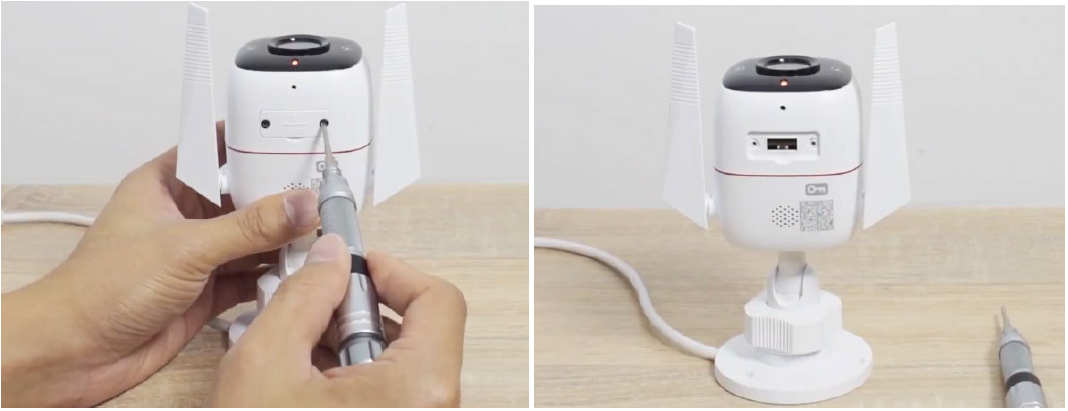
- For outdoor cameras, loosen the back panel screws to access the SD card slot, and ensure the cover is reinstalled correctly to prevent water ingress.
- To format the SD card for your Tapo camera, open the Tapo app and go to Camera Settings, tap Storage and Recordings > Local Storage. Formatting erases all existing data, so back up any important files first.
Requirements
- A compatible microSD card with Tapo cameras.
- A screwdriver is required for installing an SD card in outdoor cameras.
How to Install Your SD Card on Tapo Camera
Note: When inserting your Tapo camera SD card, ensure it is oriented correctly. Do NOT insert at an angle or use force. If you are unable to insert the card properly, check the direction of the card slot and avoid forcing it in.
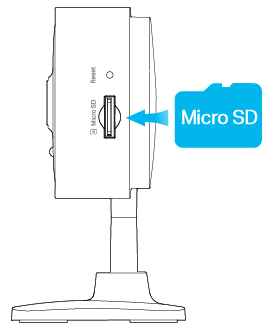
Case 1: For Standard Security Camera
Step 1. Find the SD card slot on the side panel.
Step 2. Holding the card in the correct orientation, carefully insert the SD card into the slot. Push in the SD card until you hear a clicking sound.
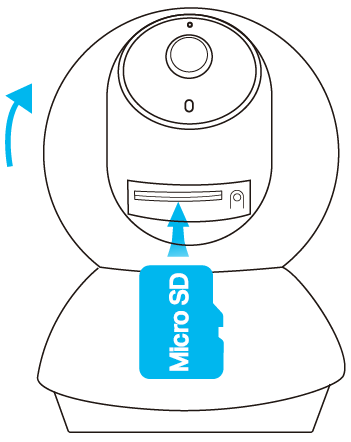
Case 2: For Pan&Tilt Security Camera
Step 1. Tilt the camera lens up, then locate the SD card slot.
Step 2. Holding the card in the correct orientation, carefully insert the SD card into the slot. Push in the SD card until you hear a clicking sound.
Case 3: For Outdoor Security Camera
Step 1. Loosen the screws on the back panel, remove the cover, and you’ll find the SD card slot.
Step 2. Holding the card in the correct orientation, carefully insert the SD card into the slot. Push in the SD card until you hear a clicking sound.
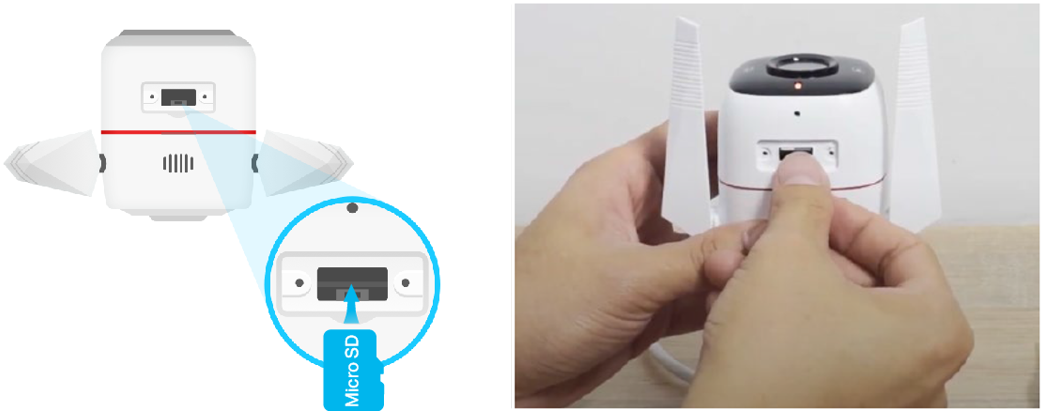
Step 3. Reinstall the SD card cover and ensure it is positioned correctly. Do not install it in the reverse direction to avoid water ingress.
Case 4: For battery-powered cameras and doorbells that work with the hub
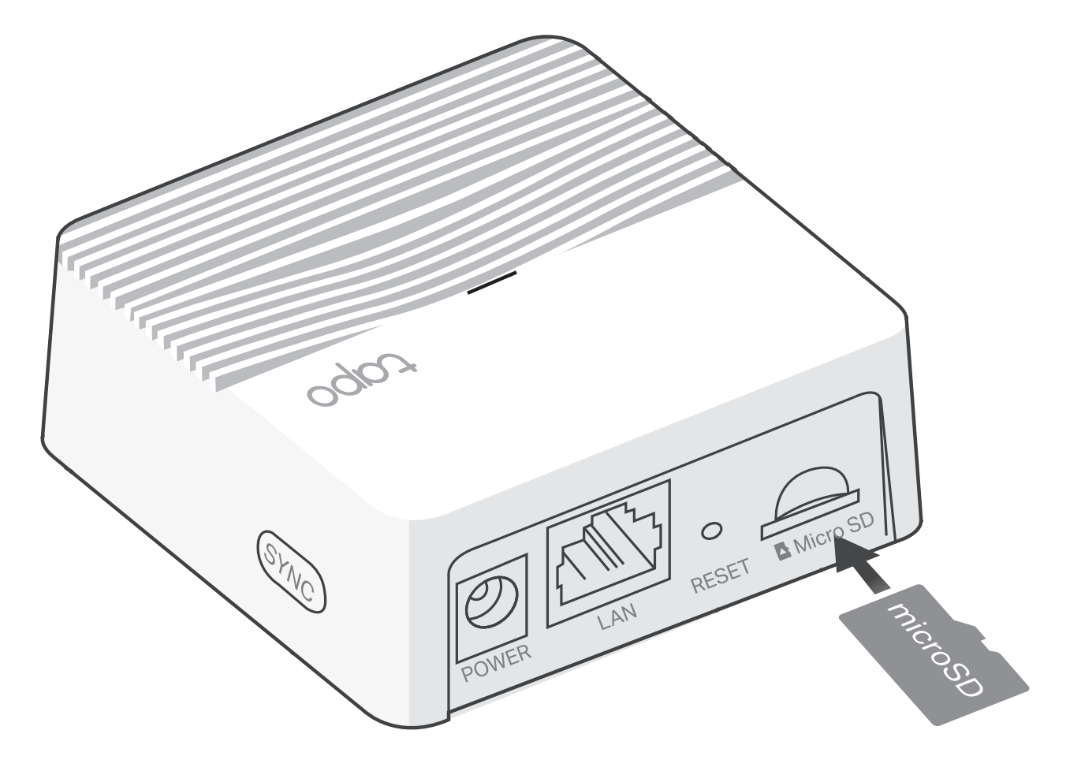
For cameras connected to a hub, the microSD card must be installed in the hub.
The microSD card slot is on the back of the hub. Hold the card in the correct orientation, carefully insert the SD card into the slot, and push it in until you hear a clicking sound.
How to Format Your SD Card via Tapo App
When you insert a microSD card (sold separately) into a Tapo camera or Tapo hub, the app will prompt you to format it for video recording. Formatting ensures compatibility but will erase all existing data, so be sure to back up important files in advance. The formatting steps may vary slightly depending on where the microSD card is installed. Follow the appropriate instructions below.
Case 1. To format a microSD card inserted into the Tapo camera
Step 1. Open the Tapo app and tap your camera device card.
Step 2. Tap the gear icon in the top-right corner to open Device Settings.
Step 3. Go to Storage & Recordings > Local Storage.
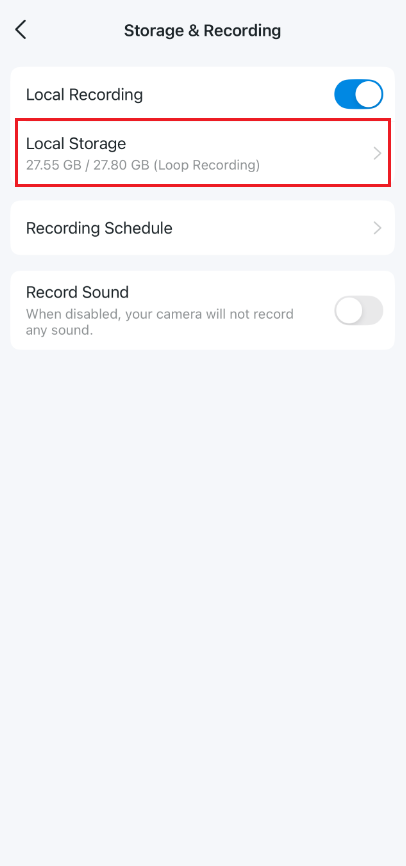
Step 4. Tap Format microSD Card.
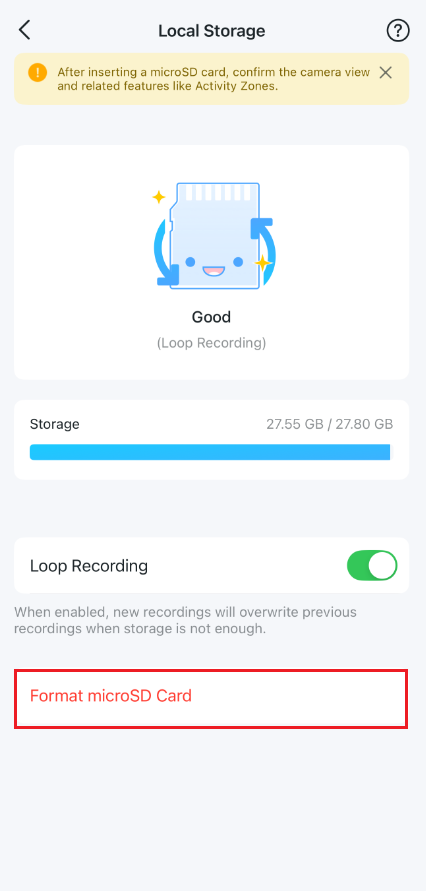
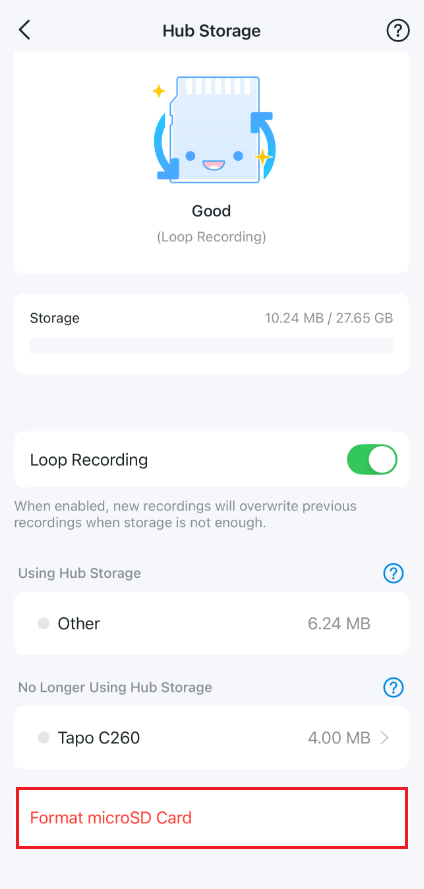
Case 2. To format a microSD card inserted into the Tapo hub
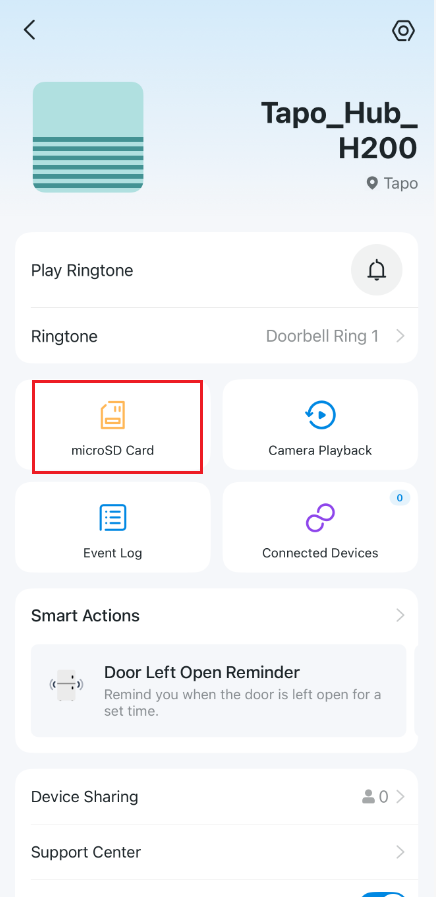
Step 1. Open the Tapo app and tap your hub device card.
Step 2. Navigate to the microSD Card page, then tap Format microSD Card at the bottom of the page.
Get to know more details of each function and configuration. Please go to Download Center to download the manual for your product.
Looking for More
Is this faq useful?
Your feedback helps improve this site.


TP-Link Community
Still need help? Search for answers, ask questions, and get help from TP-Link experts and other users around the world.