
How to Find the MAC Address of Your TP-Link Router: Web Interface and Label Methods
There are two ways to find the TP-Link MAC address of your router: through the web-based management interface, or directly from the label on the bottom of the device. You may need the router MAC address for MAC filtering, network identification, or registration with your Internet service provider. This page covers both methods.
Key Takeaways
- Every TP-Link router has a MAC address printed on the label on the bottom of the device. This is the quickest way to find it without logging in.
- You can also find the MAC address by logging in to the router's web management interface at 192.168.0.1, navigating to the Status page, and checking the LAN section.
- The default login username and password for the web management interface are both "admin."
Method 1: Find the MAC Address via the Web Interface
Step 1. Connected your device to the router, then open a web browser, type the router's IP address (default: 192.168.0.1) into the address bar, and press Enter.
Step 2. On the login page, enter the username and password. The default username and password are both admin.
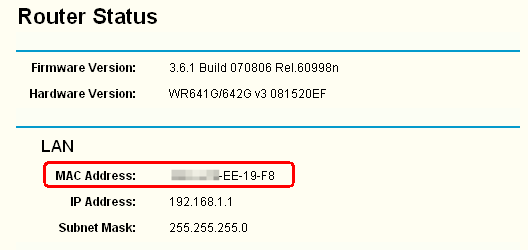
Step 3. Click Status in the left menu — the MAC address is listed under the LAN section.
Method 2: Find the MAC Address from the Router Label
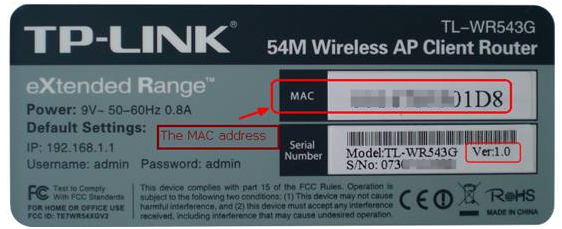
Turn the router over — the MAC address is printed on the label on the bottom of the device.
Looking for More
Is this faq useful?
Your feedback helps improve this site.

TP-Link Community
Still need help? Search for answers, ask questions, and get help from TP-Link experts and other users around the world.