
Table of Contents
Wi-Fi Router User Guide (For Web)
About This Guide
This guide introduces each function of your device and demonstrates how to configure them.
When using this guide, please notice that features of the device may vary slightly depending on the model and software version you have, and on your location, language, and internet service provider. Because each device model supports different frequency bands (2.4GHz, 5GHz, 6GHz), the settings you can configure will also vary. If your device does not support a particular frequency band, the corresponding configuration options will not be available in the web interface. The page layout may also differ. Please refer to the actual interface. All screenshots, images, parameters and descriptions documented in this guide are used for demonstration only.
Conventions
In this guide the following conventions are used:
|
Convention |
Description |
|---|---|
|
Underline |
Underlined words or phrases are hyperlinks. You can click to redirect to a website or a specific section. |
|
Bold |
Contents to be emphasized and texts on the web page are in bold, including the menus, items, buttons and so on. |
|
> |
The menu structures to show the path to load the corresponding page. For example, Settings > System Tools > Firmware Upgrade means the Firmware Upgrade page is under the System Tools menu that is located in the Settings tab. |
|
Note: |
Ignoring this type of note might result in a malfunction or damage to the device. |
|
Tip: |
Indicates important information that helps you make better use of your device. |
More Info
The latest software, management app and utility can be found at Download Center at https://www.tp-link.com/support/download.
The Quick Installation Guide can be found where you find this guide or inside the package.
Specifications can be found on the product page at https://www.tp-link.com.
TP-Link Community is provided for you to discuss our products and share knowledge at https://community.tp-link.com.
Our Technical Support contact information can be found at the Contact Technical Support page at https://www.tp-link.com/support.
Log In to the Router
This chapter introduces how to log in to the Web-based Utility of the router.
With the Web-based Utility, it is easy to configure and manage the router. The Web-based Utility can be used on any Windows, Macintosh or UNIX OS with a web browser, such as Microsoft the Internet Explorer, Mozilla Firefox or Apple Safari.
Follow the steps below to log in to your router.
1 Set up the TCP/IP Protocol in Obtain an IP address automatically mode on your computer.
2 Visit http://tplinkwifi.net, and log in with the password you set for the router.

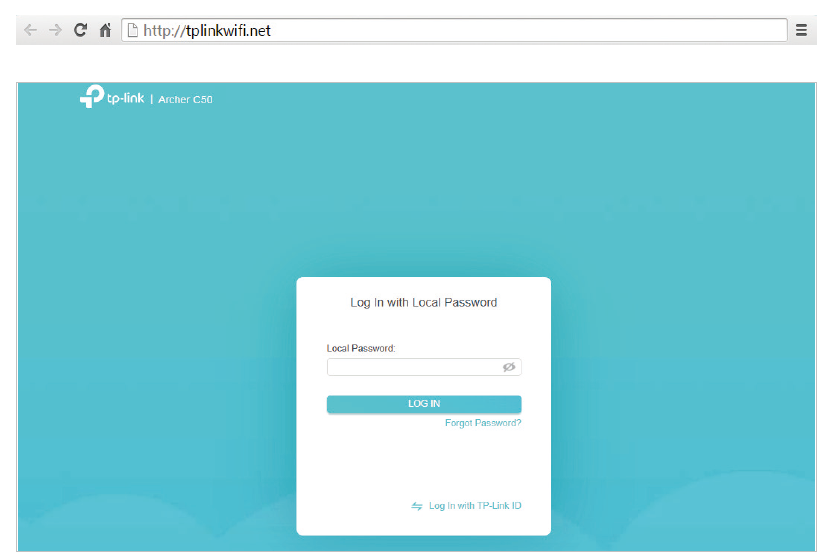
Note: If the login window does not appear, please refer to the FAQ section.
Configure the Router in Wireless Router Mode
This chapter presents how to configure the various features of the router working as a wireless router.
It contains the following sections:
- Network Map
- Operation Mode
- Network
- TP-Link Cloud Service
- EasyMesh with Seamless Roaming
- Wireless Settings
- NAT Forwarding
- Parental Controls
- QoS
- Network Security
- IPv6
- Smart Life Assistant
- Manage the Router
Network Map
Network Map outlines device connectivity of your network visually and helps you manage general settings of the network.
1 Visit http://tplinkwifi.net, and log in with your TP-Link ID or the password you set for the router.
2 Go to Network Map.
3 Click each network device icon to check and manage general network settings.
Click Internet to check internet status.
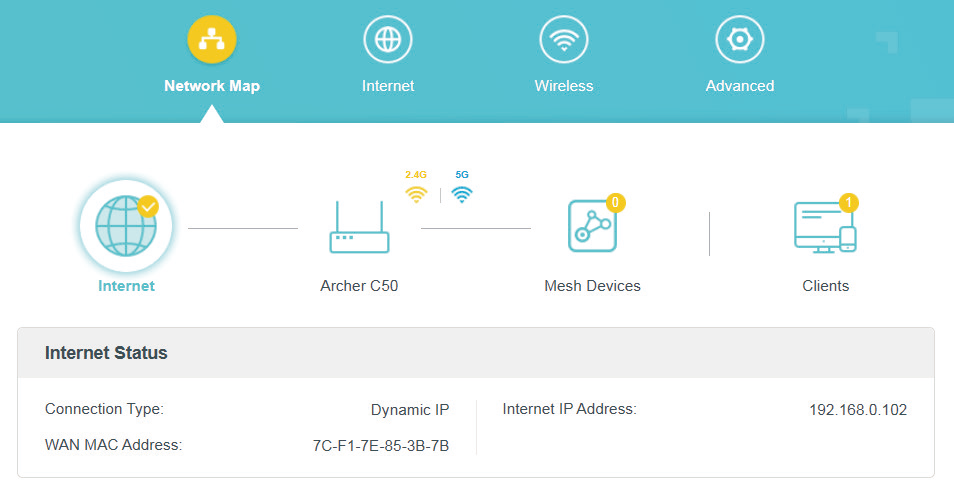
Click the router to check device status and network settings. You can turn on or off the wireless network or guest network, or click Edit to change related settings.
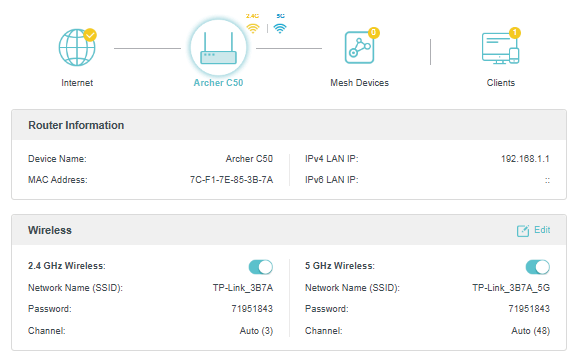
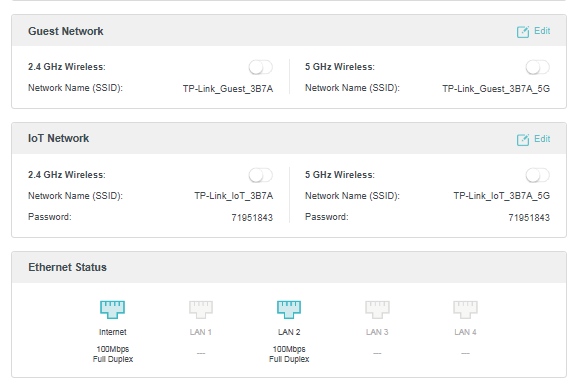
Click Mesh Devices to view the devices that form a mesh network with the router.

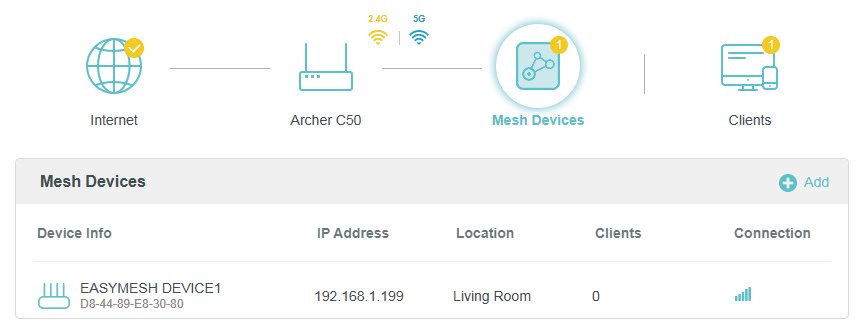
Click Clients to view the client devices in your network. You can block devices so they cannot access your network, or set Speed Limit to limit their upload and download speeds.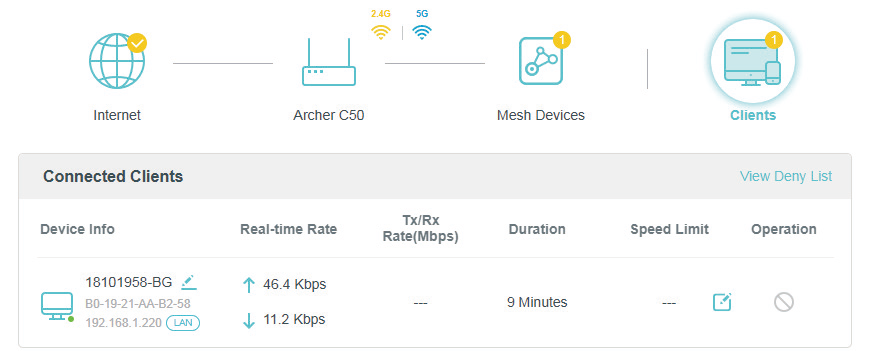
To limit the speeds of a device:
- Click the Edit icon
 in the Speed Limit column.
 - Enable Speed Limit.
- Set the download and upload speed limit according to your needs.

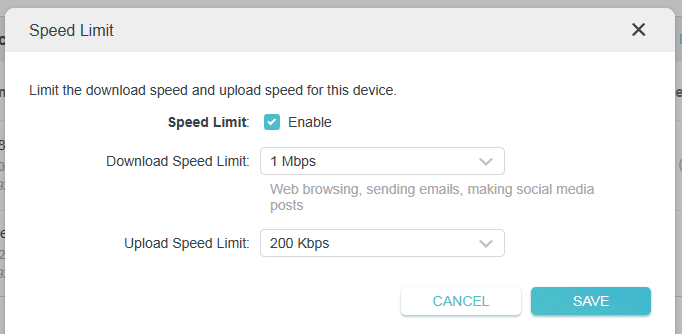
- Click SAVE. The speeds of the device will be limited.
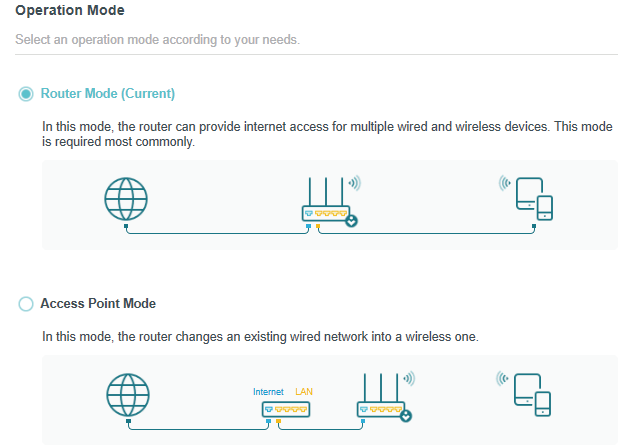
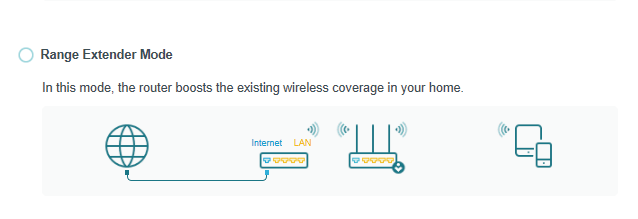
Operation Mode
- Visit http://tplinkwifi.net, and log in with the password you set for the router.
- Go to Advanced > Operation Mode.
- Select the working mode as needed and click SAVE.

Network
This chapter guides you on how to configure advanced network features.
Status
You can view the current status information of the router.
1 Visit http://tplinkwifi.net, and log in with your TP-Link ID or the password you set for the router.
2 Go to Advanced > Network > Status.

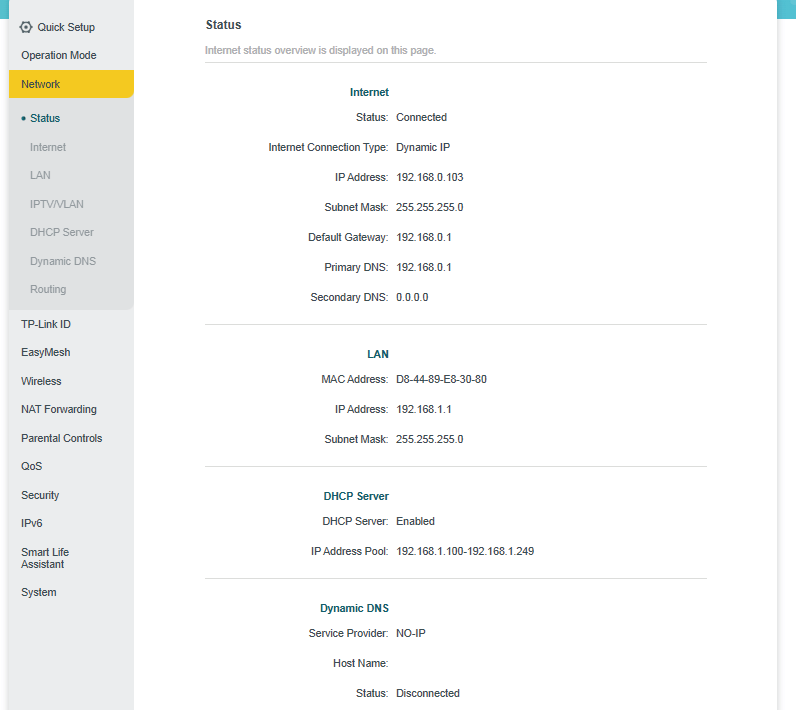
- Internet - This field displays the current settings of the WAN, and you can configure them on the Advanced > Network > Internet page.
- Status - The current status of the WAN port. It indicates whether the WAN port is connected and whether it can access the internet.
- Internet Connection Type - It indicates the current connection type of your router to establish internet connection.
- IP Address - The current WAN (Internet) IP Address.
- Subnet Mask - The subnet mask associated with the WAN IP Address.
- Default Gateway - The Gateway currently used is shown here.
- DNS - The IP addresses of the primary and secondary DNS (Domain Name System) server.
- The IP Address, Subnet Mask, Default Gateway and DNS infomation will be blank or 0.0.0.0 if the IP Address is assigned dynamically and there is no internet connection.
- LAN - This field displays the current settings of the LAN, and you can configure them on the Advanced > Network > LAN page.
- MAC Address - The physical address of the router.
- IP Address - The LAN IP address of the router.
- Subnet Mask - The subnet mask associated with the LAN IP address.
- DHCP Server - This field displays the current settings of the DHCP (Dynamic Host Configuration Protocol) server, and you can configure them on the Advanced > Network > DHCP Server page.
- DHCP Server - It indicates whether the DHCP server is enabled or disabled. If disabled, you must have another DHCP server within your network or else you must configure the computer manually.
- IP Address Pool - It specifies the range of IP addresses that the DHCP Server can assign to devices in the network.
- Dynamic DNS - This field displays the current settings of the DDNS (Dynamic Domain Name System) feature, and you can configure it on the Advanced > Network > Dynamic DNS page.
- Service Provider - The DDNS Service Provider.
- Host Name - The domain name for remote access to your device, website, or server behind the router you have created.
- Status - It indicates whether the router is connected to the DDNS service provider.
Change the Internet Settings
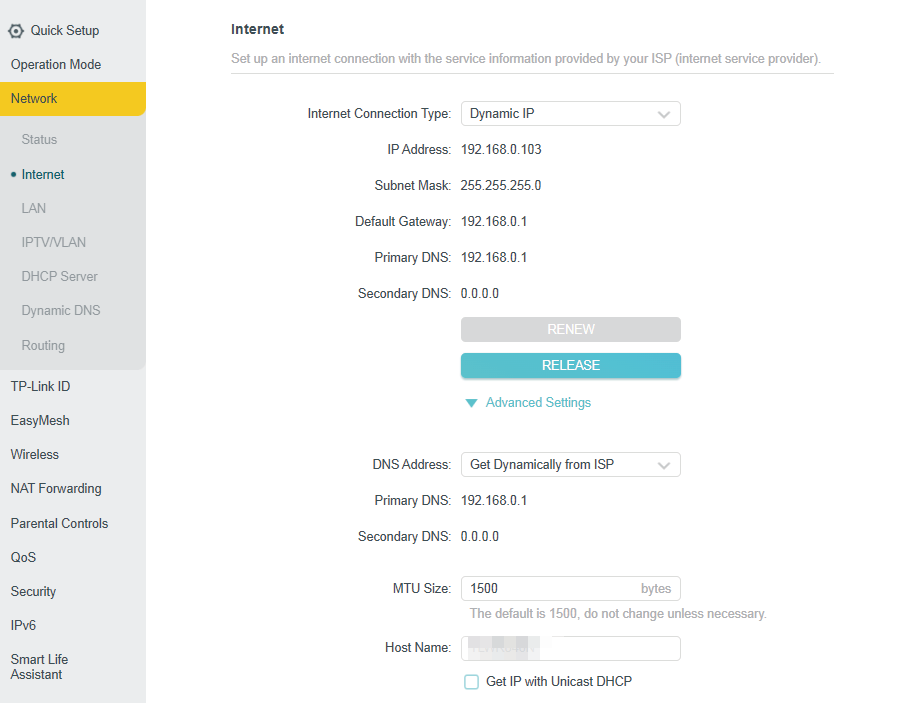
After setting up your internet, you can also easily configure the internet settings if needed. You can change the MAC address, configure the DoH (DNS over HTTPS) feature, set up NAT and configure Internet Port Negotiation Speed Setting for the router.
1 Visit http://tplinkwifi.net, and log in with your TP-Link ID or the password you set for the router.
2 Go to Advanced > Network > Internet.
 > To configure the internet connection settings:
- Select Internet Connection Type and configure the settings according to the information provided by your ISP.
- Click Advanced settings to reveal the advanced settings and change them if needed. It’s recommended to keep the default settings.
- Click SAVE.
> To change the MAC address:
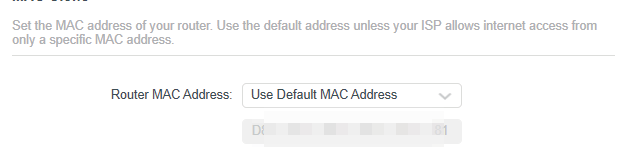
You can set the MAC address of your router. Use the default address unless your lSP allows internet access fromonly a specific MAC address. You have three options:
- Use Default MAC Address - Do not change the default MAC address of your router in case the ISP does not bind the assigned IP address to the MAC address.
- Clone Current Device MAC - Select to copy the current MAC address of the computer that is connected to the router, in case the ISP binds the assigned IP address to the MAC address.
- Use Custom MAC Address - Select if your ISP requires you to register the MAC address and enter the correct MAC address in this field, in case the ISP binds the assigned IP address to the specific MAC address.
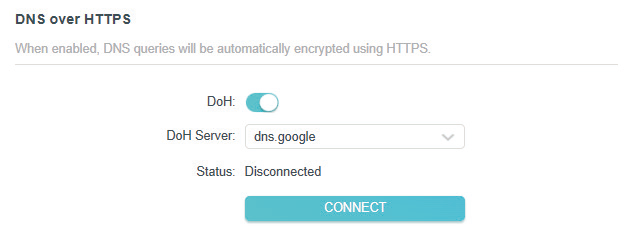
 > To configure the DoH (DNS over HTTPS) feature:
- Click to enable DoH (DNS over HTTPS). When enabled, DNS queries will be automatically encrypted using HTTPS.
- Select a DoH Server from the dropdown list.
- Click CONNECT.
> To set up NAT:

The router’s NAT (Network Address Translation) feature makes devices on the LAN use the same public IP address to communicate with devices on the internet, which protects the local network by hiding IP addresses of the devices.
If you want to enable or disable NAT, tick or untick the Enable NAT checkbox, and click SAVE.
 > To configure Internet Port Negotiation Speed Setting:
You can change the internet port speed mode. Auto Negotiation is recommended.

Change the LAN Settings
The router is preset with a default LAN IP, which you can use to log in to its web management page. The LAN IP address together with the Subnet Mask also defines the subnet that the connected devices are on. If the IP address conflicts with another device on your local network or your network requires a specific IP subnet, you can change it.
1 Visit http://tplinkwifi.net, and log in with your TP-Link ID or the password you set for the router.
2 Go to Advanced > Network > LAN.
3. Type in a new IP Address appropriate to your needs. And leave the Subnet Mask as the default settings.
4. Click SAVE.

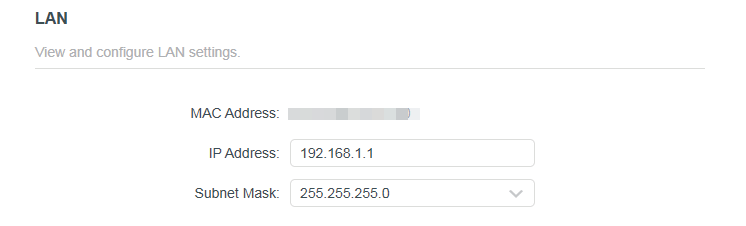
 Note: If you have set the Port Forwarding, DMZ or DHCP address reservation, and the new LAN IP address is not in the same subnet with the old one, then you should reconfigure these features.
Configure to Support IPTV Service
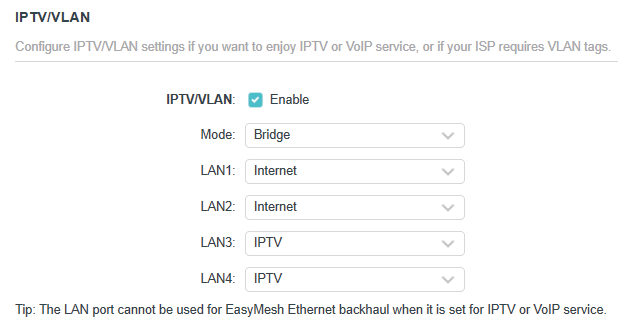
You can configure IPTV/VLAN settings if you want to enjoy IPTV or VoIP service, or if your ISP requires VLAN tags.
1 Visit http://tplinkwifi.net, and log in with your TP-Link ID or the password you set for the router.
2 Go to Advanced > Network > IPTV/VLAN.
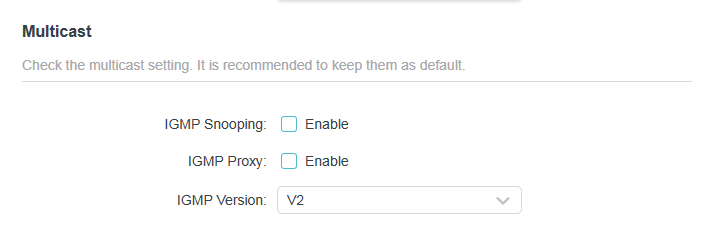
3.1 If your ISP provides the networking service based on IGMP technology, e.g., British Telecom(BT) and Talk Talk in UK:
- 1) Tick the IGMP Proxy and IGMP Snooping checkbox, then select the IGMP Version, either V2 or V3, as required by your ISP.
- 2) Click Save.
- 3) After configuring IGMP proxy, IPTV can work behind your router now. You can connect your set-top box to any of the router’s Ethernet port.
3.2 If IGMP is not the technology your ISP applies to provide IPTV service:
- 1) Tick Enable IPTV/VLAN.
- 2) Select the appropriate Mode according to your ISP.
- Select Bridge if your ISP is not listed and no other parameters are required.
- Select Custom if your ISP is not listed but provides necessary parameters.
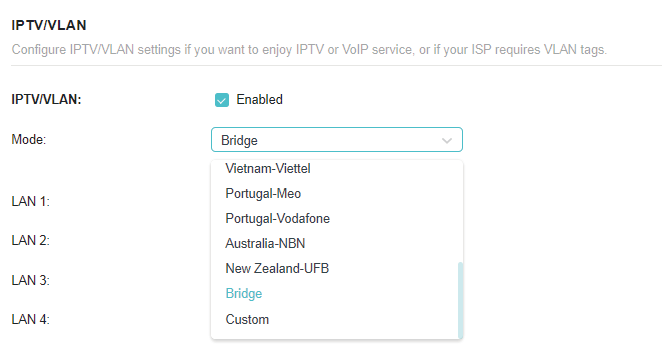
- 3) After you have selected a mode, the necessary parameters, including the LAN port for IPTV connection, are predetermined. If not, select the LAN type to determine which port is used to support IPTV service.
Done!
Your IPTV setup is done now! You may need to configure your set-top box before
enjoying your TV.
Specify DHCP Server Settings
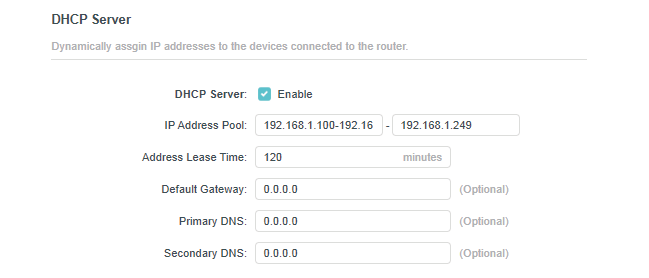
By default, the DHCP (Dynamic Host Configuration Protocol) Server is enabled and the router acts as a DHCP server; it dynamically assigns TCP/IP parameters to client devices from the IP Address Pool. You can change the settings of the DHCP Server if necessary, and you can reserve LAN IP addresses for specified client devices.
1 Visit http://tplinkwifi.net, and log in with your TP-Link ID or the password you set for the router.
2 Go to Advanced > Network > DHCP Server.
> To specify the IP address that the router assigns:
1 Tick the Enable checkbox.
2 Enter the starting and ending IP addresses in the IP Address Pool.
3 Enter the Address Lease Time. It is the amount of time a network user will be allowed to connect to the router with the current dynamic IP Address. When time is up, the user will be automatically assigned a new dynamic IP address. The range of the time is 1 ~ 2880 minutes. The default value is 120.
4 Set the Default Gateway (Optional). It is suggested to input the IP address of the LAN port of the router.
5 Set the DNS Server (Optional). Input the DNS IP address provided by your ISP.
6 Set the Secondary DNS Server (Optional). Input the IP address of another DNS server if your ISP provides two DNS servers.
7 Click SAVE.
> To reserve an IP address for a specified client device:
1. Click Add in the Address Reservation section.
2. Click VIEW CONNECTED DEVICES and select the you device you want to reserve an IP for. Then the MAC Address will be automatically filled in. Or enter the MAC address of the client device manually.
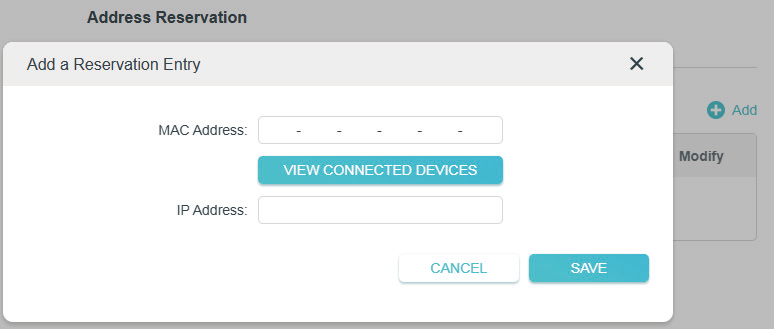
3. Enter the IP address to reserve for the client device.
4. Click SAVE.
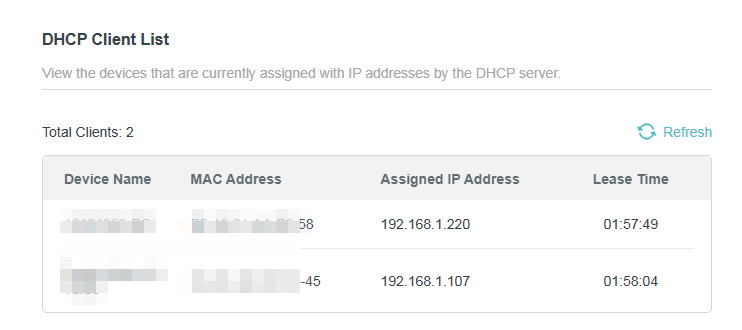
> To view devices assigned with IP addresses by the DHCP server:
You can view the devices that are currently assigned with IP addresses by the DHCP server in DHCP Client List.
Set Up a Dynamic DNS Service Account
Most ISPs assign a dynamic IP address to the router and you can use this IP address to access your router remotely. However, the IP address can change from time to time and you don’t know when it changes. In this case, you might apply the DDNS (Dynamic Domain Name Server) feature on the router to allow you and your friends to access your router and local servers (FTP, HTTP, etc.) using a domain name without checking and remembering the IP address.
Note: DDNS does not work if the ISP assigns a private WAN IP address (such as 192.168.1.x) to the router.
1 Visit http://tplinkwifi.net, and log in with your TP-Link ID or the password you set for the router.
2 Go to Advanced > Network > Dynamic DNS.
3 Select the DDNS Service Provider: TP-Link, NO-IP or DynDNS. It is recommended to select TP-Link so that you can enjoy TP-Link’s superior DDNS service. Otherwise, please select NO-IP or DynDNS. If you don’t have a DDNS account, you have to register first by clicking Register Now.

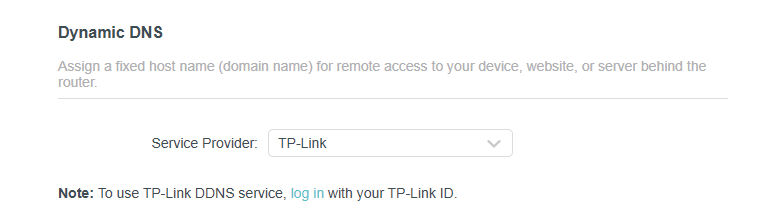
Note: To enjoy TP-Link’s DDNS service, you have to log in with a TP-Link ID. If you have not logged in with one, click log in.
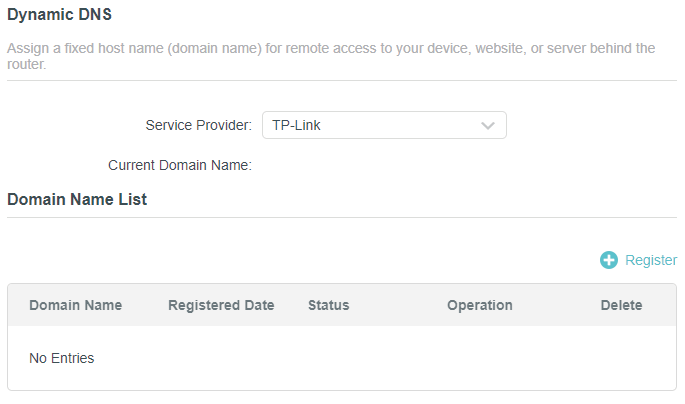
4 Click Register in the Domain Name List if you have selected TP-Link, and enter the Domain Name as needed.
If you have selected NO-IP or DynDNS, enter the username, password and domain name of your account. Click LOGIN AND SAVE.
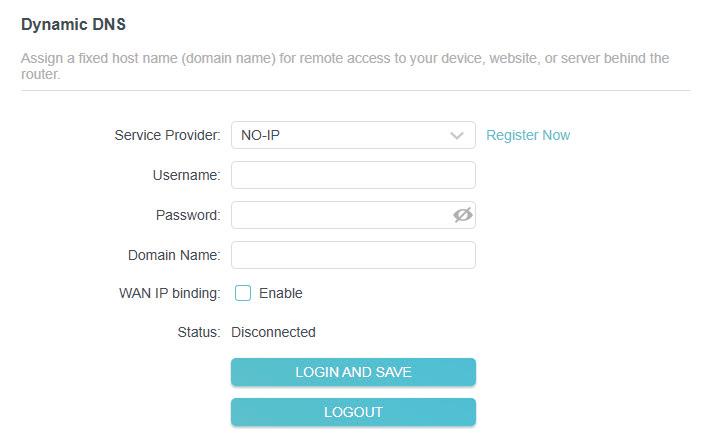
 Tips: If you want to use a new DDNS account, please click Logout first, and then log in with a new account.
Static Routing
Static routing is a form of routing that is configured manually by a network administrator or a user by adding entries into a routing table. The manually-configured routing information guides the router in forwarding data packets to the specific destination.
> To create static routes:
I want to:
Visit multiple networks and servers at the same time.
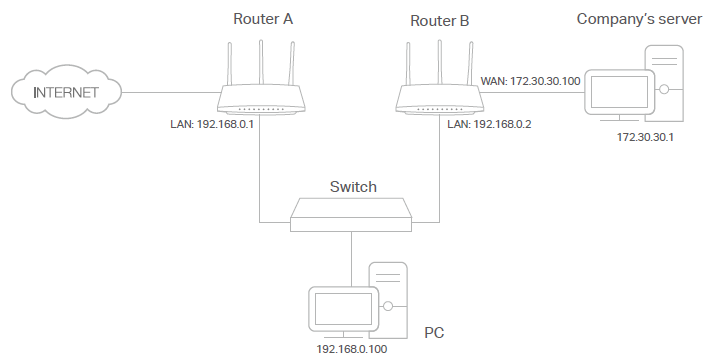
For example, in a small office, my PC can surf the internet through Router A, but I also want to visit my company’s network. Now I have a switch and Router B. I connect the devices as shown in the following figure so that the physical connection between my PC and my company’s server is established. To surf the internet and visit my company’s network at the same time, I need to configure the static routing.

How can I do that?
1 Change the routers’ LAN IP addresses to two different IP addresses on the same subnet. Disable Router B’s DHCP function.
2 Visit http://tplinkwifi.net, and log in with your TP-Link ID or the password you set for Router A.
3 Go to Advanced > Network > Routing.
4 Click Add and finish the settings according to the following explanations:

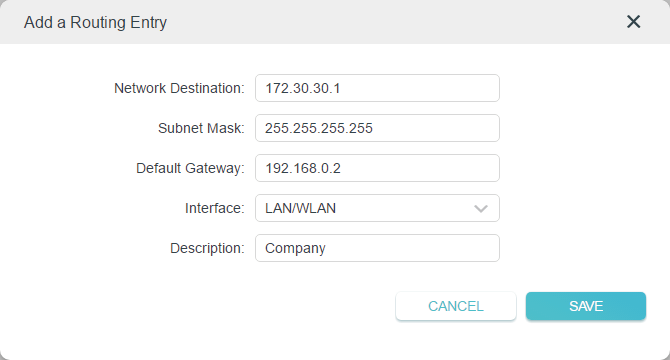
- Network Destination: The destination IP address that you want to assign to a static route. This IP address cannot be on the same subnet with the WAN IP or LAN IP of Router A. In the example, the IP address of the company network is the destination IP address, so here enter 172.30.30.1.
- Subnet Mask: Determines the destination network with the destination IP address. If the destination is a single IP address, enter 255.255.255.255; otherwise, enter the subnet mask of the corresponding network IP. In the example, the destination network is a single IP, so here enter 255.255.255.255.
- Default Gateway: The IP address of the gateway device to which the data packets will be sent. This IP address must be on the same subnet with the router’s IP which sends out data. In the example, the data packets will be sent to the LAN port of Router B and then to the Server, so the default gateway should be 192.168.0.2.
- Interface: Determined by the port (WAN/LAN) that sends out data packets. In the example, the data are sent to the gateway through the LAN port of Router A, so LAN/WLAN should be selected.
- Description: Enter a description for this static routing entry.
5 Click Save.
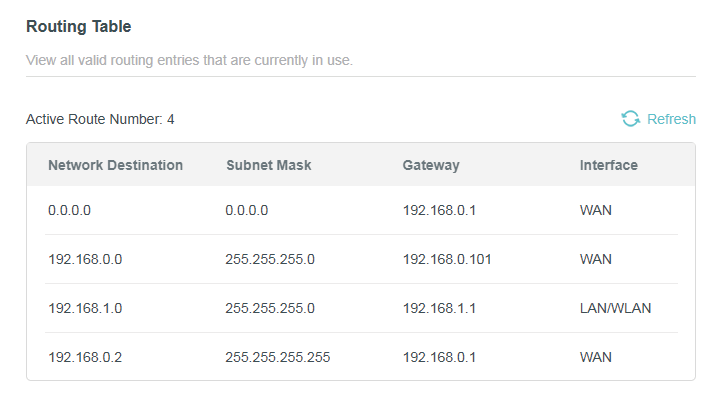
6 Check the Routing Table below. If you can find the entry you’ve set, the static routing is set successfully.
Done! Open a web browser on your PC. Enter the company server’s IP address to visit the company network.
 > To view the Routing Table:
1 Visit http://tplinkwifi.net, and log in with your TP-Link ID or the password you set for Router A.
2 Go to Advanced > Network > Routing. You can view all valid routing entries that are currently in use in the Routing Table.
TP-Link Cloud Service
TP-Link Cloud service provides a better way to manage your cloud devices. Log in to your router with a TP-Link ID, and you can easily monitor and manage your home network when you are out and about via the Tether app. To ensure that your router stays new and gets better over time, the TP-Link Cloud will notify you when an important firmware upgrade is available. Surely you can also manage multiple TP-Link Cloud devices with a single TP-Link ID.
Note: Please note that this feature is not supported on all product models. Please refer to the actual interface of your device.
If you have skipped the registration during the Quick Setup process, you can:
1 Visit http://tplinkwifi.net, and log in with the password you set for the router.
2 Go to Advanced > TP-Link ID or click TP-Link ID on the very top of the page.
3 Click Sign Up and follow the instructions to register a TP-Link ID.

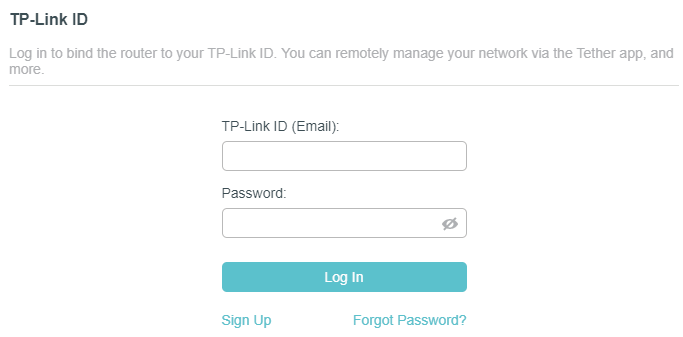
4 After activating your TP-Link ID, come back to the TP-Link ID page to log in. The TP-Link ID used to log in to the router for the first time will be automatically bound as an Admin.
Note:
- To learn more about the Admin and User TP-Link ID, refer to Manage the User TP-Link IDs.
- Once you have registered a TP-Link ID on the web management page, you can only register another TP-Link ID via the Tether APP. Please refer to Manage the Router via the TP-Link Tether App to install the app.
- If you want to unbind the admin TP-Link ID from your router, please go to Advanced > TP-Link ID, an click Unbind in the Device Information section.
Change Your TP-Link ID Information
Follow the steps below to change your email address and password of your TP-Link ID as needed.
1 Visit http://tplinkwifi.net, and log in with your TP-Link ID.
2 Go to Advanced > TP-Link ID, and focus on the Account Information section.
> To change your email address:
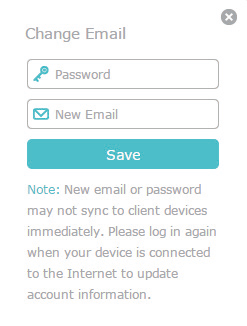
1. Click the Edit icon behind the Email.
2. Enter the password of your TP-Link ID, then a new email address. And click SAVE.
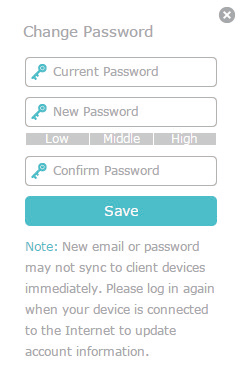
> To change your password:
1. Click behind the Password.
2. Enter the current password, then a new password twice. And click SAVE.
Manage the User TP-Link IDs
The TP-Link ID used to log in to the router for the first time will be automatically bound as the Admin account. An admin account can add or remove other TP-Link IDs to or from the same router as Users. All accounts can monitor and manage the router locally or remotely, but user accounts cannot:
(1) Reset the router to its factory default settings either on the web management page or in the Tether app.
(2) Add/remove other TP-Link IDs to/from the router
> Add TP-Link ID to Manage the Router
1. Visit http://tplinkwifi.net, and log in with your TP-Link ID.
2. Go to Advanced > TP-Link ID, and focus on the Bound Accounts section.
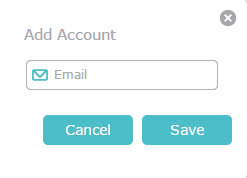
3. Click +Add, enter another TP-Link ID as needed and click SAVE.
Note: If you need another TP-Link ID, please register a new one via the Tether app. Refer to Manage the Router via the TP-Link Tether App to install the app and register a new TP-Link ID.
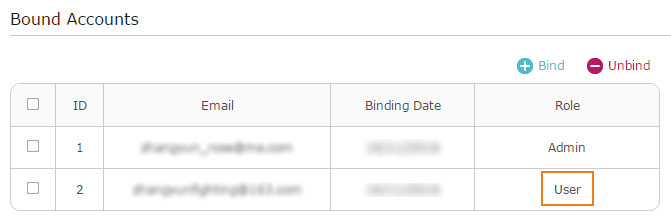
4. The new TP-Link ID will be displayed in the Bound Accounts table as a User.
> Remove TP-Link ID(s) from Managing the Router
1. Visit http://tplinkwifi.net, and log in with your TP-Link ID.
2. Go to Advanced > TP-Link ID, and focus on the Bound Accounts section.
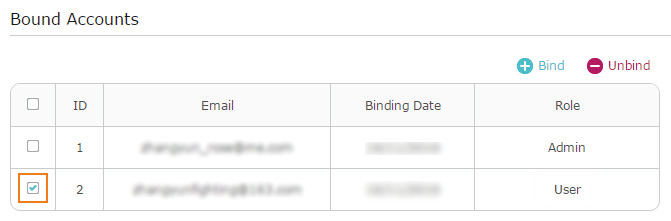
3. Tick the checkbox(es) of the TP-Link ID(s) you want to remove and click Unbind.
> Manage the Router via the TP-Link Tether App
The Tether app runs on iOS and Android devices, such as smartphones and tablets.
1. Launch the Apple App Store or Google Play store and search “TP-Link Tether” or simply scan the QR code to download and install the app.

2. Launch the Tether app and log in with your TP-Link ID.
Note: If you don’t have a TP-Link ID, create one first.
3. Connect your device to the router’s wireless network.
4. Go back to the Tether app, select the model of your router and log in with the password you set for the router.
5. Manage your router as needed.
Note: If you need to remotely access your router from your smart devices, you need to:
Log in with your TP-Link ID. If you don’t have one, refer to Register a TP-Link ID.
Make sure your smartphone or tablet can access the internet with cellular data or a Wi-Fi network.
EasyMesh with Seamless Roaming
EasyMesh routers and extenders work together to form one unified Wi-Fi network. Walk through your home and stay connected with the fastest possible speeds thanks to EasyMesh’s seamless coverage.
Note:
- Please note that this feature is not supported on all product models. Please refer to the actual interface of your device.
- Routers and range extenders must be compatible with EasyMesh or OneMesh™. Firmware upgrades may be required.
Add a Router as a Satellite Device:
1. Visit http://tplinkwifi.net, and log in with your TP-Link ID or the password you set for the router.
2. Go to Advanced > EasyMesh, and enable EasyMesh.
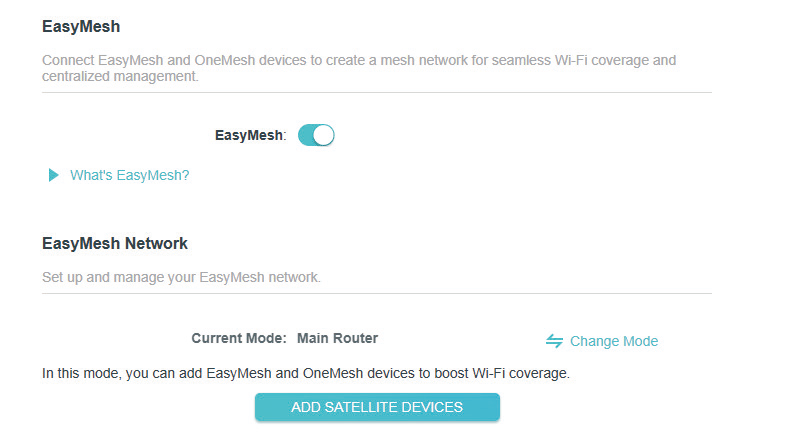
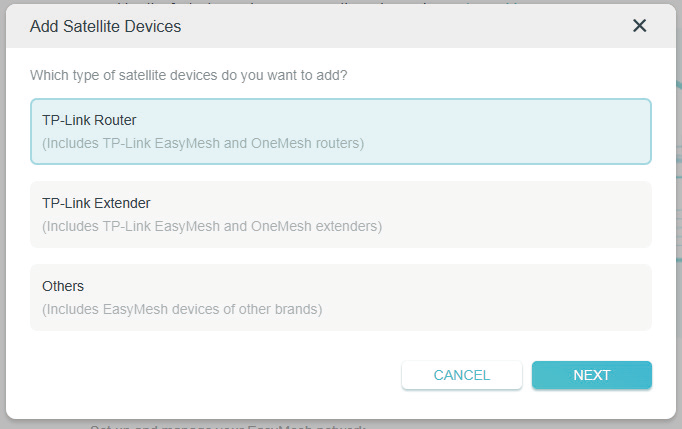
3. Click ADD SATELLITE DEVICES, select TP-Link Router, then click NEXT.
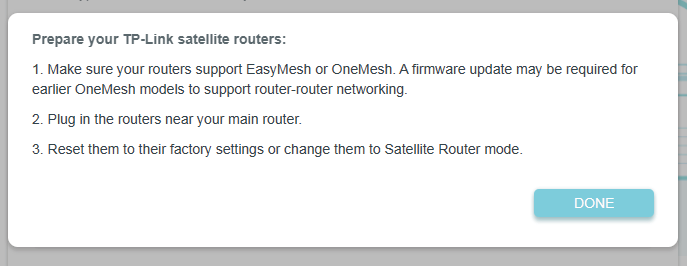
4. Follow the page instructions to prepare your satellite device, then click DONE.
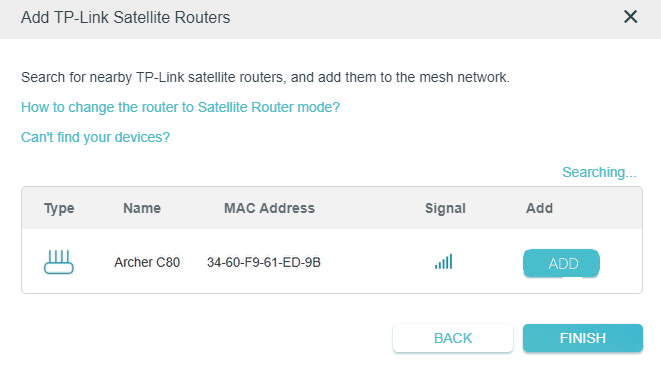
5. Click ADD. When prompted “This device has been added successfully“, click OK, then click FINISH.
Add a Range Extender as a Satellite Device:
1. Visit http://tplinkwifi.net, and log in with your TP-Link ID or the password you set for the router.
2. Go to Advanced > EasyMesh, and enable EasyMesh.
3. Plug in the extender next to the main router.
4. With in 2 minutes, press the WPS button on main router and on the extender. Wait until the WPS process is complete.
5. Done! You can check the mesh device on the router’s web page too.
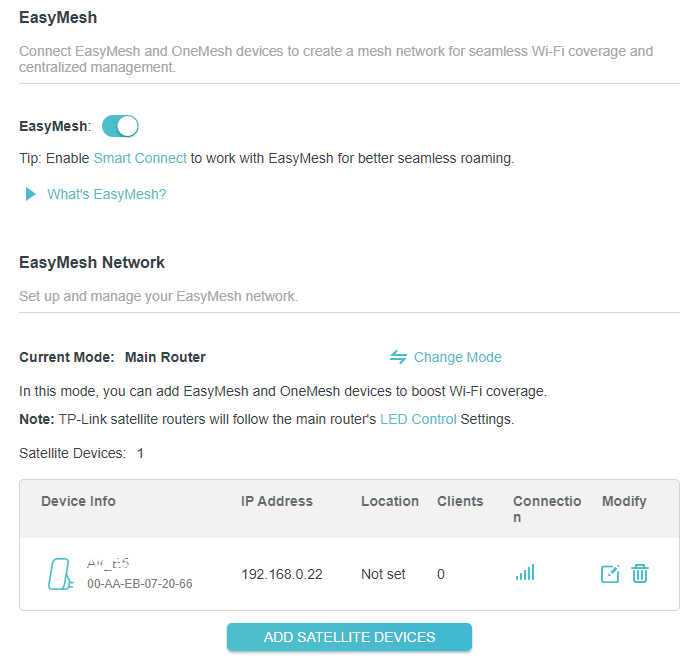
Manage Devices in the EasyMesh Network:
In an EasyMesh network, you can manage all mesh devices and connected clients on your main router’s web page.
View EasyMesh Devices and Connected Clients in the Network:
1. Visit http://tplinkwifi.net, and log in with your TP-Link ID or the password you set for the router.
2. Go to Network Map.
3. Click  to view all mesh devices, and click
  to view all connected clients.
Manage an EasyMesh device in the network:
1. Visit http://tplinkwifi.net, and log in with your TP-Link ID or the password you set for the router.
2. Go to Advanced > EasyMesh.
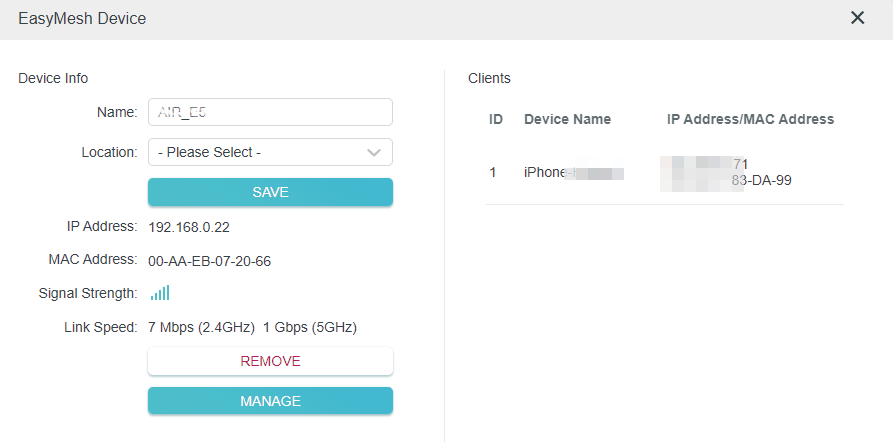
3. Click the Modify button to view detailed information and change its settings.
• Name - Enter a name for the EasyMesh Device.
• Location - Select a location for the EasyMesh Device from the dropdown list.
• Clients - View the connected client devices.
• Click Manage to redirect to the web management page of this device.
• Click Remove to delete this device from the EasyMesh network.
4. Click SAVE.
Wireless Settings
This chapter guides you on how to configure the wireless settings.
Specify Wireless Settings
In the Wireless page, you can easily view and change the basic information of the wireless network, guest network and IoT network of your router.

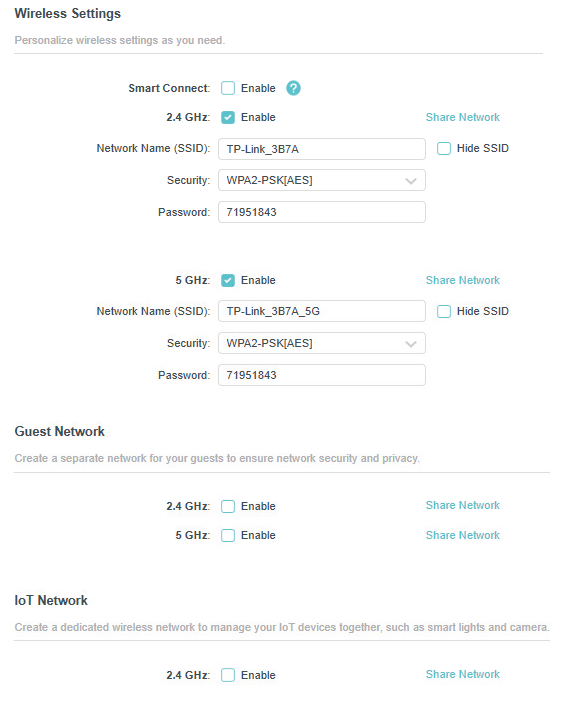

> To use the Smart Connect function:
When enabled, the 2.4 GHz and 5 GHz networks share the same network name and password (only one SSID will be displayed), and your wireless device will automaticallyswitch connection to the Wi-Fi band that provides the fastest speed.
1 Go to Wireless or Advanced > Wireless > Wireless Settings.
2 Enable Smart Connect.
3 Keep the default values or set a new SSID and password, and click SAVE. This SSID and password will be applied for the 2.4 GHz and 5 GHz wireless networks. If you want to configure the wireless settings separately for each band, deselect the checkbox to disable this feature.
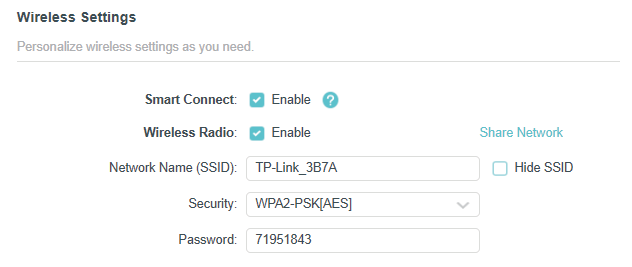
> To enable or disable the wireless function:
1. Go to Wireless or Advanced > Wireless > Wireless Settings.
2. The wireless bands are enabled by default. If you want to disable a wireless band, just deselect its Enable checkbox.
> To change the wireless network name (SSID) and wireless password:
1. Go to Wireless or Advanced > Wireless > Wireless Settings.
2. Create a new SSID in Network Name (SSID) and customize the password for the network in Password. The value is case-sensitive.
Note: If you change the wireless settings with a wireless device, you will be disconnected when the settings are effective. Please write down the new SSID and password for future use.
> To hide SSID:
1. Go to Wireless or Advanced > Wireless > Wireless Settings.
2. Select Hide SSID, and your SSID won’t display when you scan for local wireless networks on your wireless device and you need to manually join the network.
> To change the security option:
1. Go to Wireless or Advanced > Wireless > Wireless Settings.
2. Select an option from the Security drop-down list. We recommend you don’t change the default settings unless necessary.
> To change the transmit power:
1. Go to Advanced > Wireless > Wireless Settings.
2. Select an option from the Transmit Power drop-down list: High, Middle or Low. The default and recommended setting is High.
> To change channel settings:
1. Go to Advanced > Wireless > Wireless Settings.
2. Select a Channel Width (bandwidth) for the wireless network. It is recommended to just leave it as default.
3. Select an operating Channel for the wireless network. It is recommended to leave the channel to Auto if you are not experiencing the intermittent wireless connection issue.
> To change the transmission mode:
1. Go to Advanced > Wireless > Wireless Settings.
2. Disable Smart Connect, then select a transmission Mode according to your wireless client devices. It is recommended to just leave it as default.
> To enable or disable MU-MIMO:
A router with the MU-MIMO feature serves multiple devices simultaneously while a traditional router serves only one user at a time. That means MU-MIMO can provide a faster, more efficient Wi-Fi network for multiusers. It is disabled by default.
Note: Devices supporting 5GHz wireless band can enjoy the MU-MIMO service.
1. Go to Advanced > Wireless > Wireless Settings.
2. Enable MU-MIMO.
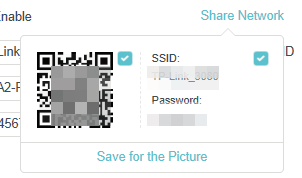
> To Share Network:
1. Go to Wireless or Advanced > Wireless > Wireless Settings.
2. Click Share Network to share the SSID and password to your guests.
Guest Network
Guest Network allows you to provide Wi-Fi access for guests without disclosing your host network. When you have guests in your house, apartment, or workplace, you can create a guest network for them. In addition, you can customize guest network settings to ensure network security and privacy.
> Create a Network for Guests:
1. Visit http://tplinkwifi.net, and log in with your TP-Link ID or the password you set for the router.
2. Go to Advanced > Wireless > Guest Network or go to Wireless and locate the Guest Network section.
3. Create a guest network as needed.
1 ) Tick the Enable checkbox for the 2.4GHz or 5 GHz wireless network.
2 ) Customize the SSID. Don‘t select Hide SSID unless you want your guests to manually input the SSID for guest network access.
3 ) Click Share Network to share the SSID and password to your guests.
4 ) Enable Bandwidth Control if you want to limit the network speed of your guests. Then enter the limited bandwidth value.
5 ) Set the Effective Time to keep the guest network on during the selected duration.
6 ) Select the Security type and customize your own password. If None is selected, no password is needed to access your guest network.
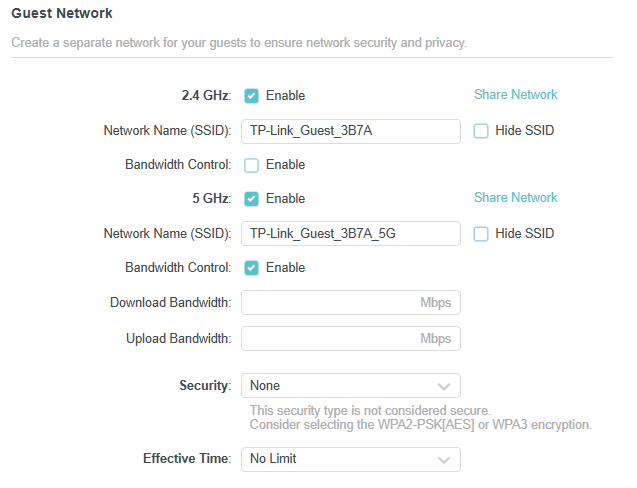
4. Click SAVE. Now your guests can access your guest network using the SSID and password you set!
Tips: To view guest network information, go to Network Map and locate the Guest Network section. You can turn on or off the guest network function conveniently.
> Customize Guest Network Options:
1. Visit http://tplinkwifi.net, and log in with your TP-Link ID or the password you set for the router.
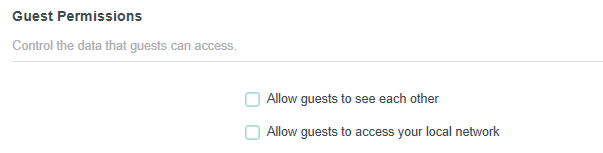
2. Go to Advanced > Wireless > Guest Network. Locate the Guest Permissions section.
3. Customize guest network options according to your needs.
• Allow guests to see each other - Tick this checkbox if you want to allow the wireless clients on your guest network to communicate with each other via methods such as network neighbors and Ping.
• Allow guests to access your local network - Tick this checkbox if you want to allow the wireless clients on your guest network to communicate with the devices connected to your router’s LAN ports or main network via methods such as network neighbors and Ping.
4. Click SAVE. Now you can ensure network security and privacy!
IoT Network
This feature further secures your home network by allowing you to create a dedicated wireless network to manage your loT devices together, such as smart lights and cameras.
Note: Please note that this feature is not supported on all product models. Please refer to the actual interface of your device.
1. Visit http://tplinkwifi.net, and log in with your TP-Link ID or the password you set for the router.
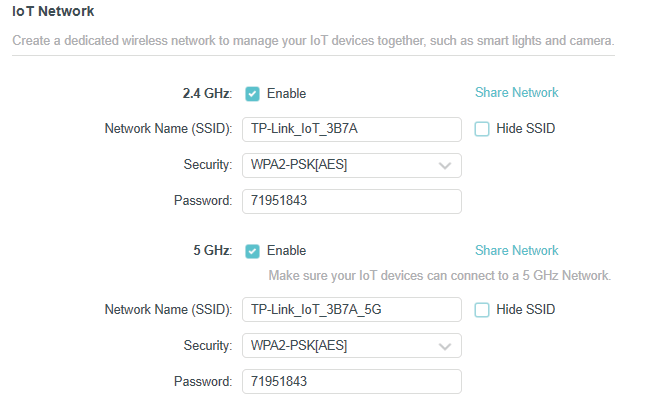
2. Go to Advanced > Wireless > IoT Network or go to Wireless and locate the IoT Network section.
3. Create an IoT network as needed.
1 ) Tick the Enable checkbox for the 2.4GHz or 5 GHz wireless network. For 5 GHz IoT networks, make sure your IoT devices can connect to a 5 GHz network.
2 ) Customize the SSID. Don‘t select Hide SSID unless you want your IoT devices to manually input the SSID for network access.
3 ) Click Share Network to share the SSID and password to others.
4 ) Select the Security type and customize your own password. If None is selected, no password is needed to access the IoT network.
4. Click SAVE. Now you can connect your IoT devices to the dedicated IoT network.
Wireless Schedule
The wireless network can be automatically off at a specific time when you do not need the wireless connection.
1. Visit http://tplinkwifi.net, and log in with your TP-Link ID or the password you set for the router.
2. Go to Advanced > Wireless > Wireless Schedule.
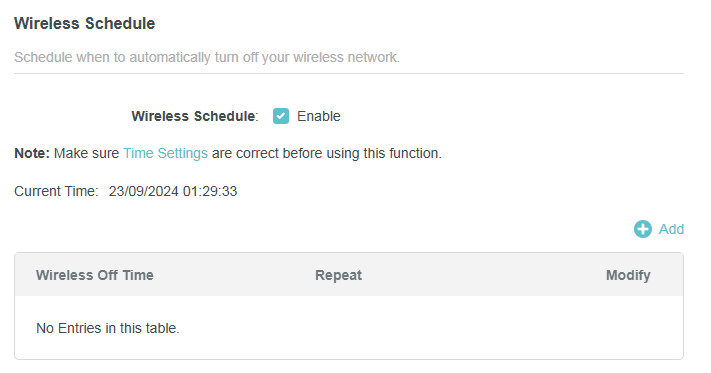
3. Tick the Enable checkbox to enable the wireless schedule function.
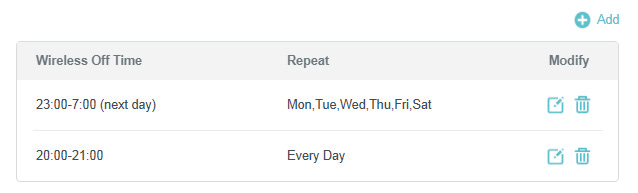
4. Click Add to specify a wireless off period during which you need the wireless off automatically, and click SAVE.
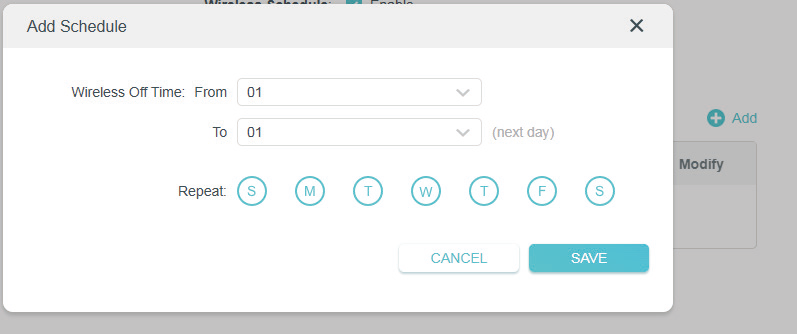
5. The wireless schedules added will appear in the list. You can modify the settings here.
Note:
The Effective Time Schedule is based on the time of the router. You can go to Advanced > System > Time & Language to modify the time.
The wireless network will be automatically turned on after the time period you set.
WPS
WPS (Wi-Fi Protected Setup) can help you to quickly and securely connect to a network.
This section will guide you to add a new wireless device to your router’s network quickly via WPS.
Note:
The WPS function cannot be configured if the wireless function of the router is disabled. Please make sure the wireless
function is enabled before configuration.
1. Visit http://tplinkwifi.net, and log in with your TP-Link ID or the password you set for the router.
2. Go to Advanced > Wireless > WPS.
3. Click to enable the WPS function.
4. Follow one of the following methods to connect your client device to the router’s Wi-Fi network.
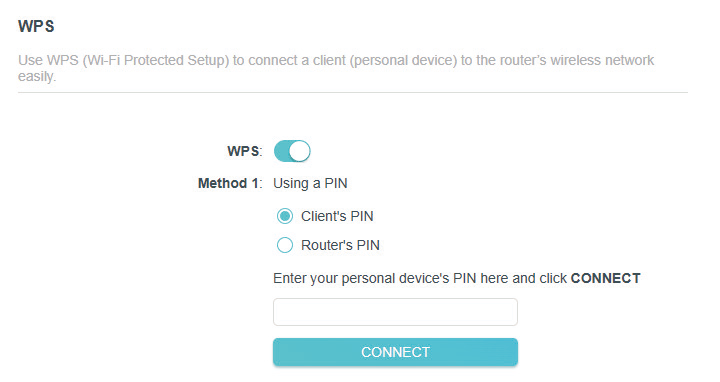
> Connect via the Client’s PIN
1. Select Client’s PIN.
2. Enter the PIN of your device and click CONNECT. Then your device will get connected to the router.
> Connect via the Router’s PIN
1. Select Router’s PIN.
2. Enable Router’s PIN. You can click GET NEW PIN to generate a new one or click DEFAULT to use the default PIN.
3. Enter the router’s PIN on your personal device.
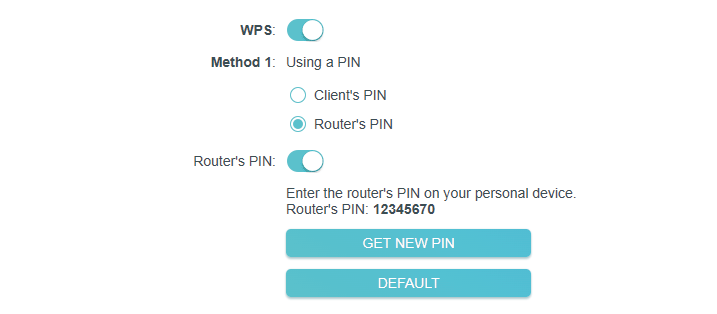
Note: PIN (Personal Identification Number) is an eight-character identification number preset to each router. WPS supported devices can connect to your router with the PIN. The default PIN is printed on the label of the router.
> Push the WPS Button
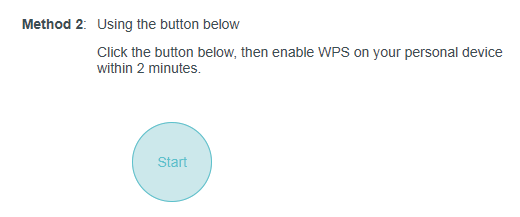
1. Click the Start button on the screen or directly press the router’s WPS button. Within two minutes, press the WPS button on your client device.
2. A success message will appear on the page if the client device has been successfully added to the router’s network. And the Wi-Fi LED of the router should change from flashing to solid on, indicating successful WPS connection.
Advanced Wireless Settings
Check advanced wireless settings for your device.
1. Visit http://tplinkwifi.net, and log in with your TP-Link ID or the password you set for the router.
2. Go to Advanced > Wireless > Additional Settings.
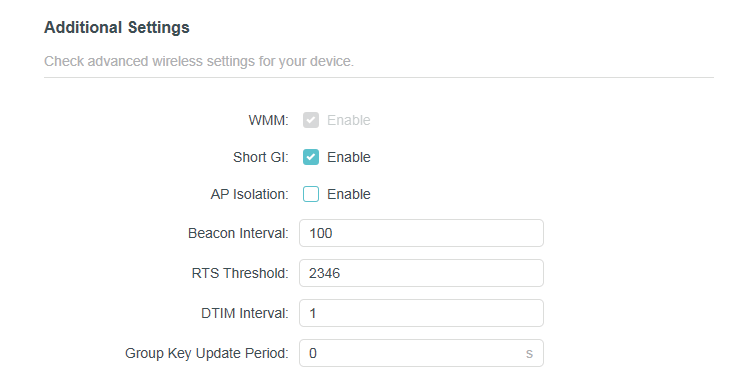
• WMM - WMM (Wi-Fi multimedia) function can guarantee the packets with high-priority messages being transmitted preferentially.
• Short GI - It is recommended to enable Short GI (Short Guard Interval) function, for it will increase the data capacity by reducing the guard interval time.
• AP Isolation - This function isolates all connected wireless stations so that wireless stations cannot access each other through WLAN.
• Beacon Interval - Enter a value between 40 and 1000 in milliseconds to determine the duration between beacon packets that are broadcasted by the router to synchronize the wireless network. The default value is 100 milliseconds.
• RTS Threshold- Enter a value between 1 and 2346 to determine the packet size of data transmission through the router. By default, the RTS (Request to Send) Threshold size is 2346. If the packet size is greater than the preset threshold, the router will send RTS frames to a particular receiving station and negotiate the sending of a data frame.
• DTIM Interval - The value determines the interval of DTIM (Delivery Traffic Indication Message). Enter a value between 1 and 15 intervals. The default value is 1, which indicates the DTIM Interval is the same as Beacon Interval.
• Group Key Update Period - Enter a number of seconds (minimum 30) to control the time interval for the encryption key automatic renewal. The default value is 0, meaning no key renewal.
NAT Forwarding
The router’s NAT (Network Address Translation) feature makes devices on the LAN use the same public IP address to communicate with devices on the internet, which protects the local network by hiding IP addresses of the devices. However, it also brings about the problem that an external host cannot initiatively communicate with a specified device on the local network.
With the forwarding feature the router can penetrate the isolation of NAT and allows devices on the internet to initiatively communicate with devices on the local network, thus realizing some special functions.
The TP-Link router supports four forwarding rules. If two or more rules are set, the priority of implementation from high to low is Port Forwarding, Port Triggering, UPNP and DMZ.
Share Local Resources on the Internet by Port Forwarding
When you build up a server on the local network and want to share it on the internet, Port Forwarding can realize the service and provide it to internet users. At the same time Port Forwarding can keep the local network safe as other services are still invisible from the internet.
Port Forwarding can be used for setting up public services on your local network, such as HTTP, FTP, DNS, POP3/SMTP and Telnet. Different services use different service ports. Port 80 is used in HTTP service, port 21 in FTP service, port 25 in SMTP service and port 110 in POP3 service. Please verify the service port number before the configuration.
I want to:
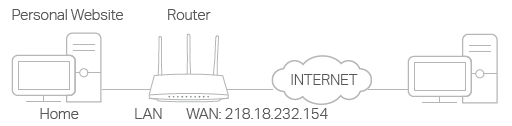
Share my personal website I’ve built in local network with my friends through the internet.
For example, the personal website has been built on my home PC (192.168.0.100). I hope that my friends on the internet can visit my website in some way. The PC is connected to the router with the WAN IP address 218.18.232.154.

How can I do that?
1 Assign a static IP address to your PC, for example 192.168.0.100.
2 Visit http://tplinkwifi.net, and log in with your TP-Link ID or the password you set for the router.
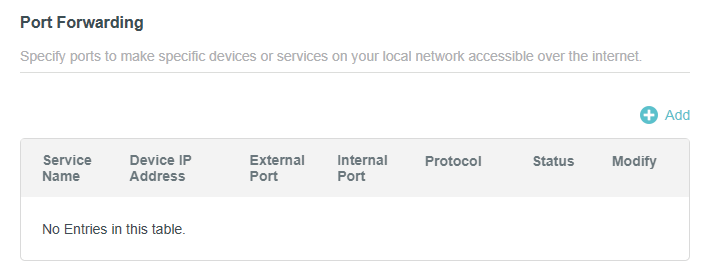
3 Go to Advanced > NAT Forwarding > Port Forwarding.
4 Click +Add .
.

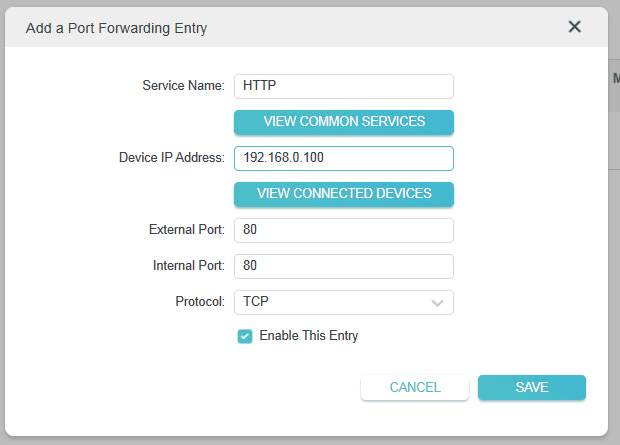
5. Click VIEW COMMON SERVICES and select HTTP. The External Port, Internal Port and Protocol will be automatically filled in.
6. Click VIEW CONNECTED DEVICES and select your home PC. The Device IP Address will be automatically filled in. Or enter the PC’s IP address 192.168.0.100 manually in the Device IP Address field.
7. Click SAVE.
Tips:
• It is recommended to keep the default settings of Internal Port and Protocol if you are not clear about which port and protocol to use.
• If the service you want to use is not in the common services list, you can enter the corresponding parameters manually. You should verify the port number that the service needs.
• You can add multiple port forwarding rules if you want to provide several services in a router. Please note that the External Port should not be overlapped.
Done!
Users on the internet can enter http:// WAN IP (in this example: http:// 218.18.232.154) to visit your personal website.
Tips:
• The WAN IP should be a public IP address. For the WAN IP is assigned dynamically by the ISP, it is recommended to apply and register a domain name for the WAN referring to Set Up a Dynamic DNS Service Account. Then users on the internet can use http:// domain name to visit the website.
• If you have changed the default External Port, you should use http:// WAN IP: External Port or http:// domain name: External Port to visit the website.
Open Ports Dynamically by Port Triggering
Port Triggering can specify a triggering port and its corresponding external ports. When a host on the local network initiates a connection to the triggering port, all the external ports will be opened for subsequent connections. The router can record the IP address of the host. When the data from the internet return to the external ports, the router can forward them to the corresponding host. Port Triggering is mainly applied to online games, VoIPs, video players and common applications including MSN Gaming Zone, Dialpad and Quick Time 4 players, etc.
Follow the steps below to configure the Port Triggering rules:
1 Visit http://tplinkwifi.net, and log in with your TP-Link ID or the password you set for the router.
2 Go to Advanced > NAT Forwarding > Port Triggering and click +Add .
.
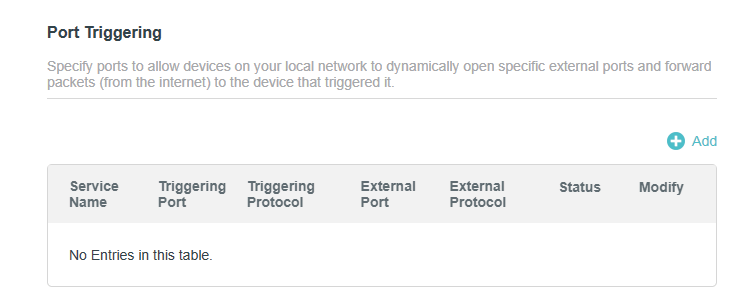
3 Click VIEW COMMON SERVICES, and select the desired application. The Triggering Port, Triggering Protocol and External Port will be automatically filled in. The following picture takes application MSN Gaming Zone as an example.

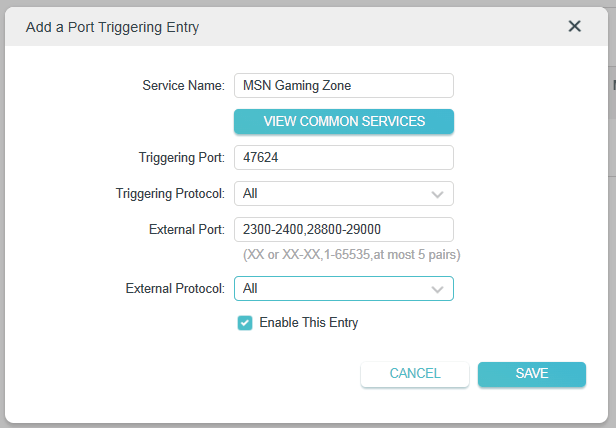
4 Click SAVE.
Tips:
- You can add multiple port triggering rules according to your network need.
- The triggering ports can not be overlapped.
- If the application you need is not listed in the Existing Applications list, please enter the parameters manually. You should verify the external ports the application uses first and enter them into External Port field according to the format the page displays.
Make Xbox Online Games Run Smoothly by UPnP
The UPnP (Universal Plug and Play) protocol allows applications or host devices to automatically find the front-end NAT device and send request to it to open the corresponding ports. With UPnP enabled, the applications or host devices on the local network and the internet can freely communicate with each other thus realizing the seamless connection of the network. You may need to enable the UPnP if you want to use applications for multiplayer gaming, peer-to-peer connections, real-time communication (such as VoIP or telephone conference) or remote assistance, etc.
 Tips:
Tips:
- UPnP is enabled by default in this router.
- Only the application supporting UPnP protocol can use this feature.
- UPnP feature needs the support of operating system (e.g. Windows Vista/ Windows 7/ Windows 8, etc. Some of operating system need to install the UPnP components).
For example, when you connect your Xbox to the router which has connected to the internet to play online games, UPnP will send request to the router to open the corresponding ports allowing the following data penetrating the NAT to transmit. Therefore, you can play Xbox online games without a hitch.

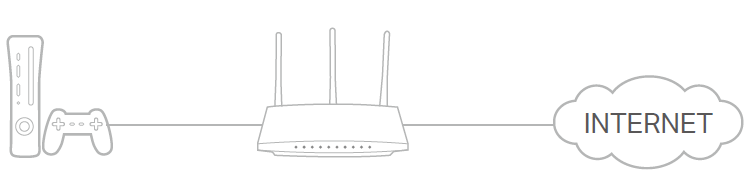
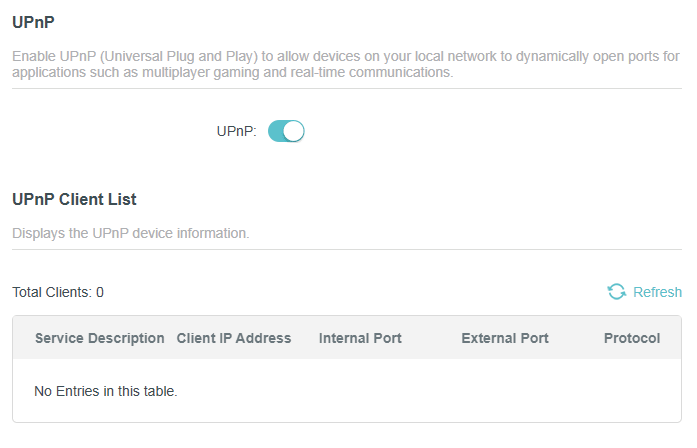
If necessary, you can follow the steps to change the status of UPnP.
1 Visit http://tplinkwifi.net, and log in with your TP-Link ID or the password you set for the router.
2 Go to Advanced > NAT Forwarding > UPnP and toggle on or off according to your needs.

Make Applications Free from Port Restriction by DMZ
When a PC is set to be a DMZ (Demilitarized Zone) host on the local network, it is totally exposed to the internet, which can realize the unlimited bidirectional communication between internal hosts and external hosts. The DMZ host becomes a virtual server with all ports opened. When you are not clear about which ports to open in some special applications, such as IP camera and database software, you can set the PC to be a DMZ host.
Note: When DMZ is enabled, the DMZ host is totally exposed to the internet, which may bring some potential safety hazards. If DMZ is not in use, please disable it in time.
I want to:
Make the home PC join the internet online game without port restriction.
For example, due to some port restriction, when playing the online games, you can log in normally but cannot join a team with other players. To solve this problem, set your PC as a DMZ host with all ports open.
How can I do that?
1 Assign a static IP address to your PC, for example 192.168.0.100.
2 Visit http://tplinkwifi.net, and log in with your TP-Link ID or the password you set for the router.
3 Go to Advanced > NAT Forwarding > DMZ and tick to enable DMZ.
4 Click VIEW CONNECTED DEVICES and select your PC. The Device IP Address will be automatically filled in. Or enter the PC’s IP address 192.168.0.100 manually in the DMZ Host IP Address field.

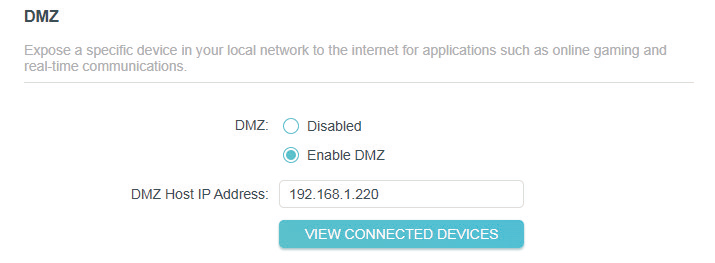
5 Click SAVE.
Done!
The configuration is completed. You’ve set your PC to a DMZ host and now you can make a team to game with other players.
Parental Controls
Parental Controls allows you to set up unique restrictions on internet access for each member of your family. You can block inappropriate content, set daily limits for the total time spent online and restrict internet access to certain times of the day.
1 Visit http://tplinkwifi.net, and log in with your TP-Link ID or the password you set for the router.
2 Go to Advanced > Advanced > Parental Controls.
3 Click +Add to create a profile for a family member.

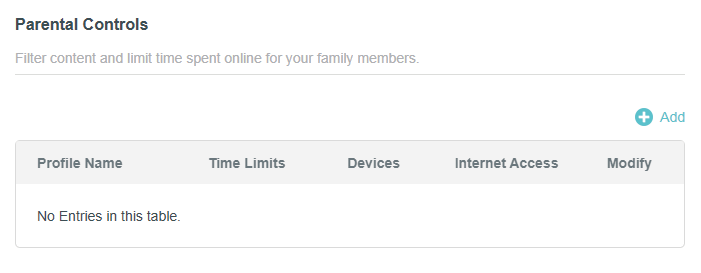
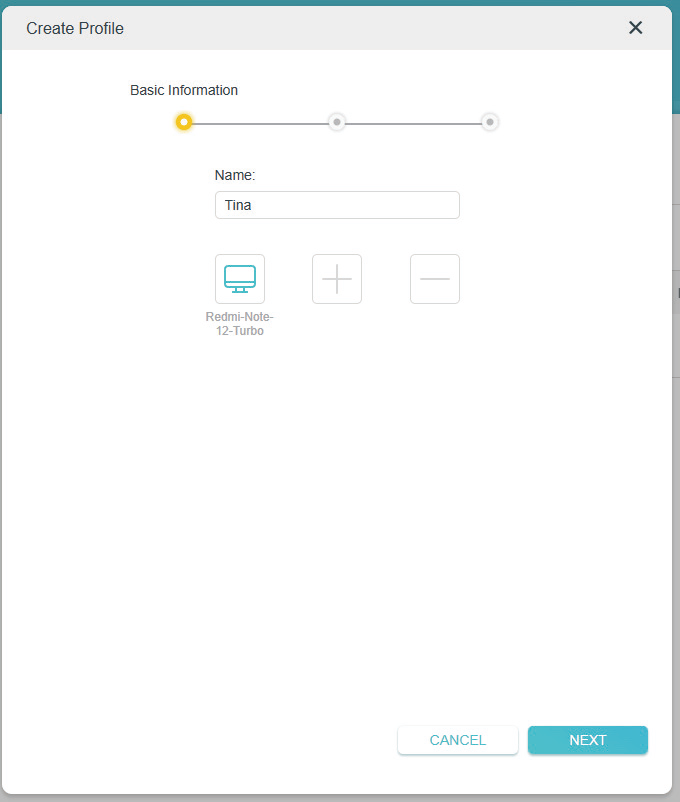
4 Add basic profile information.
(1) Enter a Name for the profile to make it easier to identify.
(2) Click + and select the devices that belong to this family member. Access restrictions will be applied to these devices. Click Add when finished.
Note: Only devices that have previously been connected to your router’s network are listed here. If you are unable to find the device you want to add, connect it to your network and then try again.
(3) Click NEXT
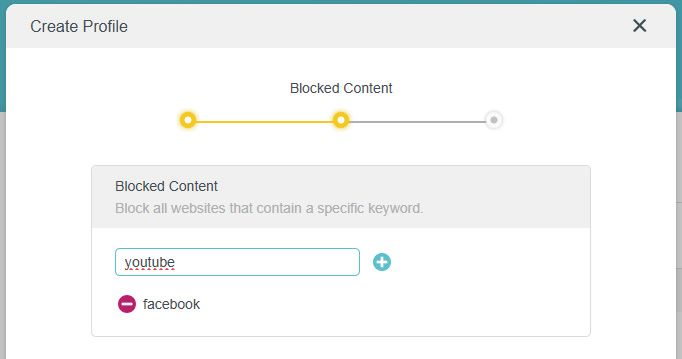
5 Block content for this profile.
(1) Select the content categories to block in the Content Filter list.
(2) You can also block a specific website. Enter a keyword (for example, “Facebook”) or a URL (for example, “www.facebook.com”), then click Add.
(3) Click NEXT.

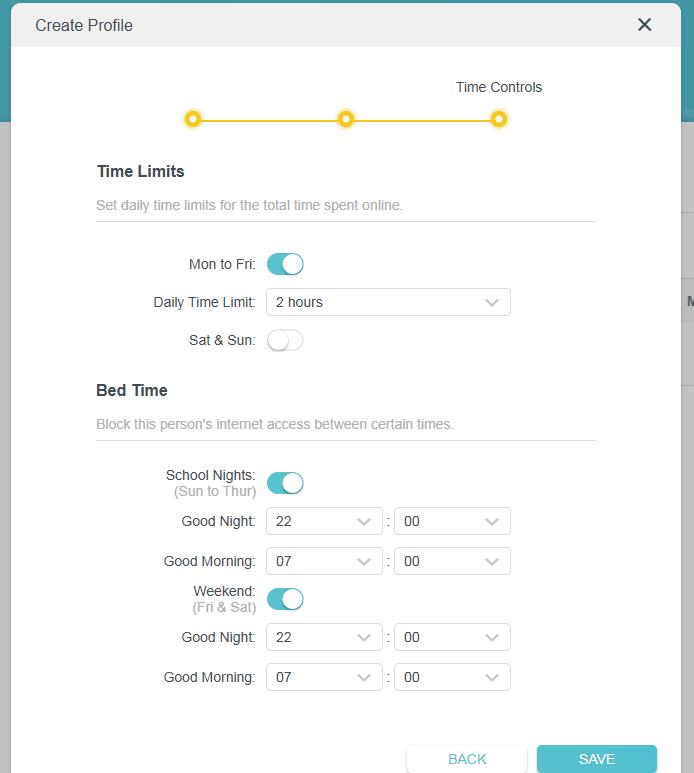
6 Set time restrictions on internet access.
(1) Set daily Time Limits for the total time spent online. You can set daily time limits for Mon to Fri and Sat & Sun separately.
(2) Set Bed Time to block internet access between certain times. Devices under this profile will be unable to access the internet during this time period. You can set bed time for School Nights and Weekend separately.
(3) Click SAVE.

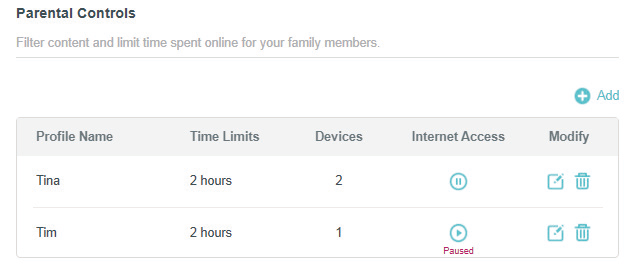
(4) After adding a profile, you can pause or restore the network connection for this profile anytime.

QoS
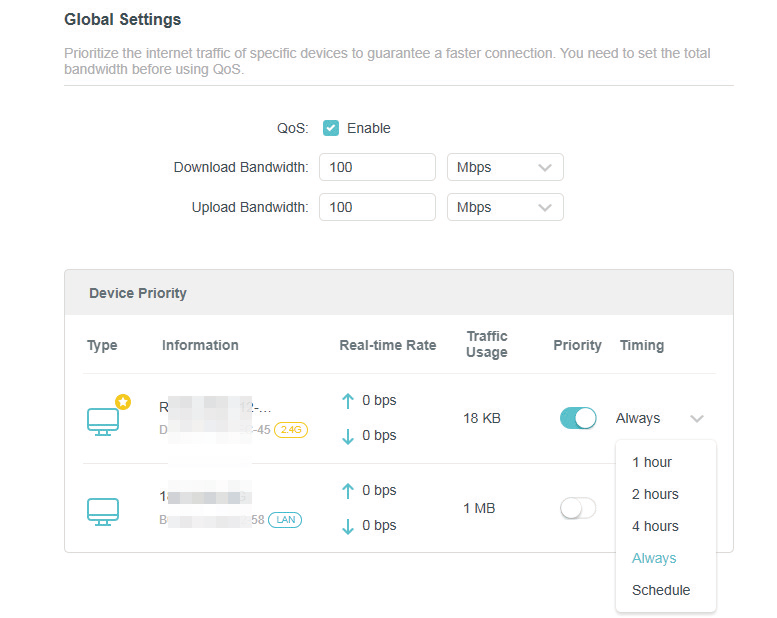
QoS (Quality of Service) allows you to prioritize connection of specific devices for a set duration. Devices set as high priority will be allocated more bandwidth and so continue to run smoothly even when there is heavy traffic on the network.
1 Visit http://tplinkwifi.net, and log in with your TP-Link ID or the password you set for the router.
2 Go to Advanced > Advanced > QoS.
3 Enable QoS to set the total bandwidth. Then click SAVE.
4 Enable Priority for the desired device and select its effective time in the Timing dropdown list.

Network Security
This chapter guides you on how to protect your home network from cyber attacks and unauthorized users by implementing these three network security functions. You can protect your home network from cyber attacks, block or allow specific client devices to access your network using Access Control, you can prevent ARP spoofing and ARP attacks using IP & MAC Binding, protect your network security by isolating your IoT devices.
Protect the Network from Cyber Attacks
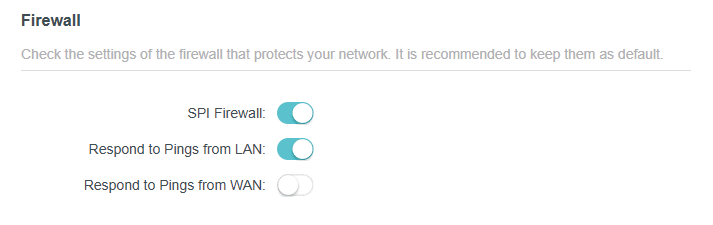
The SPI (Stateful Packet Inspection) Firewall protects the router from cyber attacks and validate the traffic that is passing through the router based on the protocol. This function is enabled by default.
1 Visit http://tplinkwifi.net, and log in with your TP-Link ID or the password you set for the router.
2 Go to Advanced > Security > Firewall. It’s recommended to keep the default settings.

Access Control
Access Control is used to block or allow specific client devices to access your network (via wired or wireless) based on a list of blocked devices (Deny List) or a list of allowed devices (Allow List).
I want to:
Block or allow specific client devices to access my network (via wired or wireless).
How can I do that?
1 Visit http://tplinkwifi.net, and log in with your TP-Link ID or the password you set for the router.
2 Go to Advanced > Security > Access Control.
3 Toggle on to enable Access Control.
4 Select the access mode to either block (recommended) or allow the device(s) in the list.
- To block specific device(s):
- ) Select Deny List.

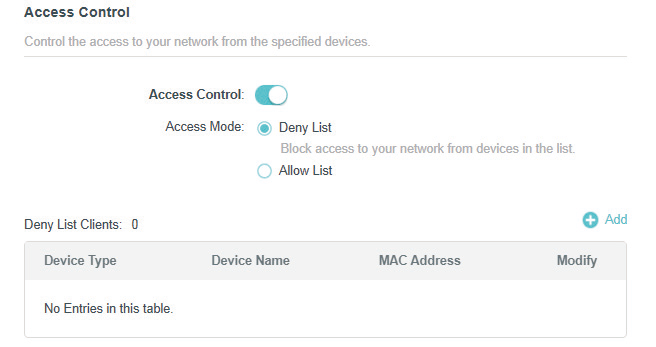
- ) Click +Add and select devices you want to block. Then click ADD.
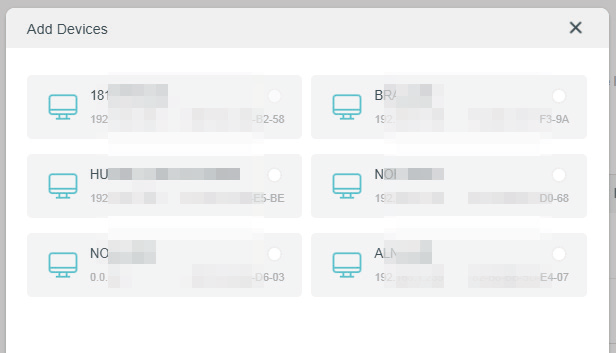

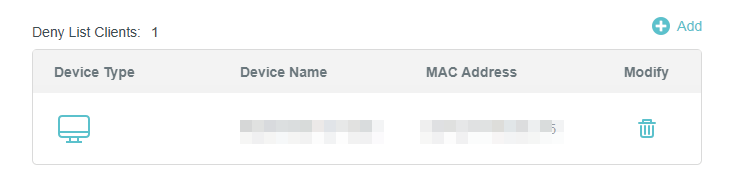
- ) The Operation Succeeded message will appear on the screen, which means the selected devices have been successfully added to the Deny List.
- To allow specific device(s):
- ) Select Allow List.
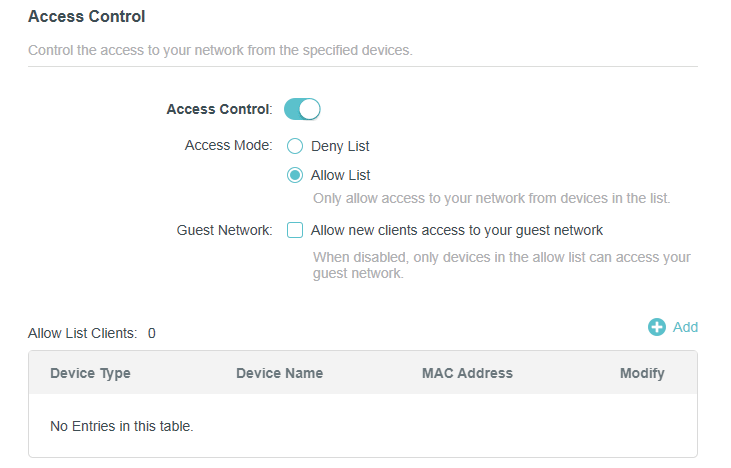
- ) Tick the Allow new clients access to your guest network checkbox if you need. When disabled, only devices in the allow list can access your guest network.
- ) Click +Add and select devices you want to add to the Allow List or add it manually. Then click ADD. You can select from the device list or add manually.
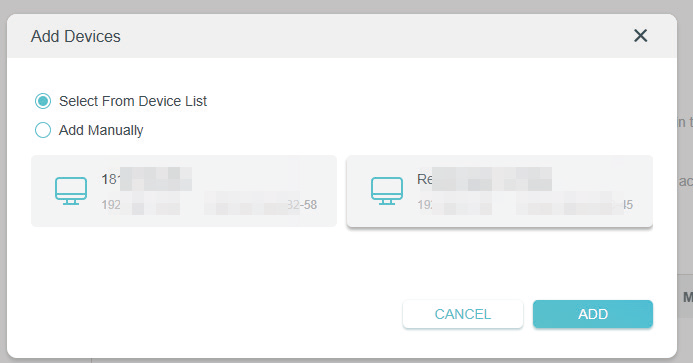
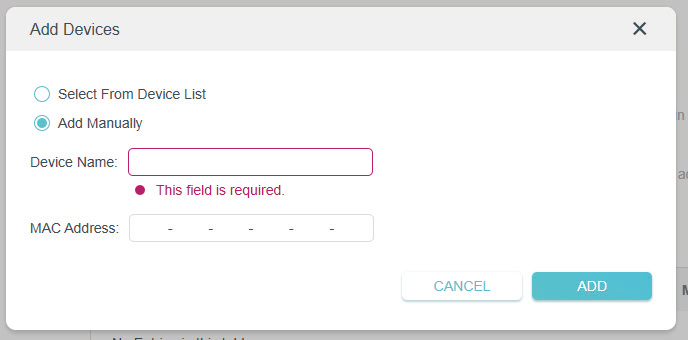
- ) Click +Add and select devices you want to add to the Allow List or add it manually. Then click ADD. You can select from the device list or add manually.
Done!
Now you can block or allow specific client devices to access your network (via wired or wireless) using the Deny List or Allow List.
IP & MAC Binding
IP & MAC Binding, namely, ARP (Address Resolution Protocol) Binding, is used to bind network device’s IP address to its MAC address. This will prevent ARP Spoofing and other ARP attacks by denying network access to an device with matching IP address in the Binding list, but unrecognized MAC address.
I want to:
Prevent ARP spoofing and ARP attacks.
How can I do that?
1 Visit http://tplinkwifi.net, and log in with your TP-Link ID or the password you set for the router.
2 Go to Advanced > Security > IP & MAC Binding.
3 Enable IP & MAC Binding.

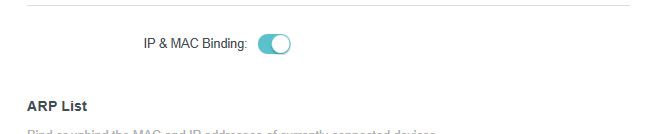
4 Bind your device(s) according to your need.
- To bind the connected device(s):
- ) Click +Add in the Binding List section.

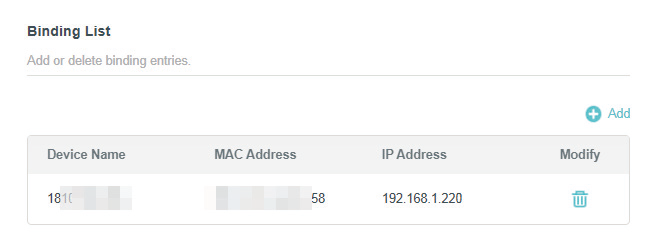
- ) Click VIEW CONNECTED DEVICES and select the device you want to bind. The MAC Address and IP Address fields will be automatically filled in.

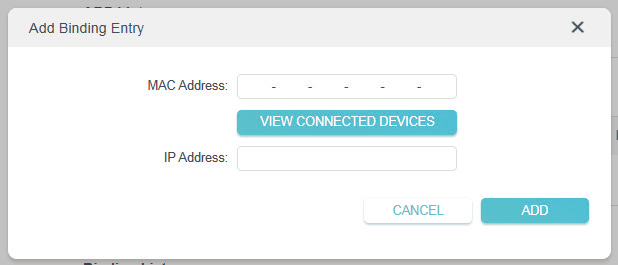
- ) Click SAVE.
- To bind the unconnected device:
- ) Click +Add in the Binding List section.
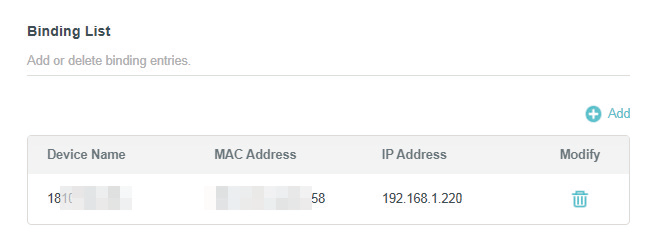
- ) Enter the MAC Address and IP Address that you want to bind.
- ) Click SAVE. When added, your device will appear in the Binding List and ARP List.
5 To unbind the MAC and IP addresses of a device in the list, click the Delete icon in the Binding List.
6 To rebind the MAC and IP addresses of a device deleted, click the toggle button of Bind in the ARP List.

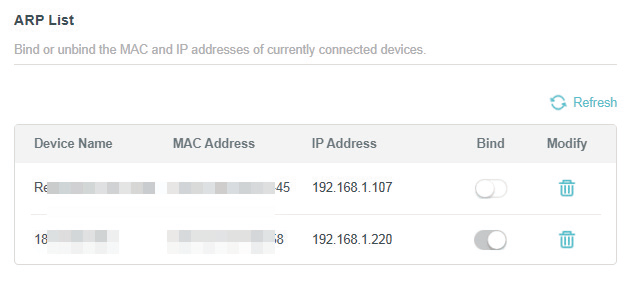
Done!
Now you don’t need to worry about ARP spoofing and ARP attacks!
ALG
ALG allows customized NAT traversal filters to be plugged into the gateway to support address and port translation for certain application layer “control/data” protocols such as FTP, TFTP, H323 etc. It is recommended to keep the default settings.
You may need to disable SIP ALG when you are using voice and video applications to create and accept a call through the router, since some voice and video communication applications do not work well with SIP ALG.
1 Visit http://tplinkwifi.net, and log in with your TP-Link ID or the password you set for the router.
2 Go to Advanced > Security > ALG.

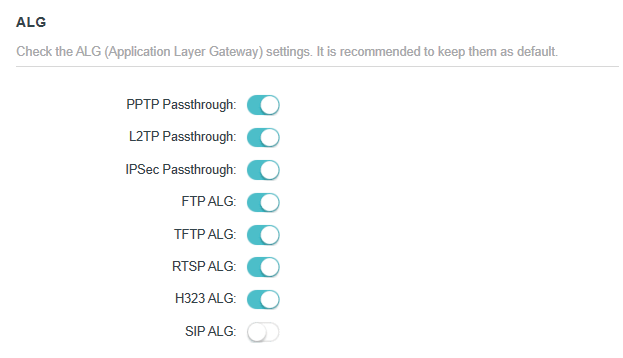
IoT Security
Some devices, such as IoT devices, are vulnerable to security threats. To keep your important devices and data safe, you can isolate these devices to protect your network from being infected.
Note: Please note that this feature is not supported on all product models. Please refer to the actual interface of your device.
1 Visit http://tplinkwifi.net, and log in with your TP-Link ID or the password you set for the router.
2 Go to Advanced > Security > IoT Security. Enable IoT Security.

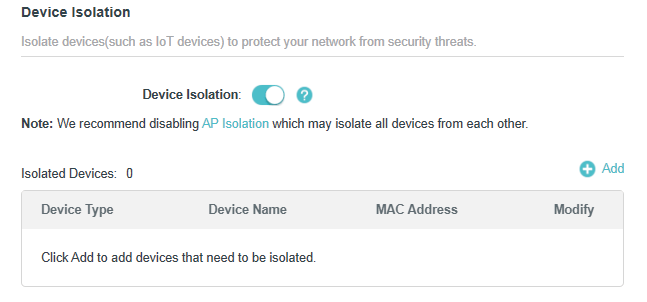
3 Click +Add to add your IoT devices.

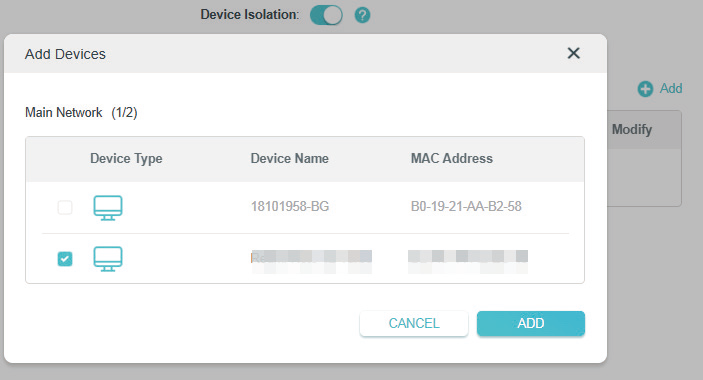
Done!
While isolated, isolated devices (these devices) can still access the internet and communicate with other isolated devices. However, isolated devices (these devices) cannot transfer data with devices on your home, including managing gateway devices, accessing USB devices, etc.
IPv6
This function allows you to enable IPv6 function and set up the parameters of the router’s Wide Area Network (WAN) and Local Area Network (LAN).
1 Visit http://tplinkwifi.net, and log in with the password you set for the router.
2 Go to Advanced > IPv6, and you can view the current IPv6 status information of the router.
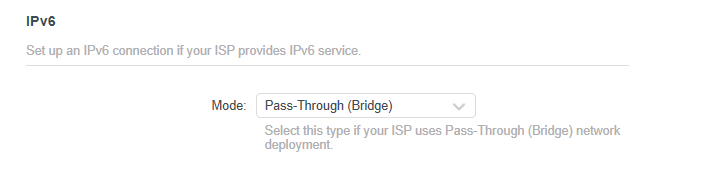
3 Enable IPv6 and select the mode: Router or Pass-Through (Bridge).
> If you select Router:
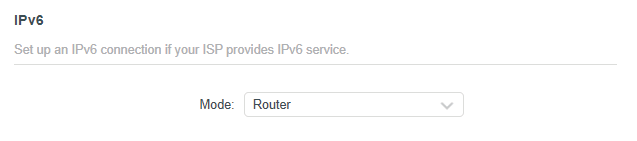
Fill in WAN and LAN information as required by different connection types.
Normal - The default connection type.
- ) Configure the WAN settings.

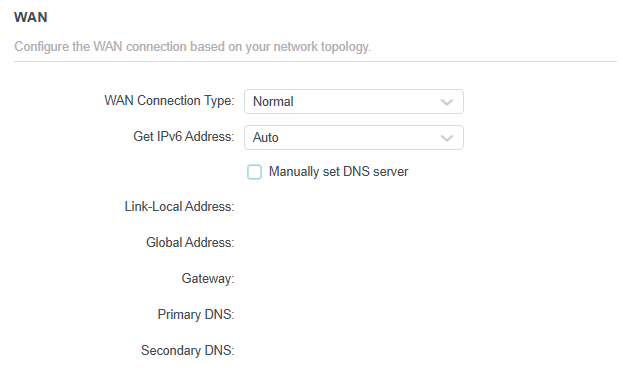
- ) Configure the LAN settings.

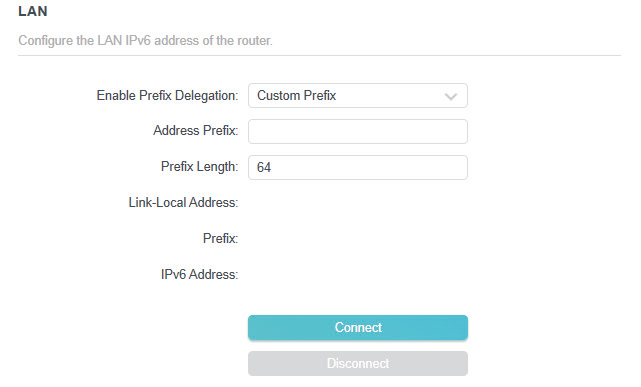
- ) Click SAVE.
PPPoE - Select this type if your ISP uses PPPoEv6, and provides a username and password.
- ) Configure the WAN settings.

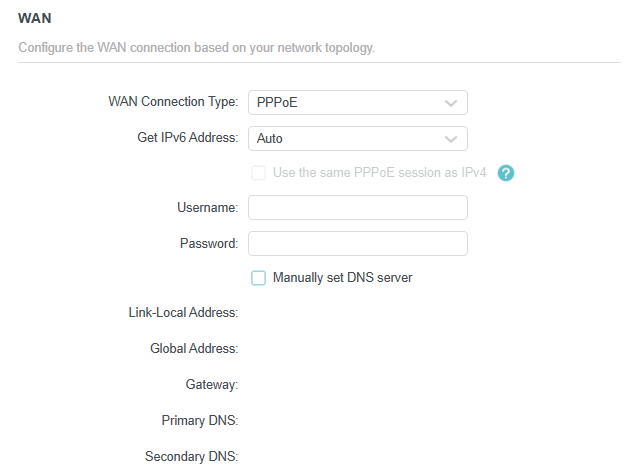
- ) Configure the LAN settings.
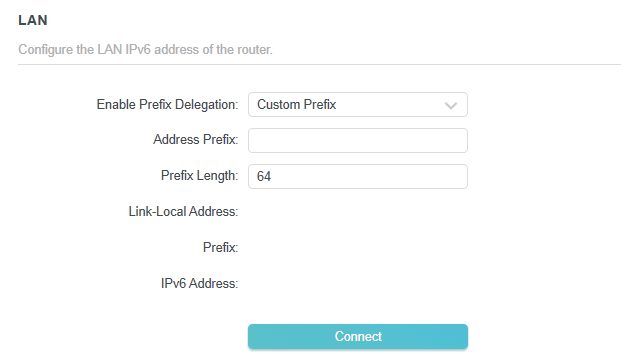
Tunnel 6to4 - Select this type if your ISP uses 6 to 4 deployment fort assigning address.
- ) Configure the WAN settings.

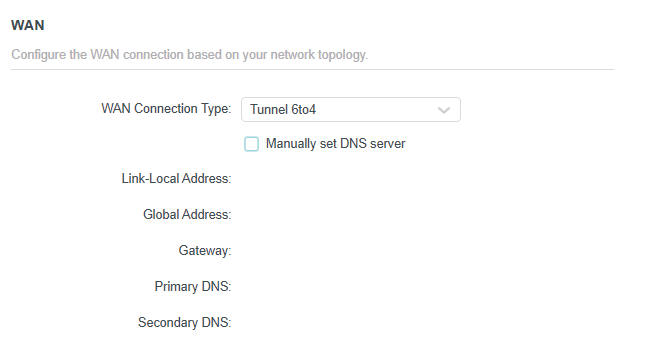
- ) Configure the LAN settings.
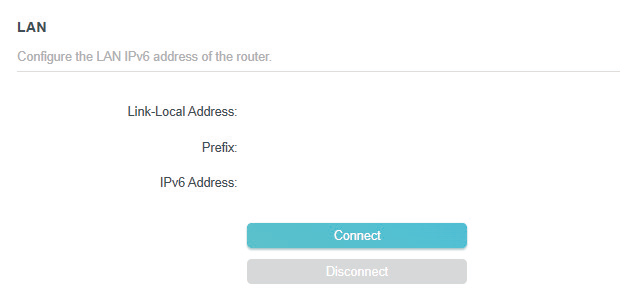
> If you select Pass-Through (Bridge):
Click SAVE. No configuration is required.

Smart Life Assistant
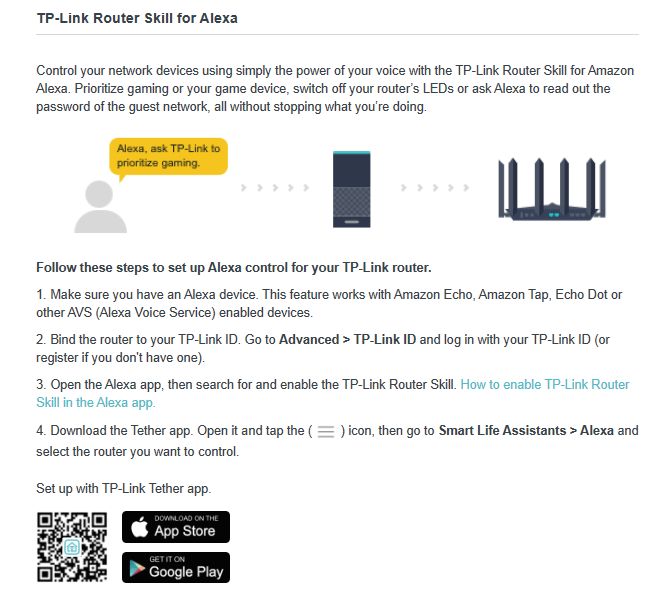
You can control your network devices using simply the power of your voice with the TP-Link Router Skill for Amazon Alexa or Google Assistant.
Note: Please note that this feature is not supported on all product models. Please refer to the actual interface of your device.
1 Visit http://tplinkwifi.net, and log in with your TP-Link ID or the password you set for the router.
2 Go to Advanced > Smart Life Assistant for further guidance.

Manage the Router
Firmware Update
TP-Link aims at providing better network experience for users.
We will inform you through the web management page if there’s any new firmware available for your router. Also, the latest firmware will be released at the TP-Link official website www.tp-link.com, and you can download it from the Support page for free.
Note:
Back up your router’s configurations before firmware update.
Do NOT turn off the router during the firmware update.
> Auto Update:
1. Visit http://tplinkwifi.net, and log in with your TP-Link ID or the password you set for the router.
2. Go to Advanced > System > Firmware Update.
3. Enable Auto Update.
4. Specify the Update Time and save the settings.
The router will update firmware automatically at the specified time when new version is available.
> Online Update:
1. Visit http://tplinkwifi.net, and log in with your TP-Link ID or the password you set for the router.
2. Go to Advanced > System > Firmware Update.
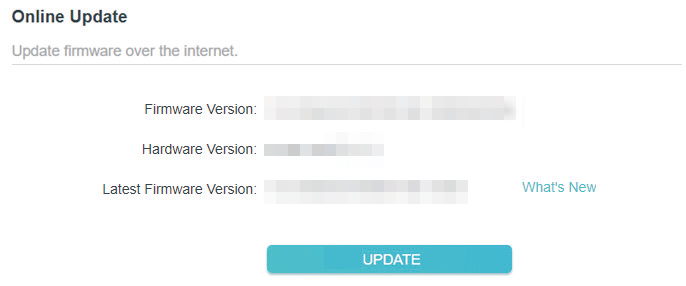
3. When the latest firmware is available for your router, the update icon will display in the top-right corner of the page. Click the icon to go to the Firmware Update page. Alternatively, you can go to Advanced > System > Firmware Update, and click CHECK FOR UPDATES to see whether the latest firmware is released.
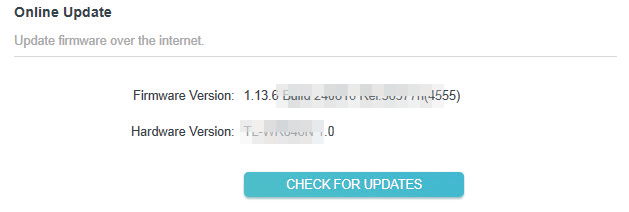
4. Focus on the Online Update section, and click UPDATE if there is new firmware.
5. Wait a few minutes for the update and reboot to complete.
Tips: If there’s a new and important firmware update for your router, you will see the prompt notification on your computer as long as a web browser is opened. Click to update, and log in to the web management page with the username and password you set for the router. You will see the Firmware Update page.
 > Local Update:
1. Download the latest firmware file for the router from www.tp-link.com.
2. Visit http://tplinkwifi.net, and log in with your TP-Link ID or the password you set for the router.
3. Go to Advanced > System > Firmware Update.
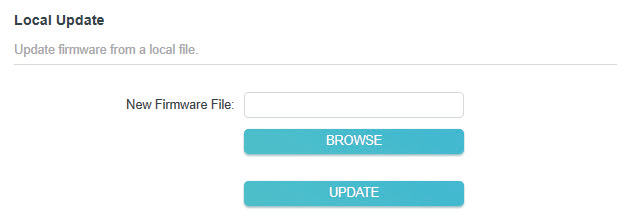
4. Focus on the Local Update section. Click BROWSE to locate the downloaded new firmware file, and click UPDATE.
5. Wait a few minutes for the update and reboot to complete.
 Note: If you fail to update the firmware for the router, please contact our Technical Support.
> EasyMesh Satellite Update:
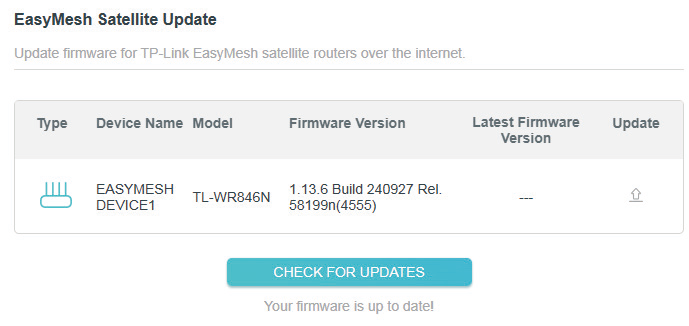
EasyMesh Satellite Update allows you to remotely check and update the firmware of the satellite devices connected to this router via EasyMesh.
1. Visit http://tplinkwifi.net, and log in with your TP-Link ID or the password you set for the router.
2. Go to Advanced > System > Firmware Update, and locate the EasyMesh Satellite Update section.
3. The router’s satellite devices will appear on the table. Click CHECK FOR UPDATES to see whether the latest firmware is released. If you want to update a satellite device, click the Update icon on the right of the corresponding device.
Note: The update will take a few minutes and the satellite router will reboot.
Backup and Restore Configuration Settings
The configuration settings are stored as a configuration file in the router. You can backup the configuration file to your computer for future use and restore the router to a previous settings from the backup file when needed. Moreover, if necessary you can erase the current settings and reset the router to the default factory settings.
1. Visit http://tplinkwifi.net, and log in with your TP-Link ID or the password you set for the router.
2. Go to Advanced > System > Backup & Restore.
> To backup configuration settings:
Click BACK UP to save a copy of the current settings to your local computer. A ‘.bin’ file of the current settings will be stored to your computer.
> To restore configuration settings:
1. Click BROWSE to locate the backup configuration file stored on your computer, and click RESTORE.
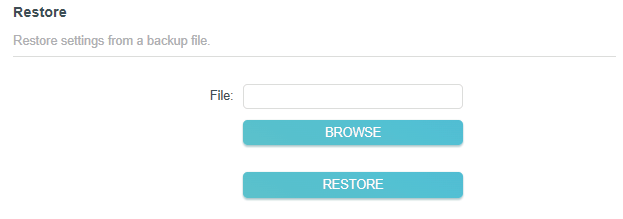
2. Wait a few minutes for the restoring and rebooting.
Note: During the restoring process, do not turn off or reset the router.
> To reset the router except your login password and TP-Link ID:
1. In the Factory Default Restore section, click RESTORE.
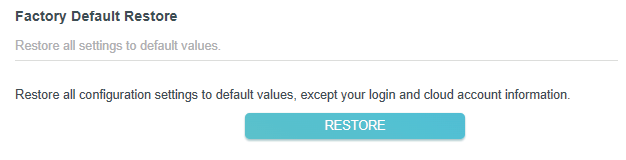
2. Wait a few minutes for the resetting and rebooting.
Note:
• During the resetting process, do not turn off the router.
• After reset, you can still use the current login password or the TP-Link ID to log in to the web management page.
> To reset the router to factory default settings:
1. Click FACTORY RESTORE to reset the router.

2. Wait a few minutes for the resetting and rebooting.
Note:
• During the resetting process, do not turn off or reset the router.
• We strongly recommend you backup the current configuration settings before resetting the router.
Change Password
You can change your login password of the web management page.
Note: If you are using a TP-Link ID to log in to the web management page, the account management feature will be disabled. To manage the TP-Link ID, go to Advanced > TP-Link ID.
1. Visit http://tplinkwifi.net, and log in with the password you set for the router.
2. Go to Advanced > System > Administration and focus on the Change Password section.
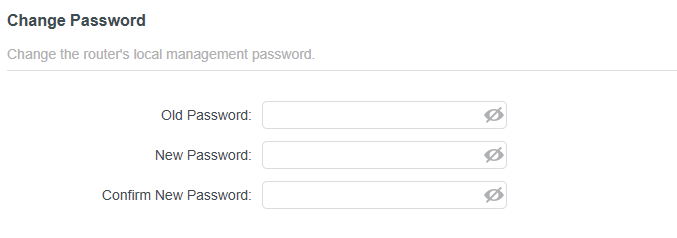
3. Enter the old password, then a new password twice (both case-sensitive). Click SAVE.
4. Use the new password for future logins.
Local Management
This feature allows you to limit the number of client devices on your LAN from accessing the router by using the MAC address-based authentication.
1. Visit http://tplinkwifi.net, and log in with your TP-Link ID or the password you set for the router.
2. Go to Advanced > System > Administration and complete the settings In Local Management section as needed.
> Local Management via HTTPS:
Tick the Local Management via HTTPS checkbox to access the router via HTTPS and HTTP, or keep it disabled to access the router only via HTTP. Click SAVE.

> Allow all LAN connected devices to manage the router:
Select All Devices for Local Managers. Click SAVE.
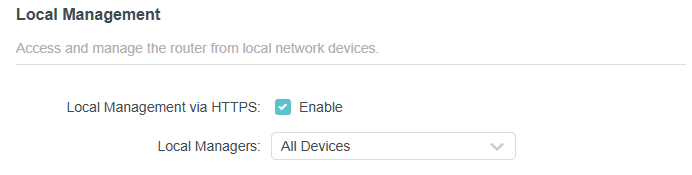
> Allow specific devices to manage the router:
1. Select Specified Devices for Local Managers.
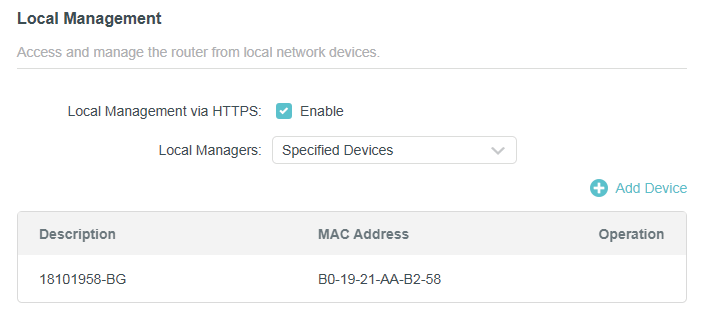
2. Click Add Device.
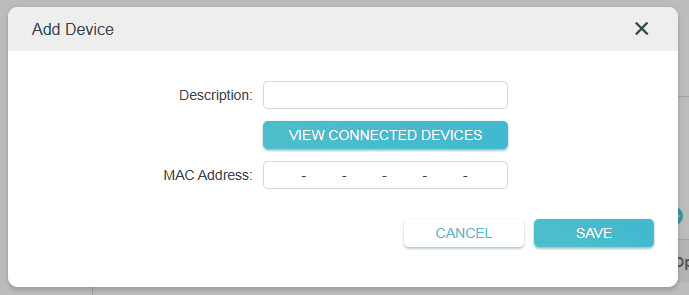
3. Click VIEW CONNECTED DEVICES and select the device to manage the router from the Connected Devices list, or enter the MAC address of the device manually. Click SAVE. The devices added will appear in the list.
4. Click SAVE.
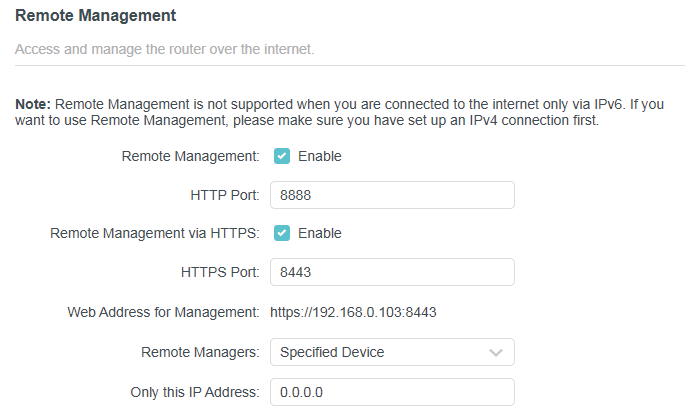
Remote Management
This feature allows you to control remote devices’ authority to manage the router.
1. Visit http://tplinkwifi.net, and log in with your TP-Link ID or the password you set for the router.
2. Go to Advanced > System > Administration and complete the settings in Remote Management section as needed.
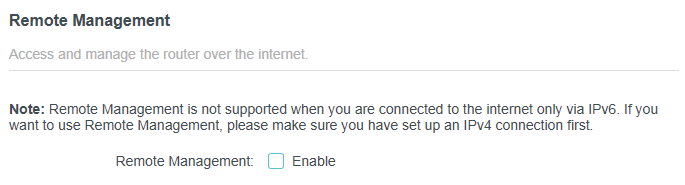
> Forbid all devices to manage the router remotely:
Do not tick the Enable checkbox of Remote Management.
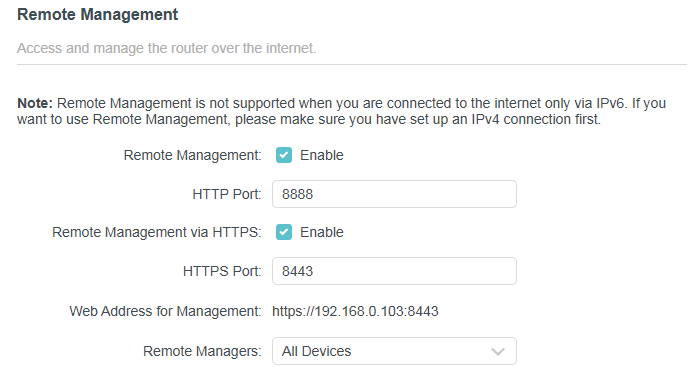
> Allow all devices to manage the router remotely:
1. Tick the Enable checkbox of Remote Management. Tick the Enable checkbox of Remote Management via HTTPS if you want to allow the manager to access the router via HTTPS.
2. Keep the HTTP and HTTPS port as default settings (recommended) or enter a value between 1024 and 65535.
3. Select All Devices for Remote Managers.
4. Click SAVE. Devices on the internet can log in to https://Router’s WAN IP address:port number (such
as https://113.116.60.229:1024) to manage the router.
Tips:
• You can find the WAN IP address of the router on Network Map > Internet.
• The router’s WAN IP is usually a dynamic IP. Please refer to Set Up a Dynamic DNS Service Account if you want to log
in to the router through a domain name.
> Allow a specific device to manage the router remotely:
1. Tick the Enable checkbox of Remote Management. Tick the Enable checkbox of Remote Management via HTTPS if you want to allow the manager to access the router via HTTPS.
2. Keep the HTTP and HTTPS port as default settings (recommended) or enter a value between 1024 and 65535.
3. Select Specified Device for Remote Managers.
4. In the Only this IP Address field, enter the IP address of the remote device to manage the router.
5. Click SAVE. Devices using this WAN IP can manage the router by logging in to http://Router’s WAN IP:port number (such as http://113.116.60.229:1024).
Tips: The router’s WAN IP is usually a dynamic IP. Please refer to Set Up a Dynamic DNS Service Account if you want
to log in to the router through a domain name.
HTTP Referer Head Check
HTTP referer header check function can protect your networks against CSRF attacks.
1 Visit http://tplinkwifi.net, and log in with your TP-Link ID or the password you set for the router.
2 Go to Advanced > System > Administration, and locate the HTTP Referer Head Check section.
3 HTTP Referer Head Check is enabled by default, and it is recommended to keep the default settings. This feature protects your network against cross-site request forgery (CSRF) attacks.


System Log
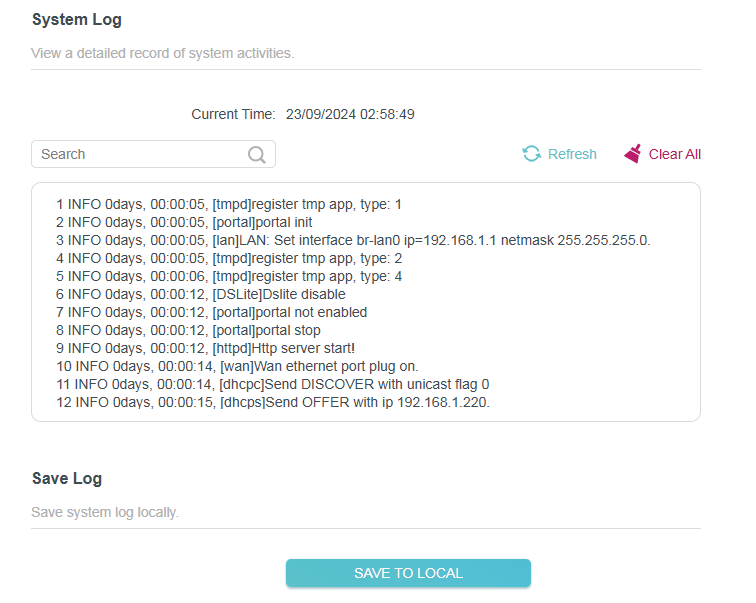
When the router does not work normally, you can save the system log and send it to the technical support for troubleshooting.
> To save the system log locally:
1. Visit http://tplinkwifi.net, and log in your TP-Link ID or the password you set for the router.
2. Go to Advanced > System > System Log.
3. In the Save Log section, click SAVE TO LOCAL to save the system logs to a local disk.
CWMP Settings
CPE WAN Management Protocol (also called TR-069) allows Auto-Configuration Server (ACS) to perform auto-configuration, provision, connection, and diagnostics to this device. You may configure this function under your ISP’s instructions.
1 Visit http://tplinkwifi.net, and log in your TP-Link ID or the password you set for the router.
2 Go to Advanced > System > CWMP Settings.
3 Configure the parameters according to your ISP’s instructions, and click SAVE.
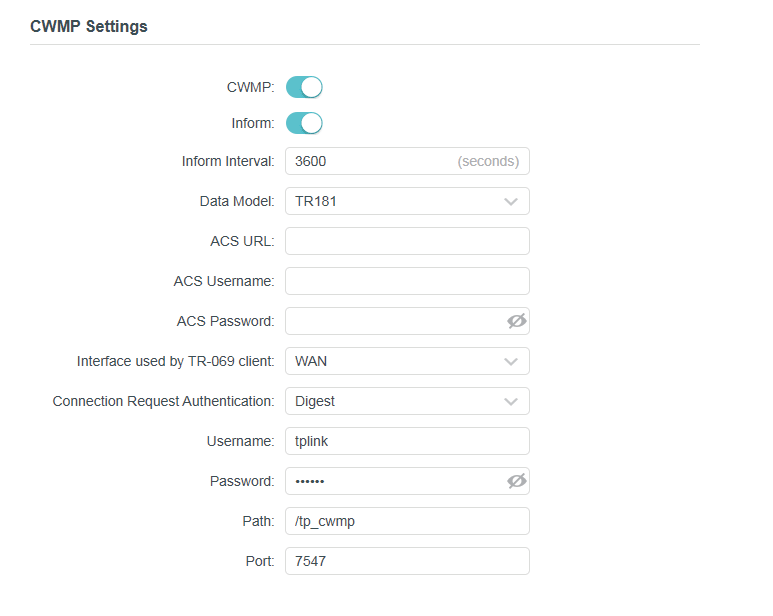
• CWMP - Toggle on to enable the CWMP function.
• Inform - Enable to send an inform message to the ACS periodically.
• Inform Interval - Enter the time interval when the Inform message will be sent to the ACS.
• Data Model - Select under your ISP’s instructions the data model according to which the inform message will be sent to the ACS.
• ACS URL - Enter the web address of the ACS provided by your ISP.
• ACS Username/Password - Enter the username/password to log in to the ACS server.
• Interface used by TR-069 client - Select the interface to be used by the TR-069 client.
• Connection Require Authentication - Under your ISP’s instructions, select the authentication mode. If you select Basic or Digest, enter the username and password for the ACS server to log in to the router.
• Path - Enter the path for the ACS server to log in to the router.
• Port - Enter the port that connects to the ACS server.
Diagnostics
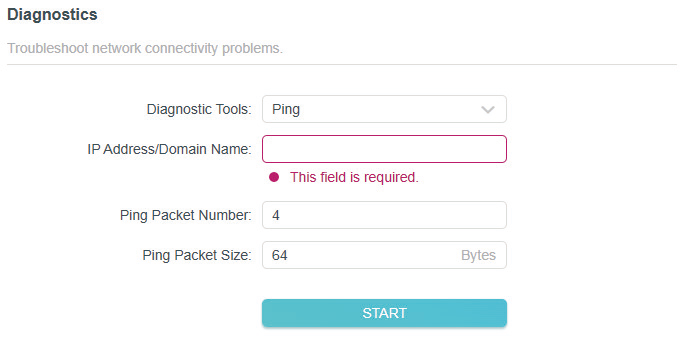
Diagnostics is used to test the connectivity between the router and the host or other network devices.
1 Visit http://tplinkwifi.net, and log in with your TP-Link ID or the password you set for the router.
2 Go to Advanced > System > Diagnostics.

3 Enter the information:
- ) Choose Ping or Traceroute as the diagnostic tool to test the connectivity;
- Ping is used to test the connectivity between the router and the tested host, and measure the round-trip time.
- Traceroute is used to display the route (path) your router has passed to reach the tested host, and measure transit delays of packets across an Internet Protocol network.
- ) Enter the IP Address or Domain Name of the tested host.
- ) Modify the Ping Packet Number and the Ping Packet Size. It’s recommended to keep the default value.
- ) If you have chosen Traceroute, you can modify the Traceroute Max TTL. It’s recommended to keep the default value.
4 Click START to begin the diagnostics.
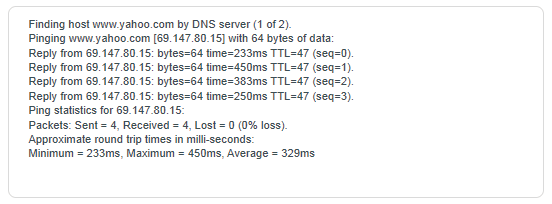
The figure below indicates the proper connection between the router and the Yahoo server (www.Yahoo.com) tested through Ping.

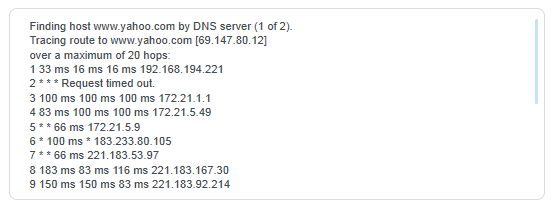
The figure below indicates the proper connection between the router and the Yahoo server (www.Yahoo.com) tested through Traceroute.

Set System Time and Language
System time is the time displayed while the router is running. The system time you configure here will be used for other time-based functions like Parental Controls. You can choose the way to obtain the system time as needed.
System language is the language displayed when you log into the router. You can change the system language as needed.
1 Visit http://tplinkwifi.net, and log in with your TP-Link ID or the password you set for the router.
2 Go to Advanced > System > Time & Language.
> To get time from the internet:
1. Enable 24-Hour Time if you want the time to display in a 24-hour way.
2. In the Set Time field, select Get from Internet.
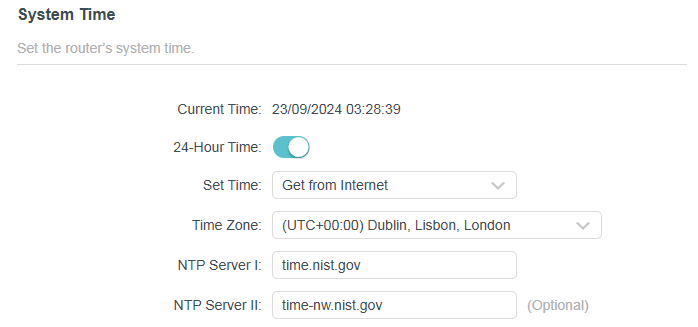
3. Select your local Time Zone from the drop-down list.
4. In the NTP Server I field, enter the IP address or domain name of your desired NTP Server.
5. (Optional) In the NTP Server II field, enter the IP address or domain name of the second NTP Server.
6. Click SAVE.
> To get time from your computer:
1. In the Set Time field, select Get from Managing Device.
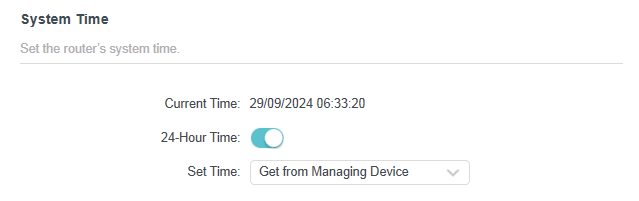
2. The time of your computer will then be displayed and click SAVE.
> To manually set the date and time:
1. In the Set Time field, select Manually.
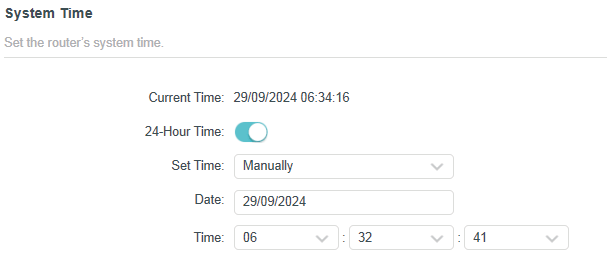
2. Set the current Date (In DD/MM/YYYY format).
3. Set the current Time (In HH/MM/SS format).
4. Click SAVE.
> To set Daylight Saving Time:
1. Tick the Enable box of Daylight Saving Time.
2. Select the correct Start date and time when daylight saving time starts at your local time zone.
3. Select the correct End date and time when daylight saving time ends at your local time zone.
4. Click SAVE.
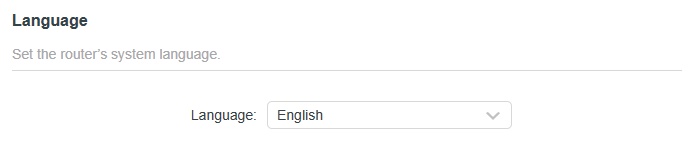
> To set system language:
Select the language from the dropdown list, then click SAVE.
Reboot & Reboot Schedule
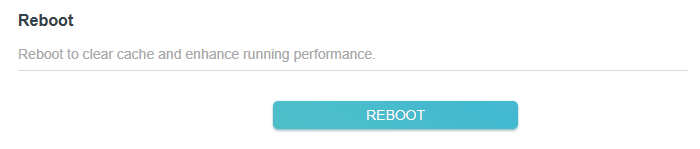
> To reboot the router:
You can reboot the router to clear cache and enhance running performance.
1 Visit http://tplinkwifi.net, and log in with your TP-Link ID or the password you set for the router.
2 Go to Advanced > System > Reboot.
3 Click REBOOT.
> To set reboot schedule:
The Scheduled Reboot feature cleans the cache to enhance the running performance of the router.
1 Visit http://tplinkwifi.net, and log in with your TP-Link ID or the password you set for the router.
2 Go to Advanced > System > Reboot.
3 Tick the Enable box of Reboot Schedule.

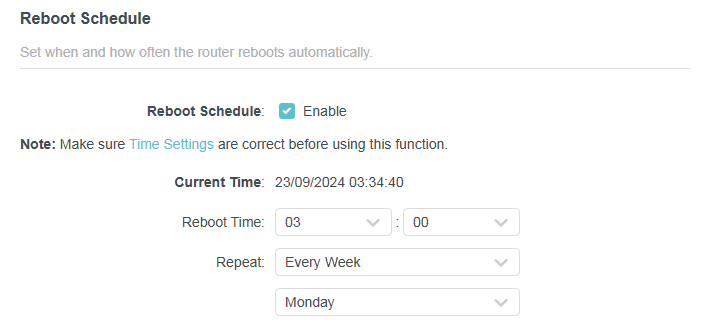
4 Specify the Reboot Time when the router reboots and Repeat to decide how often it reboots.
5 Click SAVE.
 Control the LED
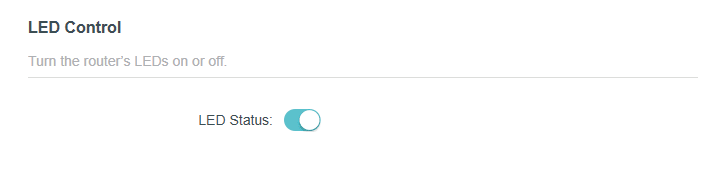
> To turn off or turn on the LEDs:
You can turn the router’s LEDs on or off.
1 Visit http://tplinkwifi.net, and log in with your TP-Link ID or the password you set for the router.
2 Go to Advanced > System > LED Control.
3 Toggle the LED Status button to turn on or turn off the LEDs.

> To enable Night Mode for the LEDs:
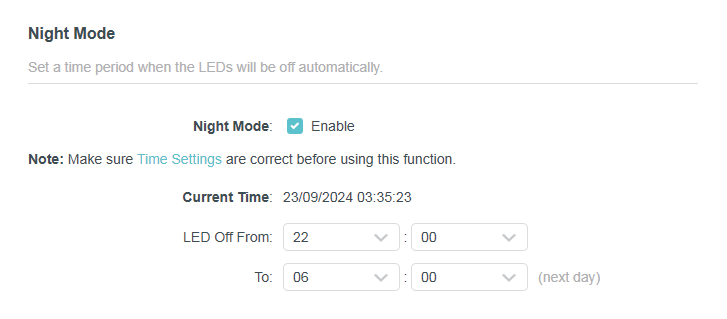
The LED of the router indicates its activities and status. You can enable the Night Mode feature to specify a time period during which the LED is off.
1 Visit http://tplinkwifi.net, and log in with your TP-Link ID or the password you set for the router.
2 Go to Advanced > System > LED Control.
3 Enable Night Mode.
4 Specify the LED off time, and the LED will be off during this period every day.
5 Click SAVE.


Configure the Router in Access Point Mode
This chapter presents how to configure the various features of the router working as a wireless router.
It contains the following sections:
- Network Map
- Operation Mode
- Network
- Wireless Settings
- Manage the Router
Network Map
Network Map outlines device connectivity of your network visually and helps you manage general settings of the network.
- Visit http://tplinkwifi.net, and log in with your TP-Link ID or the password you set for the router.
- Go to Network Map.
- Click each network device icon to check and manage general network settings.
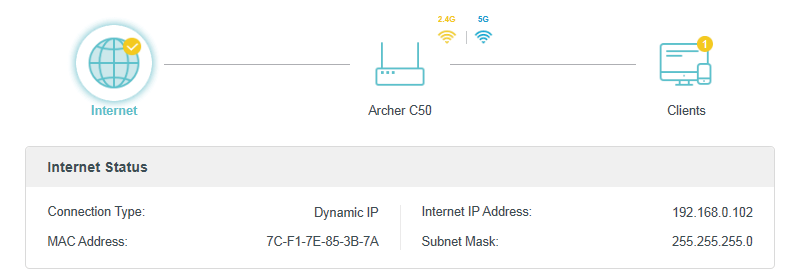
- Click Internet to check internet status.

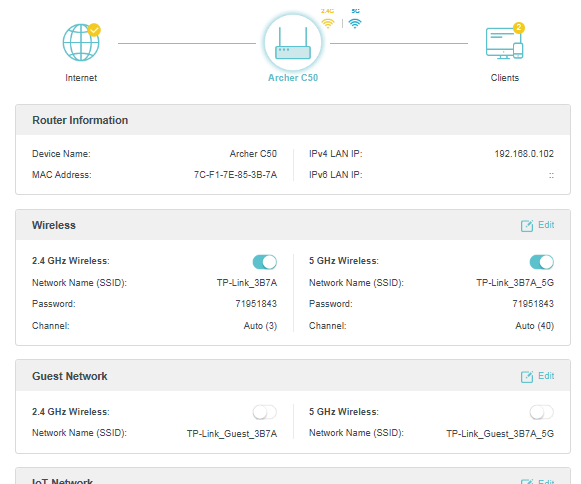
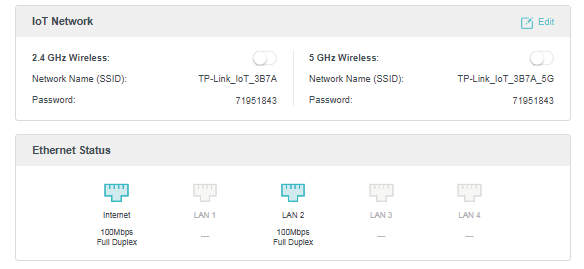
- Click the router to check device status and network settings. You can turn on or off the wireless network, guest network and IoT network, or click Edit to change related settings.


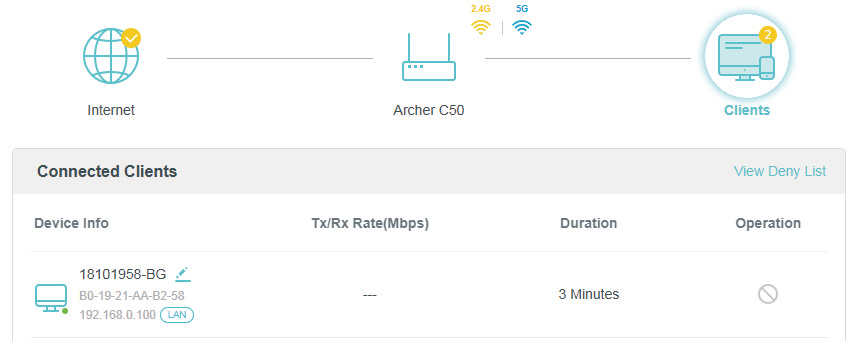
- Click Clients to view the client devices in your network. You can block devices so they cannot access your network.

Operation Mode
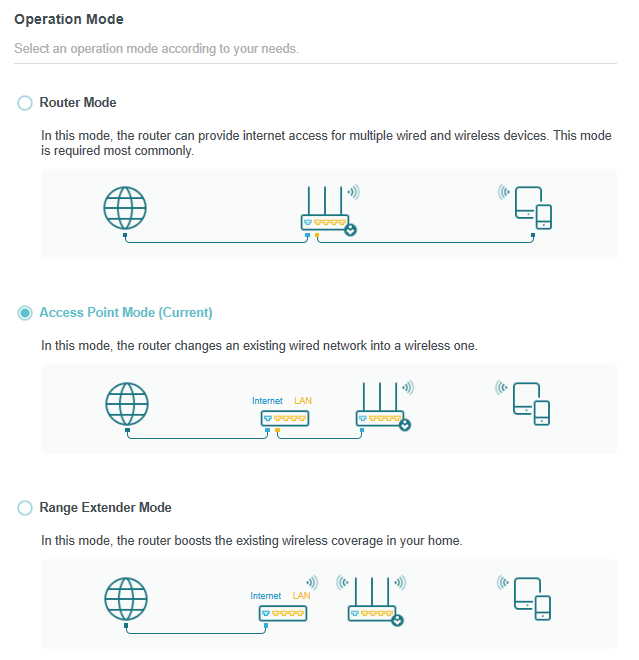
- Visit http://tplinkwifi.net, and log in with the password you set for the router.
- Go to Advanced > Operation Mode.
- Select the working mode as needed and click SAVE.

Network
This chapter guides you on how to configure advanced network features.
LAN Settings
The router is preset with a default LAN IP, which you can use to log in to its web management page. The LAN IP address together with the Subnet Mask also defines the subnet that the connected devices are on. If the IP address conflicts with another device on your local network or your network requires a specific IP subnet, you can change it.
- Visit http://tplinkwifi.net, and log in with your TP-Link ID or the password you set for the router.
- Go to Internet > LAN.
- Configure the IP parameters of the LAN and click SAVE.

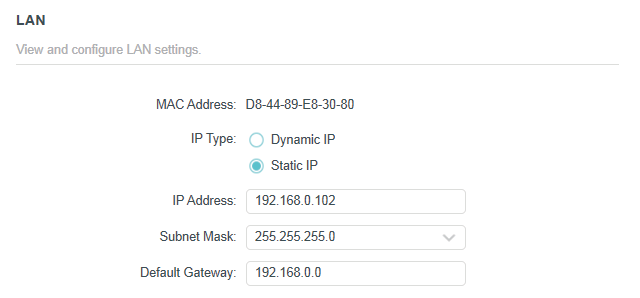
- MAC Address - The physical address of the LAN ports. The value can not be changed.
- IP Type - Either select Dynamic IP to get IP address from DHCP server, or Static IP to configure IP address manually.
- IP Address - Enter the IP address in dotted-decimal notation if your select Static IP.
- Subnet Mask - An address code that determines the size of the network. Normally 255.255.255.0 is used as the subnet mask.
- Default Gateway - The Gateway currently used is shown here. Enter the Default Gateway in dotted-decimal notation if your select Static IP.
 Note:
Note:
- If you have changed the IP address, you must use the new IP address to login.
- If you select Dynamic IP, the DHCP server of the router will not start up.
- If the new IP address you set is not in the same subnet as the old one, the IP Address pool in the DHCP Server will be configured.
DHCP Server Settings
When enabled, the DHCP server dynamically assigns TCP/IP parameters to client devices from the IP Address Pool. You can change the settings of the DHCP Server if necessary, and you can reserve LAN IP addresses for specified client devices.
- Visit http://tplinkwifi.net, and log in with your TP-Link ID or the password you set for the router.
- Go to Internet > DHCP Server.
- To specify the IP address that the router assigns:

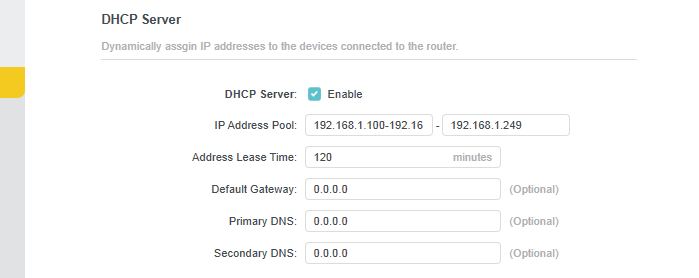
- Tick the Enable checkbox.
- Enter the starting and ending IP addresses in the IP Address Pool.
- Enter the Address Lease Time. It is the amount of time a network user will be allowed to connect to the router with the current dynamic IP Address. When time is up, the user will be automatically assigned a new dynamic IP address. The range of the time is 1 ~ 2880 minutes.
- Set the Default Gateway (Optional). It is suggested to input the IP address of the LAN port of the router.
- Set the DNS Server (Optional). Input the DNS IP address provided by your ISP.
- Set the Secondary DNS Server (Optional). Input the IP address of another DNS server if your ISP provides two DNS servers.
- Click SAVE.
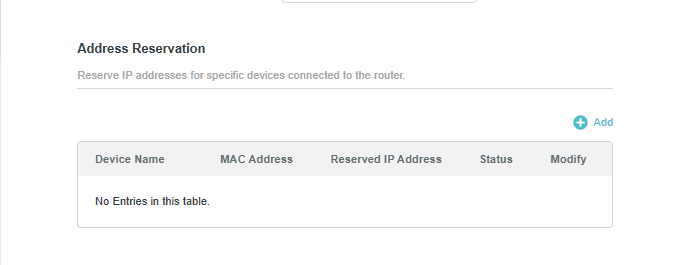
- To reserve an IP address for a specified client device:
- Click Add in the Address Reservation section.

- Click VIEW CONNECTED DEVICES and select the you device you want to reserve an IP for. Then the MAC Address will be automatically filled in. Or enter the MAC address of the client device manually.

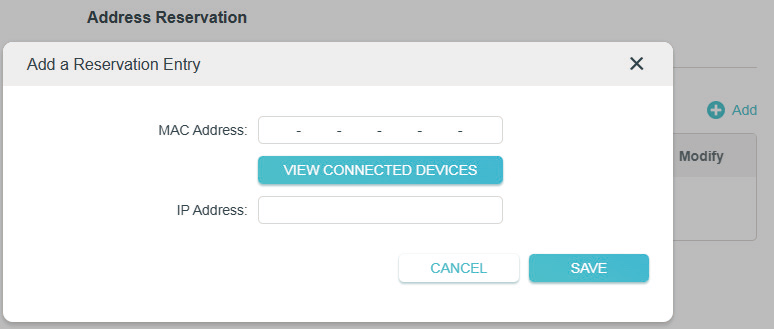
- Enter the IP address to reserve for the client device.
- Click SAVE.
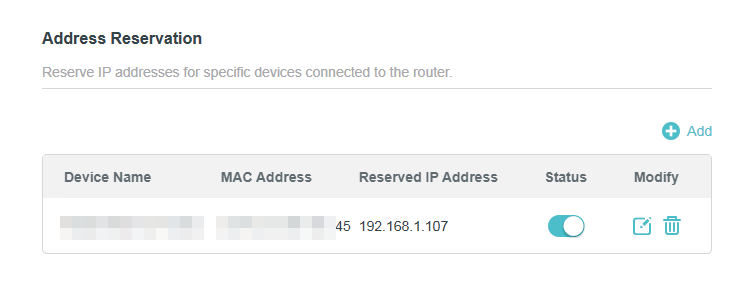
- Click Add in the Address Reservation section.
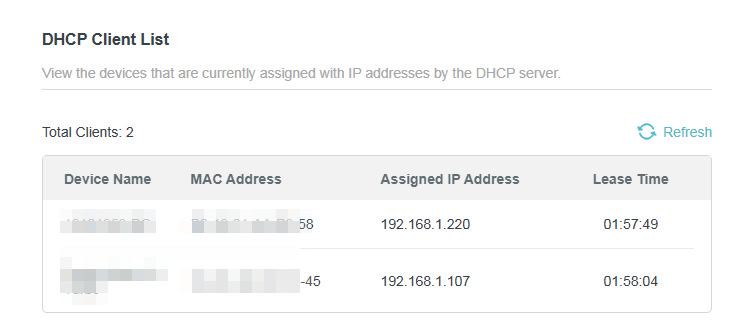
- To view devices assigned with IP addresses by the DHCP server:
- You can view the devices that are currently assigned with IP addresses by the DHCP server in DHCP Client List.
Access Control
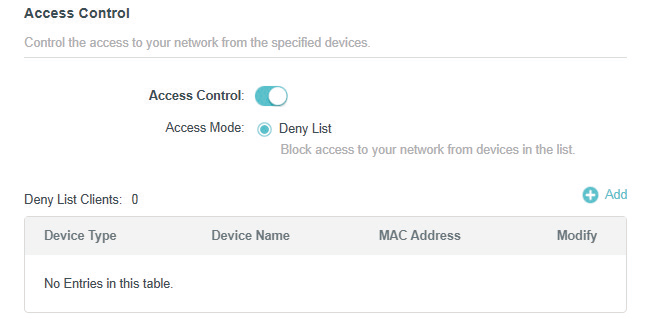
In Access Point mode, the Access Control feature is used to block specific client devices to access your network (via wired or wireless) based on a list of blocked devices (Decy List).
I want to:
Block specific client devices to access my network (via wired or wireless).
How can I do that?
- Visit http://tplinkwifi.net, and log in with your TP-Link ID or the password you set for the router.
- Go to Internet > Access Control.
- Toggle on to enable Access Control.

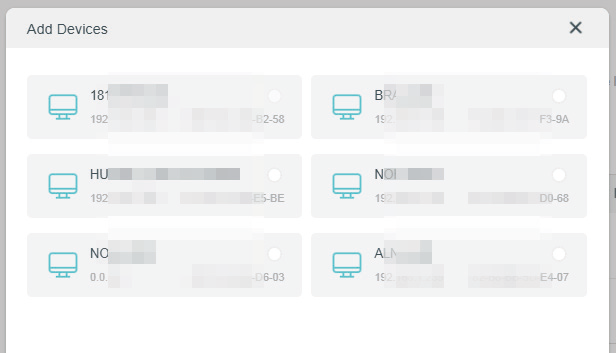
- Click
 +Add and select devices you want to block. Then click ADD.

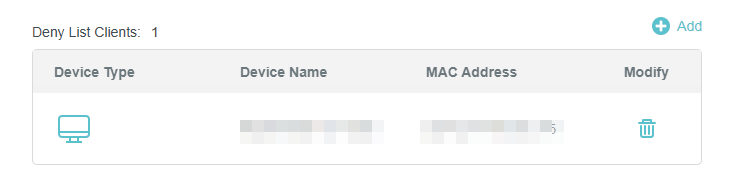
- The Operation Succeeded message will appear on the screen, which means the selected devices have been successfully added to the Deny List.

Done!
Now you can block specific client devices to access your network (via wired or wireless) using the Deny List.

Wireless Settings
This chapter guides you on how to configure the wireless settings.
Specify Wireless Settings
You can personalize wireless settings as you need.
1 Visit http://tplinkwifi.net, and log in with your TP-Link ID or the password you set for the router.
2 Go to Wireless > Wireless Settings.

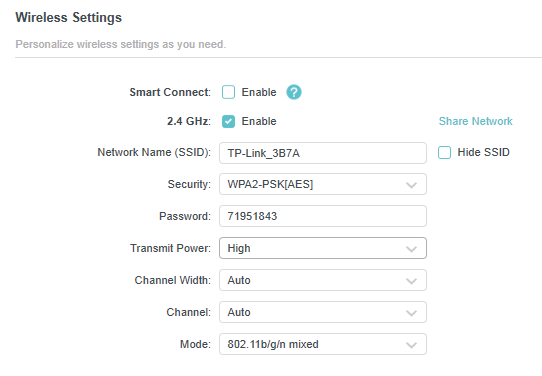

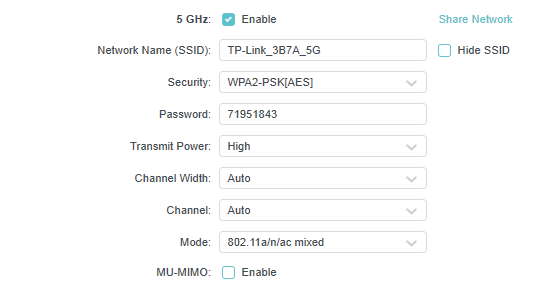
> To use the Smart Connect function:
When enabled, the 2.4 GHz and 5 GHz networks share the same network name and password (only one SSID will be displayed), and your wireless device will automatically switch connection to the Wi-Fi band that provides the fastest speed.
1 Go to Wireless > Wireless Settings.
2 Enable Smart Connect.
3 Keep the default values or set a new SSID and password, and click SAVE. This SSID and password will be applied for the 2.4 GHz and 5 GHz wireless networks. If you want to configure the wireless settings separately for each band, deselect the checkbox to disable this feature.

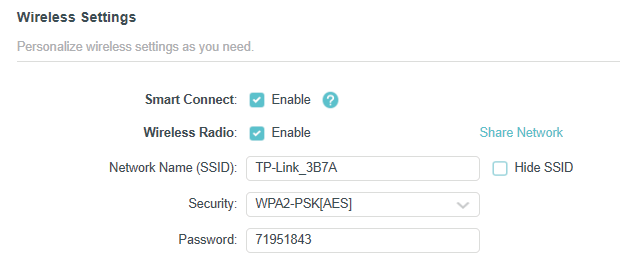
> To enable or disable the wireless function:
1 Go to Wireless > Wireless Settings.
2 The wireless bands are enabled by default. If you want to disable a wireless band, just deselect its Enable checkbox.
> To change the wireless network name (SSID) and wireless password:
1 Go to Wireless > Wireless Settings.
2 Create a new SSID in Network Name (SSID) and customize the password for the network in Password. The value is case-sensitive. (Note: If you change the wireless settings with a wireless device, you will be disconnected when the settings are effective. Please write down the new SSID and password for future use.)
> To hide SSID:
1 Go to Wireless > Wireless Settings.
2 Select Hide SSID, and your SSID won’t display when you scan for local wireless networks on your wireless device and you need to manually join the network.
> To change the security option:
1 Go to Wireless > Wireless Settings.
2 Select an option from the Security drop-down list. We recommend you don’t change the default settings unless necessary.
To change the transmit power:
1 Go to Wireless > Wireless Settings.
2 Select an option from the Transmit Power drop-down list: High, Middle or Low. The default and recommended setting is High.
> To change the transmit power:
1 Go to Wireless > Wireless Settings.
2 Select an option from the Transmit Power drop-down list: High, Middle or Low. The default and recommended setting is High.
> To change channel settings:
1 Go to Wireless > Wireless Settings.
2 Select a Channel Width (bandwidth) for the wireless network. It is recommended to just leave it as default.
3 Select an operating Channel for the wireless network. It is recommended to leave the channel to Auto if you are not experiencing the intermittent wireless connection issue.
> To change the transmission mode:
1 Go to Wireless > Wireless Settings.
2 Disable Smart Connect, then select a transmission Mode according to your wireless client devices. It is recommended to just leave it as default.
> To enable or disable MU-MIMO:
A router with the MU-MIMO feature serves multiple devices simultaneously while a traditional router serves only one user at a time. That means MU-MIMO can provide a faster, more efficient Wi-Fi network for multiusers. It is disabled by default.
Note: Devices supporting 5GHz wireless band can enjoy the MU-MIMO service.
1. Go to Wireless > Wireless Settings.
2. Enable MU-MIMO.
> To Share Network:
1. Go to Wireless > Wireless Settings.
2. Click Share Network to share the SSID and password to your guests.
Guest Network
Guest Network allows you to provide Wi-Fi access for guests without disclosing your host network. When you have guests in your house, apartment, or workplace, you can create a guest network for them. In addition, you can customize guest network settings to ensure network security and privacy.
> Create a Network for Guests:
1. Visit http://tplinkwifi.net, and log in with your TP-Link ID or the password you set for the router.
2. Go to Wireless > Guest Network.
3. Create a guest network as needed.
1 ) Tick the Enable checkbox for the 2.4GHz or 5 GHz wireless network.
2 ) Customize the SSID. Don‘t select Hide SSID unless you want your guests to manually input the SSID for guest network access.
3 ) Click Share Network to share the SSID and password to your guests.
4 ) Set the Effective Time to keep the guest network on during the selected duration.
5 ) Select the Security type and customize your own password. If None is selected, no password is needed to access your guest network.
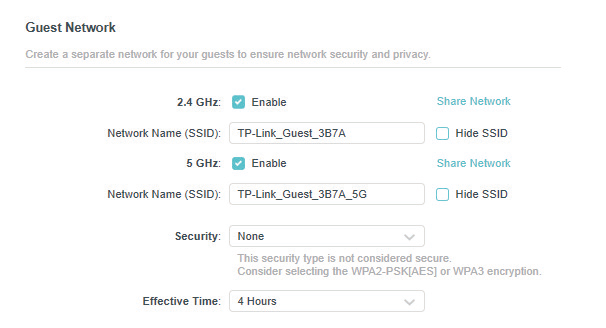
4. Click SAVE. Now your guests can access your guest network using the SSID and password you set!
Tips: To view guest network information, go to Network Map and locate the Guest Network section. You can turn on or off the guest network function conveniently.
> Customize Guest Network Options:
1. Visit http://tplinkwifi.net, and log in with your TP-Link ID or the password you set for the router.
2. Go to Wireless > Guest Network. Locate the Guest Permissions section.
3. Customize guest network options according to your needs.
Allow guests to see each other - Tick this checkbox if you want to allow the wireless clients on your guest network to communicate with each other via methods such as network neighbors and Ping.
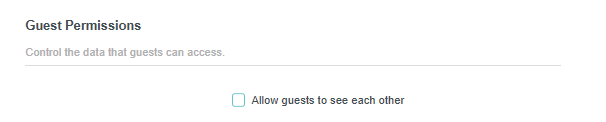
IoT Network
This feature further secures your home network by allowing you to create a dedicated wireless network to manage your loT devices together, such as smart lights and cameras.
Note: Please note that this feature is not supported on all product models. Please refer to the actual interface of your device.
1. Visit http://tplinkwifi.net, and log in with your TP-Link ID or the password you set for the router.
2. Go to Wireless > IoT Network.
3. Create an IoT network as needed.
1 ) Tick the Enable checkbox for the 2.4GHz or 5 GHz wireless network. For 5 GHz IoT networks, make sure your IoT devices can connect to a 5 GHz network.
2 ) Customize the SSID. Don‘t select Hide SSID unless you want your IoT devices to manually input the SSID for network access.
3 ) Click Share Network to share the SSID and password to others.
4 ) Select the Security type and customize your own password. If None is selected, no password is needed to access the IoT network.
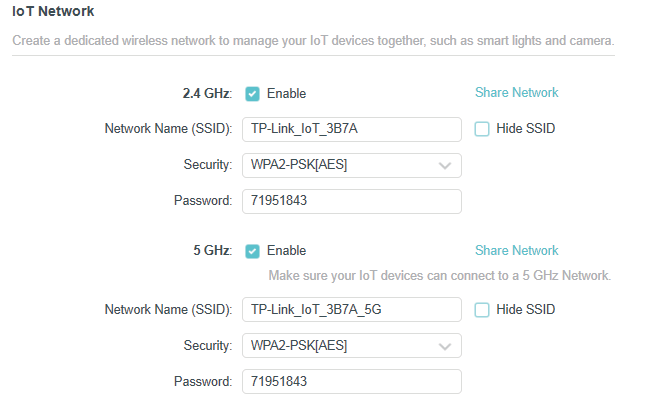
4. Click SAVE. Now you can connect your IoT devices to the dedicated IoT network.
Wireless Schedule
You can schedule the wireless function of your router. The wireless network can be automatically off at a specific time when you do not need the wireless connection.
1. Visit http://tplinkwifi.net, and log in with your TP-Link ID or the password you set for the router.
2. Go to Wireless > Wireless Schedule.
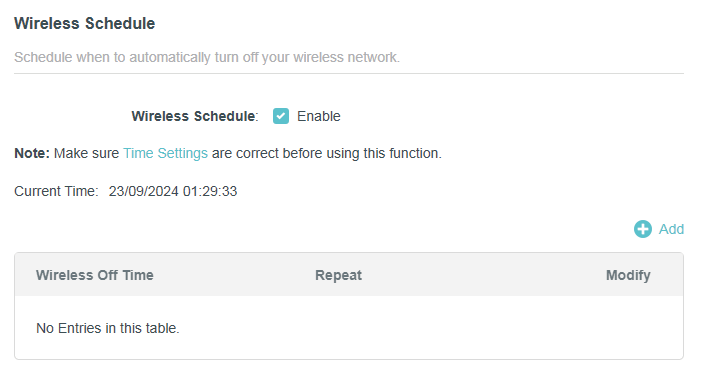
3. Tick the Enable checkbox to enable the wireless schedule function.
4. Click Add to specify a wireless off period during which you need the wireless off automatically, and click SAVE.
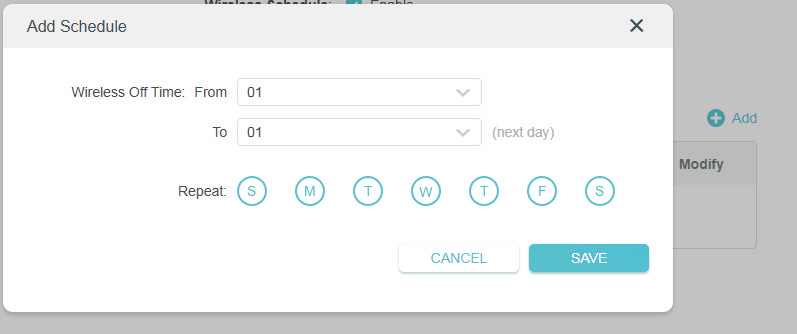
5. The wireless schedules added will appear in the list. You can modify the settings here.
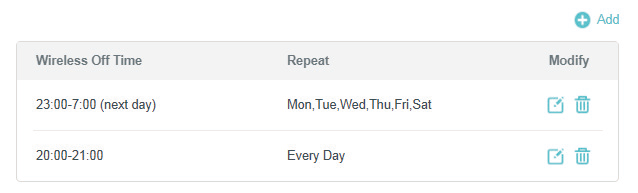
Note:
• The Effective Time Schedule is based on the time of the router. You can go to Advanced > System > Time & Language to modify the time.
• The wireless network will be automatically turned on after the time period you set.
WPS
WPS (Wi-Fi Protected Setup) can help you to quickly and securely connect to a network.
This section will guide you to add a new wireless device to your router’s network quickly via WPS.
Note: The WPS function cannot be configured if the wireless function of the router is disabled. Please make sure the wireless
function is enabled before configuration.
1. Visit http://tplinkwifi.net, and log in with your TP-Link ID or the password you set for the router.
2. Go to Wireless > WPS.
3. Click to enable the WPS function.
4. Follow one of the following methods to connect your client device to the router’s Wi-Fi network.
> Connect via the Client’s PIN
1. Select Client’s PIN.
2. Enter the PIN of your device and click CONNECT. Then your device will get connected to the router.
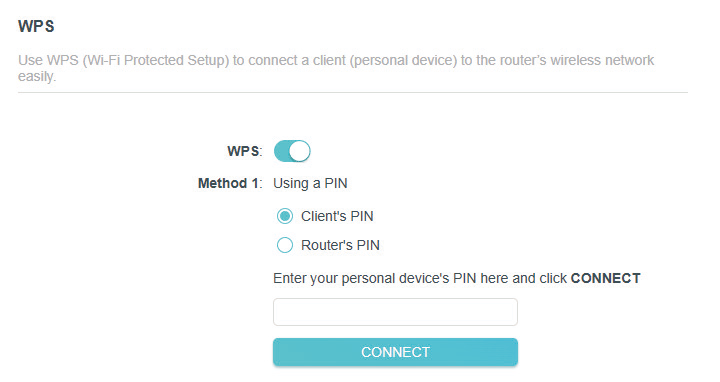
> Connect via the Router’s PIN
1. Select Router’s PIN.
2. Enable Router’s PIN. You can click GET NEW PIN to generate a new one or click DEFAULT to use the default PIN.
3. Enter the router’s PIN on your personal device.
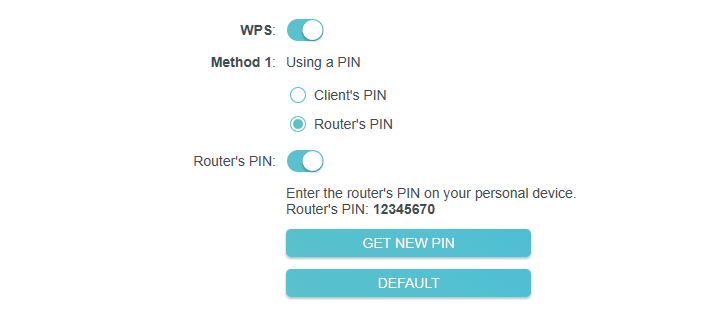
Note: PIN (Personal Identification Number) is an eight-character identification number preset to each router. WPS supported devices can connect to your router with the PIN. The default PIN is printed on the label of the router.
> Push the WPS Button
1. Click the Start button on the screen or directly press the router’s WPS button. Within two minutes, press the WPS button on your client device.
2. A success message will appear on the page if the client device has been successfully added to the router’s network. And the Wi-Fi LED of the router should change from flashing to solid on, indicating successful WPS connection.
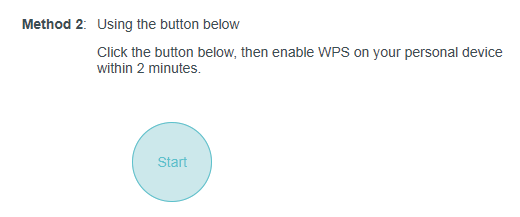
Advanced Wireless Settings
Check advanced wireless settings for your device.
1. Visit http://tplinkwifi.net, and log in with your TP-Link ID or the password you set for the router.
2. Go to Wireless > Additional Settings.
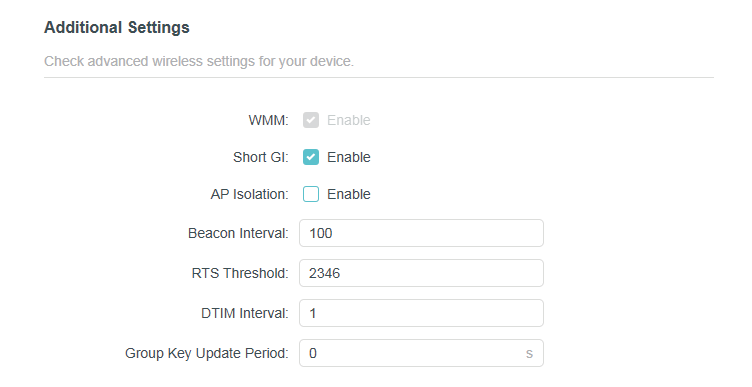
• WMM - WMM (Wi-Fi multimedia) function can guarantee the packets with high-priority messages being transmitted preferentially.
• Short GI - It is recommended to enable Short GI (Short Guard Interval) function, for it will increase the data capacity by reducing the guard interval time.
• AP Isolation - This function isolates all connected wireless stations so that wireless stations cannot access each other through WLAN.
• Beacon Interval - Enter a value between 40 and 1000 in milliseconds to determine the duration between beacon packets that are broadcasted by the router to synchronize the wireless network. The default value is 100 milliseconds.
• RTS Threshold- Enter a value between 1 and 2346 to determine the packet size of data transmission through the router. By default, the RTS (Request to Send) Threshold size is 2346. If the packet size is greater than the preset threshold, the router will send RTS frames to a particular receiving station and negotiate the sending of a data frame.
• DTIM Interval - The value determines the interval of DTIM (Delivery Traffic Indication Message). Enter a value between 1 and 15 intervals. The default value is 1, which indicates the DTIM Interval is the same as Beacon Interval.
• Group Key Update Period - Enter a number of seconds (minimum 30) to control the time interval for the encryption key automatic renewal. The default value is 0, meaning no key renewal.
Manage the Router
Firmware Update
TP-Link aims at providing better network experience for users. We will inform you through the web management page if there’s any new firmware available for your router. Also, the latest firmware will be released at the TP-Link official website www.tp-link.com, and you can download it from the Support page for free.
Note:
• Back up your router’s configurations before firmware update.
• Do NOT turn off the router during the firmware update.
> Online Update:
1. Visit http://tplinkwifi.net, and log in with your TP-Link ID or the password you set for the router.
2. Go to Advanced > Firmware Update.
3. When the latest firmware is available for your router, the update icon will display in the top-right corner of the page. Click the icon to go to the Firmware Update page. Alternatively, you can go to Advanced > System > Firmware Update, and click CHECK FOR UPDATES to see whether the latest firmware is released.
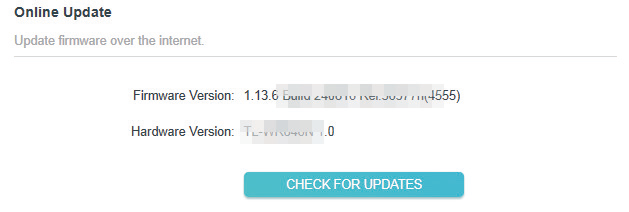
4. Focus on the Online Update section, and click UPDATE if there is new firmware.
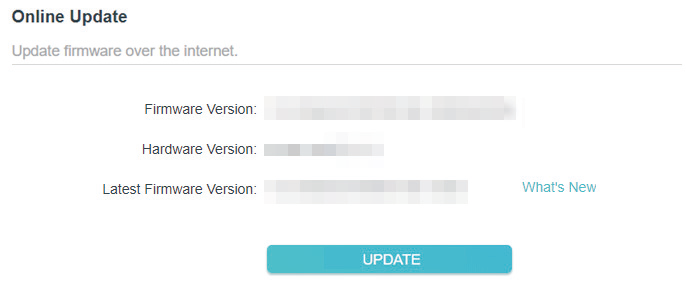
5. Wait a few minutes for the update and reboot to complete.
Tips: If there’s a new and important firmware update for your router, you will see the prompt notification on your computer as long as a web browser is opened. Click to update, and log in to the web management page with the username and password you set for the router. You will see the Firmware Update page.
> Local Update:
1. Download the latest firmware file for the router from www.tp-link.com.
2. Visit http://tplinkwifi.net, and log in with your TP-Link ID or the password you set for the router.
3. Go to Advanced > Firmware Update.
4. Focus on the Local Update section. Click BROWSE to locate the downloaded new firmware file, and click UPDATE.
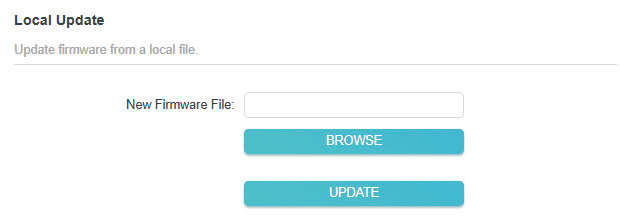
5. Wait a few minutes for the update and reboot to complete.
Note: If you fail to update the firmware for the router, please contact our Technical Support.
Backup and Restore Configuration Settings
The configuration settings are stored as a configuration file in the router. You can backup the configuration file to your computer for future use and restore the router to a previous settings from the backup file when needed. Moreover, if necessary you can erase the current settings and reset the router to the default factory settings.
1. Visit http://tplinkwifi.net, and log in with your TP-Link ID or the password you set for the router.
2. Go to Advanced > Backup & Restore.
> To backup configuration settings:
Click BACK UP to save a copy of the current settings to your local computer. A ‘.bin’ file of the current settings will be stored to your computer.
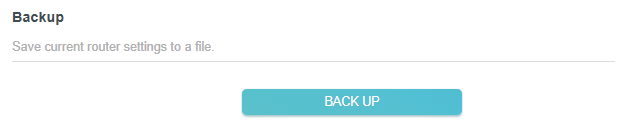
> To restore configuration settings:
1. Click BROWSE to locate the backup configuration file stored on your computer, and click RESTORE.
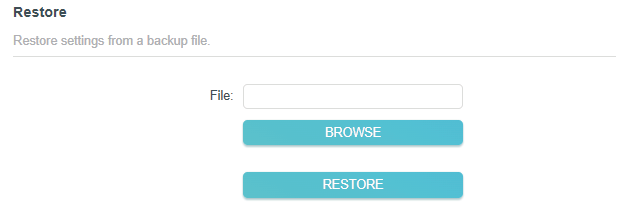
2. Wait a few minutes for the restoring and rebooting.
Note: During the restoring process, do not turn off or reset the router.
> To reset the router except your login password and TP-Link ID:
1. In the Factory Default Restore section, click RESTORE.
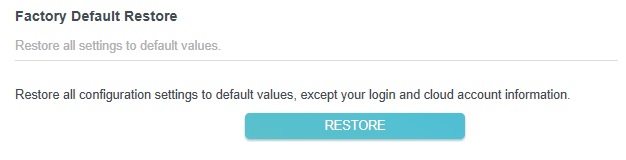
2. Wait a few minutes for the resetting and rebooting.
Note:
• During the resetting process, do not turn off the router.
• After reset, you can still use the current login password or the TP-Link ID to log in to the web management page.
> To reset the router to factory default settings:
1. Click FACTORY RESTORE to reset the router.

2. Wait a few minutes for the resetting and rebooting.
Note:
• During the resetting process, do not turn off or reset the router.
• We strongly recommend you backup the current configuration settings before resetting the router.
Change Password
You can change your login password of the web management page.
Note: If you are using a TP-Link ID to log in to the web management page, the account management feature will be disabled. To manage the TP-Link ID, go to Advanced > TP-Link ID.
1. Visit http://tplinkwifi.net, and log in with the password you set for the router.
2. Go to Advanced > Administration and focus on the Change Password section.
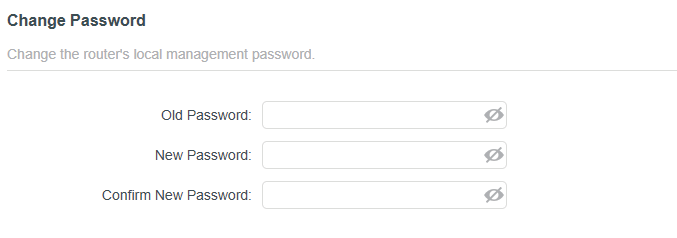
3. Enter the old password, then a new password twice (both case-sensitive). Click SAVE.
4. Use the new password for future logins.
Local Management
This feature allows you to limit the number of client devices on your LAN from accessing the router by using the MAC address-based authentication.
1. Visit http://tplinkwifi.net, and log in with your TP-Link ID or the password you set for the router.
2. Go to Advanced > Administration and complete the settings In Local Management section as needed.
> Local Management via HTTPS
Tick the Local Management via HTTPS checkbox to access the router via HTTPS and HTTP, or keep it disabled to access the router only via HTTP. Click SAVE.

> Allow all LAN connected devices to manage the router:
Select All Devices for Local Managers. Click SAVE.
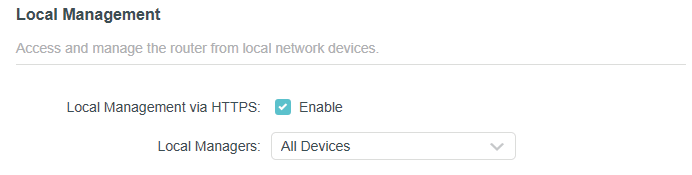
> Allow specific devices to manage the router:
1. Select Specified Devices for Local Managers.
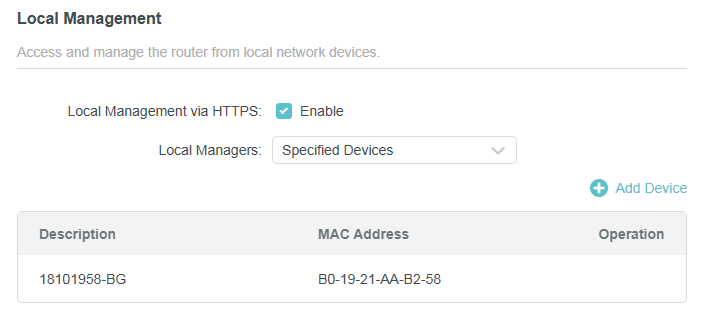
2. Click Add Device.
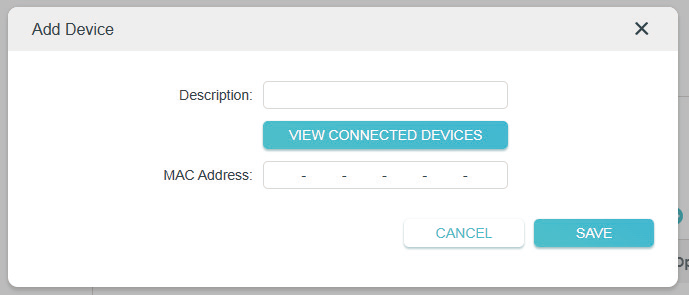
3. Click VIEW CONNECTED DEVICES and select the device to manage the router from the Connected Devices list, or enter the MAC address of the device manually. Click SAVE. The devices added will appear in the list.
4. Click SAVE.
HTTP Referer Head Check
HTTP referer header check function can protect your networks against CSRF attacks.
1. Visit http://tplinkwifi.net, and log in with your TP-Link ID or the password you set for the router.
2. Go to Advanced > Administration, and locate the HTTP Referer Head Check section.
3. HTTP Referer Head Check is enabled by default, and it is recommended to keep the default settings. This feature protects your network against cross-site request forgery (CSRF) attacks.

System Log
When the router does not work normally, you can save the system log and send it to the technical support for troubleshooting.
> To save the system log locally:
1. Visit http://tplinkwifi.net, and log in your TP-Link ID or the password you set for the router.
2. Go to Advanced > System Log.
3. In the Save Log section, click SAVE TO LOCAL to save the system logs to a local disk.
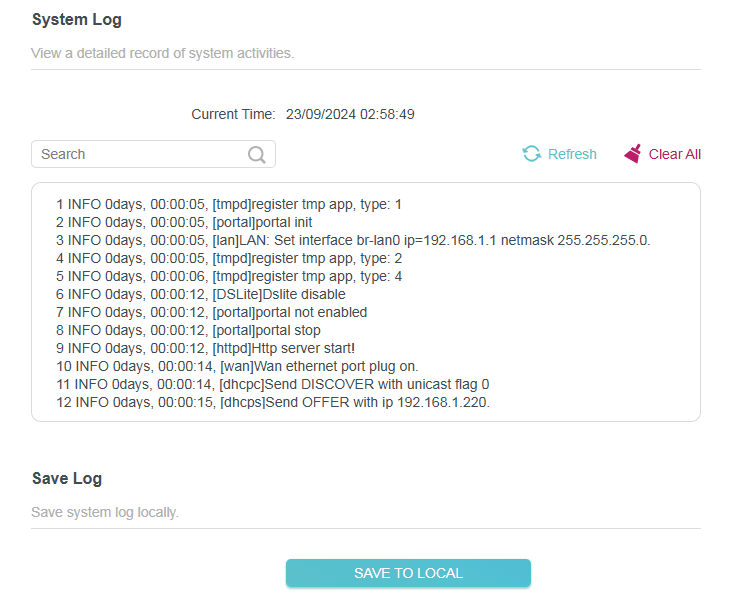
Diagnostics
Diagnostics is used to test the connectivity between the router and the host or other network devices.
1. Visit http://tplinkwifi.net, and log in with your TP-Link ID or the password you set for the router.
2. Go to Advanced > Diagnostics.
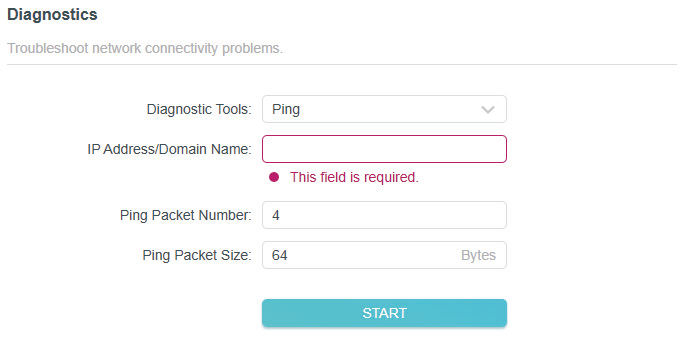
3. Enter the information:
1 ) Choose Ping or Traceroute as the diagnostic tool to test the connectivity;
• Ping is used to test the connectivity between the router and the tested host, and measure the round-trip time.
• Traceroute is used to display the route (path) your router has passed to reach the tested host, and measure transit delays of packets across an Internet Protocol network.
2 ) Enter the IP Address or Domain Name of the tested host.
3 ) Modify the Ping Packet Number and the Ping Packet Size. It’s recommended to keep the default value.
4 ) If you have chosen Traceroute, you can modify the Traceroute Max TTL. It’s recommended to keep the default value.
4. Click START to begin the diagnostics.
The figure below indicates the proper connection between the router and the Yahoo server (www.Yahoo.com) tested through Ping.
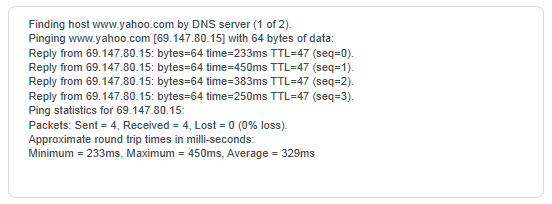
The figure below indicates the proper connection between the router and the Yahoo server (www.Yahoo.com) tested through Traceroute.
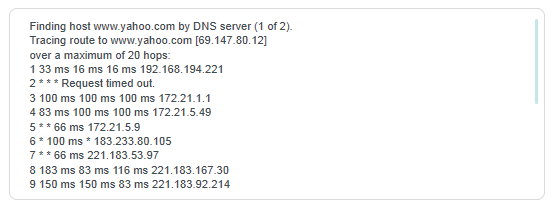
Set System Time and Language
System time is the time displayed while the router is running. The system time you configure here will be used for other time-based functions like Parental Controls. You can choose the way to obtain the system time as needed.
System language is the language displayed when you log into the router. You can change the system language as needed.
1. Visit http://tplinkwifi.net, and log in with your TP-Link ID or the password you set for the router.
2. Go to Advanced > Time & Language.
> To get time from the internet:
1. Enable 24-Hour Time if you want the time to display in a 24-hour way.
2. In the Set Time field, select Get from Internet.
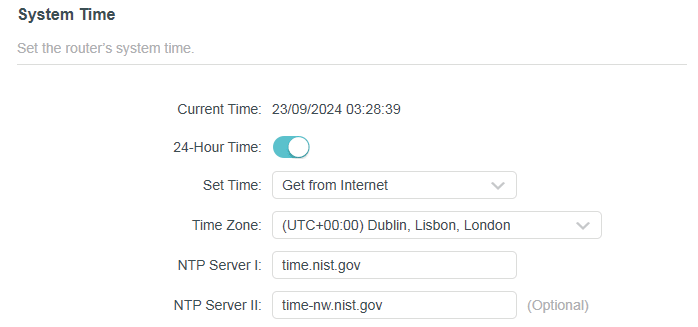
3. Select your local Time Zone from the drop-down list.
4. In the NTP Server I field, enter the IP address or domain name of your desired NTP Server.
5. (Optional) In the NTP Server II field, enter the IP address or domain name of the second NTP Server.
6. Click SAVE.
> To get time from your computer:
1. In the Set Time field, select Get from Managing Device.
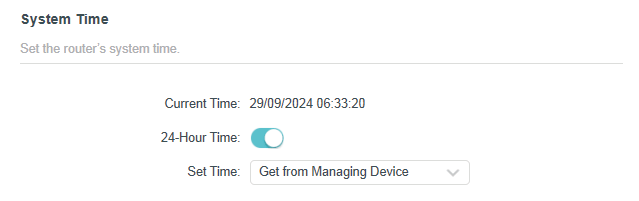
2. The time of your computer will then be displayed and click SAVE.
> To manually set the date and time:
1. In the Set Time field, select Manually.
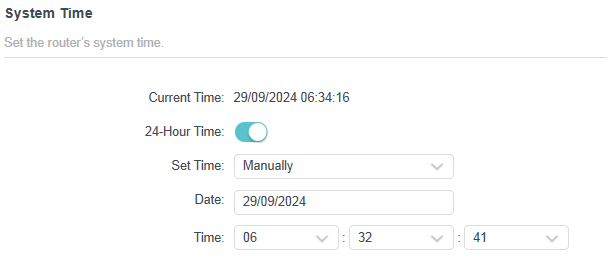
2. Set the current Date (In DD/MM/YYYY format).
3. Set the current Time (In HH/MM/SS format).
4. Click SAVE.
> To set Daylight Saving Time:
1. Tick the Enable box of Daylight Saving Time.
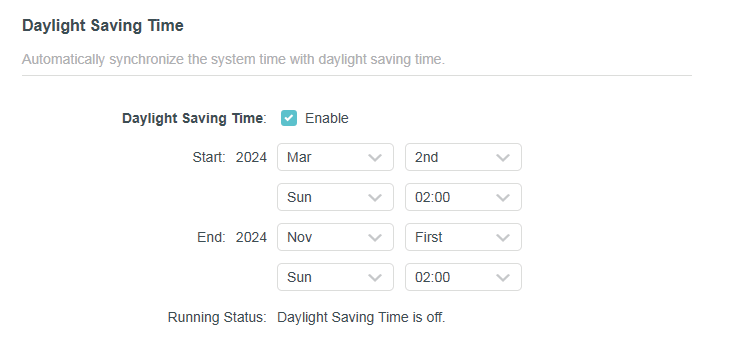
2. Select the correct Start date and time when daylight saving time starts at your local time zone.
3. Select the correct End date and time when daylight saving time ends at your local time zone.
4. Click SAVE.
> To set system language:
Select the language from the dropdown list, then click SAVE.
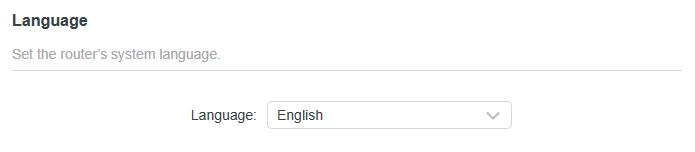
Reboot & Reboot Schedule
> To reboot the router:
You can reboot the router to clear cache and enhance running performance.
1. Visit http://tplinkwifi.net, and log in with your TP-Link ID or the password you set for the router.
2. Go to Advanced > Reboot.
3. Click REBOOT.
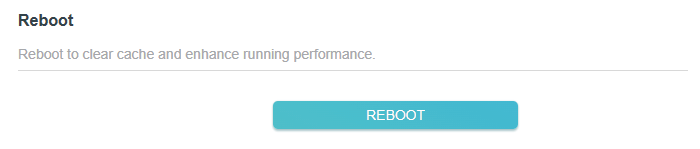
> To set reboot schedule:
The Scheduled Reboot feature cleans the cache to enhance the running performance of the router.
1. Visit http://tplinkwifi.net, and log in with your TP-Link ID or the password you set for the router.
2. Go to Advanced > Reboot.
3. Tick the Enable box of Reboot Schedule.
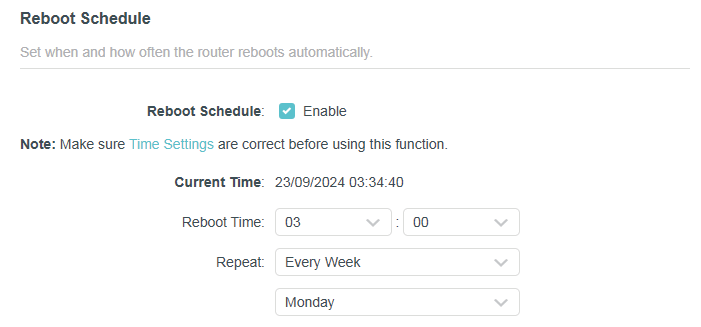
4. Specify the Reboot Time when the router reboots and Repeat to decide how often it reboots.
5. Click SAVE.
Control the LED
> To turn off or turn on the LEDs:
You can turn the router’s LEDs on or off.
1. Visit http://tplinkwifi.net, and log in with your TP-Link ID or the password you set for the router.
2. Go to Advanced > LED Control.
3. Toggle the LED Status button to turn on or turn off the LEDs.
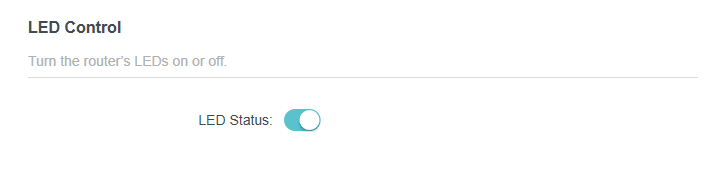
> To enable Night Mode for the LEDs:
The LED of the router indicates its activities and status. You can enable the Night Mode feature to specify a time period during which the LED is off.
1. Visit http://tplinkwifi.net, and log in with your TP-Link ID or the password you set for the router.
2. Go to Advanced > LED Control.
3. Enable Night Mode.
4. Specify the LED off time, and the LED will be off during this period every day.
5. Click SAVE.
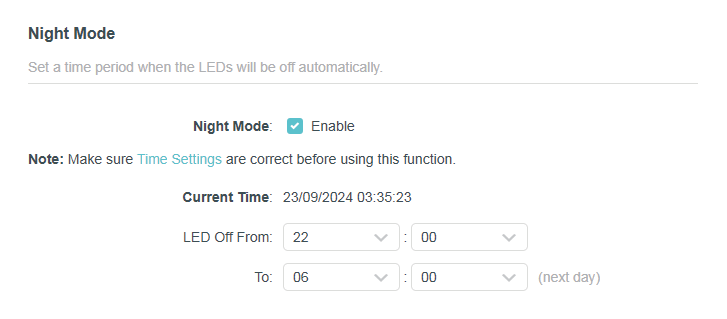
Configure the Router in Range Extender Mode
This chapter presents how to configure the various features of the router working as a wireless router.
Note: Please note that Range Extender Mode is not supported on all product models. Please refer to your actual device.
It contains the following sections:
- Network Map
- Operation Mode
- Network
- Wireless Settings
- Manage the Router
Network Map
Network Map outlines device connectivity of your network visually and helps you manage general settings of the network.
1 Visit http://tplinkwifi.net, and log in with your TP-Link ID or the password you set for the router.
2 Go to Network Map.
3 Click each network device icon to check and manage general network settings.
- Click Internet to check internet status.

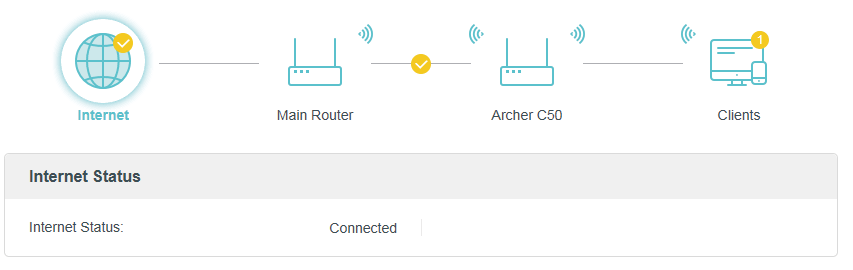
- Click Main Router to check the connection status to the main network. You can connect or disconnect to the main network, or click Edit to change related settings.

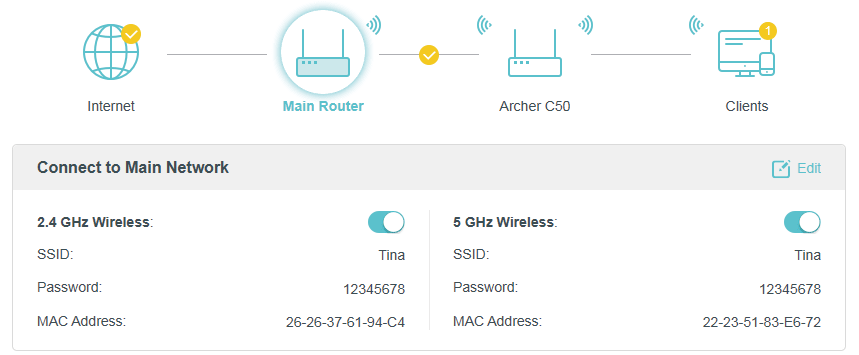
- Click the router to check device status and network settings. You can turn on or off the extended network, or click Edit to change related settings.

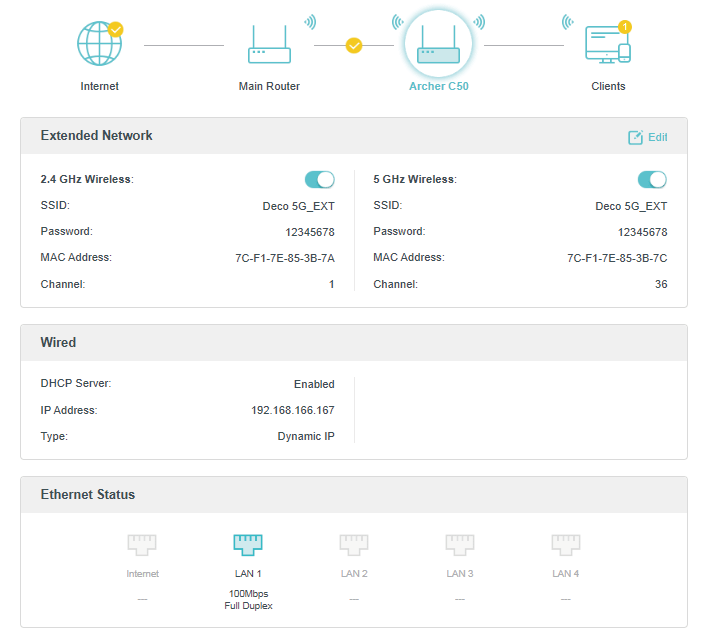
- Click Clients to view the client devices in your network. You can block devices so they cannot access your network.

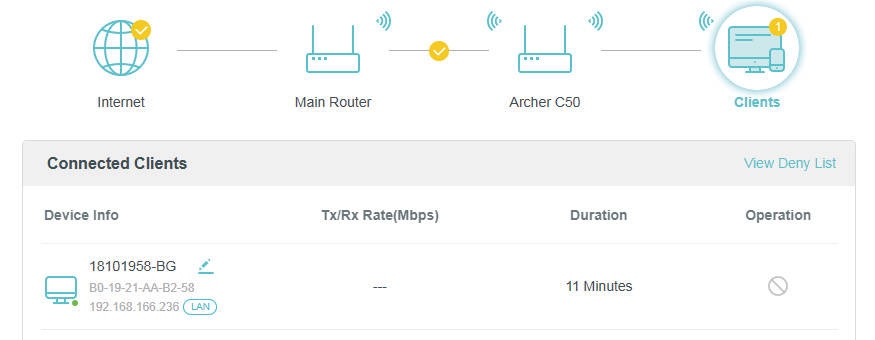
Operation Mode
1 Visit http://tplinkwifi.net, and log in with the password you set for the router.
2 Go to Advanced > Operation Mode.
3 Select the working mode as needed and click SAVE.

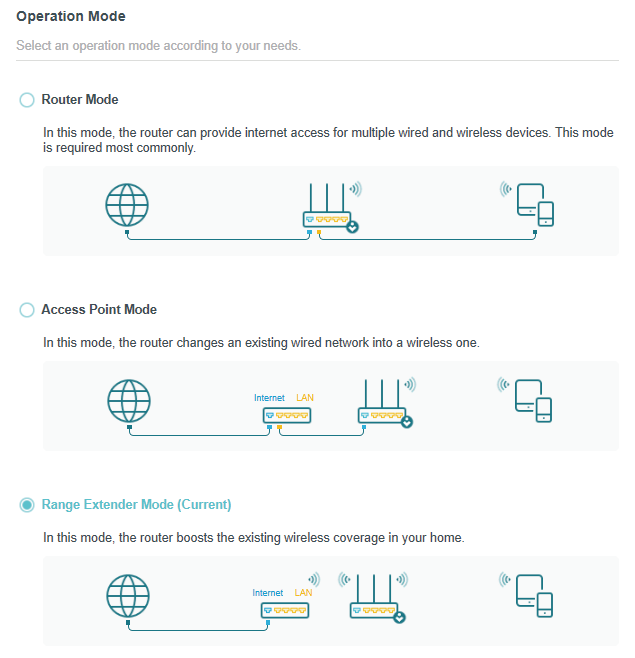
Network
This chapter guides you on how to configure advanced network features.
LAN Settings
The router is preset with a default LAN IP, which you can use to log in to its web management page. The LAN IP address together with the Subnet Mask also defines the subnet that the connected devices are on. If the IP address conflicts with another device on your local network or your network requires a specific IP subnet, you can change it.
- Visit http://tplinkwifi.net, and log in with your TP-Link ID or the password you set for the router.
- Go to Internet > LAN.
- Configure the IP parameters of the LAN and click SAVE.

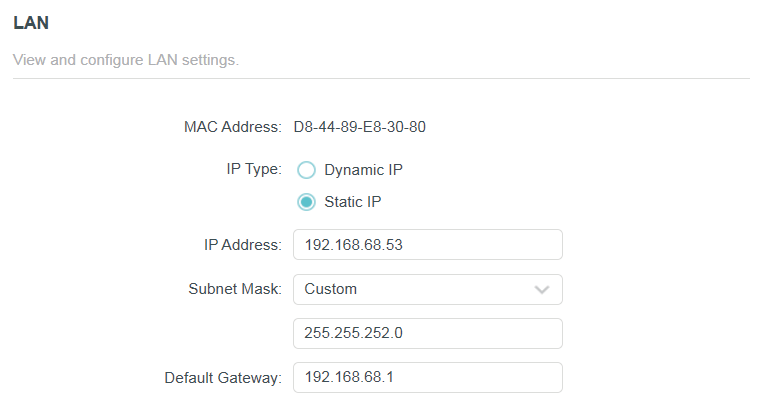
- MAC Address - The physical address of the LAN ports. The value can not be changed.
- IP Type - Either select Dynamic IP to get IP address from DHCP server, or Static IP to configure IP address manually.
- IP Address - Enter the IP address in dotted-decimal notation if your select Static IP.
- Subnet Mask - An address code that determines the size of the network.
- Default Gateway - The Gateway currently used is shown here. Enter the Default Gateway in dotted-decimal notation if your select Static IP.
 Note:
Note:
- If you have changed the IP address, you must use the new IP address to login.
- If you select Dynamic IP, the DHCP server of the router will not start up.
- If the new IP address you set is not in the same subnet as the old one, the IP Address pool in the DHCP Server will be configured.
DHCP Server Settings
When enabled, the DHCP server dynamically assigns TCP/IP parameters to client devices from the IP Address Pool. You can change the settings of the DHCP Server if necessary, and you can reserve LAN IP addresses for specified client devices.
1 Visit http://tplinkwifi.net, and log in with your TP-Link ID or the password you set for the router.
2 Go to Internet > DHCP Server.
 > To specify the IP address that the router assigns:
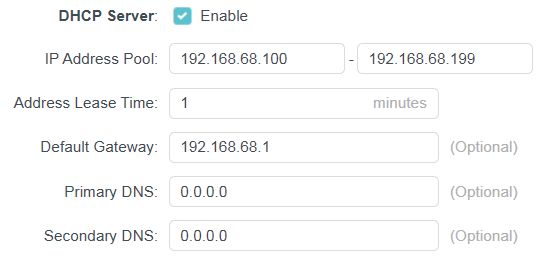
1. Tick the Enable checkbox.
2. Enter the starting and ending IP addresses in the IP Address Pool.
3. Enter the Address Lease Time. It is the amount of time a network user will be allowed to connect to the router with the current dynamic IP Address. When time is up, the user will be automatically assigned a new dynamic IP address. The range of the time is 1 ~ 2880 minutes.
4. Set the Default Gateway (Optional). It is suggested to input the IP address of the LAN port of the router.
5. Set the DNS Server (Optional). Input the DNS IP address provided by your ISP.
6. Set the Secondary DNS Server (Optional). Input the IP address of another DNS server if your ISP provides two DNS servers.
7. Click SAVE.
> To reserve an IP address for a specified client device
1. Click Add in the Address Reservation section.
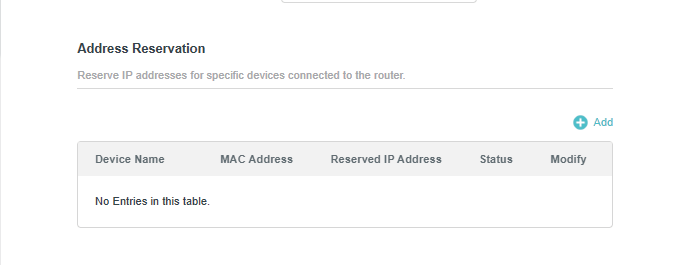
2. Click VIEW CONNECTED DEVICES and select the you device you want to reserve an IP for. Then the MAC Address will be automatically filled in. Or enter the MAC address of the client device manually.
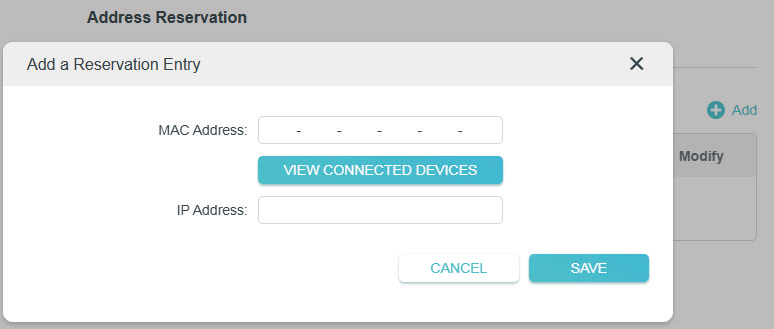
3. Enter the IP address to reserve for the client device.
4. Click SAVE.
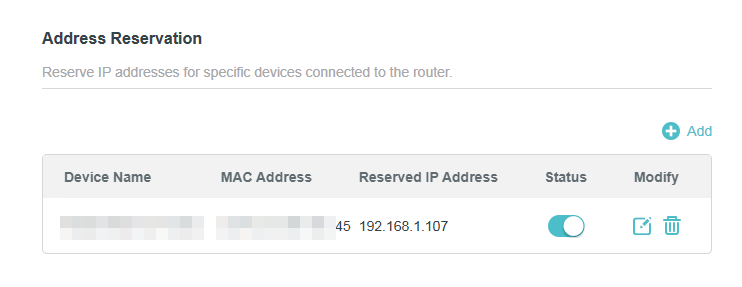
> To view devices assigned with IP addresses by the DHCP server:
You can view the devices that are currently assigned with IP addresses by the DHCP server in DHCP Client List.
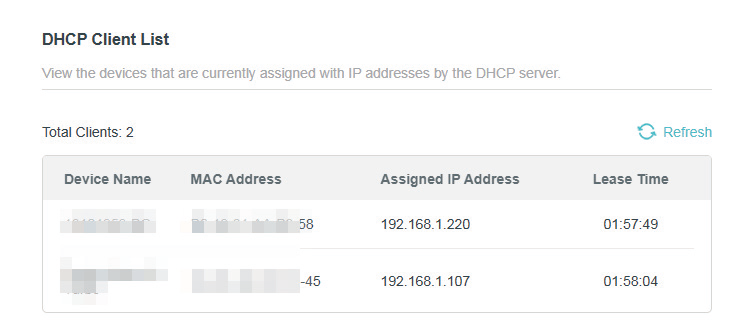
Access Control
In Access Point mode, the Access Control feature is used to block specific client devices to access your network (via wired or wireless) based on a list of blocked devices (Decy List).
I want to:
Block specific client devices to access my network (via wired or wireless).
How can I do that?
1. Visit http://tplinkwifi.net, and log in with your TP-Link ID or the password you set for the router.
2. Go to Internet > Access Control.
3. Toggle on to enable Access Control.
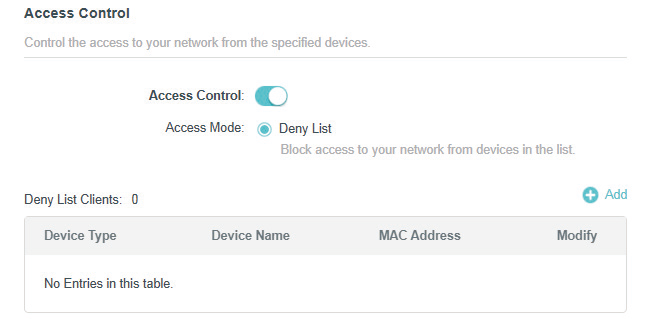
4. Click +Add and select devices you want to block. Then click ADD.
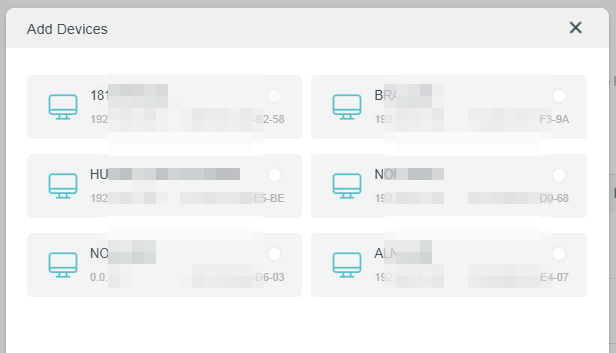
5. The Operation Succeeded message will appear on the screen, which means the selected devices have been successfully added to the Deny List.
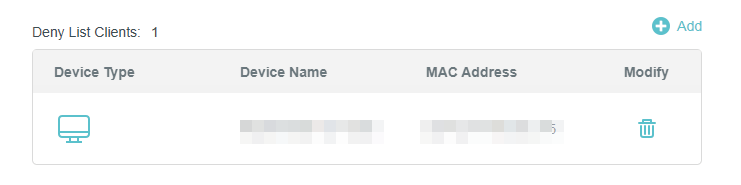
Done!
Now you can block specific client devices to access your network (via wired or wireless) using the Deny List.
Wireless Settings
This chapter guides you on how to configure the wireless settings.
Connect to the Main Network
You can connect the device to an existing Wi-Fi to expand Wi-Fi coverage.
1. Visit http://tplinkwifi.net, and log in with your TP-Link ID or the password you set for the router.
2. Go to Wireless and locate the Connect to the Network section.
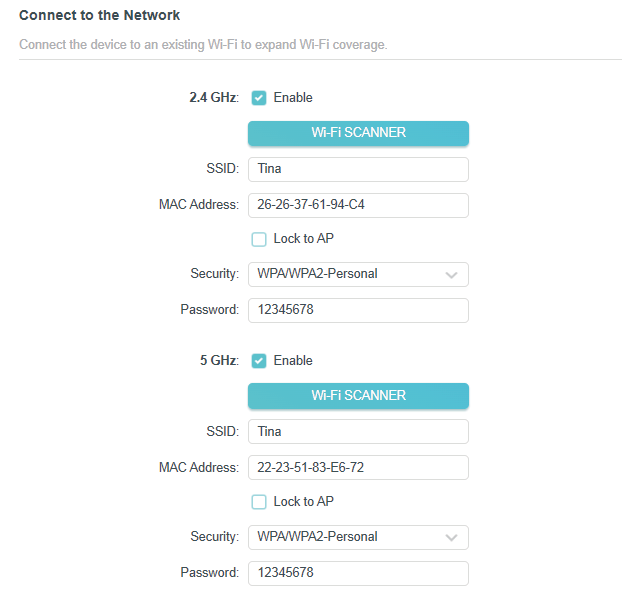
3. Click Wi-Fi SCANNER and select a main network to connect to.
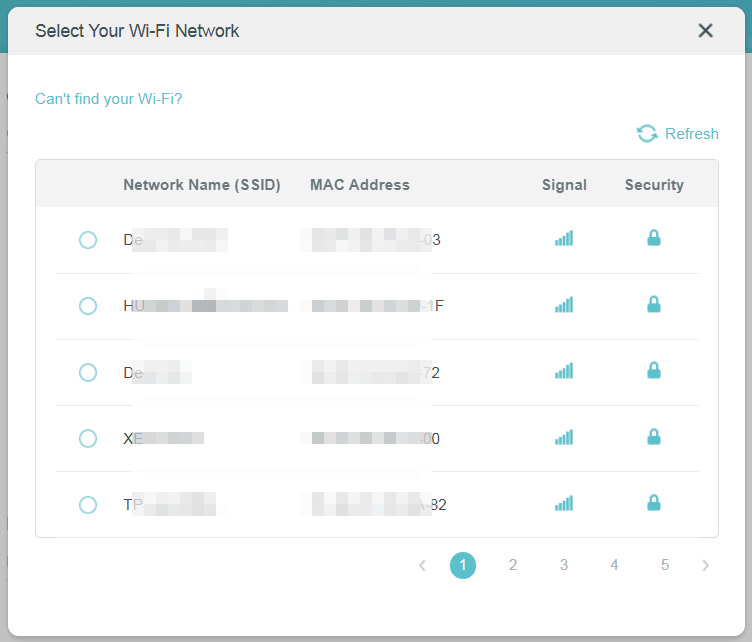
4. Enter the Password of the main network.
5. Tick the Lock to AP checkbox to stick to one wireless access point all the time even though there is another access point having the same wireless settings.
6. Click SAVE.
Specify Wireless Settings
You can personalize wireless settings as you need.
1. Visit http://tplinkwifi.net, and log in with your TP-Link ID or the password you set for the router.
2. Go to Wireless and locate the Extended Network section.
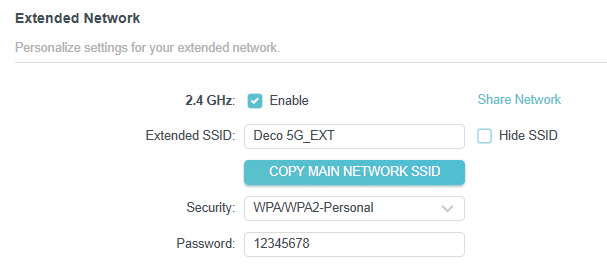
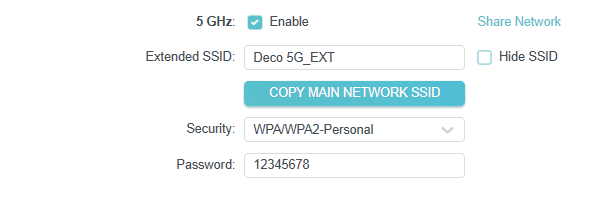
> To enable or disable the wireless function:
1. Go to Wireless and locate the Extended Network section.
2. The wireless bands are enabled by default. If you want to disable a wireless band, just deselect its Enable checkbox.
> To change the wireless network name (SSID) and wireless password:
1. Go to Wireless and locate the Extended Network section.
2. Create a new SSID in Network Name (SSID) or click COPY MAIN NETWORK SSID to copy the SSID of the main network. Customize the password for the network in Password. The value is case-sensitive.
Note: If you change the wireless settings with a wireless device, you will be disconnected when the settings are effective. Please write down the new SSID and password for future use.
> To hide SSID:
1. Go to Wireless and locate the Extended Network section.
2. Select Hide SSID, and your SSID won’t display when you scan for local wireless networks on your wireless device and you need to manually join the network.
> To change the security option:
1. Go to Wireless and locate the Extended Network section.
2. Select an option from the Security drop-down list. We recommend you don’t change the default settings unless necessary.
Manage the Router
Firmware Update
TP-Link aims at providing better network experience for users.
We will inform you through the web management page if there’s any new firmware available for your router. Also, the latest firmware will be released at the TP-Link official website www.tp-link.com, and you can download it from the Support page for free.
Note:
• Back up your router’s configurations before firmware update.
• Do NOT turn off the router during the firmware update.
> Online Update:
1. Visit http://tplinkwifi.net, and log in with your TP-Link ID or the password you set for the router.
2. Go to Advanced > Firmware Update.
3. When the latest firmware is available for your router, the update icon will display in the top-right corner of the page. Click the icon to go to the Firmware Update page. Alternatively, you can go to Advanced > Firmware Update, and click CHECK FOR UPDATES to see whether the latest firmware is released.
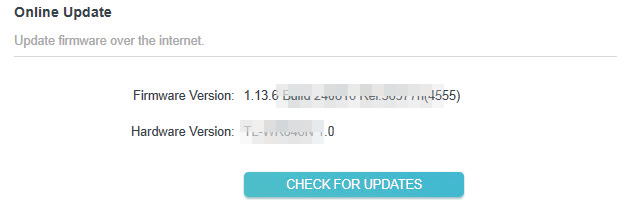
4. Focus on the Online Update section, and click UPDATE if there is new firmware.
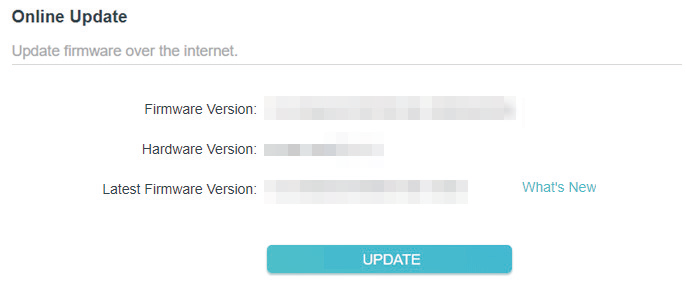
5. Wait a few minutes for the update and reboot to complete.
Tips: If there’s a new and important firmware update for your router, you will see the prompt notification on your computer as long as a web browser is opened. Click to update, and log in to the web management page with the username and password you set for the router. You will see the Firmware Update page
> Local Update:
1. Download the latest firmware file for the router from www.tp-link.com.
2. Visit http://tplinkwifi.net, and log in with your TP-Link ID or the password you set for the router.
3. Go to Advanced > Firmware Update.
4. Focus on the Local Update section. Click BROWSE to locate the downloaded new firmware file, and click UPDATE.
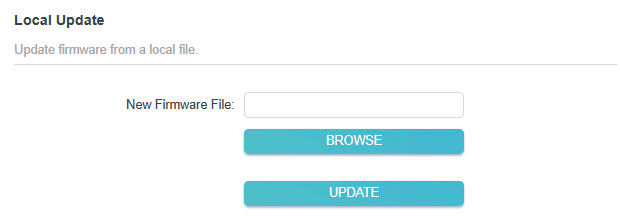
5. Wait a few minutes for the update and reboot to complete.
Note: If you fail to update the firmware for the router, please contact our Technical Support.
Backup and Restore Configuration Settings
The configuration settings are stored as a configuration file in the router. You can backup the configuration file to your computer for future use and restore the router to a previous settings from the backup file when needed. Moreover, if necessary you can erase the current settings and reset the router to the default factory settings.
1. Visit http://tplinkwifi.net, and log in with your TP-Link ID or the password you set for the router.
2. Go to Advanced > Backup & Restore.
> To backup configuration settings:
Click BACK UP to save a copy of the current settings to your local computer. A ‘.bin’ file of the current settings will be stored to your computer.
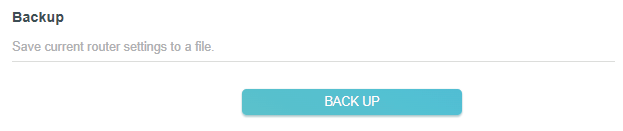
> To restore configuration settings:
1. Click BROWSE to locate the backup configuration file stored on your computer, and click RESTORE.
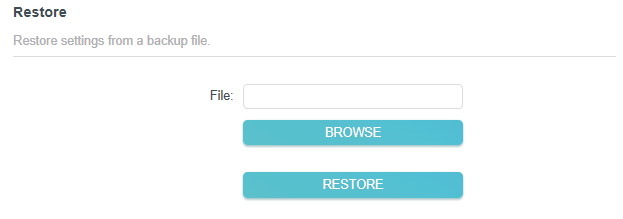
2. Wait a few minutes for the restoring and rebooting.
Note: During the restoring process, do not turn off or reset the router.
> To reset the router except your login password and TP-Link ID:
1. In the Factory Default Restore section, click RESTORE.
2. Wait a few minutes for the resetting and rebooting.
Note:
• During the resetting process, do not turn off the router.
• After reset, you can still use the current login password or the TP-Link ID to log in to the web management page.
> To reset the router to factory default settings:
1. Click FACTORY RESTORE to reset the router.
2. Wait a few minutes for the resetting and rebooting.
Note:
• During the resetting process, do not turn off or reset the router.
• We strongly recommend you backup the current configuration settings before resetting the router.
Change Password
You can change your login password of the web management page.
Note: If you are using a TP-Link ID to log in to the web management page, the account management feature will be disabled. To manage the TP-Link ID, go to Advanced > TP-Link ID.
1. Visit http://tplinkwifi.net, and log in with the password you set for the router.
2. Go to Advanced > Administration and focus on the Change Password section.
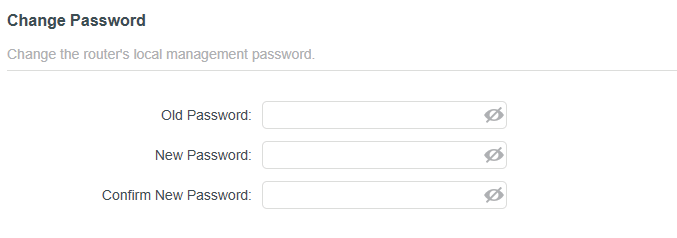
3. Enter the old password, then a new password twice (both case-sensitive). Click SAVE.
4. Use the new password for future logins.
Local Management
This feature allows you to limit the number of client devices on your LAN from accessing the router by using the MAC address-based authentication.
1. Visit http://tplinkwifi.net, and log in with your TP-Link ID or the password you set for the router.
2. Go to Advanced > Administration and complete the settings In Local Management section as needed.
> Local Management via HTTPS:
Tick the Local Management via HTTPS checkbox to access the router via HTTPS and HTTP, or keep it disabled to access the router only via HTTP. Click SAVE.

> Allow all LAN connected devices to manage the router:
Select All Devices for Local Managers. Click SAVE.
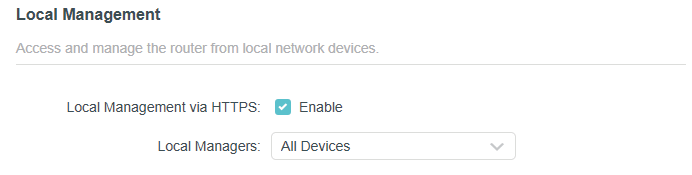
> Allow specific devices to manage the router:
1. Select Specified Devices for Local Managers.
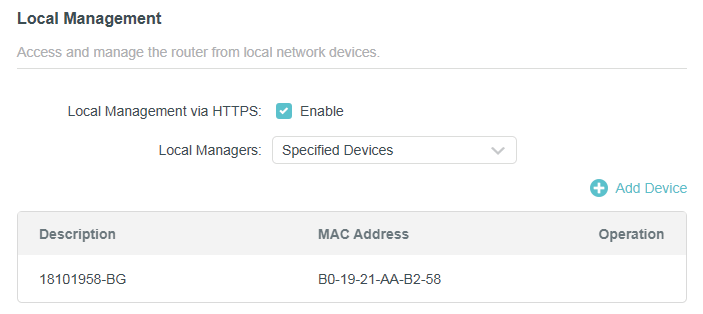
2. Click Add Device.
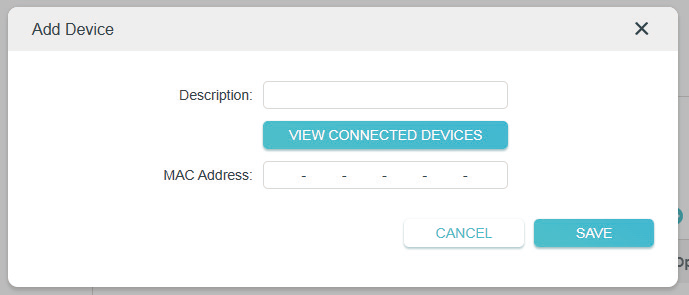
3. Click VIEW CONNECTED DEVICES and select the device to manage the router from the Connected Devices list, or enter the MAC address of the device manually. Click SAVE. The devices added will appear in the list.
4. Click SAVE.
HTTP Referer Head Check
HTTP referer header check function can protect your networks against CSRF attacks.
1. Visit http://tplinkwifi.net, and log in with your TP-Link ID or the password you set for the router.
2. Go to Advanced > Administration, and locate the HTTP Referer Head Check section.
3. HTTP Referer Head Check is enabled by default, and it is recommended to keep the default settings. This feature protects your network against cross-site request forgery (CSRF) attacks.

System Log
When the router does not work normally, you can save the system log and send it to the technical support for troubleshooting.
> To save the system log locally:
1. Visit http://tplinkwifi.net, and log in your TP-Link ID or the password you set for the router.
2. Go to Advanced > System Log.
3. In the Save Log section, click SAVE TO LOCAL to save the system logs to a local disk.
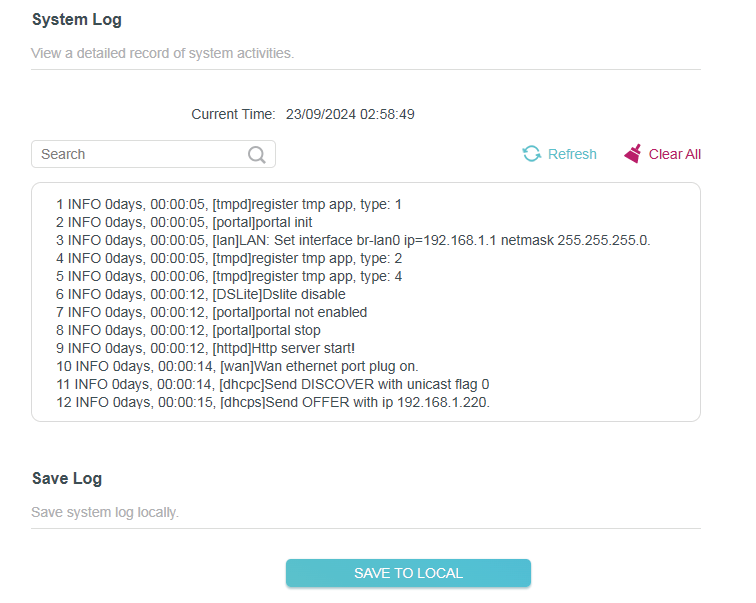
Diagnostics
Diagnostics is used to test the connectivity between the router and the host or other network devices.
1. Visit http://tplinkwifi.net, and log in with your TP-Link ID or the password you set for the router.
2. Go to Advanced > Diagnostics.
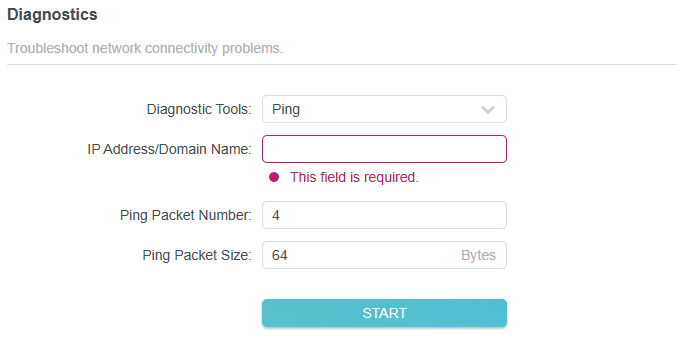
3. Enter the information:
1 ) Choose Ping or Traceroute as the diagnostic tool to test the connectivity;
• Ping is used to test the connectivity between the router and the tested host, and measure the round-trip time.
• Traceroute is used to display the route (path) your router has passed to reach the tested host, and measure transit delays of packets across an Internet Protocol network.
2 ) Enter the IP Address or Domain Name of the tested host.
3 ) Modify the Ping Packet Number and the Ping Packet Size. It’s recommended to keep the default value.
4 ) If you have chosen Traceroute, you can modify the Traceroute Max TTL. It’s recommended to keep the default value.
4. Click START to begin the diagnostics.
The figure below indicates the proper connection between the router and the Yahoo server (www.Yahoo.com) tested through Ping.
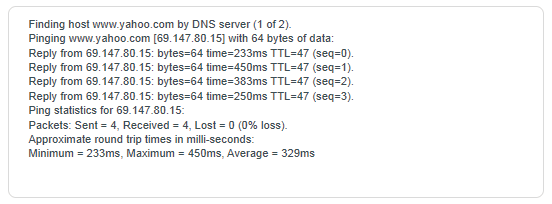
The figure below indicates the proper connection between the router and the Yahoo server (www.Yahoo.com) tested through Traceroute.
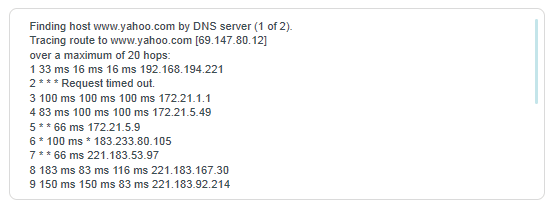
Set System Time and Language
System time is the time displayed while the router is running. The system time you configure here will be used for other time-based functions like Parental Controls. You can choose the way to obtain the system time as needed.
System language is the language displayed when you log into the router. You can change the system language as needed.
1. Visit http://tplinkwifi.net, and log in with your TP-Link ID or the password you set for the router.
2. Go to Advanced > Time & Language.
> To get time from the internet:
1. Enable 24-Hour Time if you want the time to display in a 24-hour way.
2. In the Set Time field, select Get from Internet.
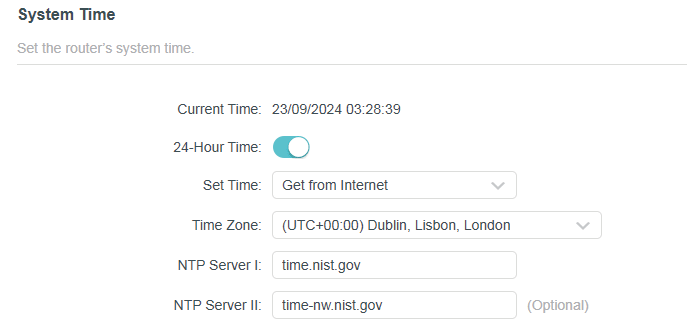
3. Select your local Time Zone from the drop-down list.
4. In the NTP Server I field, enter the IP address or domain name of your desired NTP Server.
5. (Optional) In the NTP Server II field, enter the IP address or domain name of the second NTP Server.
6. Click SAVE.
> To get time from your computer:
1. In the Set Time field, select Get from Managing Device.
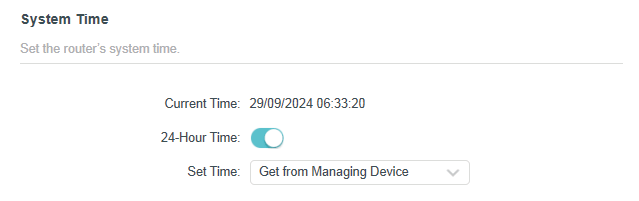
2. The time of your computer will then be displayed and click SAVE.
> To manually set the date and time:
1. In the Set Time field, select Manually.
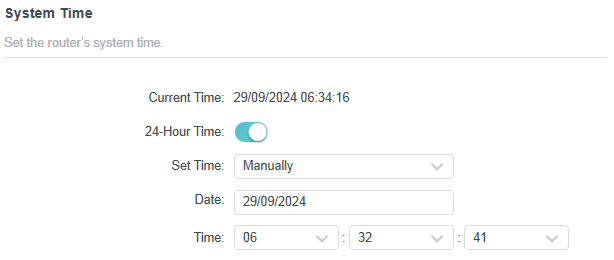
2. Set the current Date (In DD/MM/YYYY format).
3. Set the current Time (In HH/MM/SS format).
4. Click SAVE.
> To set Daylight Saving Time:
1. Tick the Enable box of Daylight Saving Time.
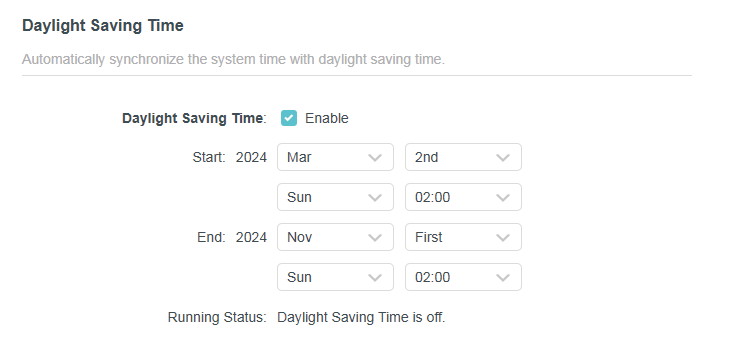
2. Select the correct Start date and time when daylight saving time starts at your local time zone.
3. Select the correct End date and time when daylight saving time ends at your local time zone.
4. Click SAVE.
> To set system language:
Select the language from the dropdown list, then click SAVE.
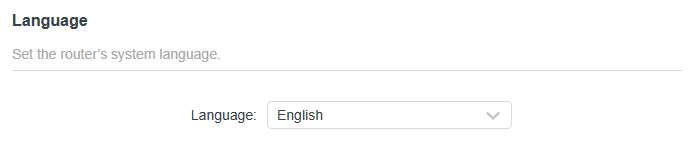
Reboot & Reboot Schedule
>To reboot the router:
You can reboot the router to clear cache and enhance running performance.
1. Visit http://tplinkwifi.net, and log in with your TP-Link ID or the password you set for the router.
2. Go to Advanced > Reboot.
3. Click REBOOT.

> To set reboot schedule:
The Scheduled Reboot feature cleans the cache to enhance the running performance of the router.
1. Visit http://tplinkwifi.net, and log in with your TP-Link ID or the password you set for the router.
2. Go to Advanced > Reboot.
3. Tick the Enable box of Reboot Schedule.
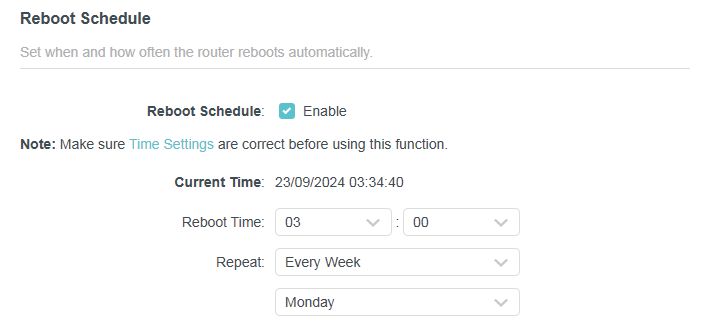
4. Specify the Reboot Time when the router reboots and Repeat to decide how often it reboots.
5. Click SAVE.
Control the LED
> To turn off or turn on the LEDs:
You can turn the router’s LEDs on or off.
1. Visit http://tplinkwifi.net, and log in with your TP-Link ID or the password you set for the router.
2. Go to Advanced > LED Control.
3. Toggle the LED Status button to turn on or turn off the LEDs.
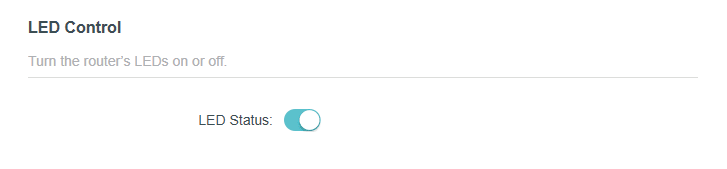
> To enable Night Mode for the LEDs:
The LED of the router indicates its activities and status. You can enable the Night Mode feature to specify a time period during which the LED is off.
1. Visit http://tplinkwifi.net, and log in with your TP-Link ID or the password you set for
the router.
2. Go to Advanced > LED Control.
3. Enable Night Mode.
4. Specify the LED off time, and the LED will be off during this period every day.
5. Click SAVE.
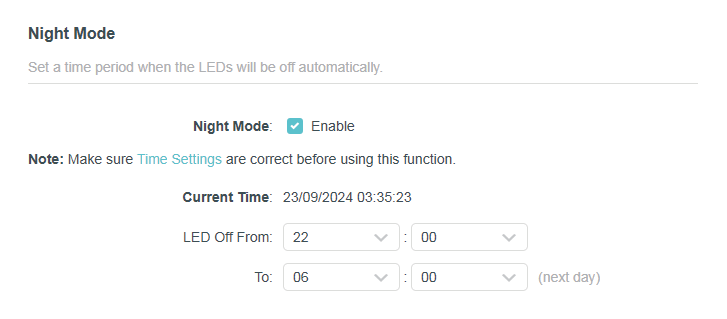
FAQ
Q1. What should I do if I forget my wireless password?
The default wireless password is printed on the label of the router. If the password has been altered, please connect your computer to the router using an Ethernet cable and follow the steps below:
1. Visit http://tplinkwifi.net, and log in with the username and password you set for the router.
2. Go to Wireless to retrieve or reset your wireless password.
Q2. What should I do if I forget my login password of the Web-based Utility?
• If you are using a TP-Link ID to log in, or you have enabled the Password Recovery feature of the router, click Forgot password on the login page and then follow the instructions to reset it.
• Alternatively, press and hold the Reset button of the router for about 6 seconds until the Power LED blinks to restore factory default settings, and then visit http://tplinkwifi.net to create a new login password.Note:
• Please refer to Change “Change Password” to learn how to change Password.
• You’ll need to reconfigure the router to surf the internet once the router is reset, and please mark down your new password for future use.
Q3. What should I do if I cannot log in to the router’s Web-based Utility?
This can happen for a variety of reasons. Please try the methods below to log in again.
• Make sure your computer has connected to the router correctly and the corresponding LED lights up.
• Make sure the IP address of your computer is configured as Obtain an IP address automatically and Obtain DNS server address automatically.
• Make sure you enter the correct IP address to log in: http://tplinkwifi.net or 192.168.0.1.
• Check your computer’s settings:
1 ) Go to Start > Control Panel > Network and Internet, and click View network status and tasks.
2 ) Click Internet Options on the bottom left.
3 ) Click Connections and select Never dial a connection.
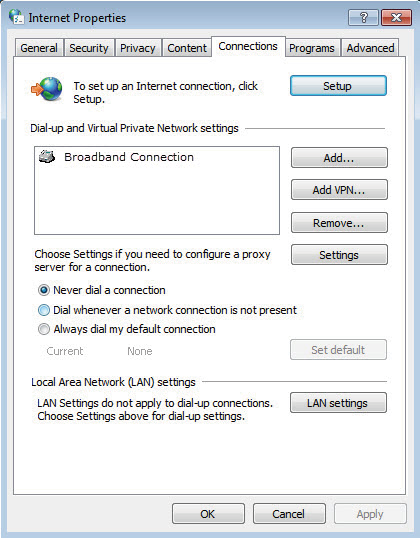
4 ) Click LAN settings and deselect the following three options, and click OK.
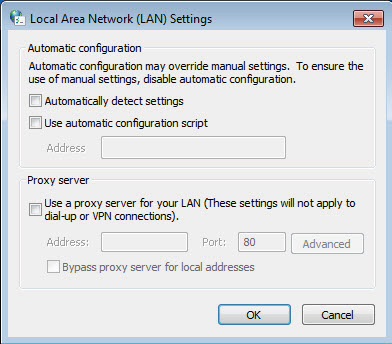
5 ) Go to Advanced > Restore advanced settings, and click OK.
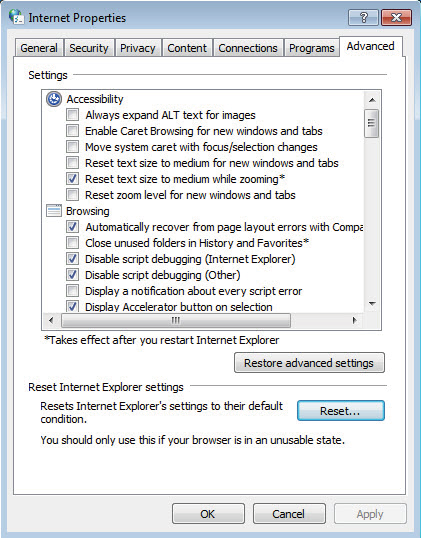
• Use another web browser or computer to log in again.
• Reset the router to factory default settings and try again. If the login still fails, please contact the technical support.
Note: You’ll need to reconfigure the router to surf the internet once the router is reset.
Q4. What should I do if I cannot access the internet even though the configuration is finished?
1. Visit http://tplinkwifi.net, and log in to with the username and password you set for the router.
2. Go to Advanced > Network > Status to check Internet status:
If IP Address is a valid one, please try the methods below and try again:
• Your computer might not recognize any DNS server addresses, please manually configure DNS server.
1 ) Go to Advanced > Network > DHCP Server.
2 ) Enter 8.8.8.8 as Primary DNS, and click Save. Tips: 8.8.8.8 is a safe and public DNS server operated by Google.
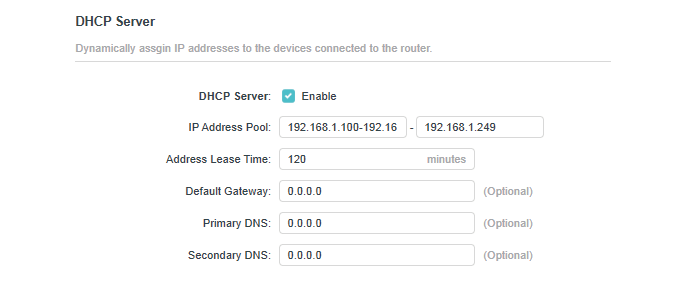
• Restart the modem and the router.
1 ) Power off your modem and the router, and leave them off for 1 minute.
2 ) Power on your modem first, and wait about 2 minutes.
3 ) Power on the router, and wait another 1 or 2 minutes and check the Internet access.
• Reset the router to factory default settings and reconfigure the router.
• Upgrade the firmware of the router.
• Check the TCP/IP settings on the particular device if all other devices can get internet from the router.
If the IP Address is 0.0.0.0, please try the methods below and try again:
• Make sure the physical connection between the router and the modem is proper.
• Clone the MAC address of your computer.
1 ) Visit http://tplinkwifi.net, and log in with the username and password you set for the router.
2 ) Go to Advanced > Network > Internet, select Clone Current Device MAC and click SAVE.
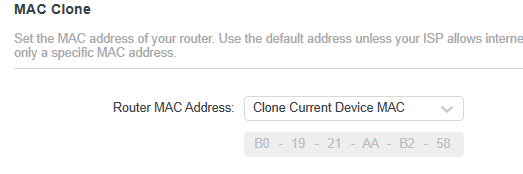
Tips:
Some ISP will register the MAC address of your computer when you access the Internet for the first time through their Cable modem, if you add a router into your network to share your Internet connection, the ISP will not accept it as the MAC address is changed, so we need to clone your computer’s MAC address to the router.
The MAC addresses of a computer in wired connection and wireless connection are different.
• Modify the LAN IP address of the router.
Note: Most TP-Link routers use 192.168.0.1/192.168.1.1 as their default LAN IP address, it may conflict with the IP range of your existent ADSL modem/router. If so, the router is not able to communicate with your modem and cause you can’t access the Internet. To resolve this problem, we need to change the LAN IP address of the router to avoid such conflict, for example, 192.168.2.1.
1 ) Visit http://tplinkwifi.net, and log in with the username and password you set for the router.
2 ) Go to Advanced > Network > LAN.
3 ) Modify the LAN IP address as the follow picture shows. Here we take 192.168.2.1 as an example.
4 ) Click Save.
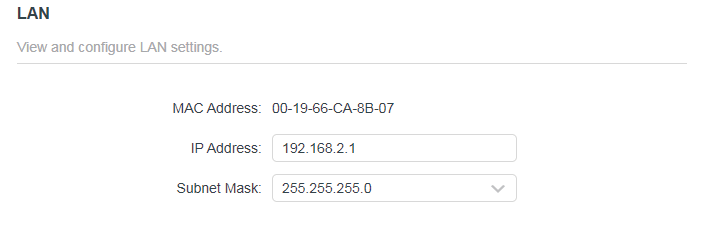
• Restart the modem and the router.
1 ) Power off your modem and the router, and leave them off for 1 minute.
2 ) Power on your modem first, and wait about 2 minutes.
3 ) Power on the router, and wait another 1 or 2 minutes and check the internet access.
• Double check the Internet Connection Type.
1 ) Confirm your Internet Connection Type, which can be learned from the ISP.
2 ) Visit http://tplinkwifi.net, and log in with the username and password you set for the router.
3 ) Go to Advanced > Network > Internet.
4 ) Select your Internet Connection Type and fill in other parameters.
5 ) Click Save.
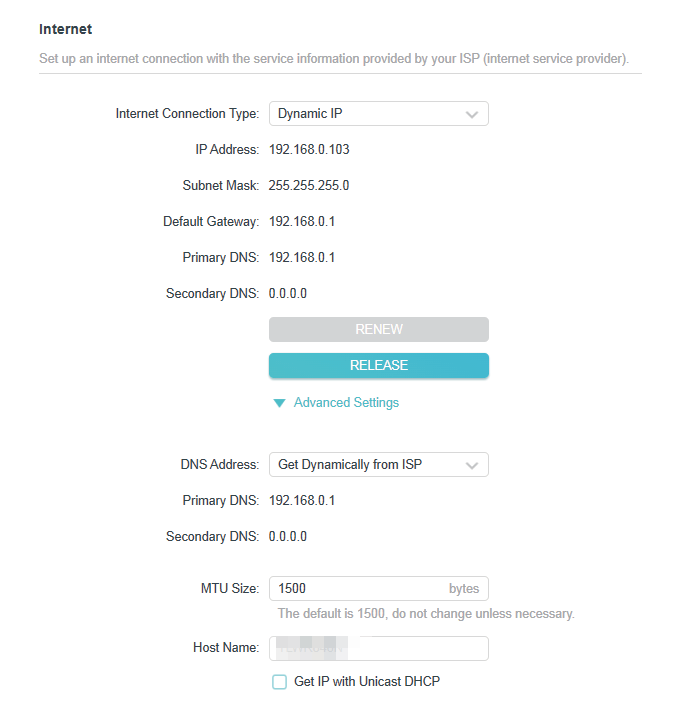
6 ) Restart the modem and the router.
• Please upgrade the firmware of the router.
If you’ve tried every method above but cannot access the internet, please contact the technical support.
Q5.What should I do if I cannot find my wireless network or I cannot connect to the wireless network?
If you fail to find any wireless network, please follow the steps below:
• Make sure the wireless function of your device is enabled if you’re using a laptop with a built-in wireless adapter. You can refer to the relevant document or contact the laptop manufacturer.
• Make sure the wireless adapter driver is installed successfully and the wireless adapter is enabled.
• On Windows 7
1 ) If you see the message No connections are available, it is usually because the wireless function is disabled or blocked somehow.
2 )
Clicking Troubleshoot and windows might be able to fix the problem by itself.
•
On Windows XP
1 ) If you see the message Windows cannot configure this wireless connection, this is usually because windows configuration utility is disabled or you are running another wireless configuration tool to connect the wireless.
2 ) Exit the wireless configuration tool (the TP-Link Utility, for example).
3 ) Select and right click My Computer on Desktop, and select Manage to open Computer Management window.
4 ) Expand Services and Applications > Services, and find and locate Wireless Zero Configuration in the Services list on the right side.
5 ) Right click Wireless Zero Configuration, and then select Properties.
6 ) Change Startup type to Automatic, click Start and make sure the Service status is Started. And then click OK.
If you can find other wireless network except your own, please follow the steps below:
• Make sure your computer/device is still in the range of your router/modem. Move closer if it is currently too far away.
If you can find your wireless network but fail to connect, please follow the steps below:
• Authenticating problem/password mismatch:
1 ) Sometimes you will be asked to type in a PIN number when you connect to the wireless network for the first time. This PIN number is different from the Wireless Password/Network Security Key. Usually you can only find it on the label of your router.
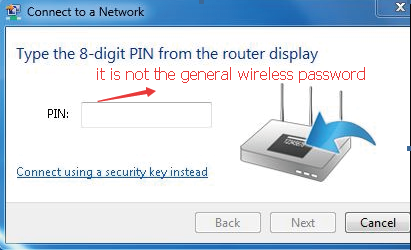
2 ) If you cannot find the PIN or PIN failed, you may choose Connecting using a security key instead, and then type in the Wireless Password/Network Security Key.
3 ) If it continues to show note of Network Security Key Mismatch, it is suggested to confirm the wireless password of your wireless router.
Note: Wireless Password/Network Security Key is case sensitive.
• Windows unable to connect to XXXX / Can not join this network / Taking longer than usual to connect to this network:
• Check the wireless signal strength of your network, if it is weak (1~3 bars), please move the router closer and try again.
• Change the wireless Channel of the router to 1,6,or 11 to reduce interference from other networks.
• Re-install or update the driver for your wireless adapter of the computer.