Long-Range USB Wi-Fi Adapter: What to Look for and TP-Link's Top Picks
Your desktop sits in a basement office, a floor and a few thick walls away from the router. Pages stall, video calls freeze, and downloads crawl. A long-range USB Wi-Fi adapter is built for this kind of environment. It plugs into your computer and uses an external antenna to catch a signal.
This guide covers what makes an adapter "long range," the specs to check before you buy, and three TP-Link options matched to different setups. If you're new to the category, start with how USB Wi-Fi adapters work.
Set your expectations before you shop. A long-range adapter helps your computer “hear” the router and respond more clearly. But it can't fix a router that's too far away, blocked by too much material, or overloaded with devices.
Key Takeaways
- A long-range USB Wi-Fi adapter can hold a steadier link to a distant router using a high-gain external antenna.
- Match the Wi-Fi generation to your router and use a USB 3.0 port to avoid a speed cap; the 6 GHz band also needs Windows 11 and a router that broadcasts 6 GHz.
- Higher antenna gain focuses Wi-Fi signal in certain directions rather than adding power, so antenna angle and placement matter.
- A USB adapter improves the connection for one computer; a range extender rebroadcasts your router’s signal for devices in a weak area.
What Makes a USB Wi-Fi Adapter "Long Range"?
A USB Wi-Fi adapter earns the "long range" label mainly through its antenna: how much gain it has and what type it is. Gain is measured in dBi (decibels relative to an isotropic antenna), a theoretical antenna that sends signal equally in every direction.
A higher gain number doesn't mean the antenna creates more signal. It means the antenna focuses the same signal into a tighter pattern. The result is that it reaches farther in some directions and less in others, a bit like adjusting a flashlight from a wide glow to a narrow beam.
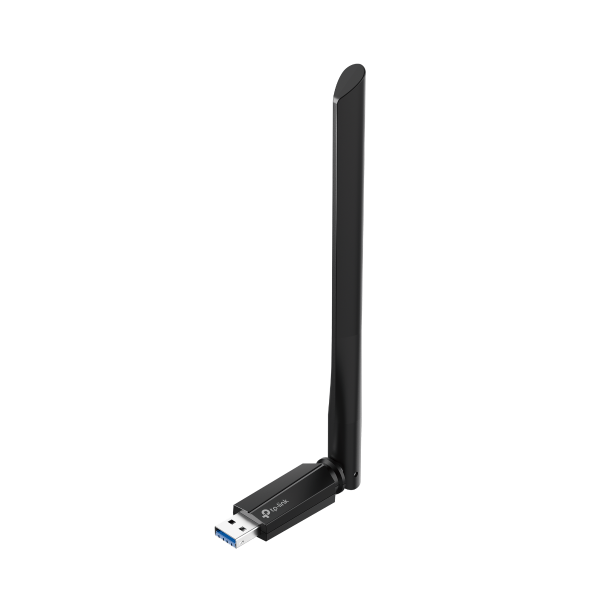
Compact adapters usually tuck a small antenna inside the housing. A USB Wi-Fi adapter with antenna hardware has a larger antenna you can position and aim, and you can angle it toward the router. When your router is two rooms and a staircase away, being able to aim makes a real difference.
Antennas also come in two broad types. A directional antenna concentrates its reach in one direction, which suits a fixed setup where you know exactly where the router is. An omnidirectional antenna covers every direction with less reach in any single one, which suits a room where the router's position is less clear or the computer moves around.
Common Uses for a Long-Range USB Wi-Fi Adapter
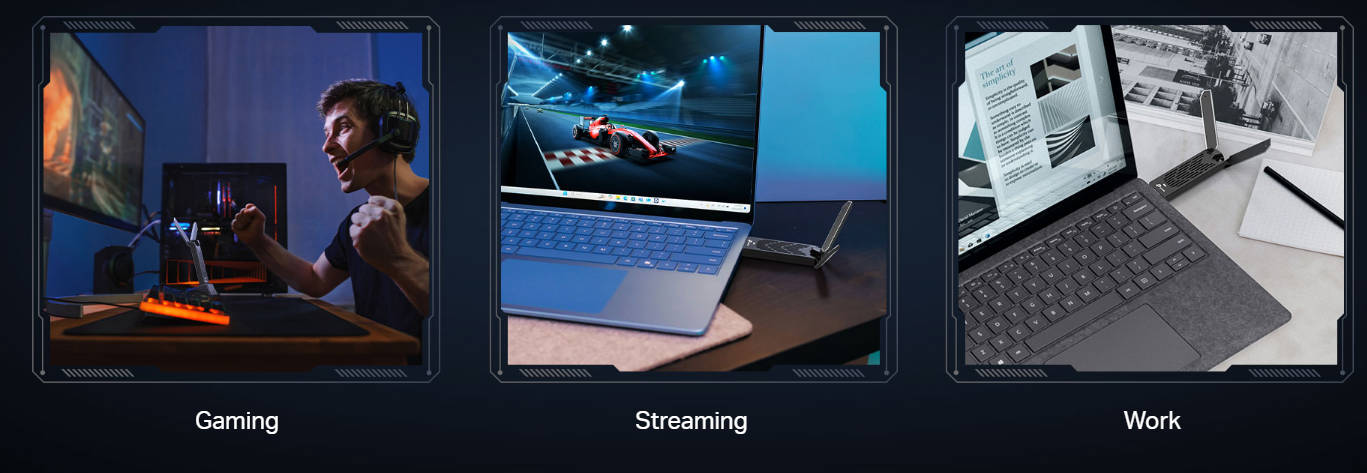
The most common setup is a desktop that sits far from the router. A basement office, an upstairs gaming room, or a converted attic often lands at the edge of the router's reach, and desktops are rarely easy to move.
Homes with thick walls or several floors are the next case. Brick, concrete, plaster, and the floors between levels all absorb Wi-Fi signal, so a computer two rooms away can see a weaker connection than the distance suggests.
Detached spaces round out the list: a garage, a workshop, a shed, or a recreational vehicle parked within reach of your home Wi-Fi. If you need Wi-Fi in one of these spaces and are considering a long-range outdoor USB Wi-Fi adapter, make sure you allocate a spot to keep the adapter and computer inside the building. Aim the antenna toward a window or wall that faces the house for the clearest path to the router.
What to Look for in a Long-Range USB Wi-Fi Adapter
The specs that matter most in a long-range USB Wi-Fi adapter are antenna gain and type, Wi-Fi generation, USB version, and operating system support. Antenna gain and type affect how well the adapter holds a weak signal. The other three decide how fast it can run and whether it works with your router and computer.
Antenna Gain and Type
A high-gain USB Wi-Fi adapter with external antennas gives you more to work with than a compact model. Not every product page lists a dBi figure, so also look at antenna count and whether you can adjust the angle. Adjustable antennas help when the path to the router runs through a floor or a wall at a slant.
Wi-Fi Generation
Match the adapter to your router. A Wi-Fi 7 adapter still connects to a Wi-Fi 6 router, but it runs at the speeds the older router supports.
The 6 GHz band, which is less crowded than other bands, only works when both the adapter and the router support Wi-Fi 6E or Wi-Fi 7. It also needs Windows 11. Check your router’s bands first, because some Wi-Fi 7 routers are dual-band and have no 6 GHz.
USB Version
The USB port sets a speed ceiling. An older USB 2.0 port can hold back a fast Wi-Fi 6 or Wi-Fi 7 adapter, so plug into a USB 3.0 port when you can. If you're still deciding between a plug-in adapter and an internal card, compare USB vs. PCIe Wi-Fi cards first.
Operating System Support
Your computer’s operating system needs a driver for the adapter to work. Many adapters list Windows 10 and 11, while Mac and Linux support varies by model. After a major operating system update, you may need to update the adapter’s driver.
None of the three picks below lists macOS support. The Archer TXE70UH has a Linux driver on its US support page. A TP-Link FAQ on installing a Linux driver explains setup steps and kernel compatibility. Check product details for compatibility before you buy.
No single spec guarantees strong range in every home. Distance, building materials, and interference from neighboring networks or appliances all affect the result, so placement still counts. The same factors apply when you're comparing Wi-Fi adapters for PCs and laptops more broadly.
ADD: NEW SECTION - How to Place a Long-Range Adapter
- 4 to 5 short tips: raise it off the floor, aim the antennas, use the cable or cradle to get it away from the PC case, avoid metal desks, and test in a couple of spots. This is the practical heart of the topic and it’s missing.
How to Place a Long-Range USB Wi-Fi Adapter
Place a long-range adapter up high, clear of obstacles, and aimed at your router. Small changes here often make the biggest difference.
- Raise it off the floor: Set the adapter on a shelf or desk, where fewer objects sit between it and the router.
- Aim the antennas: Start vertical, then adjust the angle toward the router, then adjust the angle a little at a time and check the connection after each change.
- Move it away from the PC case: The metal case blocks signal, and nearby USB 3.0 ports can interfere with 2.4 GHz.
- Avoid metal desks, mirrors, fish tanks, and microwaves: Metal can block Wi-Fi signal. Choose a wood or plastic surface instead.
- Test two or three spots: Check the connection in each one and keep the spot with the steadiest signal.
- Try 2.4 GHz if the signal is weak. Connect to your router’s 2.4 GHz network if the computer is far from the router and the connection keeps dropping. That band reaches farther than 5 GHz or 6 GHz but runs slower.
Best Long-Range USB Wi-Fi Adapters
The best long-range USB Wi-Fi adapter for you depends on the router you already own and where your computer sits.
|
Model |
Wi-Fi Generation |
Bands |
Max Speed by Band |
Antennas |
Cable or Cradle |
Best For |
|
Archer TBE400U Plus |
Wi-Fi 7 (BE6500) |
6 GHz, 5 GHz, 2.4 GHz |
2,882 megabits per second (Mbps) on 6 GHz and 5 GHz; 688 Mbps on 2.4 GHz |
1 adjustable, multi-directional high-gain antenna |
None listed |
Desktop paired with a Wi-Fi 7 router |
|
Archer TXE70UH |
Wi-Fi 6E (AXE5400) |
6 GHz, 5 GHz, 2.4 GHz |
2,402 Mbps on 6 GHz and 5 GHz; 574 Mbps on 2.4 GHz |
2 adjustable high-gain antennas |
USB 3.0 cradle and 1.2 m cable |
Wi-Fi 6E router, computer in a cluttered or low spot |
|
Archer TX20U Plus |
Wi-Fi 6 (AX1800) |
5 GHz, 2.4 GHz |
1,201 Mbps on 5 GHz; 574 Mbps on 2.4 GHz |
2 high-gain antennas that rotate 180° |
1 m USB 3.0 cable |
Dual-band Wi-Fi 6 router |
Maximum speeds are the top rates each adapter supports. Your actual speed depends on your router, network, and surroundings. The 6 GHz band on the Archer TBE400U Plus and Archer TXE70UH needs Windows 11 and a router that broadcasts 6 GHz. Check product details for compatibility before you buy.
Archer TBE400U Plus: Wi-Fi 7 With Multi-Link Operation
The Archer TBE400U Plus is a BE6500 tri-band Wi-Fi 7 adapter with an adjustable, multi-directional high-gain antenna and a USB 3.0 connection. It's the pick for a desktop paired with a Wi-Fi 7 router.
It supports speeds of up to 2,882 Mbps on both the 6 GHz and 5 GHz bands. That's room for large game downloads and streaming at the same time, if your router and Internet plan can keep up. Multi-Link Operation (MLO), a Wi-Fi 7 feature, connects across more than one band to cut lag in games and video calls.
Beamforming points the signal toward your router instead of spreading it evenly. If you want a USB Wi-Fi adapter with long range and Wi-Fi 7, this model fits a gaming or work desktop that sits away from your router. Angle the antenna toward the router, and the high-gain design helps you connect from farther away. Pair it with a Wi-Fi 7 router to get Wi-Fi 7 features.
Archer TXE70UH: A USB 3.0 Cradle for Desktop Placement
The Archer TXE70UH is an AXE5400 tri-band Wi-Fi 6E adapter with two adjustable high-gain antennas. It supports speeds up to 2,402 Mbps on both the 6 GHz and 5 GHz bands and connects via USB 3.0.
Its standout for range is placement. A USB 3.0 cradle and a 1.2-meter (about 4-foot) cable let you set the adapter on a shelf or desk, angle the antennas toward the router, and let beamforming concentrate the signal in that direction.
As a long-range Wi-Fi adapter, it fits a home with a Wi-Fi 6E router where the computer sits in a cluttered or low spot. The 6 GHz band stays less crowded when neighbors’ networks fill the 2.4 GHz and 5 GHz bands. Using it takes a Wi-Fi 6E or 6 GHz-capable router and Windows 11.
Archer TX20U Plus: Two Dual-Band Antennas for a Wi-Fi 6 Router
The Archer TX20U Plus is an AX1800 dual-band Wi-Fi 6 adapter with two high-gain antennas that rotate 180°. It supports up to 1,201 Mbps on 5 GHz and 574 Mbps on 2.4 GHz over USB 3.0, and it includes a 1-meter (about 3.3-foot) USB 3.0 cable.
Think of it as a USB Wi-Fi receiver you can aim. Rotate the antennas to face the router, and use the cable to move the adapter away from the back of the computer. A pre-loaded driver installs automatically, so you can get online without hunting down a download first.
It suits a home with a dual-band Wi-Fi 6 router, where 6 GHz isn’t part of the picture. The adapter connects on 5 GHz or 2.4 GHz, the same two bands that kind of router broadcasts. Plug it in, and your desktop joins the Wi-Fi network you already use, with no new router needed.
Pick the Adapter That Fits Your Router and Room
A USB Wi-Fi adapter's reach comes down to its antenna gain and antenna type, and how well you aim it at the router. Get those right, and a far room or a detached garage has a much better shot at a steady connection.
Before you choose, compare four things. Look at the antenna design, and pick a Wi-Fi generation that matches your router. Make sure you have a USB 3.0 port to plug into. Check product details for compatibility with your operating system.
To compare models side by side, browse the full TP-Link USB adapter lineup.
Frequently Asked Questions
What is the range of a USB Wi-Fi adapter?
There's no single range figure, because range depends as much on your home as on the adapter. Antenna gain and type, your router's own signal strength, the walls and floors in between, and interference from nearby networks all play a part. A high-gain adapter with a clear path toward the router gives you the strongest starting point.
What is the best long-range USB Wi-Fi adapter?
The right pick depends on your router. With a tri-band Wi-Fi 7 router, the Archer TBE400U Plus supports this standard and its 6 GHz band. The Archer TXE70UH suits Wi-Fi 6E homes and adds a cradle for flexible placement. For a dual-band Wi-Fi 6 router, the Archer TX20U Plus is a strong match.
Is a long-range USB Wi-Fi adapter better than a Wi-Fi extender?
Neither one is better in every home. A long-range USB adapter strengthens the connection for a single computer, which suits one desktop in a far room. A range extender rebroadcasts your router's signal so phones, laptops, and TVs in that area all benefit. TP-Link range extenders make more sense when several devices struggle in one spot.
Do long-range USB Wi-Fi adapters work on a Mac?
Not always. Some adapters work on a Mac and some don’t, depending on the model and its driver. None of the three adapters in this guide lists macOS support. Check product details for compatibility before you buy for a Mac.
Does a USB extension cable improve range?
Not by itself. A cable doesn’t strengthen the signal. It lets you move the adapter higher and away from the computer, where it has a clearer path to the router. The Archer TXE70UH includes a 1.2-meter cable and cradle, and the Archer TX20U Plus includes a 1-meter cable.