How to Change Your Wi-Fi Password Without Reconnecting Every Smart Device
Learning how to change your Wi-Fi password is simple. But if you have a smart home, it raises an immediate question: what happens to your connected devices? The answer is that it disconnects every device on your network, at least temporarily.
Whether that turns into real disruption or barely a blip depends on how you've set things up beforehand. This guide covers two proactive approaches that keep most smart devices online through a password change, plus what to do if reconnecting manually is unavoidable.
Key Takeaways
- Changing your Wi-Fi password disconnects every device on your network, including phones, laptops, and smart home devices.
- A guest network keeps smart devices on a separate password, so changing your main Wi-Fi password never disconnects them.
- Most smart plugs and bulbs reconnect in under a minute per device by re-entering the new password in the device app.
- Devices connected by Ethernet never lose their connection when you change your Wi-Fi password, since they don't rely on Wi-Fi at all.
- TP-Link Simple Setup (TSS) can automatically reconnect supported devices after a Wi-Fi password change, with no manual setup required.
What Happens When You Change Your Wi-Fi Password
Changing your Wi-Fi password disconnects every device on your network, including phones, laptops, and smart home devices. Phones and laptops usually reconnect in seconds once you enter the new password. Smart home devices are the exception.
Most smart plugs, bulbs, cameras, and locks lack the screen that makes reconnecting easy on a phone. Getting one back online means opening its app and going through setup again, and with five or ten devices, that adds up. The next two sections cover how to avoid that trade-off.
The Proactive Approach: Two Ways to Avoid Reconnecting Everything
Two setups stop a Wi-Fi password change from touching your smart devices: a guest network, or a system that syncs network changes automatically. Both take a few minutes to set up once, and both save you the reconnection hassle every time after.
Put Your Smart Devices on a Guest Network
A guest network is a separate Wi-Fi network with its own name and password. The same router broadcasts it, but it stays separate from your main network. If you're wondering whether changing your Wi-Fi password will kick everyone off, guest-network devices won't notice. They run on a different password entirely.
Set up a guest network before you change your password, since it's proactive, not reactive. Check your router's app for the guest network setting to get started.
Use a System With Automatic Network Sync
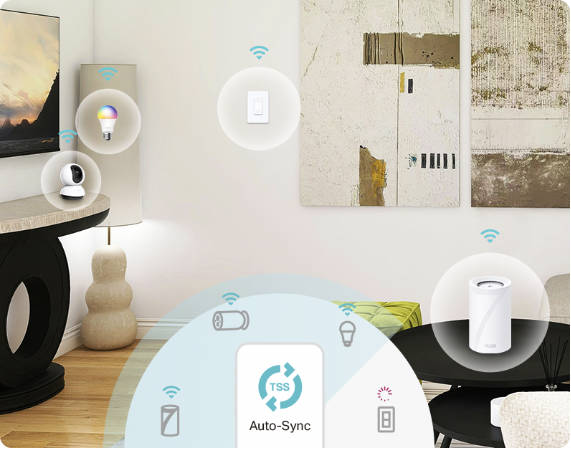
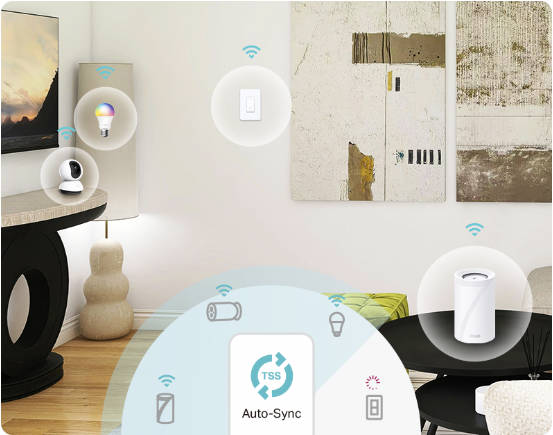
Some smart home ecosystems, like TP-Link Simple Setup (TSS), sync network changes at the platform level, without you touching a single device. If you change your Wi-Fi password, TSS does the heavy lifting. Its Auto-Synced Network Changes capability automatically updates and reconnects TSS-supported devices.
This requires being in the TP-Link ecosystem. TSS-supported devices handle the change, with no action required on your part. See TP-Link Simple Setup for the full list of supported devices.
How to Change Your Wi-Fi Password
Changing your Wi-Fi password on your router takes a few steps, using either the router's app or its admin panel. Find the wireless or Wi-Fi settings, update your Wi-Fi password, and save the change. These steps also cover changing your Wi-Fi name.
If you already have a guest network or TSS-supported devices set up, most of your smart home stays online through this step. If you don't, plan to reconnect devices manually using the steps below.
If Your Devices Go Offline: How to Reconnect
If you didn't set up a guest network or TSS beforehand, here's how to change your Wi-Fi password on each smart home device and update it with the new information. Go through them one at a time, starting below.
- Plugs and bulbs. Open the device app, select your network, and enter the new password. Most reconnect in under a minute per device.
- Cameras and doorbells. These may need to be in pairing mode before reconnecting through the app. If one won't reconnect, see TP-Link's guide on devices appearing offline after a router change.
- Locks. Follow the reconnection steps in the device app. Some models need a brief reset.
- Ethernet-connected devices. Unaffected by a Wi-Fi password change, since they never relied on Wi-Fi. They stay online automatically.
Why TP-Link Makes This Easier
TP-Link designed TSS to work across Deco, Tapo, and Archer devices, with support regularly expanding through ongoing updates. Right now, Auto-Synced Network Changes automatically updates network connections for supported Tapo hub and Tapo devices when your router's settings change, so nothing drops offline, with Deco and Archer support rolling out over time. The more of your network TSS covers, the less reconnecting you'll need to do, and the less you'll need to worry about changing your Wi-Fi password.
Set Up Your Network Once and Skip Reconnecting Later
You now know how to change your Wi-Fi password, but what happens next for your smart home depends on what you've set up beforehand. A guest network or TP-Link Simple Setup means the disconnection stops at your phone and laptop, not your whole smart home. If you're reconnecting everything today, it's worth setting one of those up before the next change.
If you’re considering a router upgrade, TP-Link's Wi-Fi routers are worth a look. Or, browse TP-Link's smart plugs, smart bulbs, and smart cameras to see which support automatic reconnection.
Frequently Asked Questions
Does changing my Wi-Fi password disconnect my smart devices?
Yes. Every device using your old password, including smart plugs, cameras, and bulbs, disconnects as soon as you change it. Most reconnect automatically if you have a guest network or TP-Link Simple Setup. Otherwise, reconnect each one manually through its app, usually in under a minute per device.
Will changing my Wi-Fi password kick everyone off my network?
It briefly disconnects everyone using the old password. Phones and laptops usually reconnect within seconds once they have the new password. Smart home devices without a screen take longer, unless they're on a guest network or synced through TP-Link Simple Setup.
What is a guest network and how does it help with smart devices?
It's a second Wi-Fi network your router broadcasts alongside your main one, with its own name and password. Smart devices joined to it never see your main password change, so it doesn't affect them. Set it up in advance, since it only helps if it's already running when you make the change.
How does TP-Link TSS handle Wi-Fi password changes?
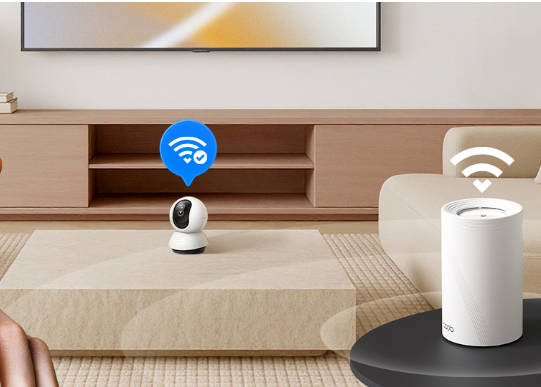
TSS watches for network changes and handles them automatically. When your password changes, supported devices pick up the new details and reconnect in the background, with nothing for you to configure.
How do I reconnect my smart plugs after changing my Wi-Fi password?
Open the plug's app, go to Wi-Fi or network settings, select your network, and enter the new password. Most smart plugs reconnect in under a minute. If a plug doesn't appear, restart it and check that it's within range of your router.