Why Is My Wi-Fi So Slow? A Guide for Multi-Device Households
Your video call keeps freezing right as someone else starts streaming and another family member logs on to play a game. If you're asking yourself, “Why is my Wi-Fi so slow?” you're not imagining it, and the culprit usually isn't your internet plan.
Slow Wi-Fi can come from a few different places, such as router placement, outdated firmware, or a temporary issue with your Internet service provider (ISP). But the most common cause in busy households today is simpler than any of those. It's a network trying to do too much at once. Your router can only move so much data at a time, and when everyone shows up at once, something has to wait.
This guide explains why that happens, what you can try right now, and when it makes sense to consider a hardware upgrade that actually matches how your household uses the internet.
Key Takeaways
- Network congestion is one of the most common causes of slow Wi-Fi in busy households. When many devices compete for the same bandwidth at once, everything slows down.
- Every connected device uses some of your router's capacity, even when it's idle. The more devices on your network, the more likely you are to notice slowdowns.
- Free fixes help, but only temporarily. Switching bands, restarting your router, and setting up a guest network can ease congestion but likely won’t solve it permanently.
- Older routers often can't keep up with modern households. A router that worked well five years ago may be undersized for the number of devices you use today.
- Wi-Fi 7 and mesh systems solve different problems. A Wi-Fi 7 router adds capacity, while a mesh system adds both capacity and coverage for larger homes.
What's Happening When Your Wi-Fi Slows Down
When your Wi-Fi slows down, your router is likely trying to move more data than it can handle at once, a condition known as network congestion.
Bandwidth is the amount of data your router can send and receive at the same time. Think of it as a pipe: only so much data fits through it at once, no matter how many devices are asking for it. When several devices use that pipe simultaneously, they all share the same limited capacity.
Network congestion happens when demand exceeds what your router can efficiently distribute. It isn't necessarily a sign that your router is broken or that your ISP is at fault, though aging hardware can make the problem worse. Many households still use a basic router provided by their ISP, and those models often aren't built to handle a large, modern household.
Network congestion tends to show up in one of two ways. Sometimes, too many devices connect at once, all pulling from the same limited pool of bandwidth. Other times, the router itself has a total capacity that's too low for the household's demand, regardless of how many devices are active at any given moment.
Both situations point to the same root cause: your network's demand has outgrown its capacity. Recognizing which, if any, applies to your household is the first step toward choosing the right fix.
Wi-Fi Speed: What It Means and How Much You Need
Wi-Fi speed determines how much data your devices can send and receive each second, which affects how quickly pages load, how smoothly video streams, and how reliably calls connect.
Different activities place different demands on your network. Basic browsing needs relatively little bandwidth. Streaming in HD uses more, and 4K video or group video calls use more still. Online gaming depends more on a stable, low-latency connection than on raw speed alone.
Speed needs multiply with devices, not just activities. A household with two or three devices online at once likely won’t notice any strain. A household with ten or more active devices, streaming, calling, and gaming at the same time, needs significantly more total bandwidth to keep everything running smoothly.
This is why upgrading your Internet plan alone doesn't always fix slow Wi-Fi. If your router can't distribute that bandwidth efficiently across every device, a faster plan won't solve a congestion problem that's happening at the router itself.
Common Causes of Slow Wi-Fi
Slow Wi-Fi in busy households usually traces back to one or more of a few related causes. Not every one applies to every household, so use these patterns to figure out which ones match what you're experiencing.
Too Many Devices on the Network
Every connected device draws on your router's bandwidth, even when it isn't actively in use. Phones, TVs, laptops, and smart home devices all check in periodically, and each connection uses a small share of your router's total capacity.
A household with 15 or more connected devices will feel this strain far more than one with five, even on the exact same internet plan. If you've been dealing with too many devices on Wi-Fi, this is usually the pattern: the more devices competing for a fixed pool of bandwidth, the more noticeable the slowdown.
Everyone Using the Network at the Same Time
Demand on your network spikes during specific hours, typically evenings, when everyone in the household is home and online at once. Streaming, gaming, and video calls compete for Wi-Fi bandwidth at the exact same time, which is often when your connection feels slowest.
This is called bandwidth contention: devices don't take turns using your network; they compete for it in real time. If you've wondered why your Wi-Fi is slow during peak hours but fine at other times, this contention is generally the reason.
Older Router Hardware
Routers have a maximum capacity for the number of devices they can connect to at once and the amount of data they can move through those connections. Older models were designed for smaller, simpler households with far fewer connected devices than most homes have today.
A router that worked fine five years ago may be undersized for your household now. If your Wi-Fi has suddenly gotten worse and nothing else has changed, an aging router finally being pushed past its limit is a common explanation for why your Wi-Fi is so slow all of a sudden.
Wi-Fi standards have also evolved. Wi-Fi 5 and Wi-Fi 6 have been common in routers over the past several years, while Wi-Fi 6E adds an extra frequency band to reduce congestion, and Wi-Fi 7 introduces technology specifically designed to manage many devices more efficiently. Each newer generation can handle more connections and more simultaneous traffic than the one before it.
Router Placement and Interference
Where your router sits affects how much usable bandwidth it actually has to share. Walls, floors, and signals from neighboring networks can all reduce your effective Wi-Fi bandwidth, leaving less capacity to go around when multiple devices are competing for it.
A router tucked in a closet or basement has to push its signal through more obstacles to reach the rest of your home, leaving even less bandwidth for every device trying to connect from farther rooms. In apartments or dense housing, neighboring Wi-Fi networks crowding the same channels have a similar effect: less usable capacity for your own devices to share.
What You Can Try Right Now
Before considering a hardware upgrade, a few free adjustments can ease congestion in the short term. Each one addresses a piece of the problem, though note that none fully resolves congestion in a household that has outgrown its router.
Switch to the 5 GHz Band
If you've wondered, "Why is my Wi-Fi so bad in certain rooms?", band congestion is often part of the answer. Your router likely broadcasts on two bands, 2.4 GHz and 5 GHz. The 2.4 GHz band travels farther but is slower and more crowded, since older devices and appliances often use it too. The 5 GHz band is faster and less congested, though its range is shorter.
This helps most when your devices are close to the router and don't need to reach through multiple walls or floors. Moving high-demand devices, like a streaming TV or gaming console, to the 5 GHz band can ease pressure on the crowded 2.4 GHz band.
The limitation is that this doesn't add more total capacity. If your household simply has too many devices for either band to manage well, switching bands won't fully fix the issue, since the underlying congestion remains.
Set Up a Guest Network
A guest network separates visitors and smart home devices from your primary network, reducing the number of devices competing for the same bandwidth. Most modern routers support this option directly in their settings app.
This helps most in households with frequent guests or a large number of smart home devices that don't need full access to your primary network.
Note that a guest network reduces competition for bandwidth, but it doesn't add any. If your primary household devices alone are causing slow internet, a guest network won't resolve that on its own.
Restart Your Router
Restarting clears your router's memory and refreshes its connections, which can resolve minor slowdowns and connection errors.
This solution can be a helpful and quick first step, especially if your router has been running for weeks without a restart, but it won't fix an ongoing capacity problem. If your Internet is slow every evening, no matter how recently you restarted, that pattern points to congestion rather than a temporary glitch. Asking why is my Internet slow despite a fresh restart usually points back to ongoing demand, not a one-time error.
Limit Bandwidth-Heavy Activity
Large downloads, software updates, and backups can compete with everyday streaming and video calls when they run simultaneously. Scheduling those tasks for off-peak hours frees up bandwidth for the activities your household prioritizes.
Some routers also support Quality of Service (QoS) settings, which let you prioritize certain devices or types of traffic over others.
This shifts demand around rather than solving it. Pairing it with other adjustments helps, but a router that can’t keep up with your household will still struggle, timing aside.
Router and Network Upgrades for Faster Wi-Fi
If free fixes only help temporarily, the underlying issue is usually that your hardware no longer matches your household's demand.
Ask yourself three questions: how old is your router, how many devices connect to your network, and does the slowdown happen no matter what you try? If the answers point to a mismatch between demand and capacity, a hardware upgrade is the more reliable way to fix slow internet for good.
There are two common upgrade paths, and the right one will depend on your household. A Wi-Fi 7 router adds capacity for single-floor homes or households with a moderate number of devices, addressing congestion where coverage isn't the issue. A mesh Wi-Fi system is built for larger homes, multiple floors, or persistent dead zones, solving both capacity and coverage at once.
What Makes Wi-Fi 7 Different for Busy Households
Wi-Fi 7 is designed to handle many devices more efficiently than older Wi-Fi generations. Its Multi-Link Operation feature lets a single device send and receive data across multiple frequency bands simultaneously, rather than waiting its turn on just one.
This means more devices can stay active at once with less competition for bandwidth, which results in steadier speeds even when your whole household is online. If your search for why Wi-Fi is slow keeps leading back to too many devices, this kind of traffic management is the answer.
Learn more in TP-Link's in-depth overview of Wi-Fi 7.
When a Mesh System Makes Sense
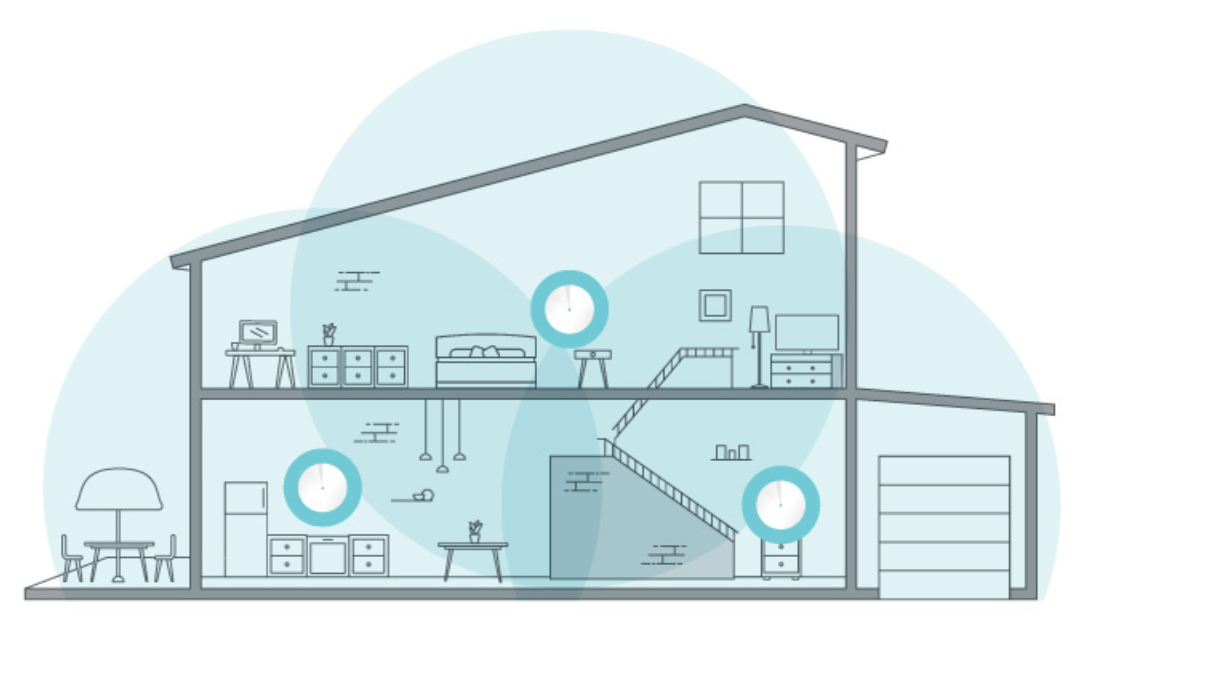
A mesh system uses multiple units, called nodes, that work together as a single network rather than relying on a single router. This eliminates dead zones and spreads the household's network load more evenly across the home.
Mesh Wi-Fi is generally the better fit for larger homes, multiple floors, or spaces where even a capable single router can't reach every room. If your challenge is coverage as much as capacity, a mesh Wi-Fi system tends to solve more of the problem than a single router, however powerful that router is.
TP-Link Solutions for High-Demand Households
TP-Link's router and Deco mesh lineup are built with modern, multi-device households in mind, whatever their size or number of connected devices. Whether you need more capacity on a single floor or coverage across multiple stories, TP-Link offers robust Wi-Fi 7 options, along with products across other Wi-Fi generations, to match your household’s needs.
The Archer BE6500 is a dual-band Wi-Fi 7 router with combined speeds up to 6.5 Gbps, suited to households with moderate demands. It supports Multi-Link Operation, so devices can spread traffic across bands instead of competing for one, and includes 2.5 Gbps wired ports for faster connections to devices like gaming PCs or smart TVs.
The Archer BE9300 steps up to tri-band Wi-Fi 7 with combined speeds up to 9.2 Gbps, better suited to households with more devices and heavier simultaneous use. Like the BE6500, it supports Multi-Link Operation and 2.5 Gbps wired ports.
For larger or multi-story homes, TP-Link's Deco mesh systems extend Wi-Fi 7 coverage to every room, eliminating dead zones.
The Deco BE25 covers up to 6,600 square feet with dual-band Wi-Fi 7 and combined speeds up to 5 Gbps, and can support up to 150 connected devices at once, which makes it a strong fit for small to mid-size apartments running many devices simultaneously.
The Deco BE63 steps up to tri-band Wi-Fi 7 with combined speeds up to 10 Gbps and adds 320 MHz channels, which double available bandwidth for more simultaneous transmissions. It supports Multi-Link Operation, giving it added reliability for the busiest, most device-heavy homes.
Browse the full Deco mesh Wi-Fi collection to compare models by home size and device count.
Find the Right Wi-Fi Setup for Your Household
If you've been wondering why your Wi-Fi is so slow, congestion is often the culprit, usually due to a mismatch between your household's demands and what your router can handle. Free fixes, like switching bands or setting up a guest network, can ease that mismatch in the short term.
For households that have outgrown their current setup, a hardware upgrade is the most reliable long-term solution. Whether that means a Wi-Fi 7 router for added capacity or a mesh system for broader coverage, TP-Link's router and Deco mesh collections can help you find the right fit for your home.
Frequently Asked Questions
Why does my Wi-Fi slow down at night?
Wi-Fi tends to slow down at night because that's when most households are online at the same time. Streaming, gaming, and video calls all compete for the same bandwidth during peak evening hours, which is when network congestion is most noticeable.
How many devices is too many for a home router?
There's no universal number, since it depends on your router's capacity and how those devices are used. As a general guide, households with 15 or more connected devices are more likely to experience congestion, especially with an older or entry-level router.
Does restarting my router help with slow Wi-Fi?
Yes, restarting your router can help with minor slowdowns by clearing its memory and refreshing your connections. It won't fix an ongoing capacity problem, but it's a useful first step before trying anything else.
What is the difference between 2.4 GHz and 5 GHz Wi-Fi?
The 2.4 GHz band travels farther through walls and floors but is slower and more congested, since more devices use it by default. The 5 GHz band is faster and less crowded, though its range is shorter.
When should I upgrade my router instead of trying to fix slow Wi-Fi?
If free fixes like restarting your router or switching bands only help temporarily, and your household regularly has many devices online at once, it's usually time to consider a hardware upgrade. A Wi-Fi 7 router or mesh system is designed to handle that kind of ongoing demand more reliably than an aging router.