
Set up Parental Controls with TP-Link HomeShield (For Deco & Router)
Deco and Router parental controls are powered by HomeShield, TP-Link's built-in network security and parental control platform, and are managed through the Parental Controls/Family tab in the Deco (for Deco units) /Tether app (for router units). This guide covers how to set up and use all 10 available HomeShield advanced parental control features, from blocking specific websites and filtering content to setting bedtime schedules, time limits, and Family Time. Note that some features require a subscription to HomeShield Advanced Parental Controls. This guide applies to TP-Link HomeShield-compatible Deco and routers.
Key Takeaways
- TP-Link HomeShield parental control can be managed through the Parental Controls tab in the Deco app or the Family Tab in the Tether app.
- A separate profile can be created for each child, allowing you to customize controls individually.
- The feature covers 10 scenarios, including blocking specific websites, filtering inappropriate content, enabling SafeSearch and YouTube Restricted mode, setting bedtime and offline time schedules, managing time limits, and activating Family Time.
- Some features, including time limits, off-time scheduling, and advanced content filtering, require a HomeShield Advanced Parental Controls subscription.
- The Reward Features allow parents to grant extra online time when a child's allowed time has been reached.
- Family Time lets you disconnect selected devices from the Internet for a set duration to encourage screen-free time together.
Parental Controls help your kids maintain healthy digital habits.
Easily control your kids' online time and content. Receive intuitive charts and detailed statistics concerning your kids' internet usage.
How to Set Up HomeShield Parental Controls
Note: Some features require a subscription to Advanced Parental Control, and some new features require updated firmware.
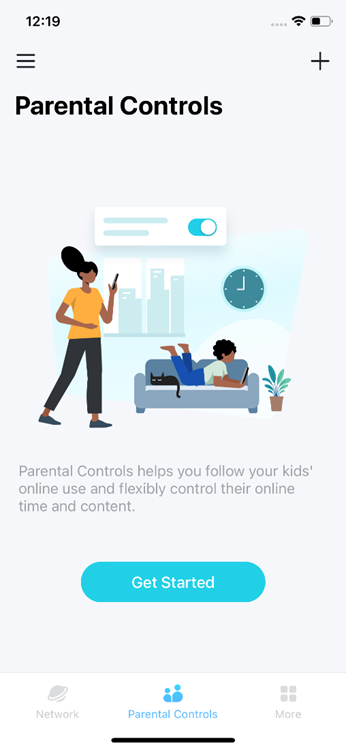
Step 1. Open the Deco/Tether app, go to the Parental Controls or Family tab, click Get Started, and follow the on-screen instructions to create a profile.
Step 2: Create a Profile For Your Kid. Assign a name, avatar, and age to create the profile. The Deco app will preset parental control rules based on the age you select, which you can adjust at any time in the profile settings.
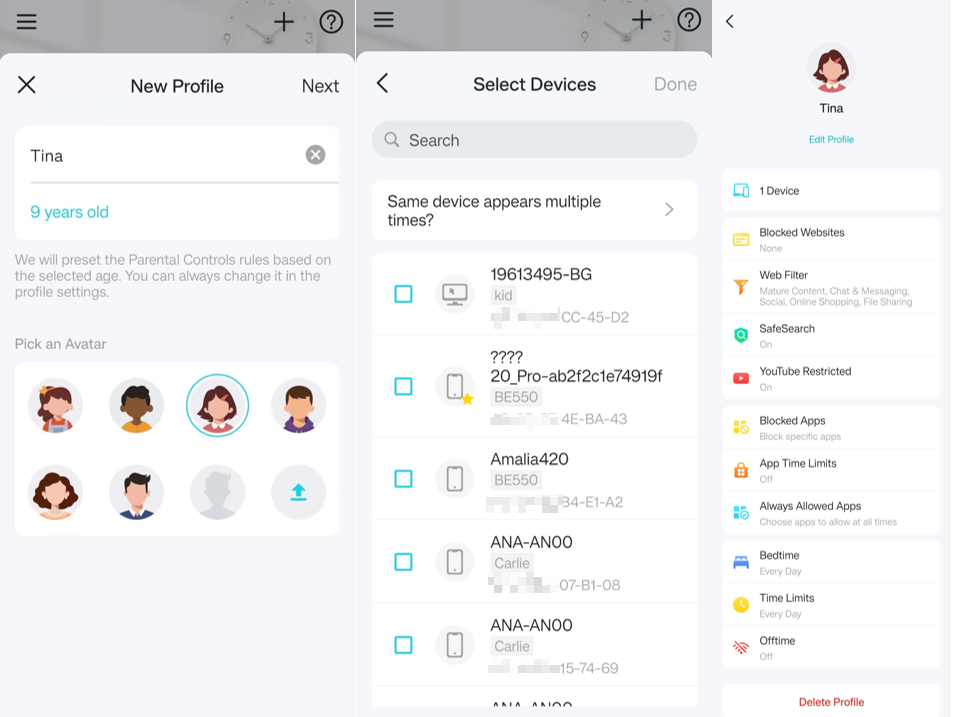
Step 3. Set corresponding features according to your needs.
TP-Link HomeShield Parental Control Features
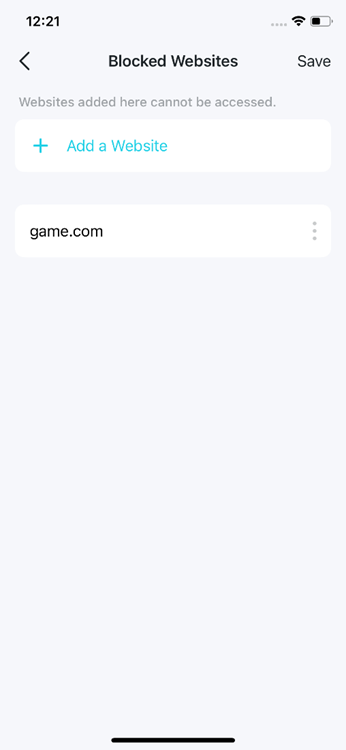
Scenario 1: Block Specific Websites
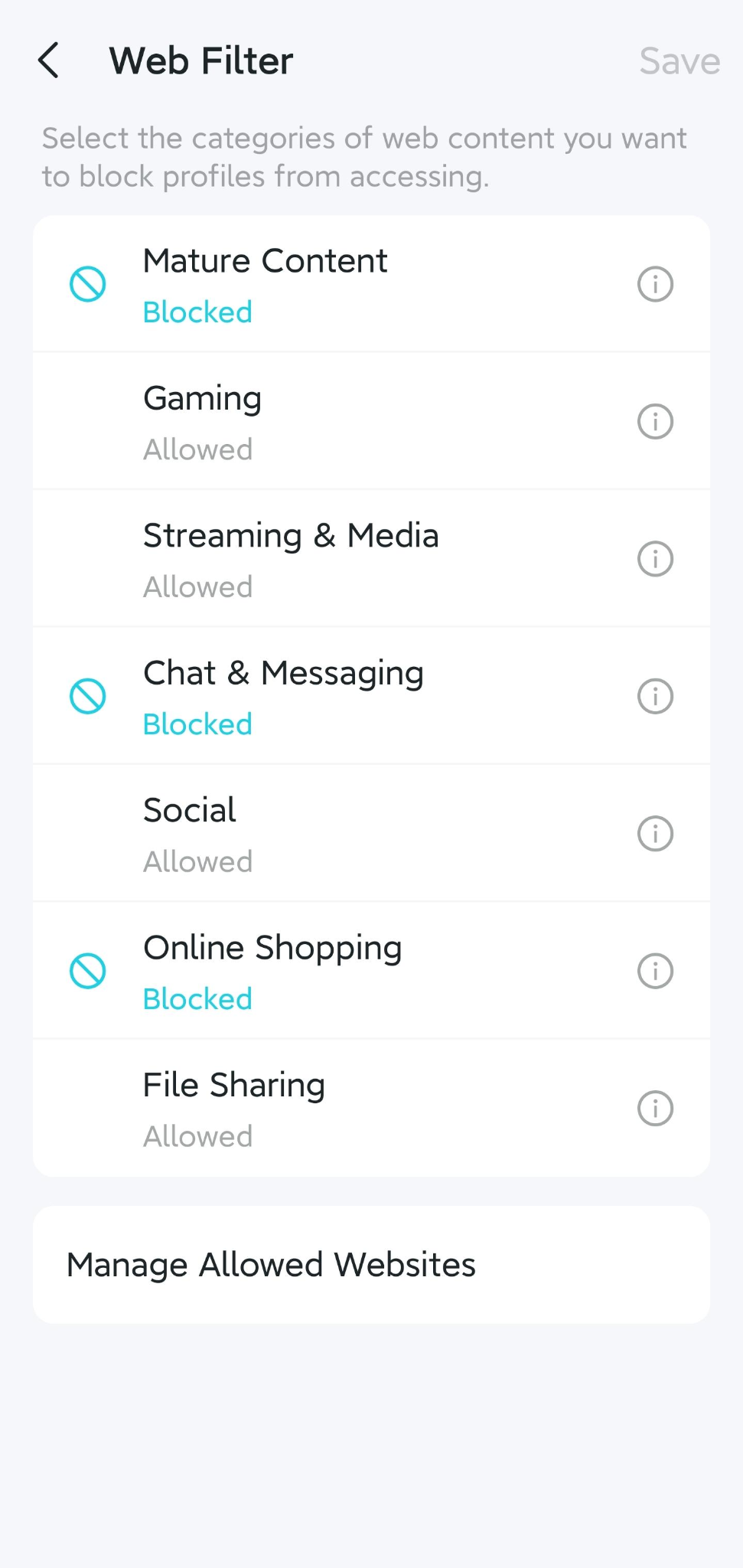
Scenario 2: Filter Inappropriate Content
Scenario 3: SafeSearch & YouTube Restricted
Note: This feature requires a HomeShield Advanced Parental Controls subscription.
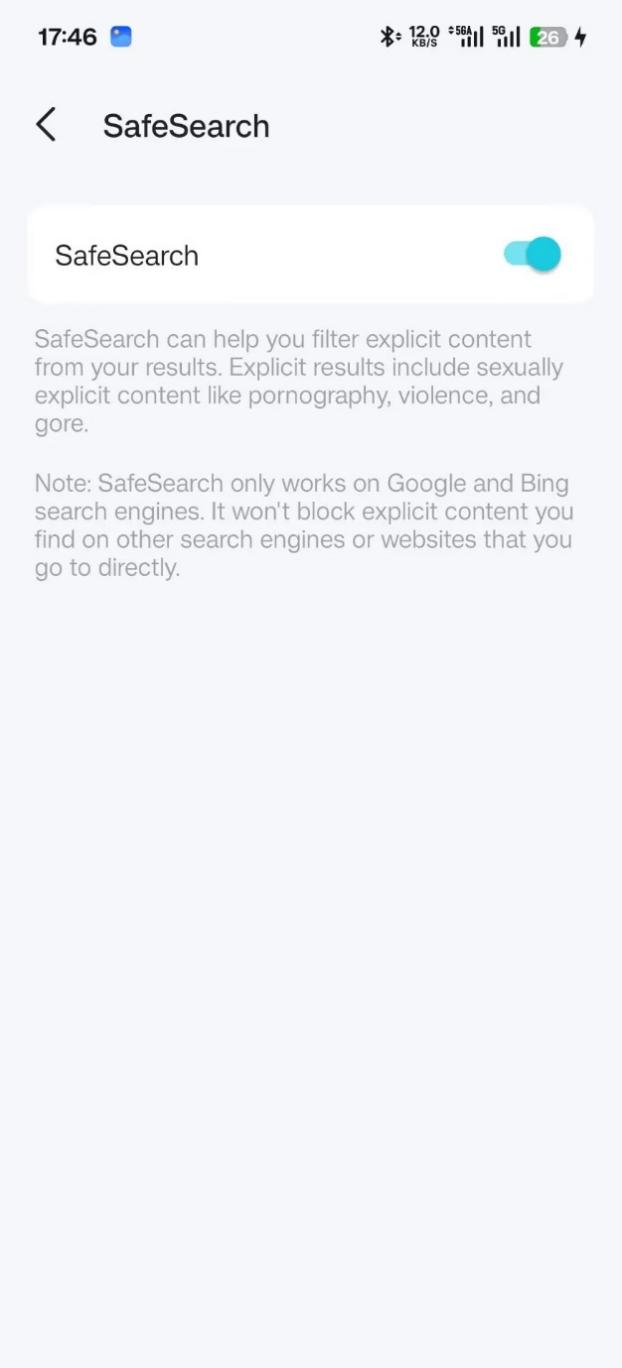
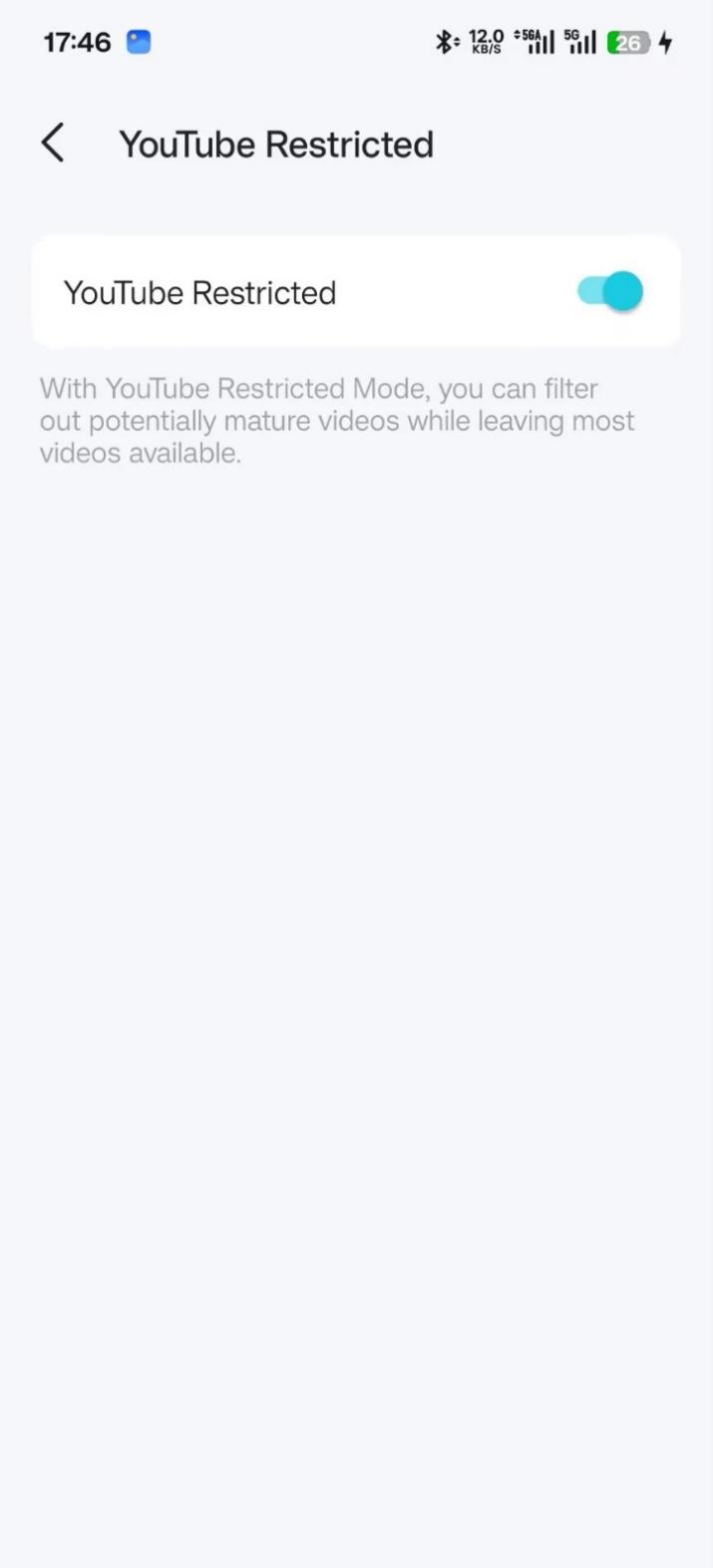
You can refer to the following links for more detailed information.
SafeSearch: Make Google Search safer with SafeSearch - Computer - Google Search Help
YouTube Restricted: Your YouTube content & Restricted Mode - YouTube Help
Scenario 4: Block or Manage App Traffic
Note: This feature requires a HomeShield Advanced Parental Controls subscription.
This feature allows you to restrict or prioritize specific app traffic on your network. For detailed instructions, refer to the linked guide below. Note: this feature requires a Deco Advanced Parental Controls subscription
You may refer to How do I block or manage APP traffic with HomeShield Advanced Parental Control on a TP-Link Router/Deco? for detailed instructions.
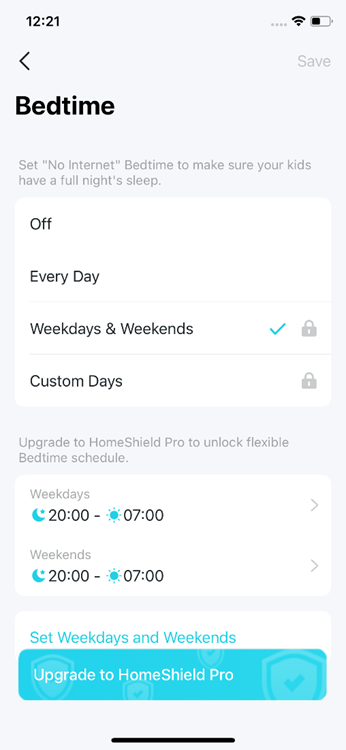
Scenario 5: Set "No Internet" Bedtime
Note: To customize days or select weekdays/weekends requires a HomeShield Advanced Parental Controls subscription.
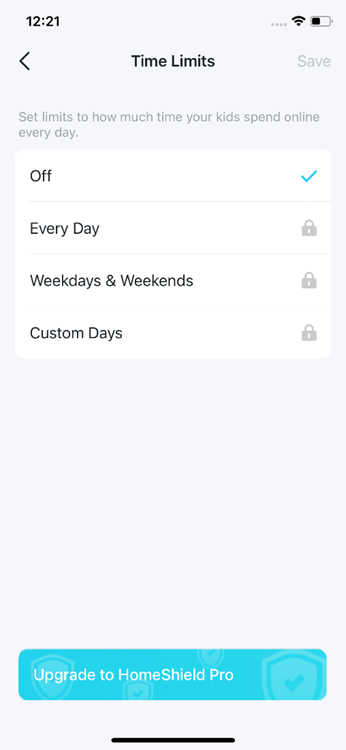
Scenario 6: Set Online Time Limits
Note: This feature requires a Deco Advanced Parental Controls subscription.
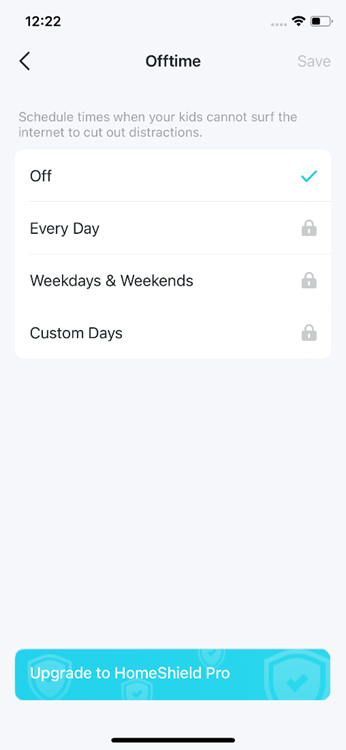
Scenario 7: Set "No Internet" Offtime
Note: This feature requires a Deco Advanced Parental Controls subscription.
Scenario 8: Reward Features
Note: This feature requires a Deco Advanced Parental Controls subscription.
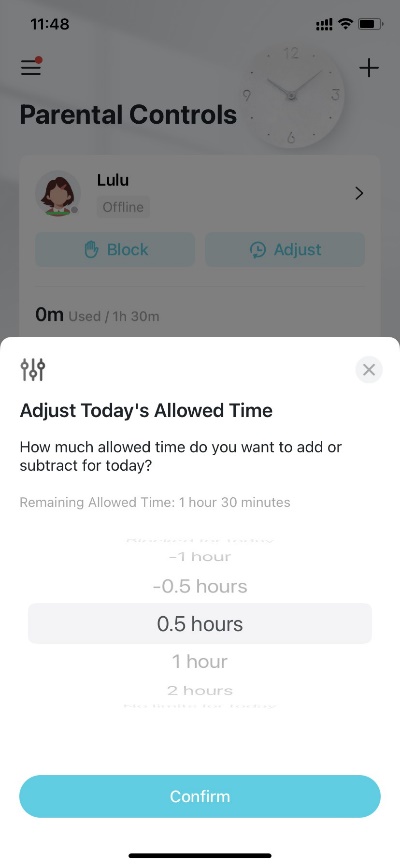
Select a profile, tap Adjust, and select the allowed time you want to add for today.
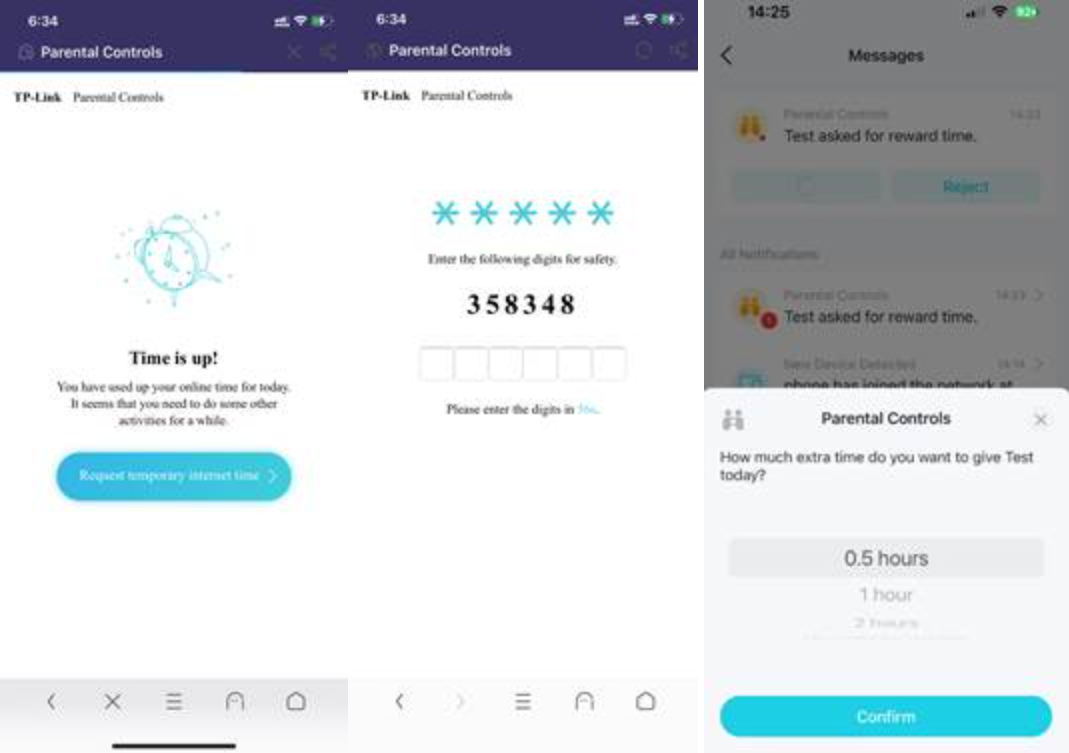
- Family members can request an online reward when they use up their online time, and, of course, you can agree or decline it.
- Only when family members visit the http website will the Time is up page pop up.
- You can go to Deco/Tether APP -> Network -> Message on the right-hand side of the page to find the request history.
Scenario 9: Family Time
Note: This feature requires a Deco Advanced Parental Controls subscription.
a. Go to the Parental Controls/Family tab and tap + > Set up Family Time.
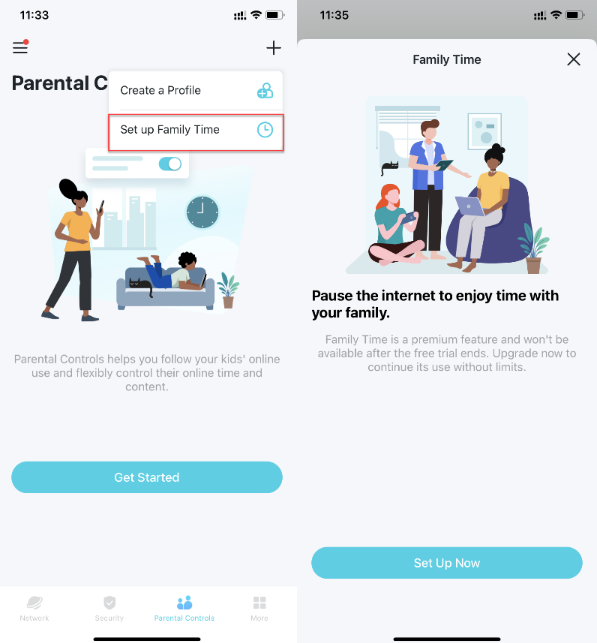
b. Add devices of the family member whom you want to cut off the internet, and then set the time duration you want to have your family together without internet distractions.
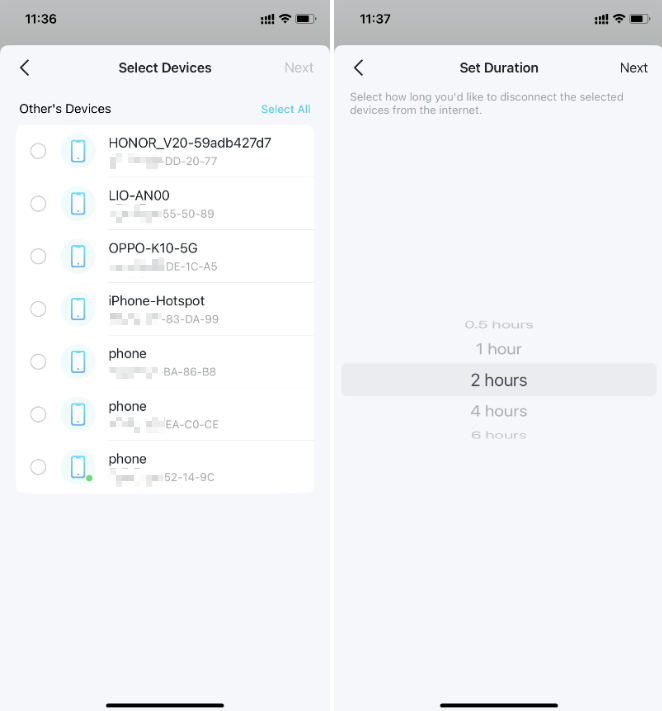
c. Tap Start anytime you want to activate the family time. Tap Stop anytime when finished.
Scenario 10: QoS
a. Go to the More tab and tap QoS and enable QoS.
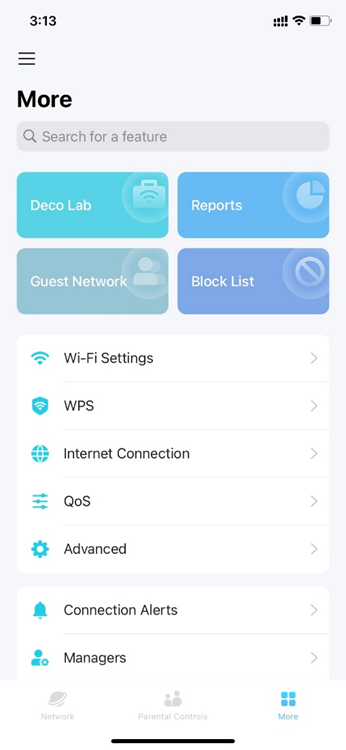
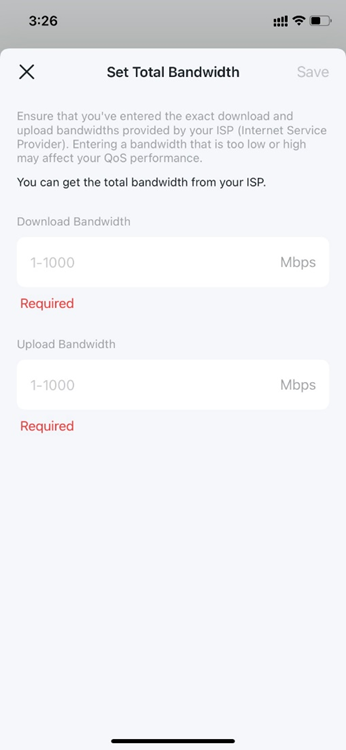
b. Set a total bandwidth for the QoS feature.
Note: Ensure that you've entered the exact download and upload bandwidth provided by your ISP(Internet Service Provider). Entering a bandwidth that is too low or too high may affect your QoS performance.
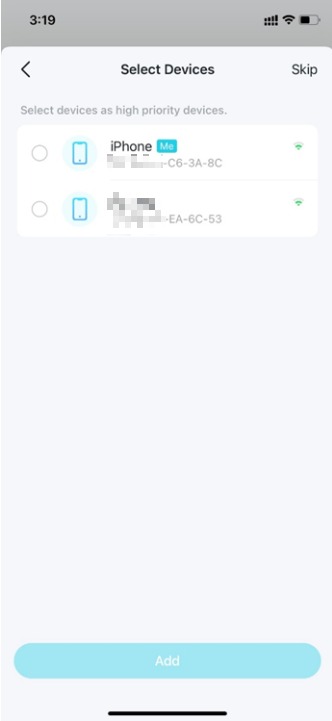
c. Select the devices you want to prioritize.
To get to know more details of each function and configuration, please go to the Download Center to download the manual of your product.
Questa faq è utile?
Your feedback helps improve this site.



TP-Link Community
Still need help? Search for answers, ask questions, and get help from TP-Link experts and other users around the world.