
How to Use SMS Function on TP-Link 5G/4G Router
The SMS function lets you manage text messages received by or sent from the SIM card installed in your router.
Key Takeaways
- Use the Tether app or web management page to manage SMS messages stored on the router's SIM card.
- Your SIM card must be active and have SMS service enabled by your mobile carrier.
- In the Tether app, go to More > SMS to view, send, reply to, or delete messages.
- On the web management page, go to Advanced > SMS to manage Inbox, New Message, Outbox, and Drafts.
Requirements
- Insert an active, compatible SIM card into the router.
- Confirm that your mobile carrier supports SMS service for the SIM card.
Step-by-Step Guide
Method 1: Manage SMS Messages in the Tether App (For Tether-compatible models)
Step 1: Log in to Tether App
Open the Tether app, select your router, and log in.
- Connect your phone to the router’s Wi-Fi. (Skip this step if your router is already bound to your TP-Link ID for remote access)
- Open the Tether app. Tap your router under Devices.
- Log in with your admin password. (For first login, you’ll be asked to create an admin password)
Step 2: Navigate to SMS Settings
Go to More > SMS.
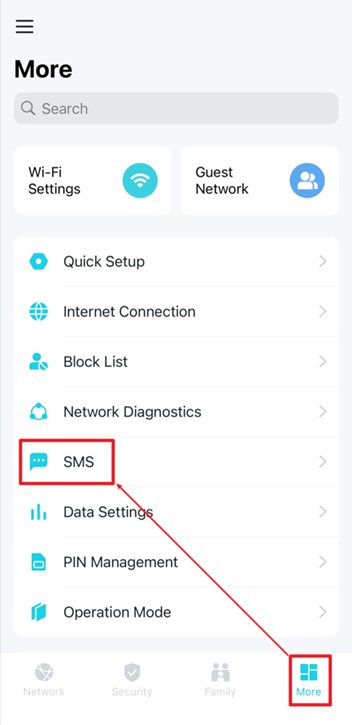
Step 3. Manage SMS messages
- View Messages: Tap Inbox to view received messages, or tap Sent to view sent messages. Tap a message to open it.
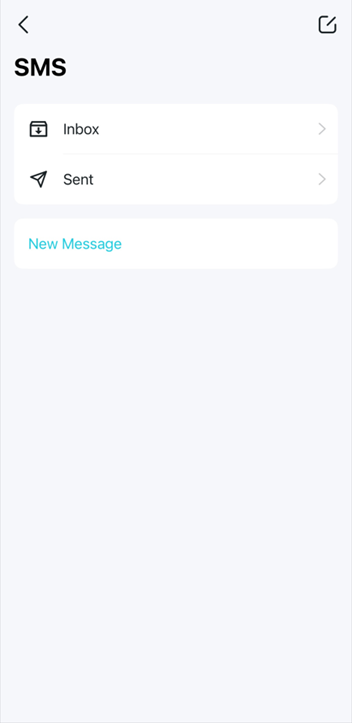
- Send a New Message: Tap the compose icon in the upper-right corner or tap New Message to write and send a new message
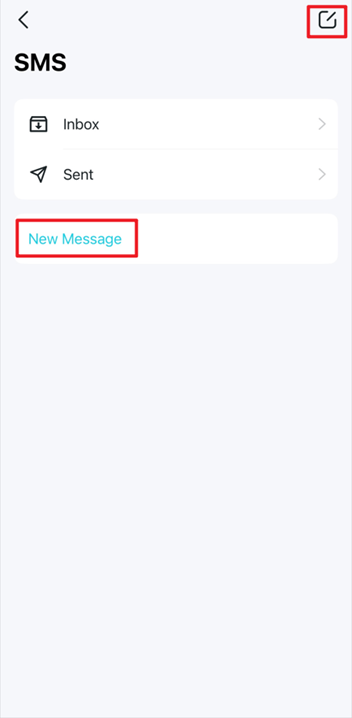
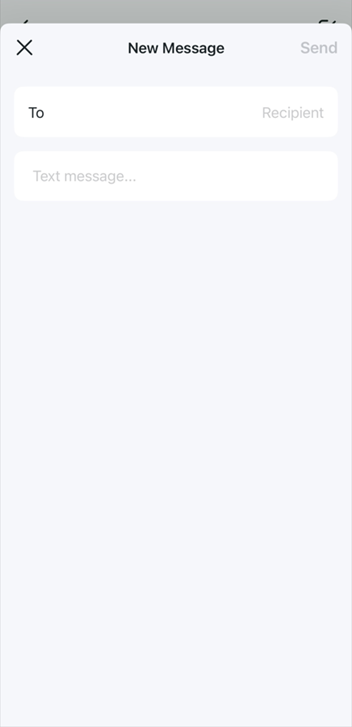
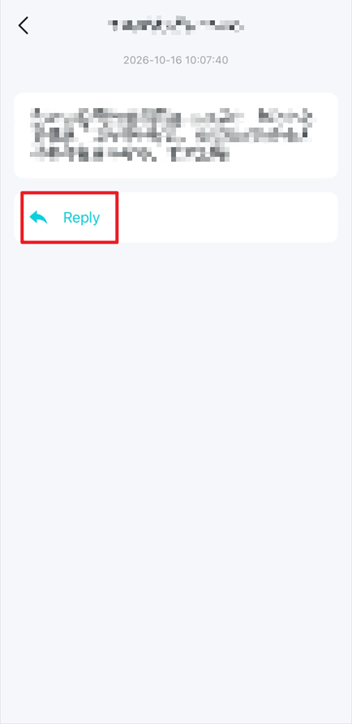
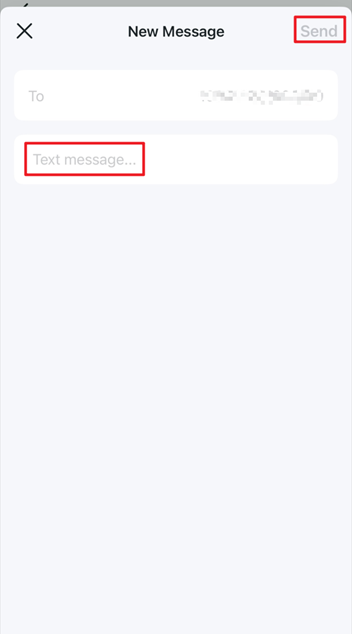
- Reply to a Message: Open a received message and tap Reply. Enter your reply and tap Send.
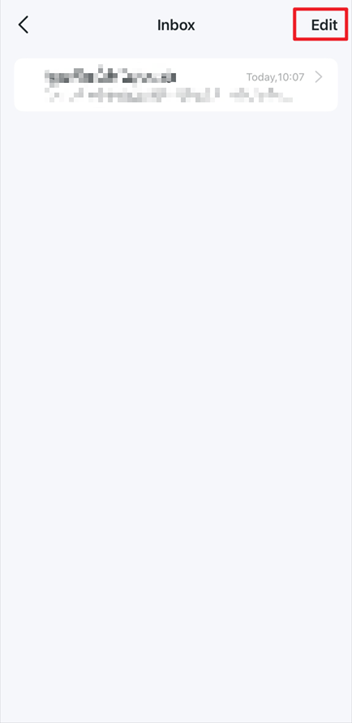
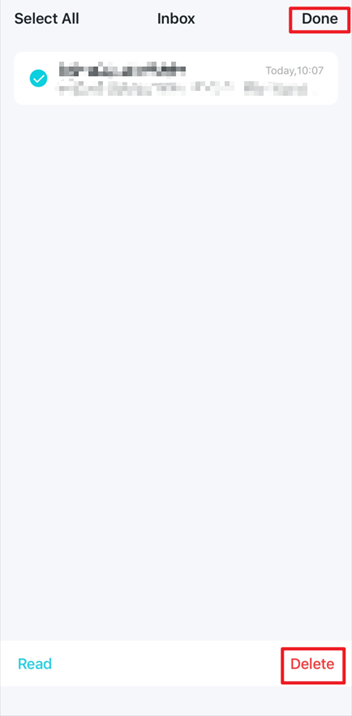
- Delete Messages: Open Inbox or Sent, and tap Edit. Select one or more messages, tap Delete, tap Done when finished.
Method 2: Manage SMS Messages on the Web Management Page
Step 1: Access the Web Management Page
- Connect your phone or computer to the router via Wi-Fi or an Ethernet cable.
- Open a web browser and enter https://tplinkmodem.net/ in the address bar.
- Log in with your admin password. (For first login, you’ll be asked to create an admin password)
Step 2: Navigate to SMS Settings
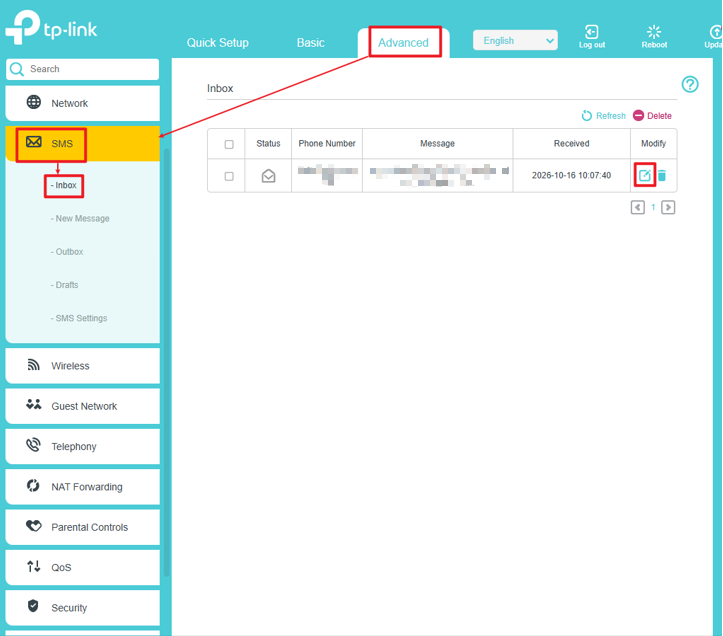
Go to Advanced > SMS.
Step 3. Manage SMS messages
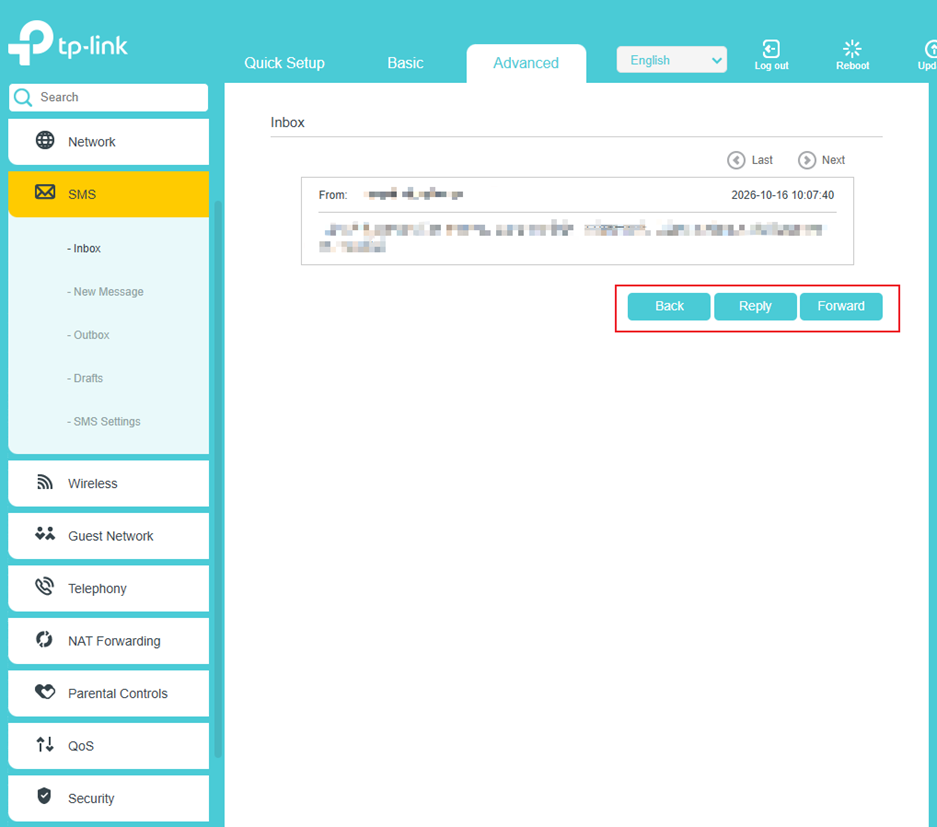
- View and Reply to Messages: Select Inbox to view received messages. Click the view icon in the Modify column to open and reply to a message. You can also click Forward to send the content to another number.
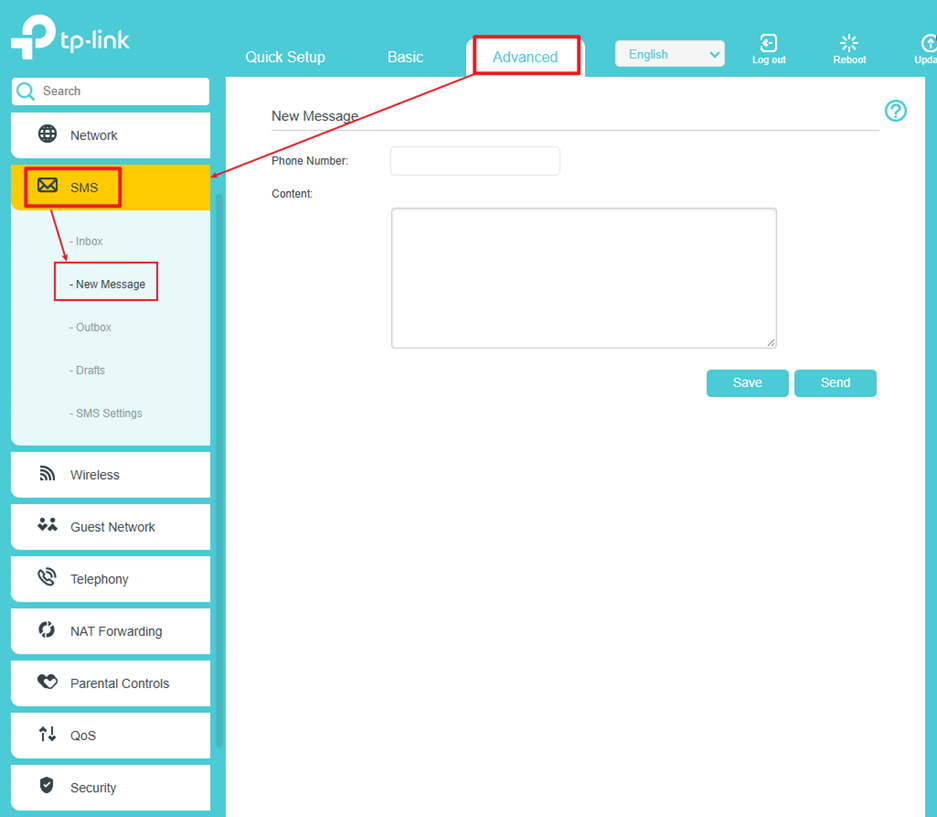
- Send a New Message: Select New Message from the SMS menu Enter the recipient's number in Phone Number and the message in Content. Click Send to send it or Save to save it as a draft.
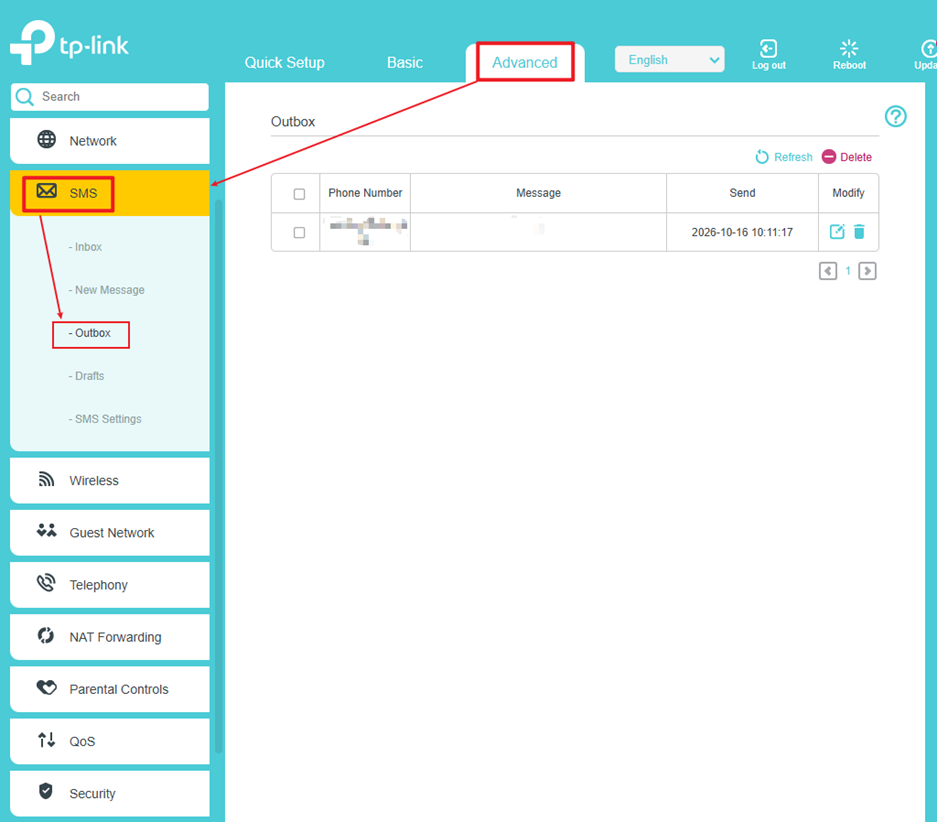
- View Sent Messages and Delete Messages: Select Outbox to view sent messages. To delete messages, select the check box beside each message and click Delete
Looking For More
Is this faq useful?
Your feedback helps improve this site.



TP-Link Community
Still need help? Search for answers, ask questions, and get help from TP-Link experts and other users around the world.