
Kasa HS200 Smart Switch LED Light Meanings: Blinking, Red, Green, and How to Reset
This guide covers what each Wi-Fi status LED state on the Kasa HS200 smart switch means, and how to use the RESTART and RESET buttons. Whether you're seeing a Kasa switch red light and trying to diagnose a connection problem, or your Kasa light switch blinking is prompting you to check your Wi-Fi, this guide explains each state and what to do.
Key Takeaways
- The Wi-Fi status LED on the Kasa HS200 has four states: blinking amber and green (App-Config mode), solid green (connected to Wi-Fi), blinking amber (resetting or firmware update in progress), and solid red (no Wi-Fi connection — the most common indicator of a connectivity issue).
- The Wi-Fi status LED turns off automatically within 30 seconds after successful configuration.
- The White Round LED lights up when the connected light is switched off, acting as a locator light in the dark.
- To restart the switch without changing any settings, press the RESTART button. The Wi-Fi LED will turn amber, then blink green until the switch reconnects.
- To enter App-Config mode for reconfiguring Wi-Fi, press and hold the RESET button for about 5 seconds until the LED blinks amber and green.
- To factory reset the switch, press and hold the RESET button for about 10 seconds until the Wi-Fi LED blinks green rapidly.
HS200 Diagram
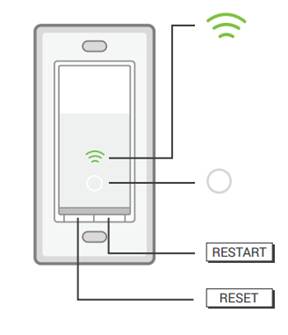
Wi-Fi status LED:
Blinking Amber and Green: App-Config mode initiated.
Solid Green: Successfully connected to the Wi-Fi network.
Blinking Amber: Resetting or during firmware update.
Solid Red: The switch has no Wi-Fi connection.
Note: The Wi-Fi status LED turns off automatically within 30 seconds of successful configuration.
White Round LED:
Lights up when the connected light is switched off, acting as a locator light in the dark.
How to Use the RESTART and RESET Buttons
1. Press the RESTART button to reboot the smart switch. The Wi-Fi status LED will turn amber, then blink green until the switch reconnects successfully.
The Wi-Fi status LED will be amber and turns to be blinking green until successful reconnection.
2. Press and hold the RESET button for about 5 seconds until the Wi-Fi status LED blinks amber and green alternately. This initiates App-Config mode.
3. Press and hold the RESET button for about 10 seconds until the Wi-Fi LED blinks green rapidly. This performs a factory reset.
A factory reset clears all configuration settings but does not unbind the cloud account. To unbind, delete the device from the original account in the Kasa app.
Looking For More
Is this faq useful?
Your feedback helps improve this site.


TP-Link Community
Still need help? Search for answers, ask questions, and get help from TP-Link experts and other users around the world.