
How to use Tapo baby camera with Tapo sensor
 24396
24396Introduction
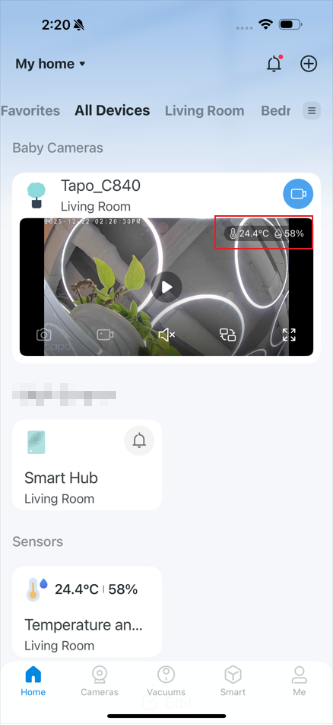
You can bind your baby camera with a Tapo temperature & humidity sensor to display temperature and humidity tags on the camera screen for easy viewing at any time. This article provides step-by-step instructions for binding the camera and sensor.
Requirements
- Make sure you have set up your baby camera successfully. If you haven’t, set up your Tapo camera first.
- Make sure you have set up your temperature & humidity sensor successfully. If you haven’t, follow the video guidance to set it up first.
For T310:
For T315:
Configuration
Step 1. In the app, tap the device card and then the gear icon to enter the settings page.
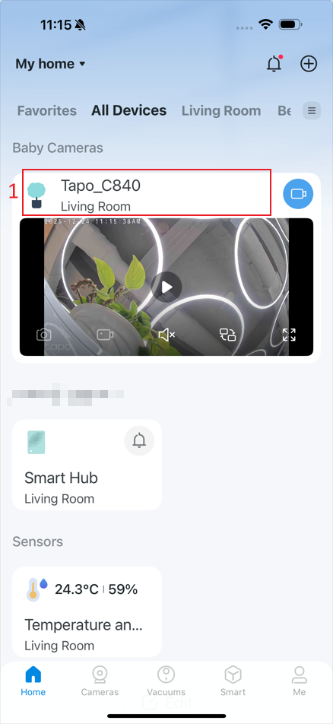
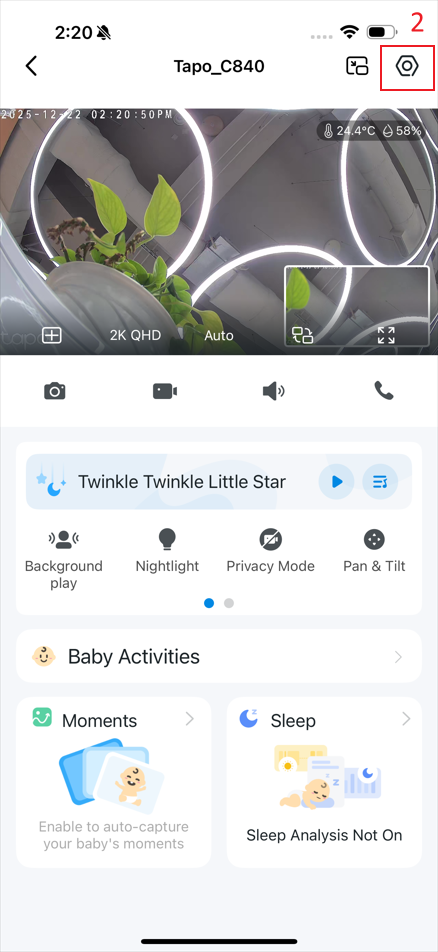
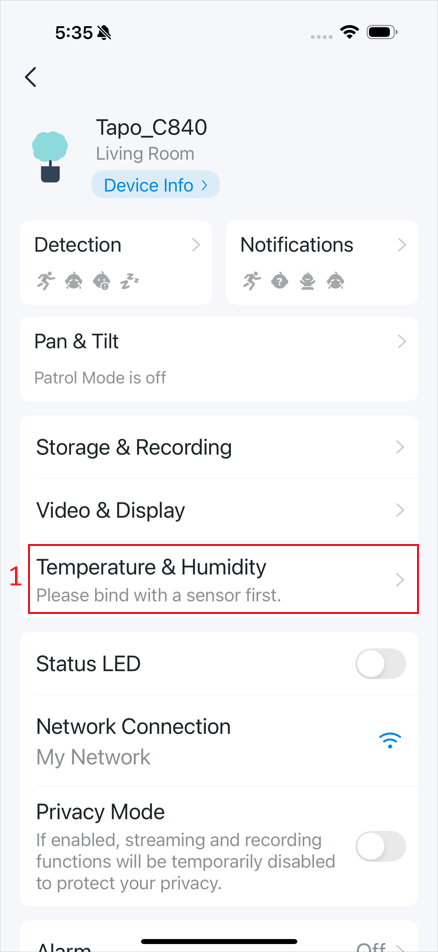
Step 2. Tap Temperature & Humidity, then tap Bind with Sensor.
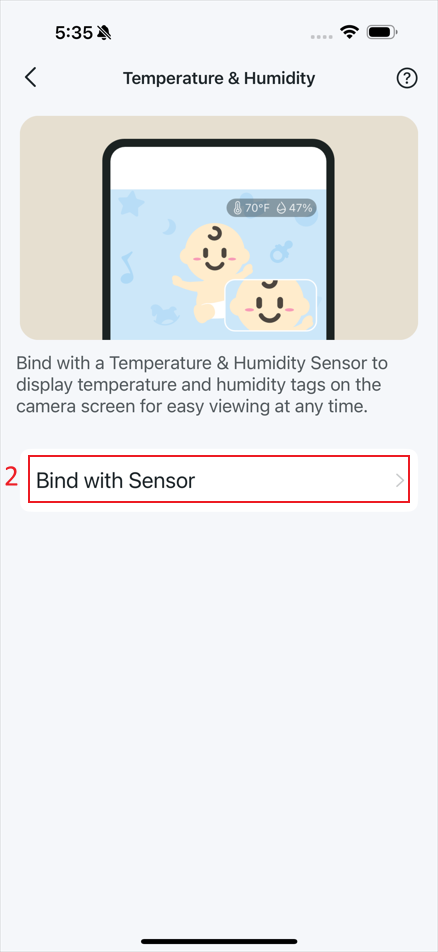
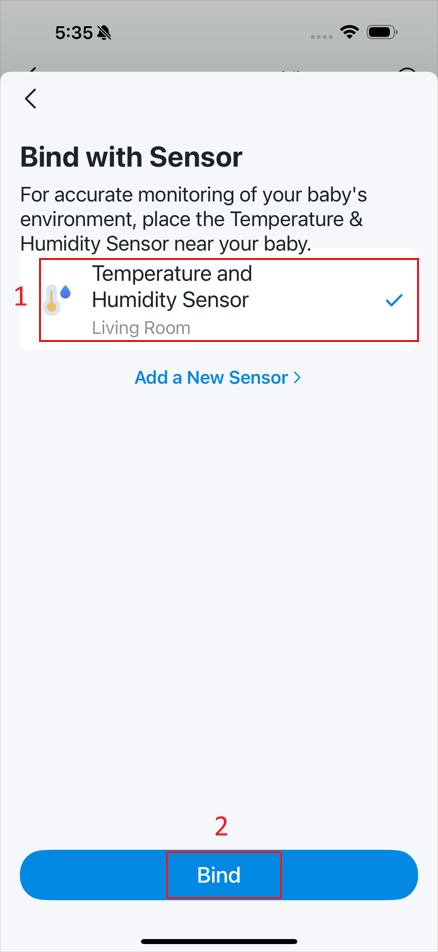
Step 3. Select the sensor you want to bind to the camera, then tap Bind to continue.
Step 4. After binding to the sensor, the current temperature and humidity will be displayed on the camera screen.
Get to know more details of each function and configuration please go to Download Center to download the manual of your product.
Is this faq useful?
Your feedback helps improve this site.


TP-Link Community
Still need help? Search for answers, ask questions, and get help from TP-Link experts and other users around the world.