How Does a Wi-Fi Extender Work?
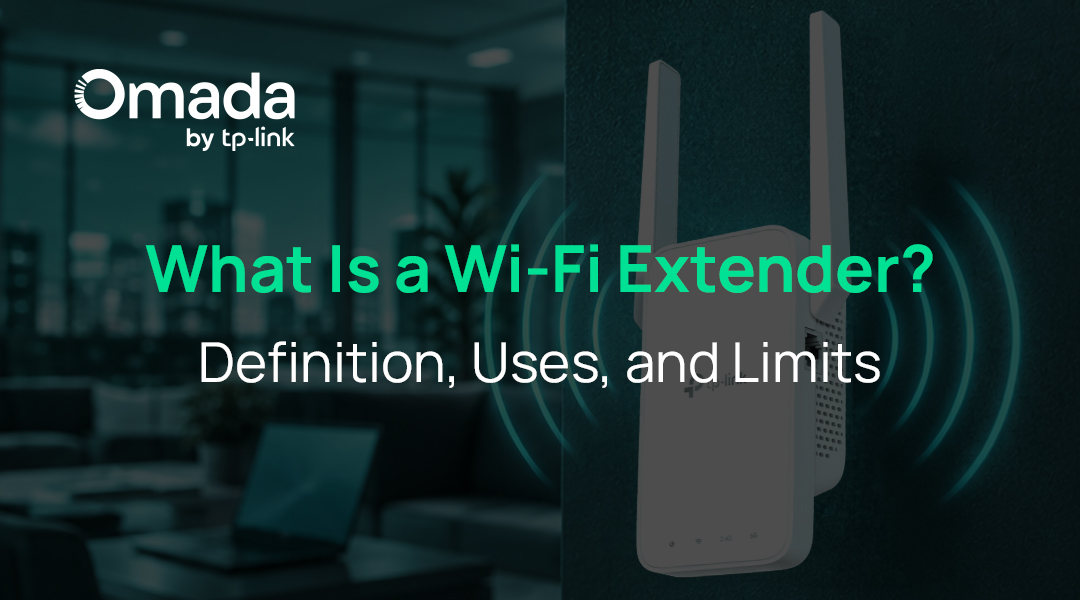
A Wi-Fi extender receives your router's wireless signal and rebroadcasts it from a second location, extending coverage into areas the router can't reach, without running Ethernet cable. It doesn't increase your internet speed or the router's wireless capacity. Performance depends on the wireless link to the router, so a weak or congested link limits what the extender delivers.
That relay can close a localized coverage gap, but it adds a wireless hop that reduces throughput and doesn't scale well across a floor plan. This guide explains how Wi-Fi extenders work, what the relay costs in performance, and where an extender stops being the right answer for a business network.
Key Takeaways
- A Wi-Fi extender joins your existing network as a client and rebroadcasts it, extending coverage without adding bandwidth or internet speed.
- Single-radio extenders use a single channel for both links, so every relayed frame uses airtime twice and throughput can fall by about half.
- An extender works best for a single weak room, placed roughly halfway to the dead zone where it still receives a strong router signal.
- Extender, booster, and repeater usually describe the same device, so compare radio count, network name options, and Ethernet ports instead of labels.
- Coverage across several rooms, multiple floors, dense device counts, or moving staff calls for wired access points with Ethernet backhaul instead of more relays.
What Is a Wi-Fi Extender?
A Wi-Fi extender connects to your existing wireless network and rebroadcasts it from a second location. Many are small plug-in units placed between the router and a weak-signal area, filling one coverage gap without running Ethernet cable to the spot that needs signal.
What a Wi-Fi Extender Does
An extender does two jobs at once. It joins your router's network as a client, like a laptop connecting to Wi-Fi, and acts as an access point for nearby devices. In practice, that might mean a plug-in unit in a hallway outlet putting usable signal into a back office, a storage room, or the far corner of a floor.
What a Wi-Fi Extender Does Not Do
An extender doesn't increase your internet speed, and it doesn't improve the quality or capacity of the wireless link back to the router. It can give nearby devices a stronger local signal, so a device struggling at the edge of router coverage may see better speeds. Those devices still share the extender's link to the router, though. That's why a laptop can show full signal bars next to an extender and still get slow speeds: the bars reflect its connection to the extender, not the extender's connection to the router.
How Does a Wi-Fi Extender Work? The Relay Explained
A Wi-Fi extender works as a relay. It receives data from the router over Wi-Fi, then sends it again from its own radio to the device that needs it, and does the same in reverse for traffic heading back. On a single-radio extender, relayed traffic has to cross the same channel twice, which creates the main performance tradeoff.
Receive, Decode, Rebroadcast
The process runs in three steps. First, the extender associates with the router's network, like a laptop connecting to Wi-Fi. Second, it receives wireless frames from the router and decodes the data they carry. Third, it sends that data again in new frames from its own radio, using either the router's network name (SSID) or a separate one, depending on the model and configuration.
Because the extender decodes the data rather than amplifying the raw radio signal, it doesn't pass along noise from a weak link. It can only forward data it receives successfully, and anything it misses must be resent, using more airtime.
Why You Lose Speed Through an Extender
A basic single-radio extender uses one radio on one channel to communicate with both the router and client devices. Wi-Fi radios are half-duplex, which means they can't transmit and receive on the same channel at the same time. Each relayed frame therefore uses that channel's airtime twice: once from router to extender, and once from extender to client device.
As a result, a single-radio extender can reduce available throughput by roughly half compared with what the router-to-extender link could carry on its own. This isn't a defect in any particular product. It follows from two transmissions sharing one channel, and it applies before distance, walls, and interference further reduce performance.
Dual-Band and Tri-Band Extenders
A second or third radio changes the math. Some dual-band and tri-band extenders use one band or radio for the link back to the router and another for client devices, so the two links no longer share one channel's airtime. Tri-band models may dedicate a separate radio entirely to that backhaul link.
This reduces the penalty without removing the dependency. Throughput is still capped by the wireless link between the router and the extender, which weakens with distance, obstructions, and interference. Some dual-band extenders repeat each band on itself, so check whether a model supports a dedicated or cross-band backhaul mode.
Some extenders can also join a manufacturer's mesh system as a node and are marketed as mesh Wi-Fi extenders. That adds coordination between units, but the link back to the router still runs over Wi-Fi unless the system supports a wired option such as Ethernet or powerline.
Powerline extenders move the backhaul onto the building's electrical wiring instead, avoiding the wireless hop but making performance dependent on the wiring between the two outlets.
Do Wi-Fi Extenders Actually Work for a Business?
Yes, they work for one weak room that sits within reach of a strong signal. A Wi-Fi extender works well when a single router in an otherwise healthy network simply doesn't reach one space. It's a poor fit when coverage must span an entire floor, multiple stories, or areas where people move between rooms while connected.
For a business, the more useful question is whether the extender can support the activity in that space. One low-demand room with a strong upstream signal may be fine. Video calls, voice traffic, point-of-sale (POS) systems, security cameras, and many simultaneous client devices are another matter, because all of that traffic shares the extender's wireless link back to the router.
A quick diagnostic can help:
- The problem is distance: If one router in an otherwise healthy network doesn't reach a single space, an extender can help, as long as it can hold a strong link to the router.
- The problem is the router: If the router is overloaded or its wireless capacity is already saturated, every device on the extender shares that same bottleneck.
- The problem is the building or the load: If concrete and steel block the path, or many devices already compete for airtime, an extender relays the weak signal or congestion rather than fixing it.
Where to Place a Wi-Fi Extender
Place the extender where it still receives a strong signal from the router and where its own coverage reaches into the dead zone. As a starting point, that means roughly halfway between the router and the problem area, not inside the problem area itself.
Three common placement errors undermine extender performance. Too close to the router, it adds little new coverage. Inside the dead zone, it receives a weak signal and rebroadcasts a weak signal. If it sits behind the same wall, floor, or obstruction that blocks the router, it inherits the problem it was meant to solve.
Height and line of sight matter too, so choose an elevated, open spot where possible and avoid outlets behind filing cabinets, metal shelving, or refrigerators. If no location gives the extender a strong link to the router while still reaching the problem area, a wired access point is the better fit.
Wi-Fi Extender vs. Booster vs. Repeater: What Is the Difference?
In practice, there's little meaningful difference. Wi-Fi extender, booster, and repeater usually describe the same class of device, and manufacturers use the names interchangeably. Because the labels are applied inconsistently, the name on the box tells you little about how the device performs.
"Repeater" is the most literal description of the mechanism: a Wi-Fi repeater receives the router's signal and rebroadcasts it on the same network, often on the same channel. Some sources reserve "extender" for units with a wired or powerline link to the router, but most manufacturers don't draw that line.
"Booster" is a marketing umbrella for extenders, repeaters, and sometimes mesh nodes. The same word also describes cellular signal boosters, a separate FCC-regulated product that improves mobile phone coverage, not Wi-Fi. When comparing products, check how many radios the device has, whether it can share your router's network name, and whether it has an Ethernet port for wired access point mode.
| Term | What it usually means | How it works | What to check before buying |
|---|---|---|---|
| Wi-Fi extender | General term for a device that extends an existing Wi-Fi network | Usually relays wirelessly; some models support Ethernet (access point mode) or powerline | Radio count, shared network name support, and Ethernet port |
| Wi-Fi repeater | The most literal term for the same category | Receives and rebroadcasts the router's signal, often on one radio and channel | Whether one radio handles both links, which can reduce available throughput by roughly half |
| Wi-Fi booster | Marketing umbrella for extenders, repeaters, or mesh nodes | Varies by product | The actual architecture behind the label |
| Cellular signal booster | Device that improves mobile phone coverage | Amplifies cellular signals, not Wi-Fi | Whether the problem is phone reception rather than Wi-Fi coverage |
Wi-Fi Extender vs. Access Point vs. Mesh: Which One Does Your Business Need?
An extender relays the router's signal wirelessly. A mesh system also relays wirelessly unless its nodes are cabled, but coordinates multiple nodes as one network. An access point doesn't relay at all, because it has its own Ethernet connection back to the network. The right choice depends on how much of the site needs coverage and capacity.
| Option | How it connects back | Throughput impact | Network name and roaming | Best suited to |
|---|---|---|---|---|
| Single-radio extender | Wirelessly, on the same radio that serves clients | Can reduce available throughput by roughly half | Same or separate name; the client decides when to switch | One isolated weak room |
| Dual-band or tri-band extender | Wirelessly, sometimes on a separate band or radio | Smaller penalty with separate backhaul; still capped by backhaul quality | Same or separate name; roaming features vary by model | One weak room with heavier use |
| Consumer mesh system | Wirelessly, or by Ethernet on nodes that support it | Wireless backhaul uses airtime; wired backhaul avoids that cost | Typically one name; roaming assistance varies by system | Homes and small spaces |
| Wired access points | Ethernet to a switch | No airtime spent on backhaul | One name; controller-assisted roaming | Multiple rooms, floors, and busy business areas |
Wi-Fi Extender vs. Access Point
An access point connects over Ethernet, so its radios don't spend airtime on a backhaul link. You can place it wherever coverage is needed, as long as a cable can reach that spot. Omada business Wi-Fi access points such as the Omada 7 Access Point (EAP723) can draw power over that same cable through an 802.3at PoE+ (Power over Ethernet) port, so one cable provides both connectivity and power.
The real trade is cable versus throughput. A single-radio extender avoids the cable but can give up roughly half the relayed link's throughput. An access point requires the cable and keeps its wireless airtime for client devices.
Wi-Fi Extender vs. Mesh
A consumer mesh system is built as a coordinated multi-node network rather than a basic extender added to an existing router. The nodes share network settings and can help clients roam between coverage areas, and some systems dedicate a radio to wireless backhaul. That backhaul still consumes airtime and is still affected by distance, interference, and obstructions. When a node supports wired backhaul, Ethernet carries its traffic instead, removing the wireless hop.
Omada Mesh applies the same concept inside a managed business network. A root access point connects by Ethernet, and compatible Omada access points can use a wireless uplink where Ethernet isn't available, while the controller manages them as part of the same network.
Roaming: The Difference Users Notice
With a separate network name on the extender, devices treat the two areas as different networks and usually stay on the one they joined until it drops. Even with a shared name, a basic extender leaves the roaming decision entirely to the client, which may hold a weak connection too long. Compatible Omada access points support 802.11k/v fast roaming, with 802.11r available on supported configurations, to help compatible clients discover and move between nearby access points more efficiently. Faster handoffs matter most for someone on a video call who walks from one office to another.
How to Use a Wi-Fi Extender
Setup varies by manufacturer, but the principles are consistent across most extenders.
- Start near the router. Setup runs more reliably on a strong link. Plan to reposition the extender once it's configured.
- Connect it to your existing network. Depending on the model, use the manufacturer's app, a browser interface, or the Wi-Fi Protected Setup (WPS) button. If you use WPS, use the push-button method rather than a PIN, and if the extender asks, choose which of the router's bands to connect to and extend.
- Choose the network name. A shared name is the better default for most small offices, because staff see one network and devices can move between the router and extender on their own, without anyone selecting a different network. A shared name alone doesn't guarantee smooth roaming, though, so confirm devices move back to the router when they return to its coverage. A separate name gives you manual control over which devices connect where.
- Move it to its working position. Use the halfway rule from the placement section above. Check the unit's signal indicator to confirm it still has a strong link back to the router.
- Run a speed test. Test from a device connected to the extender, then from a device connected to the router, and compare. Expect a noticeable reduction, which can be around half on a single-radio extender, and look for a result that's usable for the work done in that space rather than one that matches.
- Troubleshoot a poor result. Check for interference from neighboring networks on the same channel, obstructions in the path, or a weak link between the extender and the router. If moving the extender closer to the router doesn't improve the result, placement isn't the constraint.
If the last two steps keep coming back short, a better extender won't fix it. The wireless link itself is the limit, and a wired access point removes it.
When a Wi-Fi Extender Is the Wrong Tool for a Business
A relay's limits show up fastest in business environments, where coverage has to span several spaces and carry steady traffic. Three situations call for a different architecture.
More Than One Room, or More Than One Floor
One extender can close an isolated coverage gap. Adding more relays increases contention for airtime, makes throughput less predictable, and makes roaming harder to manage, with exact results depending on radio configuration, channel use, and backhaul design. Chaining one extender off another compounds this, since each hop adds another transmission of the same data.
Once coverage requires multiple extenders, several rooms, or more than one floor, it's time to evaluate wired access points instead of adding another relay. Each ceiling-mount access point receives its upstream connection over Ethernet, so coverage and capacity can be planned room by room and floor by floor across the site.
Dense Environments and Many Devices
In busy spaces, airtime is the constraint, not coverage. A room full of client devices on one relayed radio won't necessarily improve when the signal gets stronger, since those devices still share one channel's airtime while the relay spends part of it forwarding traffic.
The fix is more radios, placed deliberately, with client devices distributed across them. Omada's high-density Wi-Fi solution is built for this case, using access points designed to serve large numbers of simultaneous connections in spaces like meeting rooms, lecture halls, and shopping malls.
Outdoors, Warehouses, and Detached Buildings
Outdoors, an indoor plug-in extender is the wrong category of device, and in large warehouses or detached buildings it's often a poor fit. Outdoor coverage and building-to-building links need weatherproof enclosures and often directional antennas that focus signal on a specific area, while warehouses add long distances, metal racking, and shifting inventory layouts.
Purpose-built equipment exists. Omada outdoor Wi-Fi solutions include weather-rated access points for open areas and wireless bridges that link detached buildings where running cable isn't practical.
Frequently Asked Questions
Do you just plug in a Wi-Fi extender and it works?
Almost, but not quite. You first need to connect the extender to your existing network, usually through an app, a browser page, or a WPS button. Then place it where it still receives a strong signal from the router, roughly halfway between the router and the dead zone, rather than inside the dead zone itself.
What's the difference between a Wi-Fi booster and an extender?
In most cases, they're the same device. "Booster" is a marketing label that can cover extenders, repeaters, and sometimes mesh nodes, while "extender" describes what the device does: receive your router's Wi-Fi signal and rebroadcast it. To compare products, look at the number of radios, network name options, and Ethernet ports instead of the label.
What are the downsides of using a Wi-Fi extender?
There are three main downsides. A single-radio extender uses the same channel to receive and rebroadcast traffic, which can reduce available throughput by roughly half. Performance also depends on the signal the extender receives from the router. And with a separate network name, devices tend to stay on the network they joined, even after moving closer to the router.
How far away can a Wi-Fi extender be from the router?
There's no fixed distance, since walls, floors, and building materials affect how far the router's signal reaches. The extender has to sit where it still receives a strong, stable signal from the router, which in many homes and small offices means roughly halfway between the router and the dead zone. If the extender's signal indicator doesn't show a strong link, move it closer to the router.
Choosing Between an Extender and Access Points
An extender relays a signal, and everything that makes it useful or limiting follows from that one fact. For one weak room within reach of a strong router signal, it's a low-cost fix that fits the problem. For a floor, a building, or staff who move around while connected, access points with their own wired connections give each area dedicated wireless capacity and coordinated roaming. To see how a managed deployment comes together, explore Omada business Wi-Fi.