
Kasa HS200 Smart Switch LED Light Meanings: Blinking, Red, Green, and How to Reset
This guide covers what each Wi-Fi status LED state on the Kasa HS200 smart switch means, and how to use the RESTART and RESET buttons. Whether you're seeing a Kasa switch red light and trying to diagnose a connection problem, or your Kasa light switch blinking is prompting you to check your Wi-Fi, this guide explains each state and what to do.
Key Takeaways
- The Wi-Fi status LED on the Kasa HS200 has four states: blinking amber and green (App-Config mode), solid green (connected to Wi-Fi), blinking amber (resetting or firmware update in progress), and solid red (no Wi-Fi connection — the most common indicator of a connectivity issue).
- The Wi-Fi status LED turns off automatically within 30 seconds after successful configuration.
- The White Round LED lights up when the connected light is switched off, acting as a locator light in the dark.
- To restart the switch without changing any settings, press the RESTART button. The Wi-Fi LED will turn amber, then blink green until the switch reconnects.
- To enter App-Config mode for reconfiguring Wi-Fi, press and hold the RESET button for about 5 seconds until the LED blinks amber and green.
- To factory reset the switch, press and hold the RESET button for about 10 seconds until the Wi-Fi LED blinks green rapidly.
HS200 Diagram
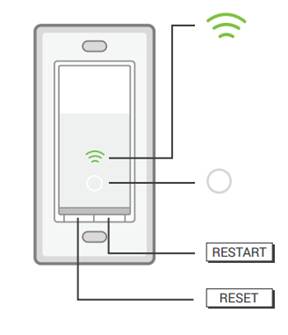
Wi-Fi status LED:
Blinking Amber and Green: App-Config mode initiated.
Solid Green: Successfully connected to the Wi-Fi network.
Blinking Amber: Resetting or during firmware update.
Solid Red: The switch has no Wi-Fi connection.
Note: The Wi-Fi status LED turns off automatically within 30 seconds of successful configuration.
White Round LED:
Lights up when the connected light is switched off, acting as a locator light in the dark.
How to Use the RESTART and RESET Buttons
1. Press the RESTART button to reboot the smart switch. The Wi-Fi status LED will turn amber, then blink green until the switch reconnects successfully.
The Wi-Fi status LED will be amber and turns to be blinking green until successful reconnection.
2. Press and hold the RESET button for about 5 seconds until the Wi-Fi status LED blinks amber and green alternately. This initiates App-Config mode.
3. Press and hold the RESET button for about 10 seconds until the Wi-Fi LED blinks green rapidly. This performs a factory reset.
A factory reset clears all configuration settings but does not unbind the cloud account. To unbind, delete the device from the original account in the Kasa app.
ค้นหาเพิ่มเติม
คำถามที่พบบ่อยนี้มีประโยชน์หรือไม่?
ความคิดเห็นของคุณช่วยปรับปรุงเว็บไซต์นี้

TP-Link Community
Still need help? Search for answers, ask questions, and get help from TP-Link experts and other users around the world.