
How to Reset a Forgotten TP-Link Cloud Account Password
Your TP-Link cloud account lets you manage your router remotely. This page covers how to reset that account password, not your router admin password or Wi-Fi password. Looking to reset your router admin password (used to access router settings at tplinkwifi.net)? Refer to What can I do if I forget the login password of the TP-Link Wireless Router?. Need to change your Wi-Fi password (the password devices use to connect to Wi-Fi)? Refer to Find Your TP-Link Router Wi-Fi Password. There are three ways to reset your TP-Link account password: via the Tether App, the web management page, or the TP-Link cloud website.
Note:
- This FAQ applies to TP-Link wireless routers with cloud features, such as the Archer C8 V3, Archer C9 V3/V4, and others.
- Currently, most applicable models only support the online upgrade feature; other cloud functions will be added in future firmware.
- For Archer C5400 V1, only the EU version supports cloud services. Please check the hardware version on the label at the back of the router.
Key Takeaways
- If you forget your TP-Link cloud account password, you can reset it through the router's web management page, the Tether App, or directly on the TP-Link cloud website.
- To reset via the web management page, visit tplinkwifi.net, click Forgot Password, enter your registered email address, and follow the reset link sent to your inbox.
- To reset via the Tether App, go to the Login page, tap Forgot Password, enter your registered email address, and follow the reset link.
- To reset via the TP-Link cloud website, go to community.tp-link.com/en/forgetpw, enter your registered email address, and follow the link in the reset email.
- If you do not receive the reset email, tap or click Resend after one minute.
A TP-Link account is bound to a TP-Link wireless router, allowing the customer to manage it remotely.
If you forget your TP-Link Cloud account password, please follow the steps below to reset it.
How to Reset Your TP-Link Account Password
Method 1: Reset via the Web Management Page
1. Connect your computer to the router either via Ethernet or wirelessly. Then open a browser and type http://tplinkwifi.net in the address bar, and press Enter.
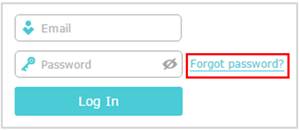
2. On the web management page of the TP-Link router, please click Forgot password.
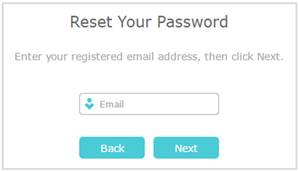
3. Enter the email address you used for your TP-Link cloud account, then click Next.
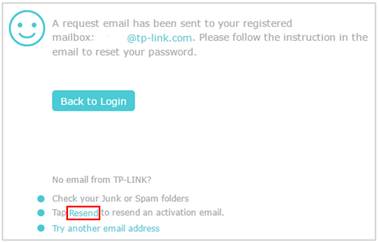
4. A request email will be sent to your mailbox. If you don’t receive the email, please click Resend. Go to the bottom of this FAQ and select "Reset password by email."
Method 2: Reset via the Tether App
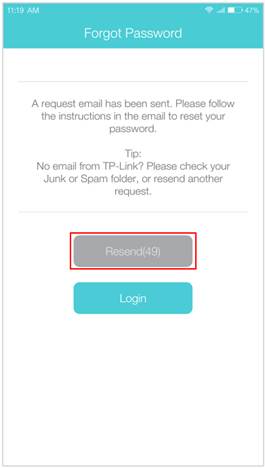
1. Go to the Login page of the Tether App, tap Forgot Password. Then enter the email used for your TP-Link cloud account in the Email box, and tap Submit.
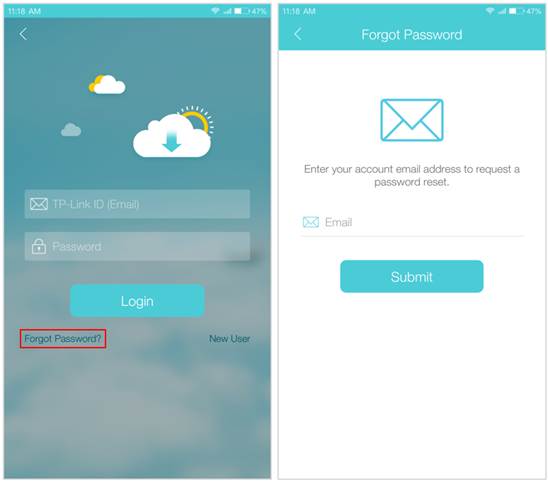
2. A request email will be sent to your mailbox. If you don’t receive the email, please tap Resend after one minute. Then go to the bottom of this FAQ and follow the Reset password by email.
Method 3: Reset via the TP-Link Cloud Website
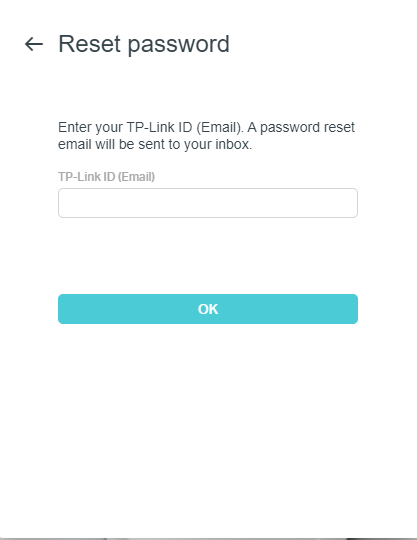
1. Open a browser, type https://community.tp-link.com/en/forgetpw in the address bar, and press Enter. On the pop-up webpage, enter your registered email address and click OK. A request email will be sent to your mailbox.
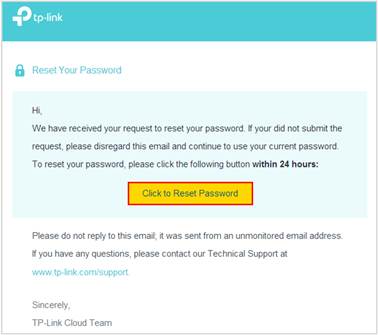
2. Open the requested email, and then tap Click to Reset Password.
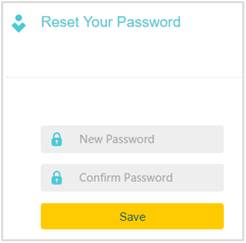
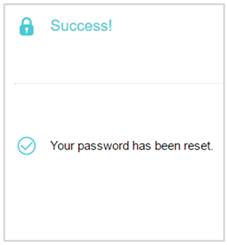
3. On the pop-up webpage, please enter and confirm your new password, then click Save. Now you can log in to the router with your new password.
To know more details about each function and configuration, please go to the Download Center to download the manual for your product.
Citește despre:
A fost util acest FAQ?
Părerea ta ne ajută să îmbunătățim acest site.

3.0_A_RGB_normal_1584493572647x.png)

TP-Link Community
Still need help? Search for answers, ask questions, and get help from TP-Link experts and other users around the world.