
How to Set the WAN/LAN Port as a LAN Port on the TP-Link 5G Router in MBB Mode
In MBB (Mobile Broadband) mode, the router uses the mobile network as its default internet connection. If a wired device connected to the combined WAN/LAN port cannot obtain an IP address, the existing Ethernet WAN connection profile may still reserve that port for WAN service. Delete this profile to release the port for LAN use.
Key Takeaways
- The router is operating with MBB selected as the default gateway.
- In MBB mode, the WAN/LAN port may be reserved for Ethernet WAN, preventing wired devices from connecting.
- Deleting the existing Ethernet WAN profile releases the port for standard LAN functionality.
Step-by-Step Guide
Step 1: Access the Web Management Page
- Connect your phone or computer to the router via Wi-Fi or an Ethernet cable.
- Open a web browser and enter https://tplinkmodem.net/ in the address bar.
- Log in with your admin password. (For first login, you’ll be asked to create an admin password)
Step 2: Deleting the Existing Ethernet WAN profile
Go to Advanced > Network > Internet. Click Delete All to remove the Ethernet WAN connection profile.
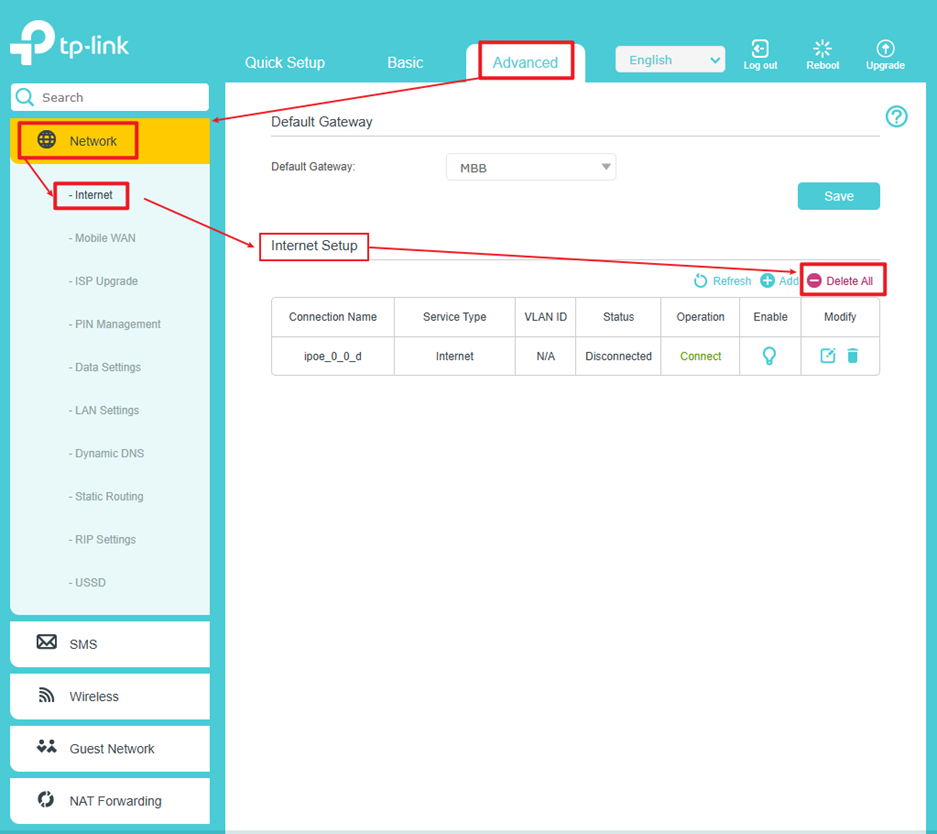
Alt text: Locate the Default Gateway setting, Internet Setup section, and Delete All option on the Internet page.
Looking For More
這篇faq是否有用?
您的反饋將幫助我們改善網站


TP-Link Community
Still need help? Search for answers, ask questions, and get help from TP-Link experts and other users around the world.