How to Search and Export Recordings from VIGI NVR GUI
Contents
Export recording from Video Search
Export recording from the Playback page
Introduction
You can export the recordings stored on the hard drive according to your needs. These recordings can be played on your media devices.
Requirements
- VIGI NVR
- Monitor
- Mouse
- External storage device
Configuration
To back up the recordings, external storage is required. Please prepare an external storage device and plug it into the USB slot of the NVR. Please connect your monitor to the HDMI or VGA port that it supports.
Export recording from Video Search
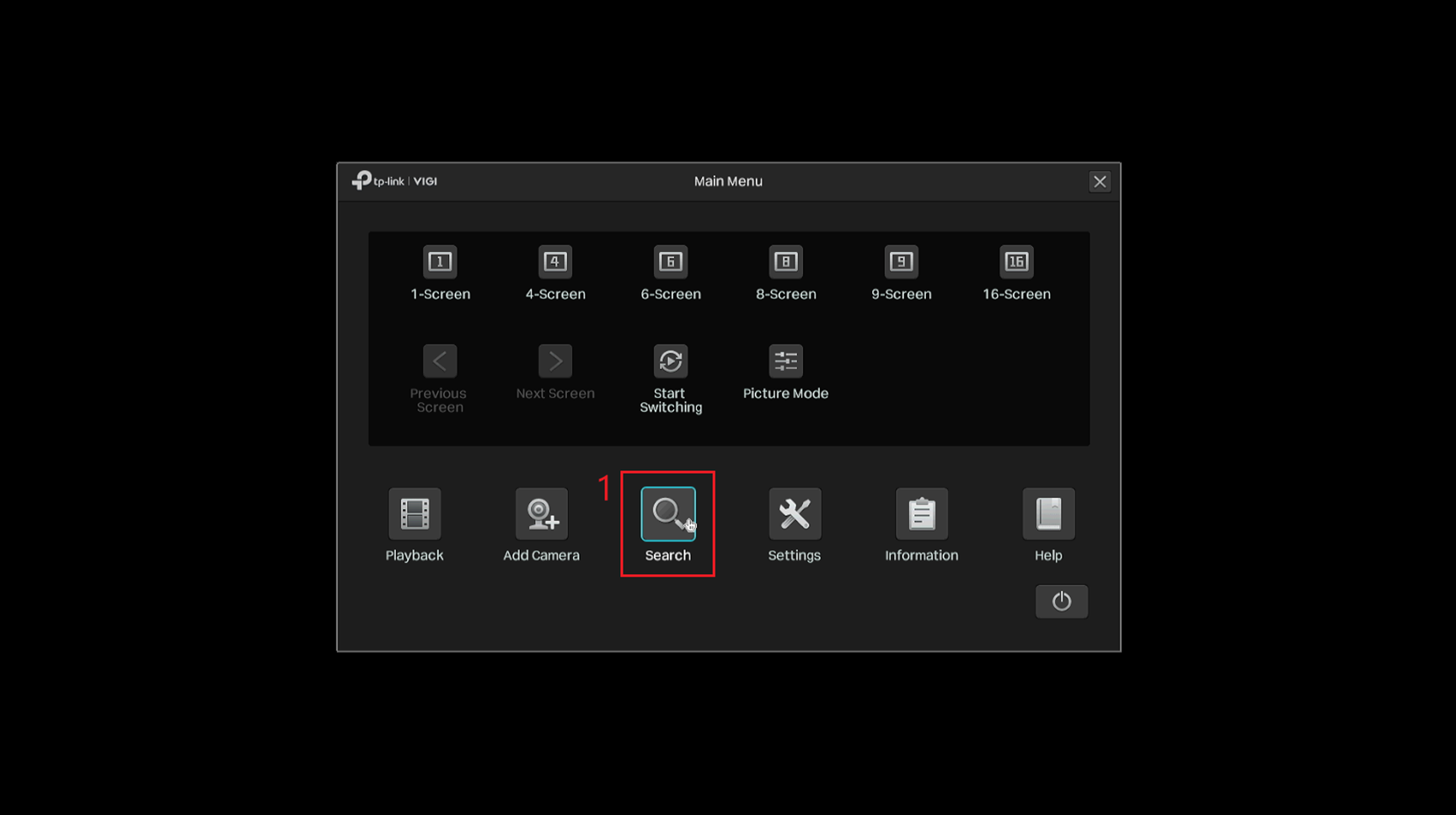
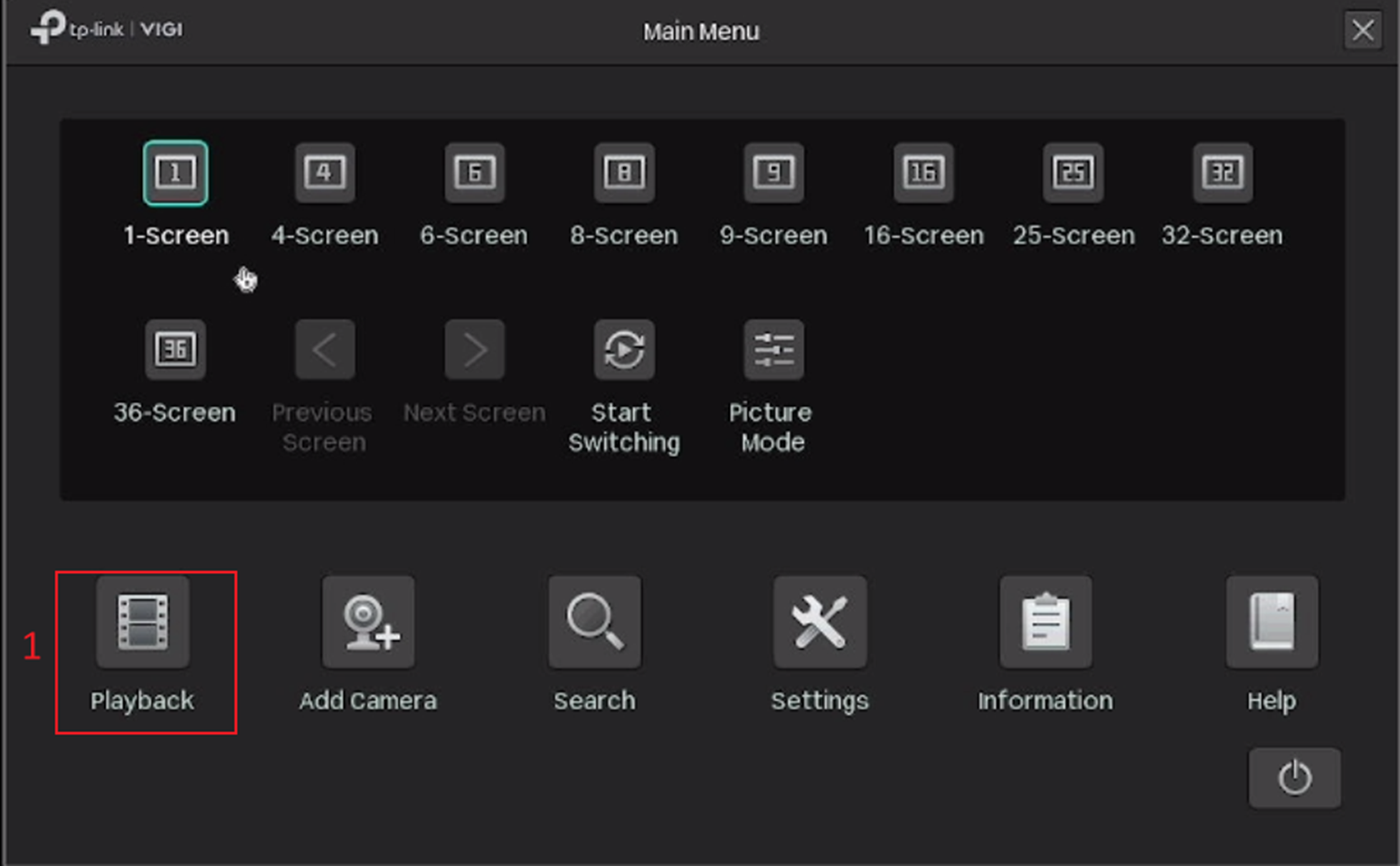
Step 1. Right-click on the Live View screen and click Settings in the pop-up Main Menu, then go to Search.
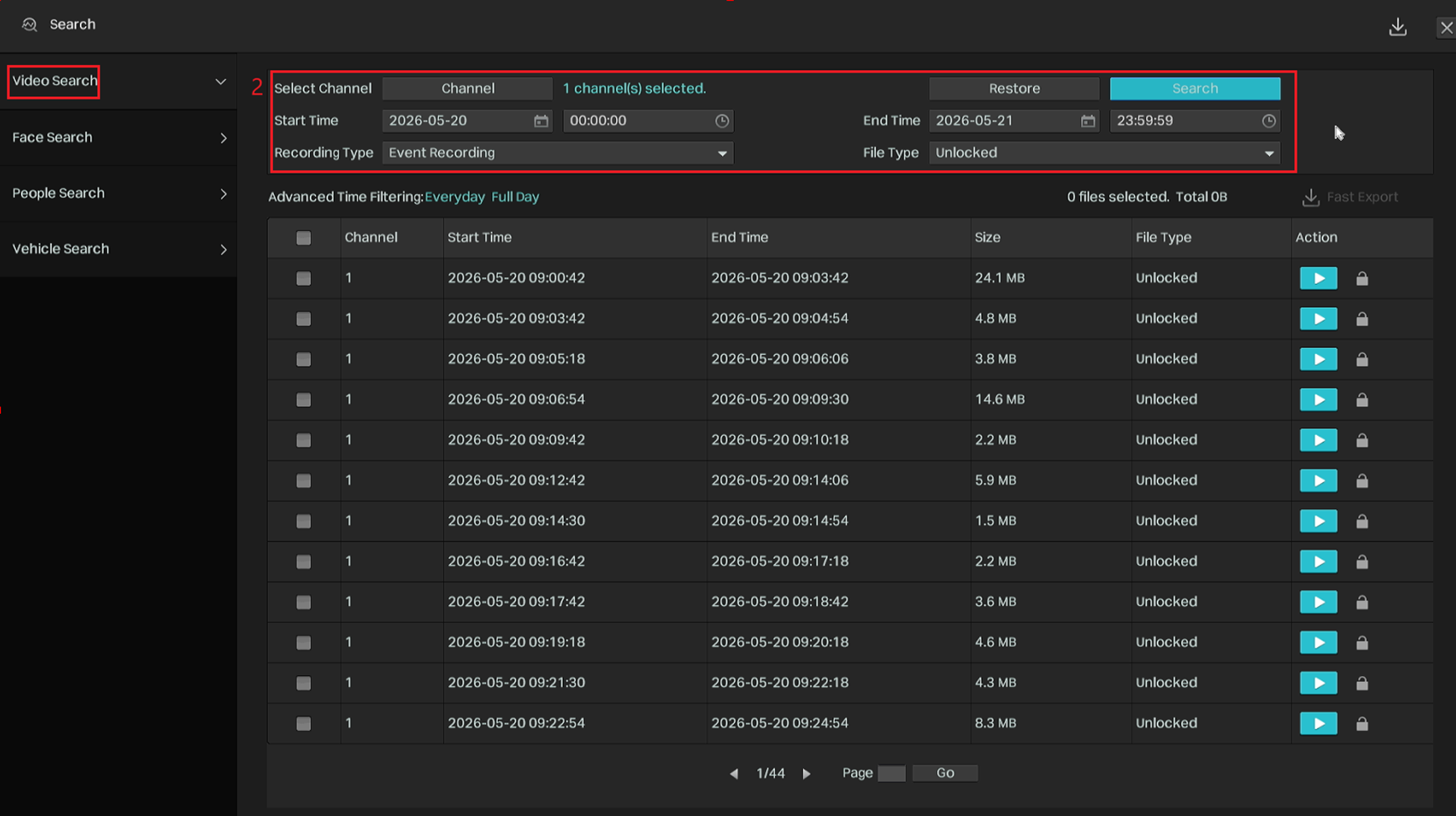
Step 2. Go to Video Search, then select the required channel(s), start time, end time, recording type, and file type. Click Search to view the search results.
- Recording type
All: Search all recordings, including event recordings and continuous recordings.
Event Recording: Search only event-triggered recordings.
- File Type
All: Display the locked and unlocked files.
Unlocked: Files will be overwritten when loop recording is enabled.
Locked: Files will not be overwritten when loop recording is enabled.
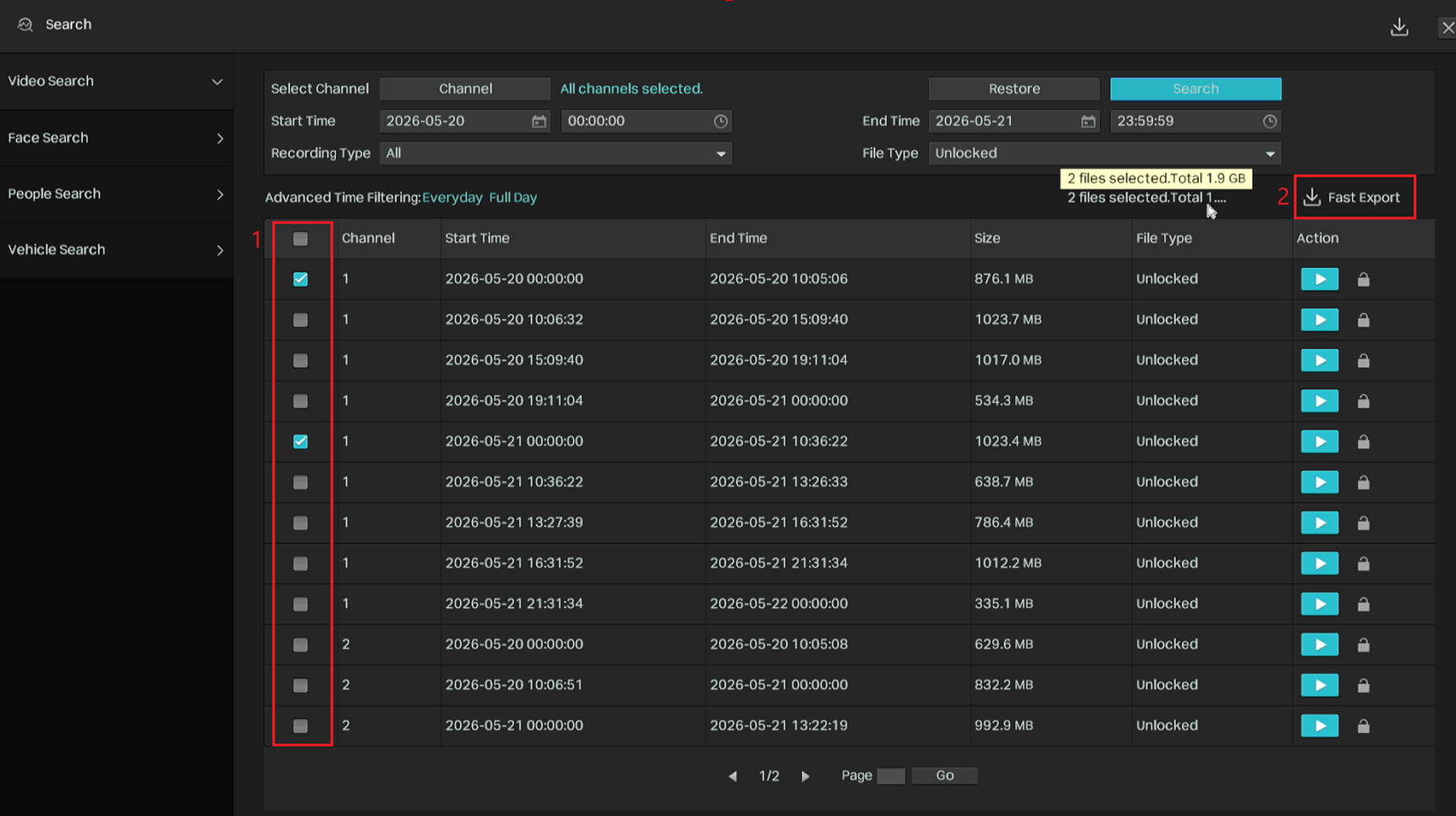
Step 3. Select the files you need and click Fast Export.
Note:
1. Hover over the selected file count to view the total size of the selected files.
2. The audio format in exported videos may not be compatible with some playback software.
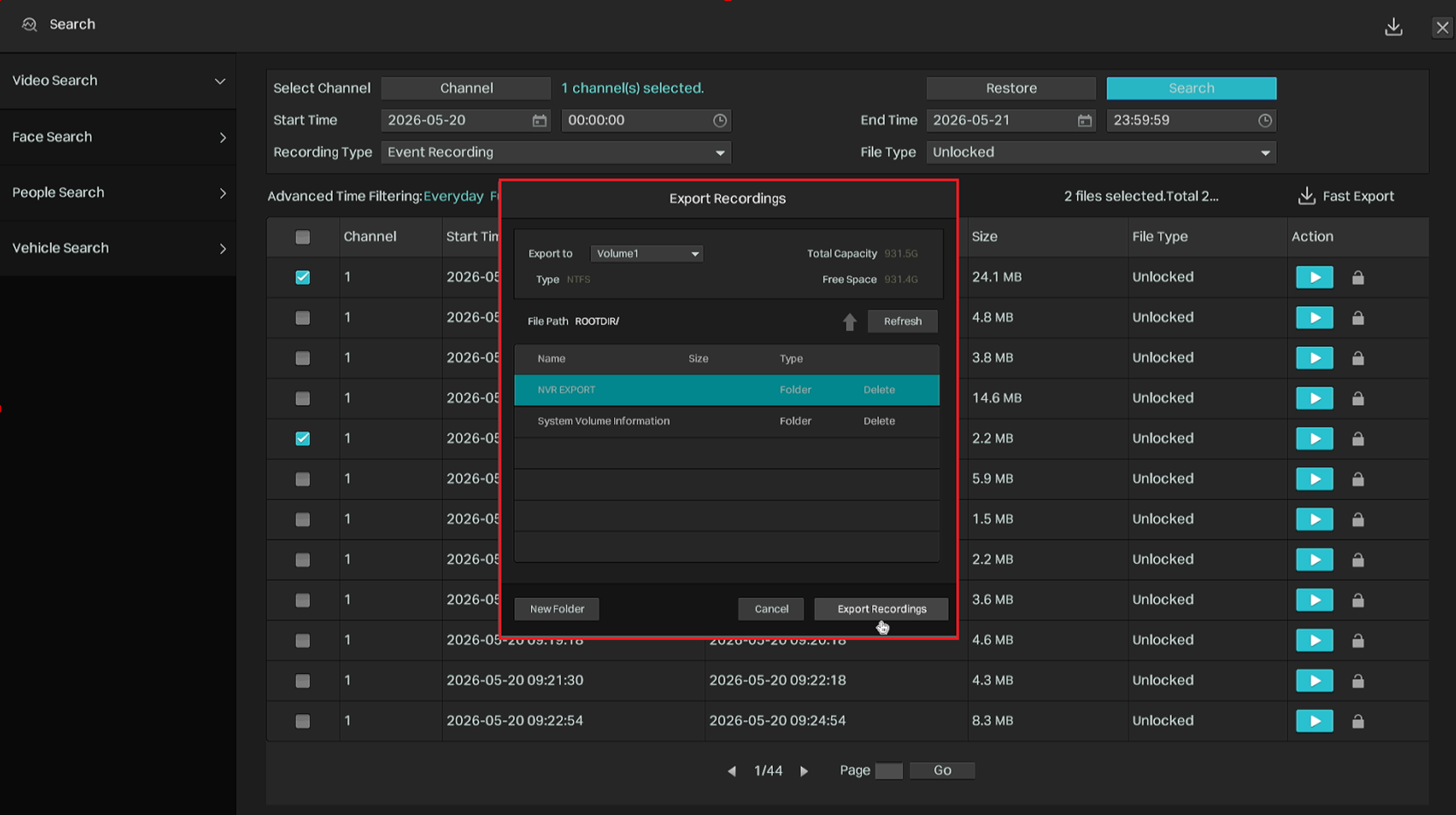
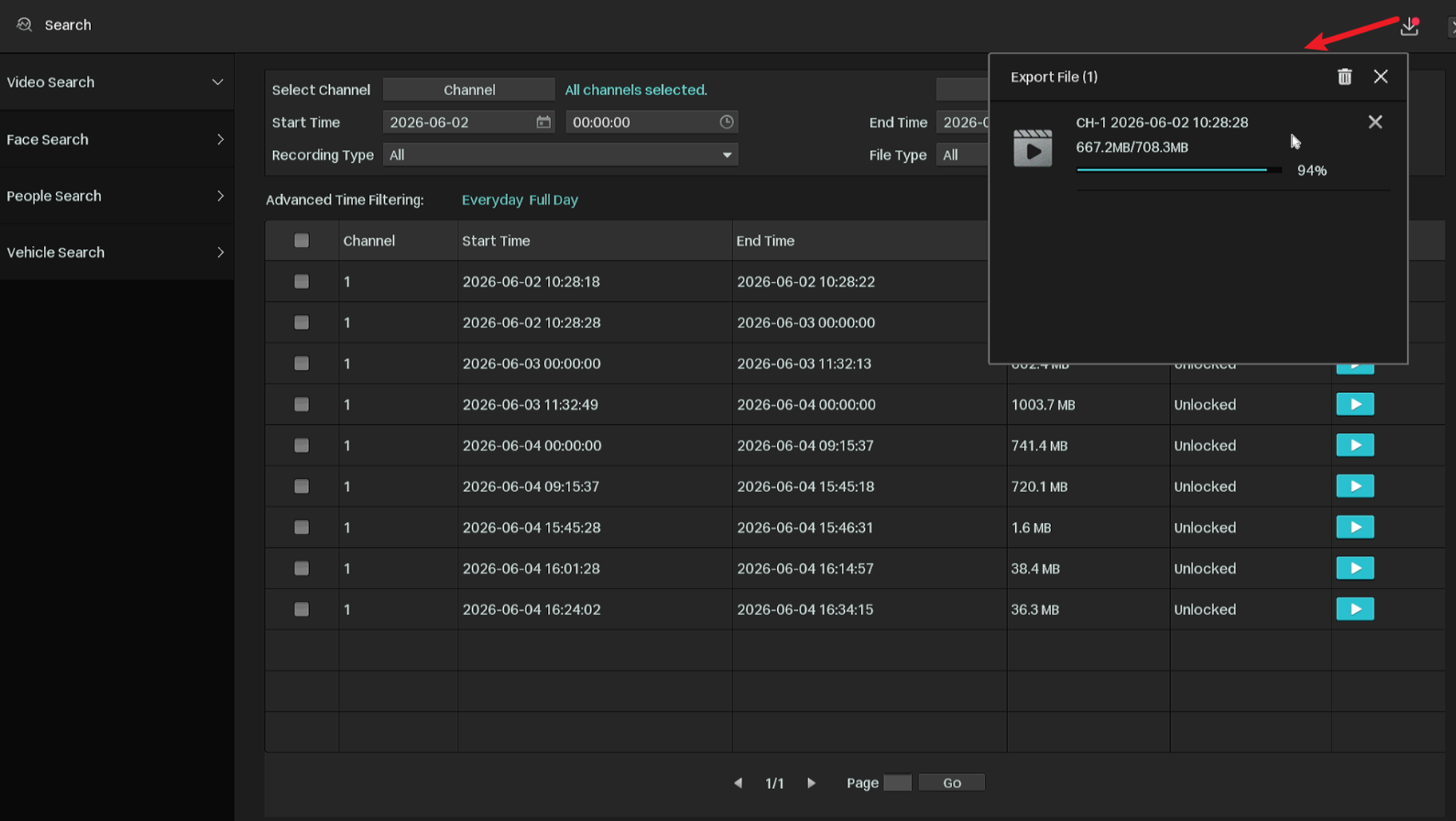
Step 4. Select the folder or create a new folder and click Export Recordings to export the files to your external storage device. Wait until the export is completed.
Note:
Click the download icon in the upper-right corner to view the export progress.
Export recording from the Playback page
In Playback, you can effortlessly search for the desired recordings based on channel, time, recording types, tags, and events, and back them up in batches. Please follow the steps below to search for and back up recordings.
Step 1. Right-click to open the Main Menu, go to Playback, specify the playback mode, channels, and time range, then click Search to search for recordings.
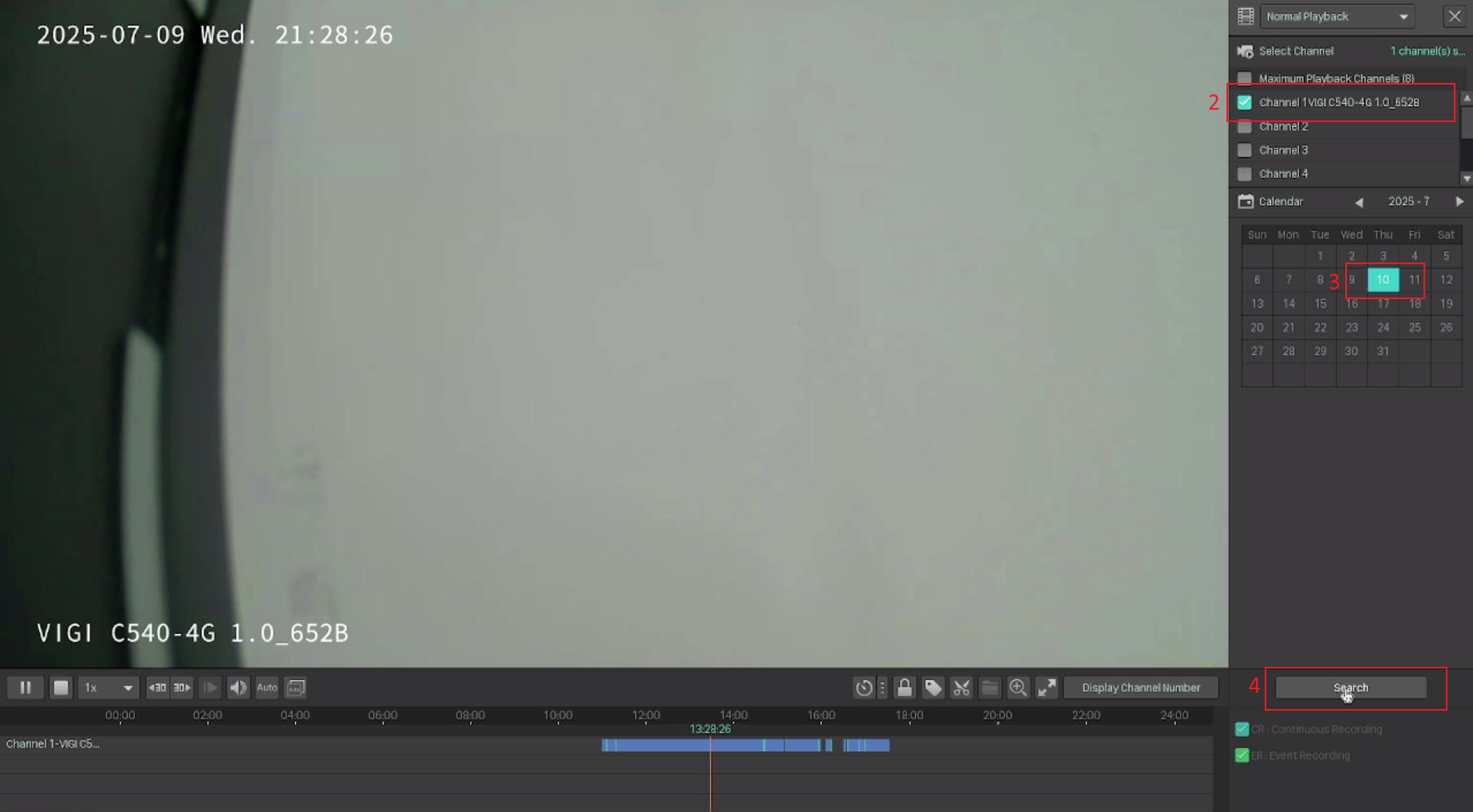
Note: The NVR supports the following playback modes:
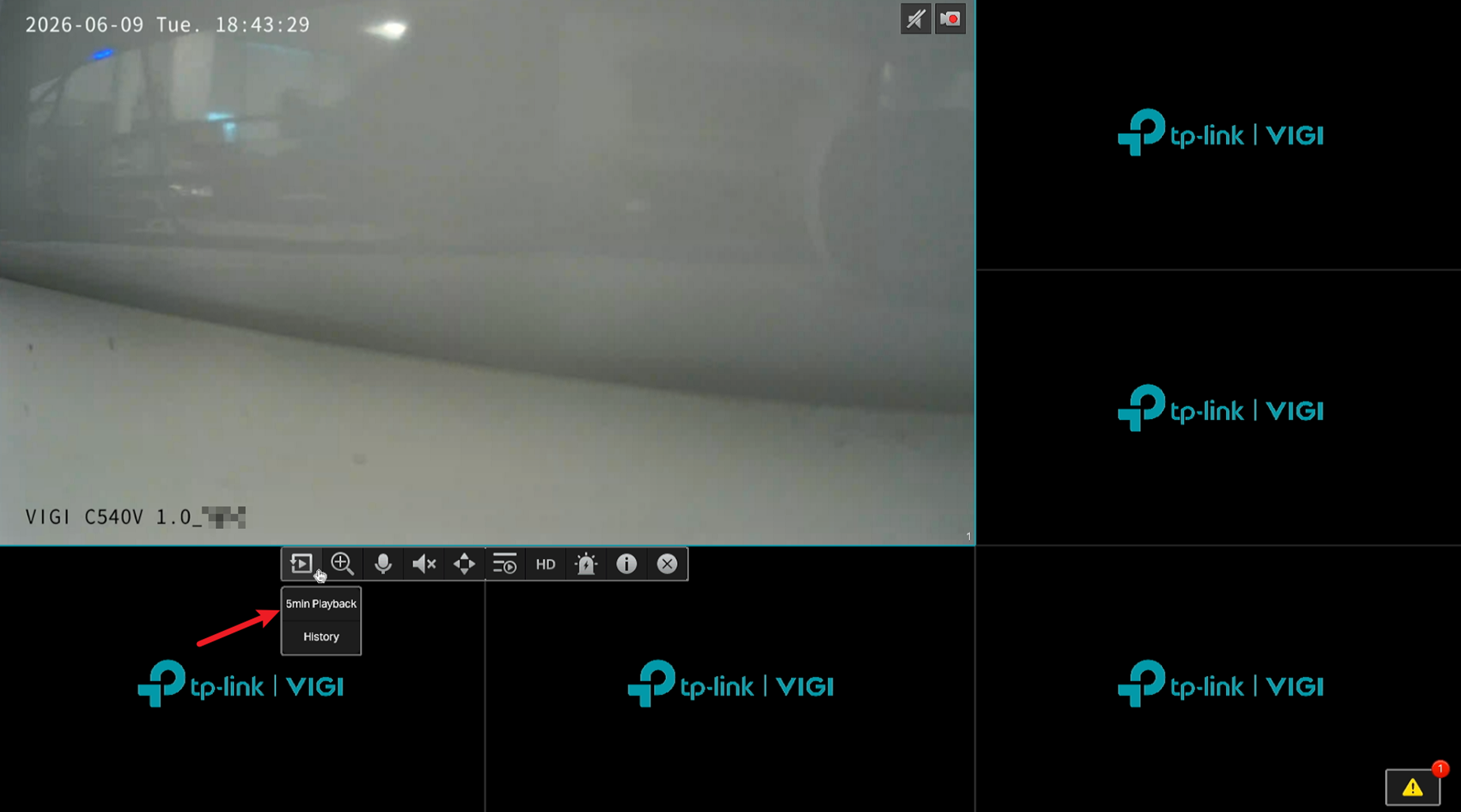
Instant Playback: Plays the recording of a single channel from the last five minutes.
To access Instant Playback, go to the Live View page and click a channel to display the toolbar. Then click the Playback icon and select 5min Playback.
Normal Playback: Plays recordings from a selected day, including continuous recordings and event recordings.
Tag Playback: Plays recordings with tags.
Event Playback: Plays recordings triggered by detected events.
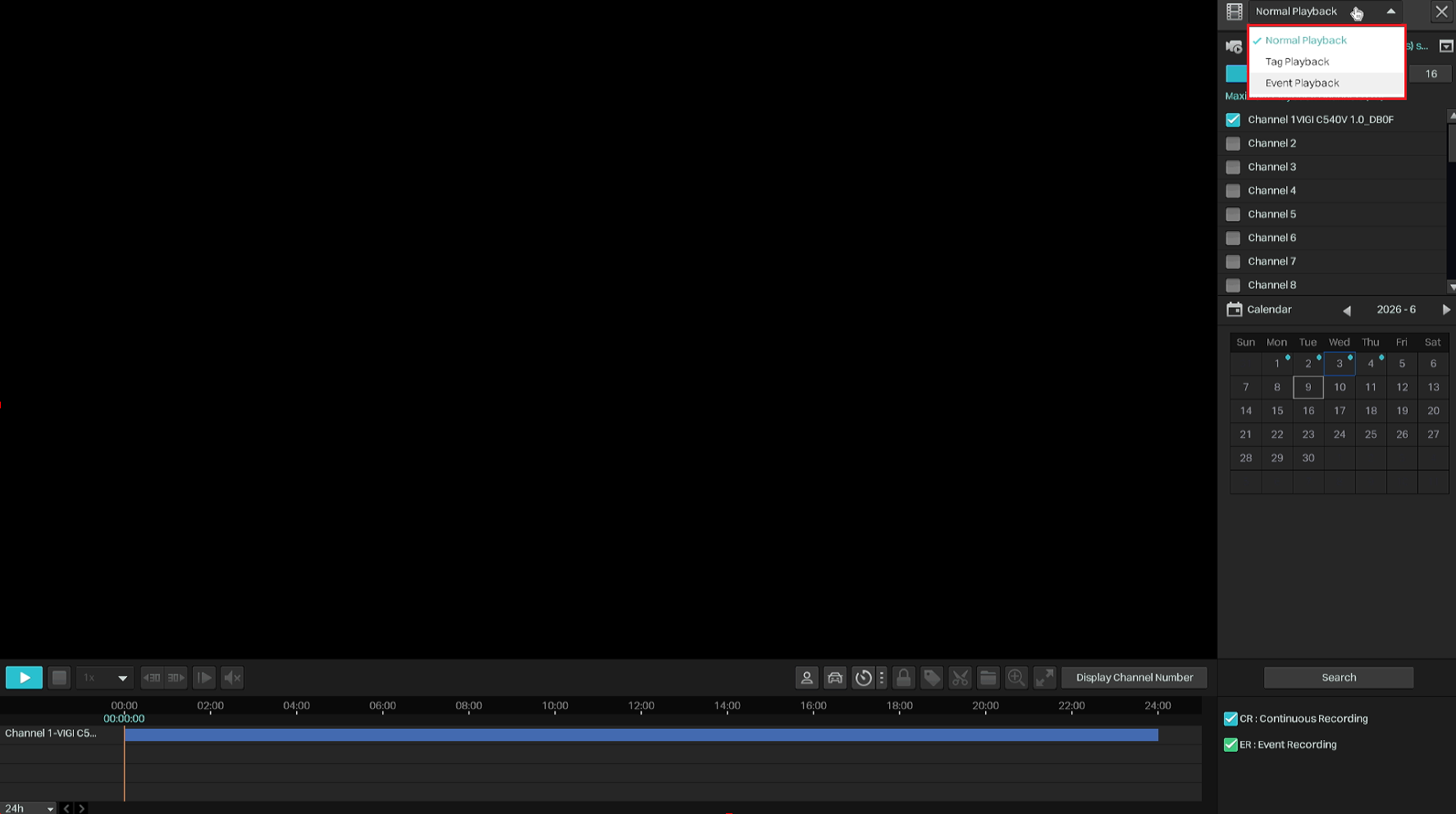
Normal Playback, Tag Playback, and Event Playback can be selected from the drop-down menu in the upper-right corner of the Playback page.
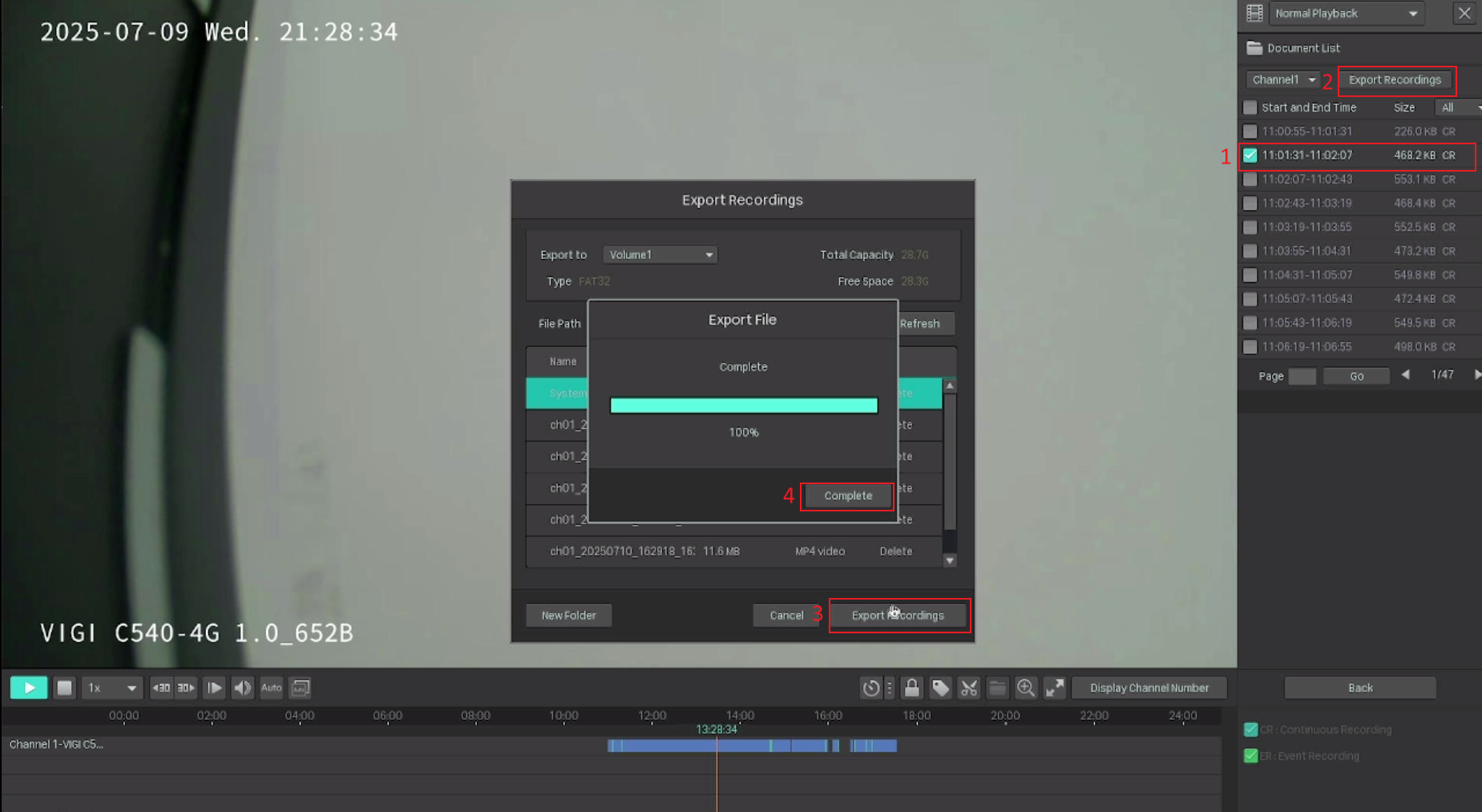
Step 2. The recording files are listed on the right panel. Click the checkbox to select the recordings to be exported, and click Export Recordings. Specify the path to export the recordings. Click Export Recordings and wait until the export is completed.
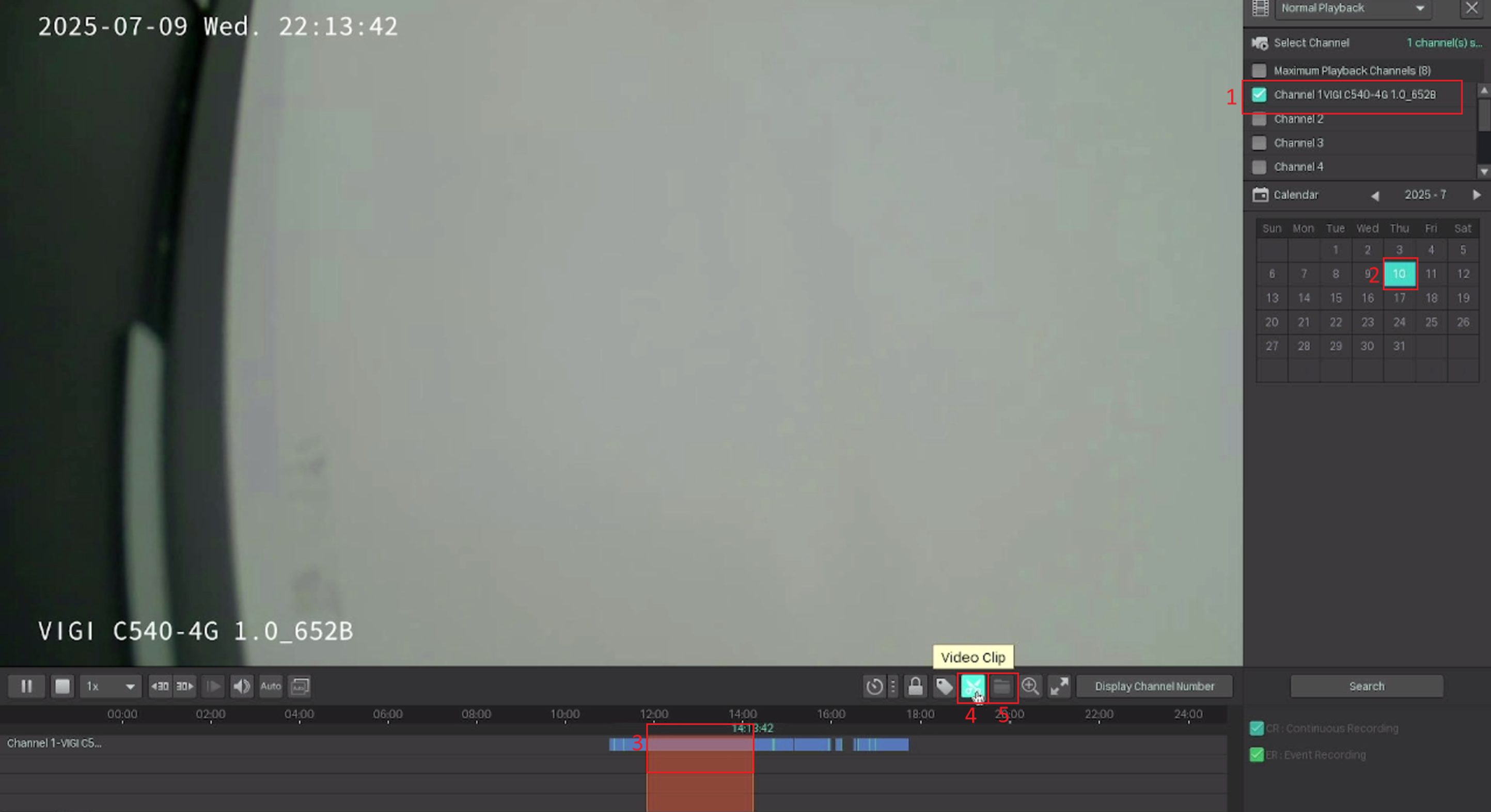
Note: You can also click the scissors icon (Video Clip), select any period on the timeline to produce a clip, then click on the Export Clip next to the Video Clip to export it.
Conclusion
Now you have learned how to export recordings from the NVR GUI.
To learn more about each function and configuration, please visit Support Home to download or check the manual for your product.
Tìm kiếm thêm
Câu hỏi thường gặp này có hữu ích không?
Phản hồi của bạn giúp cải thiện trang web này.



TP-Link Community
Still need help? Search for answers, ask questions, and get help from TP-Link experts and other users around the world.