
How to Connect Tapo and Kasa Smart Devices to Google Home
 614398
This guide covers how to connect your Tapo and Kasa smart devices to Google Home. Once linked, you can use voice commands to control a Kasa smart plug, smart bulbs, and smart lights, or stream Tapo camera video on a Google Nest or Chromecast display. If your Tapo or Kasa devices support the Matter protocol, you can connect them to Google Home directly without going through the Tapo app.
Key Takeaways
- Both Tapo and Kasa smart devices are compatible with Google Home. You can link them through the Tapo or Kasa app under Me > Third-Party Service > Google Assistant, or directly from the Google Home app using Works with Google Home.
- For Matter-compatible Tapo and Kasa devices, you can connect directly to Google Home without setting up through the Tapo app.
- Once linked, you can use voice commands to control smart plugs, smart bulbs, and smart lights, or stream Tapo camera video on a Google Nest or Chromecast display. Streaming via Google is limited to display on Chromecast and Nest devices.
- Tapo camera live streaming through Google Assistant is a Cloud-to-Cloud service. The live feed stops automatically after 10 minutes, but you can ask Google to resume the stream.
- If you rename a Tapo device in the Tapo app, you will need to rediscover the device in Google Home to update its name. See how to change a device name in the Tapo app for help with that step.
Requirements
- Download the Tapo app by visiting the Google Play Store, the App Store, or by scanning the QR code.
- Download the Google Home app from Google Play Store or the App Store.
- If you need to stream the camera, please prepare for a Google Device: TV/media player with Chromecast/Google Home Hub/Google Nest. Currently, Tapo Camera doesn't support streaming on Google Home app.
Configuration
Scenario 1: For Non-Matter Devices: Link Tapo / Kasa Service with Google Home
To get started and link Tapo/Kasa to Google Home, make sure your Tapo/Kasa device is set up and online. Here we take Tapo camera as an example.
Option 1: Via Tapo app
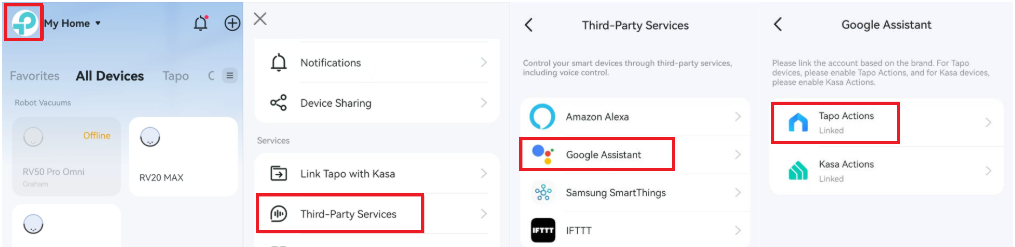
Step 1. Open the Tapo/Kasa app, tap Me > Third-Party Service > Google Assistant > Tapo/Kasa Actions. The location of Me button may vary by app version. It is located either in the bottom right corner or top left corner of the app.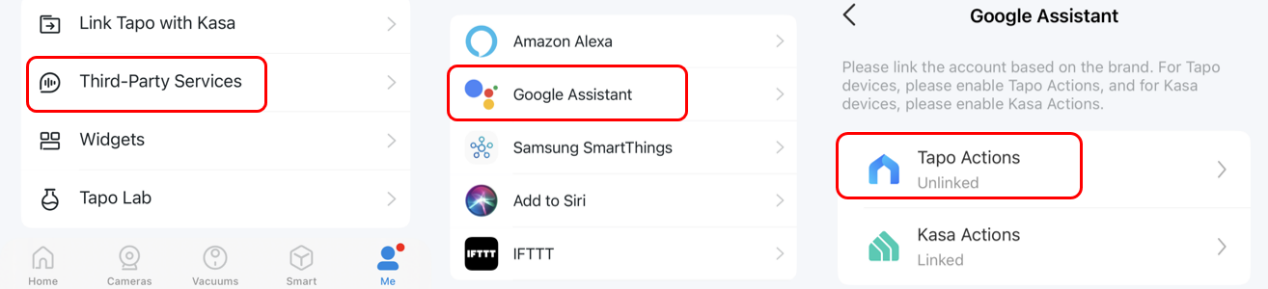
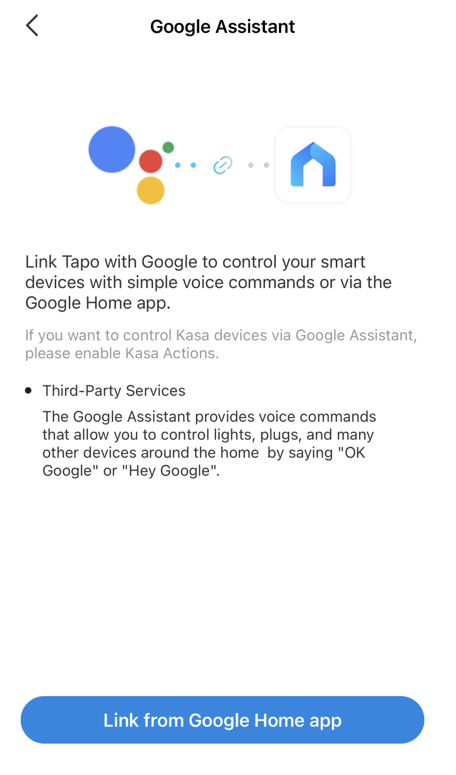
Step 2: Tap Link from Google Home app, and it will turn to Google Home app automatically.
Step 3. Google Home will start link procedure and open the Tapo app. Tap Agree & Link.
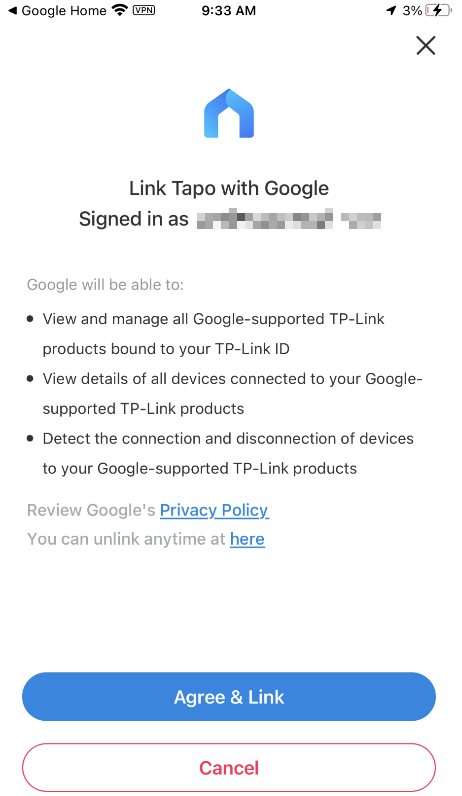
Step 4. The link procedure is finished. You will see the devices linked to your TP-Link ID. Select a device to assign to different homes and rooms.
Step 5. The devices are connected successfully.
Option 2: Via Google Home app
Step 1: Open the Google Home app, tap the device menu, and then tap the Add button.
Step 2: Tap Works with Google Home, and search Tapo/Kasa.
Step 3: Tap Tapo/Kasa. It will automatically open the Tapo/Kasa app and start the link procedure.
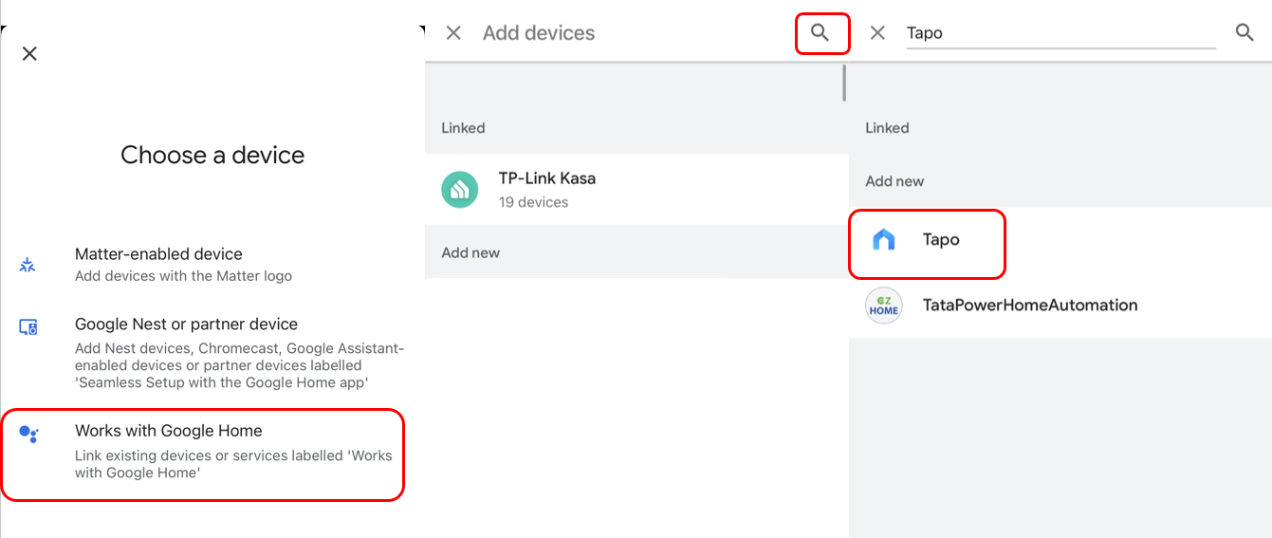
Step 4: The following steps are the same as Option 1.
Enjoy!
You can stream your Tapo camera videos on your Google Nest display using simple voice commands. For example: "Hey Google, show my Tapo Smart Wi-Fi Camera".
Note: Every time you change the name of the Tapo device, you will need to discover the device again to update its name.
Scenario 2: For Matter Devices: Matter Devices Connect to Google Home Directly
If your Tapo/Kasa devices are compatible with the Matter protocol, you can also choose to use the Matter protocol to control them via Google Home. If you need to control Tapo/Kasa devices via Google Home, please follow how to control Tapo and Kasa devices via Matter protocol for detailed information.
QA
Q1. How to connect my Tapo smart door lock to Google Home
A1. To keep the safety of your house, controlling a smart door lock needs advanced security code settings. Please refer to How to connect my Tapo smart door lock to Google Home for detailed instructions.
Q2. Why can't I watch the live streaming continuously on the Chromecast device/Google Hub?
A2. Watching the live feed of Tapo cameras through Google Assistant will use your internet traffic, as it's a Cloud-to-Cloud service. In consideration of your extranet traffic and performance, the live feed will stop automatically after 10 minutes. However, you can ask Google to show the camera again if you want to continue streaming.
Q3. Why can't I watch live streams from Tapo Cameras on Google Home app?
A3. Live view is not supported in the Google Home app. In Google Home's Public Preview, it provides an under-development feature to access live streams for Works with Google Home cameras. But this feature isn't available for all cameras, including Tapo cameras, so please wait for the future update from Google.
Is this faq useful?
Your feedback helps improve this site.


TP-Link Community
Still need help? Search for answers, ask questions, and get help from TP-Link experts and other users around the world.