
如何取得 Deco App 日誌並將其傳送給 TP-Link 支援團隊
在與 TP-Link 技術支援團隊排解問題時,您可能會被要求傳送您的 Deco 系統日誌,以便團隊分析問題。整個過程都在 Deco App 內完成,只需點擊幾下即可完成 Deco 路由器日誌的提交。
重點摘要
- Deco 路由器日誌可直接透過 Deco App 存取並傳送給 TP-Link 技術支援團隊。不需要額外的下載或匯出步驟。
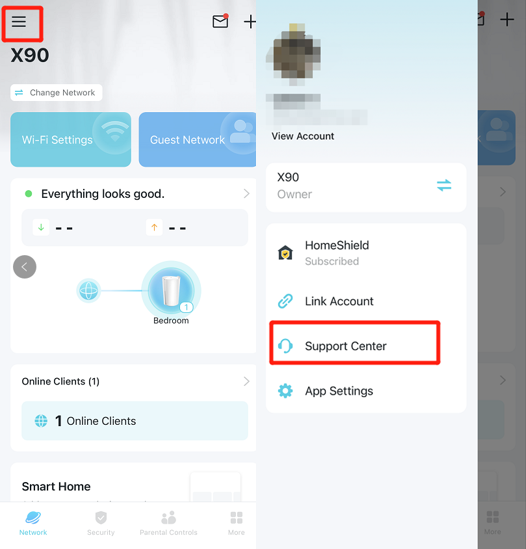
- 若要開始,請開啟 Deco App,點擊左上角的三條線圖示,然後選擇「支援中心 (Support Center)」。
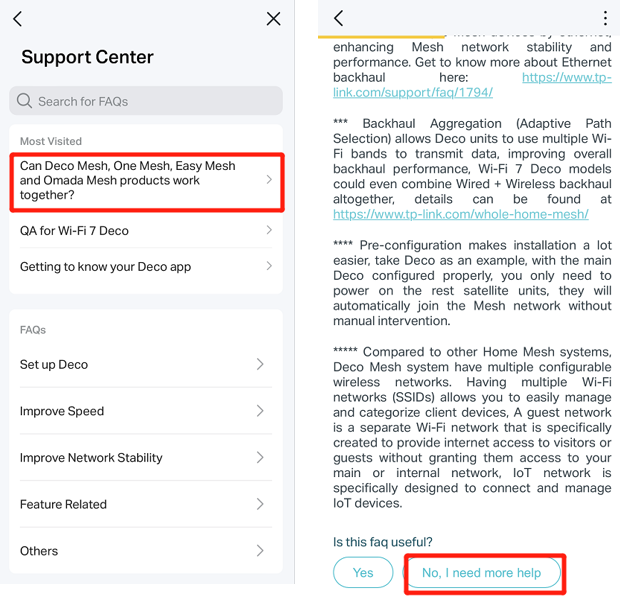
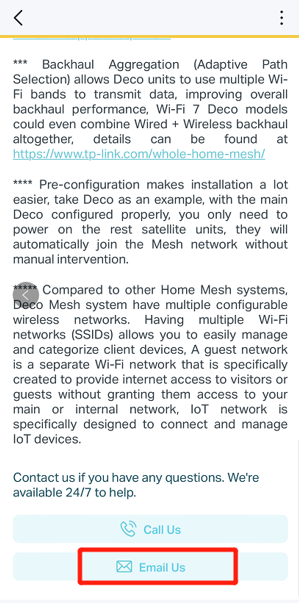
- 瀏覽相關的常見問題 (FAQ) 後,向下捲動並點擊「不,我需要更多協助 (No, I need more help)」,然後點擊「寄送電子郵件給我們 (Email Us)」以開啟支援表單。
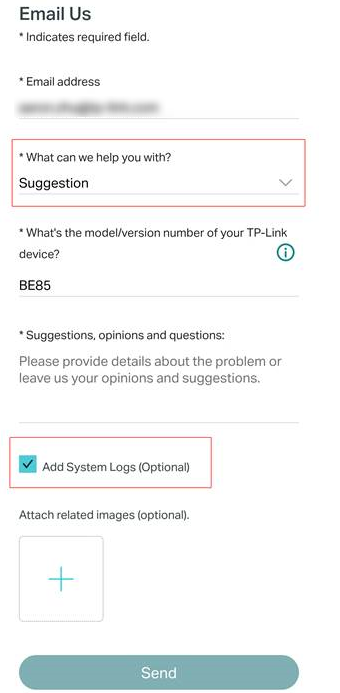
- 在支援表單上,請在點擊「傳送 (Send)」之前勾選「新增系統日誌 (Add System Logs)」。這會自動將您的 Deco 路由器日誌附加到電子郵件中。
- 如果您已經有 TP-Link 技術支援的案件編號(例如 TKID 編號),請在送出時將其填寫在「意見與問題 (Opinions and Questions)」欄位中。
系統日誌對於進一步分析問題至關重要。本文將介紹如何收集 Deco App 系統日誌的步驟。如有需要,請依照以下步驟將其傳送給 TP-Link 技術支援團隊:
如何將 Deco App 日誌傳送給 TP-Link 技術支援
步驟 1. 開啟 Deco App 並登入。點擊 Deco App 左上角的三條線圖示,然後選擇支援中心 (Support Center)。
步驟 2. 開啟任何一篇 FAQ 常見問題,向下捲動,然後點擊「不,我需要更多協助 (No, I need more help)」。
步驟 3. 點擊「寄送電子郵件給我們 (Email Us)」,在「我們能為您提供什麼協助 (What can we help you with)」選項中選擇建議 (Suggestion),並填寫其餘的諮詢資訊。然後勾選新增系統日誌 (Add System Logs) 並點擊傳送 (Send)。
註:如果您已經聯繫過 TP-Link 技術支援,請在「意見與問題」欄位中附上您的案件編號(例如 TKID12345678)。
更多相關文章
這篇faq是否有用?
您的反饋將幫助我們改善網站



TP-Link Community
Still need help? Search for answers, ask questions, and get help from TP-Link experts and other users around the world.