
How to play back the video by IP surveillance
 126080
This Article Applies to:
Step 1
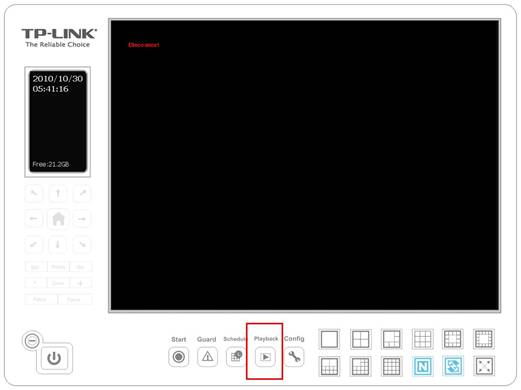
Click Playback on the main page to open the sub menu.
Step 2
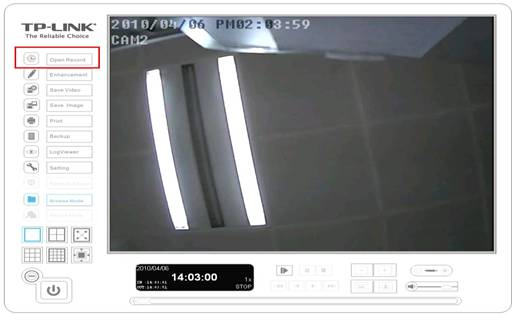
Click Open Record on the left side to open the record which has already been saved.
Step 3
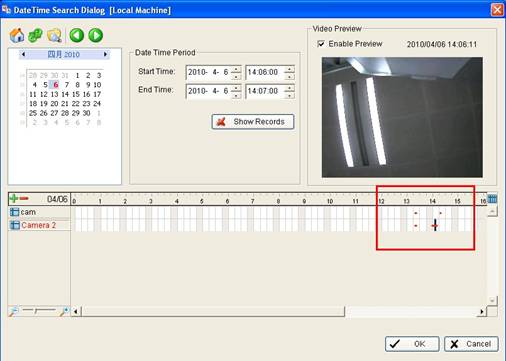
Double click on the time frame which is red and click OK. Then click Play to view the video.

Step 4
Click Cue In and Cue Out to select the start time and end time of the video.
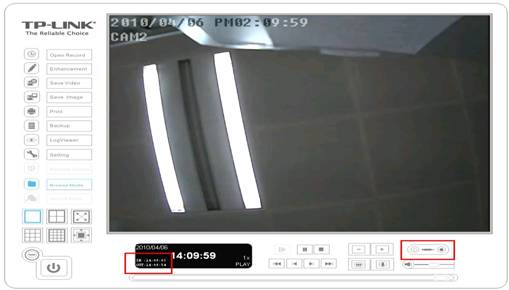
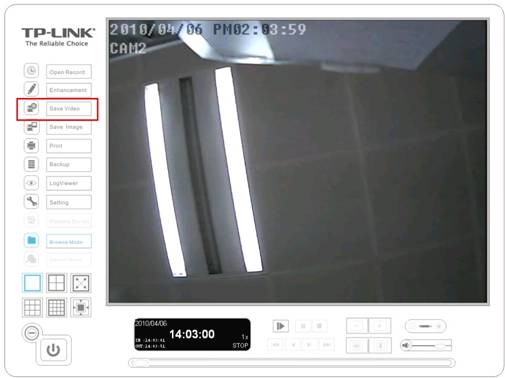
Note: If you want to save the video, please Click Save Video on the left side to save the video.
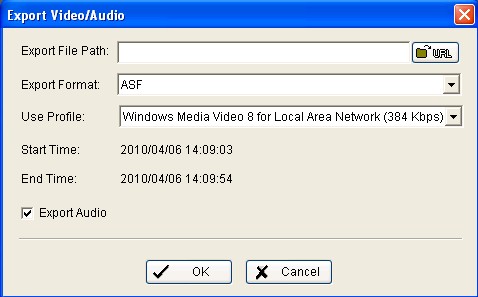
Note:If you want to save audio as well, please do not forget to tick Export Audio.
Is this faq useful?
Your feedback helps improve this site.

TP-Link Community
Still need help? Search for answers, ask questions, and get help from TP-Link experts and other users around the world.