How to Config Lens Distortion Correction on VIGI Camera
Contents
Introduction
Lens Distortion Correction (LDC) is a digital image processing technique that corrects the geometric distortion caused by wide‑angle lenses – for example, straight lines such as walls, roads, and horizons appearing curved. By restoring these lines to their true straight form, LDC makes surveillance footage more natural and easier to interpret. In addition, it enhances the performance of AI‑based detection, including face recognition, license plate recognition, and person/vehicle detection.
Recommended Usage Scenarios
The camera is used in fixed‑angle monitoring or scenarios that require precise identification, such as entrances, exits, corridors, or parking garages.
Requirements
- InSight S385PI/ InSight S485PI
Configuration
- The Lens Distortion Correction (LDC) toggle is available in the VMS, VCT, NVR‑managed mode, Camera Web UI and VIGI App.
- This feature is enabled by default.
- The configuration example below uses the S385PI Web UI to show where the LDC toggle is located.
Step 1.log in Web UI of S385PI.
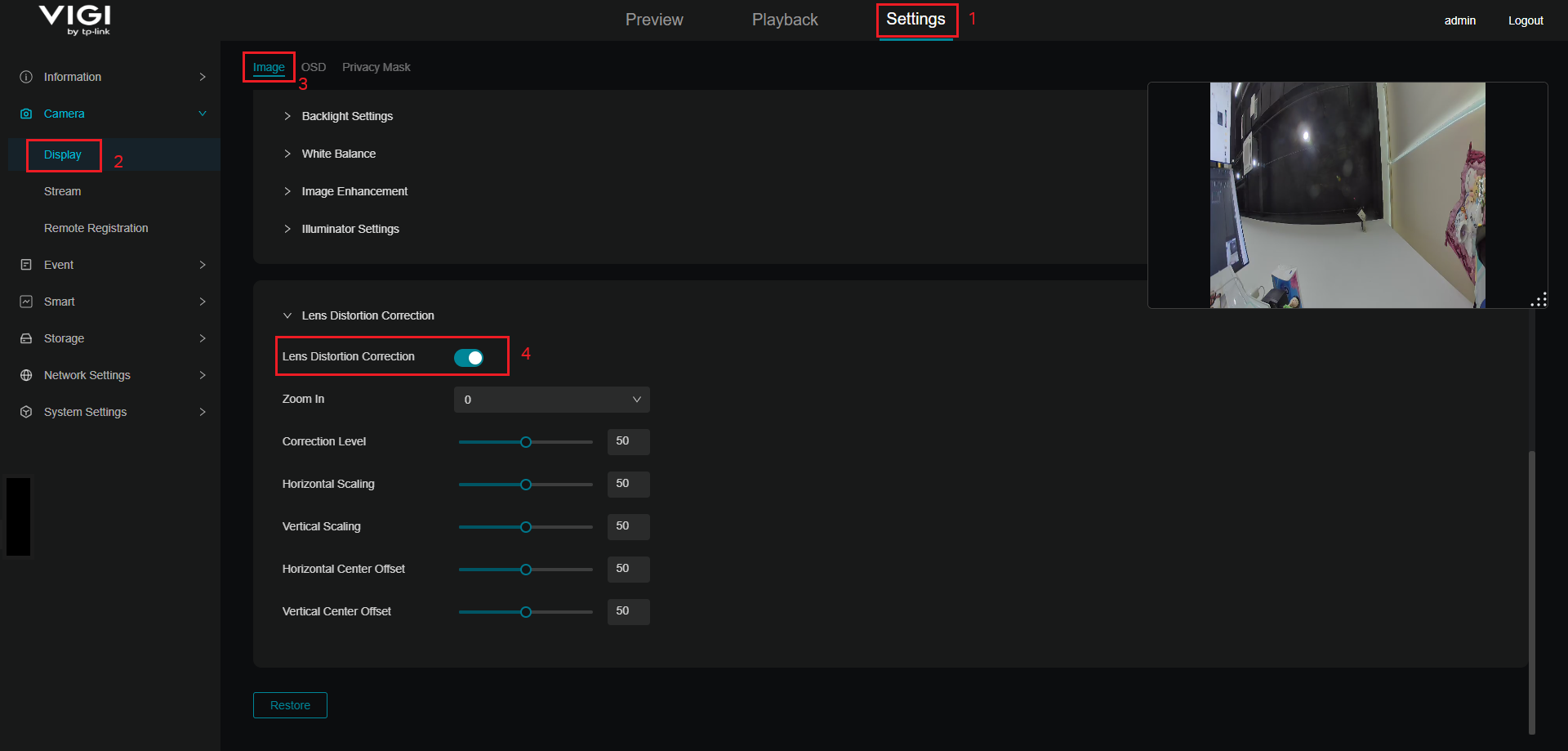
Step 2. Go to Settings > Camera > Display > Image > Lens Distortion Correction, you can enable or disable the feature. This feature is enabled by default.
Verification
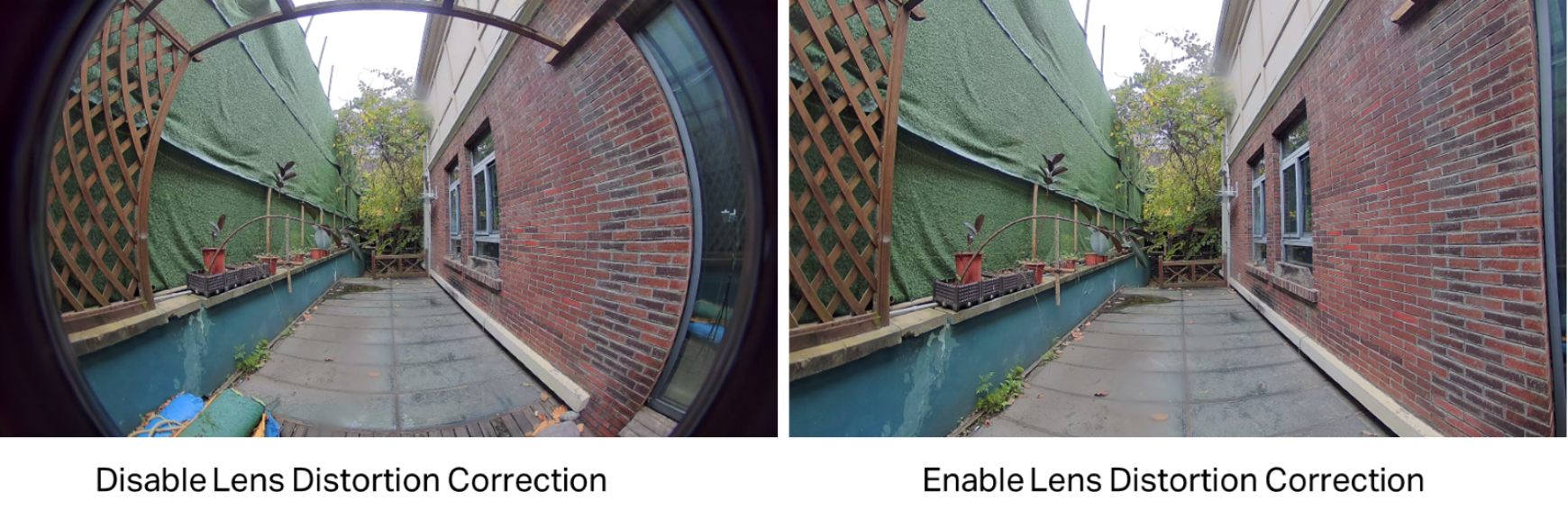
The images below show a comparison between when lens distortion correction is enabled and when it is disabled. It can be clearly seen that the distortion is significantly improved after enabling the correction, but it may slightly reduce edge sharpness, narrow the field of view, and may still have slight residual distortion.
Conclusion
Enabling LDC reduces distortion and improves AI detection, but narrows FoV(Field of View), slightly softens edges, and may still have slight residual distortion. Toggle available on VMS/VCT/NVR/Camera web UI.
To learn more about each function and configuration, please visit Support Home to download or check the manual for your product.
Дополнительная информация
Был ли этот FAQ полезен?
Ваш отзыв поможет нам улучшить работу сайта.

TP-Link Community
Still need help? Search for answers, ask questions, and get help from TP-Link experts and other users around the world.