
How to log in the Web interface page of EasyMesh satellite router
 87287
872871. Connect your device to the satellite router (wired or wirelessly).
Ÿ Wired: Turn off the Wi-Fi (if any) on your computer and connect to the router using an Ethernet cable.
Ÿ Wireless: Connect to the EasyMesh Wi-Fi.
2. Launch a web browser, and enter the satellite router’s IP address in the address bar to log into the web management page of your satellite router.
Tips: Here are two methods to get the IP address of the satellite router
a. Using the main router’s web management interface, please go to Advanced -> EasyMesh to get the satellite router’s IP address
b. Using the Tether App, please launch the app and log in the main router, then go to More -> EasyMesh ->Tap the Satellite router’s icon, get its IP address.
3. Create a new login username and password for the satellite router and log in.
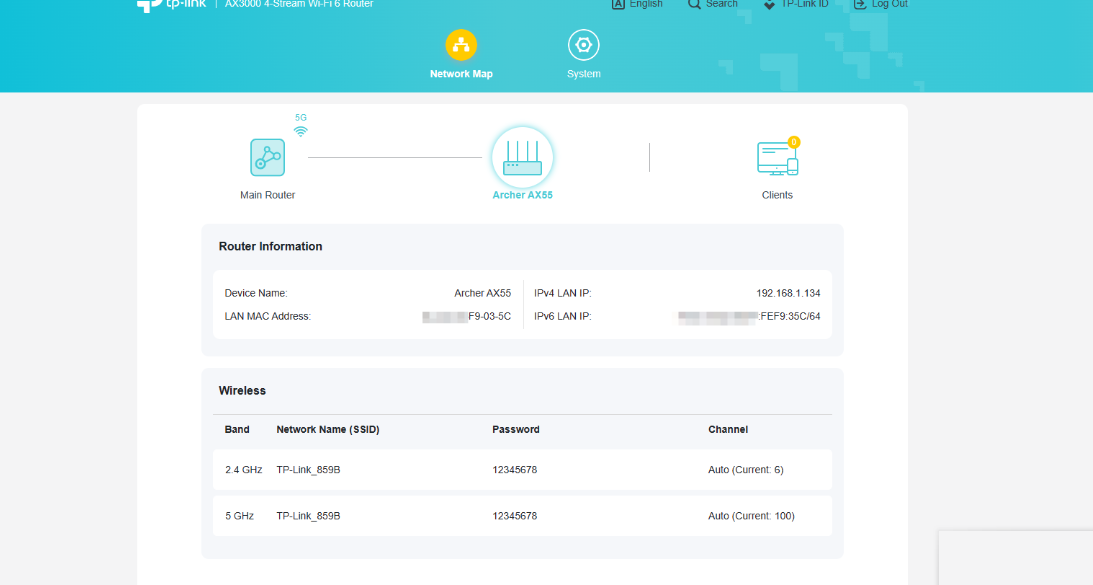
4. You can check Network map, Firmware Update, System Log, LED Control, Backup & Restore, USB Sharing and TP-Link ID function on the Web UI.
Here takes Archer AX55 (V1) as an example.


Был ли этот FAQ полезен?
Ваш отзыв поможет нам улучшить работу сайта.


Сообщество TP-Link
Нужна помощь? Задавайте вопросы, находите ответы и обращайтесь за помощью к специалистам TP-Link и другим пользователям со всего мира.