
Deco Smart Home Setup: Settings to Prevent & Fix Connection / Dropping Issues
Smart home devices (also called IoT devices), such as cameras, lights, and sensors, often only support 2.4GHz Wi-Fi and can't roam between mesh nodes. In a Deco mesh network, this can cause connection failures during setup, frequent dropouts, or devices getting stuck on a weak signal. To help you prevent or fix these issues, this guide provides three effective settings to apply before or after pairing your devices:
- Set up a dedicated IoT Network
- Enable High Capacity Mode (for more than 20 IoT devices)
- Disable Fast Roaming & Beamforming
Key Takeaways
- The Deco IoT network is a dedicated Wi-Fi network for the smart home, improving connection success and security. Use it before pairing to avoid band mismatch. (Deco app > More > IoT Network)
- The High Capacity Mode reduces congestion when many IoT devices share the network with high-traffic clients (gaming, 4K streaming). Available on Wi-Fi 7 and select Wi-Fi 6E Deco models. Enable preemptively for large setups, or turn it on if devices start dropping under load. (Deco app > More > Advanced > Wireless Network Mode.)
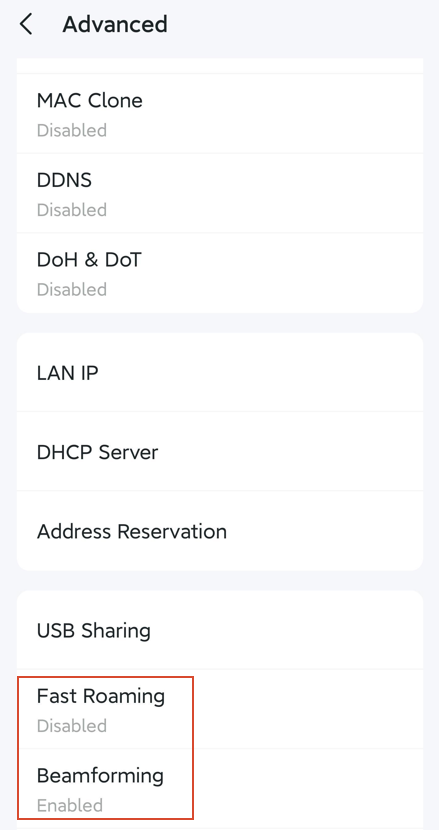
- Disabling Fast Roaming & Beamforming solves connection failures and dropouts for IoT devices that don't support these features. (Deco app > More > Advanced)
Why Set Up a Dedicated IoT Network
Most IoT devices only work on 2.4GHz, and their setup apps require your phone to be on the same band. But Deco mesh uses one Wi-Fi name for both 2.4GHz and 5GHz, so your phone often connects to 5GHz, causing setup failures. An IoT Network solves this by keeping everything on the same 2.4GHz Wi-Fi.
What Can High Capacity Mode Do
If you have many smart home devices (like 20+ sensors, lights, and plugs) running alongside bandwidth-heavy clients (like gaming PCs or 4K streaming TVs), your network can get congested. High Capacity Mode optimizes how your router handles traffic, scheduling airtime more efficiently to keep dozens of low-bandwidth IoT devices stable and responsive, even when the network is under heavy load. This feature is available on Wi-Fi 7 and select Wi-Fi 6E Deco models.
Why Disable Fast Roaming & Beamforming
While Fast Roaming and Beamforming are great for phones and laptops, they can cause problems for many simpler smart home devices. Many IoT devices (like smart plugs or older cameras) don't support roaming protocols. When the Deco system tries to "hand off" the device to a better signal, the device may:
- Refuse to connect.
- Stick to a weak, distant signal.
- Drop the connection entirely.
Disabling Fast Roaming & Beamforming can resolve these mesh compatibility issues.
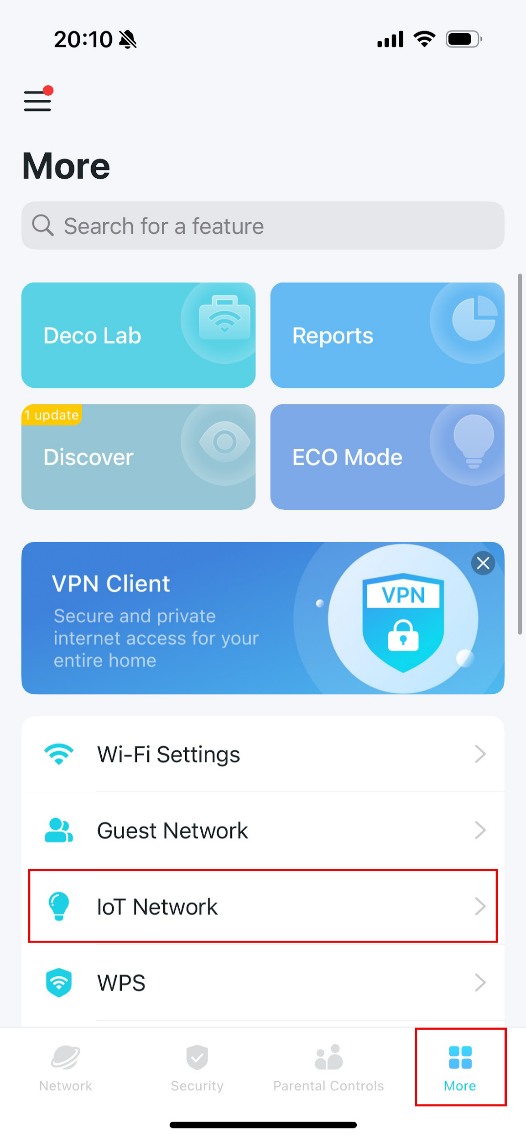
How to Enable IoT Network
1. Open the Deco app and go to More > IoT Network.
Notes:
a. Features may vary from different Deco models.
b. The steps may vary depending on your device's operating system. Here, we use the iOS system as an example.
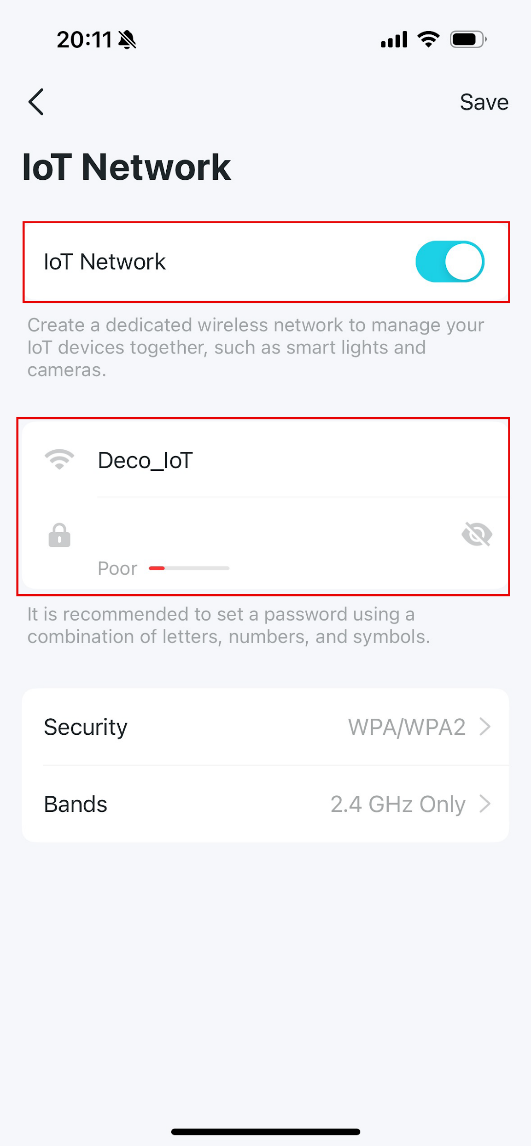
2. Enable the IoT Network, then set a Wi-Fi network name and password for this network.
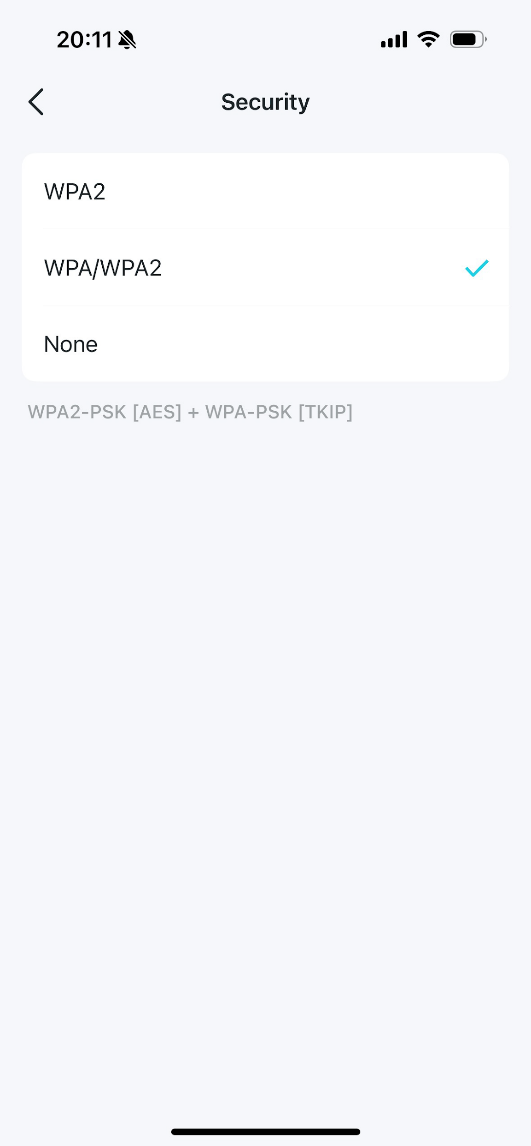
3. Tap Security, then select a Wi-Fi security protocol. If you select None, no password will be required to join the IoT network
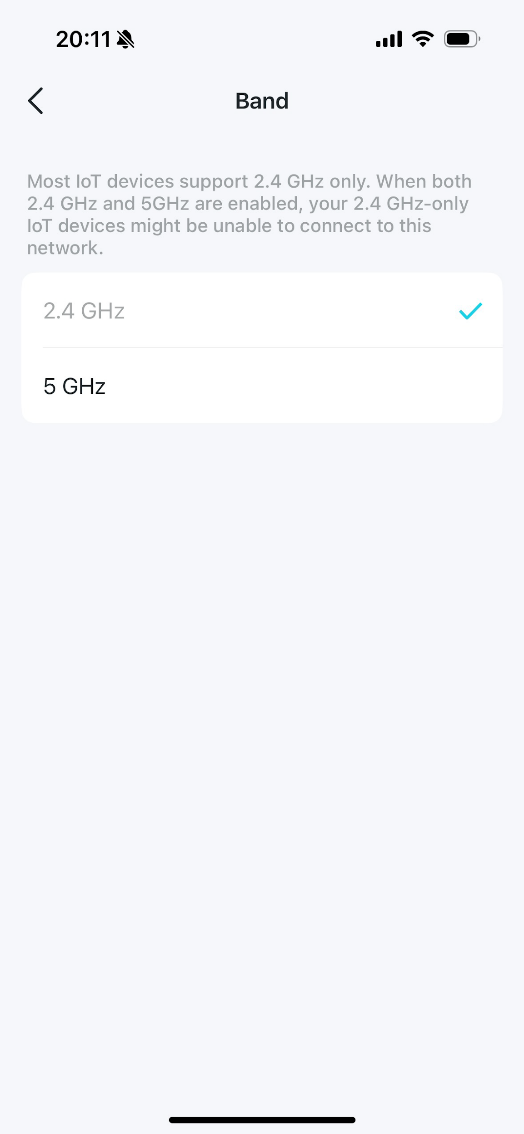
4. Tap Bands and select the Wi-Fi band you want to use for this network
5. Now, you can connect your IoT devices to the dedicated IoT network.
How to Enable High Capacity Mode
Note: Enable this mode only if you have more than 20 smart home devices or if your smart home devices are dropping connection.
1. Open the Deco app, and go to More > Advanced > Wireless Network Mode.
2. Select High Capacity or Stable, then click Save.
How to Disable Fast Roaming & Beamforming
1. Open the Deco app, and go to More > Advanced.
2. Select Fast Roaming or Beamforming:
- If a device cannot connect at all, toggle off Fast Roaming.
- If a device disconnects or times out frequently: toggle off Beamforming.
QAs
Q1: What should I do if the smart home app insists, "You must connect to a 2.4GHz network" during setup, even though the phone is connected to the Deco 2.4GHz IoT Network?
Forget or delete your main Deco Wi-Fi network in phone Wi-Fi settings, and then temporarily disable Cellular Data (4G/5G) on your phone, to force all app traffic through the IoT network.
Q2: The IoT device connects to Deco (listed as online in the Deco app), but shows offline in its own app. How to fix it?
This usually means the device got a local IP address but can't reach its manufacturer's cloud server. To resolve this, manually change your Deco's DNS server.
Q3: What to do if Apple HomeKit or Google Home can't discover devices after connecting to the IoT network?
The IoT Network allows cross-network communication by default. Ensure Device Isolation is off for the device in Deco app (Security > Device Isolation).
Q4: What should I do if IoT devices frequently drop connection or are sluggish?
1. Keep the IoT devices and Deco units away from Bluetooth devices, microwaves, cordless phones, mirrors, and metal surfaces.
2. Enable 5GHz band in IoT Network settings to offload traffic from 2.4GHz.
To learn more about each function and configuration, please visit the Download Center to download the manual for your product.
Citește despre:
A fost util acest FAQ?
Părerea ta ne ajută să îmbunătățim acest site.


_US_1.0_F_normal_20250208094019q.png)

TP-Link Community
Still need help? Search for answers, ask questions, and get help from TP-Link experts and other users around the world.