
TP-Link Wireless Router Operation Modes Explained: AP, Router, Extender, and More
Some TP-Link devices support multiple TP-Link operation modes, each designed for a different networking scenario — from home Internet sharing to business guest networks. This guide explains all eight available modes to help you choose the right one. Not all modes are available on every device, so check your device's specifications to confirm which modes are supported.
Note: Some models may not support all modes mentioned in this guide. Please refer to your device's specifications to see which modes are available.
Key Takeaways
- TP-Link devices can operate in multiple modes, including AP, Wireless Router, Range Extender, Bridge, Client, Hotspot/WISP, 3G/4G USB Modem, and USB Tethering. Each is designed for a specific networking scenario.
- AP Mode converts a wired connection into a wireless one and is typically placed behind an existing router. It is ideal for offices, hotels, or locations with wired-only access.
- Wireless Router Mode allows you to share a single wired Internet connection with multiple devices and supports connection types including Dynamic IP, Static IP, PPPoE, L2TP, and PPTP.
- Range Extender/Repeater Mode expands existing Wi-Fi coverage, allowing devices to roam seamlessly across the extended area.
- Bridge Mode also expands Wi-Fi coverage but uses a different service set identifier (SSID) and password. It is useful for providing guest Internet access without sharing the host network's password.
- Client Mode connects wired devices such as smart TVs or game consoles to a wireless network using the TP-Link device as a wireless adapter.
- Hotspot/WISP Mode connects to a public wireless network and shares it with multiple clients. It is useful when the wireless station limits the number of connected devices.
TP-Link Operation Modes Overview
1. AP Mode (converting an existing Ethernet network into a Wi-Fi one)
AP mode is primarily used to convert a wired connection into a wireless one. It functions similarly to a switch and is typically placed behind a router. If you're in an office, hotel, or any location where only a wired network is accessible but you require a temporary wireless network, AP mode is the ideal choice.
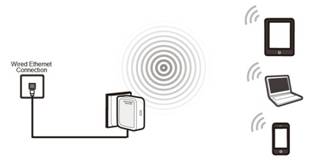
2. Wireless Router Mode (for home Internet sharing)
Similar to the AP mode, the Wireless Router mode allows you to share a single wired internet connection among multiple devices. The key difference is that it functions as a router itself and does not require a connection to another router. It supports various connection types, such as Dynamic IP, Static IP, PPPoE, L2TP, and PPTP.
If your modem only provides internet access to one device at a time, you'll need to use the Wireless Router mode to extend the internet to multiple devices.
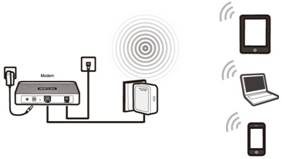
3. Range Extender mode / Repeater mode (for home Wi-Fi extension)
The Range Extender or Repeater mode aims to expand the wireless coverage area. If you already have a wireless network and there are Wi-Fi dead zones, consider using Repeater Mode. In this mode, you can configure the extender's Wi-Fi name to match the router's, allowing your devices to roam seamlessly across the entire coverage area.
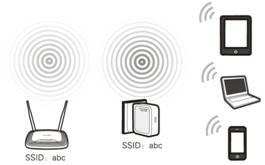
4. Bridge Mode (for home or business networking)
Similar to Range Extender mode, Bridge mode expands the existing wireless internet but uses a different wireless name (SSID) and password. This setup allows the creation of two separate networks for different groups of users who share the same internet connection.
Bridge Mode is ideal for small restaurants, bars, homes, offices, and other places where internet service needs to be provided to guests without exposing the host's existing network password.
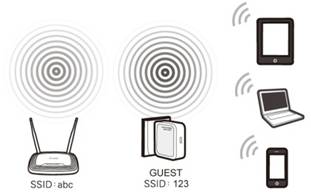
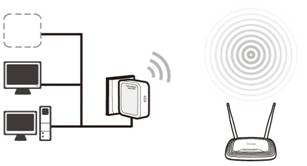
5. Client Mode (converting an existing Wi-Fi network into a wired one)
In Client Mode, it connects to a wired device and functions as a wireless adapter, allowing it to receive signals from your wireless network.
For devices like Smart TVs, Media Players, or game consoles that have an Ethernet port, use Client Mode to enable Wi-Fi connectivity and grant them access to your wireless network.
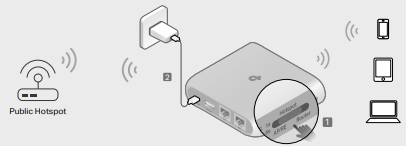
6. Hotspot / WISP Mode (Creating your personal Wi-Fi hotspot from a public Wi-Fi network)
In Hotspot/WISP mode, it can connect to a public wireless network and share that connection with its clients. The wireless connection serves as its WAN interface. It also supports various connection types, including Dynamic IP, Static IP, PPPoE, L2TP, and PPTP.
If the wireless station limits the number of clients or requires a username and password to connect, you should use Hotspot/WISP mode.
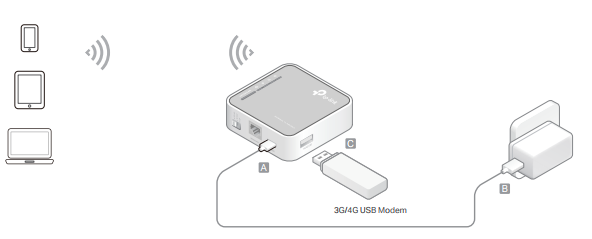
7. 3G/4G USB Modem Mode (Sharing a 3G/4G USB modem’s Internet with other devices)
If you have a 3G/4G modem with Internet access, connect it to the USB port of the TP-Link device to share that connection with multiple clients.
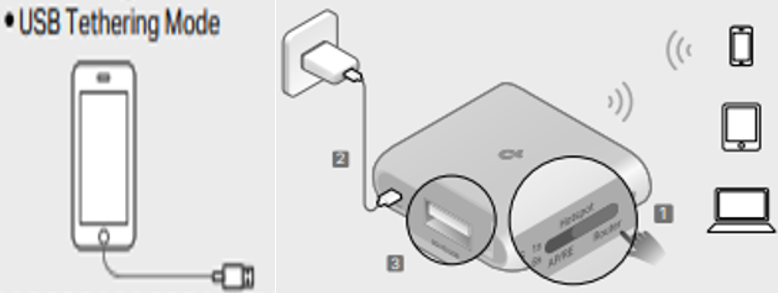
8. USB Tethering mode (Sharing a mobile device’s cellular data with other devices)
This mode allows you to share your smartphone's internet connection with multiple devices.
For more details on each function and configuration, visit the Download Center to find the manual for your product.
Więcej
Czy ten poradnik FAQ był pomocny?
Twoja opinia pozwoli nam udoskonalić tę stronę.


TP-Link Community
Still need help? Search for answers, ask questions, and get help from TP-Link experts and other users around the world.
z United States?
Uzyskaj produkty, wydarzenia i usługi przeznaczone dla Twojego regionu.