


PoE Camera Systems: Setup, Subnets, and Network Isolation
Published: August 11, 2026 | Last Updated: August 11, 2026
Quick Answer
-
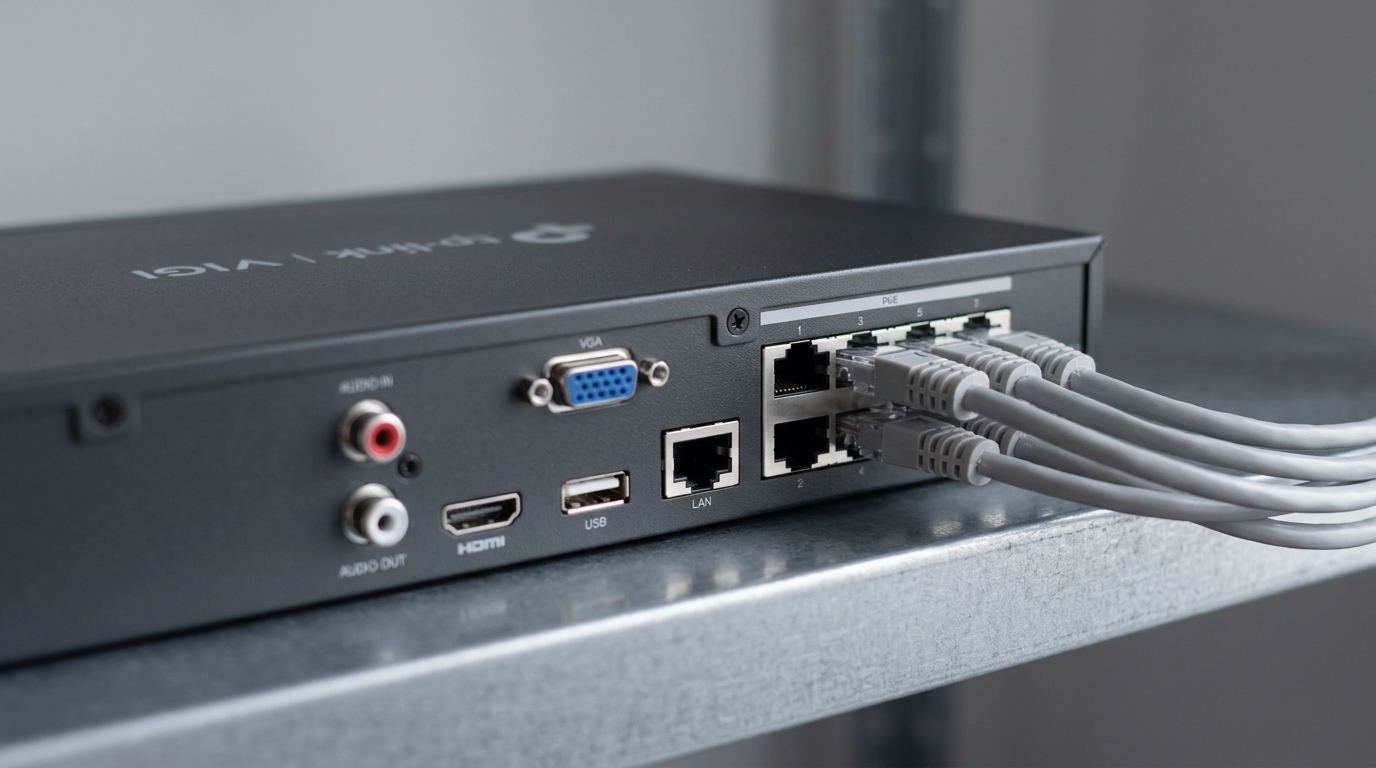
Cameras on an NVR's built-in PoE ports and cameras on an external switch end up on different subnets. Mixing the two without realizing it is the usual reason a camera is missing.
-
VIGI's Network Isolation puts cameras on the recorder's PoE ports onto their own internal range, 192.168.253.x by default, so a PC on the main network cannot reach them while the recorder records and displays them normally.
-
Isolation only works with cameras added using the TP-Link Protocol, and switching it on restarts the recorder. Both catch people out.
Plugging in a PoE camera does more than power it. Where you plug it in decides which network it lands on. A camera connected to an NVR's own built-in PoE ports is normally placed on a separate internal subnet managed by the recorder, while a camera connected through an external PoE switch takes an address from your main network like any other device. That single difference explains most cameras that power up correctly and then fail to appear where someone expected them, and on VIGI recorders it is also a deliberate security feature rather than a quirk.
Table of Contents
What Decides How a PoE Camera Setup Goes?
NVR PoE Ports or an External Switch?
What Is Network Isolation and What Does It Change?
How Do You Turn Network Isolation On?
What Should You Know Before Enabling It?
Why Is a Connected Camera Not Showing Up?
Does an External Switch Let You Add More Cameras?
What Decides How a PoE Camera Setup Goes?
Which ports the cameras are plugged into. Everything else in the setup follows from that one decision, including which addresses the cameras get and how you add them.
A PoE camera draws power and carries video over the same Ethernet cable, so each position needs one run rather than a cable plus a power outlet. That much is straightforward. The part that catches people is that the port on the other end of that cable is not just a power source; it is also what decides the camera's place on the network.
There are two options. The recorder's own built-in PoE ports, or a separate PoE switch that connects to the recorder over the network. Both work, both are supported, and they behave differently in a way nobody mentions until something is missing from the camera list.
What it means for you: decide the connection method for each camera before pulling cable, and write it down. Half the troubleshooting in this article is people trying to remember which cameras went where.
NVR PoE Ports or an External Switch?
The recorder's own ports put cameras on an internal network the recorder manages. An external switch puts them on your main network alongside your computers. That is the whole difference, and it has consequences at every later step.
Feature-to-Benefit: Two Connection Methods
|
|
NVR built-in PoE ports |
External PoE switch |
|
Address source |
The recorder, on its own internal range |
Your main network's DHCP server or router |
|
Subnet |
Separate from the main LAN, 192.168.253.x by default on VIGI |
The same as everything else on the LAN |
|
Reachable from a PC on the main network |
No, once isolation is enabled |
Yes, like any other device |
|
How cameras are added |
Detected on the recorder's own ports |
Added by discovery or by entering the IP |
|
Best for |
Cameras close enough to cable back to the recorder |
Cameras spread further than the recorder's ports reach |
A camera on the recorder's own ports gets its address from the recorder and sits on a private range the rest of the building cannot reach, while a camera on an external switch gets its address from your router and sits on the same network as your computers. Both feed the same recorder and record identically. The difference is where they live on the network, which decides how you add them and who can reach them.
Most installations end up mixed, using the recorder's ports for cameras near it and a switch for cameras further out. That is normal and supported. It just means two groups of cameras with addresses from two different sources, which is worth writing down at the time rather than working out later.
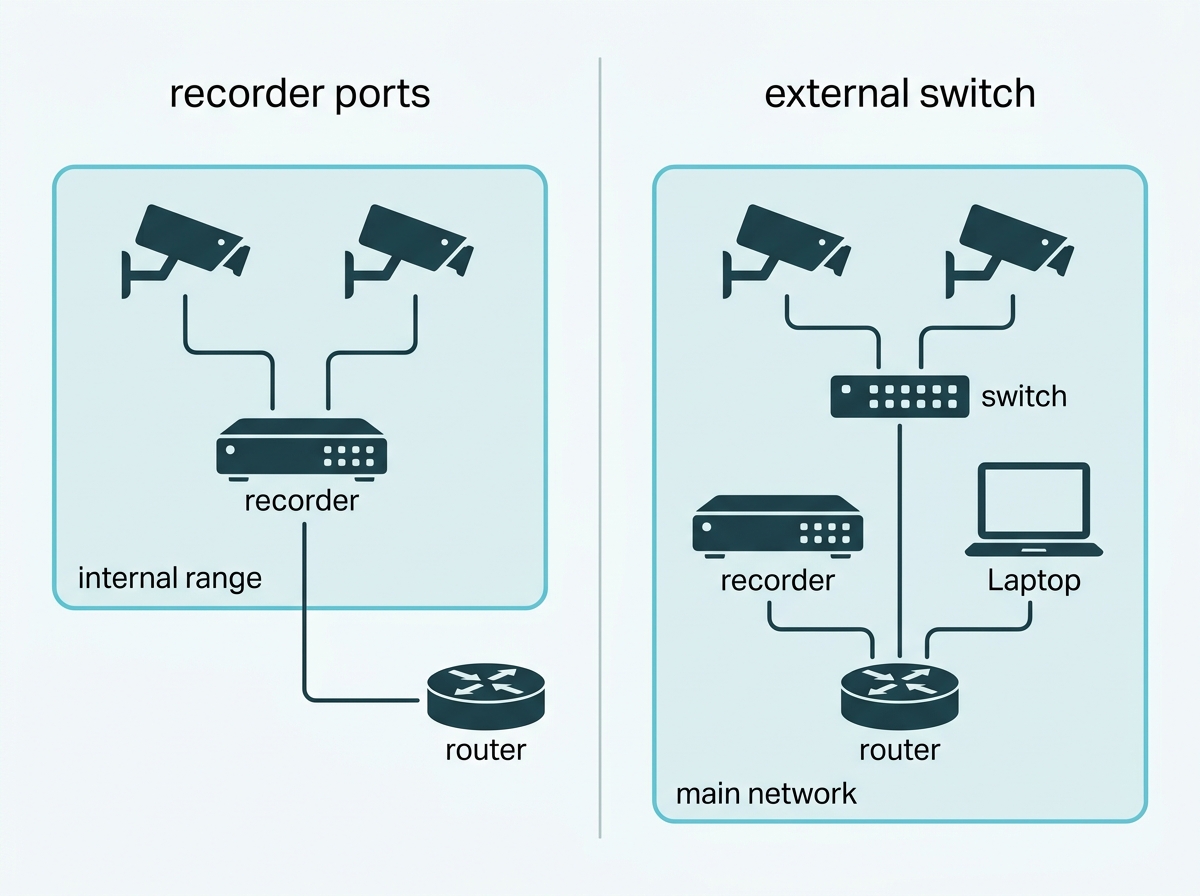
What it means for you: if you want cameras kept away from the rest of your network, that starts with plugging them into the recorder rather than a switch. The next section is what makes that separation real.
What Is Network Isolation and What Does It Change?
A VIGI recorder feature that separates its built-in PoE ports from its LAN port into different subnets, so the cameras get their own internal addresses and nothing on your main network can reach them directly.
With it enabled, the recorder assigns connected cameras addresses on an internal range, 192.168.253.x by default and configurable, while your main network carries on with its own range. Recording and live view through the recorder work exactly as before. What changes is reachability: a PC on the main network pinging one of those cameras gets nothing back. TP-Link uses that failed ping as the verification step.
The security argument is straightforward. A camera on a flat network is a device on the same network as your computers, reachable by anything else on it. A camera on an isolated subnet is reachable only through the recorder that manages it. For a business, that is a materially different exposure, and it costs nothing beyond a settings change.
There is also a practical benefit that gets less attention: it takes camera addressing off your main network entirely, so cameras stop consuming addresses from your DHCP pool and stop appearing in your network's device list.
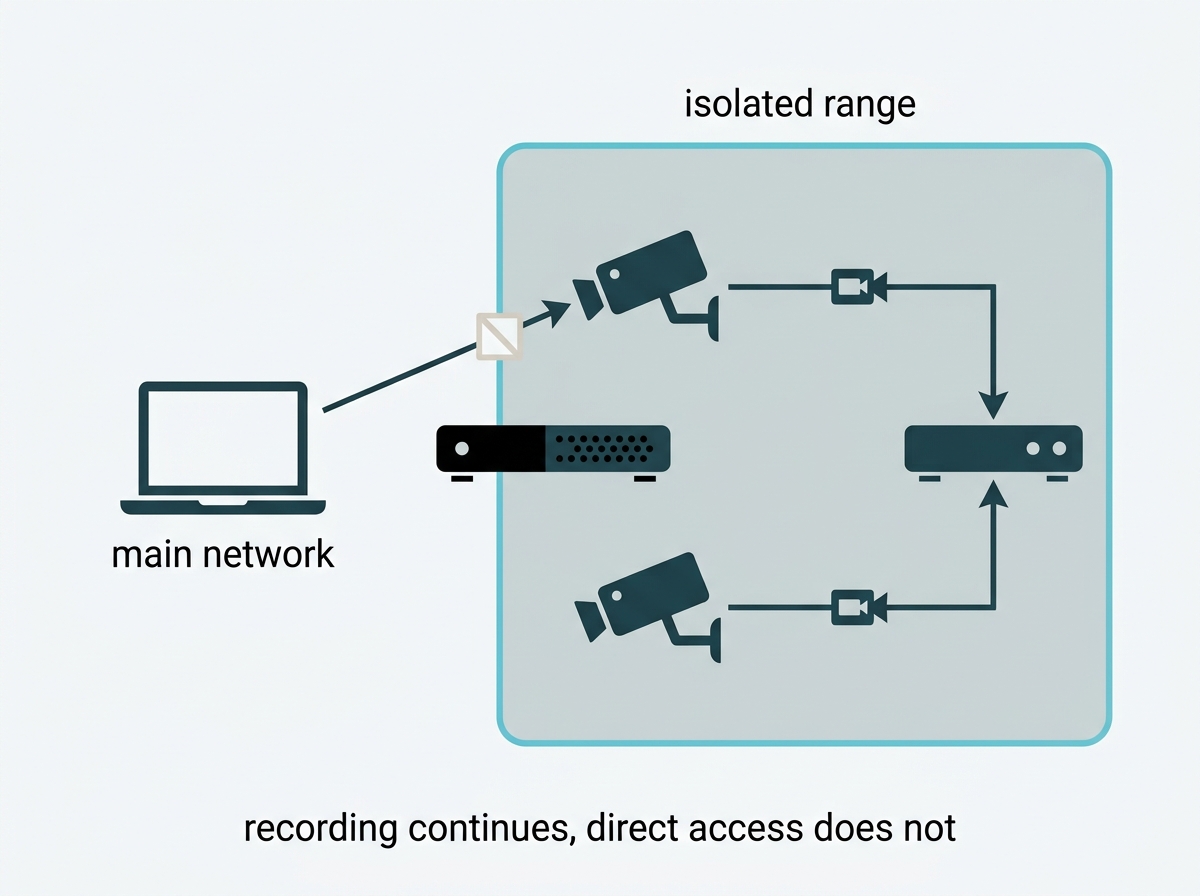
What it means for you: if the cameras are on the recorder's own ports, enabling isolation is close to free security. If they are on an external switch, this feature does not apply to them, and separation would have to come from your network equipment instead.
How Do You Turn Network Isolation On?
Add the cameras first, then enable it, then let the recorder restart. The order matters, and so does how the cameras were added.
First, add the cameras using the TP-Link Protocol. Connect the camera to one of the recorder's PoE ports and add it, then check under Settings, Camera, Device Access that it shows as connected. This step is not optional, and it is not interchangeable: TP-Link states that Network Isolation must be used together with cameras added via the TP-Link Protocol. A camera added by another method may connect perfectly well and still not behave as expected when isolation is switched on.
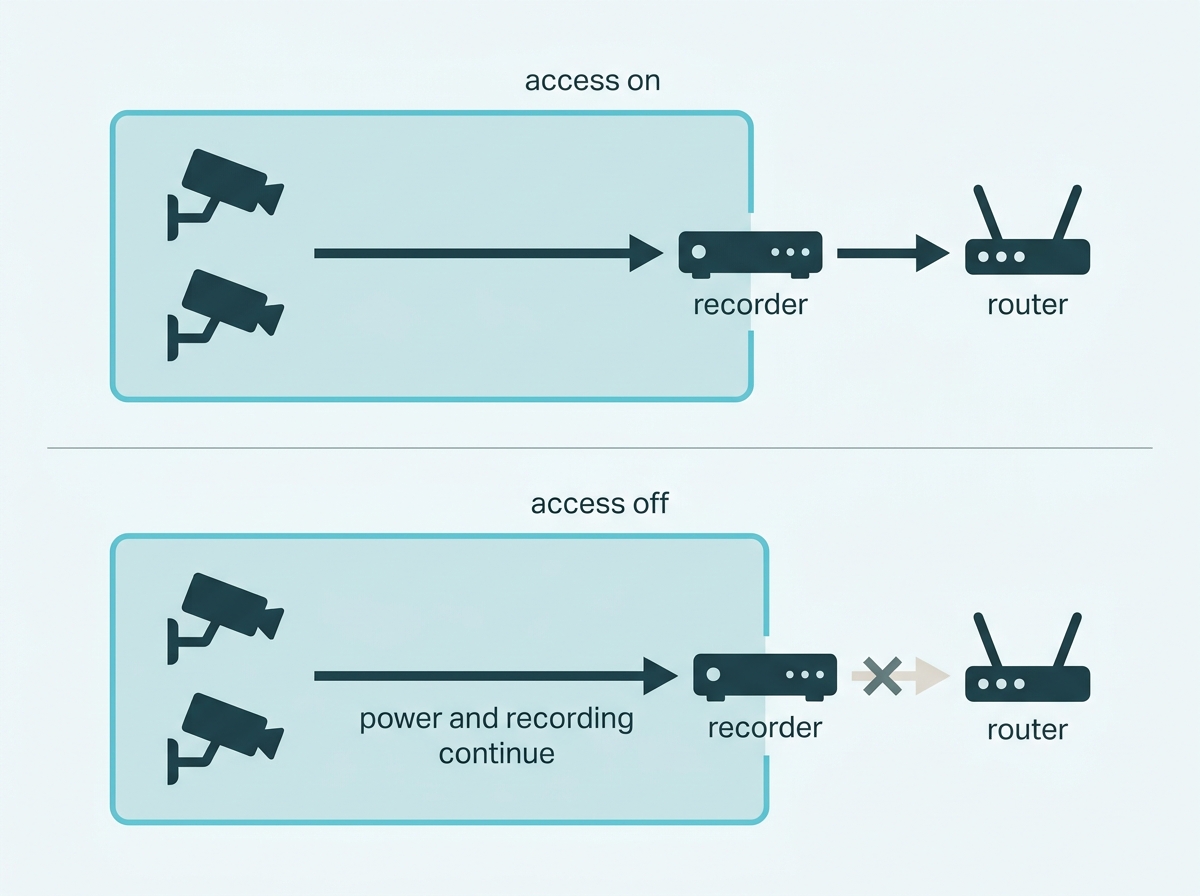
Then enable the feature. It sits under Settings, Network, Network Isolation. You set an Internal IP, which is the recorder's own address inside the isolated subnet, and a Start IP, which is where the recorder begins assigning addresses to cameras. There is also a PoE Access to Internet option, which decides whether the cameras can reach the wider network through the recorder. Leave it off, and the recorder still supplies power and records normally, but the cameras can talk only to the recorder.
Then let it restart. Applying the configuration requires the recorder to reboot, and the subnet assignment step finishes with a confirm and reboot as well. Plan this for a quiet hour rather than mid-afternoon.
Then verify. Go back to Settings, Camera, Device Access and check the cameras have been assigned addresses on the isolated range. Then try to ping one from a PC on your main network. It should fail. That failure is the feature working.
You can also confirm power delivery per camera under Settings, Camera, PoE Channel, which shows actual power consumption and is a better answer to "is this camera powered" than looking at a port light. The full procedure, with screenshots and the current list of supported recorder models, is in TP-Link's guide to configure Network Isolation.
What it means for you: do this at commissioning, before cameras are finalized and while a reboot costs nothing. Retrofitting it onto a running system is possible, but it is a restart and a re-verification you could have avoided.
What Should You Know Before Enabling It?
Five things change when isolation goes on, and none of them is obvious from the switch itself. Two of them will cause a support call if you meet them unprepared.
Cameras are forced to static addressing. VIGI cameras on those ports have their IPv4 mode set to static, with a 255.255.255.0 subnet mask and the recorder's internal address as their gateway. That is the recorder taking over addressing, which is the point, but it means the camera's own network settings are no longer yours to set.
Those cameras lose IPv6. Once isolation is enabled, VIGI cameras on the recorder's PoE ports can no longer obtain an IPv6 address, even where IPv6 is properly configured elsewhere. The recorder itself still generates an internal IPv6 address. If anything in your setup depends on reaching cameras over IPv6, this is the detail that will break it.
Third-party cameras are not handled automatically. The recorder may not reassign the addresses of cameras from other manufacturers. To bring one into the isolated subnet, you have to reconfigure its network settings manually, on the camera's own management page or client software, to match the range the recorder is using. Only then can it be added and managed.
It is a restart, not a toggle. Enabling or disabling it reboots the recorder.
It applies to specific recorder models. The feature is documented against a defined list of PoE NVR models rather than the whole range, so check yours before planning around it.
What it means for you: check whether anything you rely on needs to reach the cameras directly, over IPv6 or otherwise, before you enable this. If you are running third-party cameras on those ports, budget time to reconfigure each one by hand.
Why Is a Connected Camera Not Showing Up?
Work through four things in order. In most cases, it is the first one, and in most cases the camera is fine.
Check which subnet it actually landed on. A camera plugged into an external switch takes an address from your router, not from the recorder, so looking for it on the recorder's internal range will not find it. This is the single most common cause, and it is a consequence of the connection choice rather than a fault.
Check how it was added. Isolation depends on cameras being added via the TP-Link Protocol. A camera added another way can connect and still not integrate with the features that depend on that protocol.
Check that it is actually drawing power. Settings, Camera, PoE Channel shows the power consumption of each camera on the recorder's ports. A camera drawing nothing is a cabling or port problem, not a network one, and no amount of address checking will fix it.
If it was working and stopped after an isolation change, delete it from the added device list and add it again. TP-Link recommends this specifically for a camera that fails to reconnect for a long time after isolation is enabled or disabled. It is a remedy for that symptom rather than a routine step, so there is no need to re-add cameras that are working.
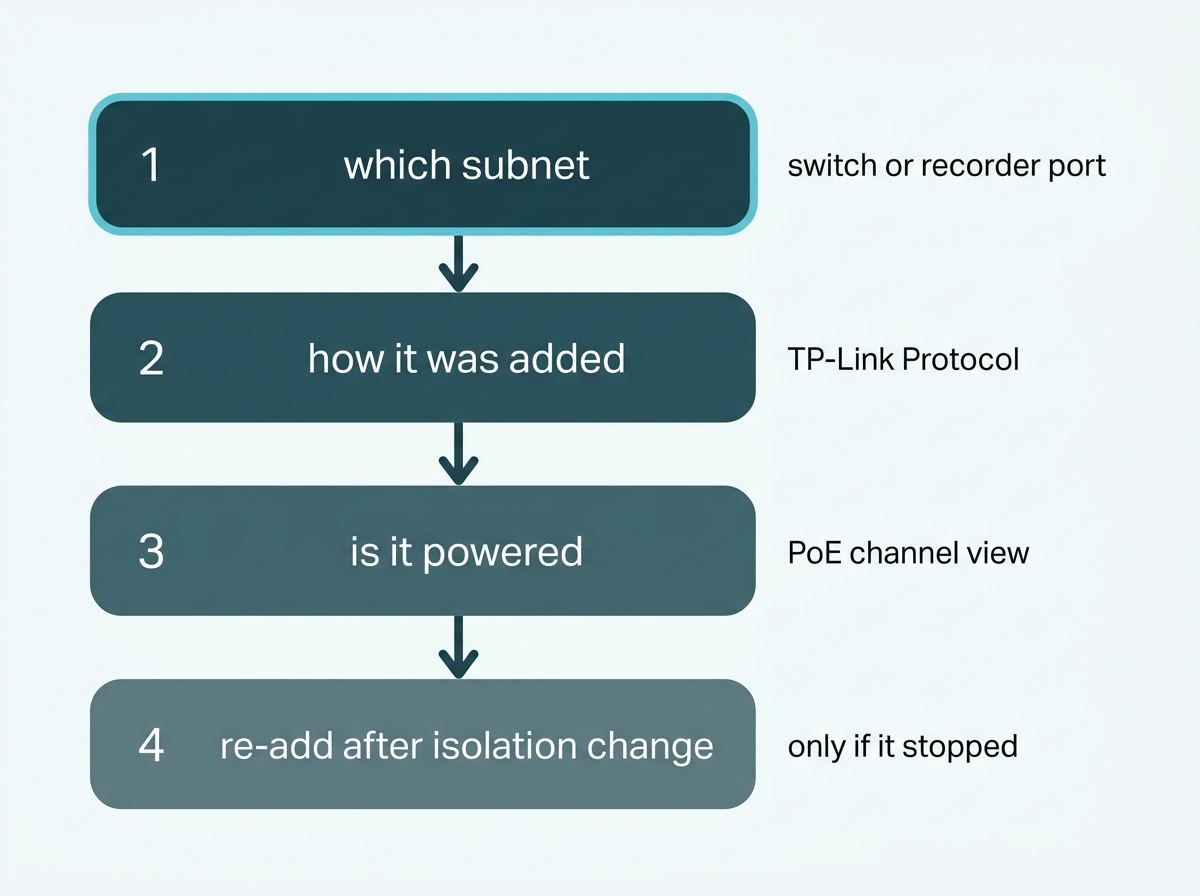
What it means for you: before opening a support ticket, confirm which port the camera is plugged into and which range it should therefore be on. That one check resolves most of these.
Does an External Switch Let You Add More Cameras?
No. The recorder's channel count is the limit, and adding a switch does not raise it.
An external PoE switch gives you more places to plug cameras in and more reach, which is genuinely useful when cameras sit further apart than the recorder's own ports can serve. What it does not do is increase how many cameras the recorder can record. A four-channel recorder records four cameras whether they arrive through its own ports or through a switch.
Bandwidth works the same way. Every camera connected to the recorder counts against its total incoming bandwidth regardless of which physical port it came through, so a switch does not create headroom either. Both figures are published per model on the VIGI network video recorders pages, and both are worth checking against your camera list before ordering.
Video quality is not affected by the choice. A switch neither degrades nor improves the stream.
What it means for you: choose the switch for reach and cable routing, not for capacity. If you need more cameras than the recorder supports, the answer is a larger recorder.
To see recorders with built-in PoE ports and the cameras that pair with them, browse VIGI cameras and VIGI network video recorders, or explore VIGI's PoE camera and NVR lineup. How this step fits the wider installation sequence is covered in the CCTV & Camera Installation Guide Philippines.
Frequently Asked Questions
Do PoE cameras need a separate power supply?
No. A PoE camera receives both power and data over the same Ethernet cable, so each camera needs one cable run and no power outlet at the mounting point, provided the recorder port or switch it connects to supplies PoE.
Why is my camera not showing up on the NVR after I connected it?
Most often because it landed on a different subnet than expected. A camera plugged into an external switch takes an address from your router, while a camera on the recorder's own PoE ports is assigned one by the recorder, so looking in the wrong range finds nothing. Check the connection method before assuming a fault.
What is Network Isolation on a VIGI NVR?
It separates the recorder's built-in PoE ports from its LAN port into different subnets, assigning connected cameras internal addresses on a range defaulting to 192.168.253.x. Recording and live view carry on normally, but a device on the main network cannot reach those cameras directly, which TP-Link verifies by showing that a ping from a LAN PC fails.
Does Network Isolation work with any camera?
It has to be used with cameras added via the TP-Link Protocol, so a camera added another way may connect without behaving as expected. Third-party cameras are not reassigned automatically either: their network settings have to be reconfigured by hand on the camera itself to match the isolated subnet before the recorder can manage them.
What happens if I turn off PoE Access to Internet?
The recorder keeps supplying power and keeps recording, and the cameras keep working. What changes is that they can only communicate with the recorder and cannot reach the wider network through it. Leaving it off is the more contained setting where the cameras do not need outside access.
Can I mix cameras on the NVR's PoE ports with cameras on an external switch?
Yes, and most installations do. The two groups will be on different subnets, taking addresses from the recorder and from your router respectively, which affects how each is added and who can reach them. Record which camera is on which method at installation, because working it out later is the tedious part.
Does adding an external PoE switch let the NVR support more cameras?
No. The recorder's channel count and its total incoming bandwidth are the limits, and neither changes based on which physical port a camera arrives through. A switch adds reach and connection points, not capacity, so more cameras than the recorder supports means a larger recorder.
Final Thoughts
The whole setup turns on one choice most people make without noticing: which port the camera goes into. The recorder's own PoE ports put cameras on an internal range the recorder manages. An external switch puts them on the same network as everything else in the building. Both record identically, and the difference only surfaces when a camera is not where someone looked for it.
On VIGI recorders, that difference is also a feature worth using. Network Isolation makes the separation real, so cameras on the recorder's ports cannot be reached from the main network at all, while recording carries on untouched. It costs a settings change and a reboot. It asks for two things in return: cameras added via the TP-Link Protocol, and awareness that those cameras move to static addressing and lose IPv6.
If you are planning a system rather than fixing one, the useful step is deciding the connection method per camera before any cable is pulled. Send a VIGI specialist three things: how many cameras you need and how far each sits from the recorder, whether you want the cameras kept off your business network, and whether any are from another manufacturer. You will get back a connection plan showing which cameras belong on the recorder's ports and which need a switch, a recorder sized to the channel count and bandwidth that implies, and a note on anything that will need configuring by hand.