Piso WiFi Pause Time: How It Works for Users and Admins in the Philippines
Published: June 10, 2025 · Last Updated: July 2026
Quick Answer: What Is Piso WiFi Pause Time?
-
Piso WiFi Pause Time is a session-control feature that temporarily freezes your internet timer so your remaining prepaid minutes are not consumed while you are not actively browsing.
-
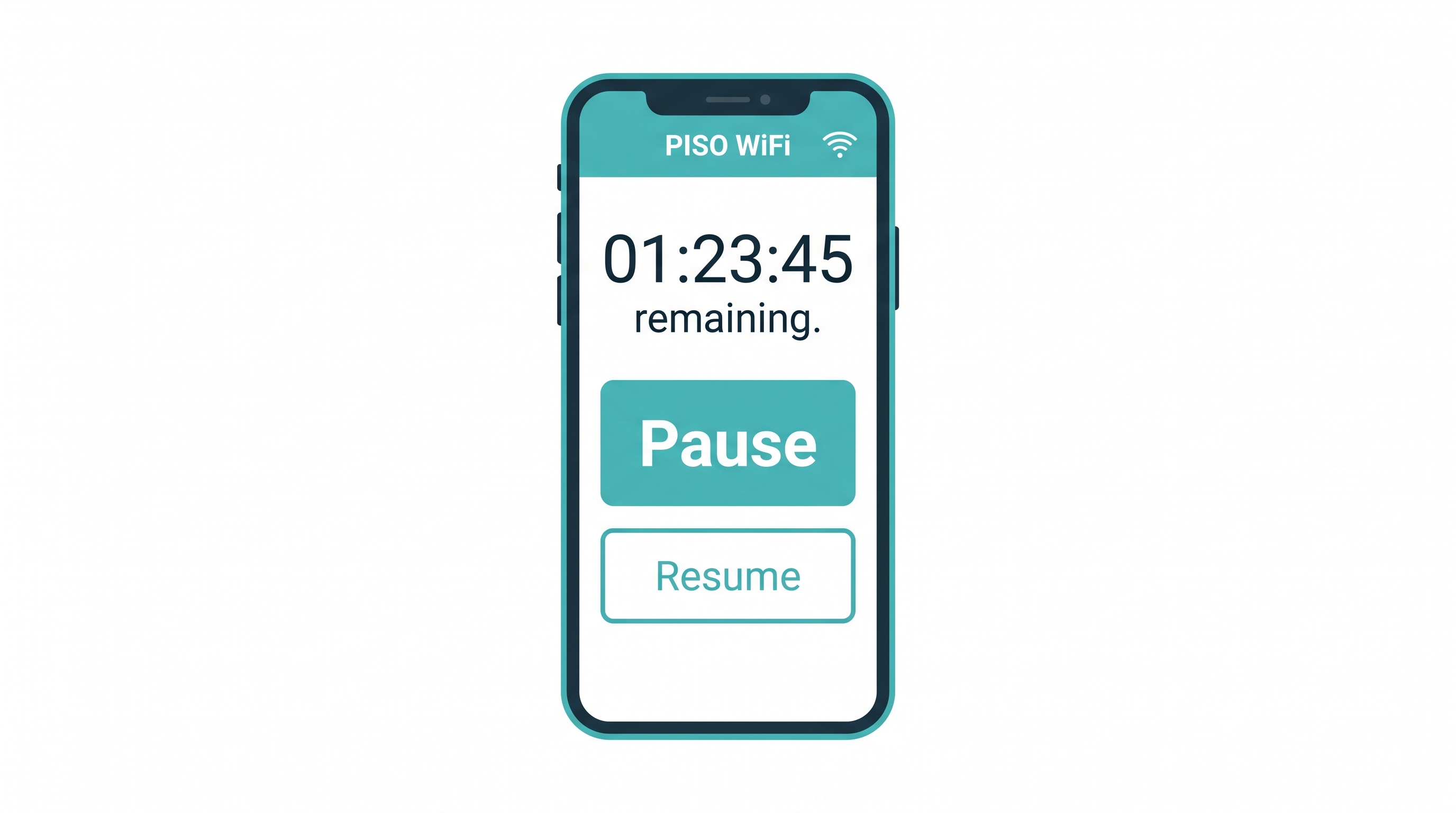
As a user, tap the Pause button on the portal at http://10.0.0.1 to stop your countdown. Tap Resume when you return; your remaining time picks up from exactly where it stopped.
-
As an admin, enable it in your admin panel at http://10.0.0.1/admin under Portal Settings or Session Controls, depending on your firmware (LPB Piso WiFi or AdoPiSoft).
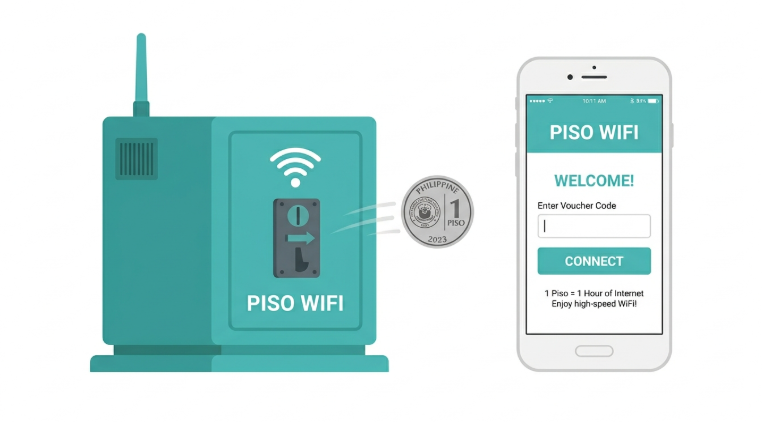
Piso WiFi Pause Time is a built-in feature on Philippine coin-operated and voucher-based WiFi vending machines that lets users temporarily stop their session timer without losing their remaining paid time.
Whether you run a Piso WiFi vending machine or you are paying ₱1 per minute at the nearest hotspot, this guide explains exactly how pause time works, how to turn it on or off, and how to troubleshoot common problems.
Table of Contents
How Does Piso WiFi Pause Time Work?
How to Enable Pause Time as a Piso WiFi Admin
Recommended Pause Time Settings for Philippine Operators
How to Use Piso WiFi Pause Time as a User
Troubleshooting Pause Time Issues
Is Piso WiFi Pause Time Safe to Use?
What Is Piso WiFi Pause Time?
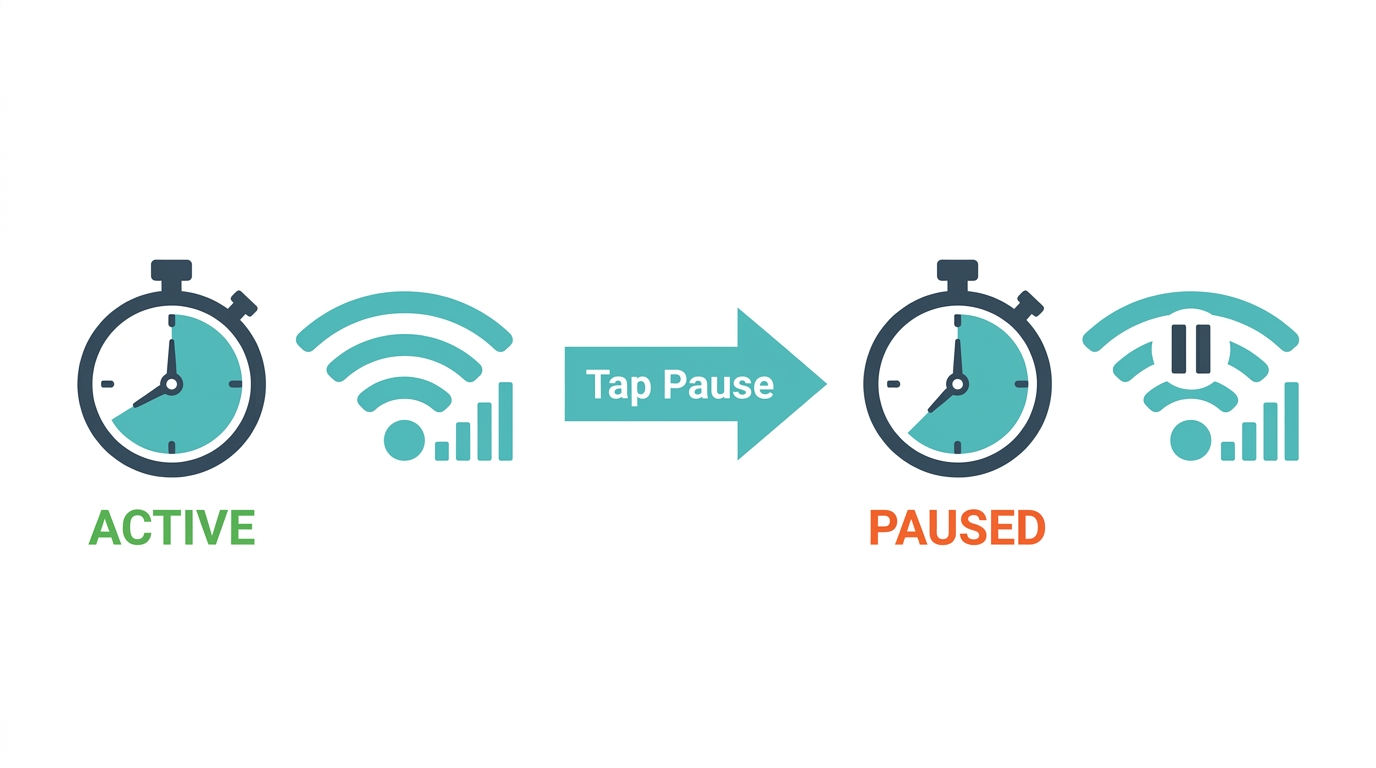
Piso WiFi Pause Time is a session control feature that temporarily freezes your internet countdown timer. When a user presses the Pause button through the portal at http://10.0.0.1, the countdown freezes, and their internet connection is suspended. Pressing Resume restarts the countdown from exactly where it stopped.
Admins control whether the feature is available, and they can set limits such as maximum pause duration (typically 30 to 60 minutes) and auto-expiry (usually 24 hours).
How Does Piso WiFi Pause Time Work?
When a user connects to a WiFi network and pays for access through the portal, usually hosted at http://10.0.0.1, a session is created in the vending machine's database. That session stores the session ID, the device's IP or MAC address, and the amount of time remaining.
The pause function instructs the system to freeze the countdown timer and cut the active internet connection for that session. No data is transmitted, and no time is deducted while the session is paused. The session record stays alive in the database until the user resumes or until the admin's auto-expiry limit is reached.
When the user returns and presses Resume, the system matches their device to the stored session ID and restarts the countdown from the saved point. Because session matching is based on device identification, resuming from a different device or a different IP address may not work on all systems. It is safest to resume from the same phone or laptop you started with.
How to Enable Pause Time as a Piso WiFi Admin
Before your users can pause their sessions, you need to turn on the feature in the admin panel. The exact steps differ slightly between the two most widely deployed commercial platforms, LPB Piso WiFi and AdoPiSoft, and JuanFi, an open-source MikroTik-based alternative, where menu paths vary by build. The process is similar across all of them.
General Steps (All Platforms)
-
Connect your phone or laptop to the Piso WiFi network you manage.
-
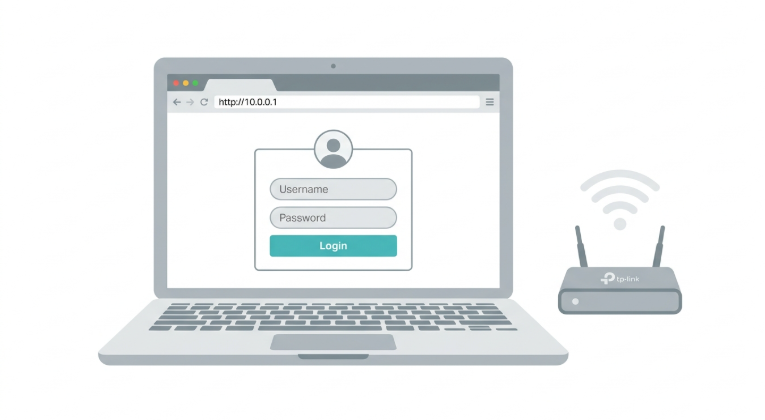
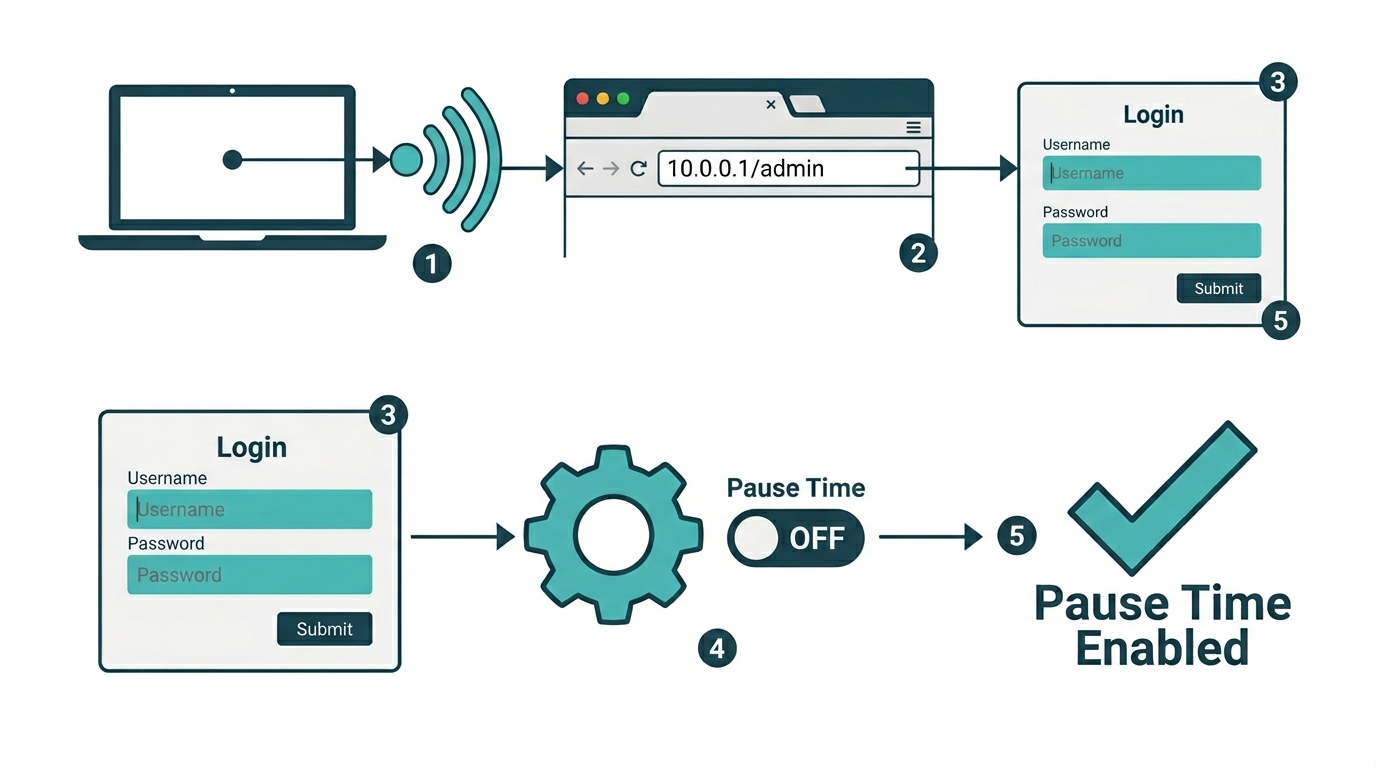
Open a browser (Chrome works best) and go to http://10.0.0.1/admin.
-
Log in using your administrator credentials. LPB default: username admin, password 123456789. AdoPiSoft default: username admin/password admin (older installs) or username administrator/password admin1234 (newer installs). Check the sticker on your device if unsure.
-
Look for a tab labeled Settings, System Settings, or Advanced Settings, depending on your firmware.
-
Find the option labeled "Enable Pause Time" or "Pause/Resume."
-
Enable it. Optionally, set your pause limits (see recommended values below).
-
Save your changes and reboot the system if prompted.
-
Test by connecting as a regular user and confirming the Pause Time button appears on the portal.
Platform-Specific Menu Paths
|
Platform |
Admin URL |
Menu Path to Pause Time |
|---|---|---|
|
LPB Piso WiFi |
http://10.0.0.1/admin |
Portal Settings > Insert Coin Mode > Pause/Resume Time > Enable |
|
AdoPiSoft |
http://10.0.0.1/admin |
Settings > User Portal Settings > Session Controls > Allow Pause Time |
|
JuanFi (open source) |
http://10.0.0.1/admin |
Varies by build - look for "Pause Time" or "Session Pause" under portal or session settings |
Note: LPB and AdoPiSoft handle pause limits differently. LPB sets a maximum pause duration (default 60 minutes, configurable from 10 minutes to 24 hours). AdoPiSoft sets a maximum number of pause attempts per session rather than a time limit. Configure whichever applies to your platform.
How to Disable Pause Time
To disable the feature, follow the same menu path above and toggle Pause Time to Off (or Disable). Save and reboot. Once disabled, users will no longer see the Pause or Resume buttons in the portal.
Recommended Pause Time Settings for Philippine Operators
|
Setting |
Recommended Value |
Why |
|---|---|---|
|
Max pause duration (LPB) |
60 minutes (default) configurable from 10 min to 24 hrs |
Covers lunch breaks and errands without blocking the machine indefinitely. LPB also lets you set a minimum remaining time before pausing is allowed. |
|
Pause attempts per session (AdoPiSoft) |
3 to 5 attempts |
AdoPiSoft uses a count-based model instead of duration. 3-5 is user-friendly without enabling abuse. |
|
Auto-expire abandoned sessions |
24 hours |
Clears sessions that were paused and never resumed, keeping the machine available for new paying users. |
How to Use Piso WiFi Pause Time as a User
If the admin has enabled pause time on the machine you are connected to, here is how to use it:
-
Open your WiFi settings and connect to the Piso WiFi network.
-
Open a browser. You should be automatically redirected to the portal at http://10.0.0.1. If not, type that address manually into the address bar.
-
Pay for your session using the coin slot, a QR code, GCash, Maya, or another payment option the machine accepts. You can also use a mobile device to connect if the machine supports QR or mobile payment entry.
-
Once your session starts, you will see a countdown timer showing how much time you have remaining.
-
Browse normally. When you need a break, tap or click the Pause Time button. The portal will confirm that your session is paused, and the timer will stop.
-
When you are ready to continue, go back to http://10.0.0.1 on the same device and tap Resume Session. Your remaining time will start counting down again from where you left off.
Note: If you do not see a Pause Time button, the admin has either disabled the feature or your system does not support it. You cannot enable it yourself as a user.
Troubleshooting Pause Time Issues
|
Problem |
Likely Cause |
Fix |
|---|---|---|
|
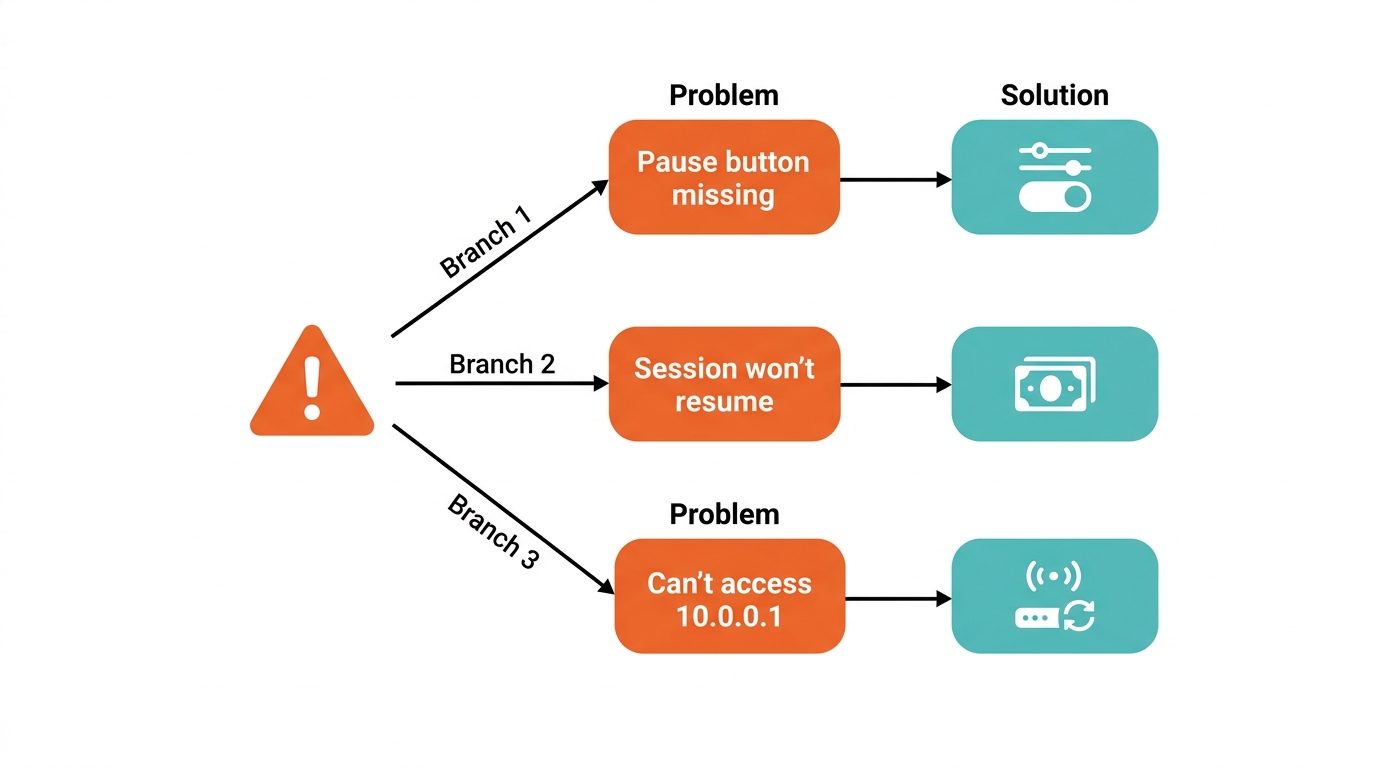
Pause button not showing |
The feature is disabled, or the browser cache is stale |
Ask the admin to enable it. Clear browser cache or open the portal in an incognito window. |
|
Session not resuming after pause |
Pause period expired (auto-expiry reached) |
Check if the max pause duration has passed. Insert more coins or pay again to start a new session. |
|
Cannot access the portal (10.0.0.1) |
DNS or network config issue |
Set DNS to Automatic in device or router settings. Restart the device or router. |
|
Time not saved after pausing |
Outdated firmware bug |
Update the Piso WiFi router or portal firmware through the admin panel. |
|
Resumed on a different device; session lost |
Session matched by device ID, not login |
Always resume from the same device you started on. |
The Piso WiFi pause time feature works through the same admin panel at 10.0.0.1 that controls all your sessions and network settings. If portal access itself is broken, resolve that first before troubleshooting pause time specifically.
Tips for Piso WiFi Owners
-
Advertise the pause feature. Put a small sign or sticker near the machine so users know it is available. Informed users are more satisfied users.
-
Set fair pause limits. Allowing at least 30 to 60 minutes per pause covers most real-world needs like lunch breaks or errands, without blocking the machine indefinitely.
-
Keep your firmware updated. Software updates often fix bugs related to session management. Check your admin panel regularly for available updates.
-
Monitor abandoned sessions. If your system logs show many long-paused sessions, tighten your auto-expiry setting so idle time does not pile up.
-
Use pause time as a selling point. In a market where most hotspots have no session controls, offering pause time can differentiate your machine and drive repeat customers, especially near a busy hotspot area where competing machines may not offer it.
Is Piso WiFi Pause Time Safe to Use?
Yes. The pause time feature is safe for both users and admins. When a session is paused, the system stores the session ID and remaining time in its local database or memory. No data is sent out, no payment is processed, and no time is deducted. When the user resumes, the system retrieves those stored values and continues the countdown.
The only risk to be aware of is session matching by device. Some systems identify a paused session by the device's IP or MAC address. If you switch devices or your IP changes, the system may not recognize your session, and your remaining time could be lost. Always resume from the same device you originally connected with to avoid this.
What is Piso WiFi?
Piso WiFi is a coin-operated, prepaid internet access business where customers insert coins or scan a QR code to buy timed WiFi sessions; no subscription required. Most modern Piso WiFi machines run on a portal at http://10.0.0.1, which is also where the pause time feature is managed. For the full guide on how Piso WiFi works and how to set one up, see our complete Piso WiFi operator guide.
Frequently Asked Questions
What does Piso WiFi Pause Time actually do?
Piso WiFi Pause Time freezes your session timer so the countdown stops and your internet connection is suspended temporarily. No time is deducted while you are paused. Your remaining paid time is saved in the system and resumes from the same point when you press the Resume button on the portal at http://10.0.0.1.
Which Piso WiFi platforms support Pause Time?
LPB Piso WiFi and AdoPiSoft both include pause time as a built-in feature. JuanFi, the open-source MikroTik-based platform, supports it on most builds, but the admin path varies. On all platforms, the machine admin must enable it first; it can be turned off or restricted at the admin level. If you are using a machine that does not show a Pause button, the feature has likely been disabled or is not supported by that version of the firmware.
How does an admin enable or disable Pause Time?
Log in at http://10.0.0.1/admin. For LPB, use admin / 123456789 and go to Portal Settings > Insert Coin Mode > Pause/Resume Time. For AdoPiSoft, use admin/admin (or administrator/admin1234 on newer installs) and go to Settings > User Portal Settings > Session Controls > Allow Pause Time. Toggle it on or off, then save. On LPB, changes apply immediately with no reboot required. On AdoPiSoft, a reboot may be prompted.
How long can I pause my session?
Pause duration limits depend on the platform and the admin's settings. On LPB, the default is 60 minutes per pause, configurable from 10 minutes to 24 hours. On AdoPiSoft, admins set a maximum number of pause attempts per session rather than a time limit, typically 3 to 5. Both platforms support an auto-expiry that cancels an abandoned or paused session, usually within 24 hours.
Can I resume my session on a different device?
No, most Piso WiFi systems match sessions by device ID (IP or MAC address), not by login credentials. If you switch devices after pausing, the system will not find your original session, and your remaining time will be lost. Always resume from the same phone or laptop you used to start the session.
Why is the Pause Time button not showing on the portal?
The admin has disabled the feature, or it was never enabled on that machine. Clear your browser cache or try incognito mode to rule out a display issue, but if the feature is disabled at the admin level, there is nothing a user can do to activate it. The only fix is for the machine owner to enable it through the admin panel at http://10.0.0.1/admin.
What happens if my paused session expires before I resume?
The system cancels the session, and your remaining time is lost. You will need to start a new session and pay again. To avoid this, resume before the auto-expiry limit, usually within 24 hours. If you regularly use the same machine, ask the operator what their auto-expiry setting is so you know how long you have.
Is Pause Time available on all Piso WiFi machines in the Philippines?
Not automatically. While most modern Piso WiFi vending software supports the feature, it must be explicitly enabled by the machine owner. Older firmware or budget hardware may not include it at all. If you regularly use a specific machine and want the feature, ask the owner to enable it through the admin panel.
Final Thoughts
Pause time is one part of a great Piso WiFi setup, but reliable hardware matters just as much. If your machine is running on an older router, users may experience dropped connections, slow speeds, or session bugs that cannot be fixed. Upgrading to TP-Link's Wi-Fi routers gives you Wi-Fi 6 support, dual-band connectivity, and QoS controls that keep sessions stable even when multiple users are connected at once.
A stable Piso WiFi business runs on reliable hardware. If your machine is dropping sessions or struggling under peak load, upgrading your WiFi machine to a newer TP-Link router gives you dual-band support, better concurrent user capacity, and QoS controls built for high-traffic setups. For operators covering a larger property or multiple floors, WiFi systems eliminate dead zones without adding complexity.
Need to push the signal further to a waiting area, covered walkway, or adjacent structure? Browse the full WiFi network expansion lineup for outdoor and long-range options. For operators still choosing a backhaul connection, our mobile hotspot guide covers internet plans and mobile options side by side.
Last updated: July 2026 by Laviet Joaquin, Head of Marketing, TP-Link Philippines.