
How to Test Your Internet Speed in the Philippines and Fix It If It's Slow
Published: April 21 2025 | Last updated: July 2026
Published: April 21, 2025 · Last Updated: July 2026
Quick Answer:
-
Open Fast.com or Ookla Speedtest in your browser; no sign-up is needed, and results are under 30 seconds.
-
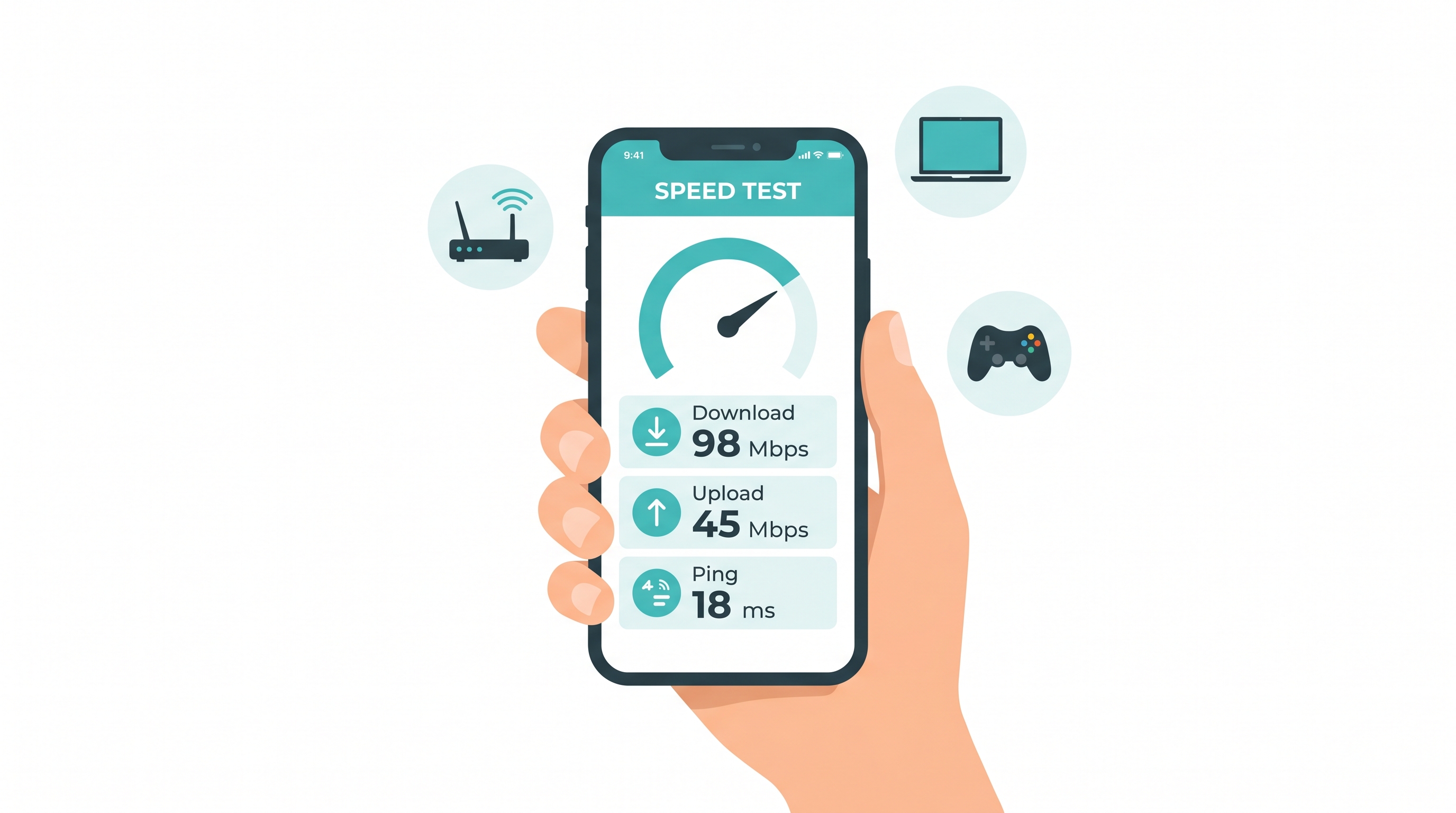
Download Speed, upload speed, and ping are the three numbers your speed test returns. Each one tells you something different about your connection.
-
If your results are consistently lower than your ISP plan promises, your router setup or network congestion is the cause, not your internet line itself.
A speed test is the fastest way to know whether your internet speed matches what you are paying for and, if it does not, exactly where the problem is. This guide covers four methods to check your internet speed, how to read what the numbers mean, and 12 ordered steps to fix slow results for PLDT, Globe, and Converge users in the Philippines.
Table of Contents
How to Test Your Internet Speed
Best Tools to Test Your Internet Speed
How to Read Your Speed Test Results
Speed Tiers: What Your Mbps Actually Supports
Why Is My Internet Speed Slow?
How to Boost Your Internet Speed
Your Speed Test Shows Slow Results: Upgrade Your Network
How to Test Your Internet Speed
A reliable result starts with the right method. Before you run any test, close streaming tabs and background apps to clear the baseline.
Method 1: Run a Speed Test Right Now
-
Connect to your network. For the most accurate reading, plug an Ethernet cable directly into the router rather than testing over Wi-Fi.
-
Open your speed test tool. Go to Fast.com (simplest) or Ookla Speedtest (most detailed). For a full comparison of tools, see the Online speed test tools guide that covers each platform in detail. Here, we focus on the fastest path to a result.
-
Wait for results. The test takes 15 to 30 seconds. Note your download speed, upload speed, and ping.
-
Repeat the test. Run it 2 to 3 times at different times of day, morning, midday, and evening peak hours (7 to 10 PM in Metro Manila). This identifies ISP throttling patterns.
-
Test on multiple devices. If one device is consistently slower, the issue is device-side, not your network.
Method 2: Use Your ISP's Own Speed Test
PLDT, Globe, and Converge each offer a speed test portal tied directly to their network infrastructure. An ISP test measures performance within its network before it reaches third-party servers. If your ISP test shows your full plan speed but Ookla shows lower, the problem is likely your router or home setup.
Some ISPs provide extensive information on latency, packet loss, and congestion data. If the ISP test also shows low speeds, contact your ISP for troubleshooting or a plan review.
Method 3: Router-Based Speed Testing
Checking speed through your router gives you a reading at the source before Wi-Fi interference from walls or devices is a factor. Many TP-Link routers and all Deco mesh systems have a built-in speed test inside their app. Open the Tether or Deco app, go to Tools, and run the test. If your router shows full speed but devices do not, the issue is within your home network, not your ISP line.
Method 4: Monitor Speed Over Time
Tracking results over multiple days identifies patterns. A connection that slows every evening from 8 to 10 PM points to ISP peak-hour congestion rather than hardware. Log your results and check against your plan speeds. Repeated shortfalls are grounds for an ISP ticket.
Best Tools to Test Your Internet Speed
These are the most reliable tools for Philippine connections tested against PLDT Fibr, Globe At Home, and Converge ICX infrastructure:
|
Tool |
Best For |
Mobile App |
Free? |
|---|---|---|---|
|
Speedtest by Ookla |
All-around accuracy |
Yes (iOS & Android) |
Yes |
|
Fast.com (Netflix) |
Quick download check |
Yes (iOS & Android) |
Yes |
|
Google Speed Test |
Instant result in SERP |
Browser only |
Yes |
|
ISP Speed Test |
Plan vs. actual comparison |
Varies by provider |
Yes |
|
Router App (e.g., Deco) |
Household-level baseline |
Yes (router app) |
Yes |
Our recommendation: Run Ookla for the most complete data. Use Fast.com for a quick 10-second download check. Use your ISP's portal when disputing your plan speed with customer support.
How to Read Your Speed Test Results
Speed tests return three main metrics. Understanding each one tells you exactly where a problem is and where it is not.
Download Speed: What Matters for Most Users
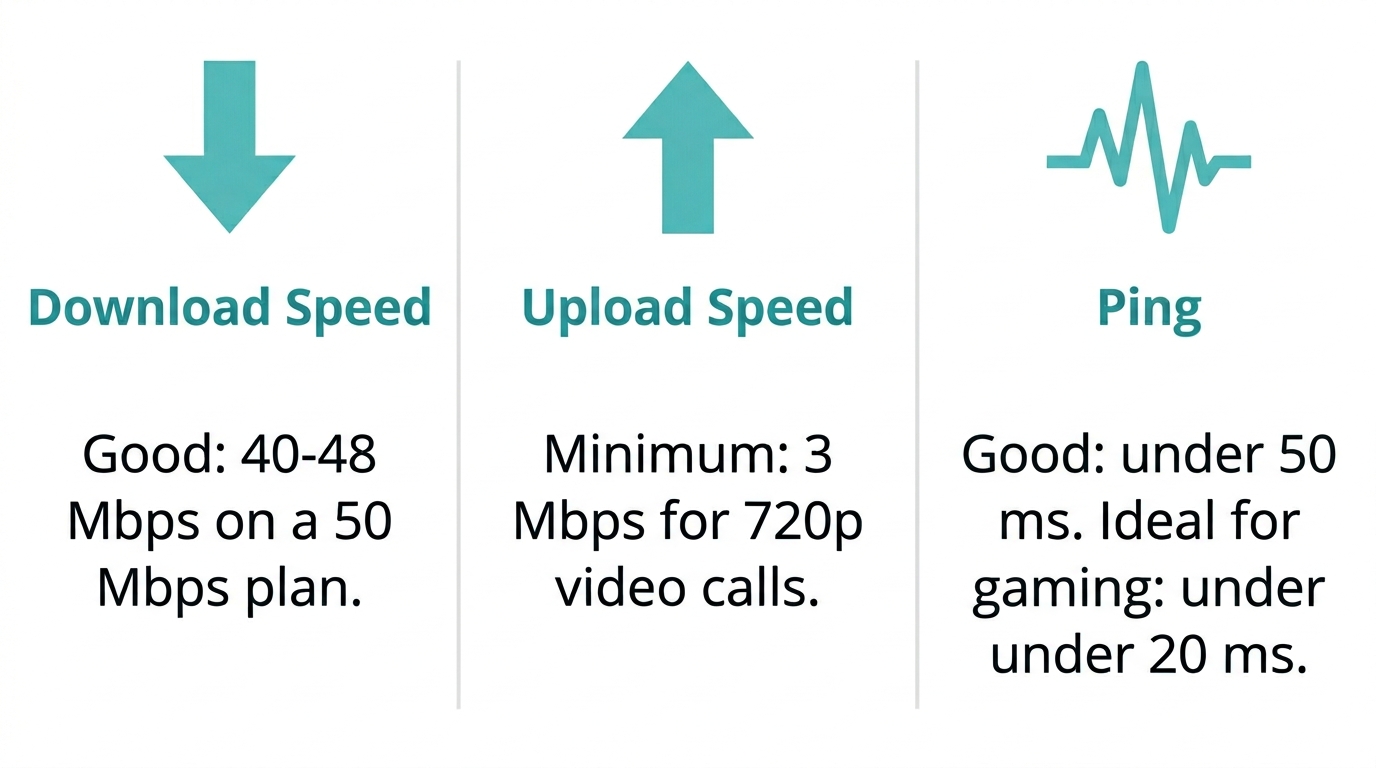
Download Speed measures how fast data arrives at your device. Streaming, browsing, and downloading files all draw from this number. For a Filipino household on a 50 Mbps plan, expect 40 to 48 Mbps on a wired connection during off-peak hours. Below 25 Mbps on a 50 Mbps plan during off-peak hours is worth investigating.
Upload Speed: Critical for Video Calls
Upload speed affects anything you send outward: video calls, cloud backups, and livestreaming. A Zoom call needs at least 3 Mbps upload for 720p. If your upload speed is low relative to your download speed, check which devices are running cloud backups in the background.
Ping and Latency: What Matters for Gaming
Ping measures round-trip response time in milliseconds (ms). For online gaming, under 50 ms is good; under 20 ms is ideal. For video calls, under 100 ms is acceptable. The TP-Link blog has extensive information on latency if you need a deeper breakdown of how to reduce ping on your home network.
Speed Tiers: What Your Mbps Actually Supports
|
Speed (Mbps) |
What It Supports |
Recommended TP-Link Solution |
|---|---|---|
|
1 to 10 |
Basic browsing, email |
Archer EX141 (entry-level fiber) |
|
10 to 50 |
SD streaming, 1 to 3 devices |
Archer C-series dual-band router |
|
50 to 100 |
HD streaming, video calls, casual gaming |
Wi-Fi 6 router (EX141 or equivalent) |
|
100 to 300 |
4K, multiple heavy users, cloud backups |
Archer C5400X (tri-band, gaming-grade) |
|
300 Mbps+ |
Full smart home, 4K + gaming simultaneously |
Deco Mesh system for whole-home coverage |
Why Is My Internet Speed Slow?
If your results are consistently lower than your plan, these are the most common causes for Philippine home networks. See TP-Link's support guide on slow speeds for full diagnostics.
Too Many Devices on One Network
Each device pulling data reduces the bandwidth available to every other device. During evening peak hours in a Metro Manila apartment, 8 to 12 connected devices, including phones, smart TVs, and laptops, are common. Check your router's connected device list and disconnect idle ones. Bandwidth limitations scale with the number of active simultaneous users.
Router Hardware or Age
A router more than 3 to 5 years old may physically cap at speeds below your ISP plan's limit. Older hardware also lacks the 5 GHz band separation needed to handle modern device counts. See your internet speed guide for how router specifications affect delivered speed.
Concrete Construction and Signal Loss
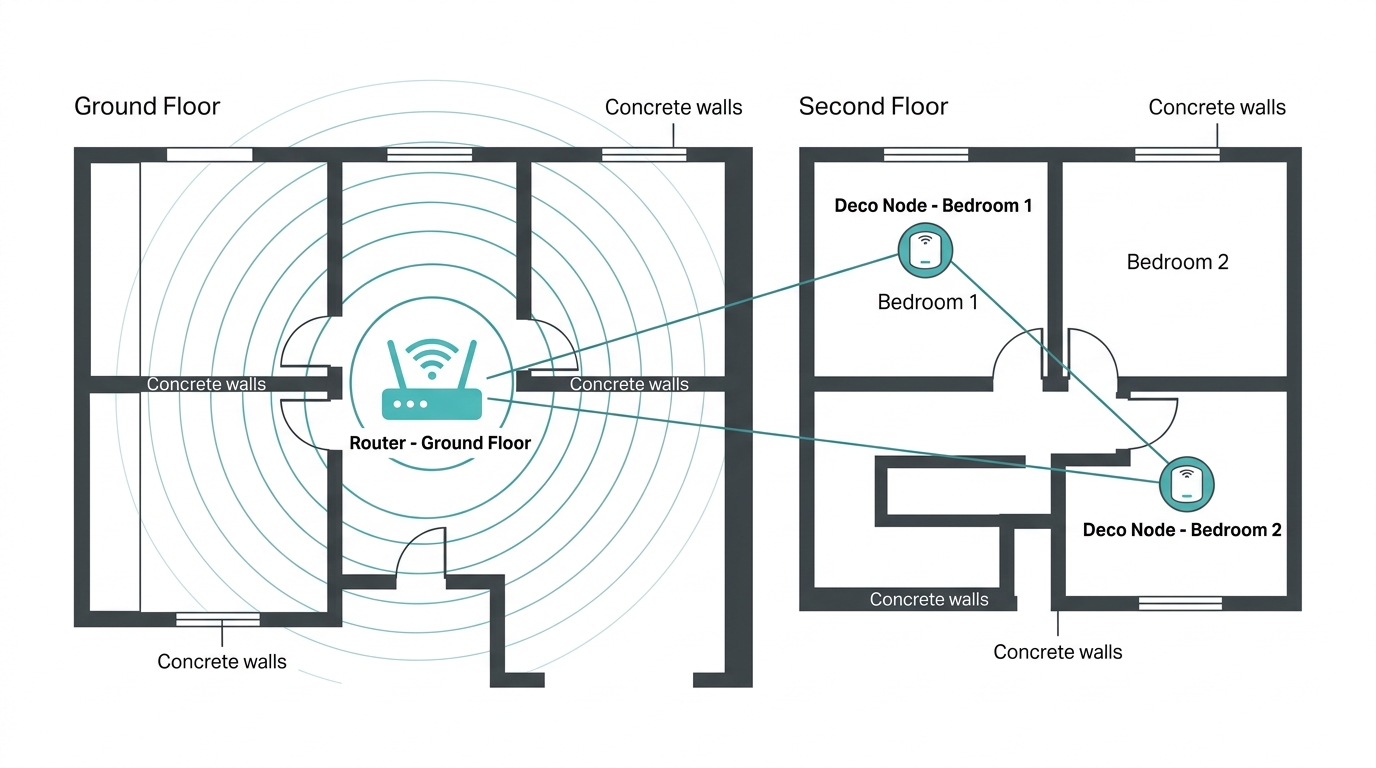
Philippine homes are predominantly concrete. Reinforced walls attenuate 2.4 GHz Wi-Fi significantly and block 5 GHz almost entirely beyond one wall. If your internet connection is slow only in certain rooms, signal loss from concrete is the most likely cause - not your ISP.
ISP Peak-Hour Congestion
PLDT, Globe, and Converge all experience congestion from 7 to 10 PM in high-density areas. If your speed tests only show slow results during these hours, your hardware and plan are fine; the bottleneck is shared infrastructure. Monitor results across your home network for at least a week before filing a formal ticket.
How to Boost Your Internet Speed
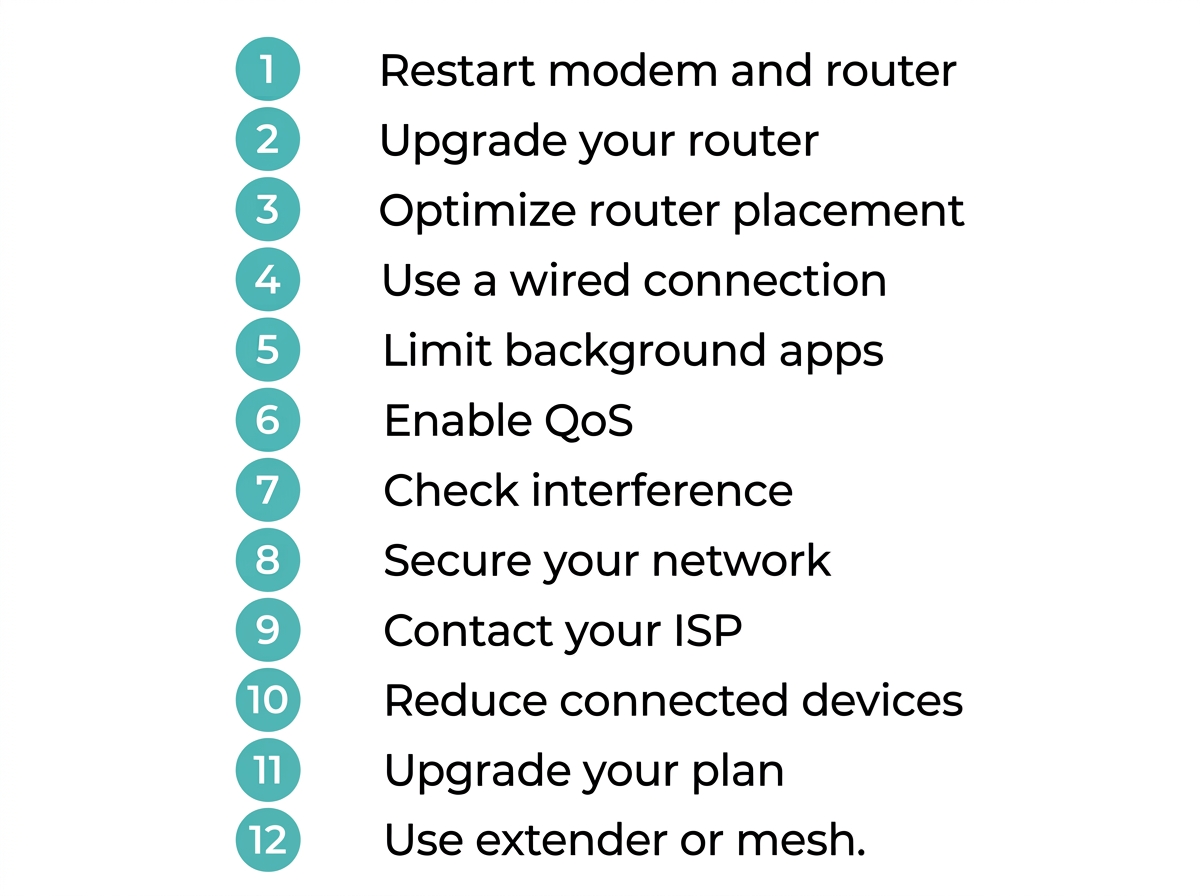
Work through these in order. The first three steps resolve most speed complaints without hardware upgrades. See TP-Link's speed tests FAQ for additional diagnostic steps.
1. Restart Your Modem and Router
Restart Your Modem and Router by unplugging both devices for 30 seconds before reconnecting. This clears memory overflow, refreshes the IP lease, and resolves most temporary speed drops. Do this first because it fixes roughly a third of reported speed issues without further intervention.
2. Upgrade Your Router
Older routers cap at 100 Mbps or lower. A Wi-Fi 6 router handles more simultaneous device connections, delivers better throughput on congested networks, and supports the 160 MHz channel width available on modern fiber plans. If your ISP plan is 150 Mbps or above, your router should support those speeds to deliver them.
3. Optimize Router Placement
Place the router centrally in your home, at least 1 meter off the floor, away from concrete walls and appliances. Elevating the router reduces interference from floor-level obstacles. In a two-story Philippine home, the midpoint of the staircase or a central first-floor location typically gives the most even coverage across both floors.
4. Use a Wired Connection
Ethernet eliminates Wi-Fi signal loss. For activities where latency matters - such as gaming, 4K streaming, and video calls, plug directly into the router. This also gives you a more stable connection that does not vary with room conditions or interference.
5. Limit Background Applications
Streaming services, automatic cloud backups, and OS updates can consume most of a connection silently. Check Task Manager (Windows) or Activity Monitor (Mac) to identify which applications are pulling bandwidth, and schedule large downloads during off-peak hours.
6. Enable Quality of Service (QoS)
QoS settings on TP-Link routers let you prioritize traffic by device or application type, ensuring smoother performance for gaming or video calls, even when other devices are downloading in the background. Access QoS settings through the Tether app or your router's admin panel.
7. Check for Network Interference
Microwaves, cordless phones, and neighboring Wi-Fi networks compete on the 2.4 GHz band. Switch your router to 5 GHz for nearby devices. Whether you're streaming movies or on a video call, the 5 GHz band in an apartment building delivers noticeably more consistent throughput than 2.4 GHz during peak evening hours.
8. Secure Your Network
An unsecured network allows neighboring devices to consume your bandwidth undetected. Set a strong password and use WPA3 encryption for better security. WPA3 is the current security standard on all modern TP-Link routers and is significantly harder to crack than WPA2.
9. Contact Your ISP
If speed issues persist after troubleshooting your hardware, the problem may be line-side. Contact your ISP for troubleshooting and request a line check or port inspection. Bring your logged speed test results, timestamps, and Mbps readings so the support agent can identify whether the pattern matches a known infrastructure issue in your area.
10. Reduce Connected Devices
Audit your router's connected device list monthly. Smart TVs, IoT devices, and old phones often stay connected and pull background updates even when not in active use. Disconnect idle devices and set less-used devices to connect only when needed.
11. Upgrade Your Internet Plan
If your household has grown with more remote workers, more 4K TVs, and more smart devices, your current plan may simply be undersized. PLDT Fibr, Globe At Home, and Converge all offer tiered upgrades with same-day or next-day reconfigurations. Review your average speed test results against the playing online games and streaming movies requirements table above before committing to a plan tier.
12. Use a Wi-Fi Extender or Mesh System
If weak signals in certain rooms are the cause, a Wi-Fi extender can extend coverage without re-cabling. For homes larger than 100 sqm or with multiple concrete floors, a mesh network solution is more effective, as it uses multiple nodes to create seamless coverage instead of extending a weaker signal. See the beginner's guide on eliminating dead zones for setup instructions.
Note: Wi-Fi extenders may increase coverage in smaller spaces, but mesh is the better long-term solution for large or multi-floor Philippine homes.
Your Speed Test Shows Slow Results: Upgrade Your Network
If troubleshooting steps have not resolved your speed issues, the hardware itself may be the bottleneck. TP-Link builds routers for every household type in the Philippine market, from basic fiber connections to large concrete-walled homes with 30+ connected devices.
Basic Home (1 to 2 Users, Single Floor)
The Wi-Fi 6 router (EX141) handles standard fiber plans up to 300 Mbps reliably. It supports Wi-Fi 6 for faster device throughput and is compatible with PLDT, Globe, and Converge fiber lines.
Multi-Device Household (3 to 6 Users, Multiple Devices)
Playing online games, the Archer C5400X is a tri-band router built for households where several people are simultaneously streaming, gaming, and on video calls. For competitive-level latency, it also supports QoS and ensures smoother performance for gaming (Archer GE550), which is purpose-built for gaming traffic prioritization.
Large Concrete-Walled Home (100+ sqm, Multi-Floor)
A single router cannot penetrate multiple reinforced concrete walls reliably. TP-Link mesh systems, the Deco series, place multiple nodes throughout the home, creating a seamless network that hands off devices between nodes without disconnecting.
View all TP-Link's Wi-Fi routers or go directly to the mesh systems page to find the right Deco model for your floor plan.
Frequently Asked Questions
Why is my Wi-Fi slow even though I have high-speed internet?
An outdated router is the most common reason your high-speed plan does not reach your devices. The most likely causes are a router that cannot deliver your full plan speed over Wi-Fi, signal loss from concrete walls between the router and your device, or too many devices consuming bandwidth simultaneously. Run a wired speed test first. If wired speeds match your plan but Wi-Fi does not, the issue is signal transmission, not your ISP.
Should I use a Wi-Fi extender or mesh network?
Mesh networks outperform extenders in most Philippine homes larger than 80 sqm. Extenders are suitable for small homes with one weak spot. For homes larger than 80 to 100 sqm, or homes with multiple concrete floors, mesh networks deliver better performance because each node provides full-speed Wi-Fi rather than repeating a degraded signal. Wi-Fi extenders may increase coverage in smaller spaces but can reduce speeds in the extended zone by up to 50%.
Should I upgrade my router to improve Wi-Fi speed?
Yes, if your router is 3 to 5 years old, it was built for lower speeds and fewer devices than your current setup demands. A current Wi-Fi 6 router handles more simultaneous connections and supports the wider channel widths modern fiber plans now offer. See TP-Link's Wi-Fi routers for current models compatible with the Philippine ISP infrastructure.
What internet speed do I need for streaming and gaming?
HD streaming requires at least 5 Mbps; 4K requires 25 Mbps per stream. Online gaming needs low ping more than high bandwidth. 20 Mbps download with sub-50 ms ping beats 100 Mbps with 150 ms ping for competitive play. For a full breakdown, see the online gaming latency guide and the streaming movies tips.
How do I know if my ISP is throttling my connection?
Consistent evening slowdowns are the clearest signal of ISP throttling. Run speed tests at multiple times of day for at least one week and log the results. If speeds consistently drop from 7 to 10 PM and recover after midnight, peak-hour throttling or congestion is the likely cause. Bring logged data when you contact your ISP for troubleshooting.
Final Thoughts
Testing your internet speed takes under a minute and gives you exactly what you need to diagnose the problem, whether it is your ISP, your router, your home layout, or your number of connected devices. For most Philippine users, Ookla Speedtest gives the most complete reading. Fast.com is the fastest option when you need a quick download check.
Once you have your baseline, work through the 12 boost tips above in order. Most speed complaints are resolved before you get to Tip 6. If hardware is the bottleneck, TP-Link has routers and mesh systems for every home size and plan tier in the Philippine market.