10.0.0.1 Login: TP-Link Router Admin Access Guide (2026)
Published: April 16, 2025 · Last Updated: May 2026
|
QUICK ANSWER: How to Access 10.0.0.1 |
|
1. Connect your device to the Piso WiFi router's network via WiFi or Ethernet cable. |
|
2. Open any browser and type http://10.0.0.1 in the address bar, not the search bar. |
|
3. Log in with your admin credentials. Default for most TP-Link routers: username admin, password admin. |
|
Cannot connect? Your router may use 192.168.1.1 or 192.168.0.1 instead. Check the sticker on the back of the device. |
10.0.0.1 is the default gateway IP address used by TP-Link Piso Wi-Fi routers to access the admin panel. From this dashboard, Piso WiFi operators in the Philippines can control session durations, set pricing, adjust bandwidth limits, and monitor revenue all from one central login.
This guide covers everything you need to know about 10.0.0.1 in Piso WiFi: how to log in, what you can configure, how to fix common access problems, and how to get the most out of your TP-Link Piso WiFi setup.
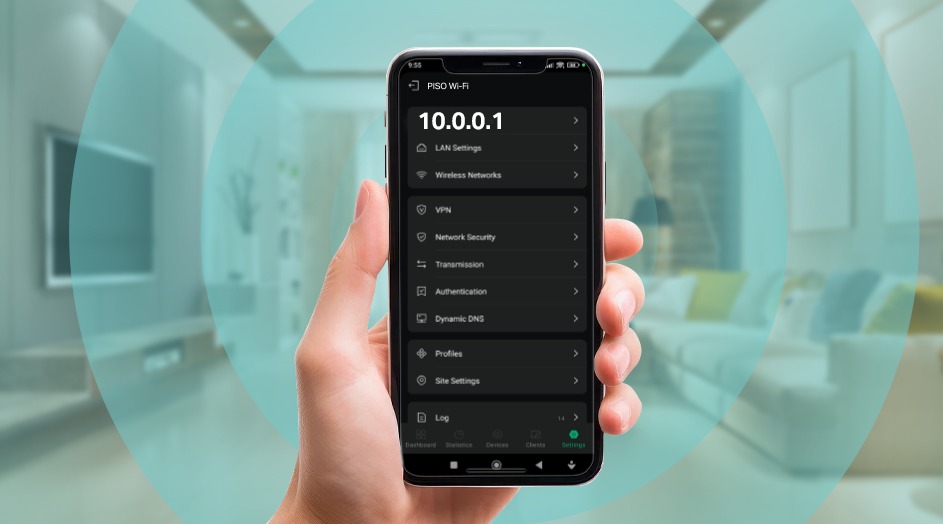
Why Does 10.0.0.1 Matter for Piso WiFi Operators in the Philippines?
Piso WiFi is a prepaid internet system that lets users pay for WiFi access in small increments, a popular income model in Philippine communities, waiting areas, and commercial spaces. The 10.0.0.1 IP address is the control center of this system. From here, network administrators can:
-
Adjust bandwidth limits per user session
-
Set user session durations and pricing tiers
-
Monitor data usage and connected devices
-
Configure security settings and access restrictions
-
Reboot or reset the router remotely
-
Track revenue and transactions in real time
What Is 10.0.0.1 and How Does It Work?
The 10.0.0.1 IP address acts as a gateway between connected devices and the internet. It directs traffic, assigns IP addresses to connected devices, and manages network policies.
When used in a Piso WiFi system, it controls internet access and ensures fair bandwidth distribution among users. It also serves as a way to prevent network congestion, keeping the service stable for multiple users at once.
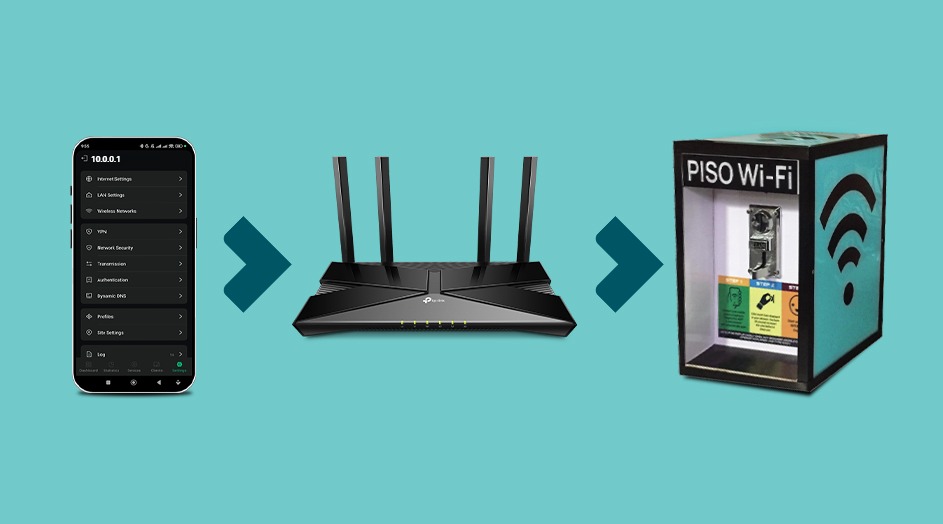
What Can You Do from the 10.0.0.1 Admin Panel?
The 10.0.0.1 dashboard gives Piso WiFi operators full control over the network. Key features include:
-
Admin Panel Access - Log into the router's control panel to manage all settings from one place.
-
User Management - Set session timeouts and allocate bandwidth per connected user.
-
Network Monitoring - View real-time data on active users, connected devices, and data consumption.
-
Security Settings - Configure WPA2/WPA3 encryption, firewall rules, and access control.
-
Remote Reboot and Reset - Restart the network for maintenance or troubleshooting without physical access.
-
Traffic Prioritization - Prioritize bandwidth for specific applications, including video streaming or online gaming, to ensure a smooth user experience.
-
Multiple Payment Options - Accept coin-based and digital payments depending on your Piso WiFi firmware.
How Do You Access 10.0.0.1 on Your Piso WiFi Router?
To log into the 10.0.0.1 admin panel on your TP-Link Piso WiFi router:
-
Connect to the Piso WiFi network using a device: PC, laptop, or smartphone via WiFi or Ethernet.
-
Open a web browser and type http://10.0.0.1 in the address bar.
-
Press Enter to load the login page.
-
Enter the default or customized username and password usually provided in the router manual.
-
Once logged in, navigate the dashboard to adjust network settings as needed.
Tip: Always type 10.0.0.1 in the browser address bar, not the search bar. Searching for it on Google will not load your router's admin panel.
How Do You Configure Piso WiFi Settings Using 10.0.0.1?
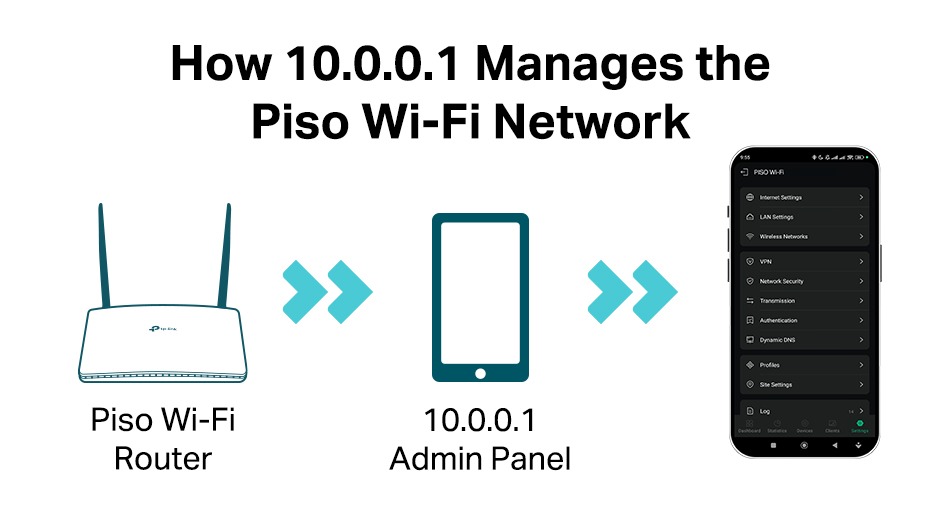
To customize your Piso WiFi setup, use these settings in the 10.0.0.1 admin panel:
-
Set Time Limits - Define how long users can stay connected per session. Common setups: 15 minutes per ₱1, 1 hour per ₱10.
-
Adjust Pricing and Payment Options - Configure coin or digital payment methods, including GCash and Maya.
-
Control Bandwidth - Allocate speed limits to ensure fair internet distribution among users.
-
Enable Security Features - Set up password protection, MAC filtering, and firewalls.
-
Monitor User Activity - Keep track of data usage, active sessions, and device connections.
-
Schedule Router Reboots - Set automatic reboot times - typically 3:00 AM to refresh the network overnight.
-
Enable Advertising Features - Some Piso WiFi systems allow displaying ads before users connect, adding a revenue stream.
Why Can't I Access 10.0.0.1? Common Problems and Fixes
Unable to Access 10.0.0.1
-
Make sure your device is connected to the Piso WiFi router's network, not mobile data or another WiFi network.
-
Restart the router and wait 2 minutes before trying again.
-
Clear the browser cache or open an incognito window and try again.
-
Check if your router uses a different IP, such as 192.168.1.1. The correct IP is printed on the router sticker.
Forgot Admin Login Credentials
-
Check the router manual for default login details.
-
Reset the router to factory settings if login credentials are lost.
-
Store credentials in a secure location for future reference.
Slow Network Performance
-
Limit the number of connected devices from the admin panel.
-
Adjust bandwidth allocation to ensure fair distribution across users.
-
Restart the router to refresh the connection.
-
Upgrade to a better router if problems persist.
Router Keeps Disconnecting
-
Check for overheating and place the router in a well-ventilated area.
-
Ensure a stable power supply, as fluctuations are a common issue in Philippine commercial setups.
How Do You Reset a Piso WiFi Router via 10.0.0.1?
If your Piso WiFi system is not working correctly, resetting the router can help. Two options are available:
Soft Reboot - Keeps Your Settings
-
Log in to 10.0.0.1 using your admin credentials.
-
Navigate to System Tools or Advanced > System.
-
Click Reboot or Restart.
-
Wait 2 minutes for the router to fully restart. All your settings are preserved.
Factory Reset - Wipes All Settings
-
Log in to 10.0.0.1 using your admin credentials.
-
Navigate to the System Tools or Maintenance tab.
-
Look for the Reset or Reboot option.
-
Choose Factory Reset if a full reset is required.
-
Confirm the action and wait for the router to restart.
-
Reconfigure your Piso WiFi settings from scratch after the reset.
Hardware alternative: If you cannot log in at all, press and hold the recessed Reset button on the back of the router for 10 seconds using a paperclip. This restores factory defaults without needing dashboard access.
Advanced Settings to Improve Piso WiFi Performance
-
Enable QoS (Quality of Service) - Prioritize bandwidth for specific applications to keep speeds consistent for paying users.
-
Set Data Limits per User - Prevent excessive data consumption by individual users.
-
Adjust Frequency Band - Use dual-band routers (2.4 GHz and 5 GHz) for better performance across different devices.
-
Use External Antennas - Improve WiFi range and signal strength in larger spaces or concrete Filipino buildings.
-
Check for Interference - Keep the router away from microwaves or cordless phones that disrupt the 2.4 GHz signal.
Which TP-Link Router Is Best for Your Piso WiFi Setup?
Choosing the right router is the foundation of a reliable and profitable Piso WiFi business. Here are the recommended TP-Link routers based on your setup type:
|
Piso WiFi Setup Type |
Recommended TP-Link Router |
Where to Find It |
|
Standard Piso WiFi with SIM card slot |
TL-MR6400 - the most widely used Piso WiFi router in the Philippines. Supports 4G LTE with a SIM slot. |
|
|
High-capacity Piso WiFi with more users |
The Archer series dual-band handles more simultaneous users for busier commercial setups. |
|
|
Portable or travel Piso WiFi |
TL-MR100 / TL-M7350 - battery-powered LTE routers with a SIM slot for mobile setups. |
If 10.0.0.1 keeps disconnecting or the admin panel hangs frequently, it is usually a sign that the router needs an upgrade. Browse the full TP-Link Philippines lineup to find the right fit for your Piso WiFi business.
Frequently Asked Questions About 10.0.0.1 and Piso WiFi
|
1. Can I change the 10.0.0.1 IP address? |
|
Yes. In the admin panel, go to Network > LAN and change the IP address. Note the new IP before saving; you will need it to log in after the router restarts. Only do this if you are confident in your network settings. |
|
2. What if my Piso WiFi router does not use 10.0.0.1? |
|
Some routers use 192.168.1.1 or 192.168.0.1 as their default IP. Check the router manual or label for the correct address. You can also try http://tplinkwifi.net as a universal alternative that works on all modern TP-Link routers. |
|
Enable WPA2 or WPA3 encryption, change the default admin credentials immediately after first setup, and use MAC filtering to restrict unauthorized devices. These three steps protect both your network and your customers. |
|
4. How do I increase revenue from my Piso WiFi? |
|
|
|
|
|
5. Can Piso WiFi support WiFi calling? |
|
Yes, Piso WiFi can support WiFi calling, but the quality depends on the strength, stability, and speed of the connection. For best results, ensure your router delivers sufficient bandwidth and is positioned for strong signal coverage throughout your space. |
|
6. Is 10.0.0.1 compatible with any Philippine internet connection? |
|
Yes. TP-Link Piso WiFi routers using 10.0.0.1 work with any Philippine internet connection: fiber, DSL, cable, or LTE. The 10.0.0.1 admin panel manages your local network settings independently from your internet provider. |
|
7. What is the best TP-Link router for Piso WiFi in the Philippines? |
|
The TL-MR6400 is the most widely used TP-Link router for Piso WiFi setups in the Philippines. It supports 4G LTE with a SIM card slot, making it ideal for areas without fixed-line broadband. For higher capacity setups, the Archer series with dual-band WiFi handles more simultaneous users. |
Final Thoughts
The 10.0.0.1 IP address is essential for managing and optimizing Piso WiFi networks. By using the admin panel, you can control user sessions, adjust bandwidth, and enhance security to ensure a reliable network for customers.
To maximize your Piso WiFi setup, consider using high-quality routers from TP-Link. Our range of Wi-Fi devices ensures stable connections, better coverage, and enhanced security for seamless operation. Whether you're setting up a new Piso WiFi business or upgrading an existing one, TP-Link provides the reliability and performance you need.
Last updated: May 2026 by Laviet Joaquin, Head of Marketing, TP-Link Philippines.