How to Set Up a Mesh WiFi System: Step-by-Step Guide
Published: May 3, 2024 | Last Updated: July 2026
Published: March 5, 2024 · Last Updated: July 2026
Quick Answer: How to Set Up a Mesh WiFi System
-
Setting up a mesh WiFi system takes five steps: download the app, connect the main node to your modem, place additional nodes around your home, configure your network settings, and test for dead zones.
-
Most households complete the full setup in 15 to 30 minutes using the manufacturer's mobile app, with no technical expertise required.
-
In Philippine homes with concrete walls or multiple floors, correct node placement one node per floor, kept within one or two rooms of each other matters more than the number of nodes you buy.
If you’re ready to upgrade to mesh due to a weak WiFi connection but unsure where to start, this guide walks through the entire process: what to do before you unbox anything, the exact setup steps, and how to place nodes correctly in a Philippine home with concrete walls and multiple floors.
Table of Contents
How to Set Up a Mesh WiFi System
Tips for Maximizing Performance
Maintaining Your Mesh WiFi System
What Is Mesh WiFi
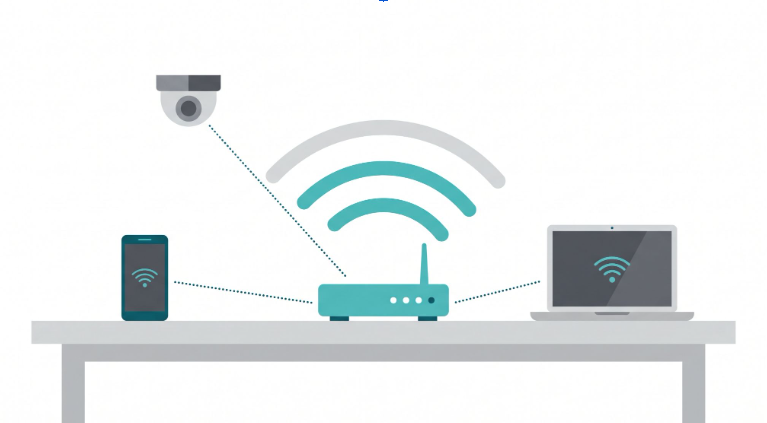
A mesh WiFi system combines multiple nodes into a unified, seamless Wi-Fi network that blankets your home with consistent coverage under a single network name. For the full explanation of how mesh technology works, see the foundational guide for setting up your mesh Wi-Fi system. This article focuses entirely on the setup process itself.
Preparing for Setup
Before you unbox anything, a few minutes of planning save you from repositioning nodes later.
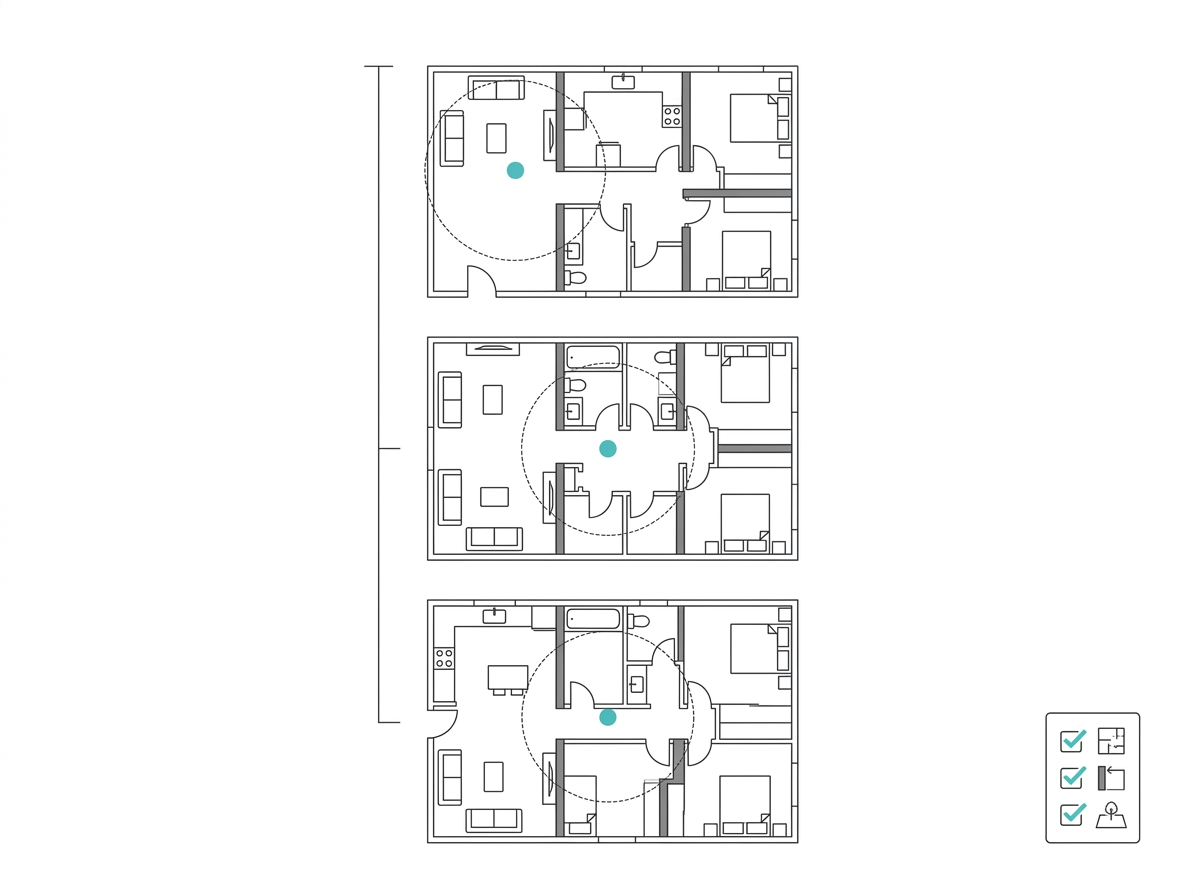
Assess your home's layout. Count your floors, note where thick walls or large obstacles sit, and identify any outdoor areas you want covered. This determines how many nodes you need and roughly where they should go. A standard two-story Philippine townhouse typically needs two to three nodes; a three-story home usually needs three, one per floor.
Choose your system. Mesh Wi-Fi systems vary by speed, coverage range per node, and extra features like parental controls or built-in security. A few starting points, depending on your situation:
-
Deco Whole-Home Mesh WiFi System - the standard indoor lineup covering most home sizes and budgets
-
AX3000 Outdoor / Indoor Whole Home Mesh WiFi 6 Unit - for outdoor coverage in yards, garages, or compound-style properties with multiple structures, common among boarding house operators and larger family compounds in the Philippines
-
OneMesh Whole-Home WiFi - TP-Link's technology that lets a compatible router and extender work together under one network name, a lighter-weight option if you are not ready for a full Deco system
This setup guide focuses on Deco-style systems since they cover the majority of Mesh Wi-Fi system installations in Philippine households, though the core steps apply broadly across mesh platforms.
Gather your equipment. You will need the main node, any additional satellite nodes, an Ethernet cable for the main node's connection to your modem, and a power outlet for each node.
How to Set Up a Mesh WiFi System
Setup follows five straightforward steps.
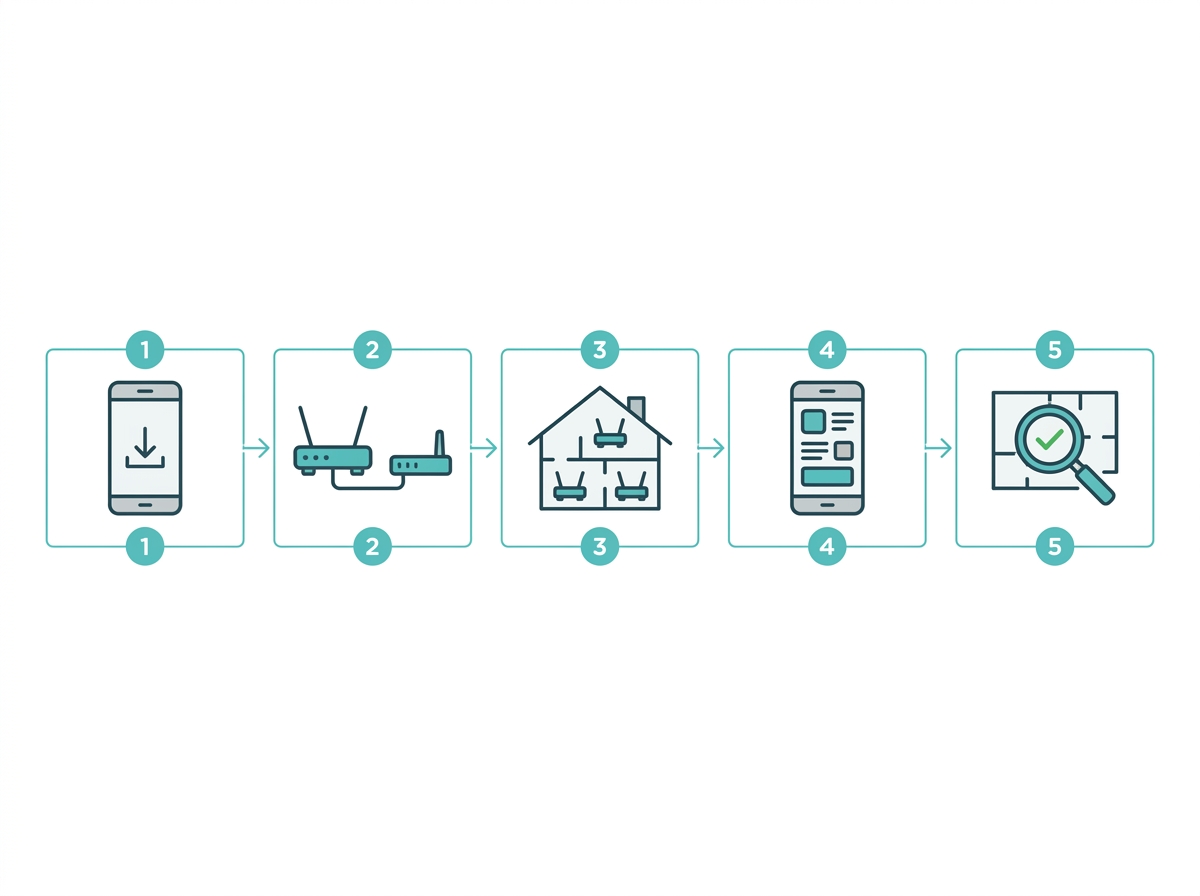
Step 1 - Download the app. Most mesh systems, including TP-Link Deco, come with a dedicated app for setup and management. Download it before unboxing your nodes so you are ready to follow the in-app instructions as soon as the hardware is connected.
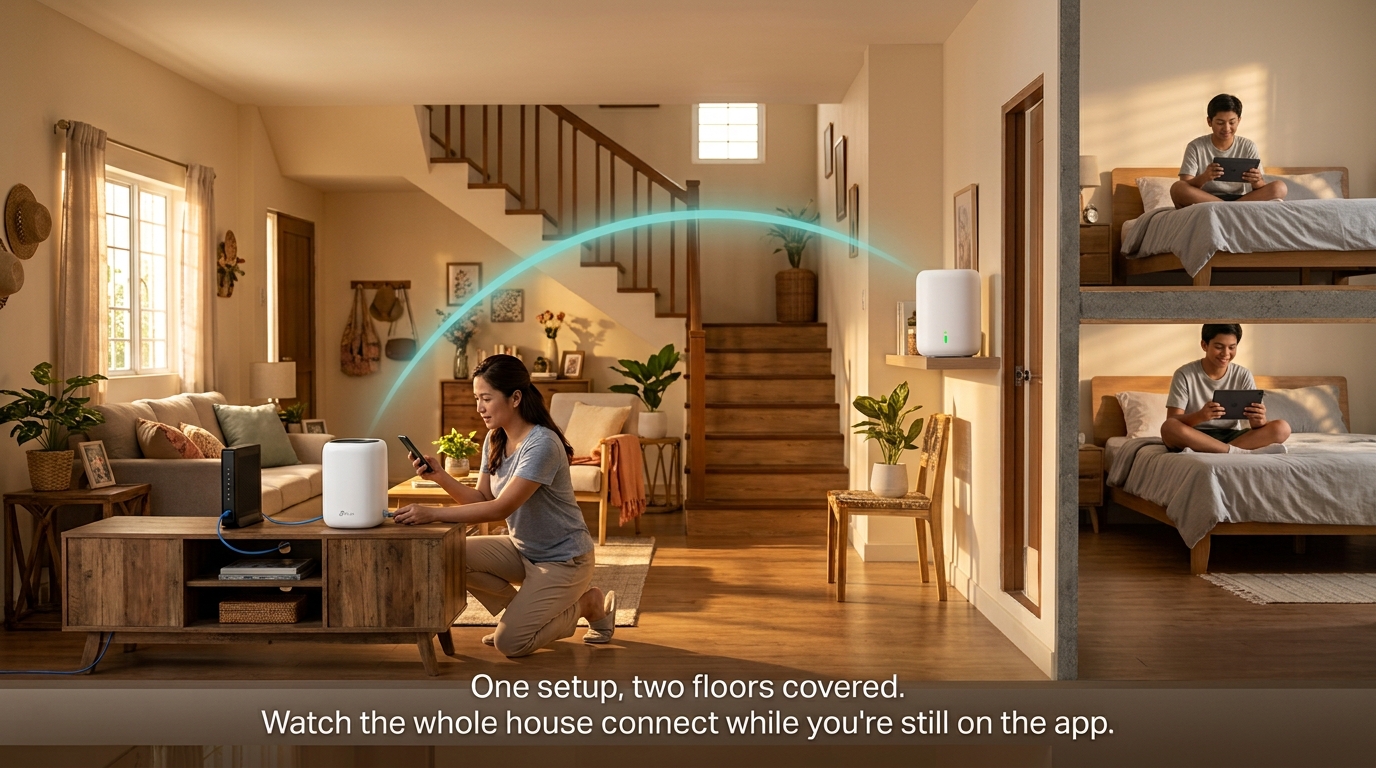
Step 2 - Connect the main node. Position the main node in a central, elevated location in your home, unobstructed by walls or furniture if possible. Once the modem or router is in place, plug the main node into your modem via an Ethernet cable, power it on, and follow the app's instructions to bring it online.
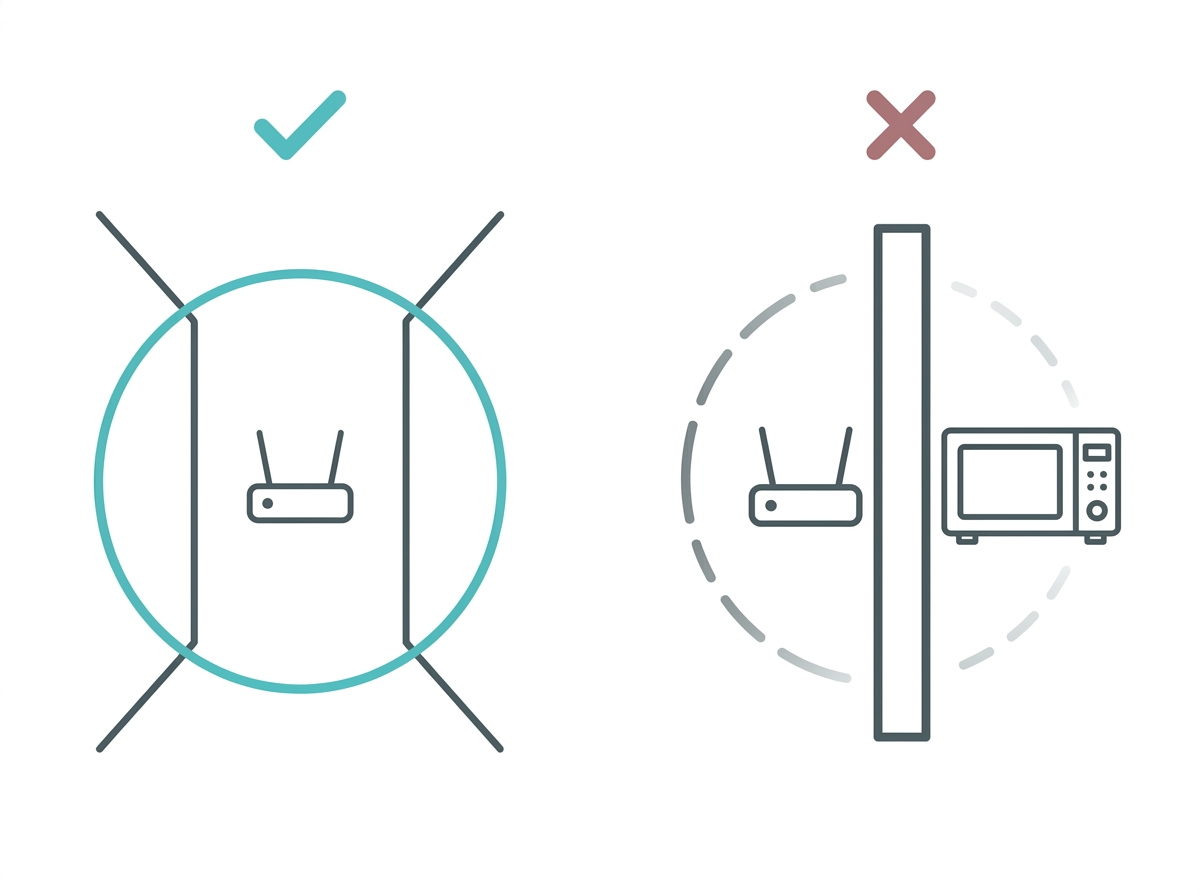
Step 3 - Place additional nodes. Position secondary nodes throughout your home for optimal coverage, typically in living rooms, bedrooms, or home offices where you use WiFi most. In a Philippine home with concrete interior walls, keep nodes within one or two rooms of each other rather than spacing them too far apart; concrete absorbs signal aggressively, so nodes that are too distant from each other create weak handoff points instead of solid coverage. Keep nodes away from microwave ovens and cordless phones, which can interfere with the signal. Connect each node to a power source using the provided power adapter.
Step 4 - Configure settings. Use the app to set your network name (SSID) and password, then improve WiFi security settings like WPA3 encryption. From here, you can also set up guest networks, parental controls, and device prioritization through Quality of Service (QoS), which is useful for Philippine households juggling video calls, streaming, and gaming on the same network during peak hours (7 to 10 PM).
Step 5 - Test your network. Walk through your home checking signal strength in every room, especially previously problematic dead zones. If a spot is still weak, that node may need to be repositioned closer to the dead zone or closer to the previous node, whichever is creating the gap.
Tips for Maximizing Performance
Strategic node placement. Position nodes centrally within each coverage zone, away from walls, large appliances, and furniture. Avoid placing nodes near microwaves or cordless phones, which cause interference on the 2.4 GHz band.
Monitor network performance regularly. Use the app or web interface to check for congestion or interference periodically, especially after rearranging furniture or adding new devices to the network.
Use Quality of Service and parental controls. Prioritize streaming and gaming devices through QoS settings, and set up parental controls to manage children's internet access and screen time.
Keep firmware updated. Check for firmware updates regularly and install them as they become available. Updates often include bug fixes, security patches, and performance improvements.
Optimize channel and band selection. Most mesh systems let you manually select WiFi channels and bands to reduce interference from neighboring networks, though automatic band steering handles this well in most modern systems.
Measure the performance of your network periodically. Run speed tests to confirm your mesh system is delivering close to your planned speed throughout the home. If performance drops significantly in a specific area, that usually points to a node placement issue rather than an internet plan issue.
Upgrade your internet plan if needed. A mesh system distributes your existing connection efficiently, but it cannot exceed the speed your ISP delivers. If you consistently experience slow speeds even with good mesh coverage, check whether your PLDT, Globe, or Converge plan still matches your household's usage.
Maintaining Your Mesh WiFi System
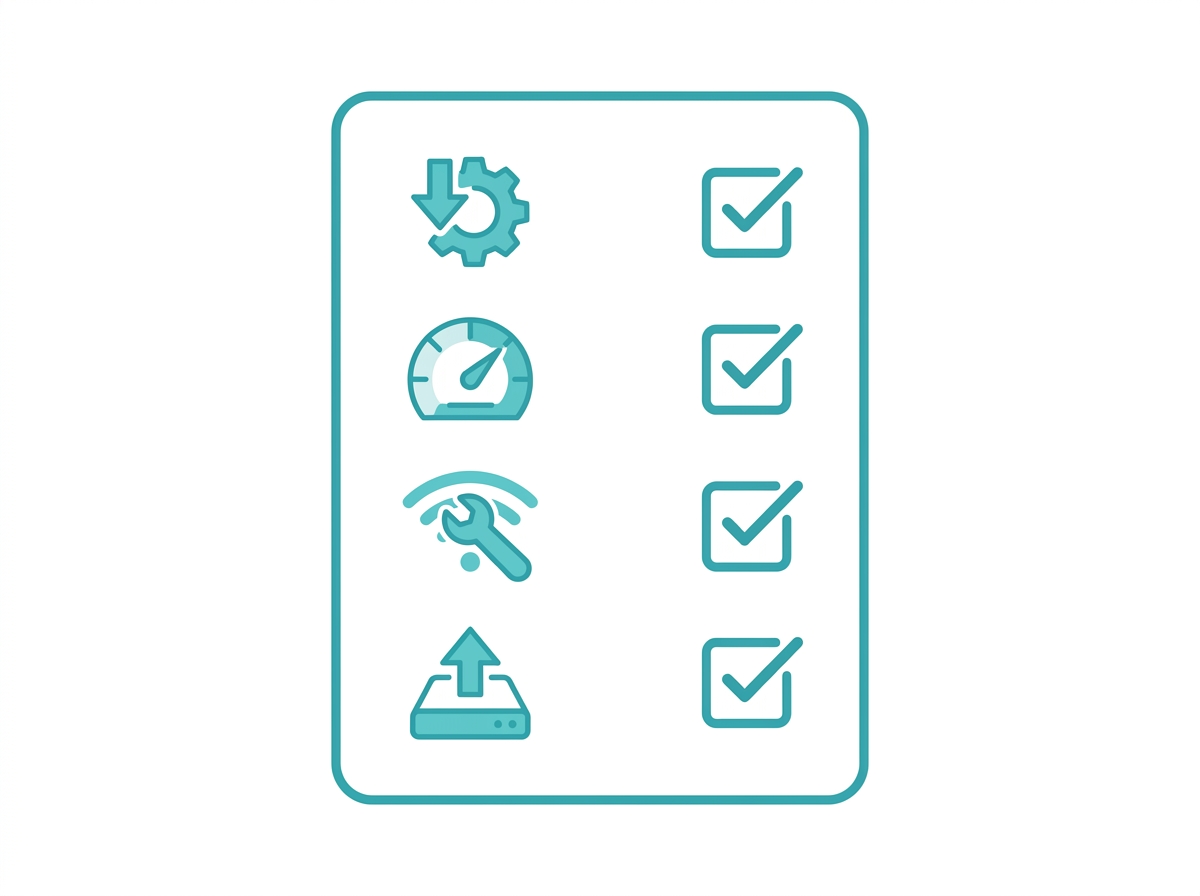
Once your system is running, a few periodic checks keep it performing well.
-
Check for firmware updates periodically and install them to keep your network secure and current.
-
Run speed tests occasionally to catch performance drops early. If a specific area consistently underperforms, consider repositioning the nearest node.
-
Troubleshoot persistent issues through the manufacturer's app or customer support if dropped connections or slow speeds continue after basic adjustments.
-
Upgrade hardware when it no longer meets your needs as your household adds devices or your home changes; newer mesh generations may offer better capacity and speed meaningfully.
Frequently Asked Questions
How do I secure my mesh WiFi network?
Enable WPA3 encryption through your mesh app immediately after setup. This is the single most important security step. Change the default admin password to something unique, and keep firmware updated to patch vulnerabilities as they are discovered. Most Deco systems also offer additional protections like malicious site blocking and intrusion detection through HomeShield. If you want to secure your WiFi router beyond these basics, a full security checklist covers guest networks, firewall settings, and access control.
Can I expand my mesh WiFi system later?
Yes, mesh systems are built for easy expansion. Add a single node or an expansion pack from the same product line, and the app integrates it into your existing network automatically, with no need to reconfigure your entire setup. This is one of the biggest practical advantages over a router-and-extender setup, where adding more devices increases complexity rather than simplifying it.
How many nodes do I need for my mesh WiFi system?
The number depends on your home's size, construction, and device count. A general guideline for Philippine homes: one node per floor for multi-story houses, with an additional node if your layout includes unusually thick walls or an irregular floor plan. A single-floor apartment under 100 sqm often needs only the main node plus one satellite. Mesh Wi-Fi systems with stronger per-node coverage, like WiFi 6 and WiFi 7 models, may need fewer total nodes than older WiFi 5 systems to cover the same area.
Why is my mesh node not connecting during setup?
This is usually a placement or power issue, not a defective unit. Confirm the node is within range of the main router or an already-connected node before moving it to its final position. Some apps recommend completing initial pairing close to the main node, then relocating once the connection is confirmed. Restart the node, confirm your modem connection is stable, and check that you are using the correct app for your specific Deco model.
Do I need to connect nodes with an Ethernet cable, or is wireless setup enough?
Wireless setup is sufficient for most homes and is how the majority of mesh nodes are configured. Ethernet backhaul, where available, improves performance by giving nodes a dedicated wired connection to each other instead of using WiFi bandwidth for inter-node communication. If you have existing Ethernet wiring or are willing to run cable between floors, it is worth using, but it is not required to get a fully functional mesh network.
Should I upgrade to a higher-speed internet plan before setting up mesh WiFi?
Not necessarily before setup, but it is worth checking afterward. A mesh system fixes coverage problems, not bandwidth problems. If your dead zones disappear after proper mesh setup but your overall speeds still feel slow throughout the home, the bottleneck is likely your ISP plan rather than your WiFi hardware.
Can I mix different mesh node models, like an older Deco with a newer one?
Most Deco models are designed to work together regardless of generation, since mesh systems like WiFi 6 and newer Deco units are built to be backward-compatible with the broader Deco lineup. Performance will be limited by the slowest node in the mesh, so for best results, pair similar generations together, but a mixed setup will still function as one unified network.
Final Thoughts
Setting up a mesh WiFi system is far simpler than most people expect: five steps, 15 to 30 minutes, and no technical background required. The part that actually determines your results is node placement, not the app configuration. Get that right for your specific home's layout and concrete walls, and the rest of the setup takes care of itself.
For more than a decade, TP-Link has delivered networking products to over 170 countries, serving hundreds of millions of customers worldwide. A few starting points, depending on your setup:
Deco BE25 Whole Home Mesh WiFi 7 System - the easiest setup experience for larger homes, with real-time Internet of Things security and robust parental controls built in, compatible with any ISP and modem.
Deco E4 (AC1200) Whole Home Mesh Wi-Fi System - the most budget-friendly entry point for setup, with the same straightforward app-guided process as higher-tier models, covering up to 2,800 sq ft per two-pack.
If you decide partway through this guide that your dead zone is small and isolated rather than whole-home, an extender like the RE705X (AX3000) Mesh WiFi 6 Extender may be the simpler fix instead. Note that this is a WiFi 6 Extender, not a Deco mesh node, so it follows a different setup process. See “Mesh WiFi vs. WiFi Extender” to confirm which is the right fit before you buy.