How to Fix VIGI App Notifications Not Working on Your Mobile Device
Contents
Introduction
When an event is triggered on your VIGI device, your mobile phone/tablet may fail to receive the corresponding push notification. This article provides troubleshooting steps to help you identify and resolve common notification issues in the VIGI App.
Requirements
- VIGI App
- VIGI Camera or VIGI NVR
Troubleshooting
If you experience a problem with missing VIGI App Notifications on your mobile phone/tablet, please follow the troubleshooting steps below:
Step 1. Check whether Notifications are properly configured in the VIGI App.
Go to Me > Settings > Message Notification Settings and check whether you have turned on Event Notifications.
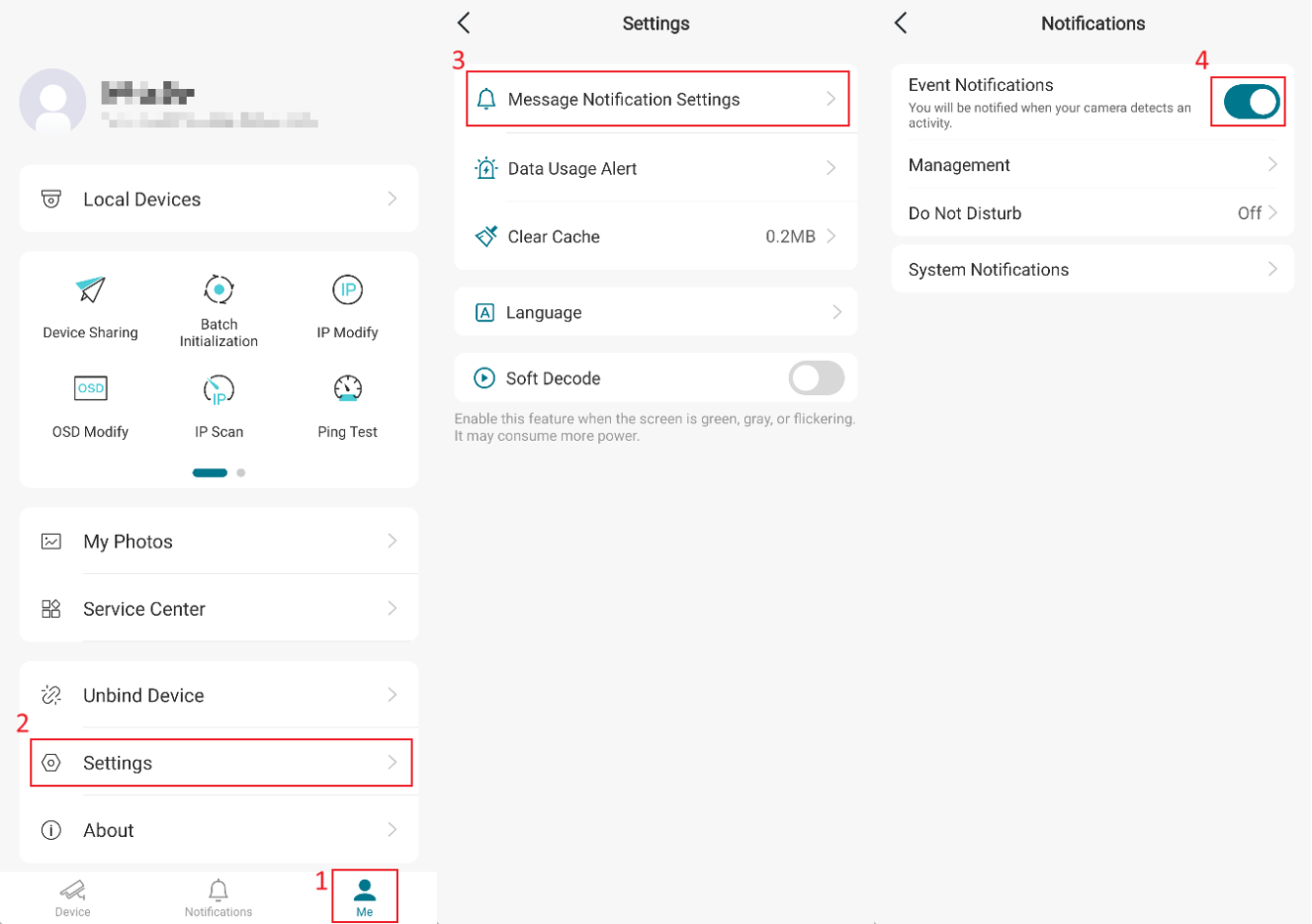
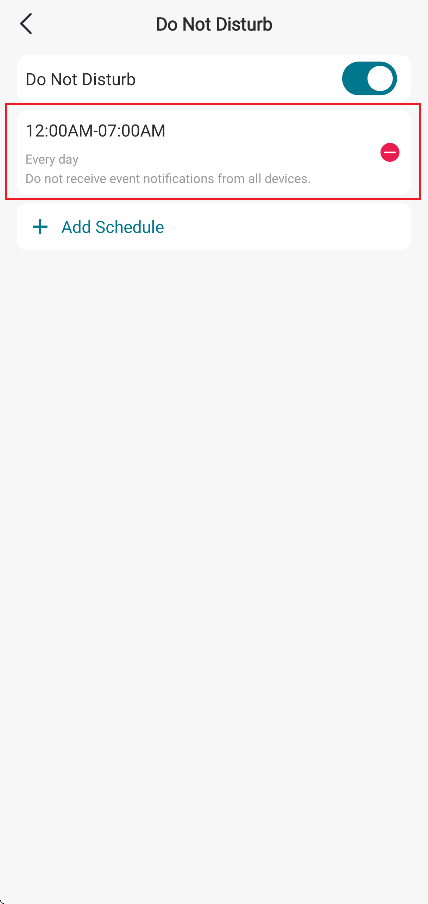
On the Notifications page, tap Do Not Disturb and ensure Do Not Disturb is disabled, or that event notifications are triggered outside the Do Not Disturb Schedule period.
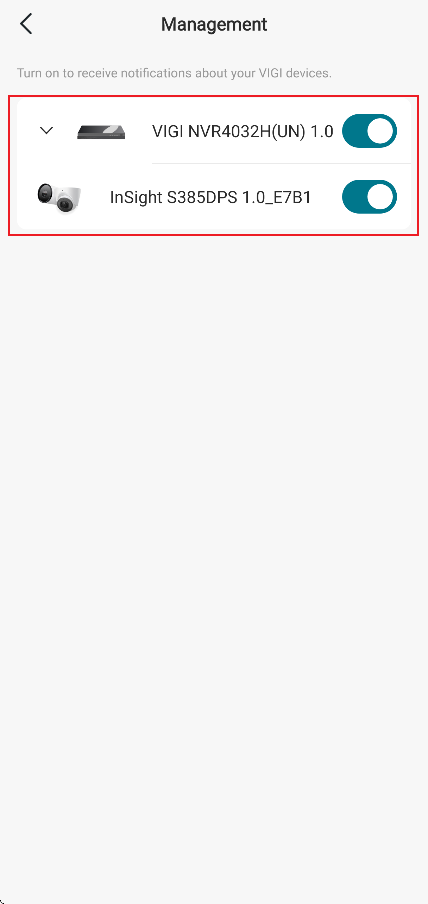
On the Notifications page, tap Management and check whether Notifications are enabled for your VIGI devices.
Step 2. Confirm that the Notifications setting on your phone is enabled.
For iOS:
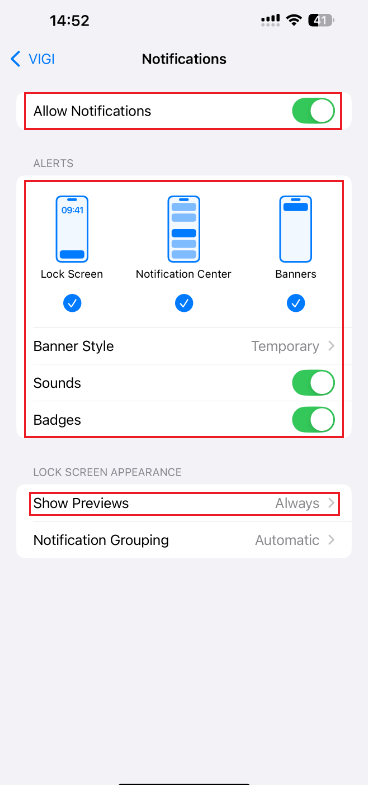
Launch Settings > Notifications, ensure Show Previews is set to Always, and ensure Allow Notifications for the VIGI App is on.
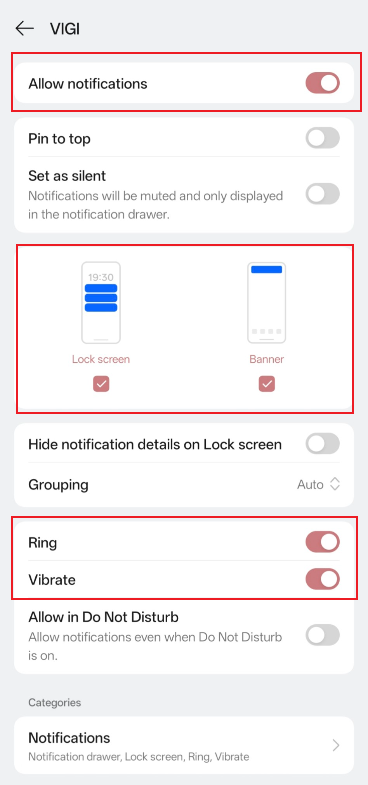
For Android:
Go to Settings > App Notifications > VIGI App and ensure that all notification options for the VIGI App are enabled.
Step 3. Turn off Do Not Disturb.
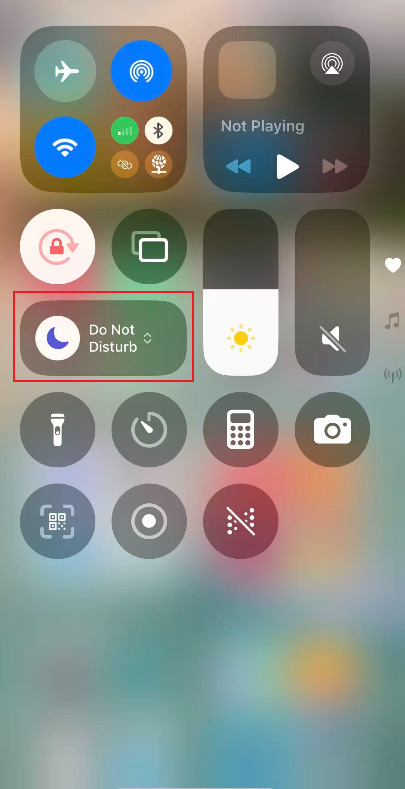
For iOS:
Swipe down from the top-right corner of your screen and tap the Do Not Disturb icon on the Focus button to turn it off.
For Android:
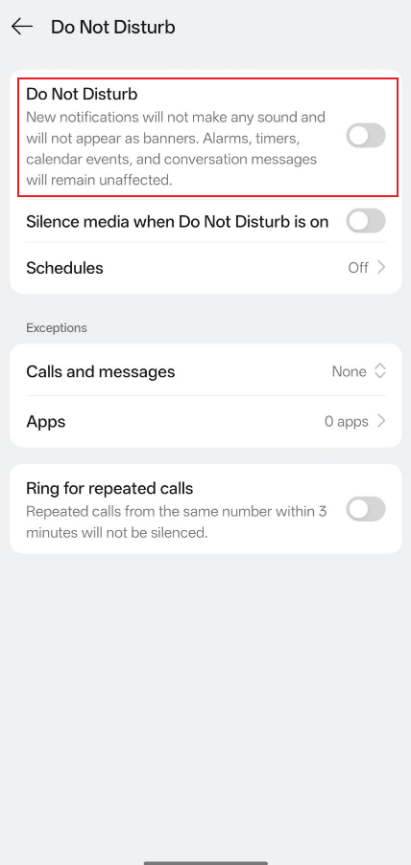
Launch Settings > Sounds & vibration > Do Not Disturb. Locate the Do Not Disturb button and turn it off.
Step 4. Check Network Connectivity.
Check the network connection status of the VIGI device and mobile phone to ensure a successful connection to the VIGI servers. Please also check the firewall settings on your device. If there is a national firewall blocking access to the VIGI servers or any of the Google Framework servers, you cannot receive the notifications either.
Step 5. Check that your phone has Google Framework installed.
If it is Android, please ensure your phone has the Google Framework (Service) installed.
Push notifications on the VIGI App rely on Google's service.
For more details about the Google Service, please visit the Google docs: Keep your device & apps working with Google Play Services
Step 6. Check Background App Retention Settings
Background App Retention mechanisms vary across different mobile operating systems. Please keep both Google Frame alive (explained above) and the VIGI App alive if you experience a notification issue.
For iOS users, Apple's unified push notification system means this is not a concern.
Step 7. Check Notification Settings for Cameras or NVRs in the VIGI App
For NVR:
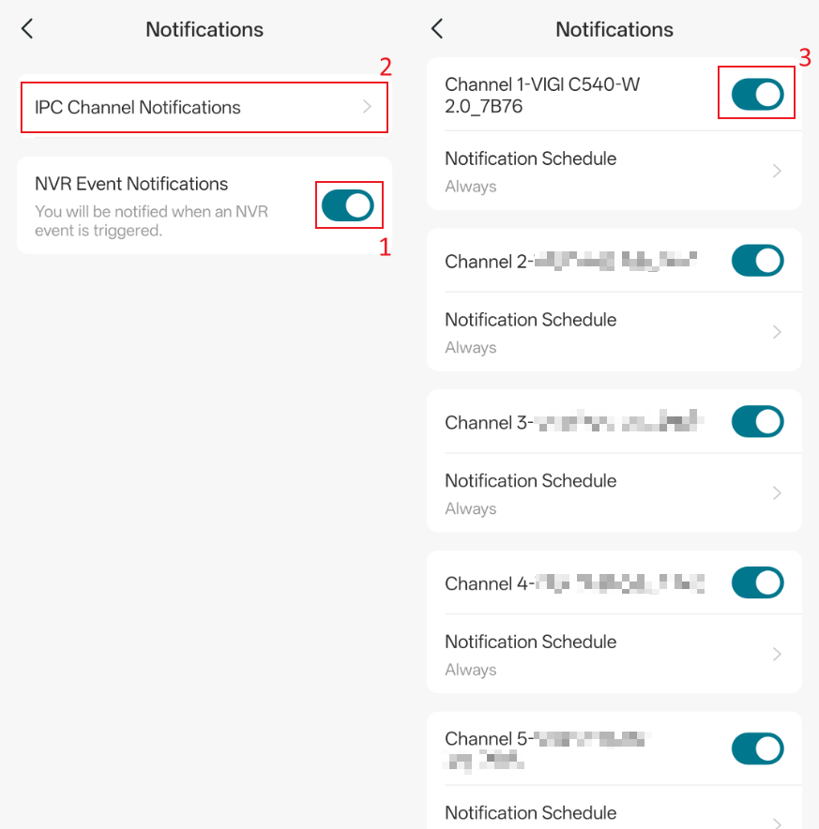
1. Please go to the Device page > tap the three-dot menu on the right side of the NVR card > Notifications
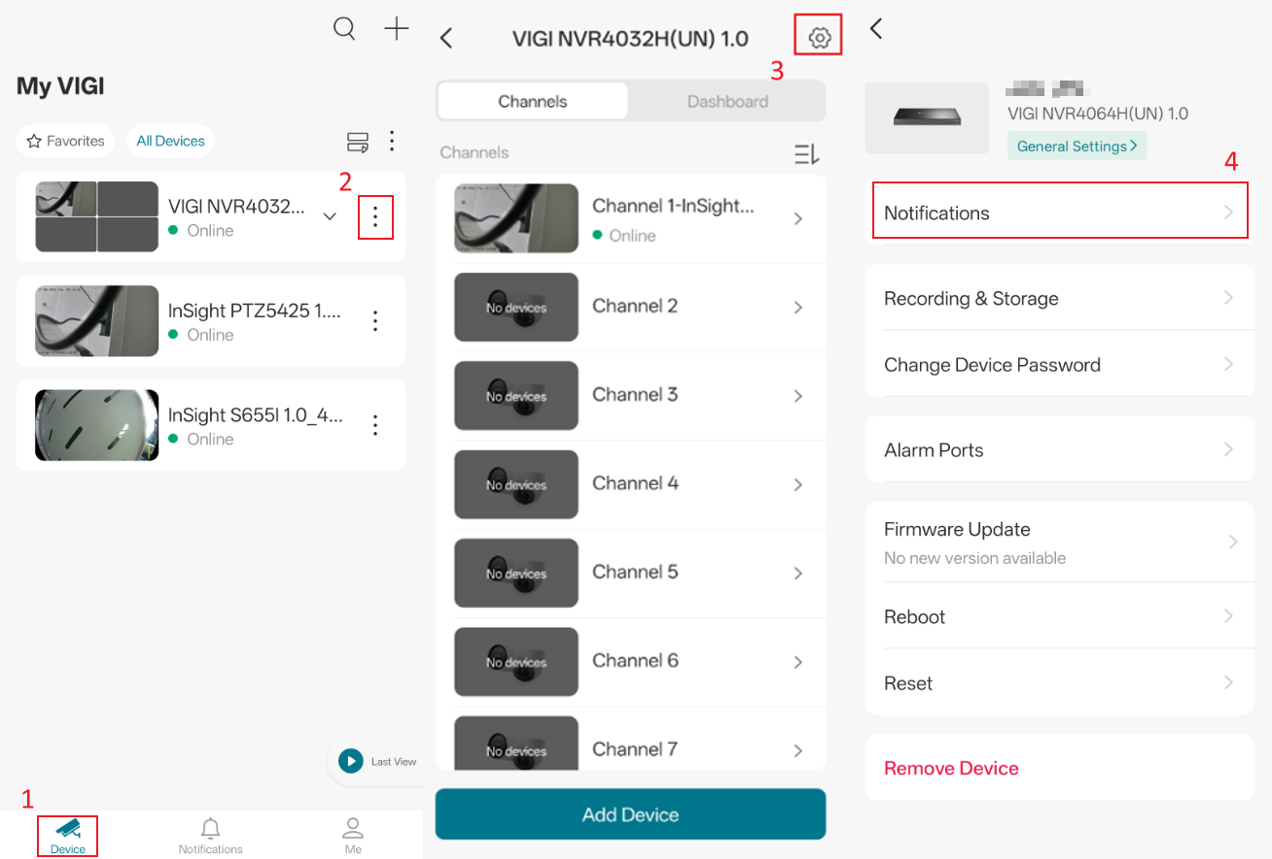
Enable NVR Event Notifications, then go to IPC Channel Notifications and make sure notifications are enabled for the channels you want to receive notifications from.
For Camera:
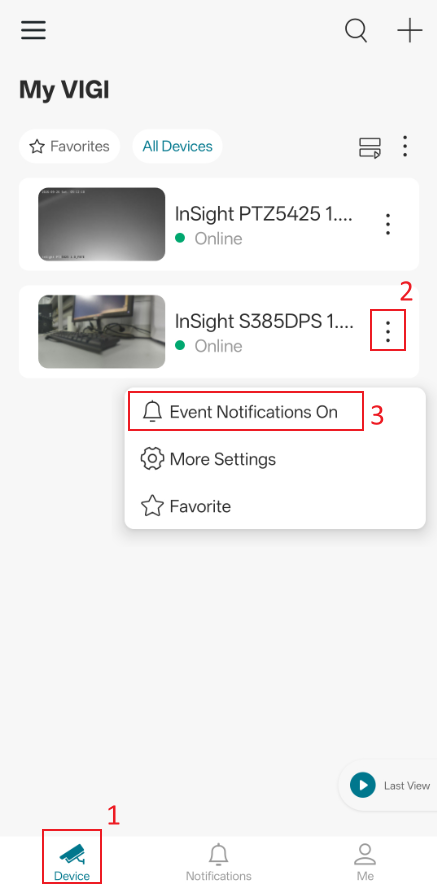
Go to the Device page > tap the three-dot menu on the right side of the Camera card > turn on the Event Notifications.
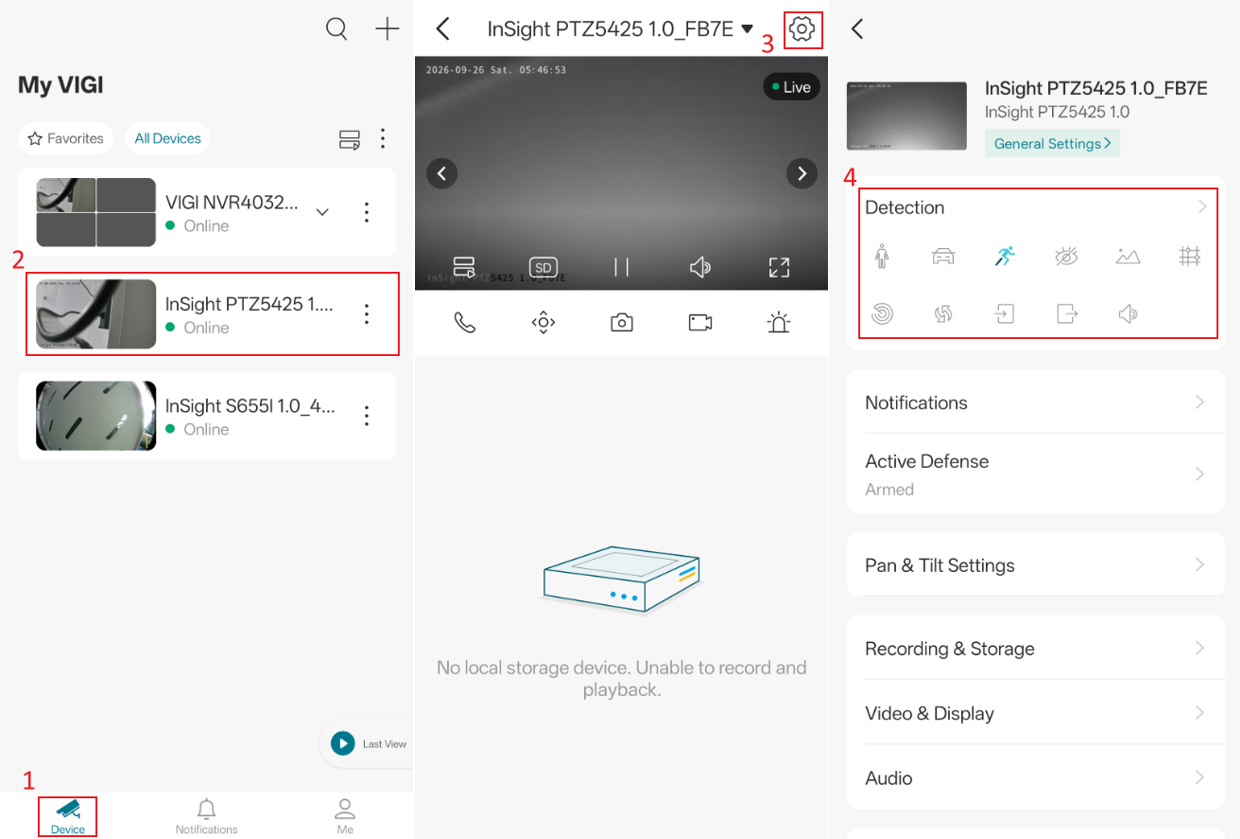
Tap the camera card > navigate to the Settings icon in the top-right corner > Detection.
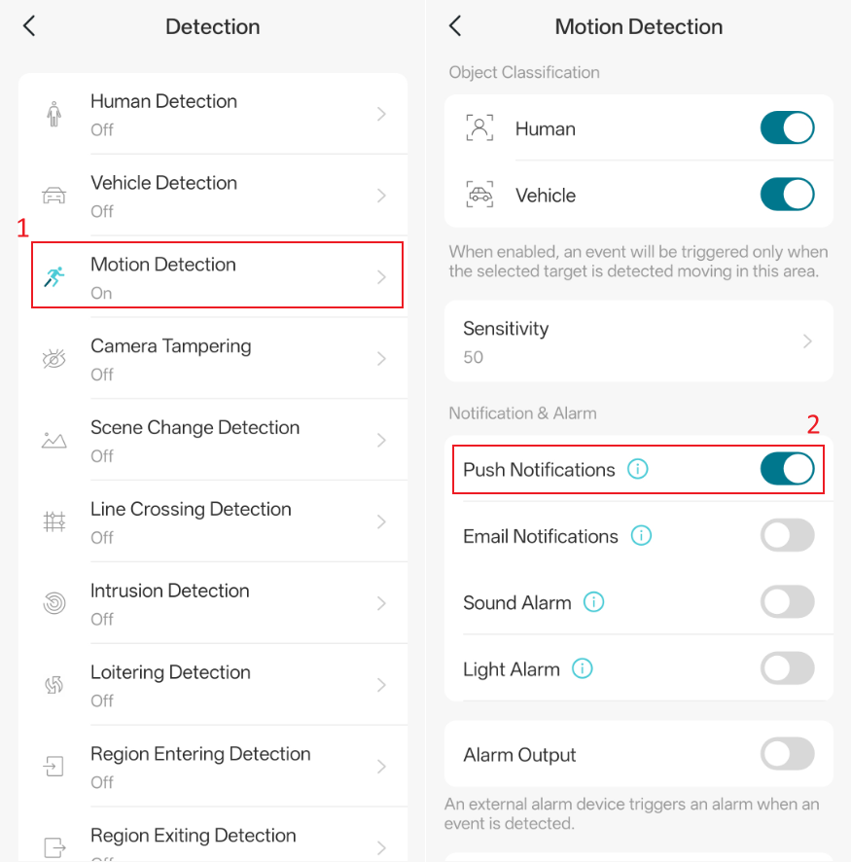
Select the detection types for which you want to receive notifications and then ensure Push Notifications is enabled. Here we use Motion Detection as an example.
Conclusion
By following the steps above, you should now be able to properly receive push notifications from your VIGI devices on your mobile phone.
To learn more about each function and configuration, please visit Support Home to download or check the manual for your product.
QA
Q1: Why am I still not receiving notifications after completing the troubleshooting steps?
A1: Please check whether your VIGI device has actually detected any events. If no events are detected, refer to How to Use Motion Detection Function of My VIGI Camera in VIGI App and ensure that the corresponding detection and notifications are enabled.
Looking For More
¿Es útil esta pregunta frecuente?
Sus comentarios nos ayudan a mejorar este sitio.



TP-Link Community
Still need help? Search for answers, ask questions, and get help from TP-Link experts and other users around the world.