
What Is Wake-Up Sensitivity on the Tapo Battery Camera or Doorbell
Wake-up sensitivity controls how easily your battery-powered camera or doorbell is activated. Understanding how PIR and radar sensors work, and how wake-up sensitivity settings affect detection performance, notifications, and battery life, can help you optimize your device for your environment and usage needs.
Key Takeaways
- Battery-powered cameras and doorbells stay in low-power sleep mode and wake up when triggered by app activity, PIR detection, or radar detection on supported models.
- PIR sensors detect changes in infrared energy, while radar sensors use radio waves to identify movements.
- Higher wake-up sensitivity increases detection responsiveness but may result in more frequent wake-ups and shorter battery life.
- On supported models such as the Tapo D260, Precise Detection requires PIR events to be verified by radar, helping reduce false wake-ups and unwanted notifications.
- Adjusting the detection range and enabling Precise Detection can help balance motion detection performance and battery efficiency.
How Does a Battery Camera or Doorbell Wake Up?
To conserve battery power, battery-powered cameras and doorbells typically remain in a low-power sleep mode when idle. The device wakes up when:
- You interact with it through the Tapo app, such as viewing the live stream.
- The PIR sensor detects infrared heat changes.
- The Radar sensor detects motion (on supported models).
Once awakened, the device will verify activity, record video, and send notifications.
How PIR Sensor Wakes up the Device
PIR sensor stands for Passive Infrared Sensor. The term passive means PIR devices do not radiate energy by themselves. They work by detecting infrared radiation emitted by or reflected from objects.
The PIR sensor uses two sensing elements to detect changes in infrared energy. When a person or other object moves across the detection area, the PIR sensor detects the change in infrared radiation and then wakes up the camera/doorbell.
Because PIR sensors rely on infrared changes, environmental conditions can affect their performance. Frequent movement from heat sources may cause frequent wake-ups, which can drain the battery faster.
In addition, PIR sensors are generally more effective at detecting motion moving across the field of view than motion moving directly toward or away from the device. For example, a person walking across a pathway in front of the camera is often detected sooner and more reliably than someone approaching the camera directly.
For optimal performance, install the device where visitors are likely to move across the detection area, and avoid pointing it toward swaying trees, busy streets, direct sunlight, or other sources of frequent heat changes.
How Radar Sensor Wakes up the Device
Radar sensor detects motion by emitting radio waves and analysing changes in the reflected signals. This enables it to determine the presence, distance, and direction of moving objects.
Compared with PIR-based detection, radar detection can better distinguish meaningful activity and reduce false triggers caused by factors such as wind, rain, shadows, or minor environmental movement.
Note: Activity Zones and Privacy Zones do not affect PIR or Radar sensors and cannot reduce sensor-triggered wake-ups.
How to Adjust Wake-up Sensitivity
Wake-up Sensitivity determines how easily the device can be activated by the PIR or Radar sensor. The camera/doorbell must first wake up before it can record video or send notifications.
Devices with PIR Sensor only
To adjust Wake-up Sensitivity, go to Camera Device Settings > Detection > Wake-Up Sensitivity. Higher wake-up sensitivity increases detection distance and makes the device easier to wake up. However, more frequent wake-ups may reduce battery life.
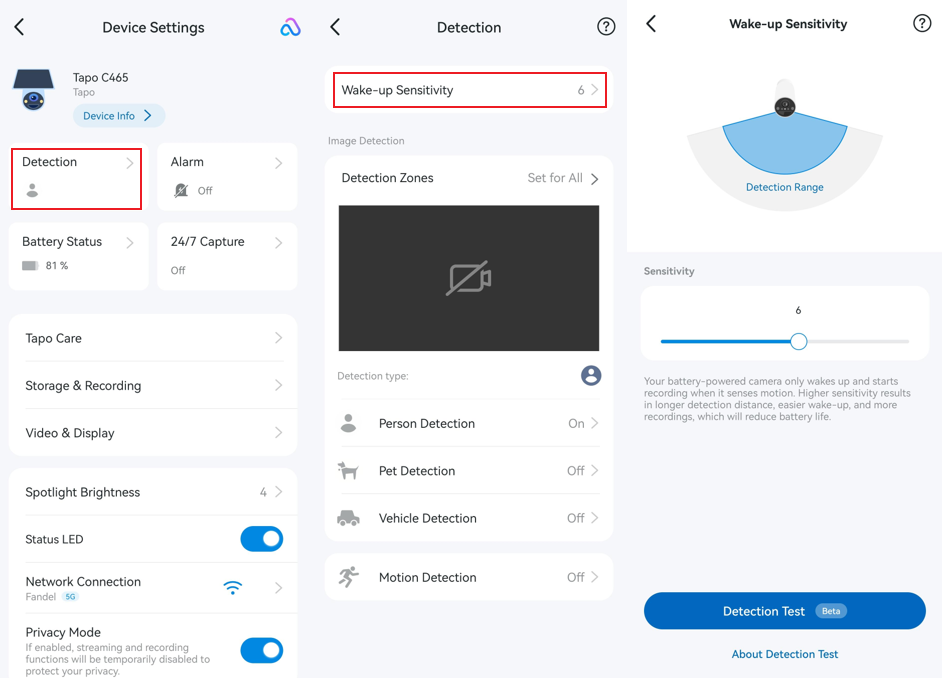
Devices with Both PIR and Radar Sensor (Tapo D260)
To adjust Wake-up Sensitivity, go to Doorbell Device Settings > Detection > Wake-up Settings > Wake-up Sensitivity. From this menu, you can enable or disable Precise Detection and adjust the Detection Range.
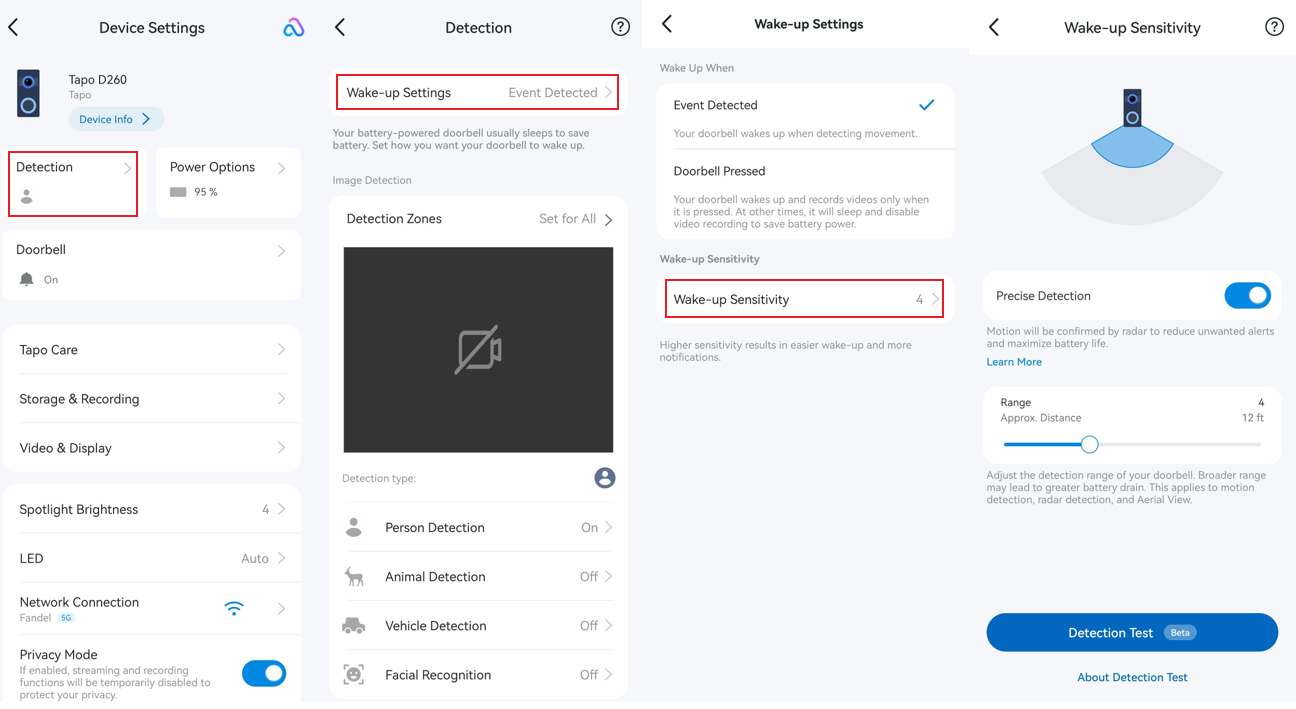
Precise Detection
Tapo D260 uses both PIR and Radar sensors. The Radar sensor is always active and can wake up the camera/doorbell independently.
When Precise Detection is enabled, motion detected by the PIR sensor must be confirmed by the Radar sensor before the camera/doorbell wakes up. This helps reduce false wake-ups, minimize unwanted notifications, and extend battery life.
If the doorbell faces a busy street, frequent pedestrian traffic, or moving objects such as swaying trees, enabling Precise Detection is highly recommended to improve wake-up accuracy and battery performance.
Refer to the table below for a comparison of device behaviour when Precise Detection is enabled or disabled.
|
Device Behavior |
When Precise Detection is ON
|
When Precise Detection is OFF |
|
If PIR detects first |
Radar must confirm before the camera wakes up. If radar does not confirm, the camera stays asleep. |
Camera wakes up immediately |
|
If Radar detects first |
Camera wakes up |
Camera wakes up |
|
Detection area |
Slightly narrower |
Wider |
|
Alerts and battery |
Fewer unwanted alerts and better battery life |
More unwanted alerts possible and higher battery use |
Detection Range
The detection range can be adjusted from 3 ft to 30 ft (1m to 10m). Increasing the detection range extends the monitored area and helps detect activity at greater distances. However, it may also increase wake-up frequency and consume more battery power.
This setting applies to Motion Detection, Radar Detection, and Aerial View.
Q&A
Q1: Why is my camera or doorbell battery draining quickly?
Rapid battery drain is usually caused by excessive wake-ups triggered by non-visitor activity. For troubleshooting tips, see Tapo Camera Battery Draining Fast? Find Out How to Fix It!
Q2: Why is motion detection not working on my battery-powered camera or doorbell?
For troubleshooting guidance, see What should I do if my battery-powered camera can't detect motion?
To learn more about each function and configuration, please visit the Download Center to download the manual for your product.
Looking For More
Is this faq useful?
Your feedback helps improve this site.

TP-Link Community
Still need help? Search for answers, ask questions, and get help from TP-Link experts and other users around the world.