
Specified Connection on the Deco App: Set Your Signal Source
The Specified Connection feature in the Deco app lets you manually control which Deco node a satellite unit or connected device uses as its signal source, instead of letting the network choose automatically. Changing the connection order can improve performance in specific areas of your home.
Key Takeaways
- Use Specified Connection in the Deco app when a device or satellite Deco connects to the wrong node, for example, when a closer node is available, connections are unstable due to frequent node switching, or a specific device needs a reliable connection to a particular Deco node.
- The Specified Connection feature lets you manually choose which Deco node a satellite Deco or connected device uses as its signal source, instead of relying on automatic selection.
- This feature is available in both Router mode and Access Point mode, and is supported on select Deco models. Additional models will gain support via future firmware updates.
- To set a preferred signal source for a satellite Deco, open the Network Map in the Deco app, tap the satellite Deco, tap Connection Preference, turn off Auto, choose the preferred source Deco, and tap Save.
- To set a preferred signal source for a client device, tap Online Clients in the Deco app, select the device, tap Connection Preference, choose the preferred Deco node and Wi-Fi band, and tap Save.
When to Use Specified Connection
Specified Connection is useful in several common situations:
- A device in a far corner of the home keeps connecting to a distant Deco node when a closer one is available.
- A satellite Deco keeps switching between nodes, causing an unstable connection.
- A gaming device or smart TV needs a consistent, strong connection to a specific Deco node.
Some Deco models include a feature to select a preferred signal source for the satellite Deco and the client device, which helps improve network performance.
The steps below use Deco M5 as an example. The process is the same across all supported models.
Notes:
1. This feature is supported both under Router mode and Access Point mode.
2. Some Deco models will support this feature via firmware updates in the future.
Set a Specified Connection on the Deco App
Part 1: Set a Preferred Signal Source for a Satellite Deco
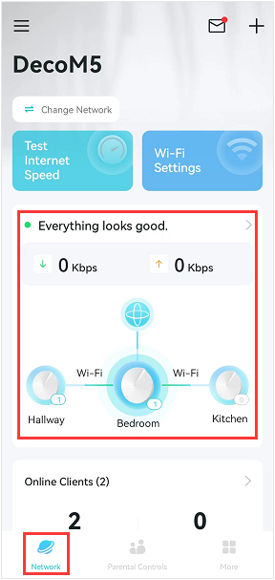
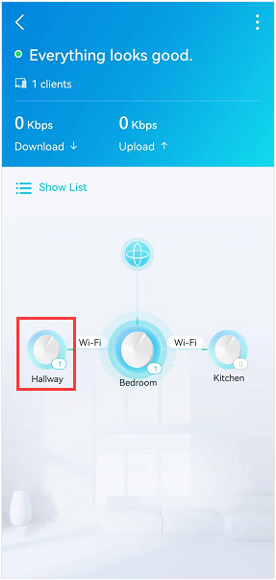
Step 1: Open the Network Map
Tap Network Map in the Deco app, then tap the satellite Deco you want to change the signal source for.
Step 2: Select Specified Connection
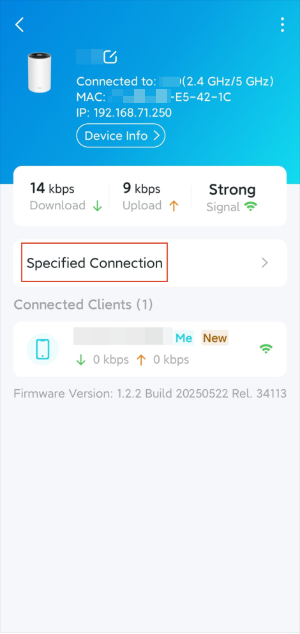
Tap on Specified Connection.
Step 3: Choose Your Preferred Source and Save
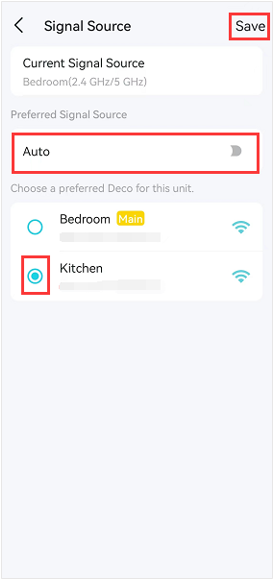
Turn off Auto, select the preferred source Deco, and then tap Save to save the changes. On the Network Map page, you will see the target Deco connects to the source Deco you want to connect.
Part 2: Set a Preferred Signal Source for a Client Device
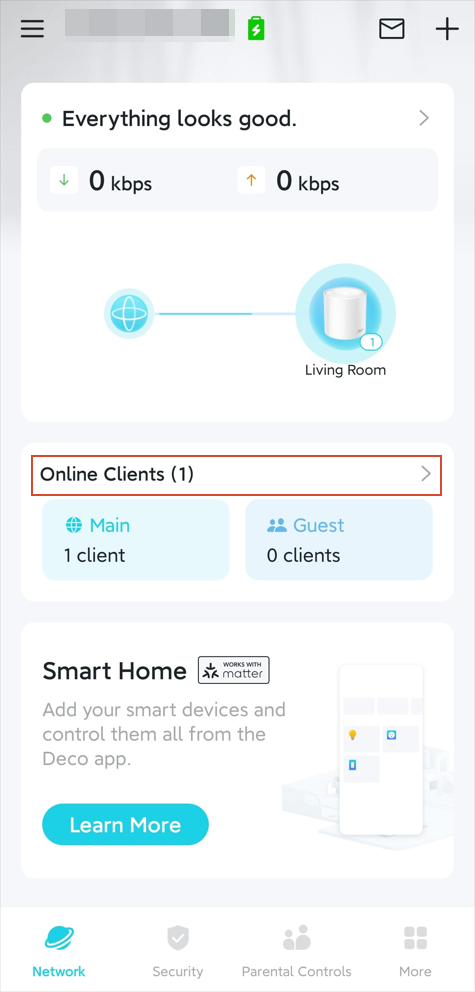
Step 1: Open Online Clients and Select Your Device
In the Deco app, tap Online Clients, then tap the device you want to change the signal source for.
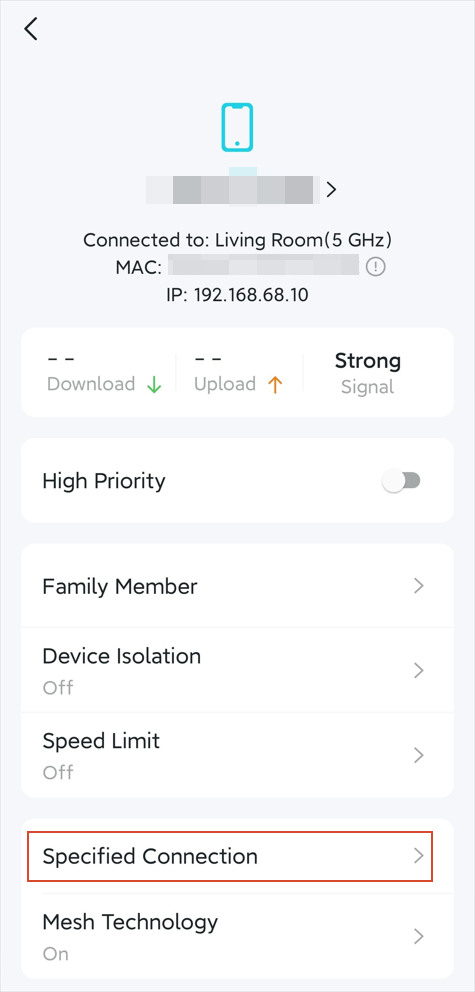
Step 2: Select Specified Connection
Tap on Specified Connection.
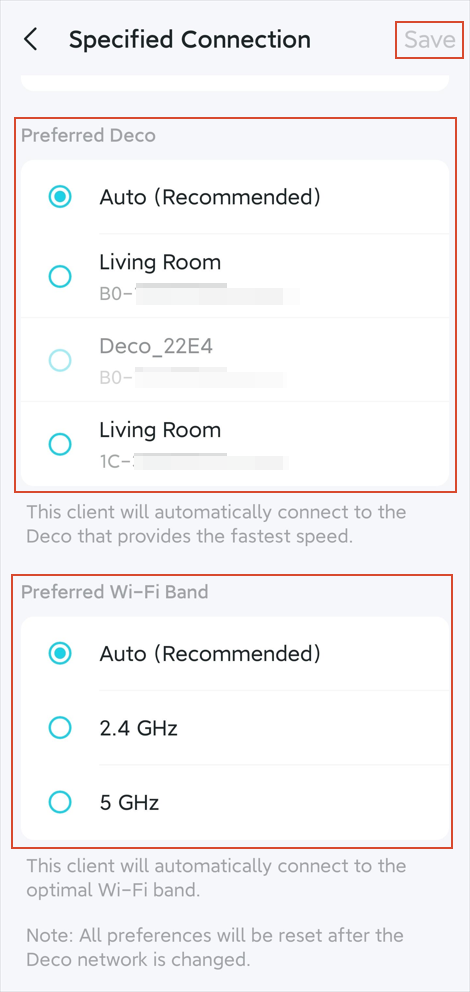
Step 3: Choose Your Preferred Deco and Wi-Fi Band, Then Save
Select the preferred Deco and preferred Wi-Fi band for the target device, and then tap Save to save the changes.
To get to know more details of each function and configuration, please go to the Download Center to download the manual for your product.
Is this faq useful?
Your feedback helps improve this site.
_Overview_normal_20211130005649t.png)


TP-Link Community
Still need help? Search for answers, ask questions, and get help from TP-Link experts and other users around the world.