How to Reset VIGI NVR to Factory Defaults
Contents
Resetting the NVR using the WebUI
Resetting the NVR using the GUI
Resetting the NVR using the physical Reset button
Introduction
If a VIGI NVR needs to be restored for troubleshooting or redeployment, several reset methods are available depending on the type of access available.
Requirements
- A VIGI NVR
- Administrative access to the WebUI or local GUI, or physical access to the NVR
Configuration
There are 3 methods which can be used to factory reset a VIGI NVR. Methods 1 and 2 require access to the NVR with administrative privileges. Method 3 requires physical access to the NVR.
Resetting the NVR using the WebUI
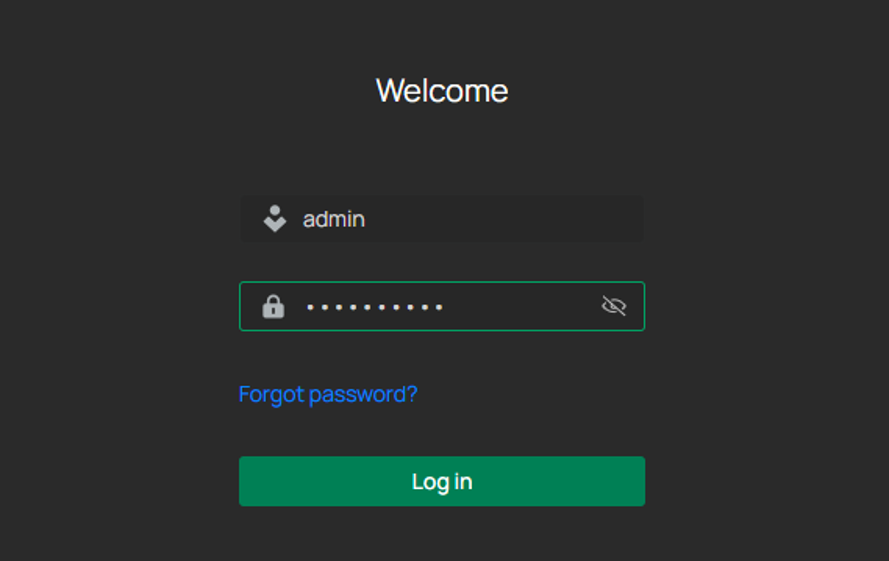
Step 1. Enter the NVR’s IP address in a web browser to access the NVR WebUI. Then, enter your username and password to log in.
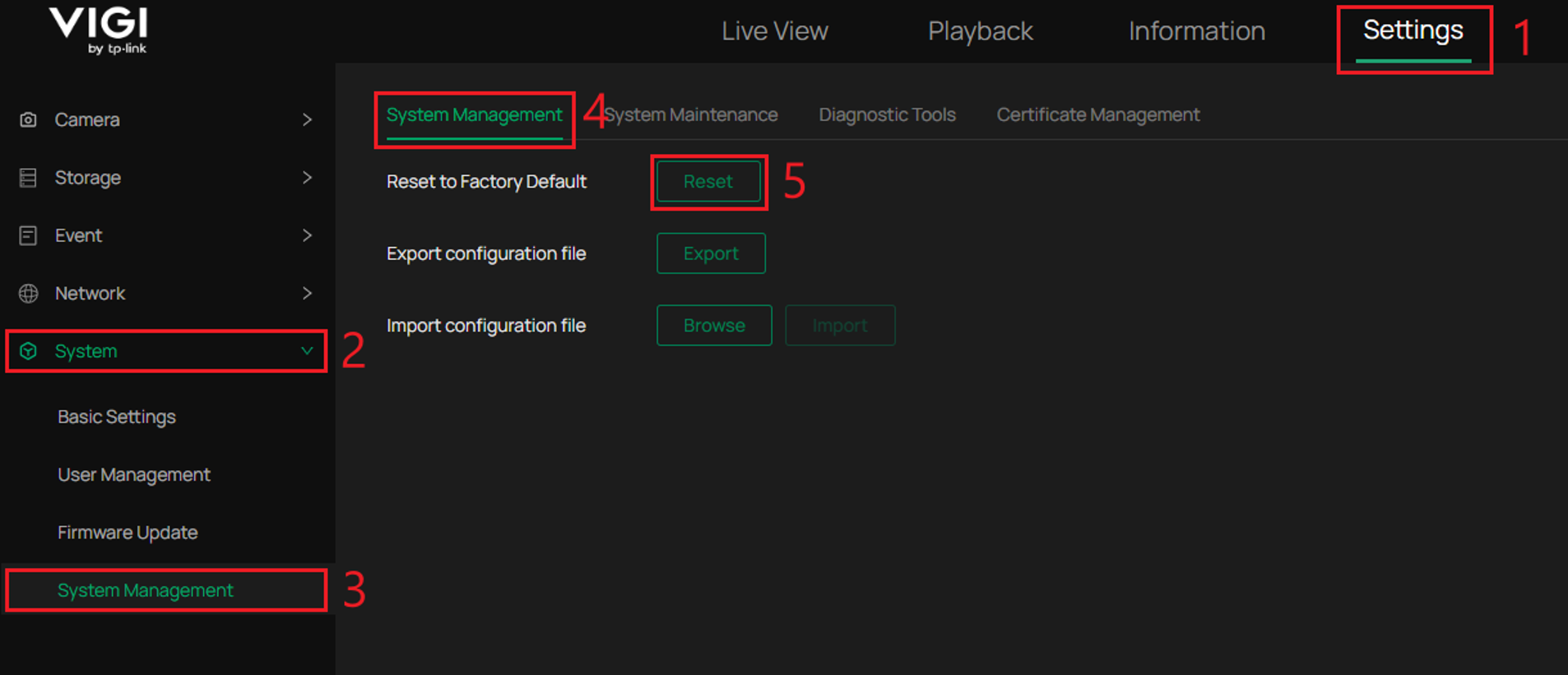
Step 2. Navigate to Settings > System > System Management and select Reset. A warning message will appear.
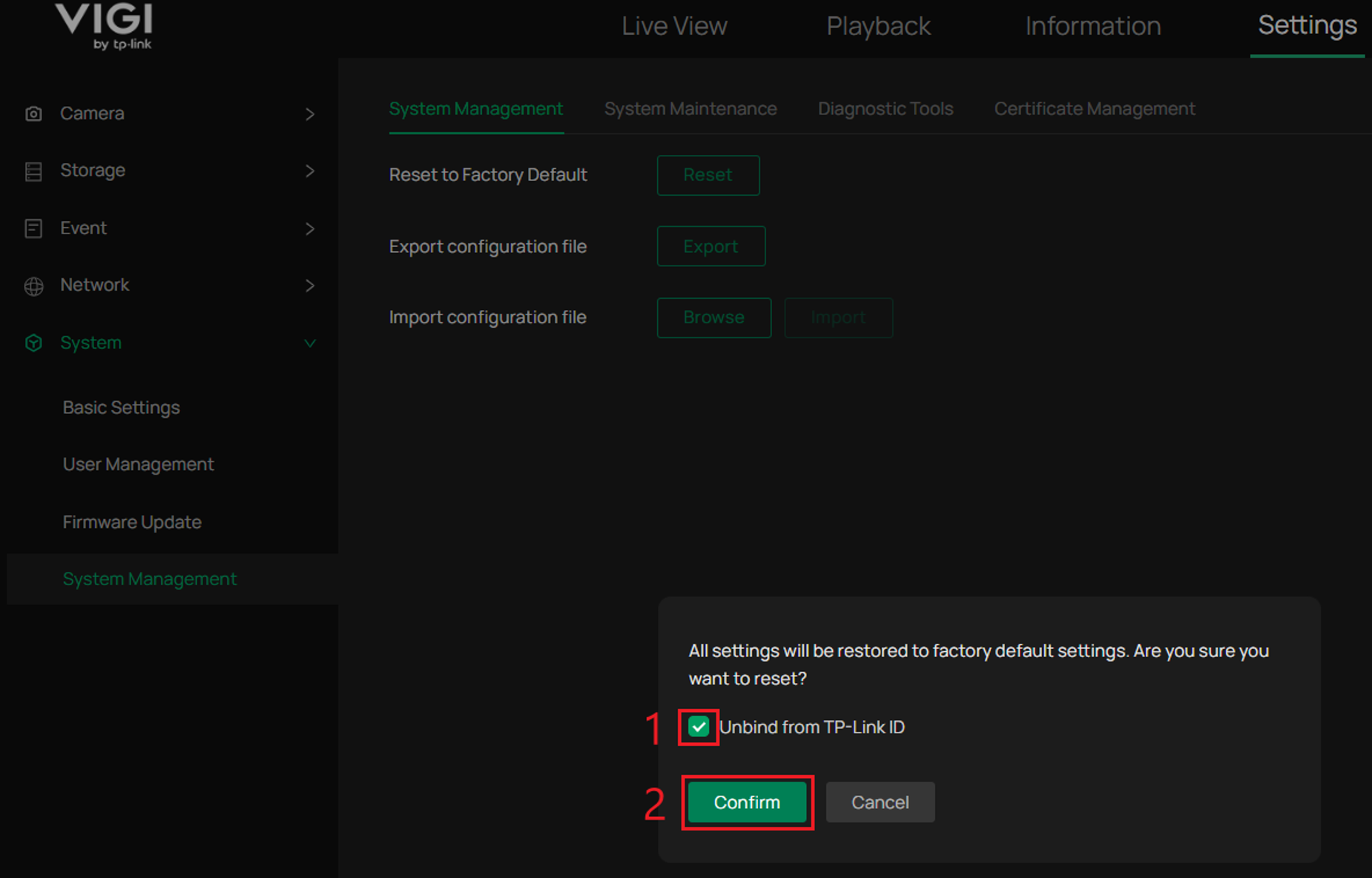
Step 3. A confirmation screen will appear. Optionally, select Unbind from TP-Link ID to unbind the NVR and select Confirm. The NVR will reboot and be in a factory default state.
Note: Do not disconnect power from the NVR during the reset process. The NVR may take several minutes before it is reset successfully.
Resetting the NVR using the GUI
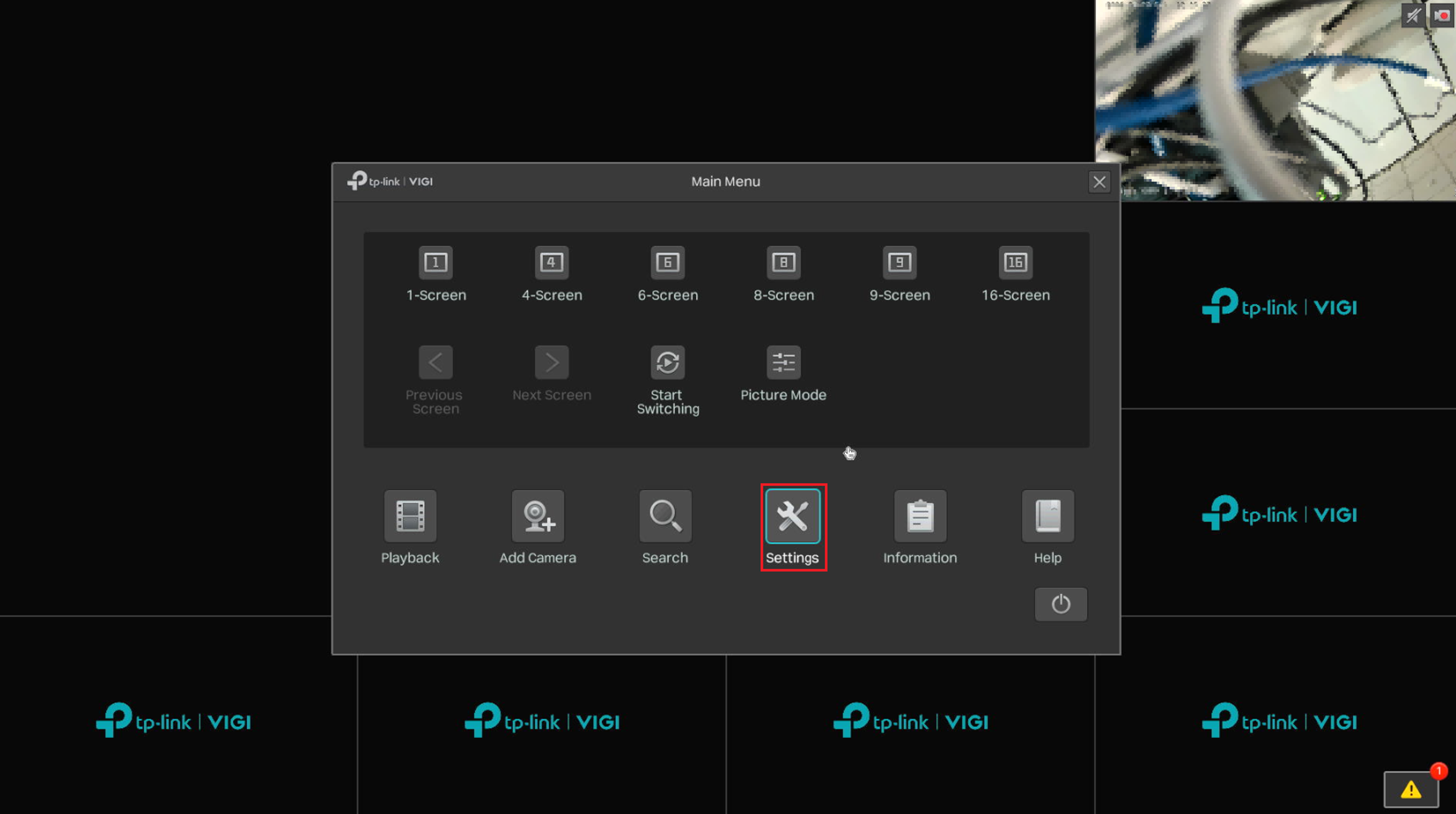
Step 1. Right-click with the mouse attached to the NVR to show the Main Menu. Select the Settings option.
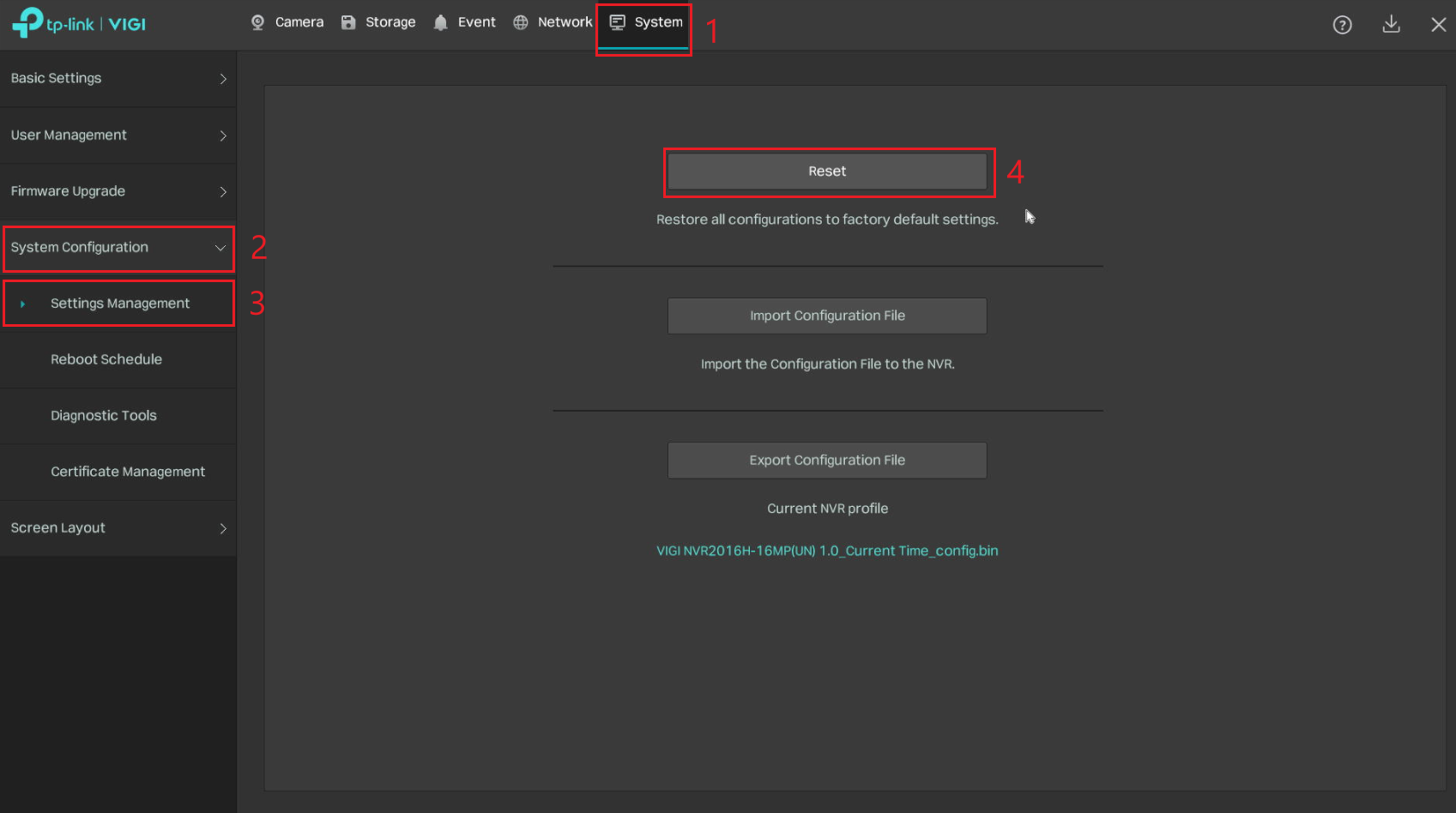
Step 2. Go to the System tab, then System Configuration > Settings Management. Select Reset.
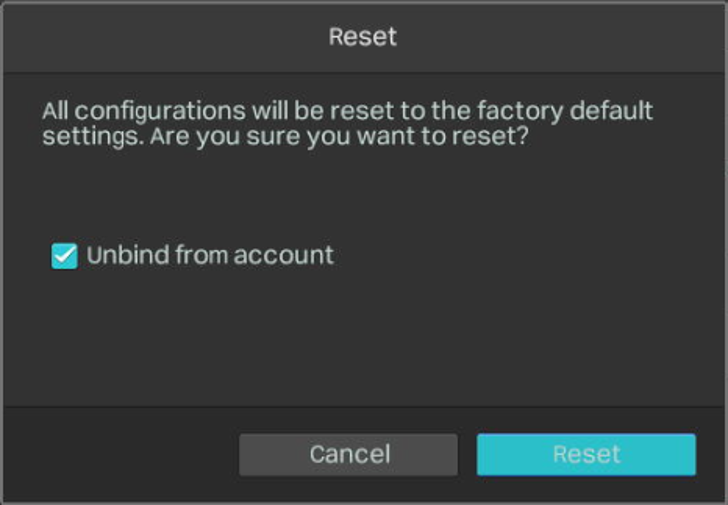
Step 3. A confirmation screen will appear. Optionally, select Unbind from account to unbind the NVR, then select Reset. The NVR will reboot and return to its factory default state.
Note: The NVR may take several minutes to complete the reset. Please wait until the process is complete.
Resetting the NVR using the physical Reset button
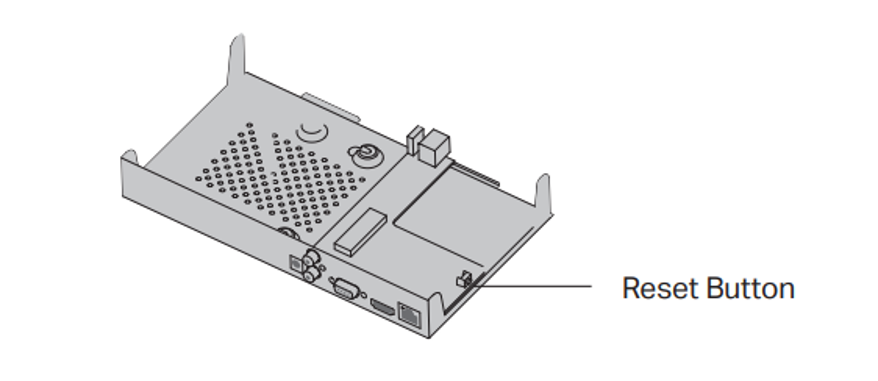
Step 1. Remove the NVR cover, then press and hold the Reset button inside the NVR for more than 3 seconds. When you hear a loud beep, release the button. The front-panel lights will briefly turn off, then illuminate for about one second. Afterward, the SYS light will remain on, indicating that the NVR has been restored to its factory default settings. Continue to wait until the NVR finishes restarting and is ready for operation before proceeding.
After restarting, the NVR will display its initial setup screen.
Note: The NVR may take several minutes to complete the reset. Please wait until the process is complete.
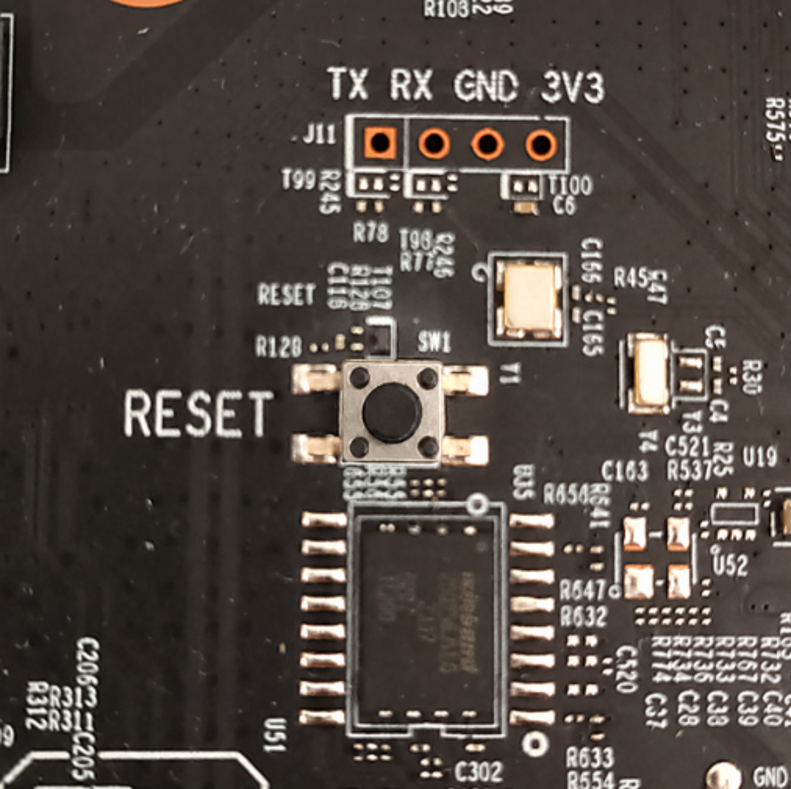
The image below shows a picture of the reset button; it is clearly marked on the motherboard of the NVR with the word RESET.
Conclusion
You have now learned how to reset a VIGI NVR to factory default settings using the WebUI, local GUI, or physical Reset button. Choose the appropriate method based on whether you have administrative or physical access to the NVR.
QA
Q1: Which reset method should I use if I cannot log in to the VIGI NVR?
A1: If you cannot access the WebUI or GUI with administrative privileges, you can use the physical Reset button if your VIGI NVR supports this method.
Q2: Why is the Reset option unavailable through the WebUI or GUI?
A2: Please ensure that you are logged in with a user that has administrative privileges.
Q3: How long does it take for the VIGI NVR to reset?
A3: The reset process may take several minutes. Please wait for the NVR to complete the reset before performing additional operations.
Q4: Will the VIGI NVR reboot after a factory reset?
A4: Yes. After a factory reset, the NVR will restart and return to its factory default state.
Q5: Can I unbind the VIGI NVR from my TP-Link ID during the reset?
A5: Yes. In the WebUI, select Unbind from TP-Link ID before selecting Confirm. In the local GUI, select Unbind from account before selecting Reset.
To learn more about each function and configuration, please visit Support Home to download or check the manual for your product.
Looking For More
Is this faq useful?
Your feedback helps improve this site.



TP-Link Community
Still need help? Search for answers, ask questions, and get help from TP-Link experts and other users around the world.