
Tapo Smart Door Lock FAQ: Common Questions About Features and Security
Tapo smart door locks offer multiple ways to lock and unlock your door — including app control, fingerprint, PIN code, and physical key, depending on the model. They also integrate with Alexa, Google Home, and other Tapo devices. This page covers the most common questions across two topics: basic information and security features. Use the sections below to find what you need.
Key Takeaways
- Tapo smart locks offer multiple unlocking methods. Depending on the model, these include app unlocking, PIN code, fingerprint, and physical key.
- If the battery dies completely, the physical key still works. The lock can also be temporarily powered via a power bank to unlock using a fingerprint or PIN code.
- Tapo smart locks are compatible with single cylinders only. They are not compatible with integrated locks or mortise locks, and the lock cylinder uses a Schlage (SC1) keyway.
- There are no additional subscription fees to use Tapo Smart Lock features.
- The Wi-Fi Schedule feature in Power-Saving Settings can extend battery life by disconnecting the lock from Wi-Fi when remote access is not needed.
- Wrong-Try Protection and Scramble PIN Code are built-in security features that help prevent unauthorized access through failed attempts or keypad snooping.
Basic Questions
Q1: What’s the Main Difference Between Tapo Door Locks?
|
Model |
Exterior Assembly |
Interior Assembly |
|
Tapo DL100 / DLW10 |
Button Keypad |
4 AA/LR6 Battery |
|
Tapo DL105 |
Button Keypad/Fingerprint Scanner |
Tapo A110 Battery pack |
|
Tapo DL110 |
Touch Keypad/Fingerprint Scanner |
Tapo A110 Battery pack |
|
Tapo DL130 |
Touch Keypad/Fingerprint/Palm Vein Scanner |
7800 mAh Rechargeable Lithium-ion Battery and 2600mAh Built-in Backup. |
Q2: How to Charge a Tapo Smart Lock
Some Tapo Smart Door Locks have a removable battery that charges via a Type-C port on the battery. When the battery is dead, please use the adapter and Type-C cable to charge the battery directly. For more instructions, please refer to the link below:
How to Charge the Battery of a Tapo Smart Door Lock
If your Smart Door Lock uses AA/LR6 Batteries, please replace the batteries when they are dead.
Q3: What Happens If The Tapo Smart Lock Battery Dies?
The Tapo Smart Lock will send a low battery warning before it runs out of power. However, if the battery runs out completely before it is charged or replaced, the physical key will still work. You can use the key to lock and unlock the door. If you don't have your key, you can also temporarily power the lock with a power bank to unlock it using your fingerprint/PIN Code. For more information, please refer to the link below:
How to Provide a Temporary Power Supply for your Tapo Smart Door Lock
Q4: What Door Locks Is The Tapo Smart Lock Suitable For?
Tapo smart locks are compatible only with single cylinders — they are not compatible with integrated or mortise locks. The lock cylinder uses a Schlage (SC1) keyway. Please note that removing the Bolt Plate is currently unsupported. This lock is incompatible with installations that require the removal of the Bolt Plate.
Here’s the measuring template for Tapo Smart Lock; please print it in US Letter/A4 size and use it to check door lock compatibility.
Tapo Smart Lock Measuring Template_A4 Size
Tapo Smart Lock Measuring Template_US Letter Size
Q5: Can I Control The Tapo Smart Lock Locally Only?
Tapo Smart Lock supports disabling Wi-Fi and connecting to the device via Bluetooth, which means it operates in local control mode. In this mode, you can only connect to the lock through Bluetooth when you are physically near it.
If you wish to set it to local control mode, please refer to the following instructions.
How to set up your Tapo Smart Door Lock
Q6: Can I Change The Built-In Doorbell Ringtone?
No, the built-in doorbell ringtone is fixed. But you can change the ringtone of the paired chimes in Device Settings > Doorbell > Paired Chimes.
Q7: What Is The Waterproof And Dustproof Level Of Tapo Smart Lock?
The exterior assembly of the Tapo Smart Lock features a waterproof design, allowing it to be installed on outdoor doors. For the detailed waterproof and dustproof level, please refer to the datasheet of that model. But the interior assembly is not waterproof. Please do not place in an environment that is too humid or prone to water ingress.
Q8: Do I Need To Subscribe To Use The Door Lock Feature?
There are no additional subscription fees to use Tapo Smart Lock.
Q9: Can I Program The Tapo Smart Lock And Other Tapo Devices Via Smart Action?
Yes, the door lock supports multiple smart action triggers and actions:
Trigger: Unlocked (by Any Method/Specified Person), Locked, Doorbell pressed, Alarm Triggered.
Action: Turn the Locking/Unlocking notifications on/off.
Q10: Can I Switch The Wi-Fi Network For Tapo Smart Lock Directly On The Tapo App?
If you change your internet service provider or router and need to reconnect the Tapo Smart Lock to Wi-Fi, you can connect to the Tapo Smart Lock via Bluetooth when you are next to it, then go to the Device Settings page of the Tapo Smart Lock and reconnect it directly to the new Wi-Fi without resetting the device.
Q11: How to Conserve Battery on a Tapo Smart Lock
Go to Settings> Power-Saving Settings and enable the Wi-Fi Schedule feature to schedule your device to disconnect from Wi-Fi at night or when remote access is unnecessary, extending battery life.
Q12: Can I pair Tapo Smart Lock with Tapo Chime/Hub?
Yes, Tapo Smart Lock can pair with Tapo Chime/Tapo Hub. Enabling Built-in Doorbell settings will not affect the chime alarm. You can pair it in the Tapo app under Device Settings > Doorbell > Paired Chimes.
Note: The hub acts only as a chime when paired with the door lock.
Security Features
Q1: How Many Ways Can a Tapo Smart Lock Be Locked/Unlocked?
Tapo Smart Lock offers multiple locking/unlocking methods, and different models have different unlocking methods. Please check the device model and check the table below for supported locking/unlocking methods.
|
Model |
Locking methods |
Unlocking methods |
|
Tapo DL100 / DLW10 |
app locking, |
app unlocking, |
|
thumb latch locking, |
physical key unlocking, |
|
|
automatic locking, |
password unlocking |
|
|
manual locking (including one-touch locking or verification locking) |
|
|
|
Tapo DL105 |
app locking, |
app unlocking, |
|
thumb latch locking, |
physical key unlocking, |
|
|
registered fingerprint locking, |
password unlocking, |
|
|
automatic locking, |
fingerprint unlocking |
|
|
manual locking (including one-touch locking or verification locking) |
|
|
|
Tapo DL110 |
app locking, |
app unlocking, |
|
thumb latch locking, |
physical key unlocking, |
|
|
registered fingerprint locking, |
password unlocking, |
|
|
automatic locking, |
fingerprint unlocking |
|
|
manual locking (including one-touch locking or verification locking) |
|
|
|
Tapo DL130 |
app locking, |
app unlocking, |
|
thumb latch locking, |
physical key unlocking, |
|
|
registered fingerprint locking, |
password unlocking, |
|
|
automatic locking, |
fingerprint unlocking |
|
|
manual locking (including one-touch locking or verification locking) |
Palm Vein unlocking |
Q2: Will Tapo Smart Locks Lock Automatically After I Unlock It?
You can enable the Auto Lock feature in case you forget to lock the door. You can also set a Disable Auto Lock schedule to disable auto lock within a set time. To enable the Auto Lock feature, go to Device Settings > Lock Settings > Auto Lock.
Here is how auto lock works:
When the door sensor is available (requires installation and calibration):
- Auto-Lock after Closing: When you enter or leave and close the door, the system detects the "Closed" status and starts the timer to lock automatically.
- Smart Trigger: If no door opening is detected after unlocking, the timer won’t start right away. This prevents the door from relocking before you have a chance to walk through.
- Safety Backup: For added security, if no door opening is detected within 5 minutes after unlocking, the system will automatically relock the door to ensure your home stays secure.
When the door sensor is unavailable:
- Timer-based locking: The countdown starts immediately after successful unlocking, and the lock will engage when the countdown ends.
Mode switching:
- If the door sensor becomes unavailable while Auto-Lock is enabled, the system will automatically switch to the timer-based mode, ensuring the features continue to work as intended.
Q3: How Can I Change My Existing Password?
You cannot edit an existing password directly in the Tapo app, but you can create a new password and delete the old one. To learn how to add a new password, please refer to the following guide.
How to manage your password on your Smart Door lock
Q4: Can I Still Control The Tapo Smart Lock If The Router's Wi-Fi Suddenly Doesn't Work?
Yes, if the router’s Wi-Fi goes down, you can still connect to the Tapo Smart Lock via Bluetooth when you are next to the device.
Q5: What Is Wrong-Try Protection?
Wrong-Try Protection is a security feature of Tapo Smart Lock with fingerprint capability. When the failed fingerprint attempts reach the limit you set, you can use the PIN code to unlock. If the limit of PIN code attempts is reached, both methods will be in lockdown for the time you set. You can enable this feature in the Tapo app under Device Settings > Security Settings > Wrong-Try Protection.
Q6: How Does Scramble Pin Code Work?
With the Scramble PIN Code feature enabled, you can enter decoy digits before and after your passcode to prevent others from snooping your actual access password. Using a Scramble PIN Code makes your actual password longer, making it harder for others to remember. The total length should be no more than 20 digits. To set the Scramble PIN Code, go to Device Settings > Security Settings > Scramble PIN Code.
Q7: How to Check the Smart Lock Event Log
You can view locking, unlocking, and other activity on the door lock via the Event Log on the Status page. Tap Event Log on the Status page. If you want to save the log to the Cloud, you can enable Log Backup.
Q8: How Many Passwords Can Be Stored In The Tapo Smart Lock?
The Tapo Smart Lock can store up to 200 codes in total, combining one-time codes and standard codes.
And for emergency codes, you can generate up to 16 codes every 4 hours.
For more information about the password, please refer to the following guide:
How to manage your password on your Smart Door lock
Q9: How Many Fingerprints And Members Can Be Stored In The Tapo Smart Lock With Fingerprint Capability?
For the Tapo Smart Lock with fingerprint capability, the number of fingerprints that can be stored is up to 100. You can create 32 members to add fingerprints.
Q10: Can I Share The Tapo Smart Lock With My Family Members?
Please refer to this FAQ for more information: How to share the door lock with my family.
Q11: How Can I Control The Tapo Smart Lock In Alexa/Google Home?
Refer to the links below for more detailed instructions:
How to make my Tapo smart door lock work with Amazon Alexa
How to connect my Tapo smart door lock to Google Home
Q12: What Is Trace Protection?
Trace protection prevents smudge attacks where unauthorized individuals decipher your PIN code through the oil or water residue on the keypad. You can enable this feature in the Tapo app under Device Settings > Security Settings > Trace Protection.
When enabled, unlocking via PIN will change to the following process:
1. Touch the keypad to wake up your device.
2. Press the randomly lit number buttons.
3. The keypad wakes up after you press all the lit numbers. Then, enter your PIN code to unlock the door.
Q13: Can I Get Multiple Identical Keys For The Door Lock?
Yes, but only two keys are included in the package.
Q14: Can One Key Open Multiple Locks?
No, it cannot. Each lock has a unique cylinder and a corresponding unique key.
Door Sensor Related
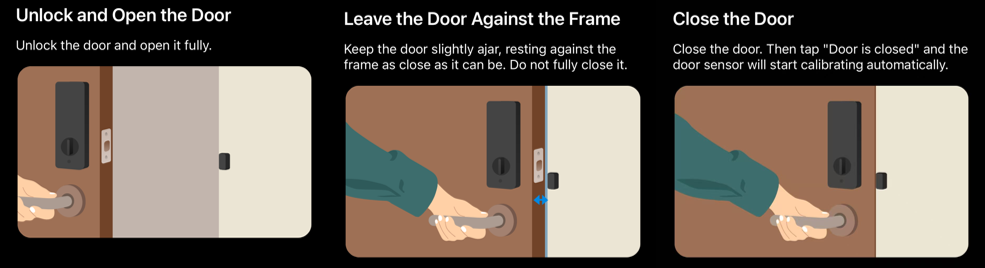
Q1: What’s the difference between Door Sensor Calibration and Lock Calibration, and how can I do that?
Lock Calibration teaches the lock the orientation of your door and the exact limits of its locked and unlocked positions
To calibrate the lock, go to the Tapo app > Tap the Lock > Tap the Settings icon ( at the top-right corner) > Tap Lock Calibration.
On smart locks with a built-in Door Sensor, the calibration function teaches the lock the exact spatial relationship between the door frame and the door itself.
To calibrate the Door Sensor, go to the Tapo app > Tap the Lock > Tap the Settings icon( at the top-right corner) > Door Sensor > Tap Calibrate.
Q2: What should I do if the door sensor calibration fails?
The optimal placement for the door sensor is 7–10 cm from the center of the interior assembly. If calibration fails, please readjust the position of the Door Sensor.
You may refer to this Door Sensor template: https://static.tp-link.com/upload/manual/2025/202511/20251124/Tapo%20DL130_Mounting%20Template%20for%20Door%20Sensor_A4%20Size.pdf
Q3: Compared with door locks not equipped with a Door Sensor, what additional functions do those fitted with a Door Sensor have?
Left Open Alarm: When the door is open for a long time, the Tapo DL130 will notify with a phone notification or hub alarm.
Auto Lock with Door Closed: All Tapo door locks support automatic locking and will automatically lock after the countdown ends. For door locks with door sensors, the countdown only starts after the door is actually locked. For door locks without door sensors, the countdown starts as soon as the door is unlocked.
Door Opened/Door Closed Status as the Smart Action trigger: Door sensors can detect whether a door is locked or unlocked, and therefore can be used as triggers for smart actions.
Q4: Do I need to replace the battery for the Door Sensor?
There’s no need to worry about the door sensor’s battery, as it will use the battery of Tapo DL130.
Others
Q1: How to find the lock’s Model, MAC, or SN?
The location of the product information label varies by lock model. Simply remove the battery cover: the label is either on the lock body or inside the cover.
Looking For More
Is this faq useful?
Your feedback helps improve this site.

TP-Link Community
Still need help? Search for answers, ask questions, and get help from TP-Link experts and other users around the world.