
How to Change the Language on the TP-Link Router Web Management Page
If your TP-Link router web management page is displaying in the wrong language — for example, in French when you need tplinkwifi.net in English — the display language can be changed at any time using a drop-down menu in the upper right corner of the interface. This page covers how to access and change that setting.
Key Takeaways
- The display language of the TP-Link router web management page can be changed at any time using the language drop-down menu in the upper-right corner.
- To access the web management page, connect to the router and visit http://tplinkwifi.net or http://192.168.0.1 in a browser.
- The language setting only affects the web management interface — it does not change the router's Wi-Fi network name or password.
How to Change the Language
Changing the language is straightforward and only affects the web management page, not your Wi-Fi network. A variety of languages are available, and you can switch between them at any time.
Step 1: Log in to the web interface of the TP-Link router by referring to How do I log into the web-based Utility (Management Page) of TP-Link wireless router?
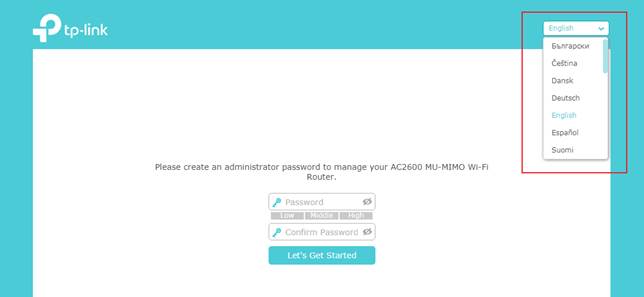
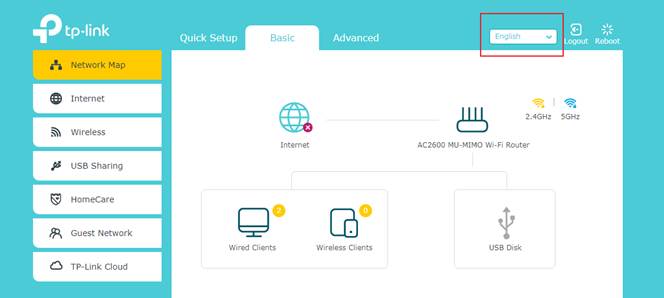
Step 2: Find the drop-down list in the upper right corner to choose a language. You can find the drop-down list to change the language at any time.
For more details, download the manual for your product from the Download Center.
Looking For More
Ez a GY.I.K. hasznos volt?
Véleménye segíti az oldal fejlesztését

&Archer-A9(US)_normal_1584493037690i.png)


TP-Link Community
Still need help? Search for answers, ask questions, and get help from TP-Link experts and other users around the world.