Which Ports Does VIGI VMS Local Use
Contents
An overview of the default ports
How to change the ports used by VMS
Introduction
This article provides an overview of the ports used by VIGI VMS Local and explains how to configure and modify the port configuration settings.
Requirements
- VIGI VMS Local
Configuration
An overview of the default ports
The default ports used by the VMS are listed in the table below.
|
Ports |
TCP/UDP |
When the port is required |
|
5001 |
UDP |
When VIGI VMS actively discovers VIGI devices via private protocol. |
|
8081 |
TCP |
When customers access the VIGI VMS web service via HTTPS. |
|
8082 |
TCP |
When VIGI devices report events to VIGI VMS. |
|
8091 |
TCP |
When customers watch live views or playback, VIGI VMS manages VIGI devices through this port. |
|
8092 |
TCP |
When VIGI devices report smart data to VIGI VMS. |
|
10011 |
TCP |
When the Web microservice provides RPC services. |
|
10012 |
TCP |
When the Media microservice provides RPC services. |
|
10123 |
TCP |
When VIGI devices connect to the VIGI VMS, establish the remote control terminal session between VIGI VMS and VIGI devices. |
|
10556 |
TCP |
When customers watch live view or playback from the VIGI VMS. |
|
13134 |
TCP |
VIGI VMS coordinates multiple services through this port simultaneously. |
|
27017 |
TCP |
VIGI VMS accesses the MongoDB database through this port. |
Examples of VMS using ports
This section explains how VMS uses ports, using the example of how it discovers and adds VIGI devices.
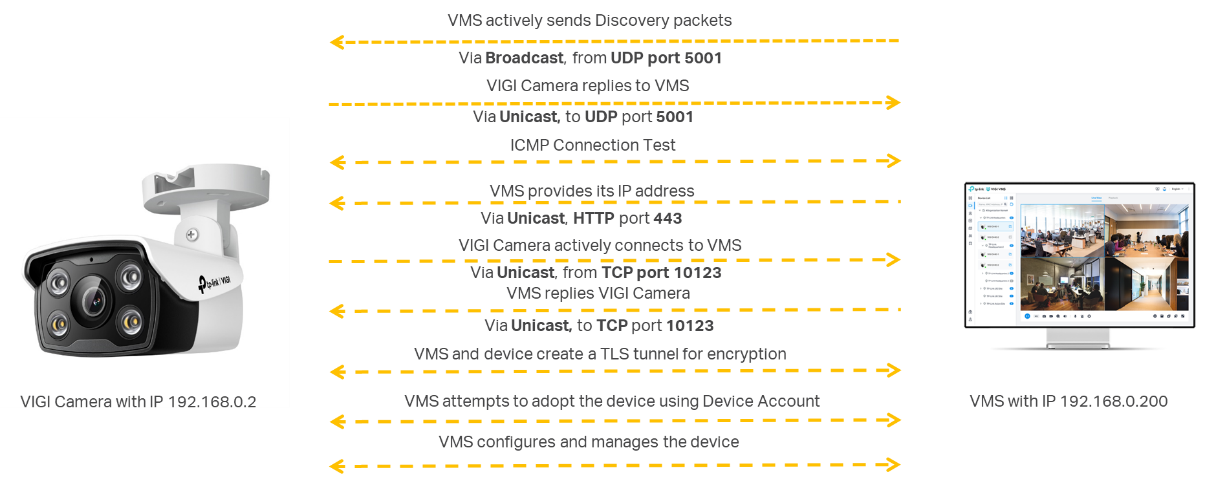
Step 1. VMS broadcasts discovery packets on the subnet via UDP port 5001.
Step 2. VIGI devices listen to the port and receive the discovery message, then reply to the VMS via the same port.
Step 3. VIGI devices connect to the VMS via TCP port 10123.
Step 4. VMS and VIGI devices create a TLS tunnel and adopt VIGI devices with a device account.
Port Forwarding Settings
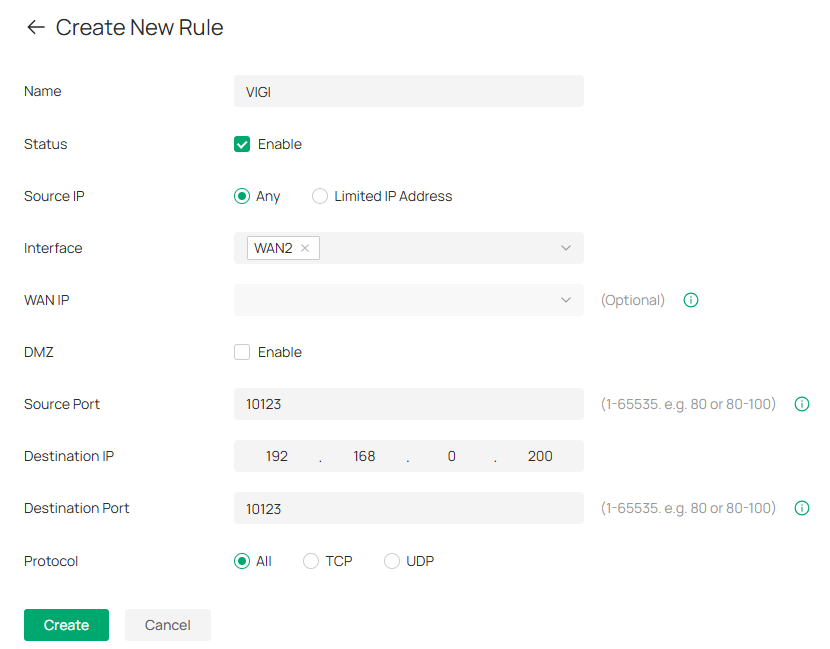
If a router is performing NAT (Network Address Translation) between the VIGI VMS and the VIGI devices, the VIGI devices cannot connect directly to the VMS. In this case, Port Forwarding rules should be created to enable proper communication between the VMS and the VIGI devices.
The source and destination ports of the Port Forwarding rules should be the same as the VMS ports mentioned above. For example, if the device connect port is being used, the settings should be as shown below.
How to change the ports used by VMS
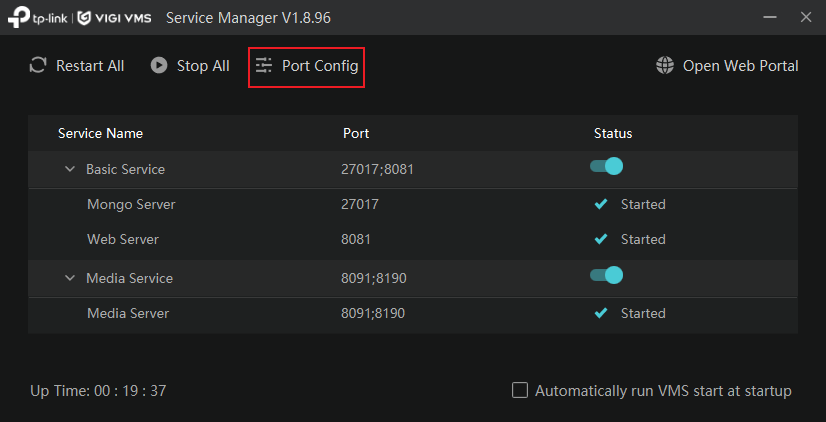
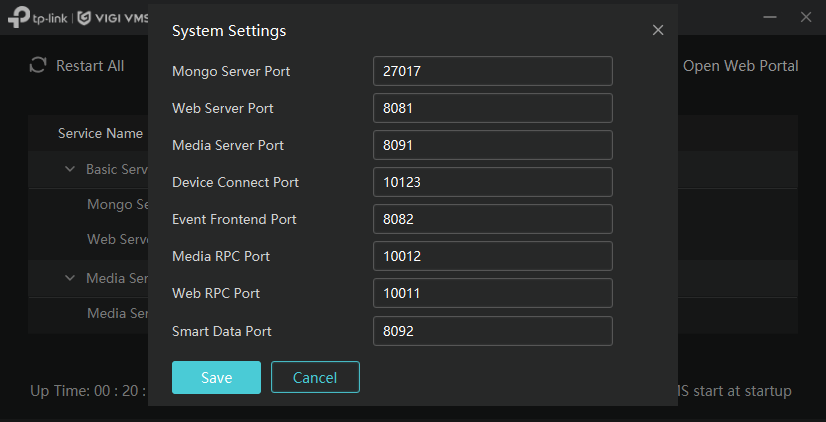
The VMS server ports can be modified by accessing the Port Config option on the setup page.
Conclusion
Now that you understand the ports used by VIGI VMS and their functions, you can configure your network accordingly to ensure reliable communication between VIGI devices and the VMS server.
To learn more about each function and configuration, please visit Support Home to download or check the manual for your product.
QA
Q1: How can I change the RCP Register Port?
A1: The RCP Register Port is active while the VIGI VMS is running. To modify this port, please stop the VMS service and then change the port setting.
Q2: What should I do if the message "Port is occupied" is displayed when starting VMS?
A2: This message indicates that one or more default VMS ports are already being used by another application on the server. To resolve the issue, either modify the VMS ports as described in Section 4 or stop the service that is currently using the conflicting port(s).
Q3: If my VMS is behind NAT, which ports do I need to forward to public?
A3: You will need to set port forwarding rules for port 8081, port 8082, port 8092, port 10123, and port 10556.
Looking For More
Is this faq useful?
Your feedback helps improve this site.


TP-Link Community
Still need help? Search for answers, ask questions, and get help from TP-Link experts and other users around the world.