
How to Enable Data Roaming on the TP-Link 5G/4G Router
Data Roaming allows the router to use a compatible partner mobile network when the SIM card is outside its home network coverage. Enable this option only when your mobile carrier and service plan support roaming.
Key Takeaways
Requirements
Step-by-Step Guide
Step 1: Access the Web Management Page
- Connect your phone or computer to the router via Wi-Fi or an Ethernet cable.
- Open a web browser and enter https://tplinkmodem.net/ in the address bar.
- Log in with your admin password. (For first login, you’ll be asked to create an admin password)
Step 2. Enable Data Roaming
Notes:
1. Enabling Data Roaming may incur additional charges. Confirm the carrier's coverage, charges, and fair-use policy before you enable it.
2. It is recommended to disable data roaming when not in use to avoid unexpected charges.
For 5G Router:
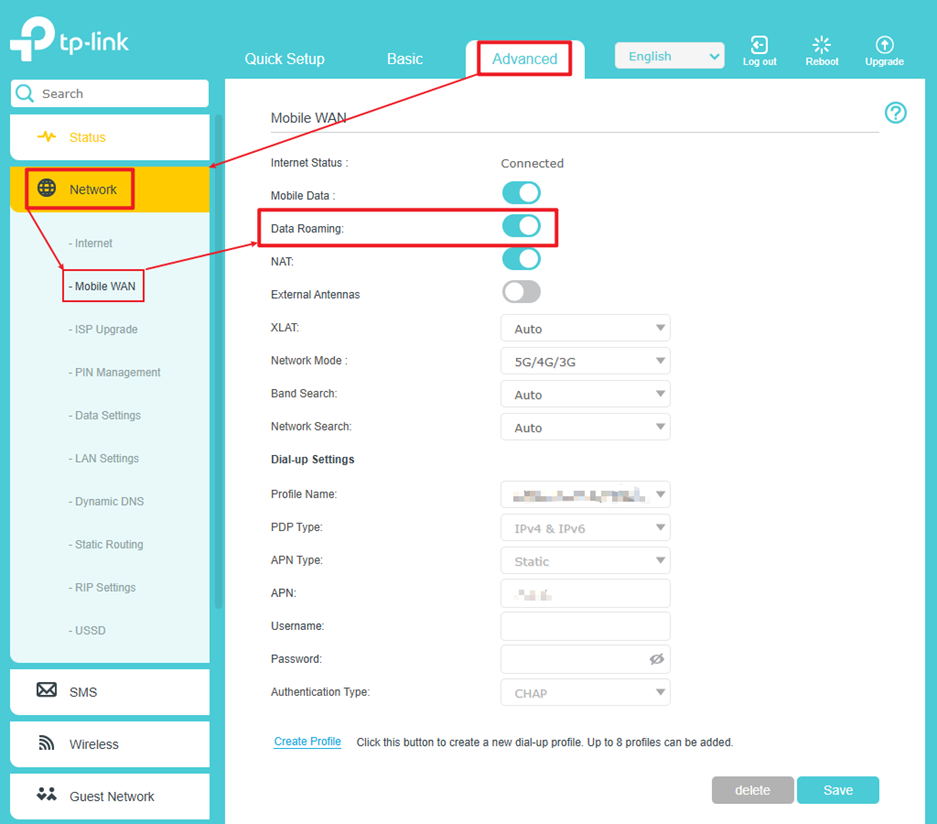
Go to Advanced > Network > Internet > Mobile WAN> Enable Data Roaming and click Save.
For 4G Router:
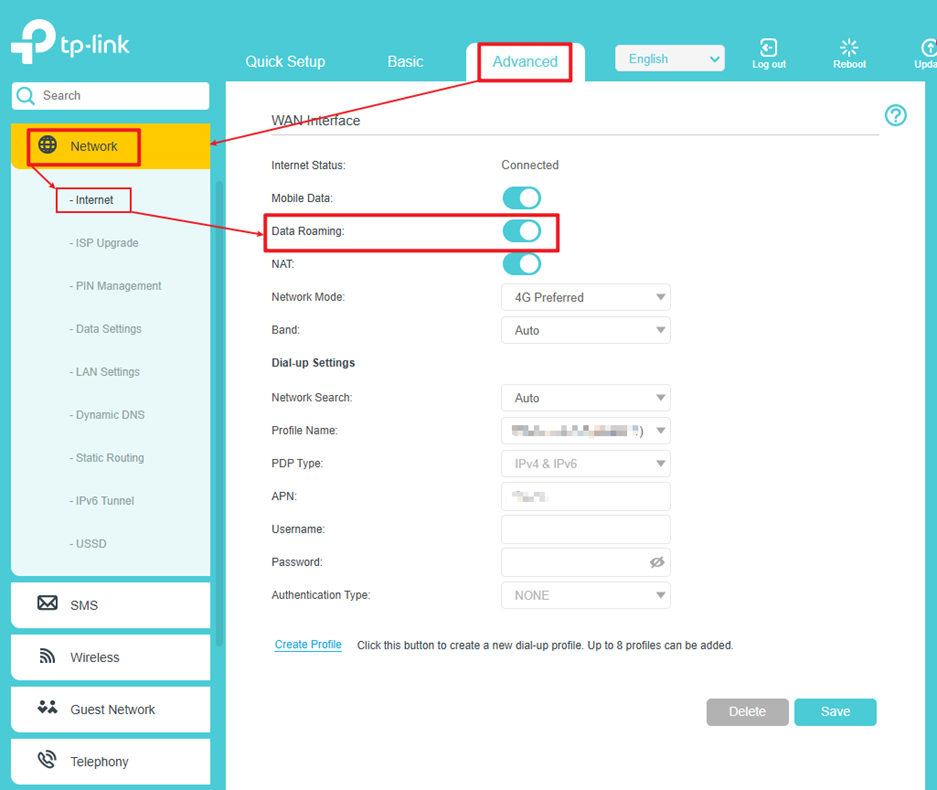
Go to Advanced > Network > Internet > Enable Data Roaming and click Save.
Looking For More
Byla tato FAQ užitečná?
Vaše zpětná vazba nám pomůže zlepšit naše webové stránky


TP-Link Community
Still need help? Search for answers, ask questions, and get help from TP-Link experts and other users around the world.