
How to Use the Encrypt microSD Card Feature on Tapo Cameras and Doorbells
The Encrypt microSD Card feature helps protect recordings stored on Tapo cameras and doorbells from unauthorized access. This guide explains the benefits of SD card encryption, how to enable or disable it, and how to resolve common issues such as password recovery, device migration, and card recognition problems.
Notes: Support for this feature varies by model. Refer to the Tapo app to confirm whether your device supports microSD card encryption.
Key Takeaways
- Encrypted microSD cards can only be accessed through the Tapo app on compatible Tapo devices.
- A password is required when using an encrypted SD card on another supported Tapo device under the same TP-Link ID.
- Encrypted recordings cannot be viewed on computers, card readers, or non-Tapo devices.
- Encryption can be enabled or disabled in camera/doorbell Device Settings > Storage & Recording > Local Storage.
- If the original camera is unavailable and the password is forgotten, formatting the microSD card is the only way to regain access.
Benefits of Encrypting a microSD Card
Device-Specific Access
Encrypted SD cards can only be accessed and decrypted on the device that encrypted them. This ensures your data remains secure and private.
Strong Authentication Method
A password is required if you insert the microSD card into another Tapo device under the same TP-Link ID. This adds an extra layer of protection for your data.
Tapo App Access Only
Access to the encrypted microSD card is only available via the Tapo app. If you insert the encrypted microSD card into a computer or another device, the data will be unreadable.
How to Enable microSD Card Encryption
Step 1. Make sure a microSD card is properly inserted into the camera and local storage has been set up.
How can I store the Tapo camera video recordings on a microSD card?
Step 2. Open the Tapo app and go to camera/doorbell Device Settings > Storage & Recording > Local Storage > Encrypt microSD Card, tap Encrypt Now.
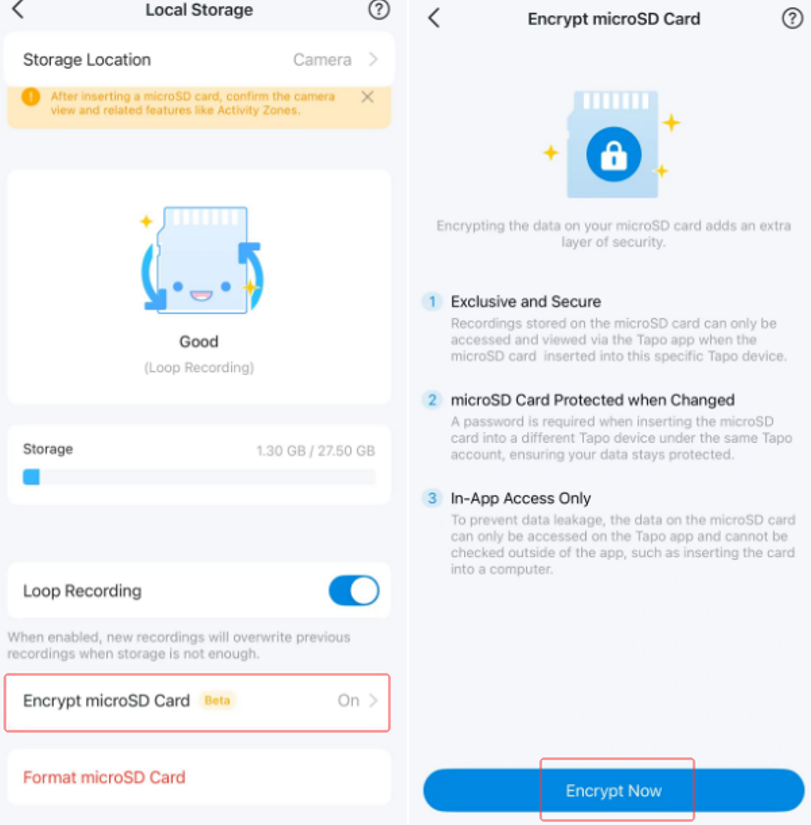
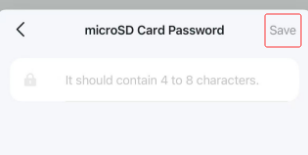
Step 3. Enter a password containing 4 to 8 characters, then tap Save. The microSD card will be encrypted and protected from unauthorized access.
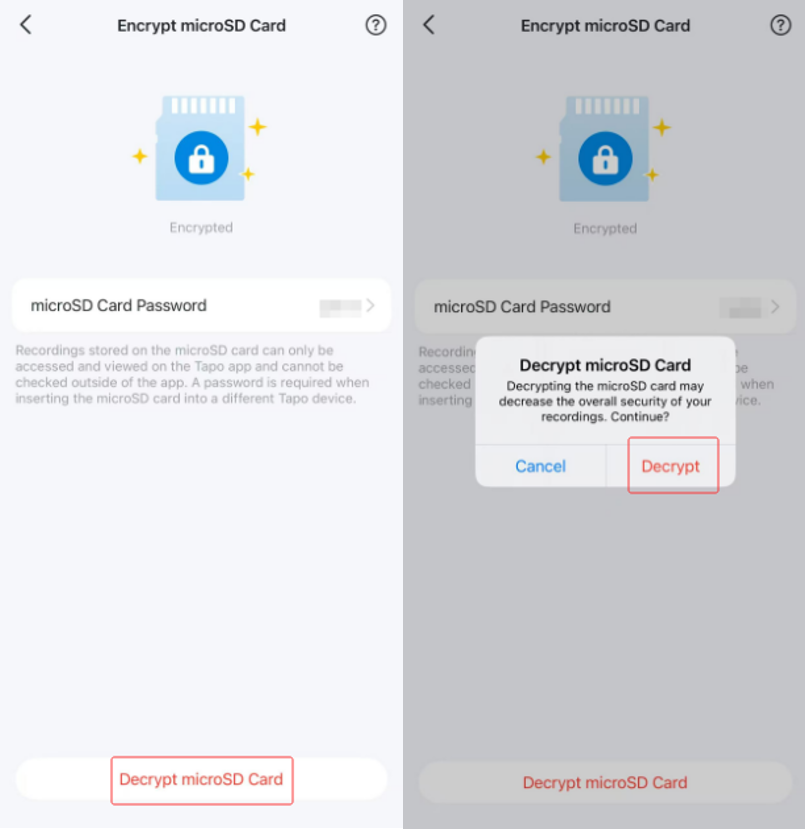
How to Disable microSD Card Encryption
Open the Tapo app, go to Device Settings > Storage & Recording > Local Storage > Encrypt microSD Card. Tap Decrypt SD Card, then confirm by tapping Decrypt.
Once decryption is complete, the microSD card can be used normally on other devices.
Q&A
Q1: How Can I Use an Encrypted microSD Card on Another Device?
On Another Compatible Tapo Camera
Insert the microSD card into a Tapo camera that supports the encryption feature. When prompted, enter the correct encryption password to access the card.
On a Computer or Other Device
Encrypted microSD cards cannot be accessed directly on computers, card readers, non-Tapo devices, or Tapo cameras that do not support microSD encryption. To use the card on another device, reinsert the card into the original camera that encrypted it, open Encrypt microSD Card settings in the Tapo app and disable encryption.
Q2: What Should I Do If I Forget the microSD Card Encryption Password?
If you still have access to the original camera, open the Tapo app, go to camera/doorbell Device Settings > Storage & Recording > Local Storage > Encrypt microSD Card to view the saved password.
If the original camera is no longer available, the only solution is to format the microSD card. This permanently removes all recordings and encryption settings.
Note: Back up any important files before formatting the card as it will erase all stored data and cannot be undone.
Q3: Why Did I Receive an "SD Card Encryption Disabled" Notification?
This notification usually indicates that the inserted microSD card has compatibility issues that prevent encryption from functioning correctly. To maintain recording capability, the camera automatically disables encryption for that card.
For the best experience, use a microSD card from the compatibility list.
Q4: What Should I Do If My Tapo Camera Doesn't Recognize the SD Card?
Please check if this card was previously encrypted in another Tapo camera.
- If yes: Put it back into the original Tapo camera, open the Tapo app, go to Device Settings > Storage & Recording > Local Storage > Encrypt microSD Card, then tap Decrypt SD Card
- If no: Follow How to Fix Tapo or Kasa Camera and Doorbell SD Card Not Formatting or Being Recognized to troubleshoot.
Looking For More
Byla tato FAQ užitečná?
Vaše zpětná vazba nám pomůže zlepšit naše webové stránky

TP-Link Community
Still need help? Search for answers, ask questions, and get help from TP-Link experts and other users around the world.