
How to Use PPTP/OpenVPN to Access Home Network Through TP-Link ISP-customized Wi-Fi Router
A VPN server creates a VPN connection for remote devices. To use the VPN feature, you should enable L2TP/PPTP/OpenVPN Server on your router and configure the VPN connection on the remote device. This article tells the steps to set up a PPTP/OpenVPN VPN connection.
Requirements
- VPN client: a Laptop/Windows PC/MacBook
- Download the OpenVPN software, and install it on your device where you want to run the OpenVPN client utility

Configuration
Scenario 1: PPTP VPN
Step 1. Set up PPTP VPN Server on Router
Connect your device to the router (via Wi-Fi/Ethernet), then access its web management page by entering the model-specific URL in a browser:
- E/H-series models (E.g.: EB810v, HB710): https://tplinkwifi.net
- V/N/M-series models (E.g.: VX420, NX620v): https://tplinkmodem.net
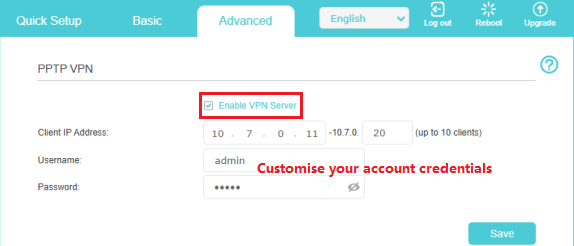
Go to Advanced > VPN Server > PPTP VPN, and select Enable VPN Server.
You may adjust the Client IP Address range if needed.
Enter the Username and Password to authenticate devices to the PPTP VPN Server.
Click Save to apply the settings.
Notes:
1. It’s recommended to configure the Dynamic DNS service and synchronize your System Time with the internet before enabling the VPN Server.
2. If you cannot access the management page, troubleshoot as per How to Fix TP-Link Device Domain Name Login Issues.
Step 2. Configure PPTP VPN connection on remote device
The remote device can use the Windows built-in PPTP software or a third-party PPTP software to connect to PPTP Server. Here, we use the Windows built-in PPTP software as an example.
a. Go to Start > Control Panel > Network and Internet > Network and Sharing Center.
b. Select Set up a new connection or network.
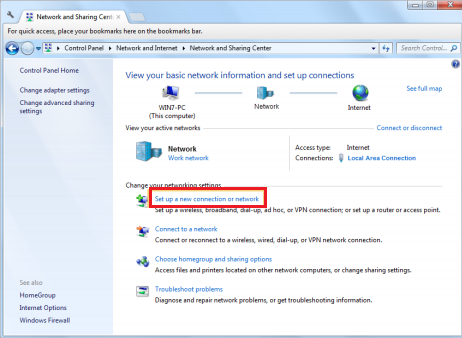
c. Select Connect to a workplace and click Next.
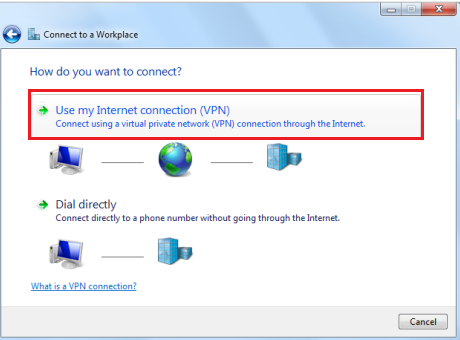
d. Select Use my Internet connection (VPN).
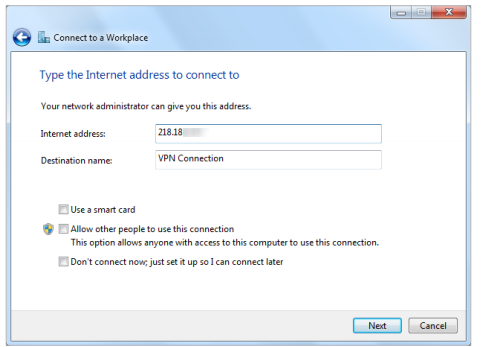
e. Enter the Internet IP address of the router (for example: 218.18.xx.xx) in the Internet address field. Click Next.
f. Enter the username and Password you have set for the PPTP VPN server on your router, and click Connect.
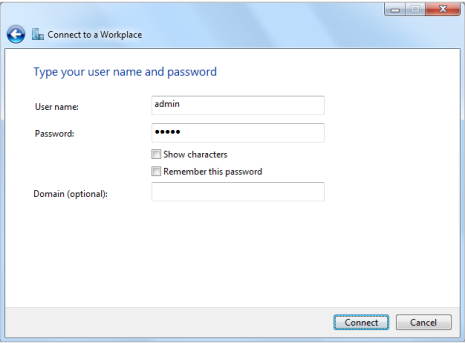
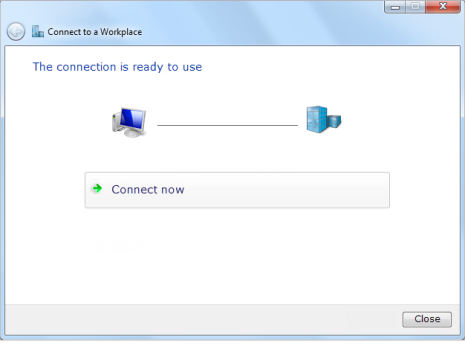
g. The PPTP VPN connection is created and ready to use.
Scenario 2: OpenVPN
Step 1. Set up OpenVPN Server on Your Router
Connect your device to the router (via Wi-Fi/Ethernet), then access its web management page by entering the model-specific URL in a browser:
- E/H-series models (E.g.: EB810v, HB710): https://tplinkwifi.net
- V/N/M-series models (E.g.: VX420, NX620v): https://tplinkmodem.net
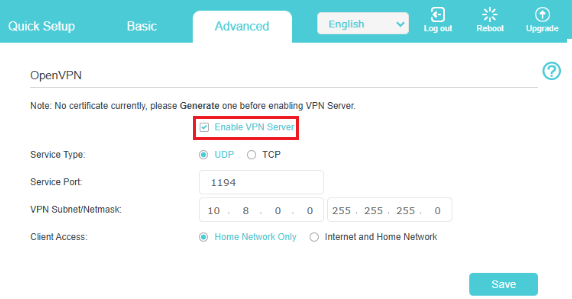
Go to Advanced > VPN Server > OpenVPN, and select Enable VPN Server.
You can adjust the Service Type (communication protocol), Service Port, and VPN Subnet settings if needed.
If you want to keep the remote client devices from accessing the Internet when connected to the VPN Server, select Home Network Only.
Click Save to apply the settings.
Click Generate to get a certificate. Skip this step If you have generated one before and don’t need to update it.
Click Export to save the OpenVPN configuration file, which will be used by the remote device to access your router.


Notes:
1. It’s recommended to configure the Dynamic DNS service and synchronize your System Time with the internet before enabling the VPN Server.
2. If you cannot access the management page, troubleshoot as per How to Fix TP-Link Device Domain Name Login Issues.
Step 2. Configure OpenVPN connection on remote device
a. Download the OpenVPN software, and install it on your device where you want to run the OpenVPN client utility.
Note: You need to install the OpenVPN client utility on each device you plan to use with the VPN to access your router. Mobile devices should download a third-party app from Google Play or Apple App Store.
b. After the installation, copy the file exported from your router to the OpenVPN client utility’s “config” folder (for example, C:\Program Files\OpenVPN\config on Windows). The path depends on where the OpenVPN client utility is installed.
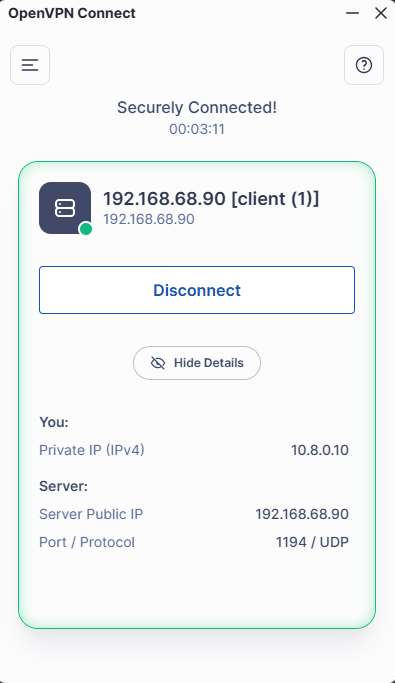
c. Run the OpenVPN client utility and connect it to OpenVPN Server.
Get to know more details of each function and configuration please go to Download Center to download the manual of your product.
Looking For More
Finden Sie diese FAQ hilfreich?
Mit Ihrer Rückmeldung tragen Sie dazu bei, dass wir unsere Webpräsenz verbessern.



TP-Link Community
Still need help? Search for answers, ask questions, and get help from TP-Link experts and other users around the world.
Von United States?
Erhalten Sie Produkte, Events und Leistungen speziell für Ihre Region