How to Avoid IP Address Conflicts in a Surveillance System
Contents
Common IP address conflicts in a surveillance system
Understanding IP address assignment
Recommended surveillance network design
IP address conflict prevention
VIGI guide on manually changing IP addresses
Introduction
An IP address conflict occurs when two or more devices on the same network use the same IP address. Because each device requires a unique IP address to communicate properly, an IP address conflict can result in intermittent connectivity, cameras appearing offline, unstable Live View, or cameras failing to connect to an NVR.
IP address conflicts can occur when IP addresses are manually configured incorrectly, when static IP addresses overlap with the DHCP server's address pool, or when multiple devices are assigned the same address. In a surveillance network containing multiple IP cameras, NVRs, and other network clients, proper IP address planning can help prevent these issues.
This article introduces common IP address conflict scenarios in surveillance networks and provides recommendations for planning and configuring IP addresses to help prevent conflicts.
Common IP address conflicts in a surveillance system
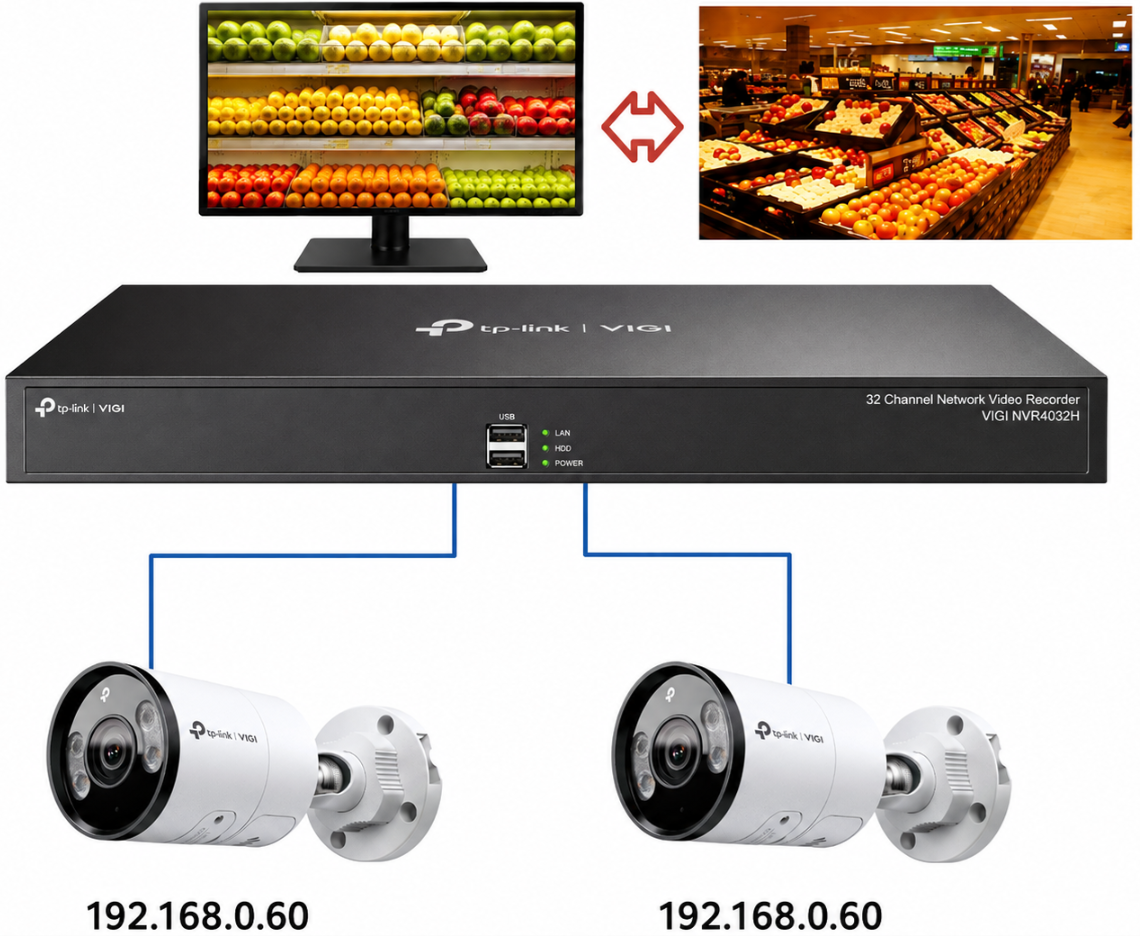
IP address conflicts between IP cameras
In a surveillance system, if two IP cameras are configured with the same IP address, the NVR or other network devices may be unable to reliably distinguish between the two cameras. As a result, the live video displayed on a channel may intermittently switch between the two cameras, or one or both cameras may become temporarily unavailable. This occurs because both cameras are attempting to communicate on the network using the same IP address.
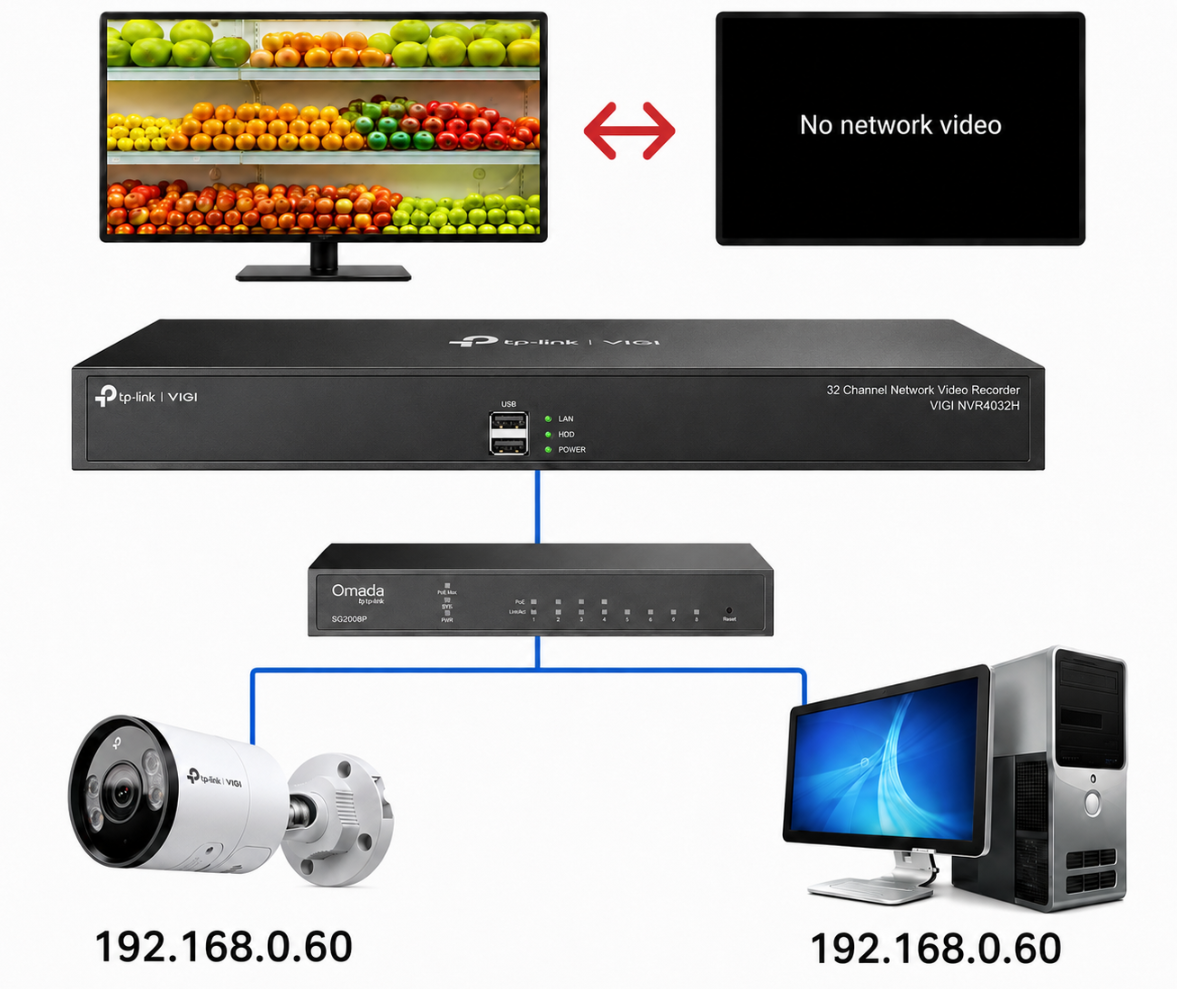
IP address conflicts between IP cameras/NVR and other clients such as a computer client
In this situation, the monitoring screen may intermittently display “No Network Video” because the NVR is unable to maintain a stable connection to the camera. The video may return temporarily and then disconnect again as the conflicting devices compete to use the same IP address on the network.
IP conflicts should be avoided on any network because they can disrupt traffic and interfere with communication between devices. It is best practice to plan and document the network configuration before connecting devices.
Understanding IP address assignment
There are two main ways to configure IP addressing on a network: DHCP and static IP addressing. DHCP automatically assigns IP addresses to devices through a DHCP server, while static IP addresses are manually assigned to individual devices. Proper planning and configuration of either method helps prevent IP conflicts and ensures reliable network communication.
DHCP
DHCP automatically assigns IP addresses and other basic network settings to devices when they connect to a network. This helps reduce the need to configure each device manually and can help prevent IP address conflicts.
Static IP
A static IP address is manually assigned to a device and normally remains the same unless it is changed. This is useful when a device, such as an NVR or IP camera, needs a consistent IP address on the network.
Identify the DHCP server
The DHCP server is the device that automatically assigns IP addresses to devices on the network. In most networks, this is the router or gateway, but it may also be another network device or server configured to provide DHCP services.
DHCP Reservation
A DHCP reservation assigns the same IP address to a specific device each time it connects to the network. This provides a consistent IP address while still allowing the DHCP server to manage the address assignment.
Recommended surveillance network design
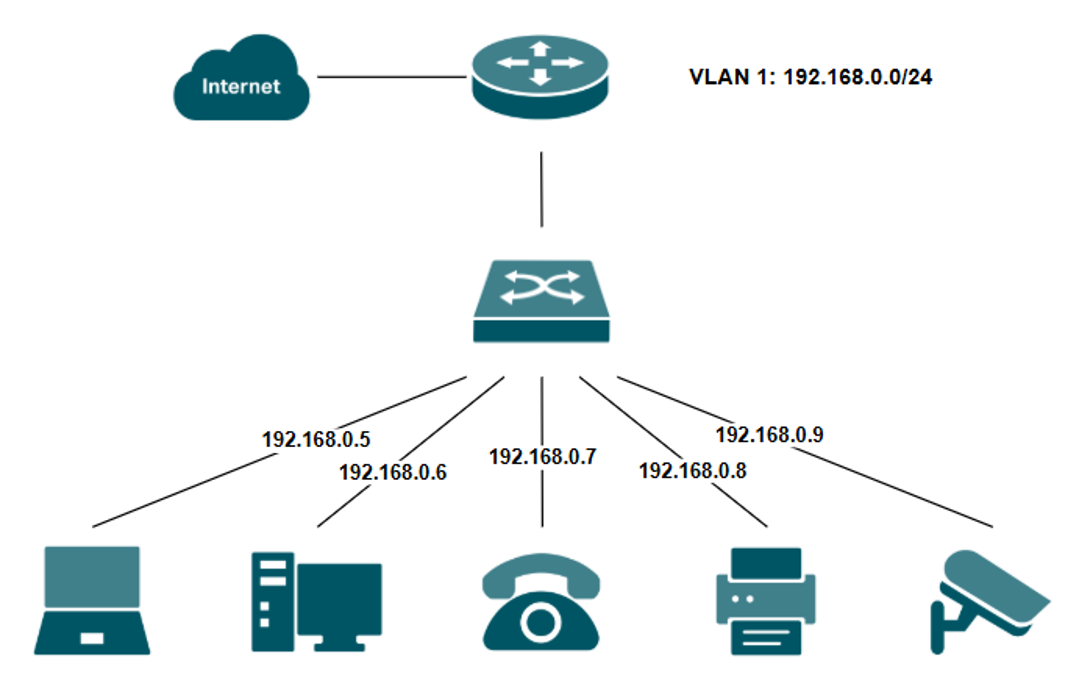
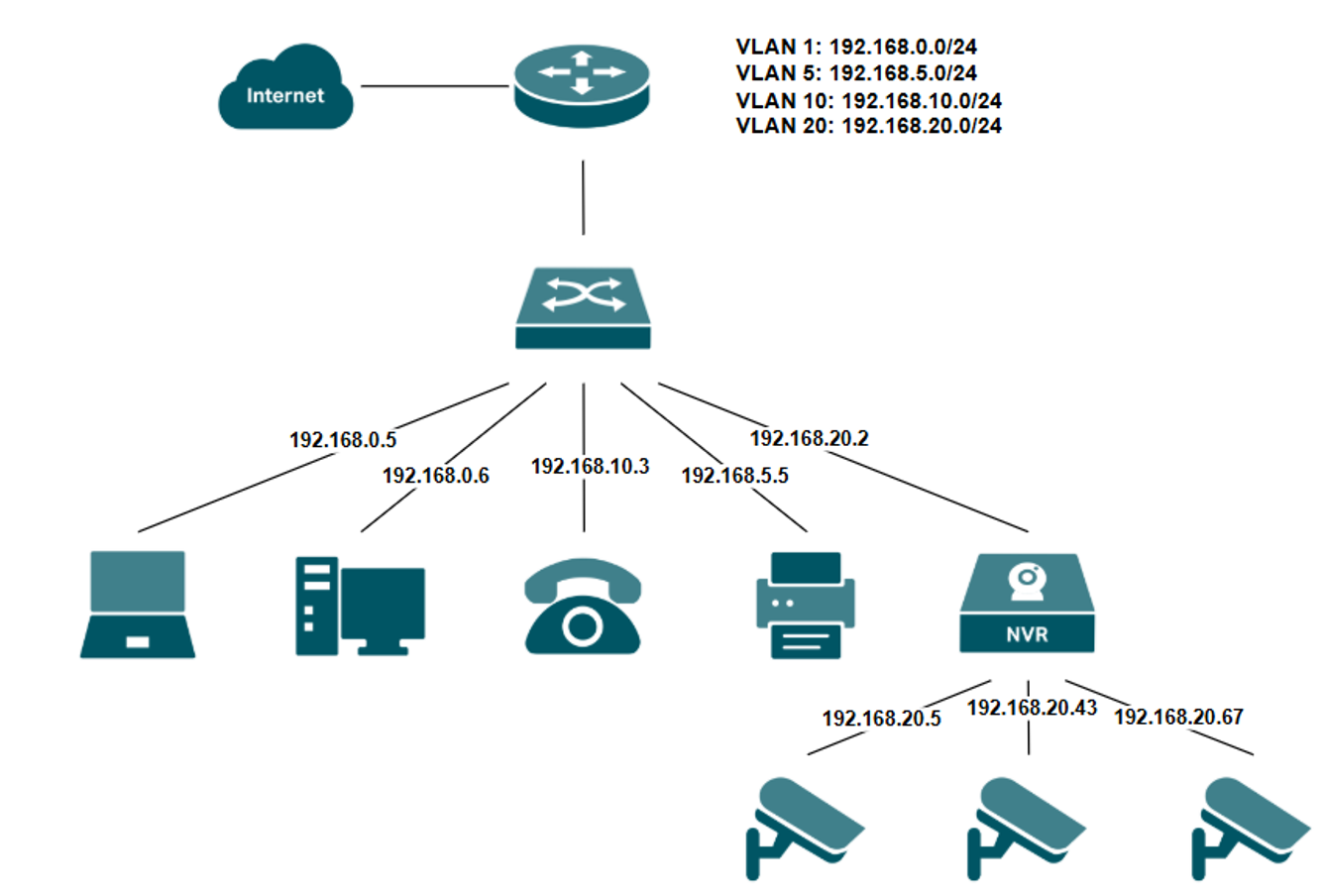
Shared LAN
A shared LAN places the NVR, IP cameras, and other network devices on the same network. This setup is simple to deploy, but careful IP address management is important to avoid conflicts with other devices. A shared LAN is generally best suited for small deployments, as increasing the number of cameras and other devices can create additional network traffic and reduce overall network performance. For larger systems, a dedicated surveillance VLAN, subnet, or separate camera network is recommended.
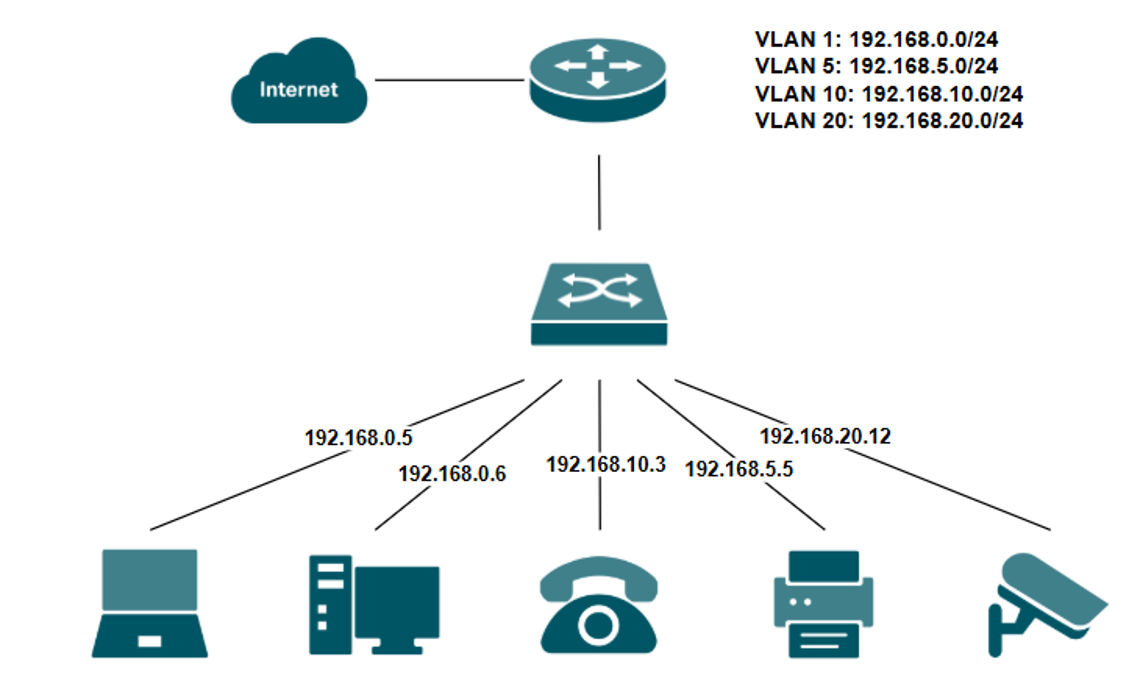
Dedicated surveillance VLAN/subnet
A dedicated surveillance VLAN or subnet separates IP cameras and NVRs from other network devices. This can improve network organization, simplify IP address management, reduce unnecessary traffic between device groups, and provide better control over access to surveillance devices.
PoE NVR internal camera network
Some PoE NVRs, including VIGI PoE NVRs, can provide a separate internal network for cameras connected directly to their PoE ports. In this setup, the NVR manages the camera network separately from the main LAN, which can simplify camera addressing, reduce IP conflicts, and help isolate camera traffic from other network devices.
IP address conflict prevention
Use DHCP where appropriate
Using DHCP allows the DHCP server to automatically assign available IP addresses to devices. This reduces manual configuration and lowers the chance of accidentally assigning the same IP address to multiple devices.
Use DHCP reservations
A DHCP reservation keeps a device on the same IP address while allowing the DHCP server to manage the assignment. This is useful for NVRs and IP cameras that need a consistent address.
Keep static IPs outside the DHCP pool
When assigning static IP addresses manually, use addresses that are outside the DHCP server's address pool. This prevents the DHCP server from assigning the same address to another device.
Avoid unintended DHCP servers
Make sure only the intended DHCP server is assigning addresses to devices on the network. An additional or incorrectly configured DHCP server may assign unexpected or conflicting network settings.
Verify addresses before manually assigning them
Before assigning a static IP address, verify that the address is not already being used by another device. You can check the DHCP client list, device list, or other network management tools before applying the address.
VIGI guide on manually changing IP addresses
VIGI provides a configuration guide that outlines several methods for changing or specifying the IP address of a VIGI IP camera. Depending on how the camera is being managed, the IP address can be configured directly through the camera WebUI, through VIGI Security Manager or VIGI PC Client, or through a VIGI NVR.
The guide also covers several NVR-based methods, including modifying the IP address before or after a camera is added, manually specifying an IP address when adding a camera, using batch IP modification, and using the NVR's one-click networking feature. These options can be useful when deploying multiple cameras or when cameras need to be moved into a specific subnet or IP addressing scheme.
When manually assigning an IP address, verify that the address is unused and that the IP address, subnet mask, and gateway are appropriate for the network where the camera will operate. Assigning an address already in use can create an IP conflict and prevent devices from communicating correctly.
For detailed instructions, refer to How to Modify the IP Address of the VIGI Camera.
Conclusion
Proper IP address planning helps prevent connectivity issues and improves the reliability of a surveillance network. By using DHCP appropriately, reserving addresses when needed, separating static IP addresses from the DHCP pool, and verifying addresses before assignment, you can reduce the risk of IP address conflicts between cameras, NVRs, and other network devices.
To learn more about each function and configuration, please visit Support Home to download or check the manual for your product.
QA
Q1: What are common signs of an IP address conflict in a surveillance system?
A1: Common symptoms include cameras intermittently appearing offline, unstable Live View, “No Network Video” messages, or video switching unexpectedly between cameras.
Q2: What should I do if two IP cameras have the same IP address?
A2: Change the IP address of one camera so that each camera uses a unique address within the appropriate subnet.
Q3: Can a computer cause an IP address conflict with an IP camera?
A3: Yes. Any two devices on the same network using the same IP address can cause a conflict, including computers, cameras, NVRs, printers, and other network clients.
Q4: Can DHCP help prevent IP address conflicts?
A4: Yes. A properly configured DHCP server automatically assigns available IP addresses and reduces the chance of manually assigning duplicate addresses.
Q5: Should static IP addresses be configured inside the DHCP address pool?
A5: No. Manually configured static IP addresses should normally be outside the DHCP pool to prevent the DHCP server from assigning the same address to another device.
Q6: When should I use a DHCP reservation for a camera or NVR?
A6: Use a DHCP reservation when the device needs a consistent IP address while you still want the DHCP server to manage its address assignment.
Q7: What happens if there are multiple DHCP servers on the same network?
A7: An unintended DHCP server may assign devices unexpected or incorrect network settings. Ensure that only the intended DHCP server provides addresses for each network segment.
Q8: How can I check whether an IP address is already being used?
A8: Check the DHCP client list, network device list, or other network management tools before manually assigning the address.
Q9: Does using a dedicated surveillance VLAN or subnet help prevent IP address conflicts?
A9: It can simplify IP address management by separating surveillance devices from other network clients and providing a clearly defined address range for cameras and NVRs.
Q10: Do cameras connected directly to a PoE NVR use the same network as the main LAN?
A10: Not necessarily. Some PoE NVRs, including supported VIGI PoE NVRs, provide a separate internal camera network and manage directly connected cameras independently from the main LAN.
Looking For More
Полезен ли беше този ЧЗВ?
Вашите отзиви помагат за подобряване на този сайт.



TP-Link Community
Still need help? Search for answers, ask questions, and get help from TP-Link experts and other users around the world.