
How to Enable or Disable the Anti-Theft Alarm on Tapo Battery-Powered Cameras
The Anti-Theft Alarm helps protect your Tapo battery-powered camera from unauthorized removal. This guide explains what happens when the Anti-theft alarm is triggered and how to enable or disable the feature using either the Tapo app or the camera's power button.
Key Takeaways
- The Anti-Theft Alarm sounds for up to 15 minutes when camera movement is detected.
- The alarm automatically stops after 15 minutes of no movement but will reactivate if the camera is moved again.
- The camera continues recording and can send app notifications while the alarm is active.
- The camera cannot be powered off or factory reset while the Anti-Theft Alarm is triggered.
- You can enable or disable the feature in the Tapo app or manually deactivate it by pressing the power button 10 times within 30 seconds.
What Happens When the Anti-Theft Alarm Is Triggered?
When the Anti-Theft Alarm is triggered:
- The camera emits the alarm sound on and off in a repeating cycle for 15 minutes to deter theft.
- If the camera remains stationary for 15 minutes, the alarm stops automatically. If the camera is moved again afterward, the alarm will be triggered again.
- Sends you app notifications when notification is enabled.
- Keep recording until the alarm stops or the battery dies.
- The camera cannot be powered off or factory reset while the Anti-Theft Alarm is active.
Note: Do not turn on this feature if you haven't installed the camera.
How to Enable the Anti-Theft Alarm
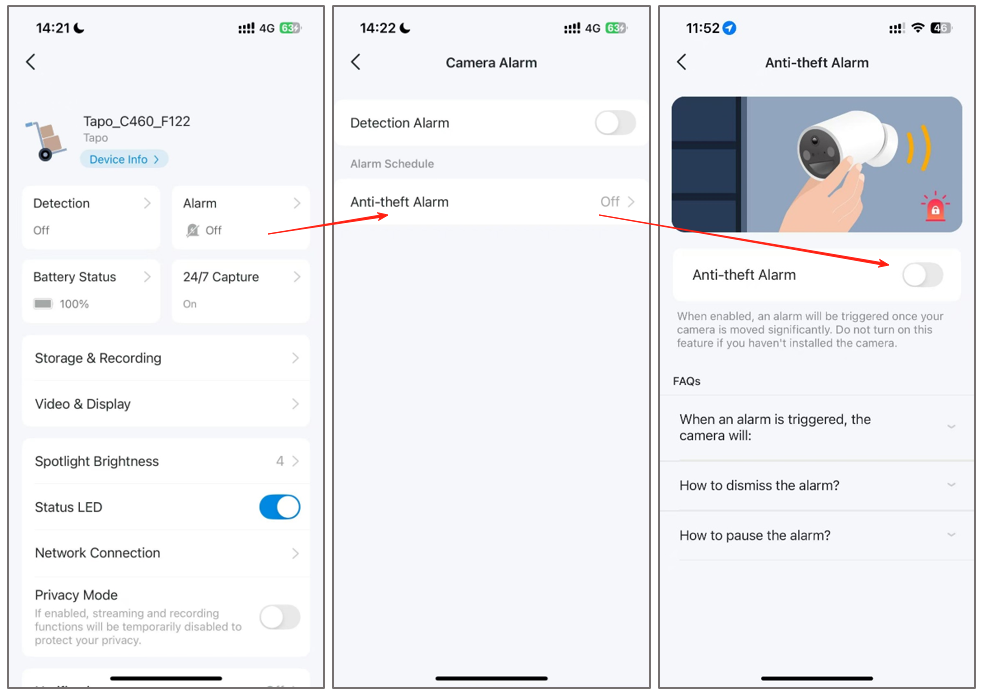
Open the Tapo app, select your camera, then go to Device Settings > Alarm > Anti-theft Alarm and turn the feature on.
How to Disable the Anti-Theft Alarm
Method 1: Via Tapo App
Open the Tapo app, select your camera, then go to Device Settings > Alarm > Anti-theft Alarm and turn the feature off.
Method 2: Via Power Button
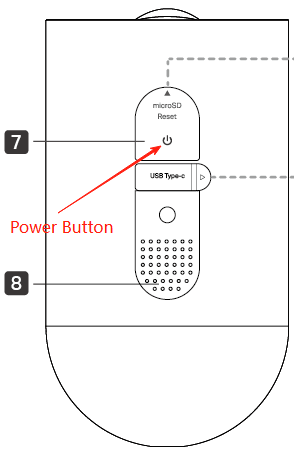
Press the power button 10 times within 30 seconds to deactivate the Anti-theft Alarm manually.
Buscando mas
¿Es útil esta pregunta frecuente?
Sus comentarios nos ayudan a mejorar este sitio.

TP-Link Community
Still need help? Search for answers, ask questions, and get help from TP-Link experts and other users around the world.