
How to Enable 24/7 Capture on Tapo Battery-Powered Cameras
24/7 Capture is a feature that continuously takes snapshots at a set interval within a defined schedule. When motion or an event is detected, it switches to normal frame-rate recording. This feature extends detection range and provides results similar to continuous recording, but with lower power consumption—helping ensure more critical moments are captured. This guide explains how to enable 24/7 capture and how to optimize settings for better performance and battery life.
Note: Feature availability varies by model. Refer to the "This Article Applies to" section in the bottom or side panel, or check the camera settings page in the Tapo app to verify support for 24/7 Capture.
Key Takeaways
- 24/7 Capture uses snapshot-based monitoring to balance recording time and power efficiency.
- The camera switches to normal frame rate recording when motion or events are detected.
- Shorter 24/7 capture intervals improve recording detail but increase battery consumption.
- Using a solar panel is recommended for stable, long-term 24/7 capture operation.
How to Enable 24/7 Capture
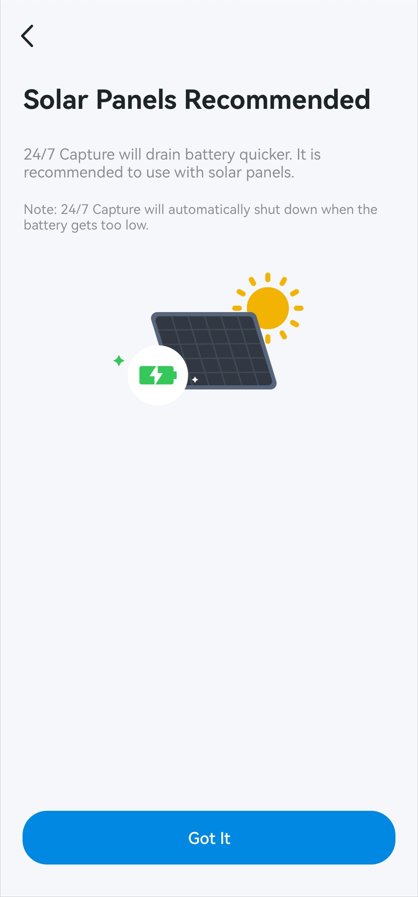
Note: Enabling 24/7 Capture increases power usage. It is recommended to use a solar panel for continuous operation. 24/7 Capture will automatically shut down when the battery gets too low.
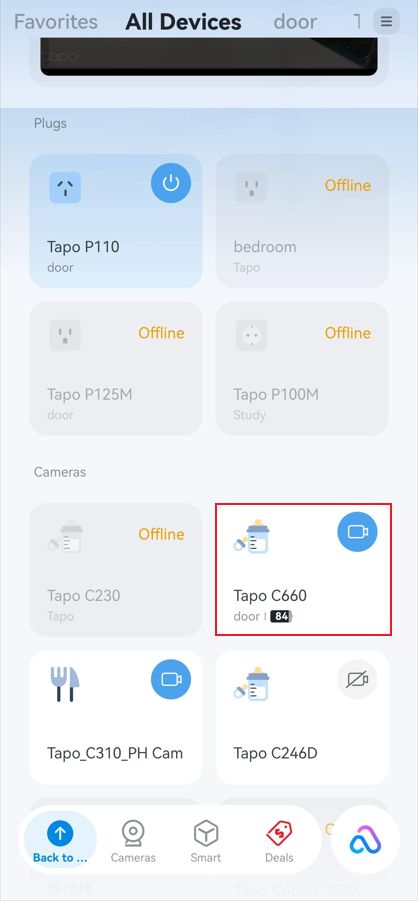
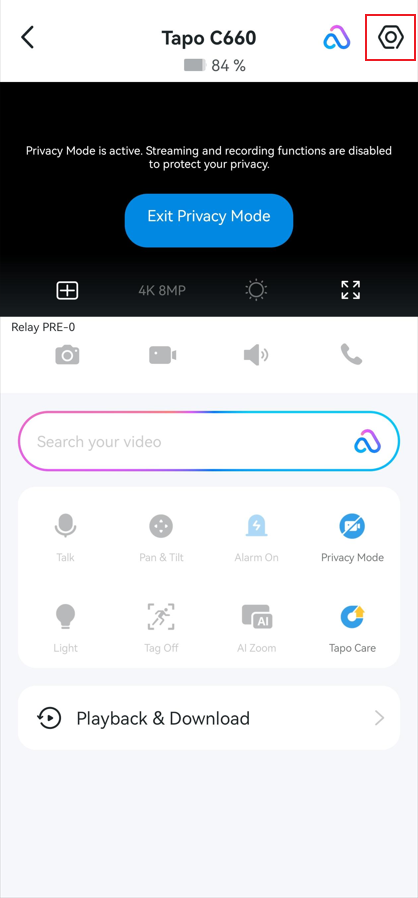
Step 1. Open the Tapo app Home page, tap your camera device card to enter Live View. Tap the gear icon in the top-right to open Device Settings, then select 24/7 Capture.
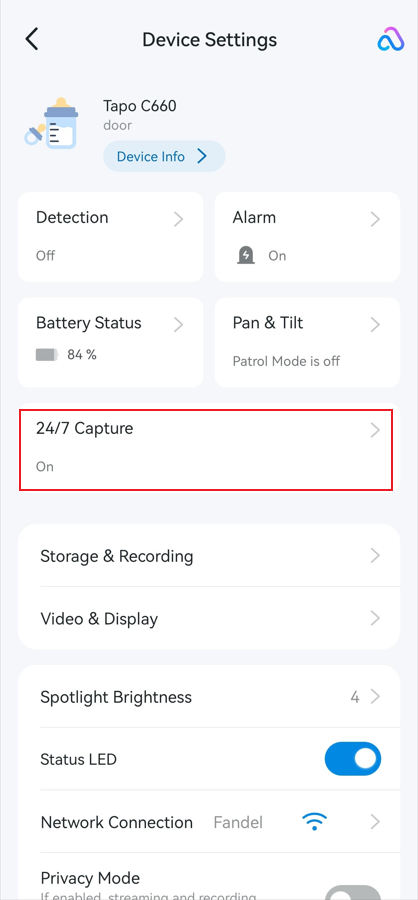
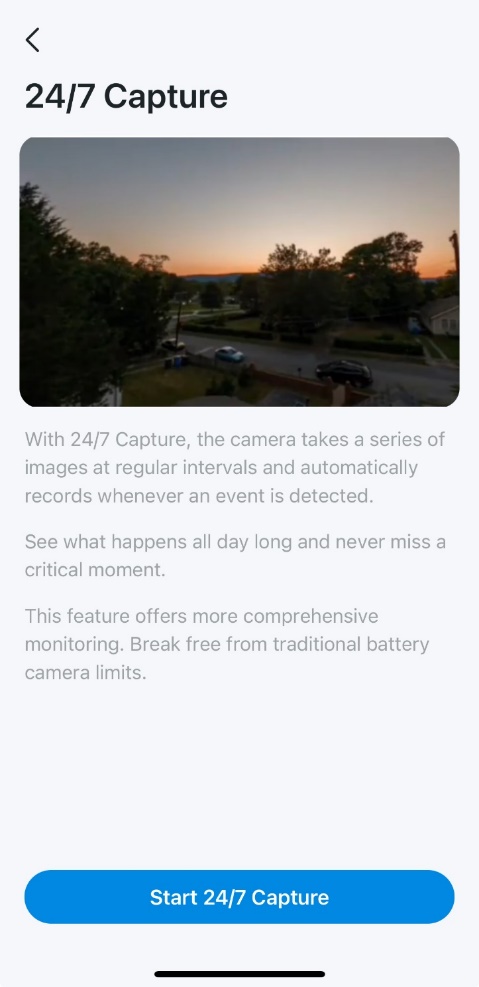
Step 2. If this is your first time configuring 24/7 Capture, tap Start 24/7 Capture. Otherwise, toggle 24/7 Capture on.
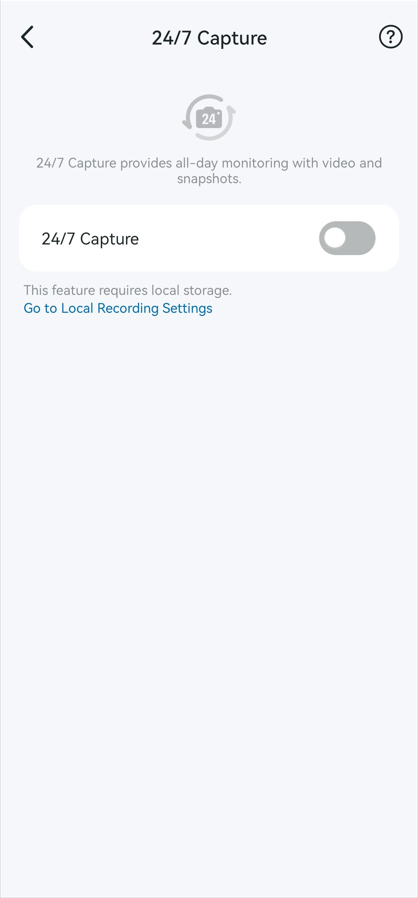
Step 3. Connect your camera to a solar panel, then tap Got it.
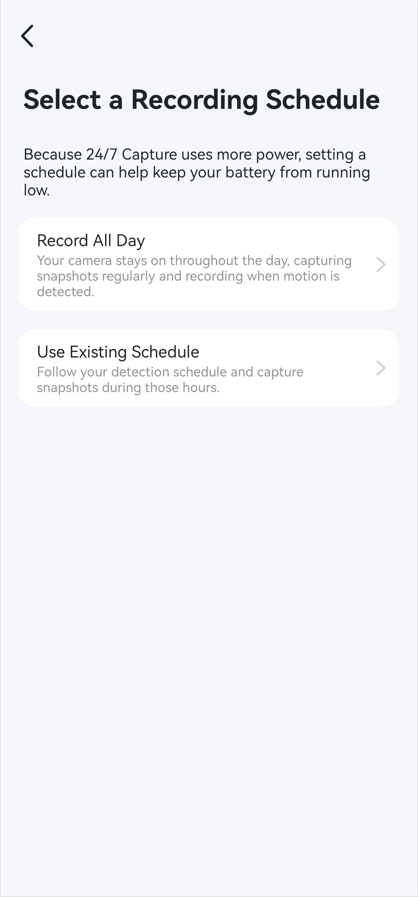
Step 4. Select a 24/7 Capture Recording Schedule.
- Record All Day: Your camera stays on throughout the day, capturing snapshots regularly and recording when motion is detected.
- Use Existing Schedule: The camera follows your current detection schedule and captures snapshots during those hours.
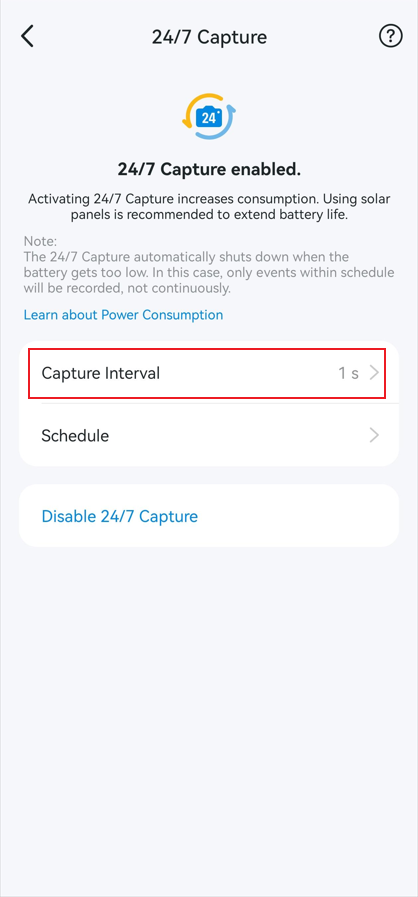
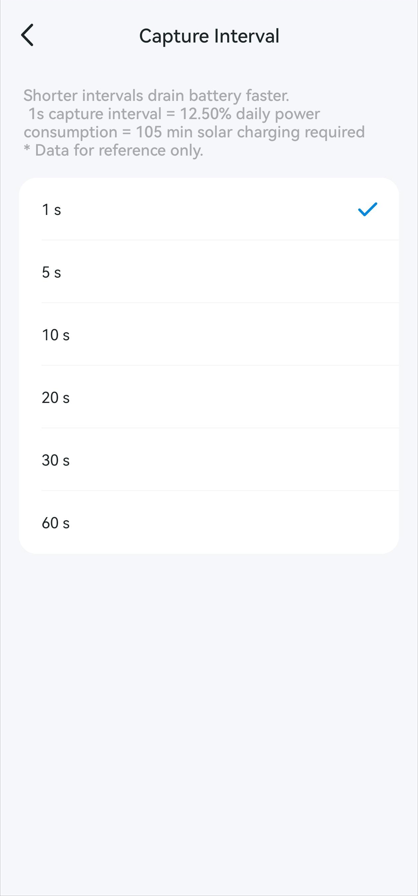
Step 5. Tap Capture Interval to choose how often snapshots are taken. Shorter intervals drain the battery faster.
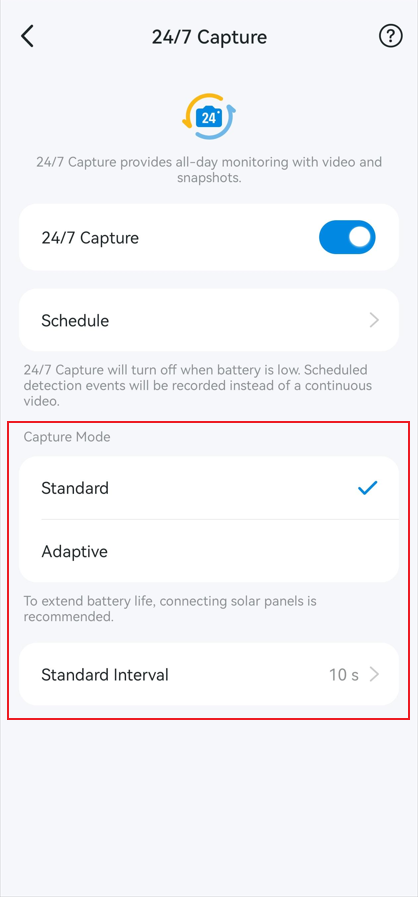
For some models, you can select Capture Mode as Standard or Adaptive.
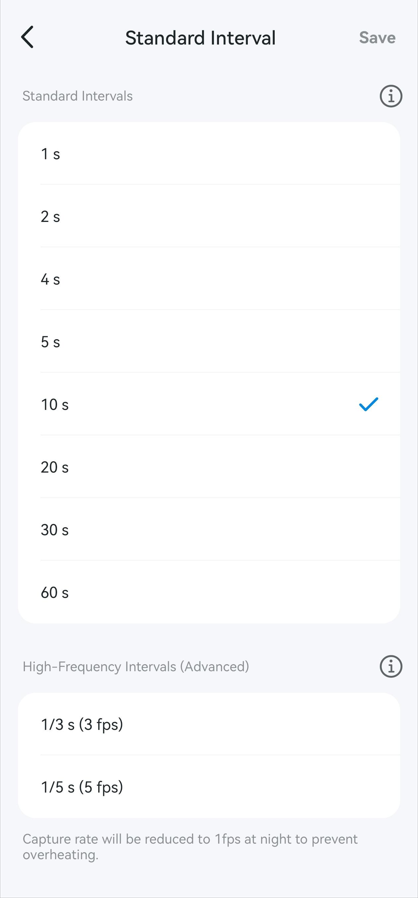
With Standard Mode, you can choose Standard Intervals or High-Frequency Intervals.
Note: When using high-frequency options (e.g., 1/3 s or 1/5 s), the system automatically reduces the rate to 1 fps at night to prevent overheating. The original rate resumes during the day.
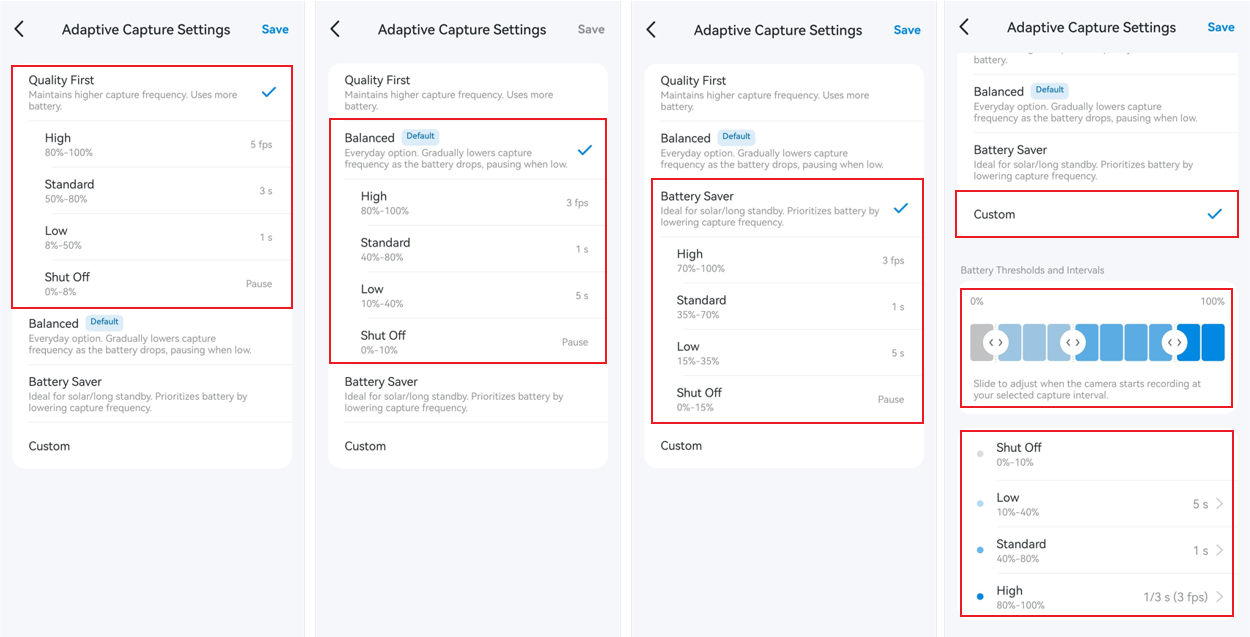
With Adaptive Mode, you can choose Quality First, Balanced, Battery Saver, or Custom, and the capture frequency will be adjusted based on battery level.
- Quality First: Maintains higher capture frequency. Uses more battery.
- Balanced: Gradually lowers capture frequency as the battery drops, pausing when low.
- Battery Saver: Ideal for solar/long standby. Prioritizes battery by lowering capture frequency.
- Custom: Allows manual adjustment of battery thresholds and capture intervals.
Q & A
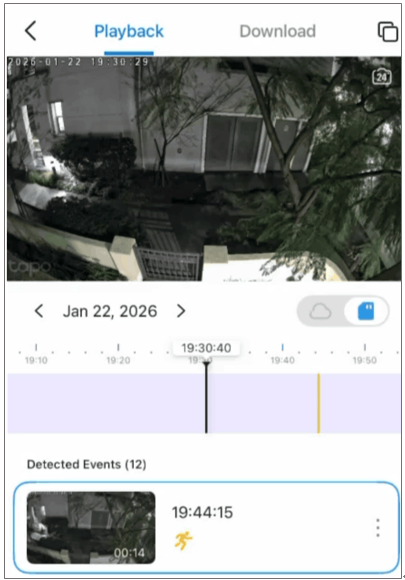
Q1: What do 24/7 Capture snapshots look like in the Playback page of the Tapo app?
24/7 Capture ensures your camera records continuously, not only when detection events are detected, but also when no detection events are detected.
- When no events are detected, it captures snapshots at a lower frame rate (based on your chosen interval) to save battery energy. This creates a time-lapse effect during playback in the Tapo app.
- When an event is detected (like motion, person, vehicle, etc.), it switches to normal high-frame-rate recording for clear detail. (Take the Tapo C460 as an example, it will record the footage with 15 fps at this time)
Please refer to the picture below, in the Playback timeline:
Purple bar = 24/7 Capture footage (plays as a time-lapse clip)
Other colored bars = Detection-Event-triggered recordings—for example, orange bar for motion events.
Q2: What is the difference between 24/7 Capture, PIR Detection, and Continuous Recording?
For details, please refer to the following table:
|
Feature |
24/7 Capture |
PIR Detection |
Continuous Recording |
|
Trigger Mechanism |
Image difference detection |
Infrared motion detection |
Always recording |
|
Power Consumption |
Moderate (much higher than PIR, but lower than continuous) |
Low |
High |
|
Storage Usage |
Lower than continuous recording |
Lower than 24/7 Capture |
Highest |
|
Detection Range |
Longer (up to 15m for humans, 30m+ for vehicles) |
Shorter (up to 9m) |
Not applicable (no detection) |
|
Use Case |
Ideal for energy-efficient monitoring with good coverage |
Best for low power consumption |
Best for full-time recording, but high power usage |
Q3: What are the effects after enabling 24/7 Capture?
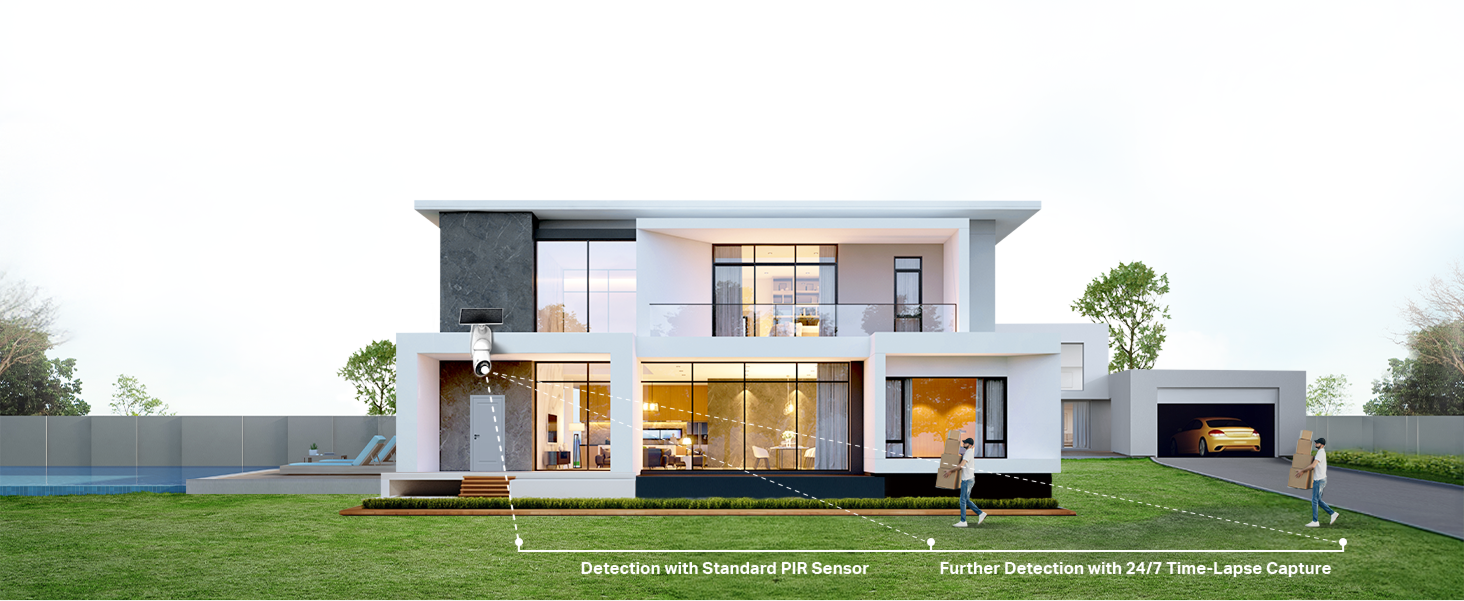
After enabling 24/7 Capture, the detection range will be extended, and events outside the original PIR detection range may also be detected. At this time, it is recommended to set the detection area or adjust the installation position to avoid unnecessary detection alerts.
Additionally, since enabling 24/7 Capture increases the number of wake-ups and keeps the original PIR wake-up detection active, the installation guidelines to prevent frequent wake-ups from draining the battery still apply. For example, avoid pointing the camera directly at a busy street or swaying trees.
Q4: Can 24/7 Capture be used without an SD card or Hub storage?
No, 24/7 Capture requires SD card storage or Hub storage to function properly. Tapo Care cloud storage doesn’t support 24/7 Capture at this time.
To enable 24/7 Capture, turn on Local Recording and select Camera Storage or Hub Storage as storage location in Tapo App > Camera Settings > Storage & Recording.
Note: Please update your H200 to 1.6.5 or later and H500 to 1.3.1 or later to make Hub storage fully compatible with 24/7 Capture.
Q5: How do the interval settings of 24/7 Capture affect battery life?
Check the table below for estimated battery performance:
|
Frame interval (S) |
Battery life on a full charge(without a Solar Panel) |
Solar charging time to support one day of use |
|
1 |
8 Days |
105 minutes |
|
5 |
25 Days |
<45 minutes |
|
10 |
37 Days |
<45 minutes |
|
20 |
42 Days |
<45 minutes |
|
30 |
51 Days |
<45 minutes |
|
60 |
55 Days |
<45 minutes |
Notes:
1. Battery life and solar charging time are based on Tapo laboratory tests, assuming 23 daytime events and 12 nighttime events per day, each triggering a 13-second video recording with the device in standby mode the rest of the time.
2. Solar charging time is measured under standard test conditions (1000W/㎡, 25℃, AM1.5). Actual performance may vary depending on device settings, usage patterns, router specifications, and environmental conditions.
Q6: What is the storage space usage of 24/7 Capture on the SD card?
When no detection event is triggered, with a 10-second capture interval, 24/7 Capture recording consumes about 173MB per day. If the interval is set to 1 second, it will consume about 1730MB per day.
The following table shows the approximate number of days the storage can hold 24/7 Capture recordings:
|
Capture Interval |
16GB |
32GB |
64GB |
128GB |
256GB |
512GB |
|
1 second |
~9 days |
~18 days |
~36 days |
~73 days |
~147 days |
~294 days |
|
10 seconds |
~91 days |
~184 days |
~368 days |
~736 days |
~1472 days |
~2944 days |
Q7: What’s the difference between Record All Day and Use Existing Schedule when you try to enable the 24/7 Capture?
Choosing Record All Day keeps the camera on throughout the day and week, capturing snapshots regularly and recording when motion is detected.
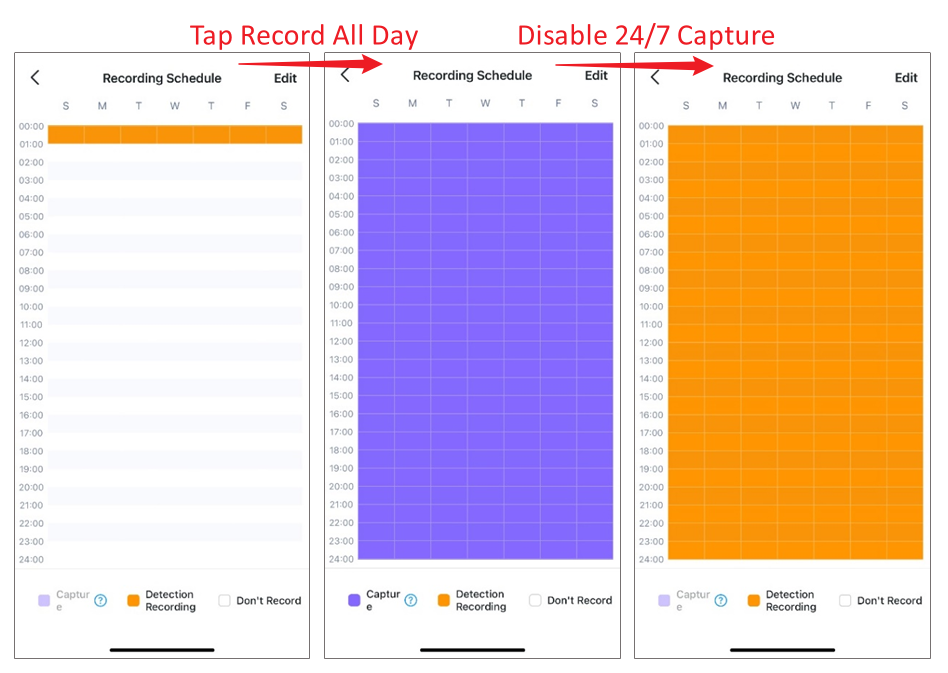
When you choose Use Existing Schedule, the camera will record according to your existing detection schedule and capture snapshots during those hours.
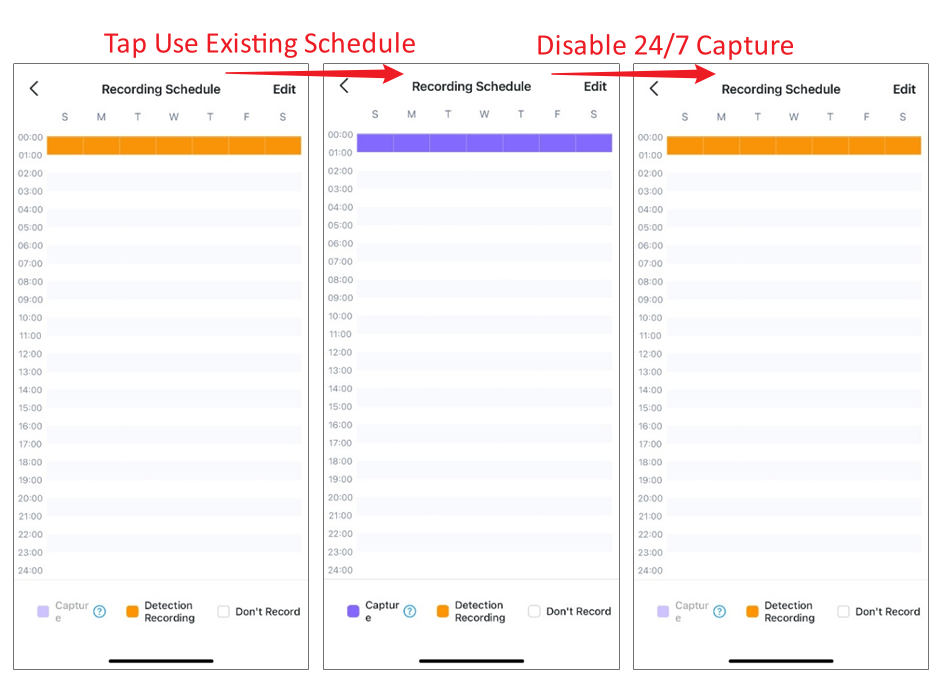
No matter which option is chosen, if you manually turn off the 24/7 Capture function or the camera automatically turns it off, the 24/7 Capture recording schedule will revert to the Detection Recording schedule.
Get to know more details of each function and configuration, please go to the Download Centerto download the manual of your product.
Buscando mas
¿Es útil esta pregunta frecuente?
Sus comentarios nos ayudan a mejorar este sitio.


TP-Link Community
Still need help? Search for answers, ask questions, and get help from TP-Link experts and other users around the world.