
How to Log In to the TP-Link Powerline Web Interface at tplinkplc.net
This page covers how to complete the TP-Link Powerline login at tplinkplc.net, including how to connect your device, handle browser security warnings, and set or enter your administrator password. The guide walks through the process in four steps — from connecting your device to signing in. The web management page does not require Internet access. It only requires a connection to the Powerline Extender.
Key Takeaways
- To access the TP-Link Powerline web management page, connect a device to the Powerline Extender wired or wirelessly, then open a browser and navigate to https://tplinkplc.net.
- Both wired and wireless connections are supported. For changing wireless settings or performing a firmware update, a wired connection is recommended.
- If your browser displays a "Privacy Error" warning at tplinkplc.net, this is normal. Click Advanced and select Proceed to tplinkplc.net to continue. Your connection remains secure.
- When logging in for the first time, you will be prompted to set a secure administrator password. For some models, the default username and password are both "admin."
- The tpPLC utility can also be used to open the web management page. Hover over the Powerline Extender in the utility and click the Internet icon that appears.
Before You Begin
- One device that supports Windows, Mac OS, Android OS, and iOS, and can open Web browsers, such as a phone, computer, or iPad.
- Power on the TP-Link Powerline Extender and wait for it to reboot completely.
How to Log In to the TP-Link Powerline Web Interface
The web-based management page is built on an internal web server and does not require internet access. However, it requires that your device be connected to the TP-Link Powerline Extender wired or wirelessly.
Note: Older web browsers may cause compatibility issues with the Powerline Extender's management page, including login failures or missing features. For changing wireless settings or performing a firmware update, it is recommended to use a wired connection.
Step 1: Connect Your Device to the TP-Link Powerline Extender
Method 1: Wired
Connect the computer’s Ethernet port to the port on the Powerline Extender via an Ethernet cable.
Method 2: Wireless
Ensure the wireless device connects to the TP-Link Powerline Extender’s Wi-Fi network.
If you changed the Wi-Fi settings but forgot the details, reset the Powerline Extender, and then use the default Wi-Fi name and password on its label.
Step 2: Access the Web Management Page
Launch a web browser. At the top of the window, in the address bar, type https://tplinkplc.net, then press Enter.
Firefox, Chrome, and Edge are the recommended browsers for accessing the Powerline Extender's web management page.

If you have downloaded the tpPLC utility on a computer to manage the Powerline devices, you can also choose to open the web management page via the tpPLC utility.
Open the utility, move your mouse over your Powerline Wi-Fi Extender, and click the internet icon that appears beside it.
Step 3: Allow Access to the Web Management Page
If your browser displays a “Privacy Error” warning about an insecure connection, click Advanced and select Proceed to tplinkplc.net (unsafe) to continue; if this warning doesn't appear, skip directly to Step 4.
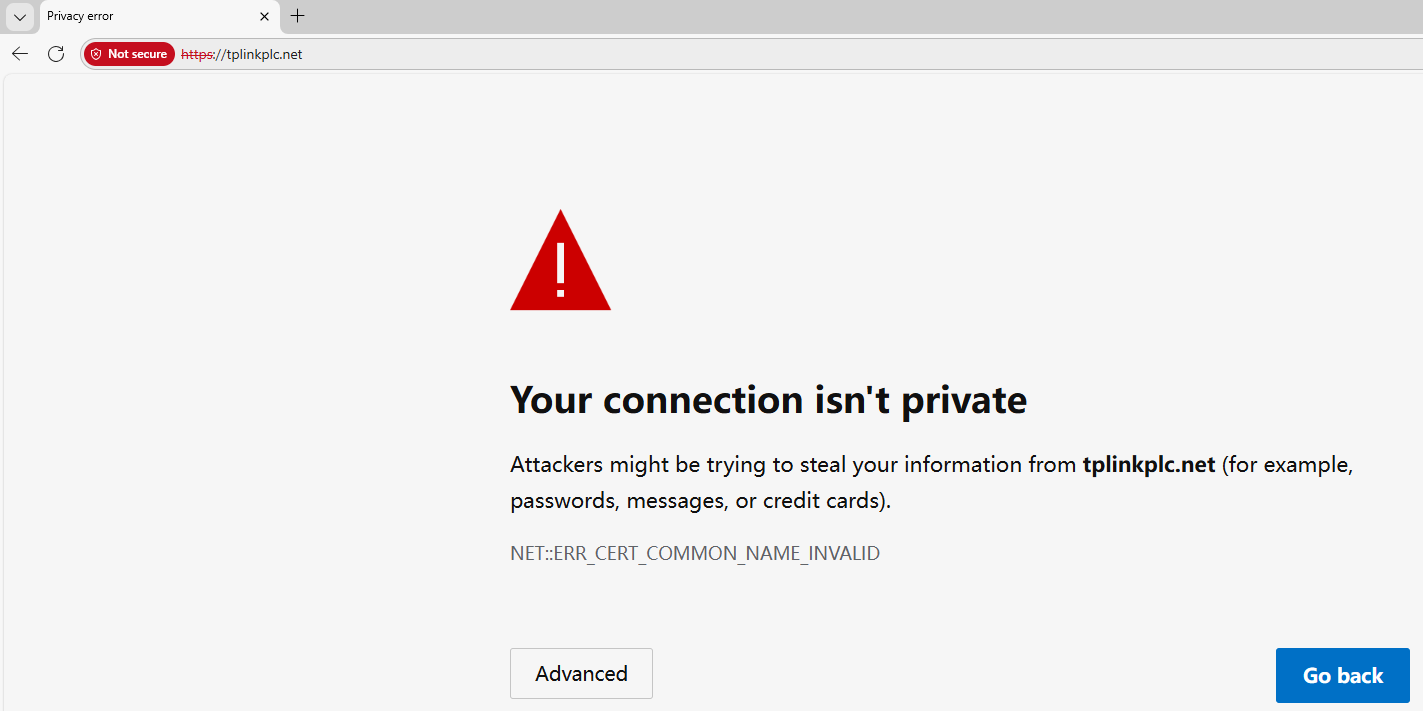
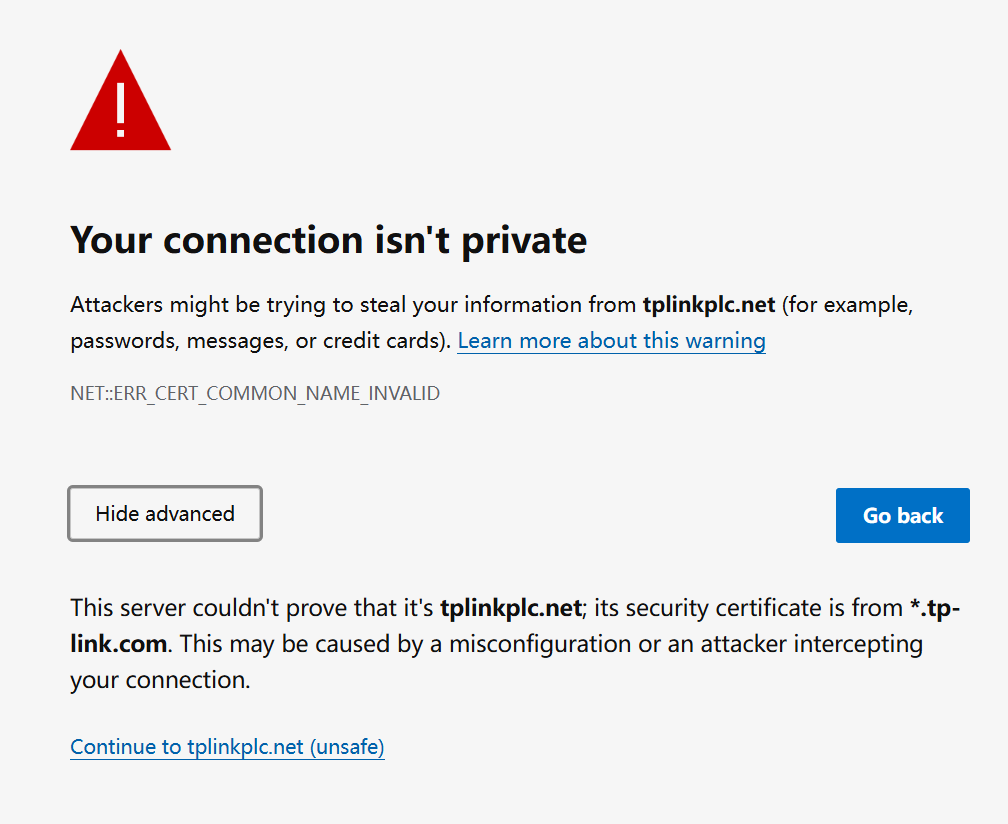
This warning appears because tplinkplc.net uses a self-signed certificate rather than one issued by a trusted authority. This is normal, and your connection remains secure.
For details, see: Why TP-Link HTTPS web interface is detected as unsecure by some web browsers?
Step 4: Set or Enter Your Password to Sign In
The first time you access the management page, you will be prompted to set a secure administrator password. For some models, the default username and password are both admin.
If you've previously managed the device via the web interface or tpPLC utility, enter your existing username and password.
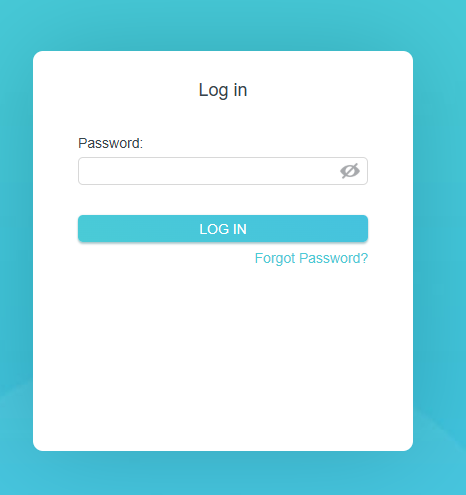
If you can't access the web management page and see errors like "no internet" or "the website can't be reached", see Why can't I log in to the web management utility of the TP-Link device?
Citește despre:
A fost util acest FAQ?
Părerea ta ne ajută să îmbunătățim acest site.


TP-Link Community
Still need help? Search for answers, ask questions, and get help from TP-Link experts and other users around the world.