
How to Log In to Your TP-Link Access Point at tplinkap.net
This guide covers how to access the TP-Link Access Point web management page via tplinkap.net. It covers both wired and wireless connection methods and applies to first-time setup and returning users.
Key Takeaways
- The TP-Link Access Point web management page is accessed by visiting tplinkap.net in a browser while connected to the Access Point. No Internet connection is required.
- You can connect to the Access Point either via Ethernet cable (wired) or by joining its Wi-Fi network (wireless) before logging in.
- For first-time access, use the default Wi-Fi name and password printed on the device label or create a new one.
- If your browser shows a Privacy Error warning when visiting tplinkap.net, click Advanced and select Proceed to tplinkap.net (unsafe). This is expected behavior, and your connection remains secure.
- When logging in for the first time, you will be prompted to set an administrator password. On some older models, the default username and password are both "admin."
This article provides step-by-step instructions for logging in to the TP-Link Access Point's web-based management interface effectively.
What You'll Need Before You Log In
- One device that supports Windows, macOS, Android, and iOS, and can run web browsers, such as a phone, computer, or iPad.
- Power on the TP-Link Access Point and wait for it to reboot completely.
How to Log In to Your TP-Link Access Point
The web-based management page is a built-in internal web server that does not require internet access. However, it requires that your device be connected to the TP-Link Access Point wired or wirelessly.
Note: Older web browsers may have compatibility issues with the Access Point’s management page, such as login failures or missing features. For changing wireless settings or performing firmware updates, it is recommended to use a wired connection.
Step 1. Connect your device to the TP-Link Access Point
Method 1: Wired
Connect the computer’s Ethernet port to the Access Point's Ethernet port with an Ethernet cable.
Method 2: Wireless
Ensure the wireless device connects to the TP-Link Access Point's Wi-Fi network. For first-time access, use the default Wi-Fi name and password on its label.
Step 2. Access the web management page
It's recommended to use Firefox, Chrome, and Edge to access the web management page of the Access Point.
Launch a web browser. In the address bar at the top of the window, type https://tplinkap.net, then press Enter.

Step 3 (Optional). Allow access to the web management page
If your browser displays a Privacy Error warning about an insecure connection, click Advanced and select Proceed to tplinkap.net (unsafe) to continue; if this warning doesn't appear, skip directly to Step 4.
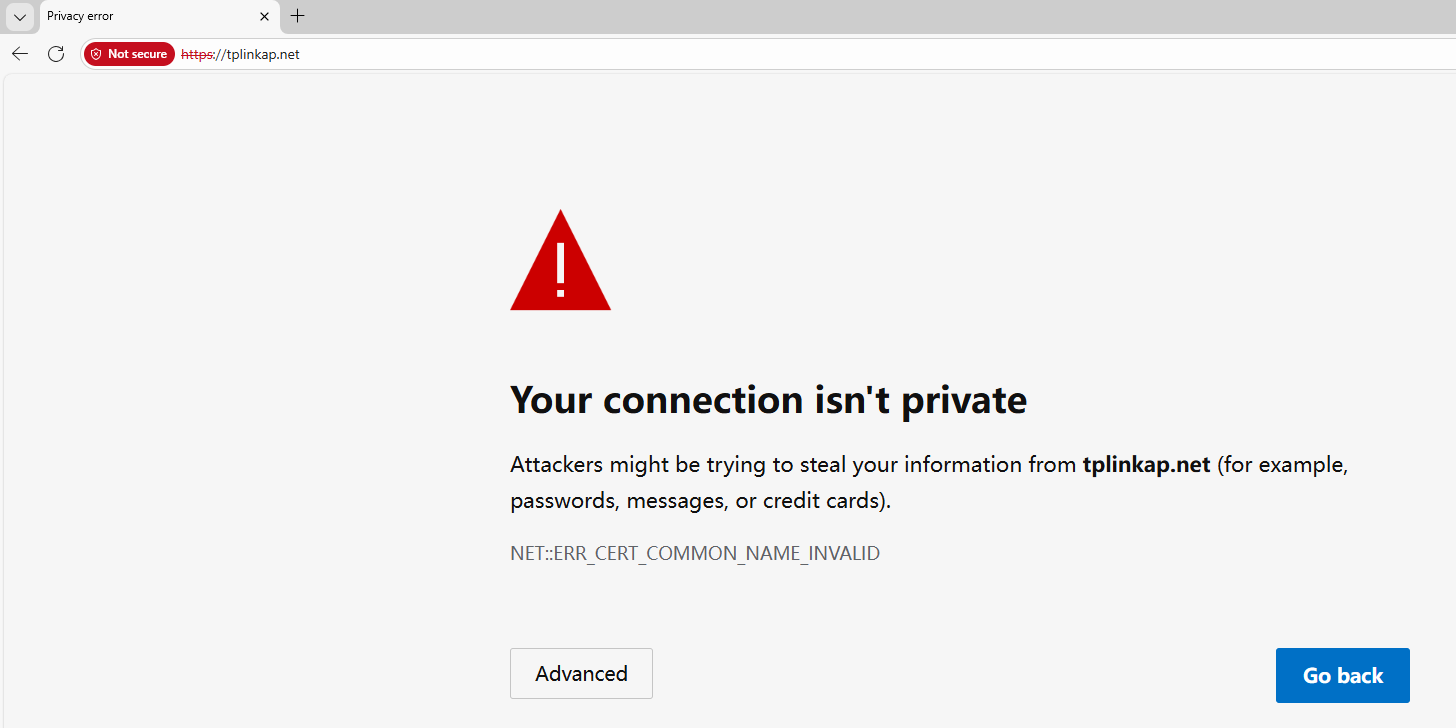
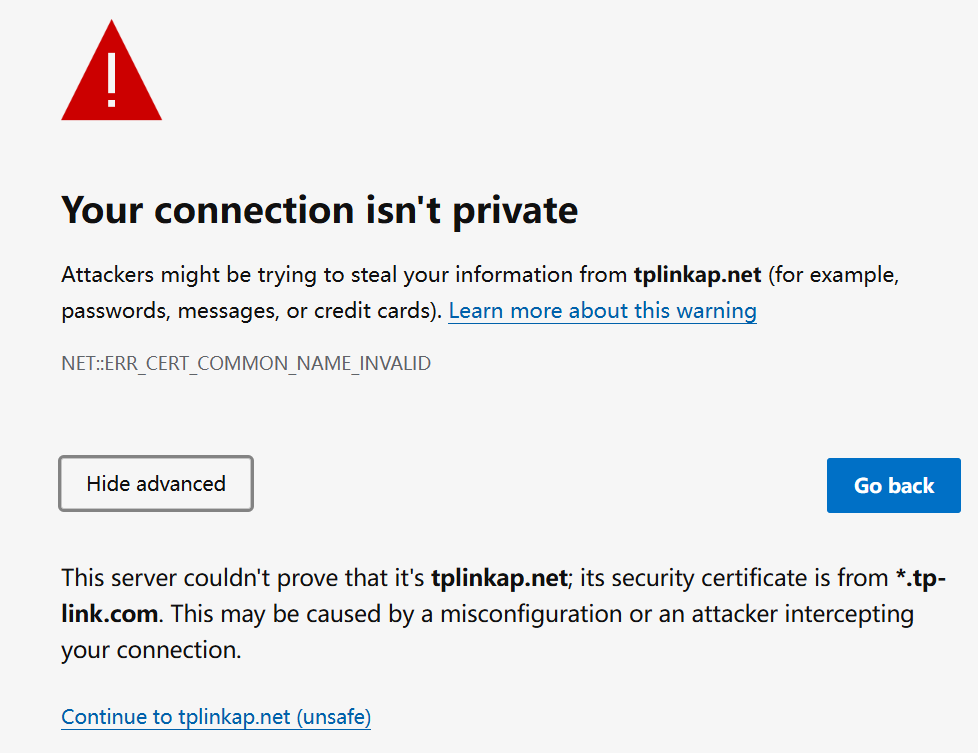
This warning appears because tplinkap.net uses a self-signed certificate — this is normal, and your connection remains secure.
For details, see: Why is the TP-Link HTTPS web interface is detected as unsecure by some web browsers?
Step 4. Set / Enter password to sign in
First-time login
When first accessing the system, set a secure administrator password. For some models, the default username and password are both admin.
Returning users
If you've previously managed the device via the web interface or Tether app, enter your existing username and password. However, once the access point has been bound to the TP-Link ID you registered before, sign in with the TP-Link account information.
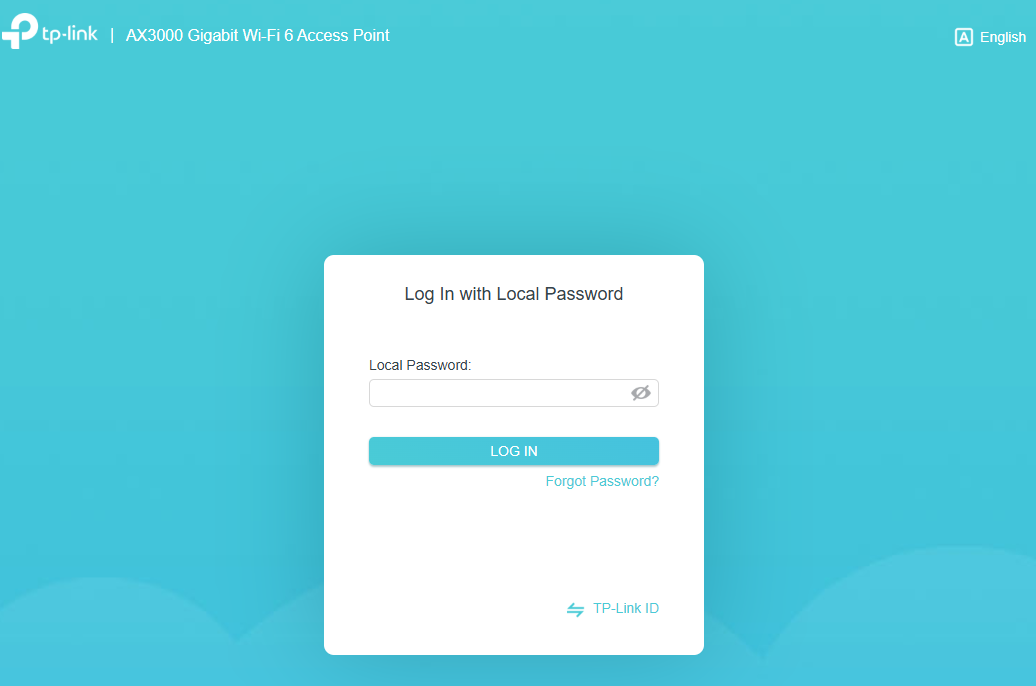
If you see errors like 'no internet' or 'this site can't be reached, see what should I do if I fail to login web interface of TP-Link Wireless Access Point.
Looking For More
Is this faq useful?
Your feedback helps improve this site.


TP-Link Community
Still need help? Search for answers, ask questions, and get help from TP-Link experts and other users around the world.