
Fix Your Kasa Device Offline Issues
 200164
There are some circumstances in which Kasa smart devices do not work stably or lose connection from time to time. This could be due to the network environment or other reasons. This guide covers quick fixes like rebooting and checking signal strength, as well as deeper router settings that are known to interfere with Kasa smart devices. You will need the Kasa app handy to check Wi-Fi signal strength as part of the process.
Key Takeaways
- These troubleshooting steps apply to all Kasa Smart devices that keep going offline or dropping connection, including smart plugs, cameras, and lights.
- A weak Wi-Fi signal (below -70 dBm) is a common cause. The fix is to relocate the Kasa device or router to improve signal strength.
- Rebooting the router and the Kasa device, and updating firmware, are standard first steps.
- Certain router settings, such as Band Steering and Smart Connect, are known to conflict with Kasa devices and may need to be turned off.
- If the issue is specific to your router, testing the device on a different 2.4 GHz network can help confirm it.
Common Causes of Kasa Devices Going Offline
The most common causes for Kasa devices going offline include a weak Wi-Fi signal, a router that needs a reboot, outdated firmware on the device or the Kasa app, and advanced router settings that are not compatible with Kasa devices. Working through the steps below covers all of these causes in order.
Step 1: Reboot the Router and the Kasa Device
Start by rebooting your main router and the Kasa device. Once both have restarted, check whether the Kasa device reconnects. This resolves many temporary offline issues caused by network interruptions.
Step 2: Check the Wi-Fi Signal Strength
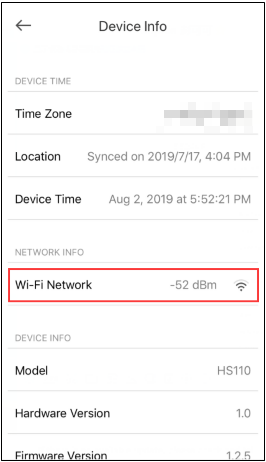
A weak signal is one of the most common reasons a Kasa device keeps going offline. Use the Kasa app to check the Received Signal Strength Indicator (RSSI) for the device.
In the Kasa app home page, tap the device card to enter the status page, then tap the settings icon in the top right to enter Device Settings > Device Info. Tap the Wi-Fi icon to view the RSSI value.
Signal strength ratings are as follows:
- Strong: more than -50 dBm
- Good to Average: between -70 dBm and -50 dBm
- Poor: less than -70 dBm
Note: If RSSI is below -70 dBm, the signal is too weak, and the device may disconnect. Relocate the Kasa device or the router to get a stronger signal.
Step 3: Update the Kasa Device Firmware
Outdated firmware can cause connection instability. If your Kasa camera keeps going offline, start by checking for a firmware update in the Kasa app. Navigate to the device settings and look for a firmware update option.
Step 4: Update the Kasa App
Make sure the Kasa app itself is up to date. Check for the latest version in the App Store or Google Play and install any available updates.
Step 5: Turn Off Advanced Router Wi-Fi Settings
Certain router features are known to conflict with Kasa devices. If your Kasa light or Kasa smart plug keeps going offline, check whether any of the following are enabled on your router and turn them off:
- Band Steering (also called Smart Connect or Whole-Home Wi-Fi)
- Wi-Fi Optimizing
- Channel optimization
Refer to your router's documentation for instructions on disabling these settings.
Step 6: Test on a Different Wi-Fi Network (Optional)
To find out whether the issue is specific to your router, try connecting the Kasa device to a different router's 2.4 GHz Wi-Fi network or a mobile hotspot. If the device stays connected on a different network, the issue is likely related to your main router's settings.
If None of These Steps Resolve the Issue
If the Kasa device is still going offline after working through all steps above, contact TP-Link technical support. To help the support team investigate, have the following information ready:
- LED status on the device when it is offline (for example: red, flashing green, or solid green on a Kasa plug)
- MAC address of the device
- TP-Link ID email address
- Whether the Kasa device is accessible on the local network when the issue occurs (test by connecting your phone to home Wi-Fi at the time of the problem and checking if the device responds in the Kasa app)
- Model number of your Wi-Fi router and your network setup (for example: ISP modem > Router > Kasa device)
- How often the issue occurs and what resolves it (such as rebooting the smart plug or rebooting the router)
Is this faq useful?
Your feedback helps improve this site.

TP-Link Community
Still need help? Search for answers, ask questions, and get help from TP-Link experts and other users around the world.