
How to Log in to Your TP-Link 5G/4G Router Web Management Page
This guide walks you through logging into your TP-Link 5G/4G router’s web management page. No internet connection is needed during the process, as the web interface runs locally on the 5G/4G router.
Key Takeaways
- Connect your phone or computer to the router’s Wi-Fi network (or use an Ethernet cable) — no internet needed.
- For Multi-Mode Models in Wireless Router or WISP mode (e.g., TL-MR3040, TL-MR3020), use https://tplinkwifi.net; for other models, use https://tplinkmodem.net.
- “Not secure” warnings are normal — your MiFi uses a safe, self-signed certificate; click Advanced > Proceed (Chrome/Edge/Firefox) or Visit website (Safari).
- For first-time login, set an admin password for future management.
Before You Begin
Ensure you have
- A smartphone, tablet, or computer with a web browser
- Your 5G/4G router powered on and fully booted with steady LEDs
Note: Avoid outdated browsers. Use the latest Chrome, Edge, Firefox, or Safari for full compatibility.
Step-by-Step Guide
Step 1. Connect to the TP-Link 4G/5G Router
Method 1: Wired
Connect the computer’s Ethernet port to one of the LAN ports on the router via an Ethernet cable.
Method 2: Wireless
Connect your device to the TP-Link 4/5G router's Wi-Fi network. The default Wi-Fi name and password are printed on the device's rear label.
Step 2. Open the Web Management Page
Follow the steps according to your model:
Case 1: Multi-Mode Models (e.g., TL-MR3040, TL-MR3020)
When the router works in the 3G/4G Mode and WISP Mode, type in https://tplinkwifi.net. If it works in the Access Point mode, disconnect it from the upstream device first, then use https://tplinkmodem.net.
Case 2: Other Models
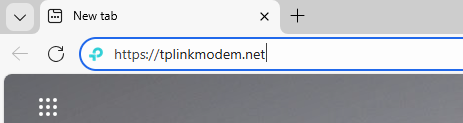
Launch a web browser. At the top of the window, in the address bar, type https://tplinkmodem.net or https://192.168.1.1/, and then press Enter.
Step 3. Handle the Privacy Warning (Normal & Safe)
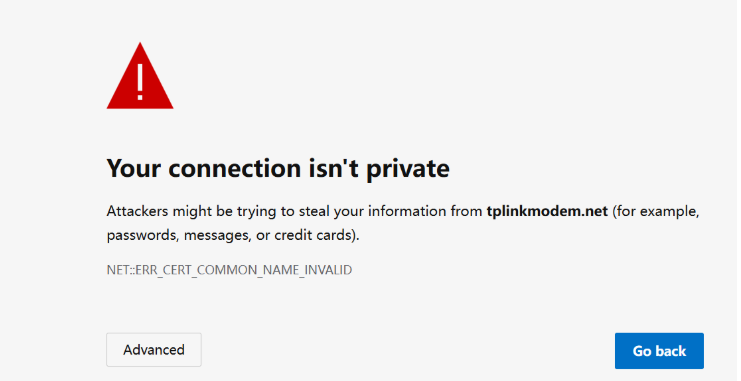
If your browser shows a "Your connection is not private” or “Privacy error” warning, don’t worry — this is normal. Skip to Step 3 if no warning appears.
The TP-Link web interface uses a secure, self-signed certificate (not issued by a public authority), and your connection is fully encrypted. For more details, see Why the TP-Link HTTPS web interface is detected as unsecure by some web browsers.
To proceed, follow the steps below for your browser:
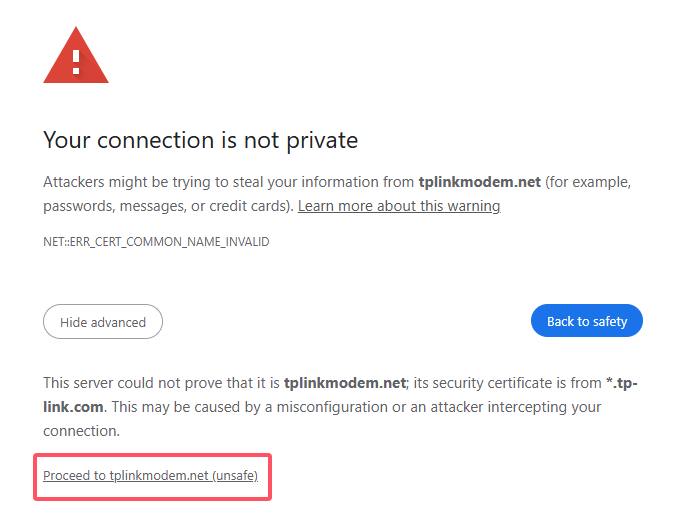
Google Chrome/Microsoft Edge/Firefox:
Click Advanced > Proceed to tplinkmodem.net or Continue to 192.168.1.1
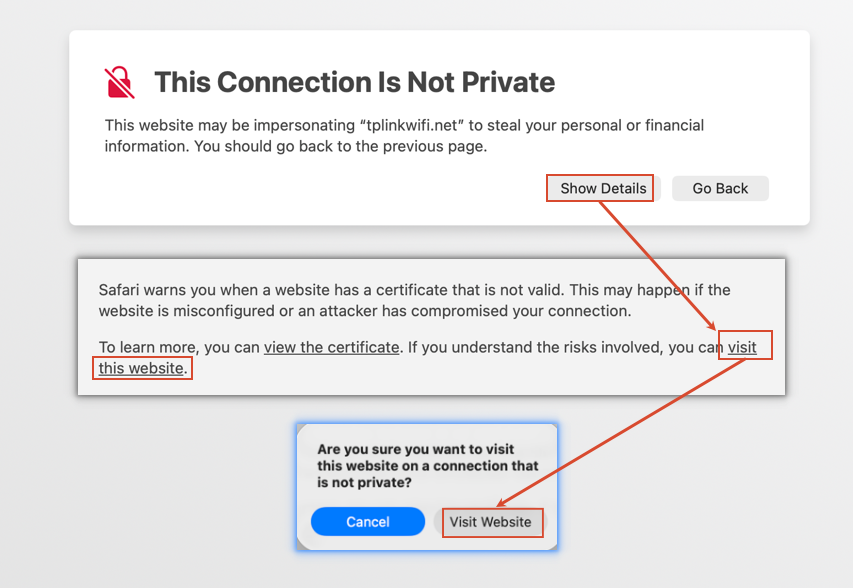
Apple Safari (Mac/iOS):
Click Show details > Visit this website > Visit website (you may be asked to type your Mac password or use Touch ID).
Step 4. Sign In with Your Password
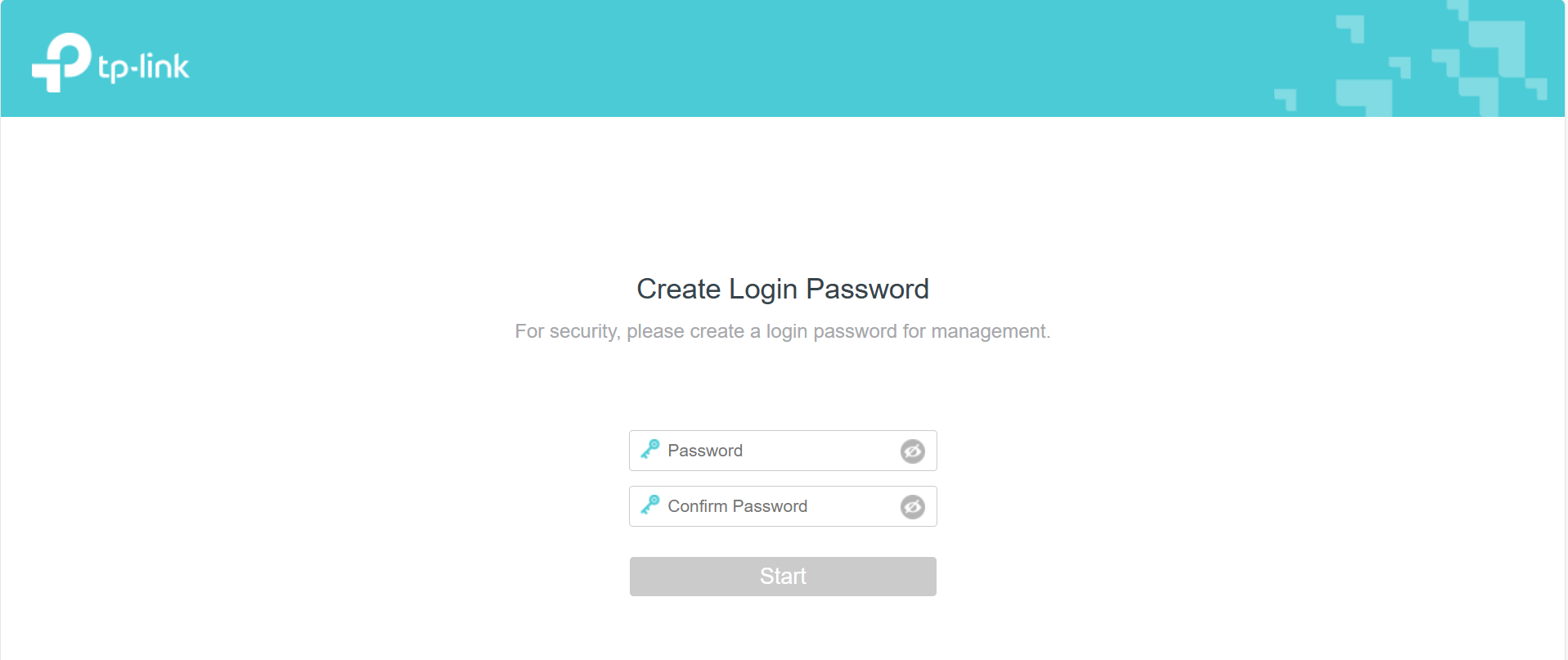
For first-time login, you may be prompted to set a new administrator password. For some models, the default username and password are both admin.
If you've managed the device via the web interface or Tether app, enter the password you set previously.
If it has been bound to the TP-Link ID you registered before, sign in with the TP-Link account information.
Note: If you can't access the web management page and see errors like "no internet" or "the website can't be reached", see How to Fix TP-Link Device Domain Name Login Issues.
Looking For More
هل تجد هذه الأسئلة مفيدة؟
مشاركتك تساعدنا في تحسين الموقع



TP-Link Community
Still need help? Search for answers, ask questions, and get help from TP-Link experts and other users around the world.