
How to Log In to the TP-Link Range Extender Web Management Page
The TP-Link range extender login page gives you access to the built-in admin interface to manage and configure your extender. You may need to access it to change wireless settings, update firmware, or complete first-time setup. No Internet connection is required — you only need a connection to the extender itself. This page walks you through connecting your device to the extender and accessing the login page via tplinkrepeater.net or 192.168.0.254.
Key Takeaways
- The TP-Link range extender web management page can be accessed by entering tplinkrepeater.net or 192.168.0.254 in a browser. No Internet connection is required.
- Your device must be connected to the range extender, either via Ethernet or wirelessly, before the login page will load.
- For first-time access, use the default Wi-Fi name and password printed on the extender's label to connect wirelessly.
- On first login, you will be prompted to set an administrator password. On some older models, the default username and password are both "admin."
- “Your connection is private” warnings are normal — your admin login and settings remain fully secure. Simply click Advanced > Proceed to xxxx (Firefox/Chrome/Edge) or Show Details > Visit this website (Safari) to continue.
What You Need to Log In to Your TP-Link Range Extender
- One device that supports Windows, macOS, Android, and iOS, and can run web browsers, such as a phone, computer, or iPad.
- Power on the TP-Link Range Extender and wait for it to reboot completely.
How to Access the TP-Link Extender Login Page
The web-based management page is a built-in internal web server that does not require internet access. However, your device must be connected to the TP-Link range extender, wired or wirelessly.
Note: Older web browsers may have compatibility issues with the range extender’s management page, such as login failures or missing features. To change wireless settings or update the firmware, use a wired connection.
Step 1. Connect your device to the TP-Link Range Extender
Method 1: Wired
Connect your computer’s Ethernet port to the range extender's Ethernet port with an Ethernet cable.
Method 2: Wireless
Ensure the wireless device connects to the TP-Link Range Extender's Wi-Fi network.
For first-time access, use the default Wi-Fi name and password on its label. Otherwise, make sure which Wi-Fi network the Range Extender broadcasts. If the range extender shares the same Wi-Fi name as your main router, temporarily power off the main router to ensure your device connects to the extender.
Step 2. Access the web management page
We recommend using Firefox, Chrome, or Edge to access the Range Extender's web management page.
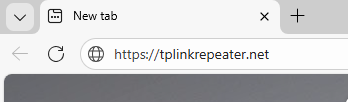
Launch a web browser. In the address bar at the top of the window, enter https://tplinkrepeater.net.
Note: If the above address doesn’t work, try the following---
- If the extender is in factory default. use http://192.168.0.254/
- If the extender is connected to a router, check the router’s online client list for the extender, and use that IP address to access.
Step 3 (Optional) Allow access to the web management page
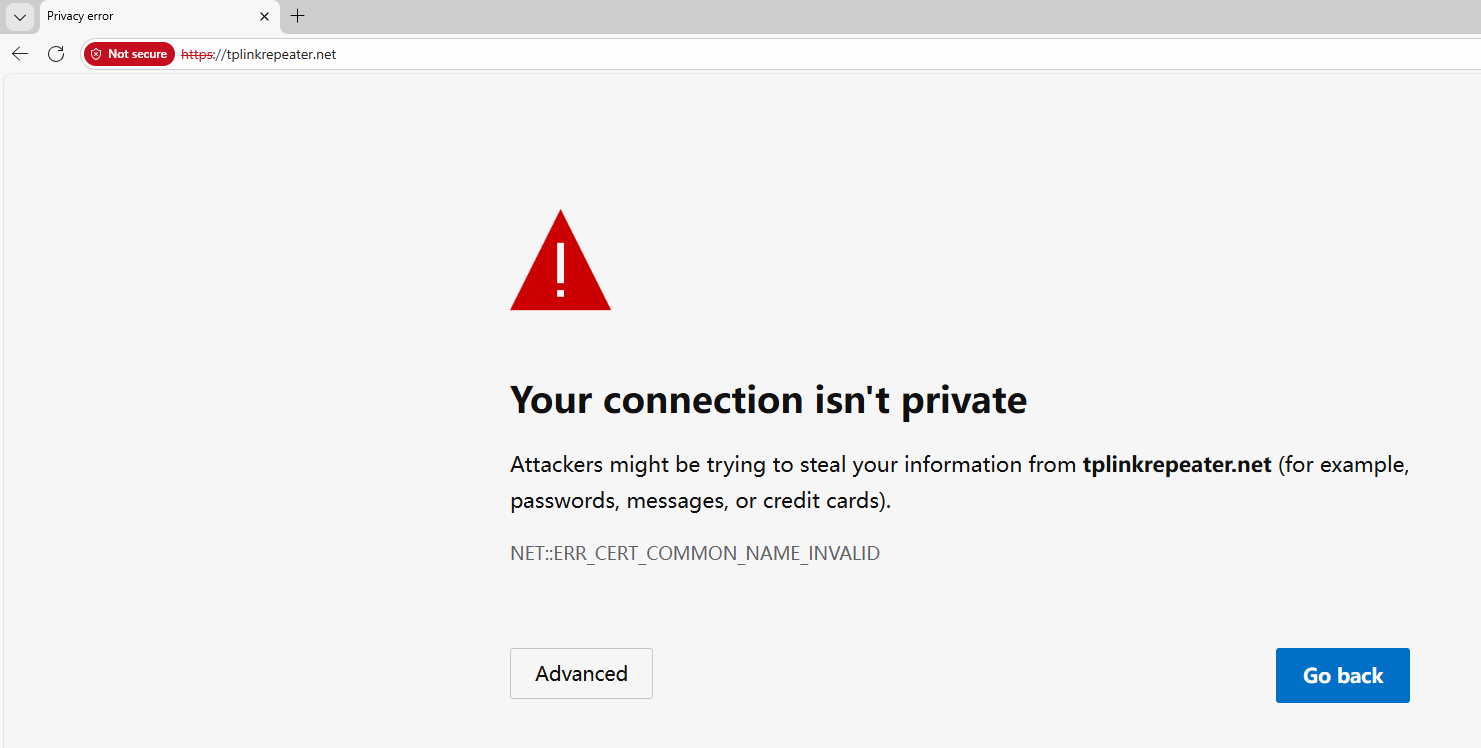
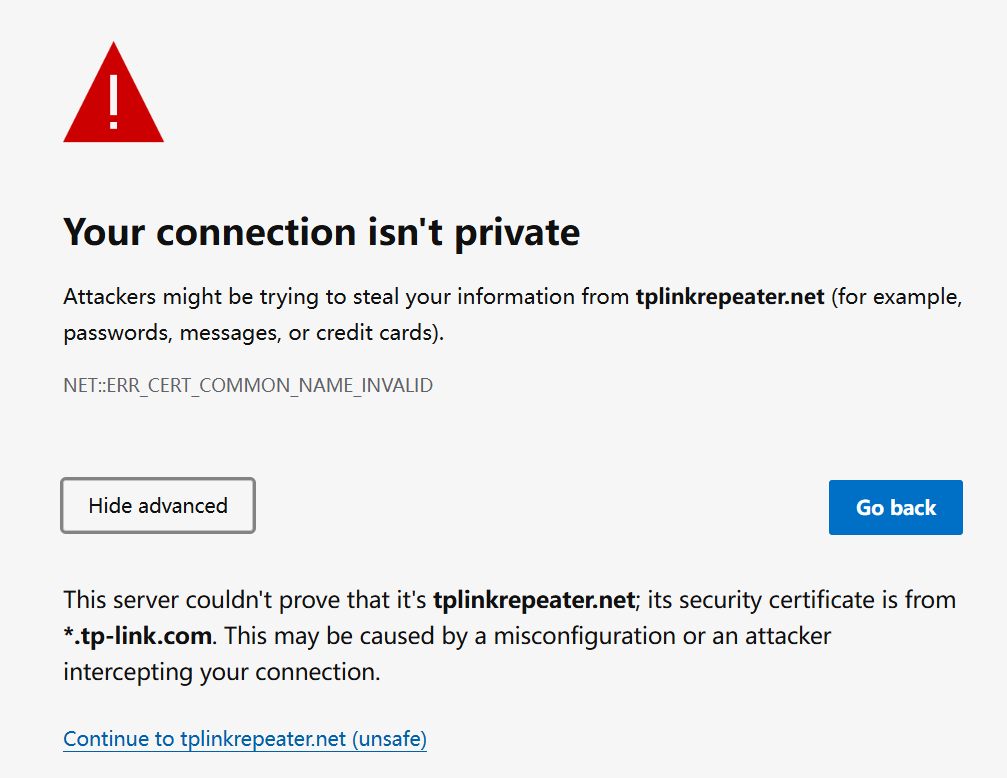
If your browser shows a "Your connection is not private” or “Privacy error” warning, don’t worry — this is normal. The TP-Link web interface uses a secure, self-signed certificate (not issued by a public authority), and your connection is fully encrypted. For more details, see Why the TP-Link HTTPS web interface is detected as unsecure by some web browsers.
To proceed, follow the steps below for your browser. (Skip to Step 4 if no warning appears.):
Google Chrome/Microsoft Edge/Firefox:
Click Advanced > Proceed to tplinkrepeater.net or Continue to 192.168.0.254
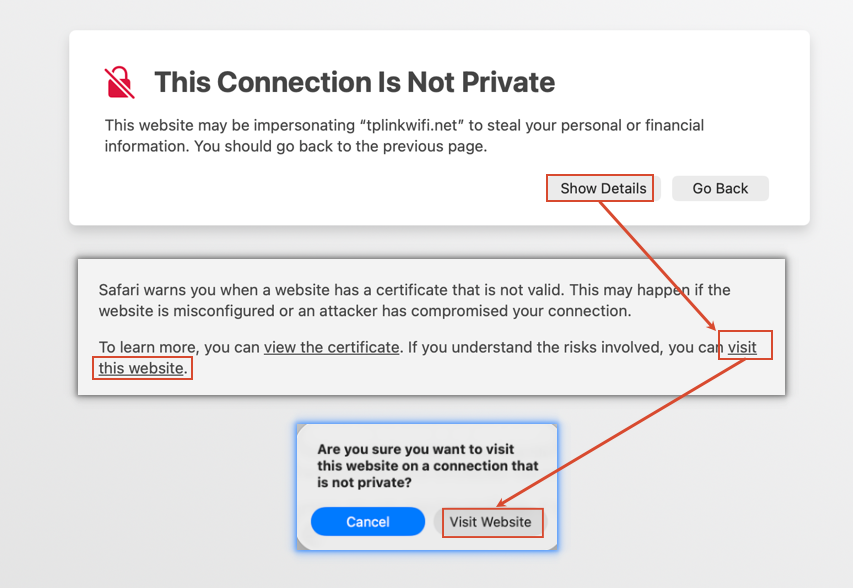
Apple Safari (Mac/iOS):
Click Show details > Visit this website > Visit website (you may be asked to type your Mac password or use Touch ID).
Step 4. Set / Enter password to sign in
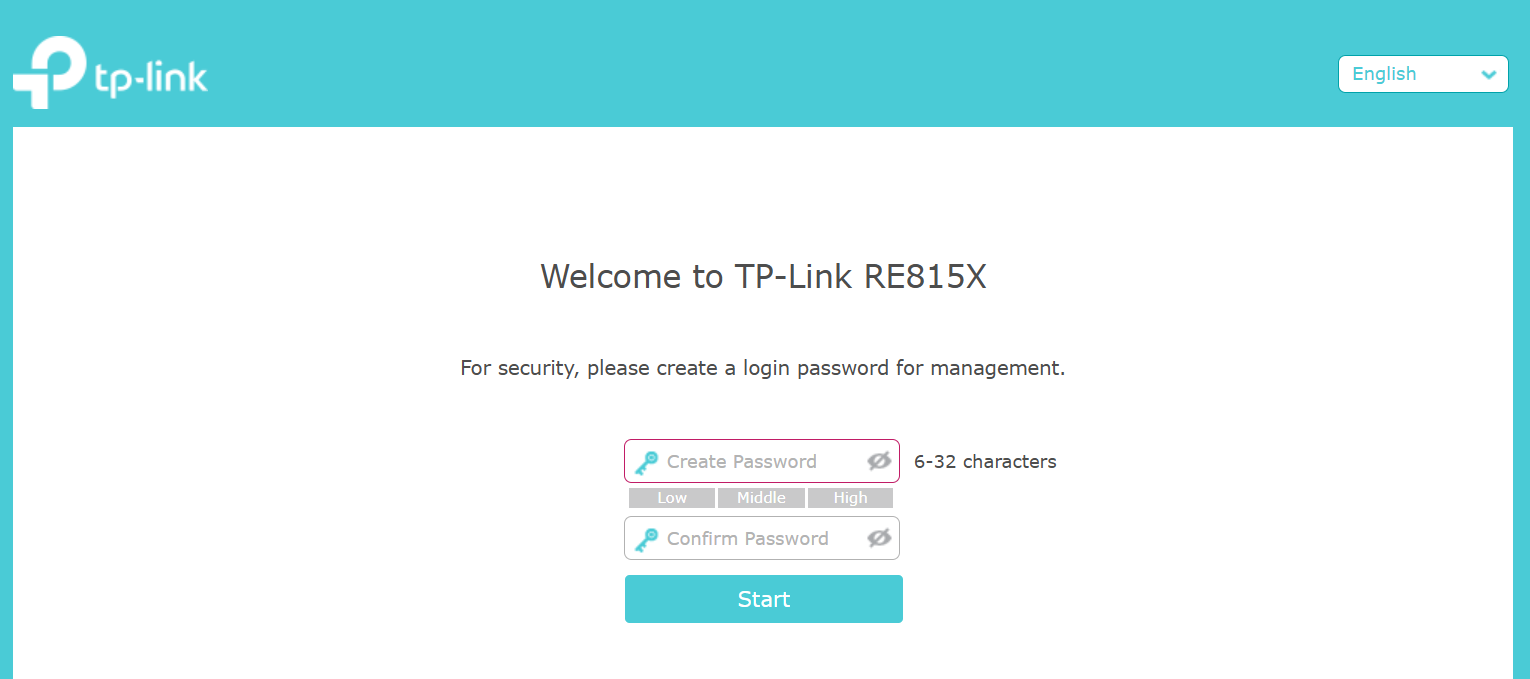
The first time you access the management page, you will be prompted to set an administrator password. For some models, the default username and password are both admin.
If you have previously managed the device through the web interface or the Tether app, enter your existing password. If the extender has been linked to a TP-Link ID, sign in with your TP-Link account credentials instead.
If you can't access the web management page and see errors like "no internet" or "the website can't be reached", see what should I do if I fails to login web interface of TP-Link Range Extender.
هل تجد هذه الأسئلة مفيدة؟
مشاركتك تساعدنا في تحسين الموقع



TP-Link Community
Still need help? Search for answers, ask questions, and get help from TP-Link experts and other users around the world.